Article Summary: This step-by-step tutorial explains how to efficiently assign booking extras and options to specific offers and room categories within Reservit Accommodation. You will learn how to utilize advanced filters to narrow down your selection and accurately attach your add-ons to the correct rate plans. Mastering this targeted assignment process allows you to customize the booking experience, ensuring customers only see relevant services and upgrades when reserving specific rooms.
The 5 key steps to assign extras to offers:
-
Access the assignment tool: Navigate to your "My rates and availability" menu, select "Manage extras," and click on the "Assign extras" tab.
-
Filter your specific options: Use the options filter to select only the exact add-ons you wish to modify, simplifying your screen display.
-
Select targeted rooms: Open the rooms dropdown, click "Uncheck all rooms" to clear the default selection, and choose only the specific accommodation categories you want to link.
-
Define the eligible rates: Open the rates dropdown, clear the default selection, and pick the exact promotional offers or regular pricing plans that will trigger these extras.
-
Apply and save your setup: Click apply to generate your customized list, check the final boxes to link your chosen extras to the desired room and rate combinations, and click "Save."
Why follow this guide? Following this precise filtering workflow prevents irrelevant or incompatible add-ons from appearing on the wrong rate plans, reducing customer confusion during checkout. By accurately assigning your extras, you save administrative troubleshooting time while maximizing targeted upselling opportunities for your property.
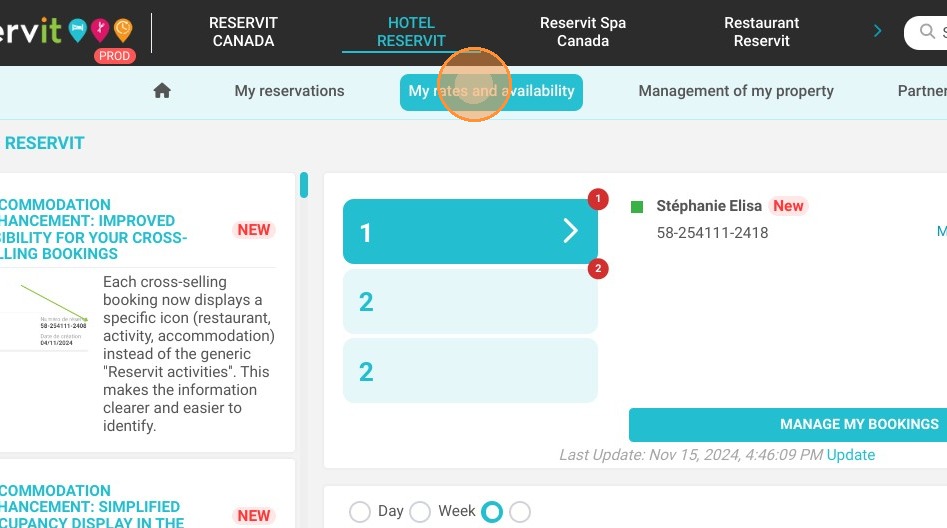
1. Click "My rates and availability"
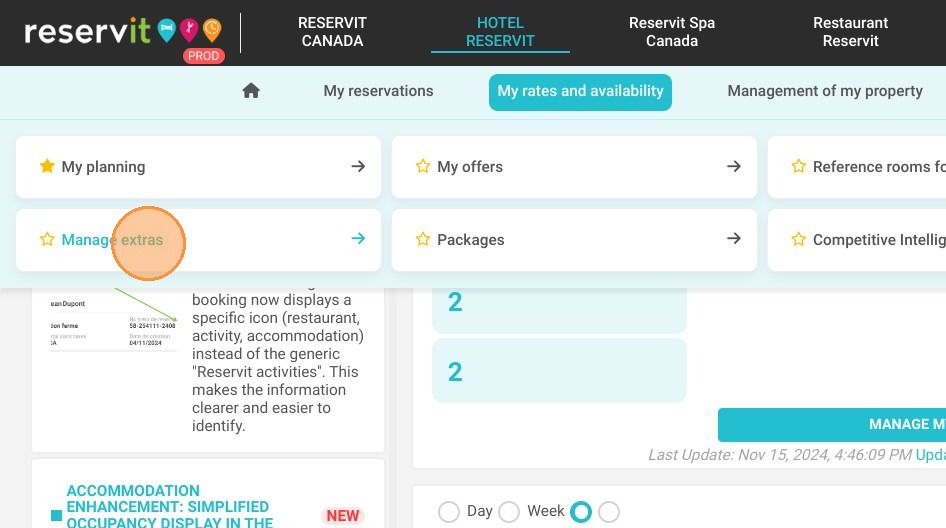
2. Click "Manage extras"
3. Click "Assign extras"
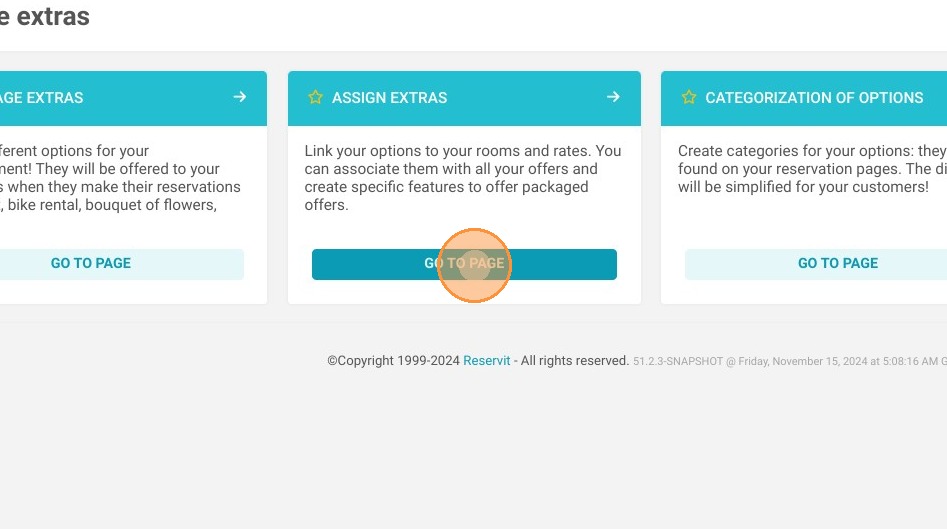
4. You will be able to choose which accommodation categories and which rates to attach your options to.
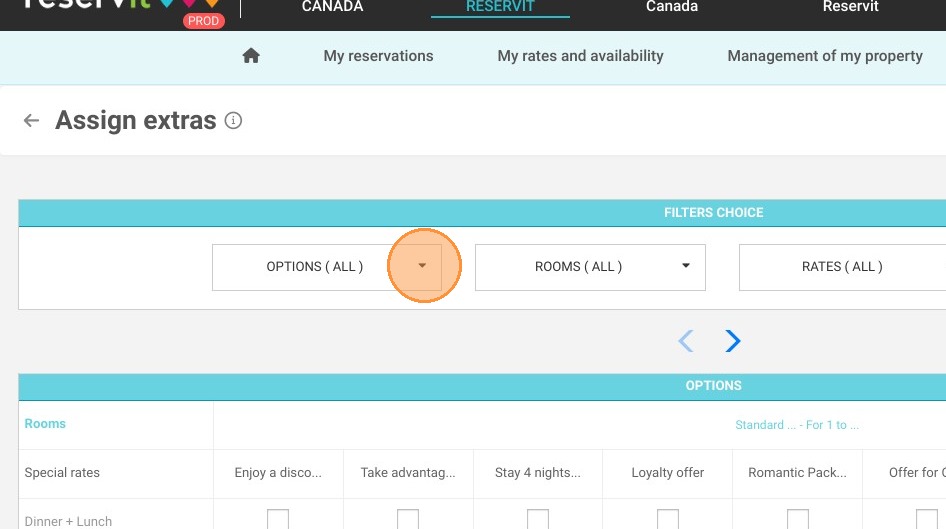
5. By default, all units are checked. If the allocation is only for certain categories or occupancies, click on "Uncheck all rooms".
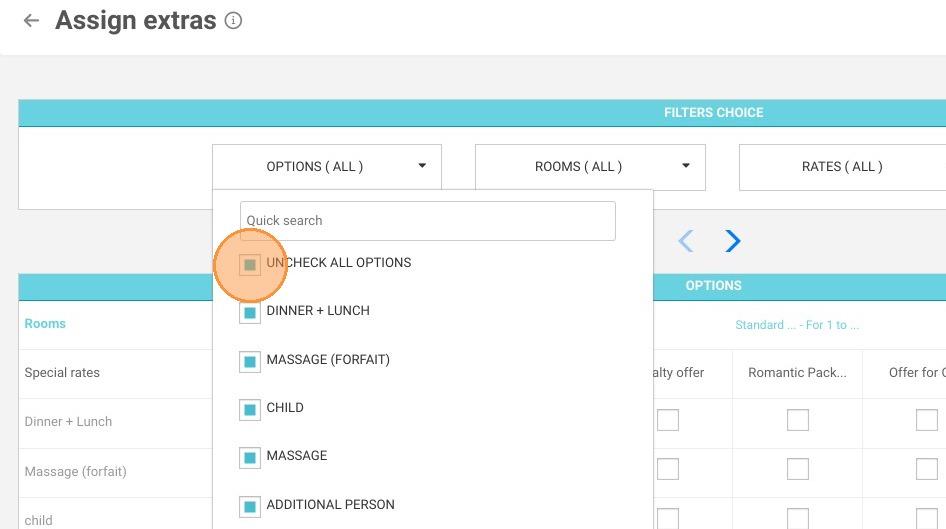
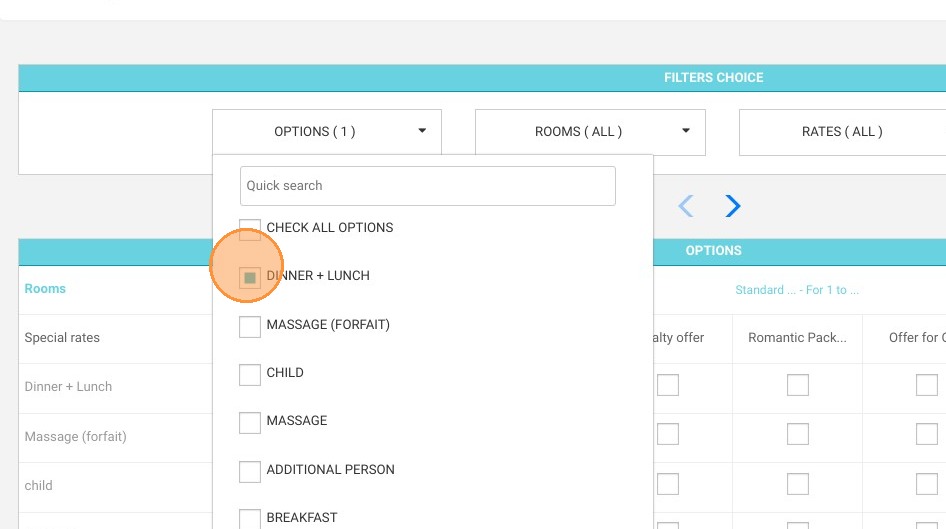
6. Select the options you want to change; this will make the display easier to read if you have many.
7. Click Rooms.
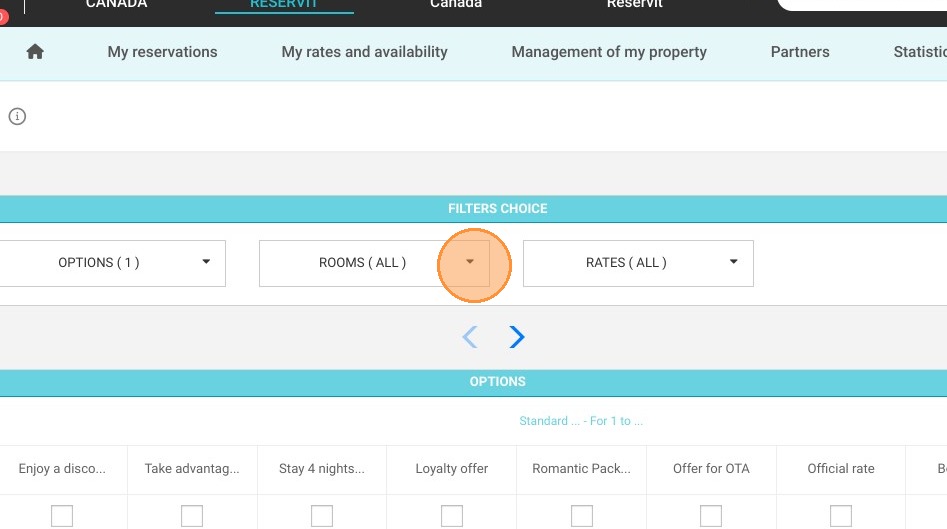
8. Click "UNCHECK ALL ROOMS"
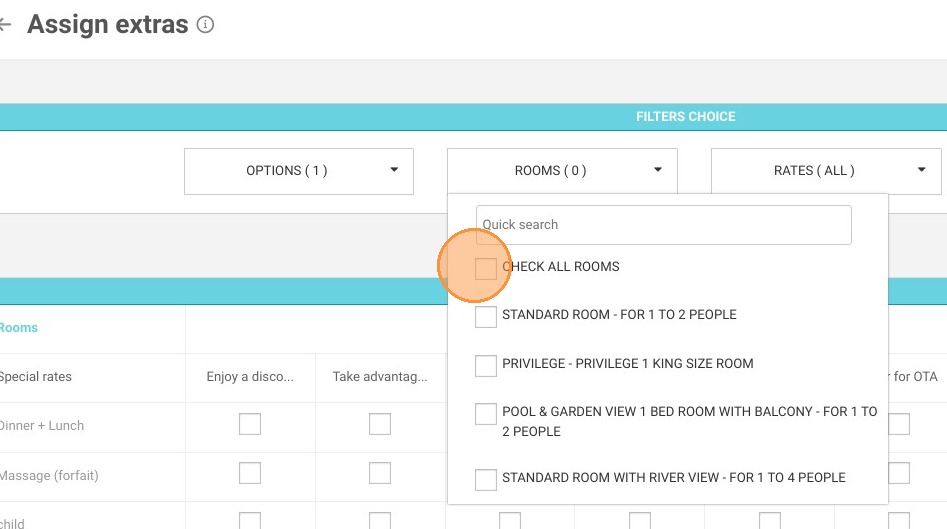
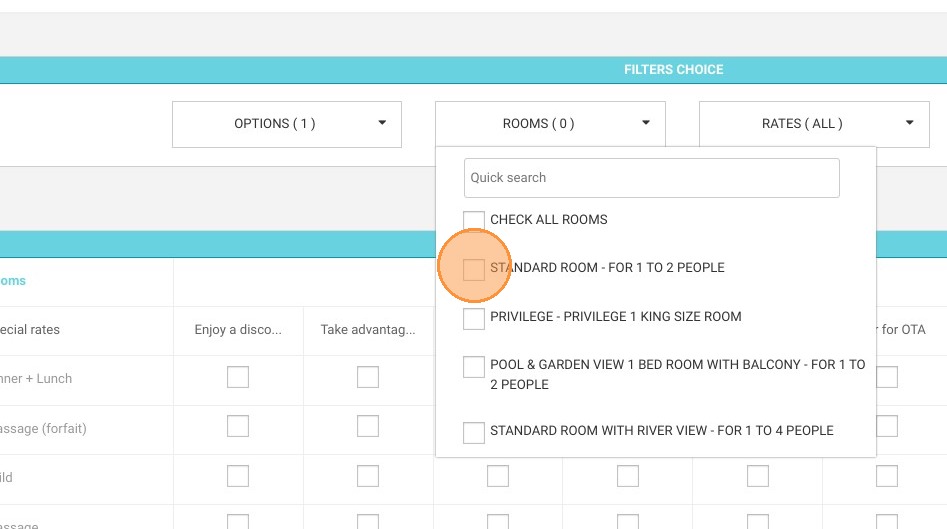
9. Choose the categories you want to adjust.
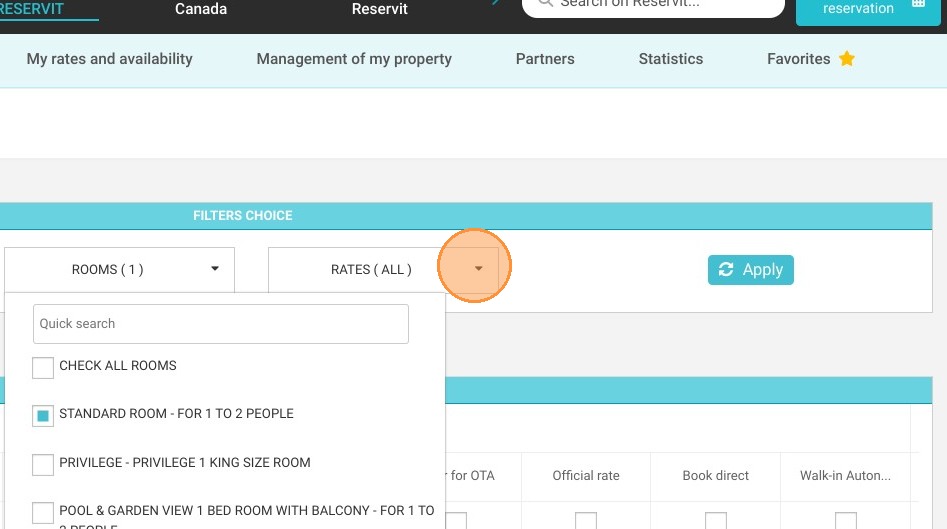
10. Click Rates.
11. Click "UNCHECK ALL RATES"
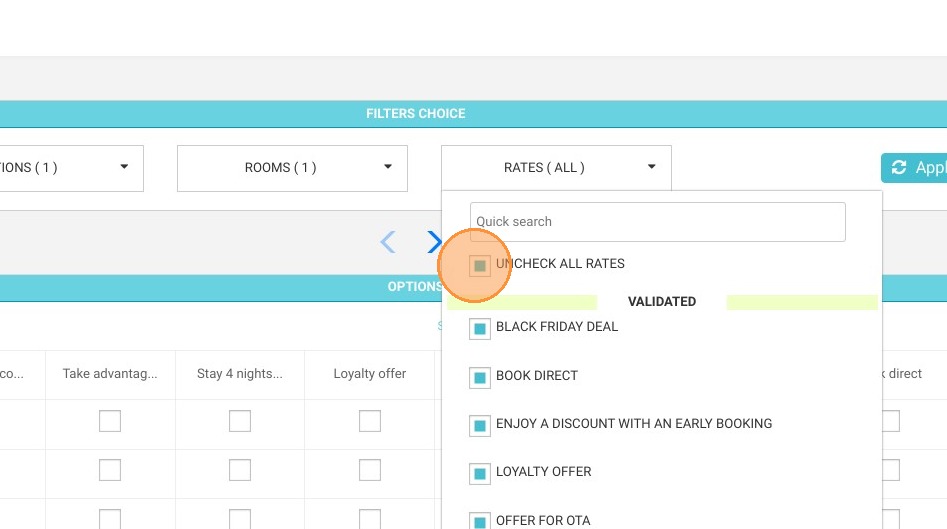
12. Choose the ones you want to link to your option, to simplify the display.
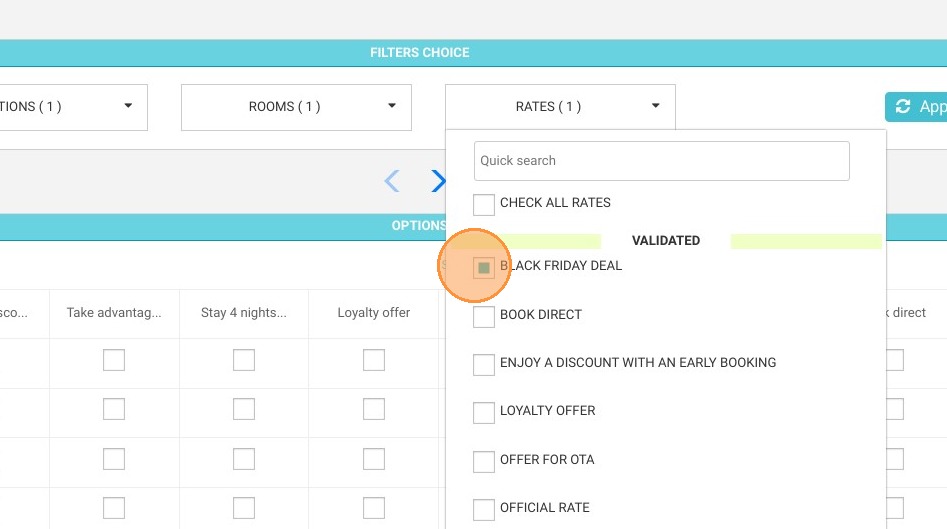
13. Once all the filters are defined, click on Apply.
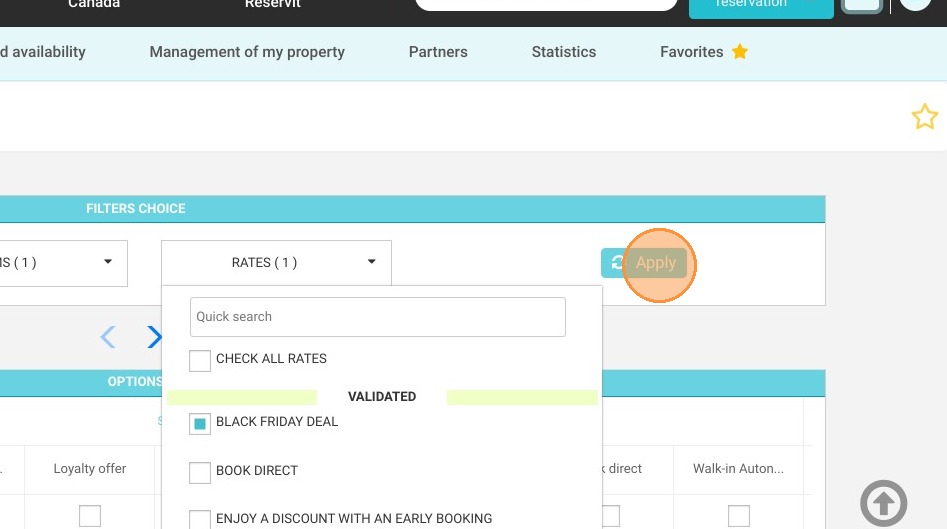
14. You will then see a list of the options, categories and rates you have selected.
You can now choose for which room you want it to appear.
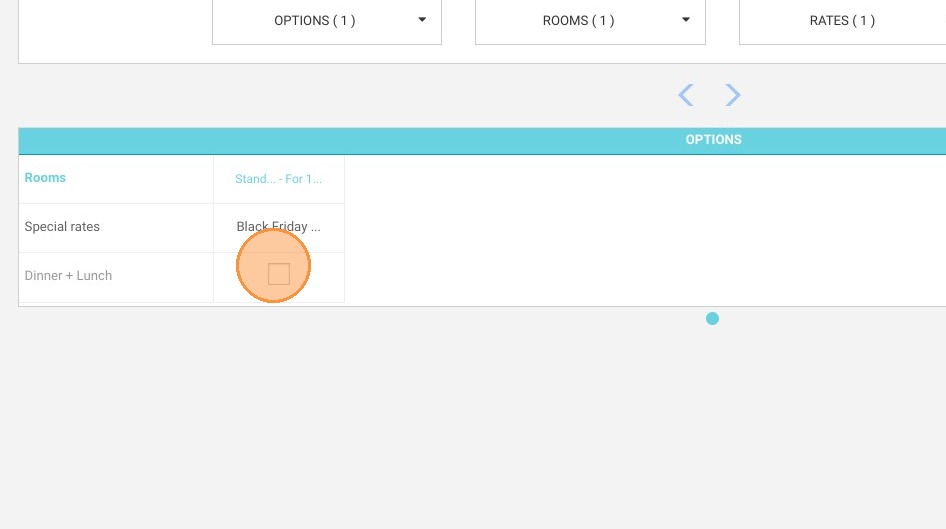
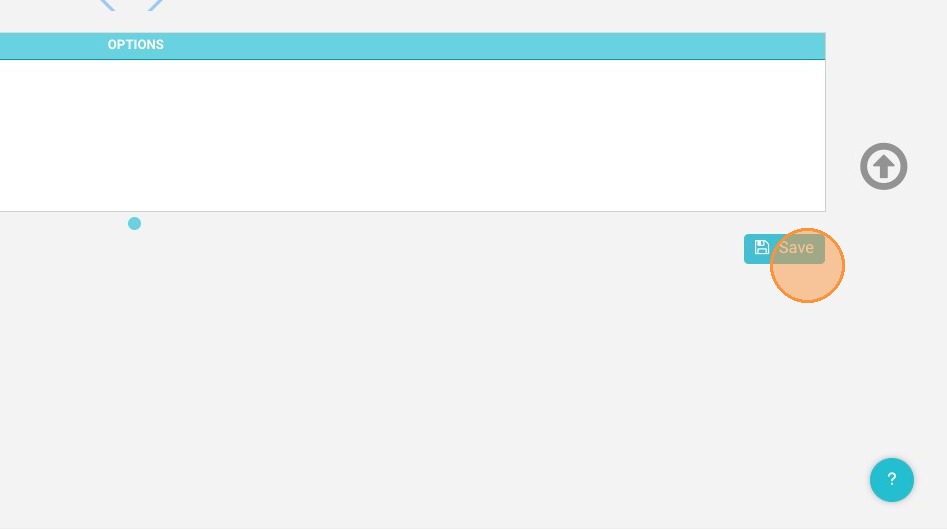
15. Click "Save"