Article Summary: This step-by-step tutorial explains how to securely create and configure extra booking options and add-ons within Reservit Accommodation. You will learn how to define customized pricing structures, apply appropriate taxes, establish per-person or per-day billing rules, and organize your services visually. Mastering this configuration allows you to easily upsell amenities, personalize the guest booking experience, and effectively boost your property's ancillary revenue.
The 5 key steps to create an extra:
-
Access option management: Navigate to the "My rates and availability" menu, select "Option Management," and click "Manage extras" to add a new service.
-
Define naming and pricing: Enter the name of your add-on in your required languages (FR/EN) and establish its pricing model (fixed, variable, included, or payable on-site).
-
Configure taxes and billing rules: Select the precise applicable taxes and determine whether the extra applies per person, per day, or acts as a mandatory addition to the reservation.
-
Categorize for display and accounting: Assign the extra to specific PMS billing categories for accurate statistics, and group them logically for a cleaner display on your booking pages.
-
Assign offers and finalize: Link the new extra to your designated rate plans, upload an attractive photo to illustrate the service, and save to push the option live.
Why follow this guide? Following this precise setup ensures your ancillary services are accurately priced, correctly taxed, and perfectly mapped to your PMS accounting codes, preventing critical billing errors down the line. By configuring visually appealing extras directly in your booking flow, you save front-desk administrative time while actively driving up your guests' average cart value.
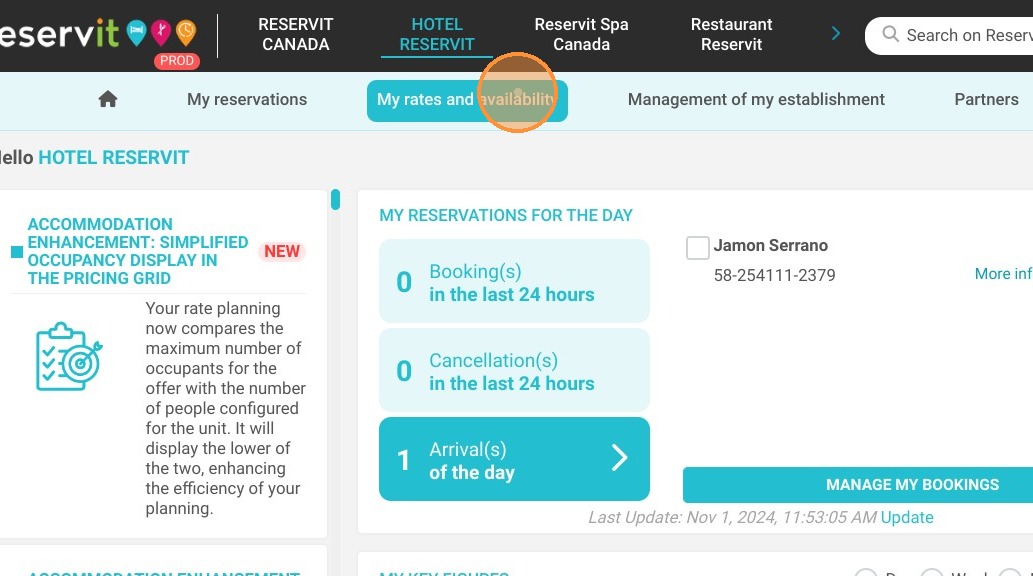
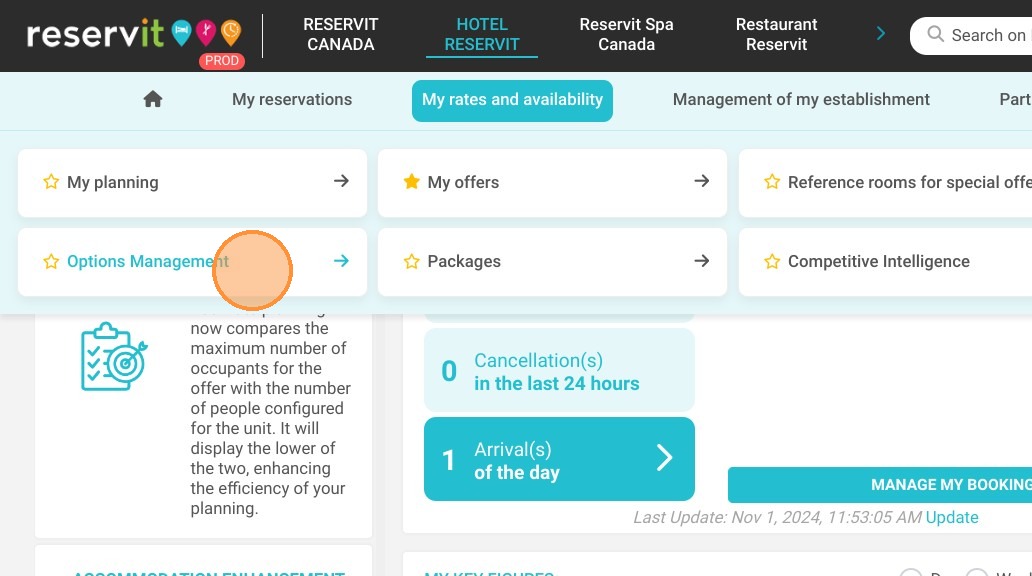
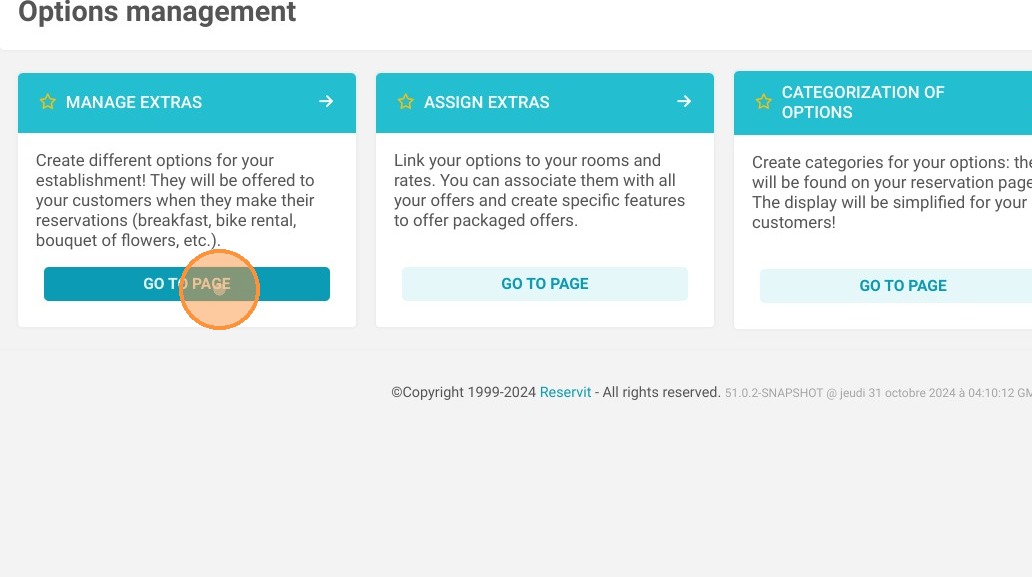
1. Click on "My rates and availability" and "Option Management" and finally on "Manage extras"
2. Click "Add"
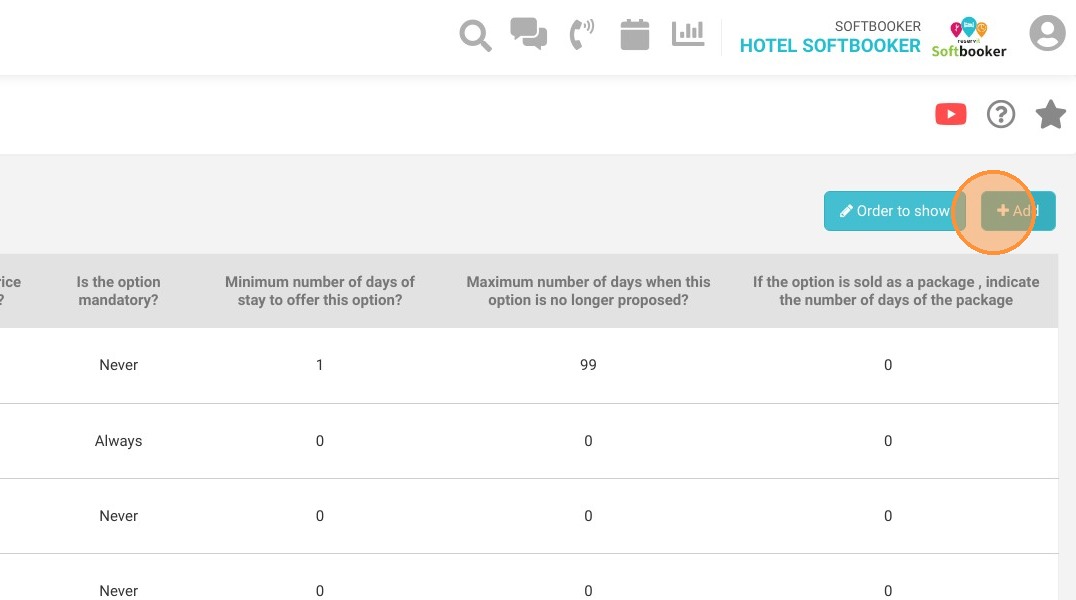
3. Enter the name of the option in French (FR) and English (EN). Other languages are not required.
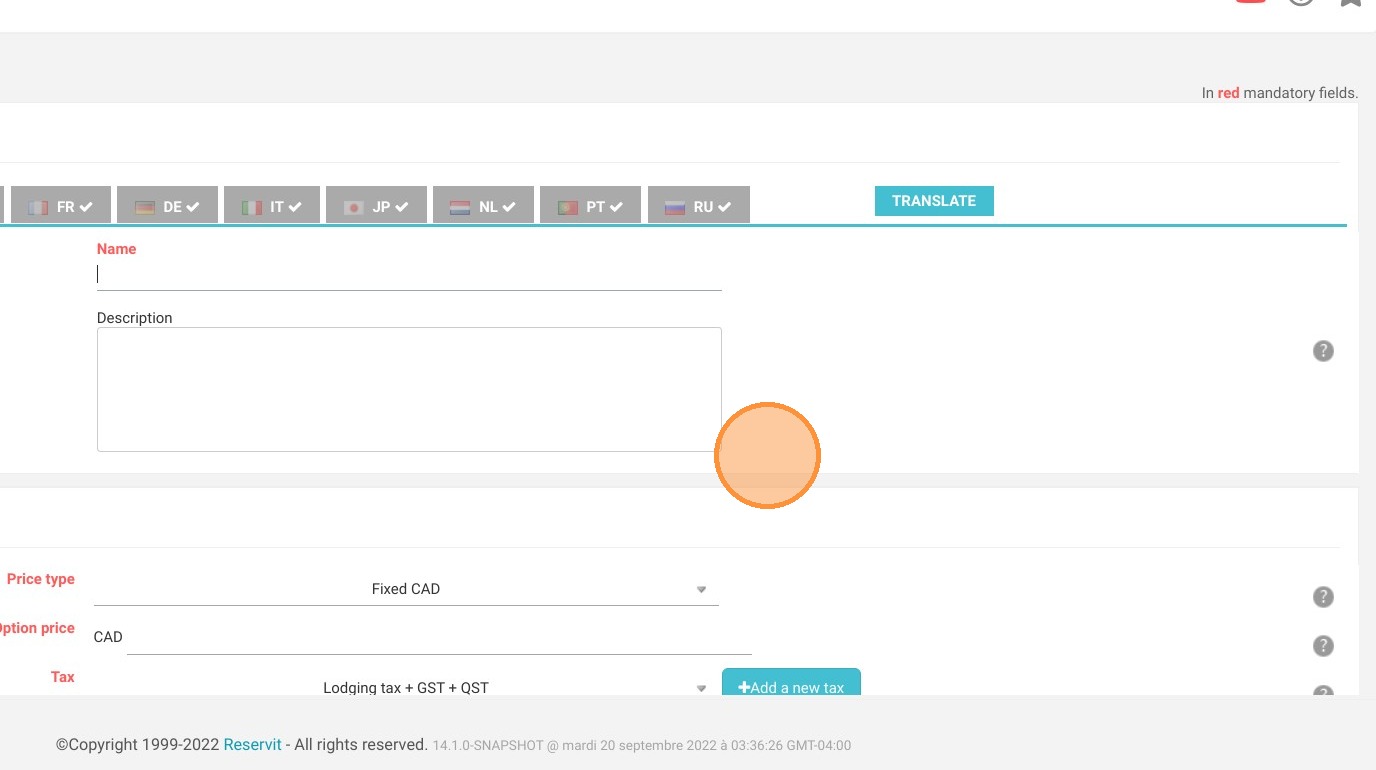
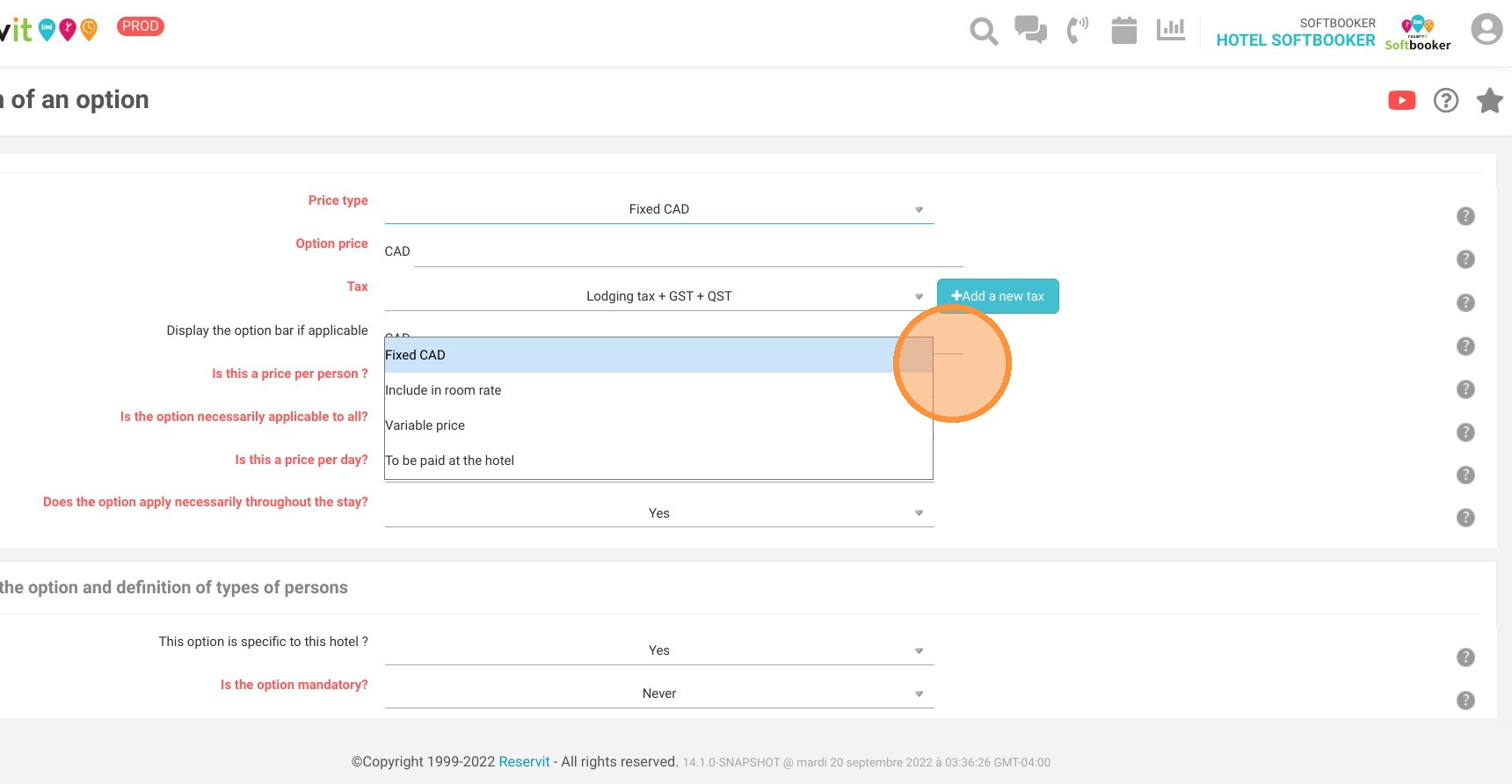
4. Choose the price of the option. It can be fixed, variable, included in the room rate or payable on site.
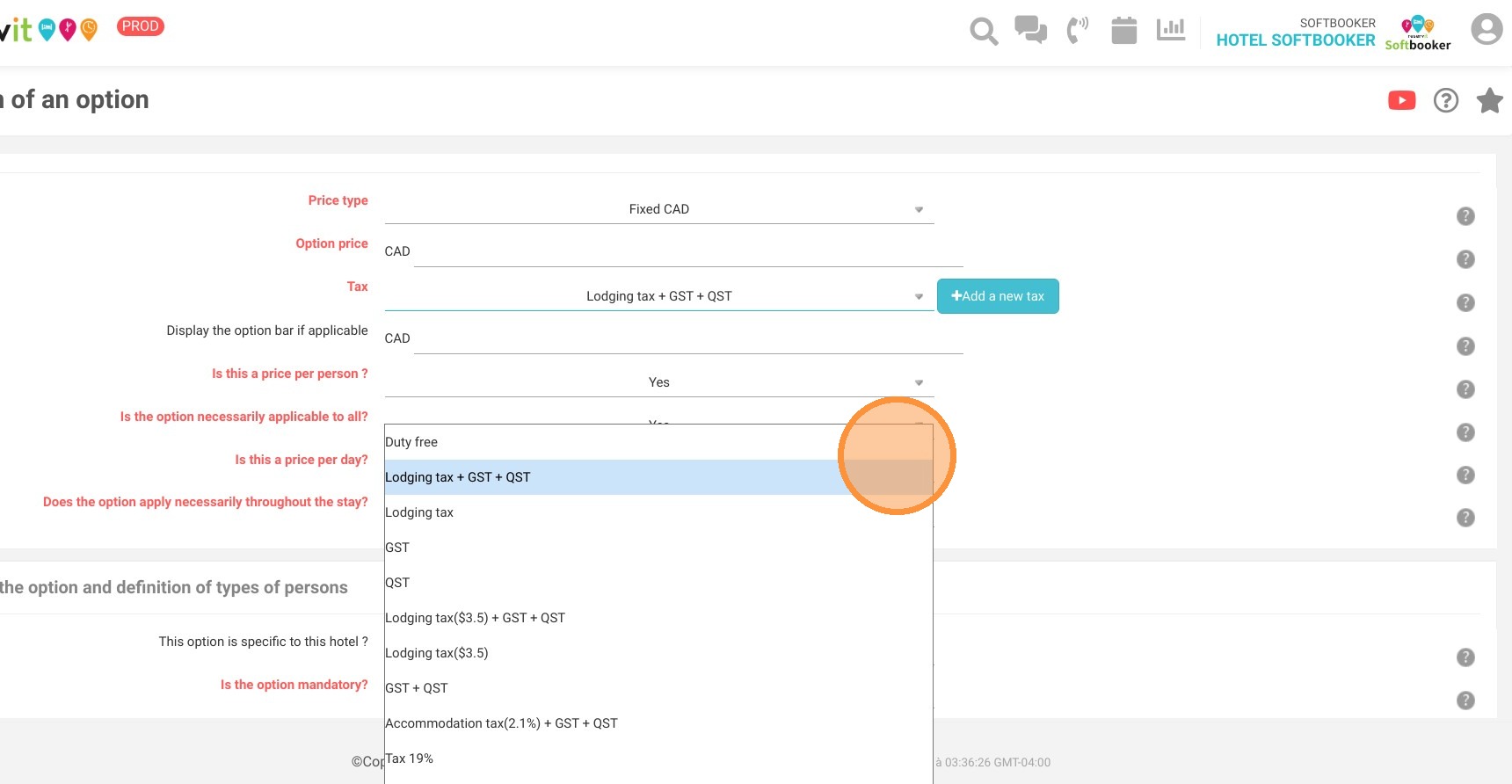
5. Choose the taxes applicable to your option.
6. Choose if the price is per person. If yes, whether it applies to all occupants of the reservation.
Choose if the price is per day. If yes, if it applies to all days of the reservation.
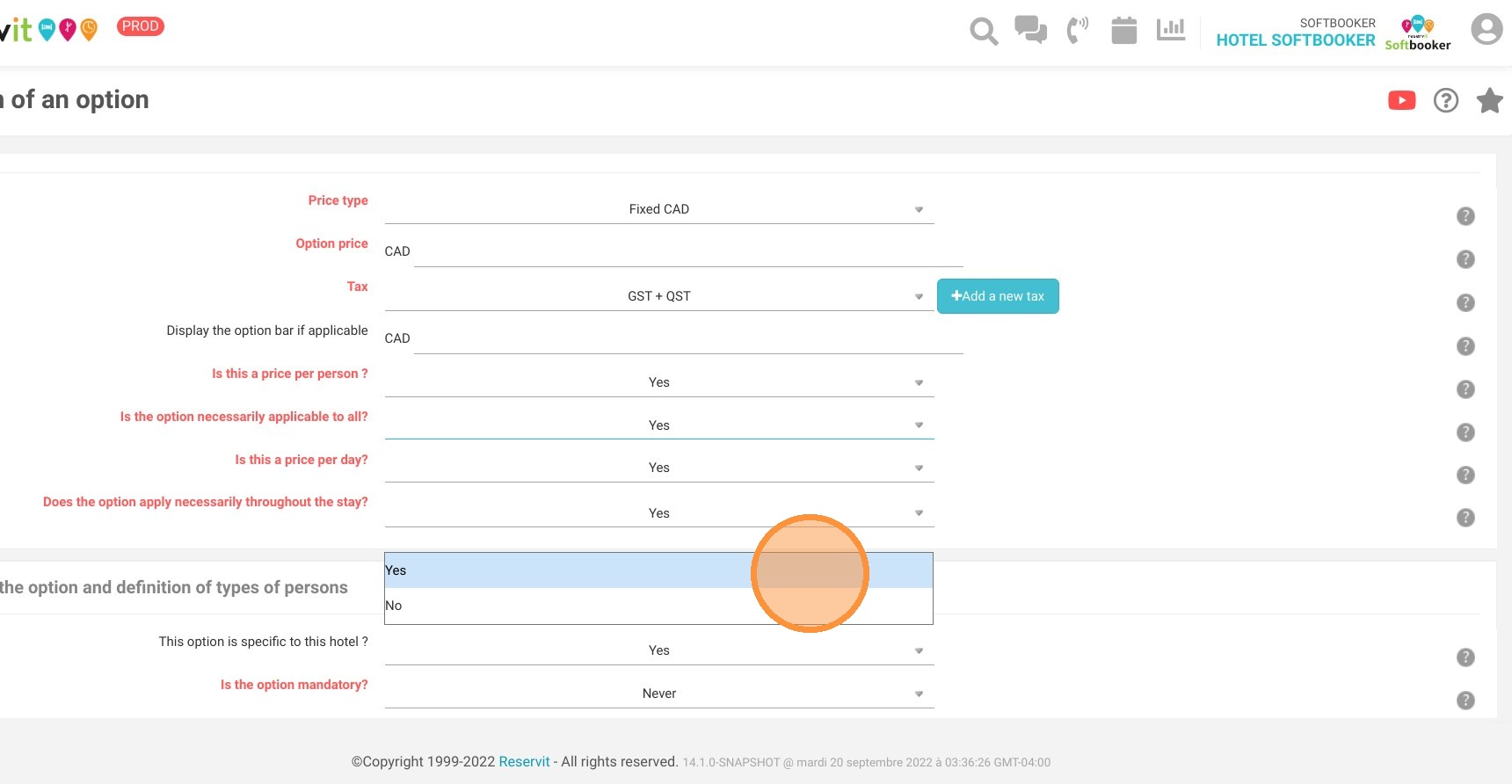
7. Define whether the option is automatically added to the reservation (mandatory) or whether it can be selected à la carte.
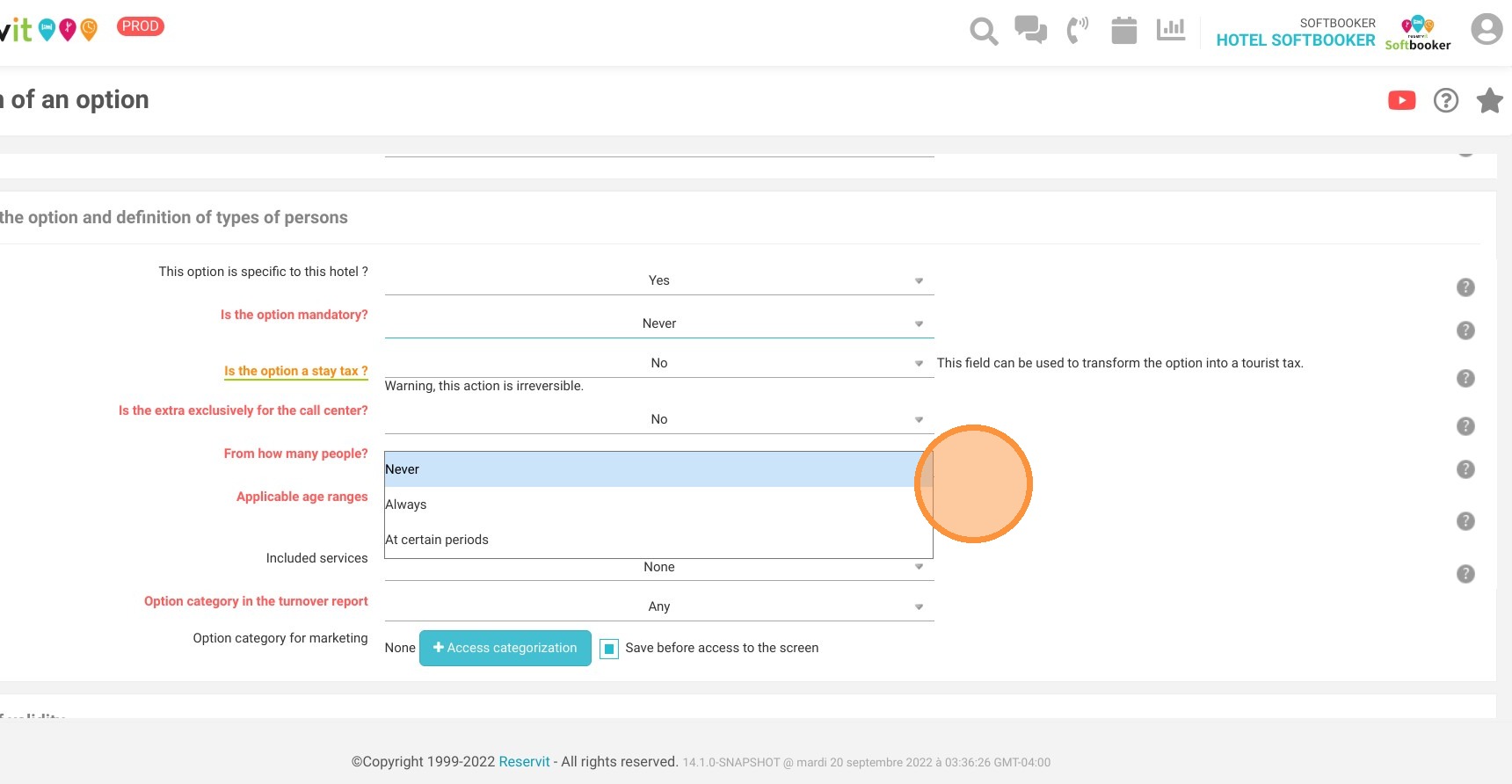
8. If you are using Reservit PMS, choose a category for your option so that it is correctly displayed in the billing statistics.
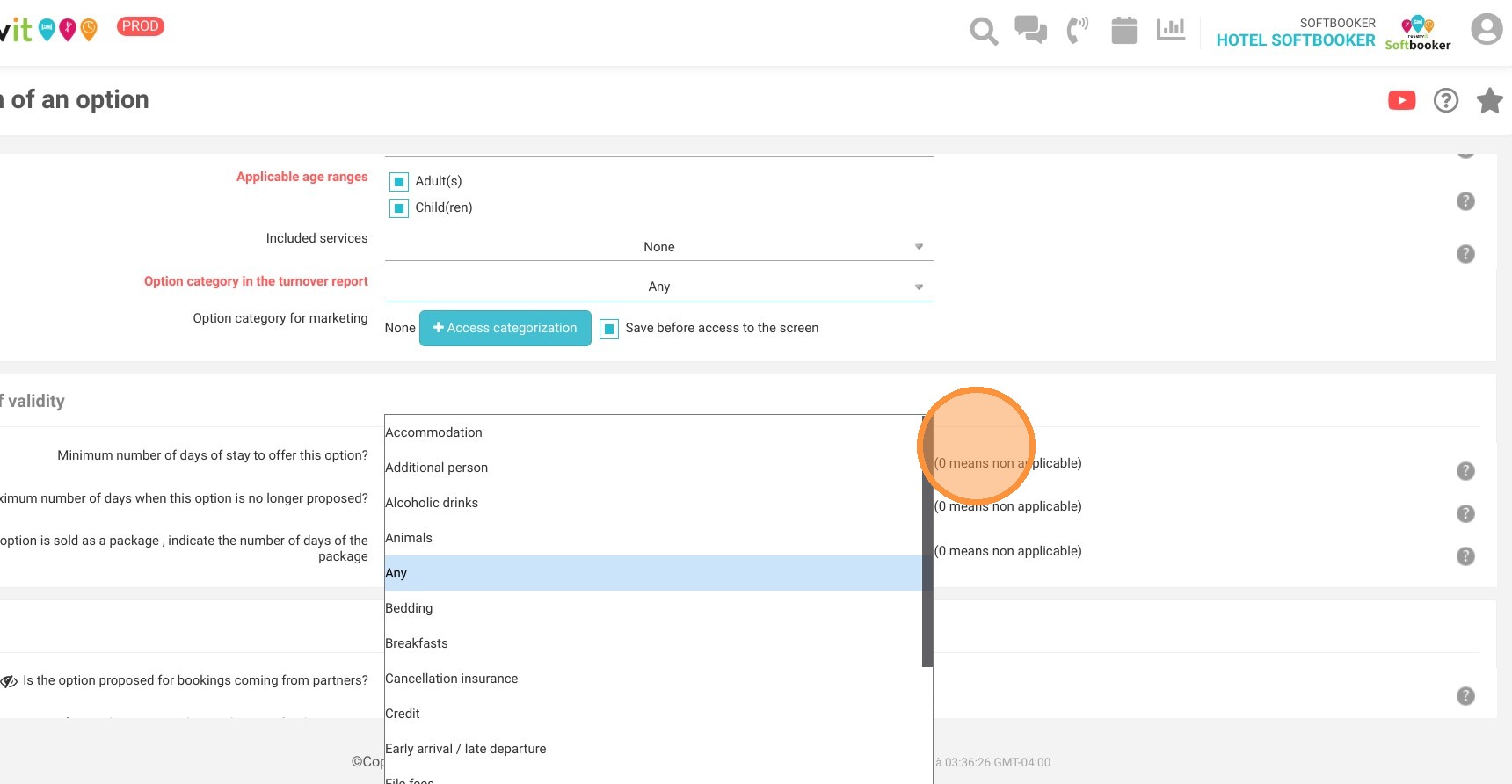
9. You can create categories of options for the display on the booking pages, so that it is less cumbersome if you offer many options.
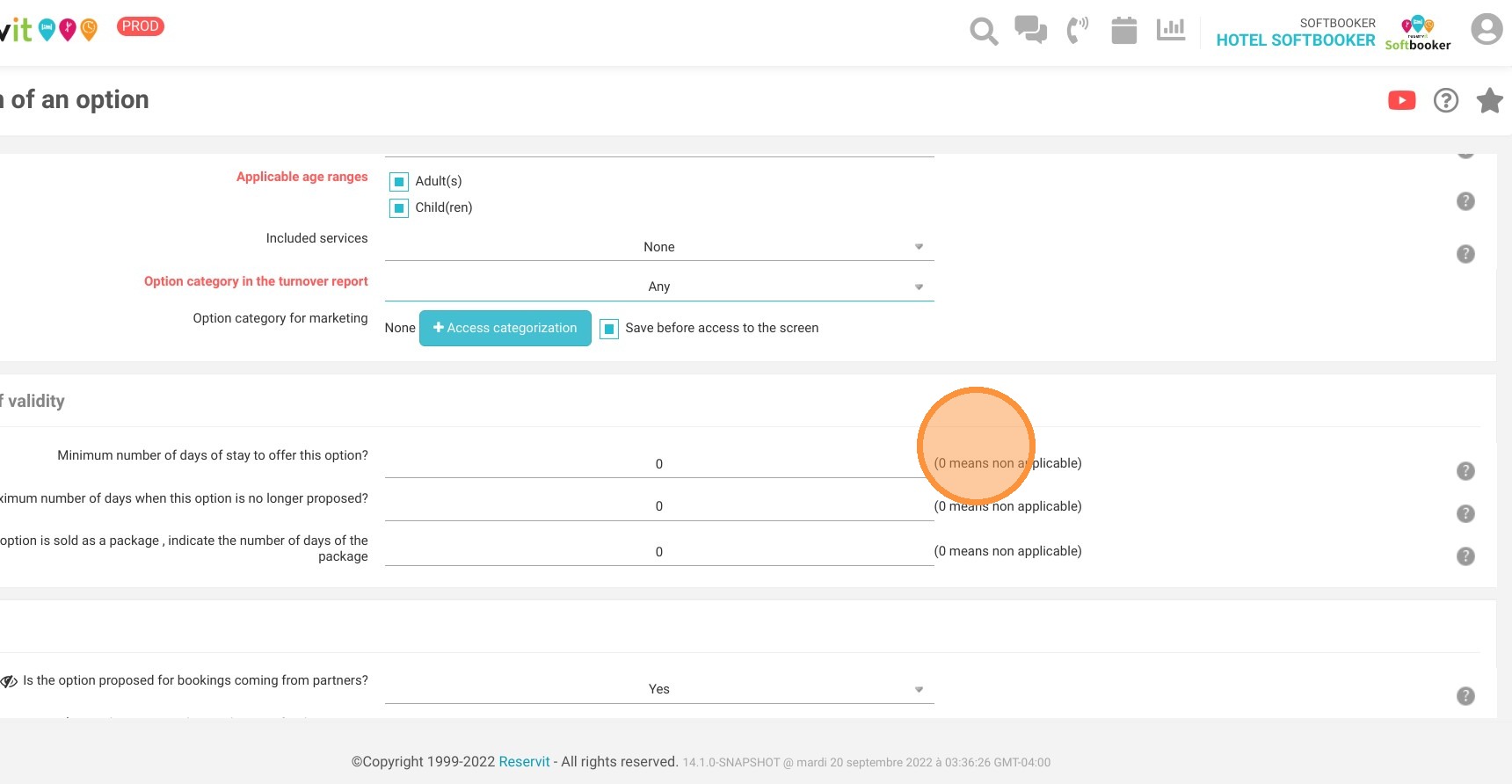
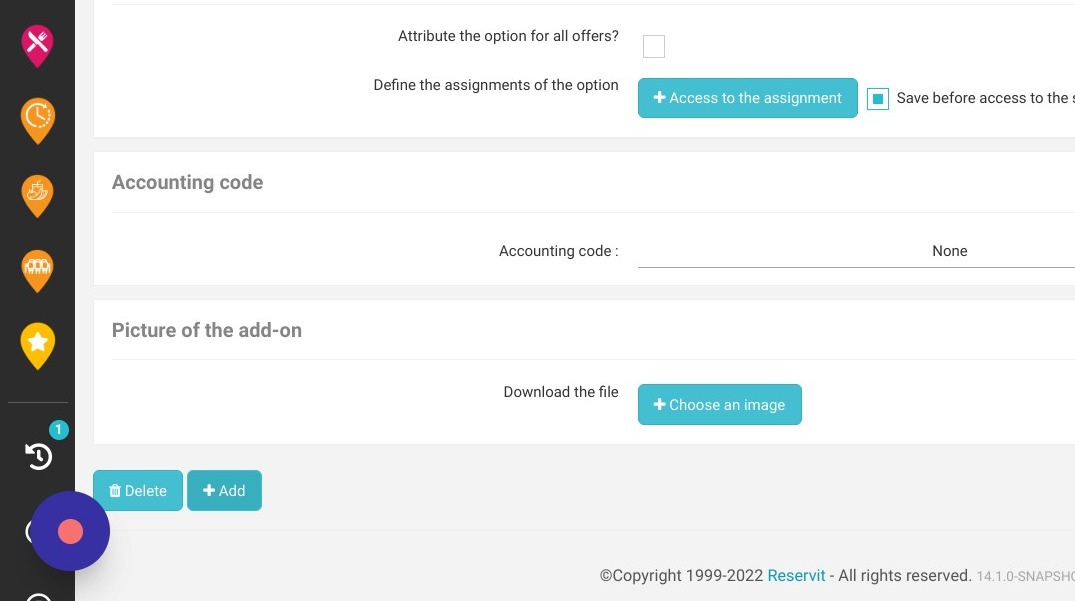
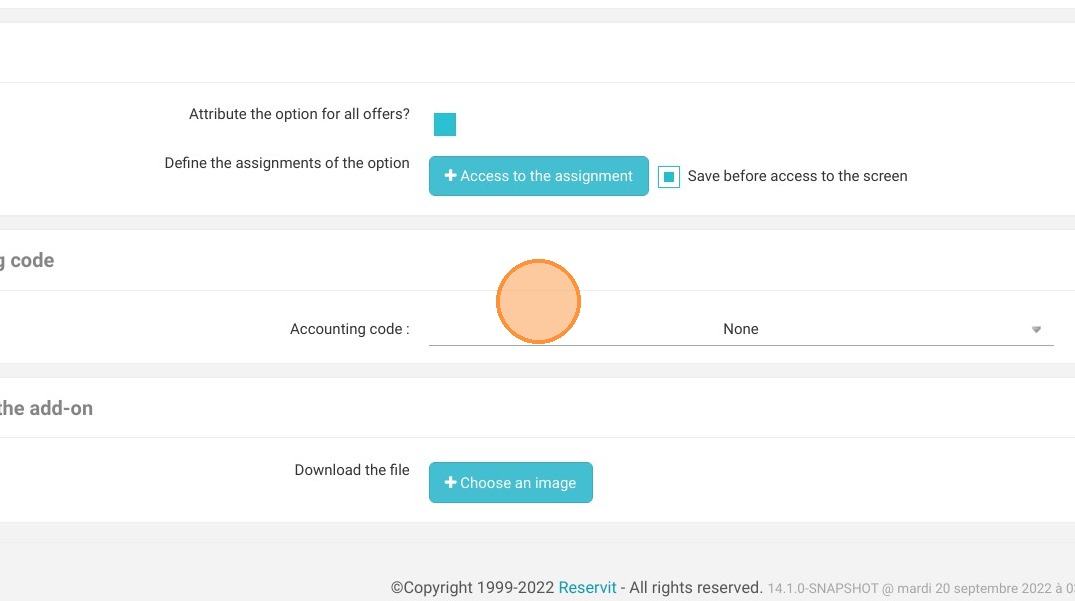
10. You can assign the option to all your offers or uncheck this criterion and choose the assignment yourself. Please consult the tutorial for this.
You can also add your accounting code and add a photo to illustrate your option on the reservation pages.
11. Click "Add" in order to save the extra.