Article Summary: This step-by-step tutorial explains how to quickly access your extras configuration history within Reservit Accommodation. You will learn how to locate the general history log for all your property's options and how to track the specific creation, modification, or deletion records of individual add-ons. Mastering this feature ensures complete transparency over your system settings, allowing you to easily audit internal changes and maintain an accurate menu of services.
The 4 key steps to access your extras configuration history:
-
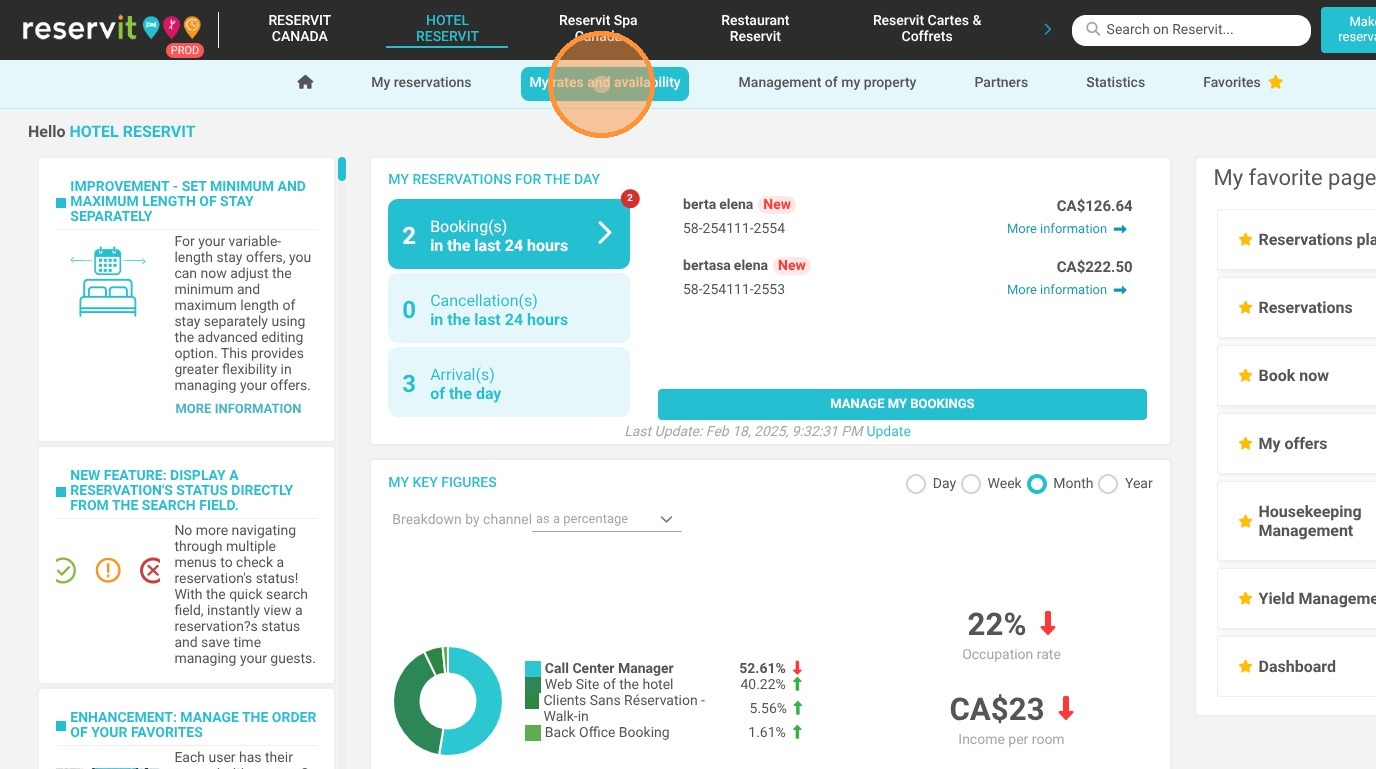
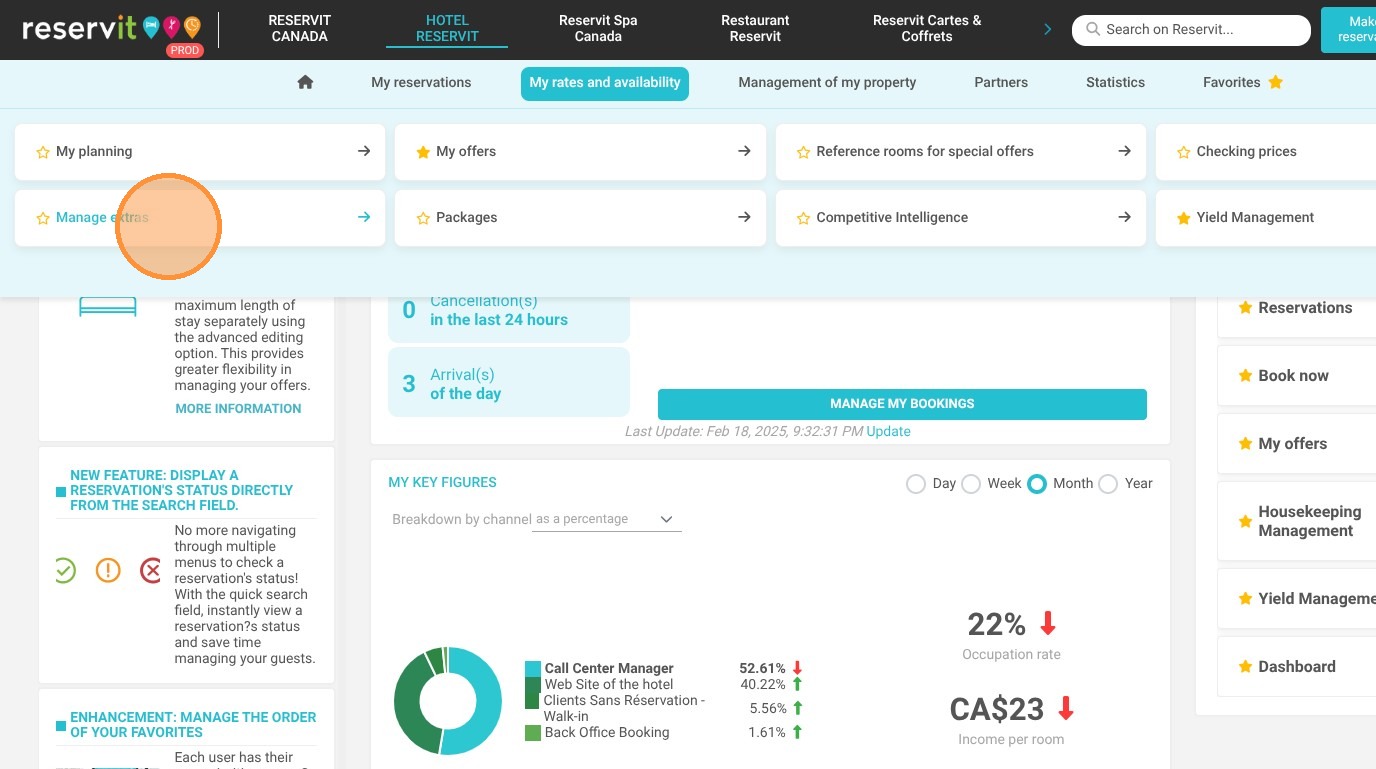
Navigate to your extras: Open the "My rates and availability" menu and select "Manage Extras" to access your main options dashboard.
-
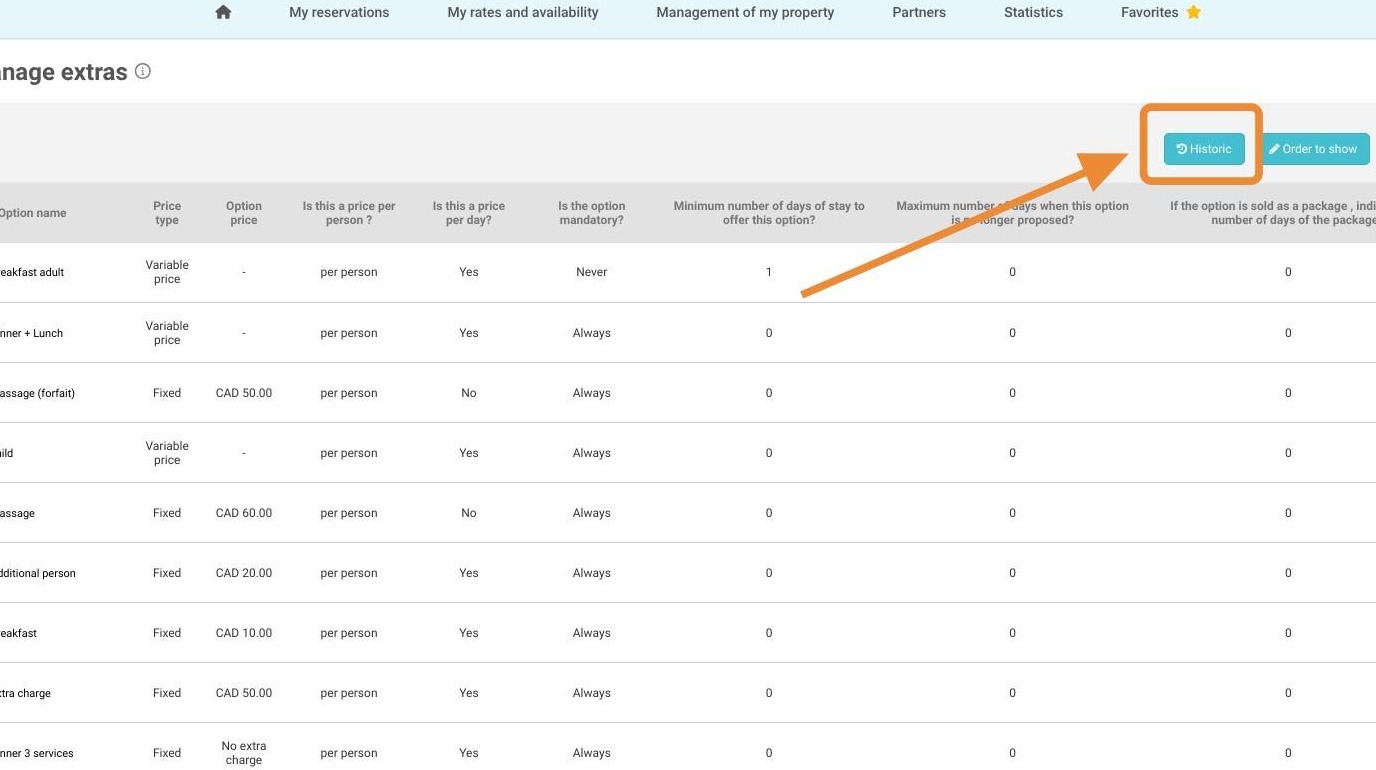
View the general history: Click the primary "History" button located on the main dashboard to view a comprehensive record of the creation and deletion of all your options.
-
Select a specific add-on: If you need to investigate a single item, click on the specific extra from your list to open its detailed configuration page.
-
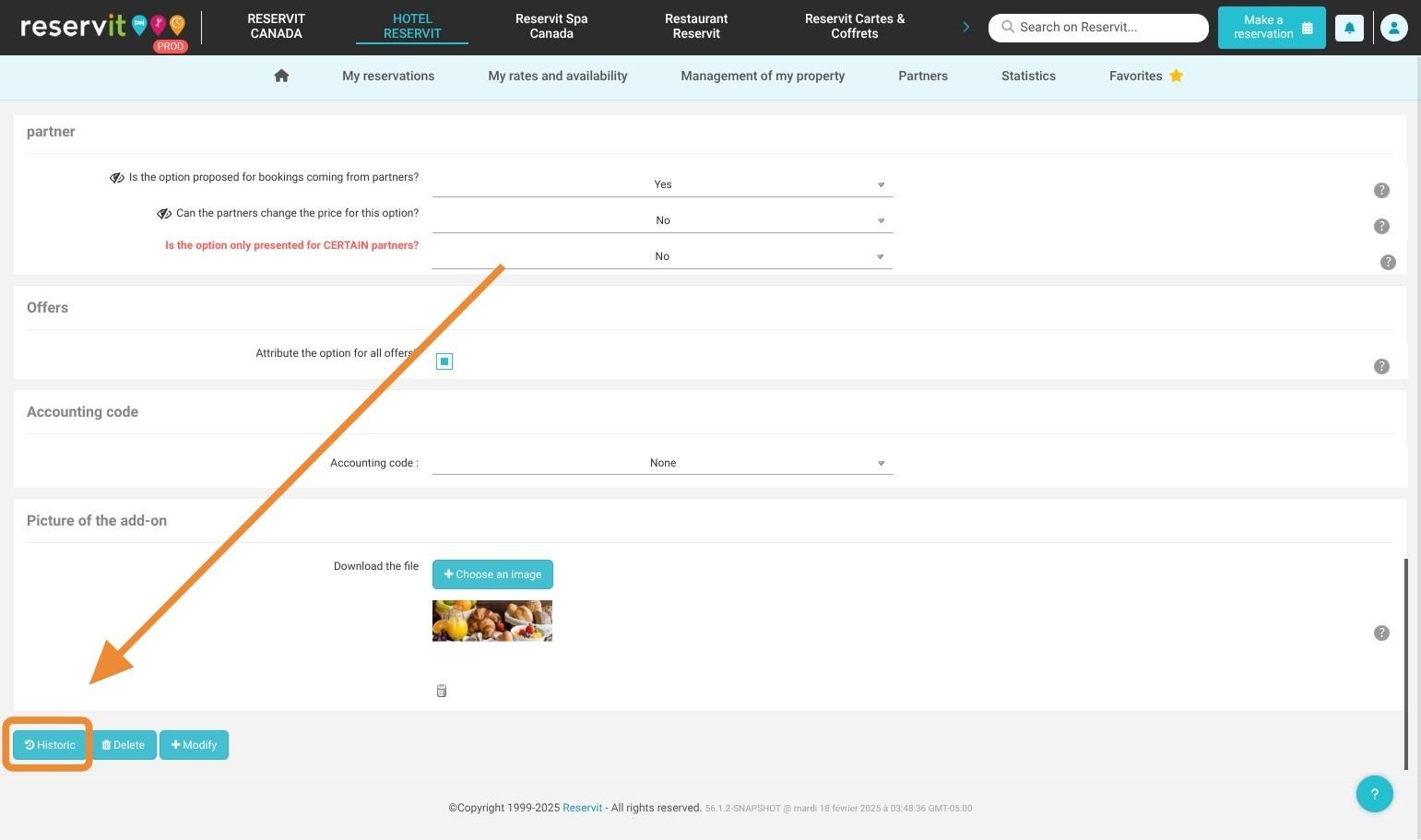
Track individual modifications: Scroll to the very bottom of the selected extra's configuration page and click its dedicated "History" button to audit its specific timeline of changes.
Why follow this guide? Following this guide allows you to securely monitor system changes and quickly identify when a specific booking option was added or removed from your inventory. By easily auditing your extras history, you prevent internal configuration errors, avoid billing discrepancies, and maintain flawless control over your property's ancillary revenue streams.
1. Click "My rates and availability" then ''Manage Extras''
2. Click here.
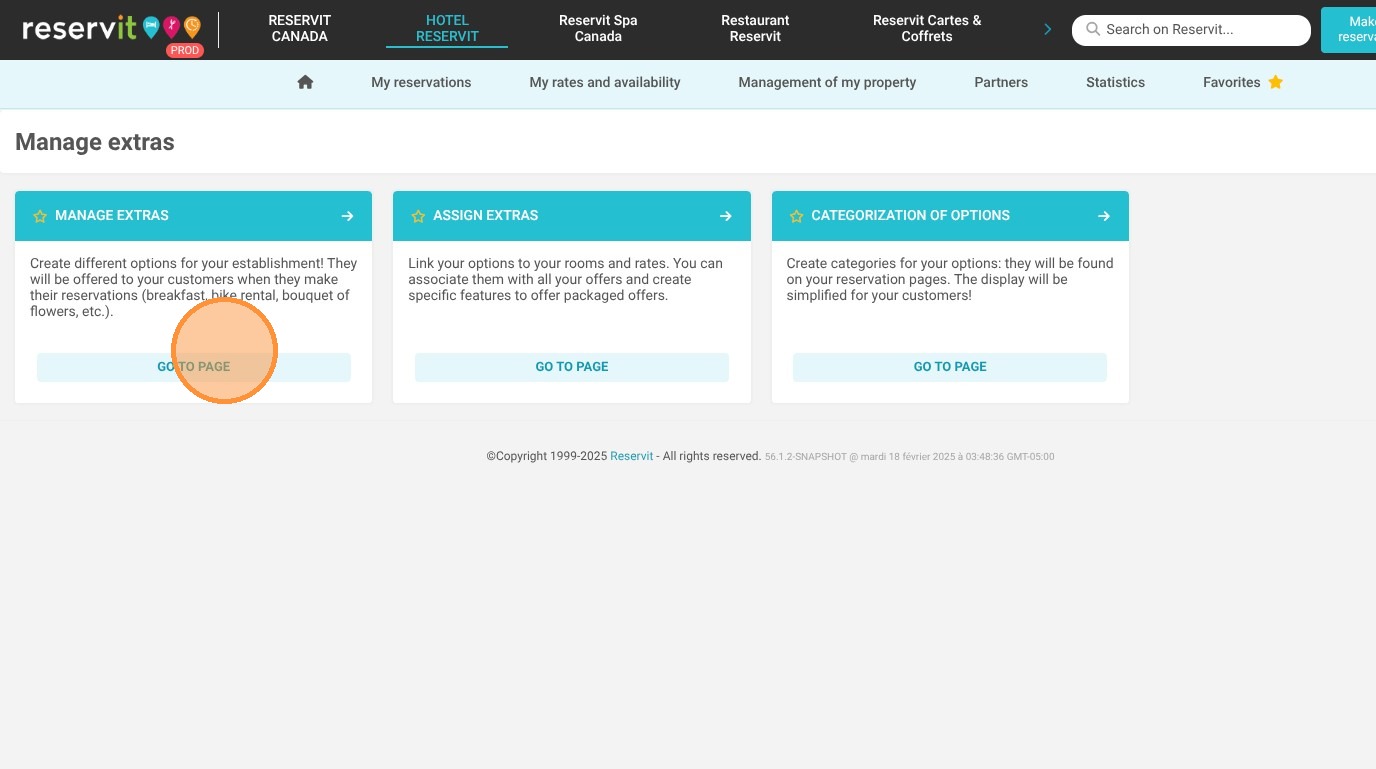
3. Here, you will find a "History" button that allows you to view the record of the creation and deletion of your options.
4. To view the history of a specific option, click on the option in question and scroll to the bottom of the page. The "History" button will then appear.