Help for use
Auto Light Dark
Auto Light Dark

How to Create and Configure Your Tables in Reservit Restaurant (Set Up Your Floor Plan)

Article Summary: This step-by-step tutorial explains how to set up your dining room in Reservit Restaurant. You will learn how to create rooms, define table types with their minimum and maximum capacity and allowed arrival times, then add and duplicate your tables. A complete floor plan lets your team assign each booking to the right table and keeps your online availability accurate.

The 3 key steps to set up your tables:

  • Create a room: Open "Managing my activity" > "Table Layout" > "My Tables", click "ADD A ROOM" and name it.

  • Add a table type: Click "ADD A TABLE TYPE", then set its name, its minimum and maximum number of guests and the allowed arrival times.

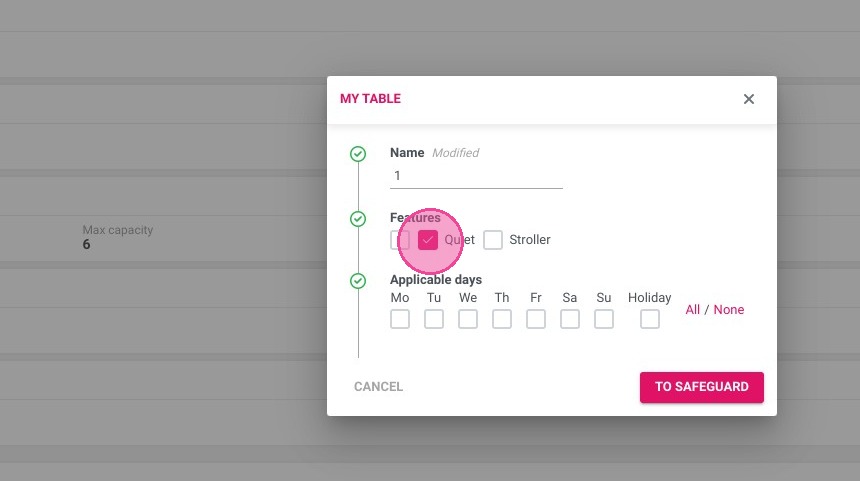
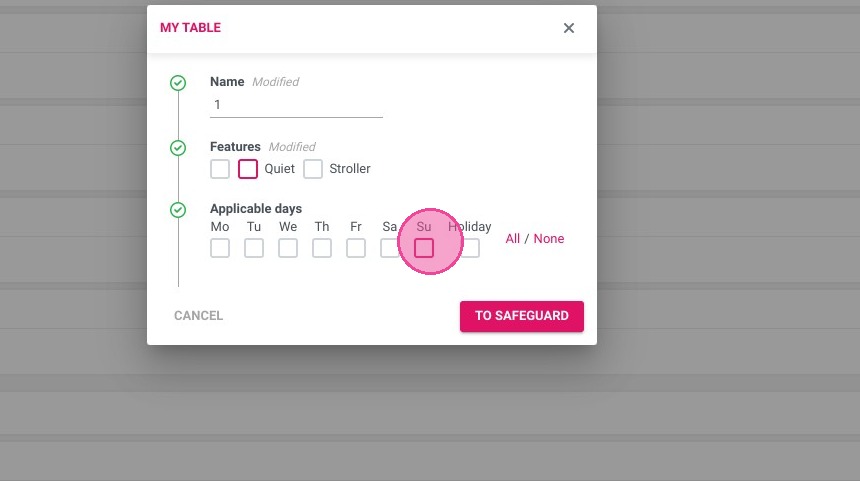
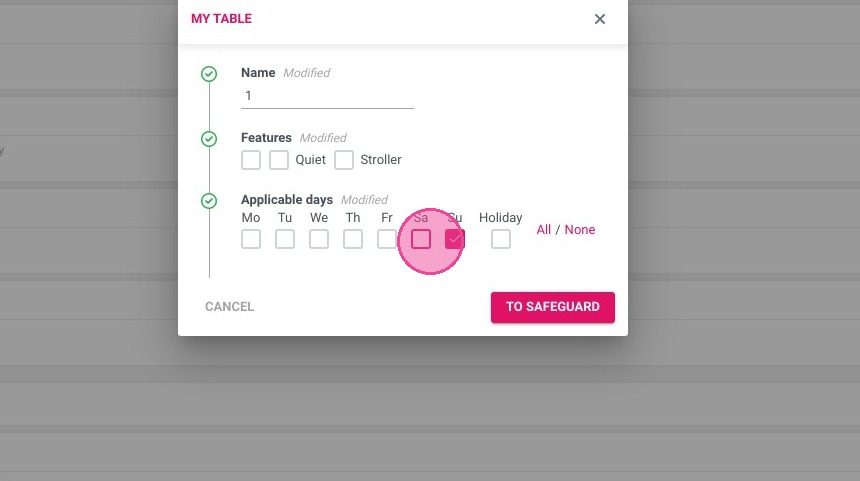
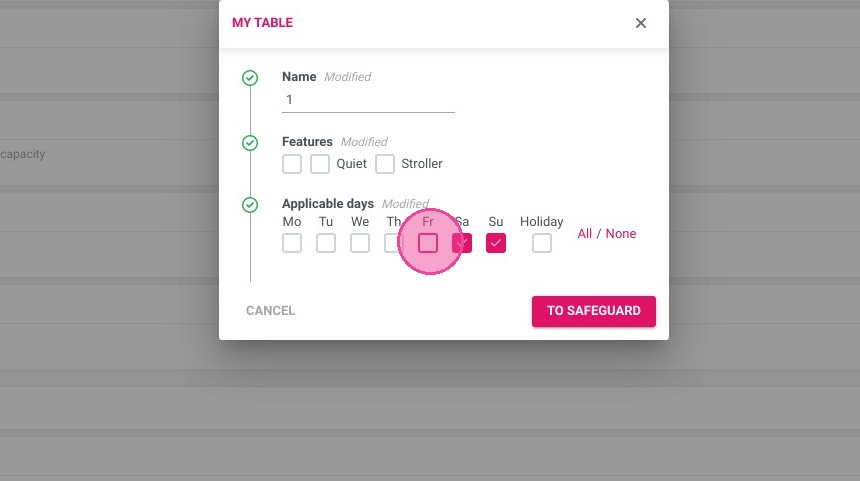
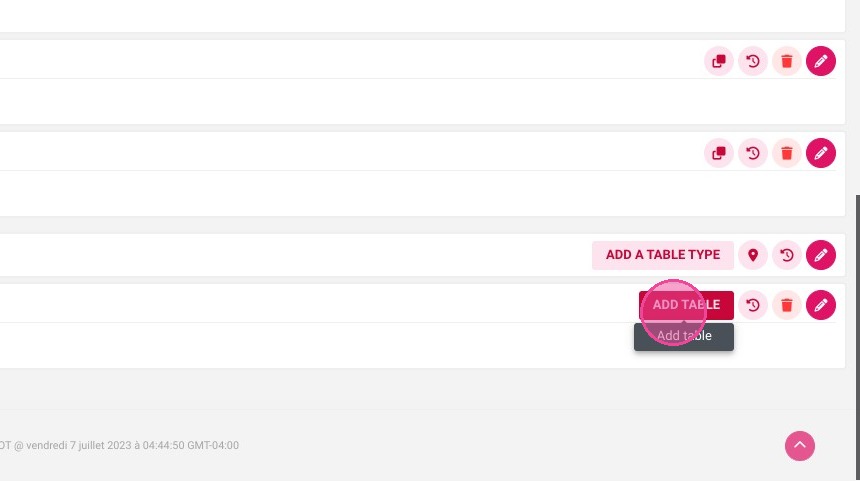
  • Add your tables: Click "ADD TABLE", enter the table name or number, add its features and applicable days, then duplicate it to go faster.

Why follow this guide? A floor plan that matches your real dining room prevents overbooking a table, helps your staff seat guests quickly and ensures your online booking engine only offers the capacity you actually have.

Step 1 - Create a room

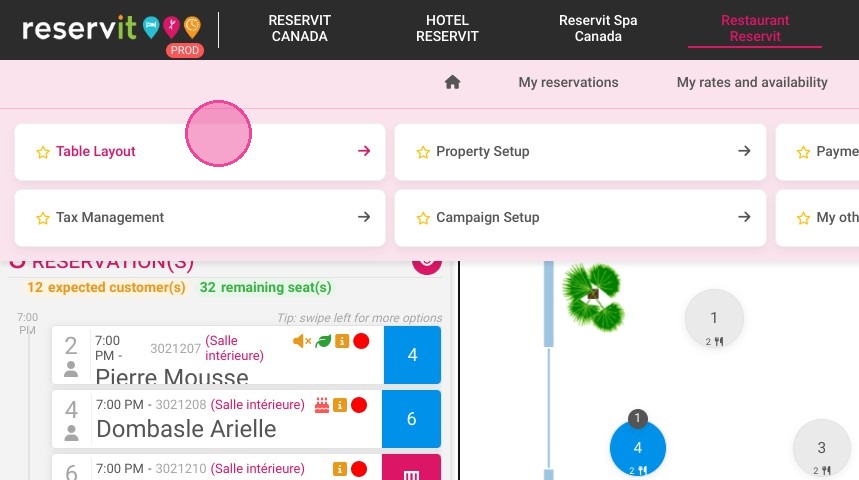
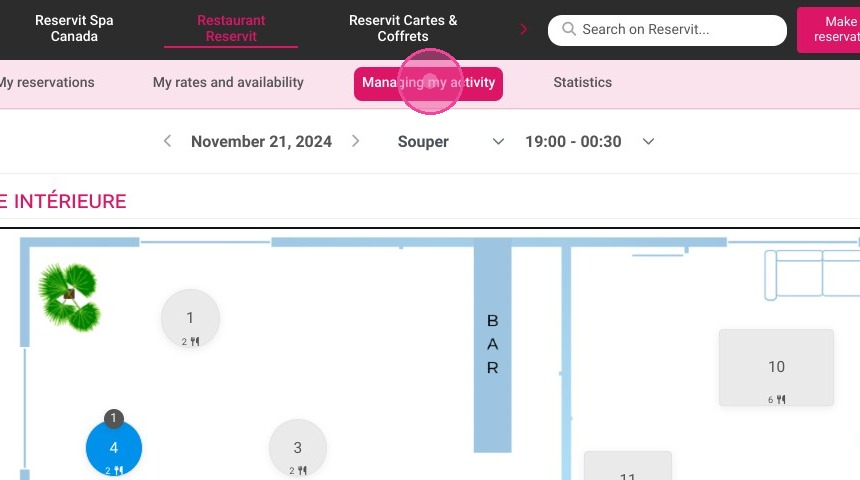
1. Click "Managing my activity"
https://colony-recorder.s3.amazonaws.com/files/2024-11-21/ad267ba4-d73f-4971-9c61-aa39bc371ec7/ascreenshot_72e6f0c249cb48e98563edb238610fc9_text_export.jpeg

2. Click on "Table Layout"

https://colony-recorder.s3.amazonaws.com/files/2024-11-21/05a24d15-426d-4ff3-bdbd-2a31092b8c81/ascreenshot_1f1049b08272419db809ec0f0e27c1af_text_export.jpeg

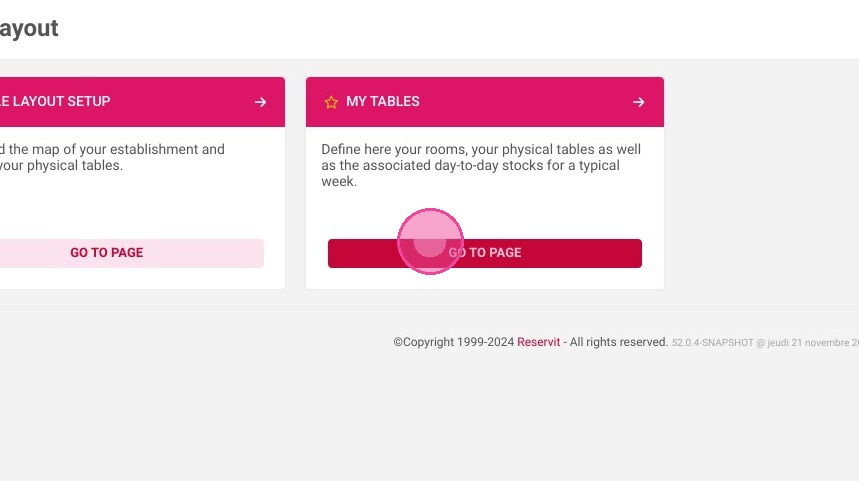
3. Go to "My Tables"

https://colony-recorder.s3.amazonaws.com/files/2024-11-21/04b79d21-dc56-4375-8be0-f1b59e3419f6/ascreenshot_8753b1bc4fb94bbdb5cccf8479868963_text_export.jpeg

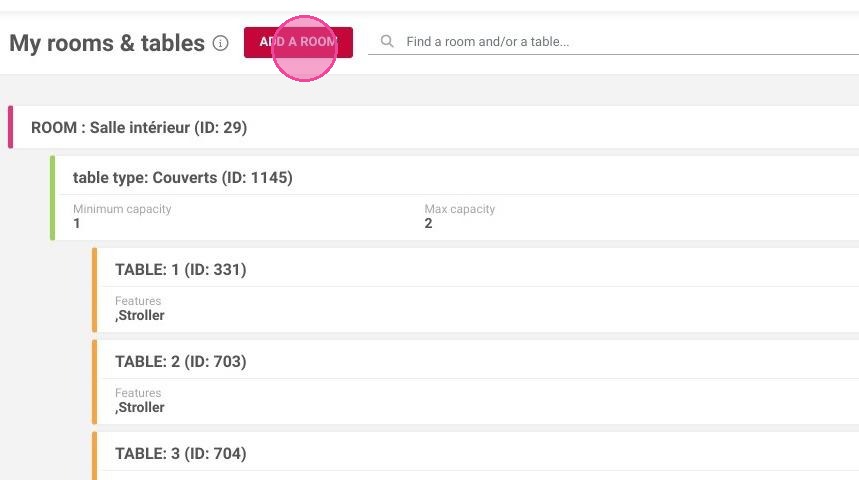
4. Click "ADD A ROOM"

https://colony-recorder.s3.amazonaws.com/files/2024-11-21/8b0fda53-ab89-4b84-a0af-4bd00ed31312/user_cropped_screenshot_d6b33f7527734f53bfc4fd295b5a4e63_text_export.jpeg

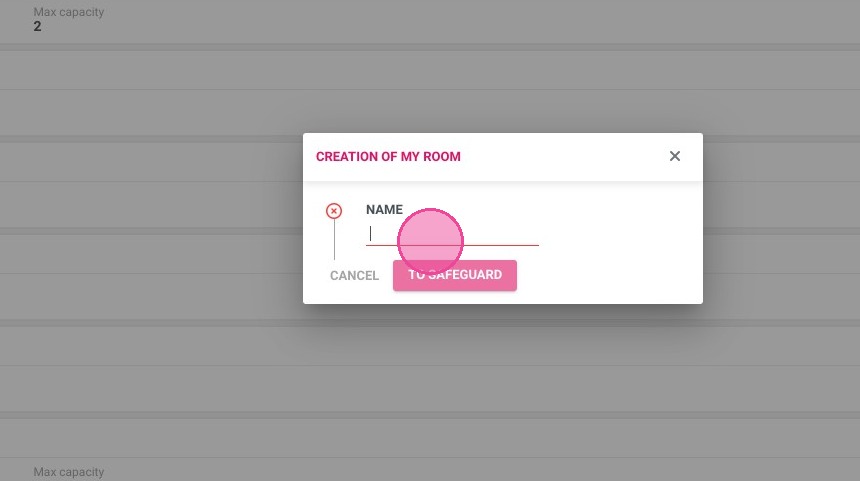
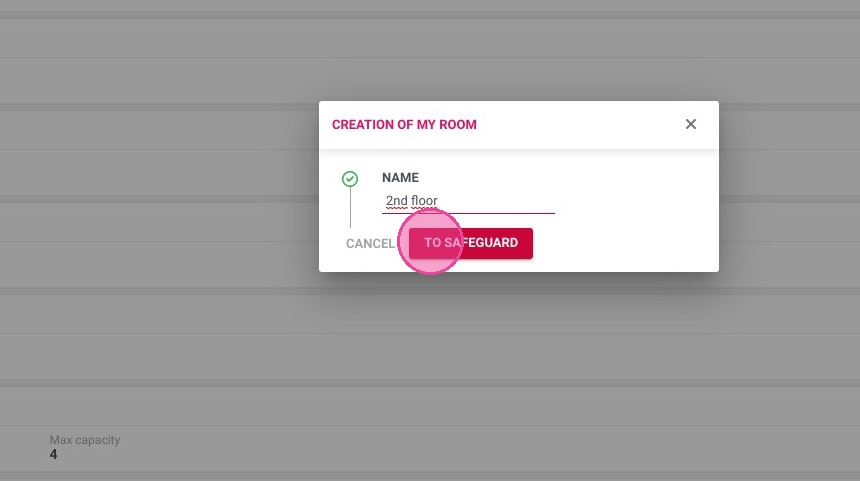
5. Enter the name of the room

https://colony-recorder.s3.amazonaws.com/files/2023-07-07/71344dc8-600a-4be9-8781-29e23f8039f9/ascreenshot_f69e42998f6044b18697b3a880160610_text_export.jpeg

6. Click "TO SAFEGUARD"

https://colony-recorder.s3.amazonaws.com/files/2023-07-07/c6c4ee54-36b0-4a51-a4a2-5f551bcd5e0f/ascreenshot_ed3dc0c019d845a5b4925b0bb5c50e0a_text_export.jpeg

Step 2 - Add a table type

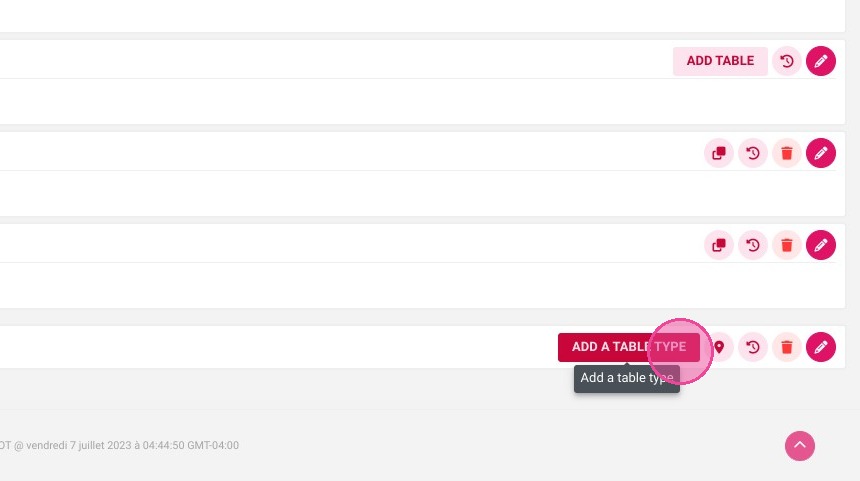
7. Click "ADD A TABLE TYPE"
https://colony-recorder.s3.amazonaws.com/files/2023-07-07/97ec269d-7a8e-490d-988c-4ae1434ccd1a/ascreenshot_832ef241065f4466bd265d2f4ddc90de_text_export.jpeg

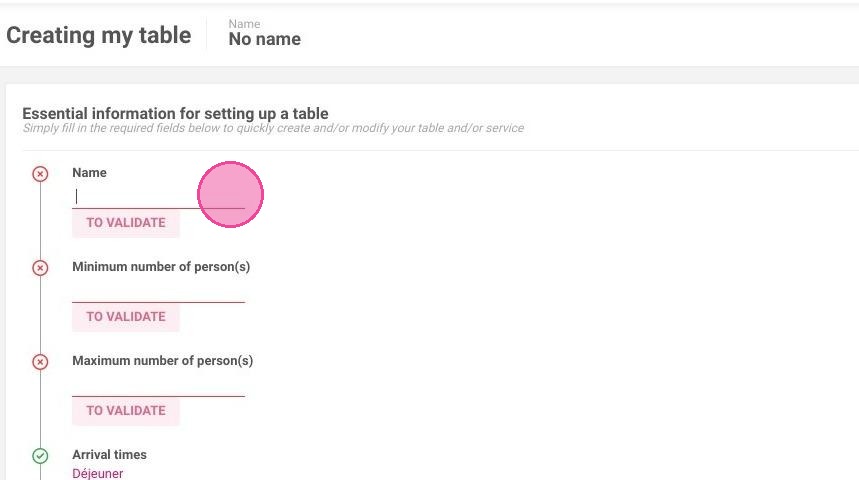
8. Enter the name of the table type

https://colony-recorder.s3.amazonaws.com/files/2024-11-21/5fa7f497-7d20-47f4-be85-35ee2bcf14d2/user_cropped_screenshot_da5f38b0f6664a2fbe7d704d8bbbe3f1_text_export.jpeg

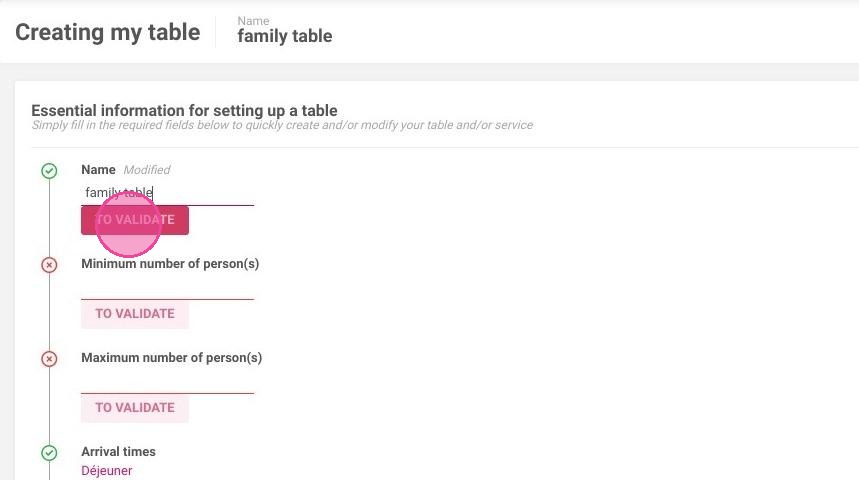
9. Click "TO VALIDATE"

https://colony-recorder.s3.amazonaws.com/files/2024-11-21/131c120d-9070-48e6-a915-931b7f805ae7/user_cropped_screenshot_300014dad43f42b9a4d0452676b43226_text_export.jpeg

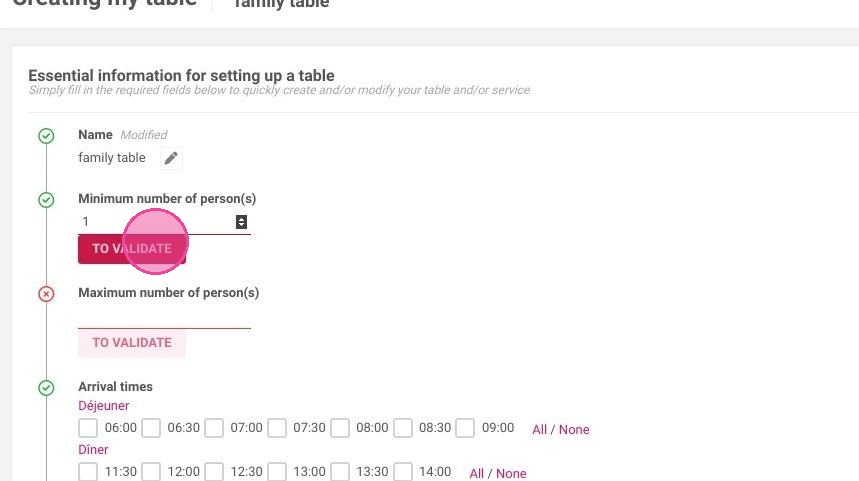
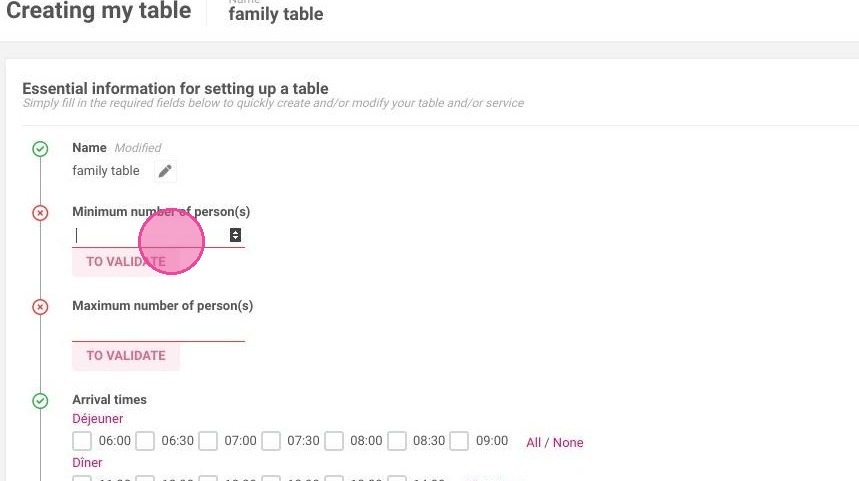
10. Enter the minimum number of guests allowed at the table
https://colony-recorder.s3.amazonaws.com/files/2024-11-21/37876b1f-6410-4b2d-846b-9a37d79aa9ee/user_cropped_screenshot_b6b0ada1d6534982bdb3aee304e7ff51_text_export.jpeg

11. Click "TO VALIDATE"

https://colony-recorder.s3.amazonaws.com/files/2024-11-21/782651d4-2c1a-42a2-b72f-5c2944deb098/user_cropped_screenshot_4449c1de466b40ce96c9ec0e11fca102_text_export.jpeg

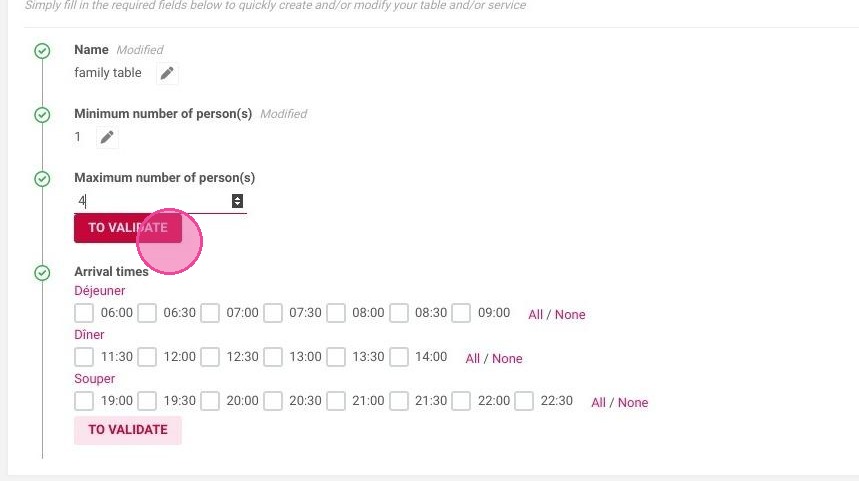
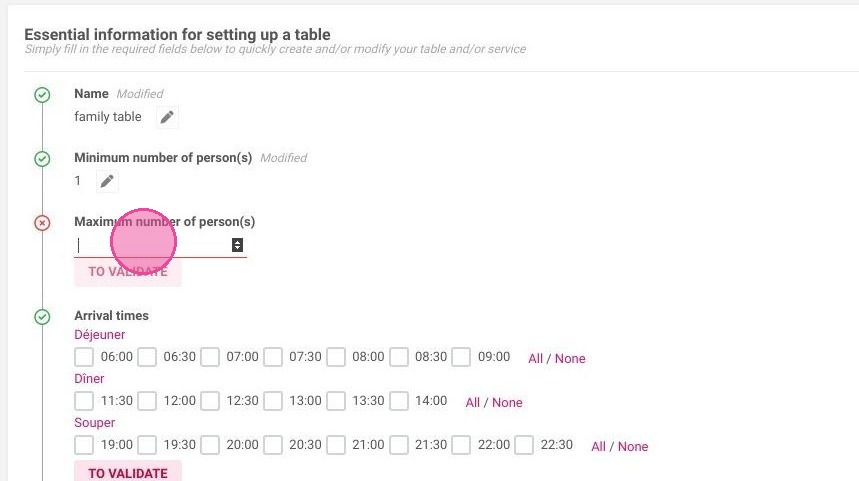
12. Enter the maximum number of guests allowed at the table
https://colony-recorder.s3.amazonaws.com/files/2024-11-21/86bcb5ad-5f0a-4c1f-aad0-9368df6957ec/user_cropped_screenshot_af7a4bfa5279460c97a743178cd964df_text_export.jpeg

13. Click "TO VALIDATE"

https://colony-recorder.s3.amazonaws.com/files/2024-11-21/8b6597ec-61f7-4c01-95d2-8931dee06245/user_cropped_screenshot_a48ce16b850148d19daffdb7156ea88e_text_export.jpeg

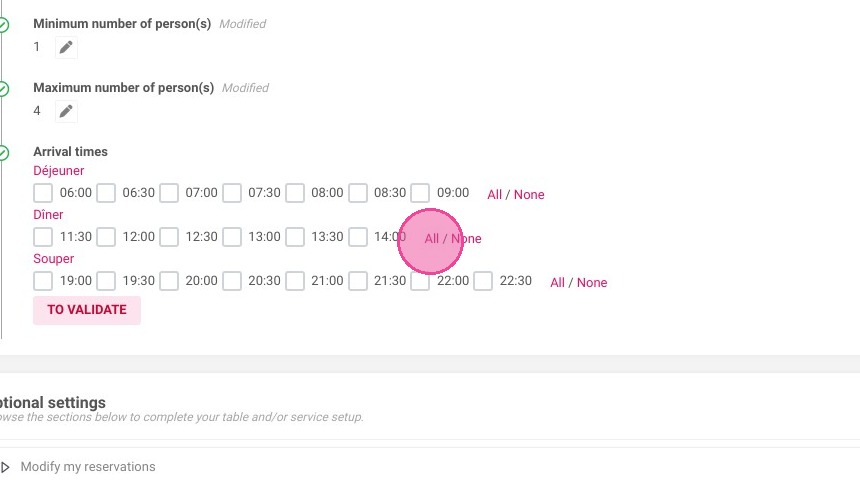
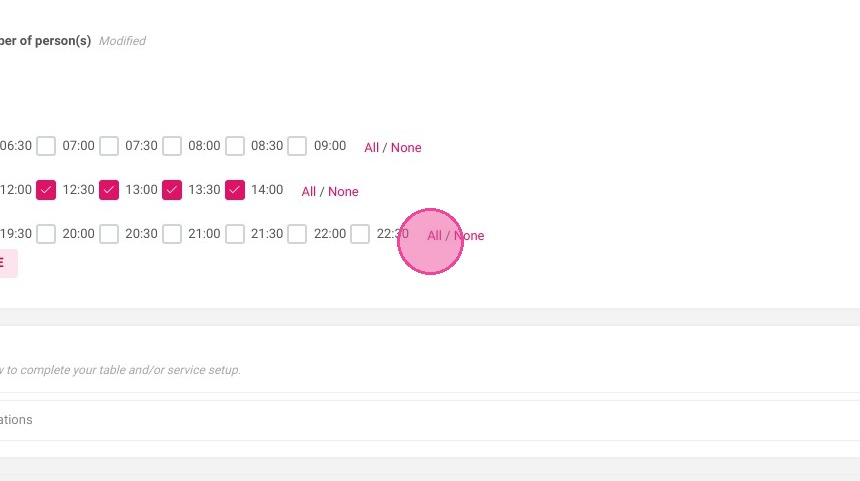
14. Select the arrival times allowed
https://colony-recorder.s3.amazonaws.com/files/2023-07-07/b163d46f-82e7-4c9c-94e8-25b9035290af/ascreenshot_e19ddb0079ce41a9aef5afe61e26e977_text_export.jpeg
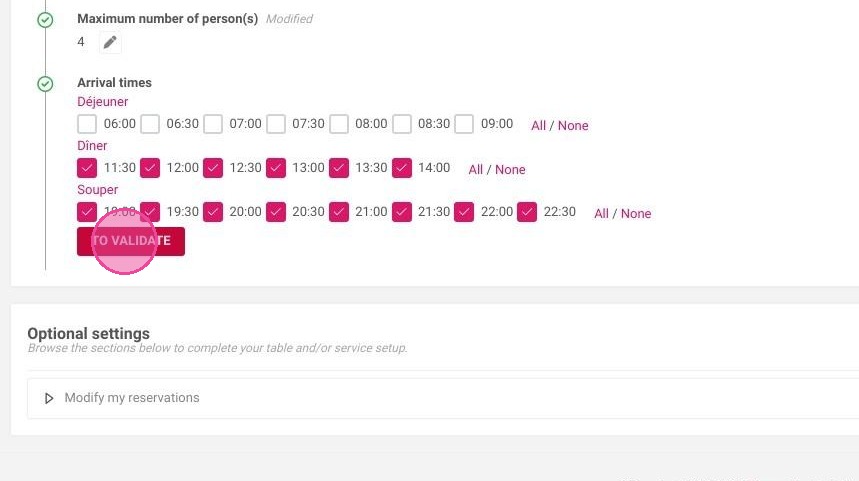
https://colony-recorder.s3.amazonaws.com/files/2023-07-07/d6eab2ea-5920-47d6-a78c-684f6534cdc2/ascreenshot_a98df076636344bf9ee6f5339efa9968_text_export.jpeg

15. Click "TO VALIDATE"

https://colony-recorder.s3.amazonaws.com/files/2024-11-21/abf85020-bcea-4764-993a-a16476ad268e/user_cropped_screenshot_5e33a86e442f4bad894544cbbb568c68_text_export.jpeg

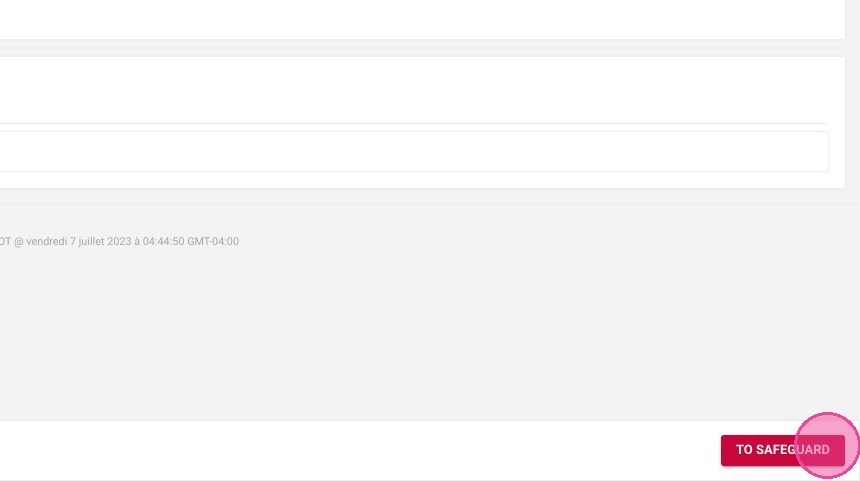
16. Click "TO SAFEGUARD"

https://colony-recorder.s3.amazonaws.com/files/2023-07-07/818e3d2e-1cd9-433a-8430-9edd1b77a511/ascreenshot_c6e05d0dbd7f4978861fc0b40aefa472_text_export.jpeg

Step 3 - Add tables

17. Click "ADD TABLE"
https://colony-recorder.s3.amazonaws.com/files/2023-07-07/d9c2c19c-3d0f-46a6-b1b9-b8b6a695144c/ascreenshot_fa0112b674214d889c44200bab5a8188_text_export.jpeg

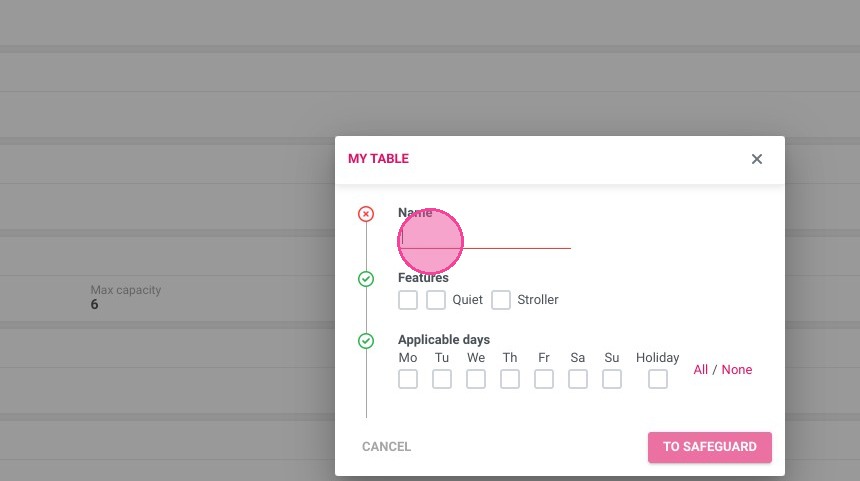
18. Enter the name or number of the table
https://colony-recorder.s3.amazonaws.com/files/2023-07-07/9d356a30-2eca-496b-93de-b9cd893b2741/ascreenshot_8e9a9282cfc949e3acf45217342fea25_text_export.jpeg

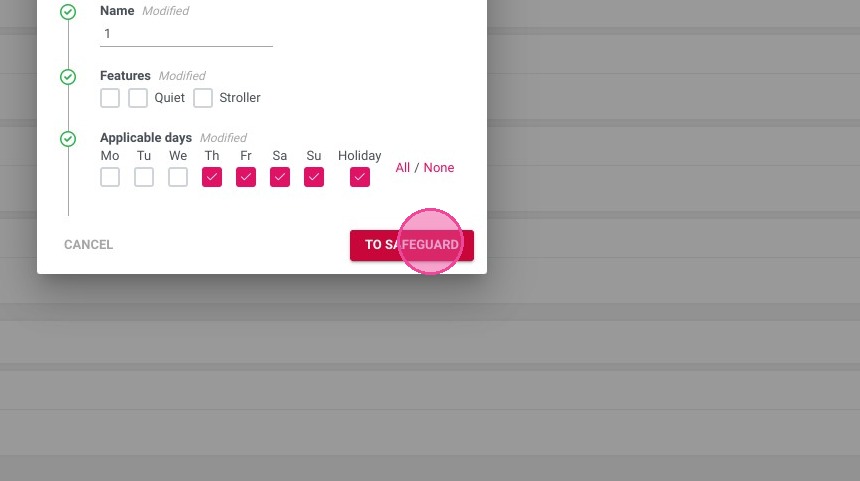
19. You can add some features

https://colony-recorder.s3.amazonaws.com/files/2023-07-07/a5dbc88d-bd92-4231-80e0-41787253f26e/ascreenshot_0442fd23e1544bf4b712c1592d199628_text_export.jpeg

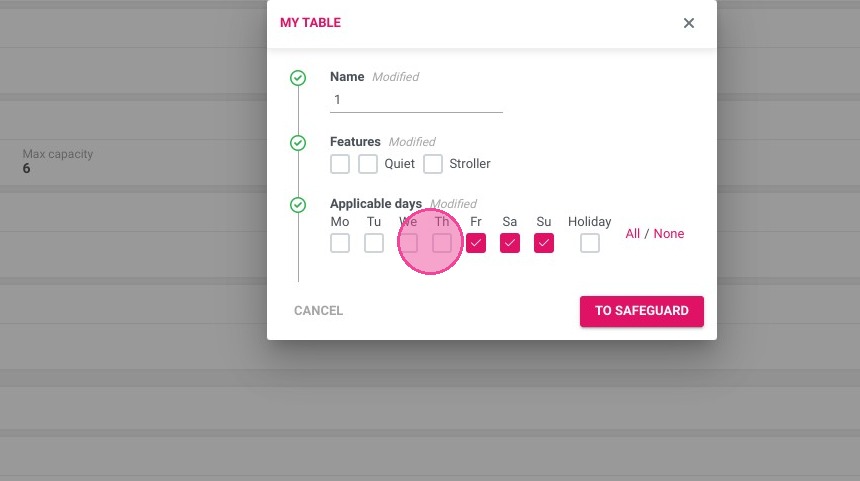
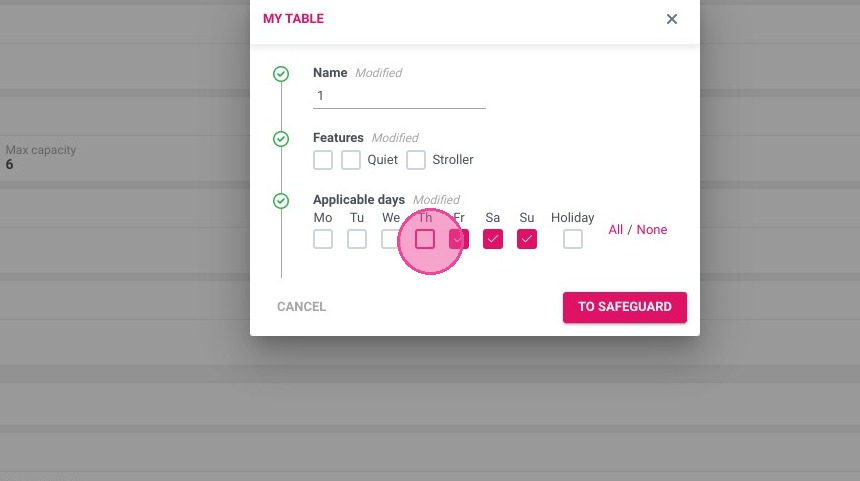
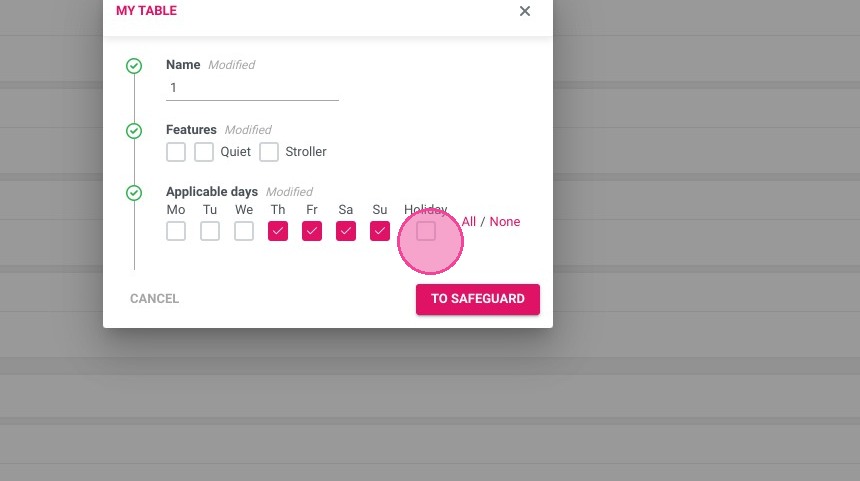
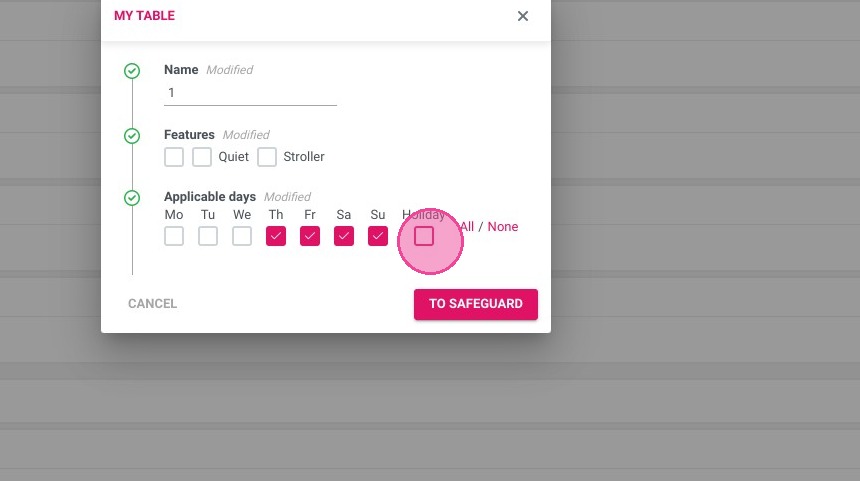
20. Select the applicable days

https://colony-recorder.s3.amazonaws.com/files/2023-07-07/da2dda94-fcb2-4119-84f9-5faa1d6400dc/ascreenshot_3d23e75e53804f18b2b424ef1f1de5df_text_export.jpeg
https://colony-recorder.s3.amazonaws.com/files/2023-07-07/571c479c-a400-4bba-8140-0150e3ca8af4/ascreenshot_776162354d0f46fda3b6468c78ca3e39_text_export.jpeg
https://colony-recorder.s3.amazonaws.com/files/2023-07-07/22a64627-5323-4d0a-aa9b-422f412977ec/ascreenshot_8969f0d874184b3bbc0455a967ef1e99_text_export.jpeg
https://colony-recorder.s3.amazonaws.com/files/2023-07-07/831f1746-381e-471b-a065-e8fd9ab4a4e2/ascreenshot_a630bed0437447fcb7c50d58f731e450_text_export.jpeg
https://colony-recorder.s3.amazonaws.com/files/2023-07-07/1b9e5ef6-8387-491d-8af3-4b9ba48e2d43/ascreenshot_e55baeb9e77048b1b6bed62e3af714a2_text_export.jpeg
https://colony-recorder.s3.amazonaws.com/files/2023-07-07/b452bae9-6c09-47e6-a730-e95ae729fe08/ascreenshot_793dda5ebca846188998d73d68d24ba5_text_export.jpeg
https://colony-recorder.s3.amazonaws.com/files/2023-07-07/4b1fb3f3-e53d-4455-bec6-d87731c2ae0d/ascreenshot_cb78d73f715742ca8bb6bb7acff8eb96_text_export.jpeg

21. Click "TO SAFEGUARD"

https://colony-recorder.s3.amazonaws.com/files/2023-07-07/8c3255ae-0bce-428c-8806-c77aae045559/ascreenshot_d6974c99b17845ebab436dc895a91cd7_text_export.jpeg

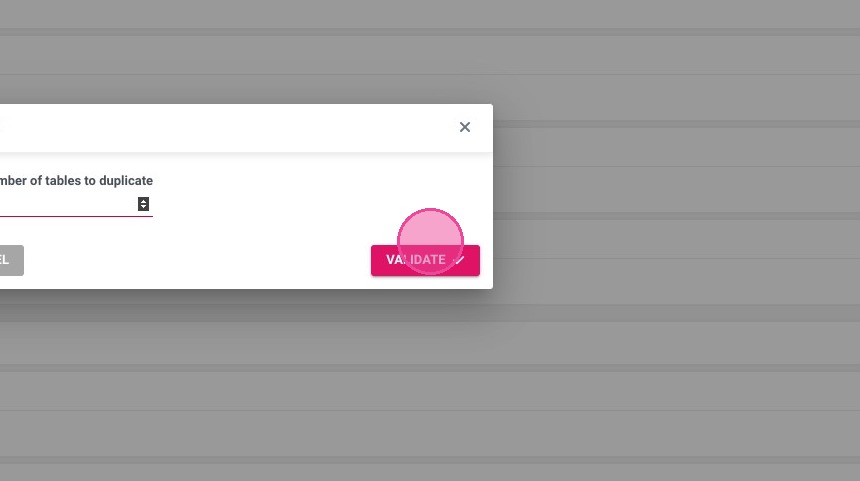
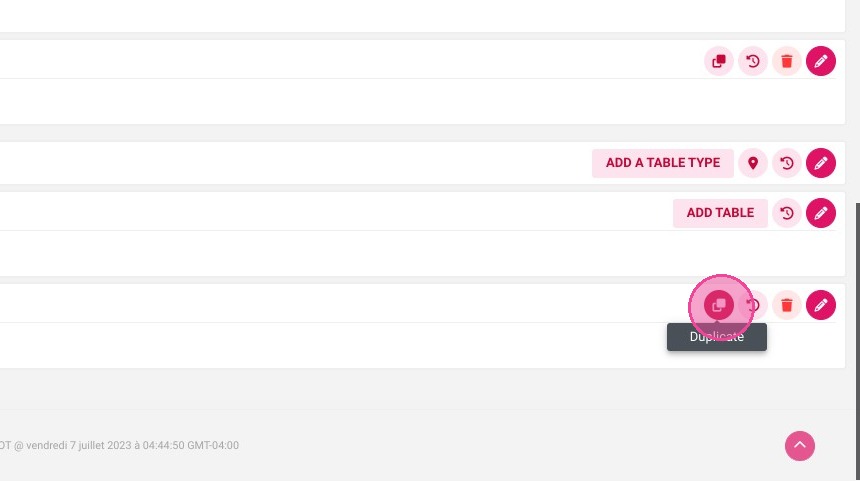
Tip: You can duplicate the table to go faster!

22. Click Duplicate
https://colony-recorder.s3.amazonaws.com/files/2023-07-07/03578746-c8ee-43a4-b655-aac4f2b6f12d/ascreenshot_7cc30da9cdfb4df8b990e65989a8852d_text_export.jpeg

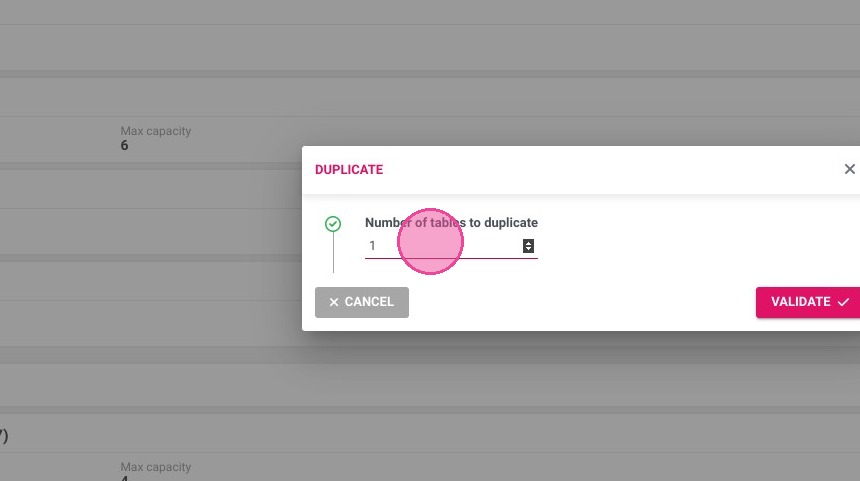
23. Enter the number of copies you want
https://colony-recorder.s3.amazonaws.com/files/2023-07-07/191ba107-4bd7-4233-88cc-d7a83a538d64/ascreenshot_88bd43e85e98401ca5faa36322a15c88_text_export.jpeg

24. Then Validate

https://colony-recorder.s3.amazonaws.com/files/2023-07-07/1bc134a5-3126-4118-96b9-7baf49f09f2a/ascreenshot_33b1a50c8c5f42e9994047e331fd6a5c_text_export.jpeg

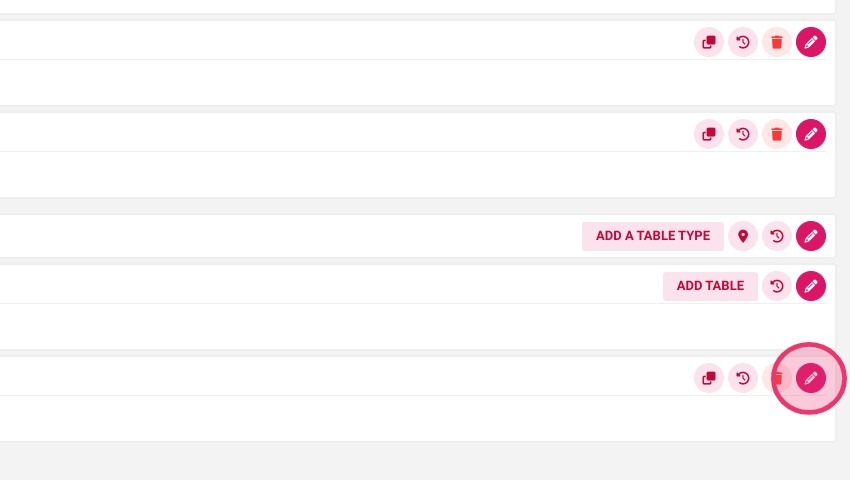
25. Simply modify the new tables if necessary by clicking here
https://colony-recorder.s3.amazonaws.com/files/2023-07-07/a00c7263-8953-4e7f-95eb-9466f6f67b5b/user_cropped_screenshot_9c37b97a44bc427d892d3fff009a6a6b_text_export.jpeg