

Article Summary: In Reservit, the same revenue can be displayed differently depending on the date used to calculate it: the date of stay, the booking creation date or the invoice date. This guide explains what each of these dates covers, on which screens you will find them and when your statistics are updated. You will then be able to read your figures without misinterpretation and compare like with like.
The 4 key points to remember:
-
Date of stay: the nights spent at your property during the period. This is the default choice, and the only one possible for the occupancy rate and RevPAR.
-
Creation date: the day the booking was made. The whole amount of the booking is attached to that day.
-
Invoice date: the date your invoices were issued (Reservit PMS billing).
-
Updates: dashboard statistics are recalculated every night. A booking made today appears tomorrow.
Why follow this guide? This is the most common reason why two figures differ. The same month can show very different revenue depending on the date chosen, without either figure being wrong. Once you understand this logic, you can choose the right indicator for each question: occupancy, sales pace or invoicing.
1. An example to understand
Let's take one booking:
-
created on January 10;
-
for a stay from January 30 to February 2, i.e. 3 nights at $100 ($300 in total);
-
invoiced on February 2, when the guest checks out.
Here is where these $300 appear depending on the date chosen:
|
Date chosen |
January |
February |
|---|---|---|
|
Date of stay |
$200 (nights of January 30 and 31) |
$100 (night of February 1) |
|
Creation date |
$300 (the booking was created on January 10) |
$0 |
|
Invoice date |
$0 |
$300 (invoice issued on February 2) |
All three figures are correct: they simply answer three different questions.
-
Date of stay: "How much revenue did the nights spent at my property generate during the period?" This is the view of your activity and occupancy.
-
Creation date: "How much did I sell during the period?" This is the view of your sales pace, useful to measure a campaign or a promotion.
-
Invoice date: "How much did I invoice during the period?" This is the view of your invoicing.
2. Where to choose the date
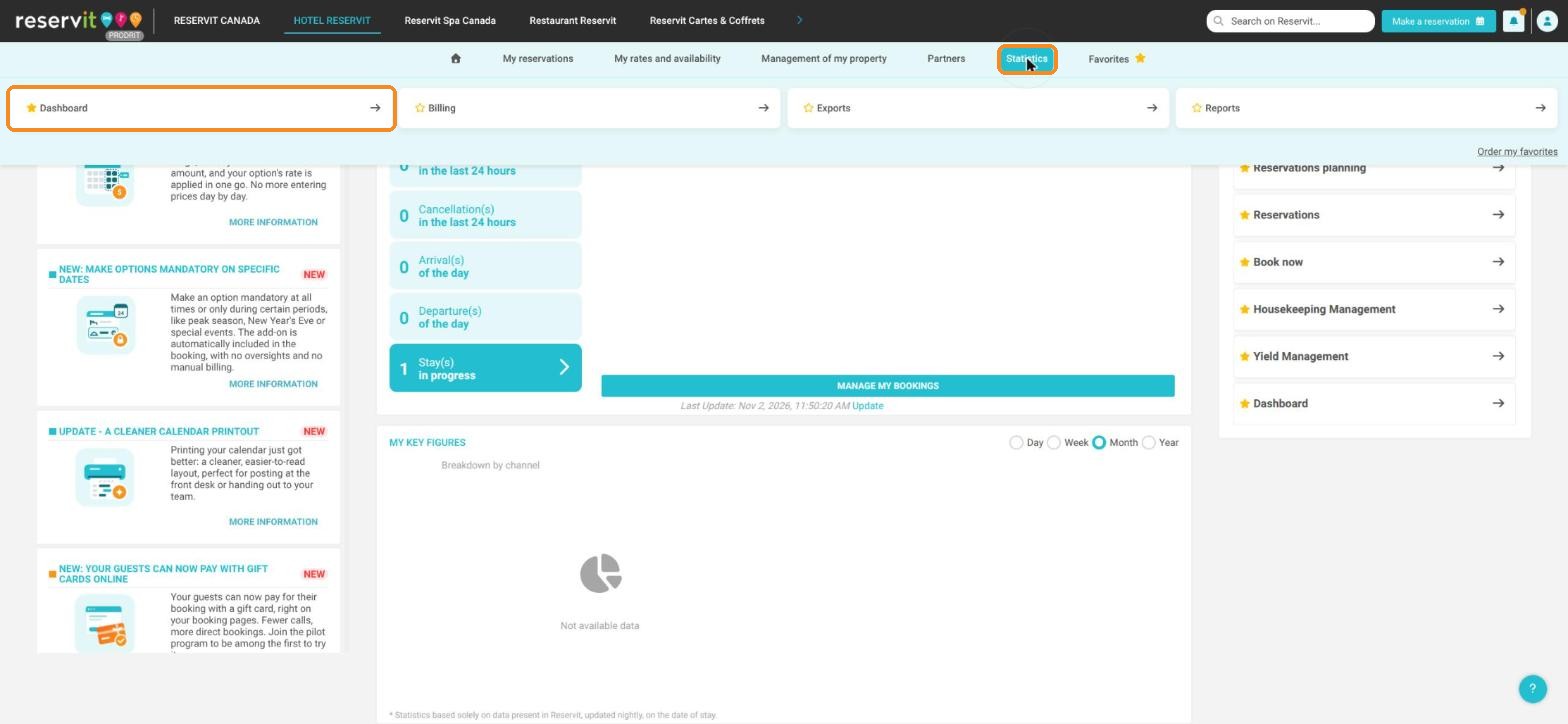
Click Statistics, then Dashboard.
The choice is made at the top of the screen:
-
on the left, the period: the calendar to choose your dates, or the buttons to display the last 30 days (default) or the next 30 days;
-
on the right, the reference date: the "DATE OF STAY" (default), "CREATION DATE" and "INVOICE DATE" buttons.
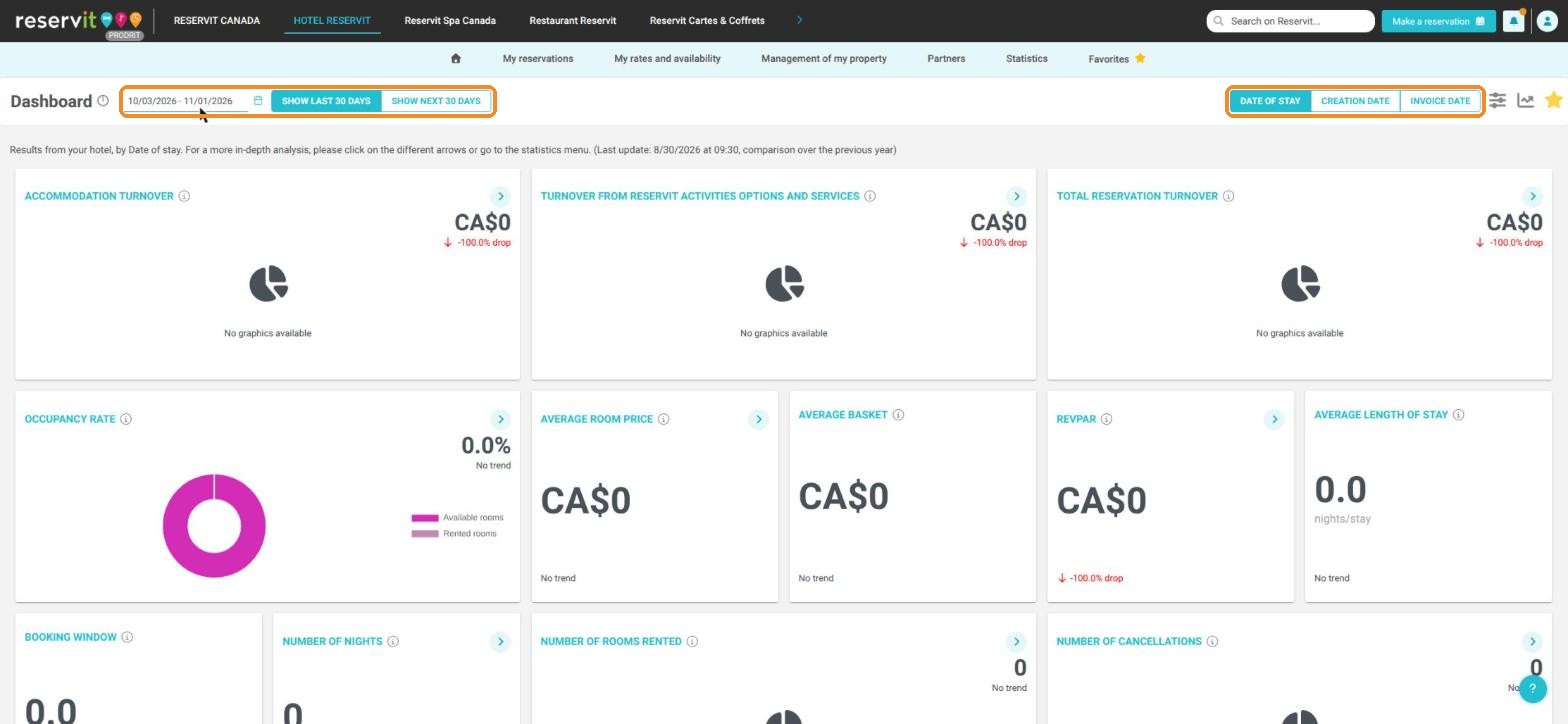
Tip: Just below, a sentence reminds you of the reference date chosen and shows the date of the last data update.
Tip: All the dashboard tiles are updated as soon as you change the period or the reference date.
3. Which dates for which statistics
|
Statistic |
Stay |
Creation |
Invoice |
|---|---|---|---|
|
Accommodation, options and total revenue |
✔ |
✔ |
✔ |
|
Revenue by channel |
✔ |
✔ |
✔ (revenue only) |
|
Occupancy rate, RevPAR |
✔ |
— |
— |
|
Average room price, average basket, rooms rented, number of nights |
✔ |
✔ |
— |
Warning: The occupancy rate and RevPAR are calculated by date of stay only and require Reservit PMS.
Warning: By date of stay, accommodation turnover only counts the nights within the period. However, the average basket and channel statistics count the whole booking as soon as one of its nights falls within the period. Amounts can therefore differ from one tile to another over the same period.
4. What you need to know about the invoice date
-
It is available with Reservit PMS billing.
-
Only invoices issued during the period are taken into account.
-
In the dashboard, credit notes are not taken into account. In the Global Report and the Revenue report, a credit note is counted on its own issue date, in the credit note category, and is deducted from the global revenue.
-
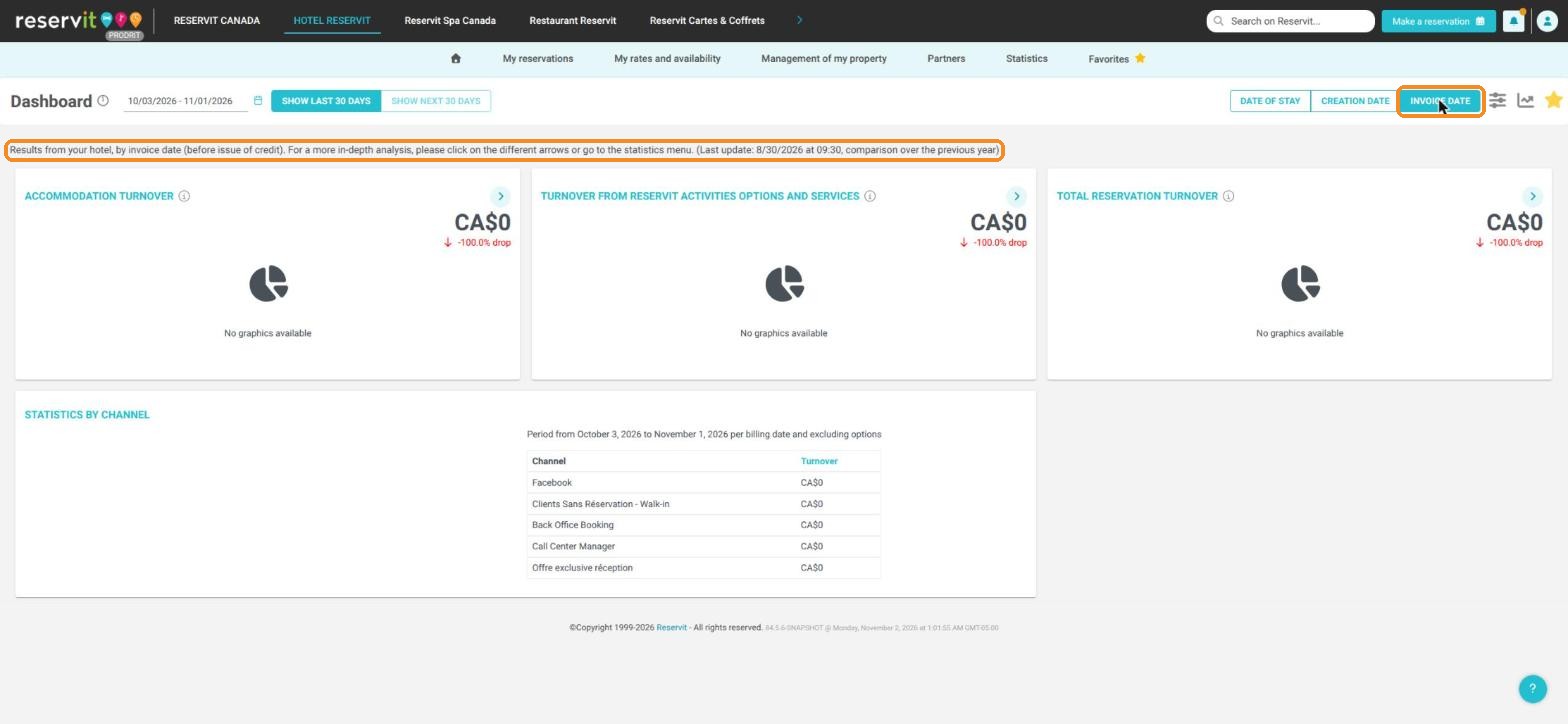
Future dates cannot be selected: the button to display the next 30 days is greyed out.
-
The screen reminds you: "by invoice date (before issue of credit)".
-
The invoice date is also available in Statistics > Billing > Global Report and in Statistics > Billing > Revenue report.
5. Dates in other screens
|
Screen |
Date used |
|---|---|
|
Home page, key figures widget |
Date of stay |
|
Statistics > Billing > Global Report |
Date of stay (default) or invoice date |
|
Statistics > Billing > Revenue report |
Date of stay, spread night by night (default), or invoice date |
|
Day Book |
The day of consumption |
|
Money Owed to you (Accounts Receivable), Daily services not billed |
The situation on a given day (today by default) |
|
Payment report |
The date the payment was entered |
|
Extraction of bookings |
Your choice: creation, arrival, departure or invoice date |
Warning: The extraction of bookings does not offer the date of stay. A filter on the arrival date therefore does not give exactly the dashboard revenue by date of stay: a booking arriving at the end of January can have nights in February.
6. When are your statistics updated?
-
Dashboard and the key figures widget on the home page: recalculated every night. Today's bookings appear tomorrow.
-
Planning and stock left for sale: in real time.
Tip: If a booking made today does not appear in your dashboard yet, this is normal: it will be visible tomorrow morning.