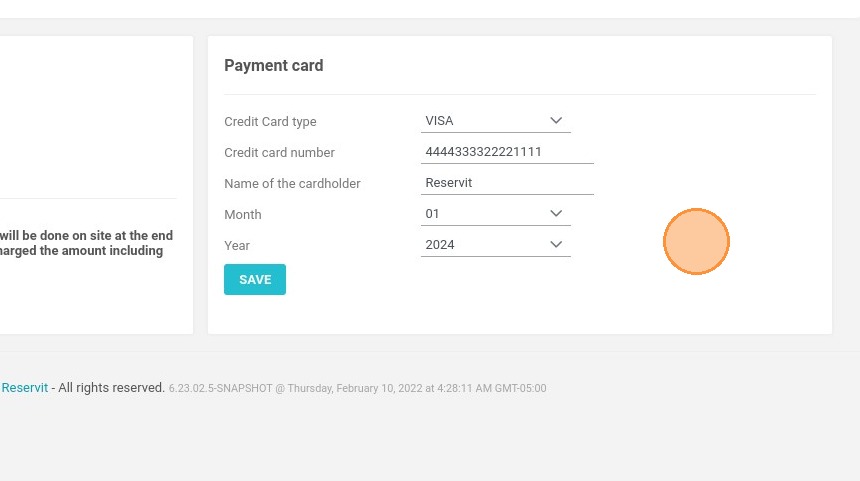
Article Summary: This step-by-step tutorial explains how to securely access guest credit card information and view payment details within the Reservit accommodation platform. You will learn the exact two-factor authentication process required to retrieve banking information safely, allowing you to manage reservations, guarantee bookings, and process payments efficiently.
The 5 key steps to access credit card information:
-
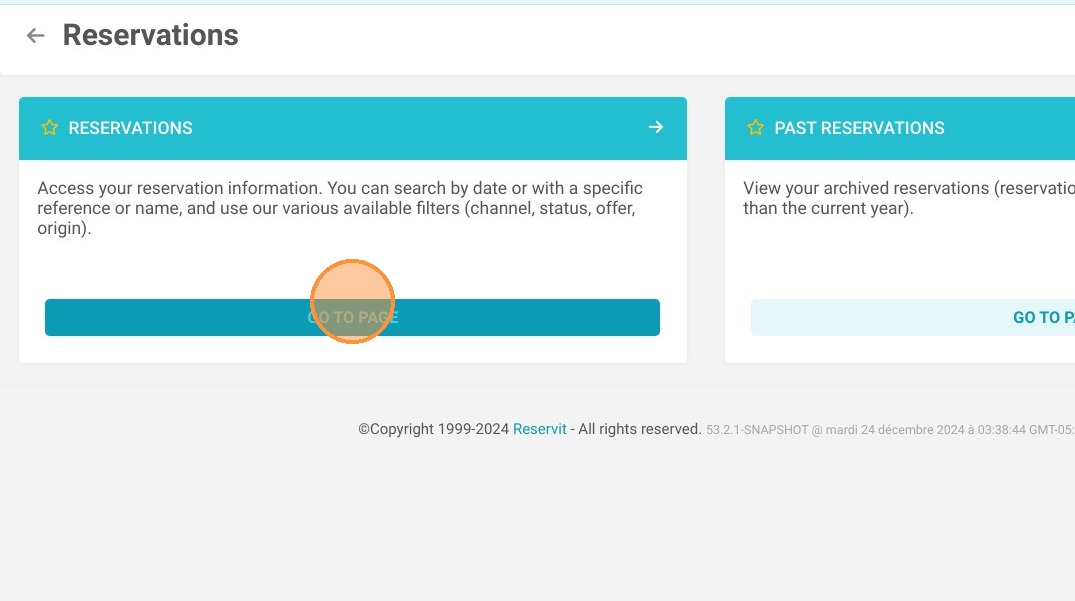
Locate the reservation: Navigate to the "My reservations" tab and select the "Reservations" menu to search for the specific booking.
-
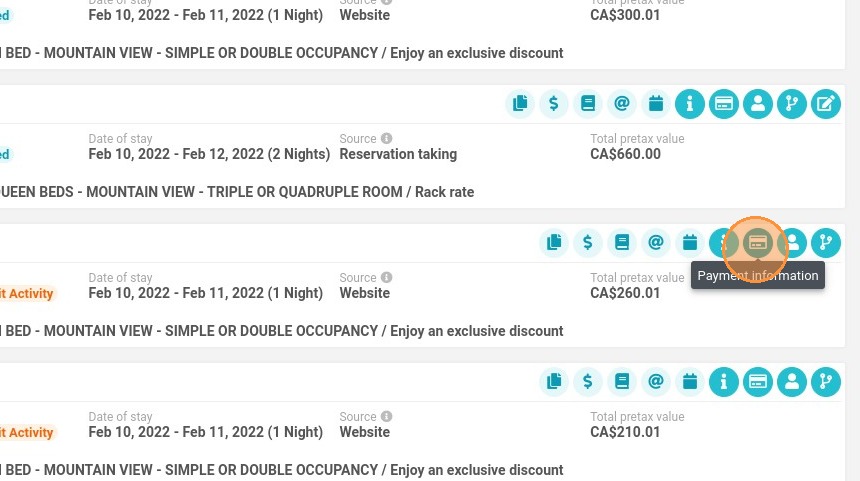
Request payment details: Click on the "Payment Information" button attached to the guest's reservation.
-
Enter your manager password: Input your Reservit manager password to trigger an automated security code sent directly to your email.
-
Input the security code: Retrieve the unique code from your inbox and enter it into the required "security code" field.
-
View banking information: Click "SEE BANK ACCOUNT DETAILS" to safely reveal the guest's credit card information (excluding the visual cryptogram/CVV) for processing.
Why follow this guide? Following this strict, built-in authentication procedure ensures that sensitive guest financial data remains fully secure and compliant with privacy standards. It empowers your front desk staff to safely retrieve necessary payment details to validate bookings while strictly preventing unauthorized access to credit card information.
1. Go to My reservations > Reservations.
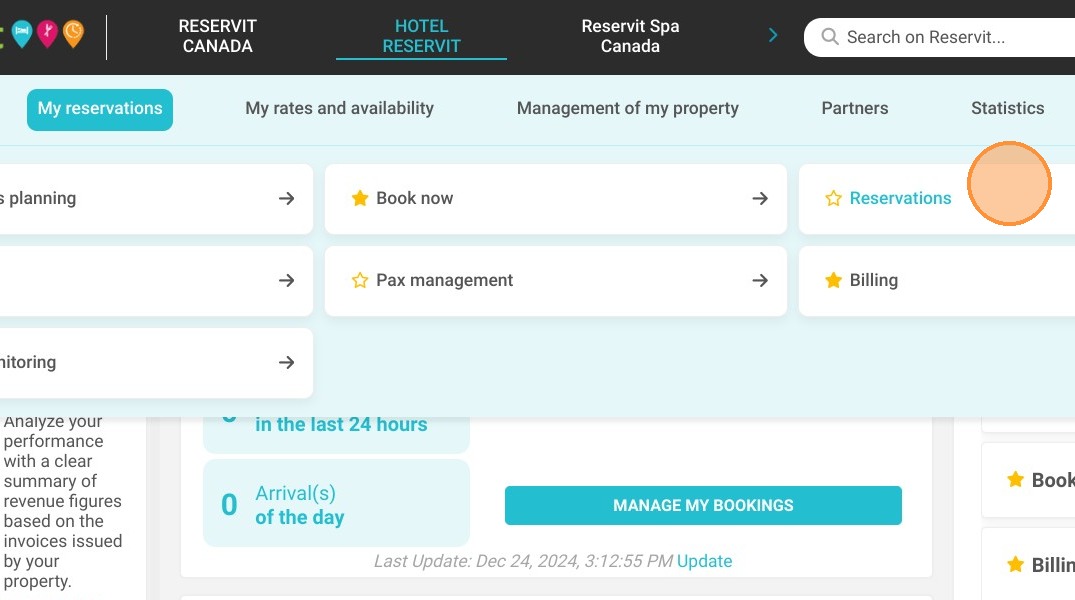
2. Click on Reservations.
3. Search the reservation and click on the button "Payment Information" to access the banking information
4. An email is automatically sent to you with the security code. Fill in your password in "Reservit manager password" field
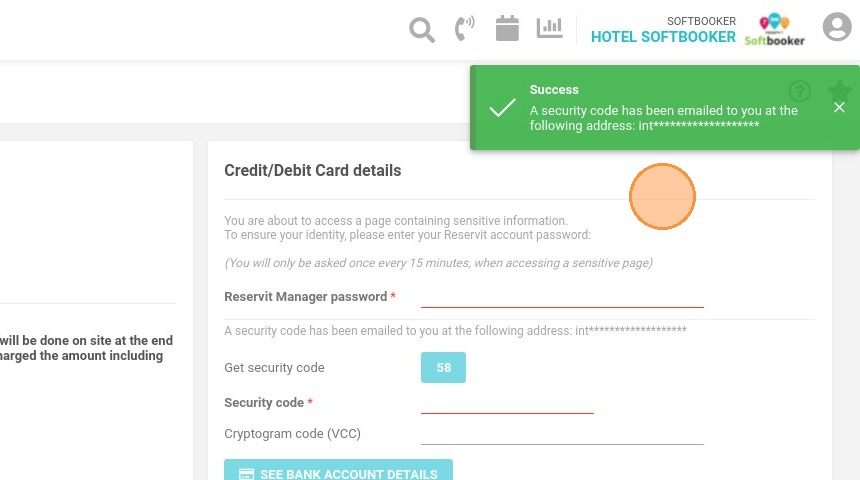
5. Retrieve the code from your emails and enter it in the "security code" field
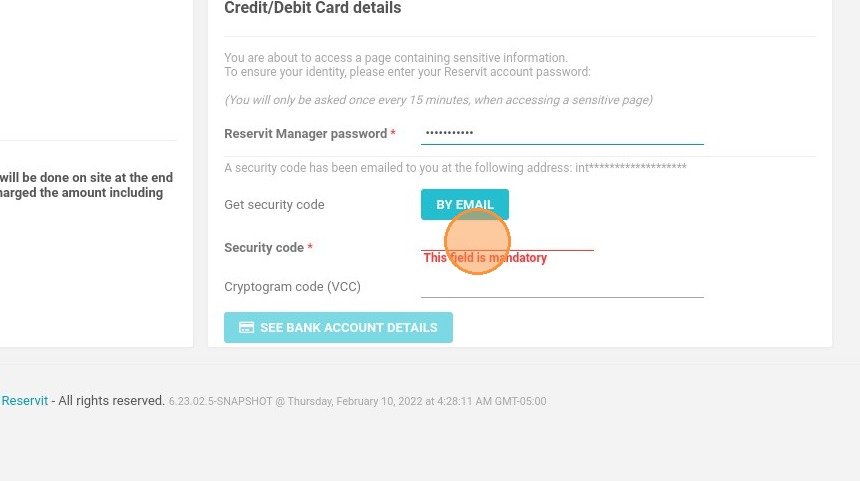
6. You can view the information without the visual cryptogram by clicking on "SEE BANK ACCOUNT DETAILS"
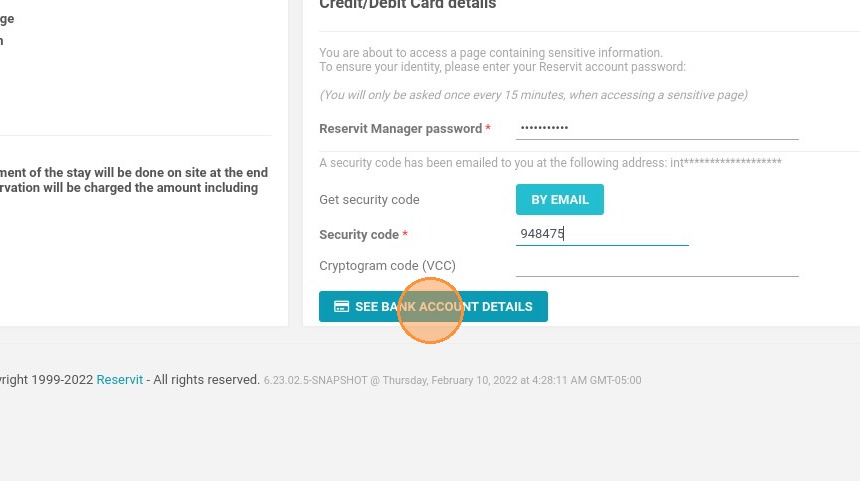
7. You can then view the banking information