

Article Summary: This tutorial is designed for web agencies and developers who connect the Reservit booking engine to their clients' websites. It explains how to find the identifiers you need and how to use the Reservit Wizard to create direct booking URLs for a property, its rooms or its special offers. Following this procedure ensures a smooth, error-free integration that makes it easy for travellers to book.
The 5 Key Steps to Generate Reservit Booking Links:
-
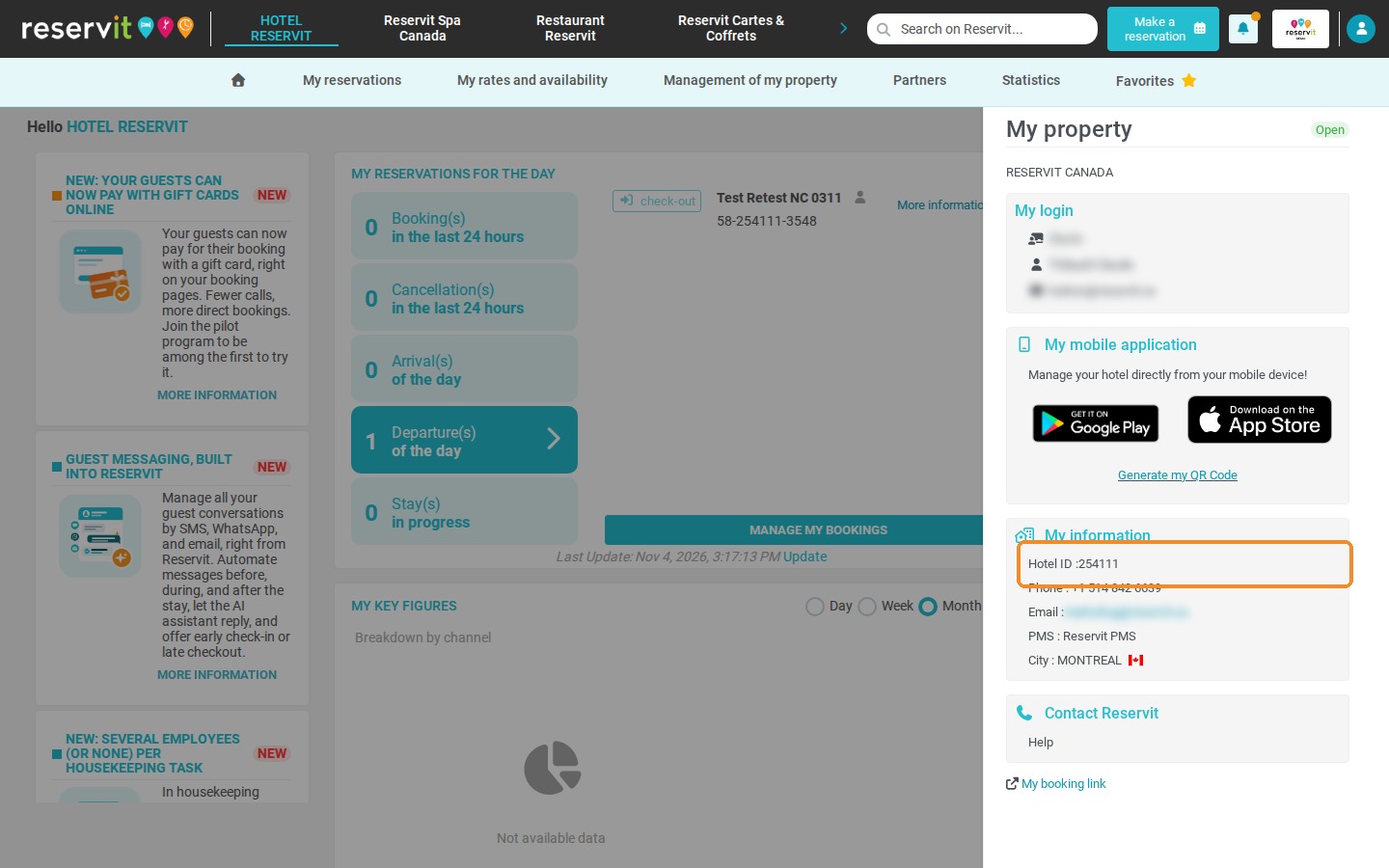
Find the property ID: In Reservit, click the profile icon at the top right and copy the "Hotel ID" shown under "My information".
-
Open the Reservit Wizard: Go to https://secure.reservit.com/wizard/ and select "Accommodation" as the establishment type.
-
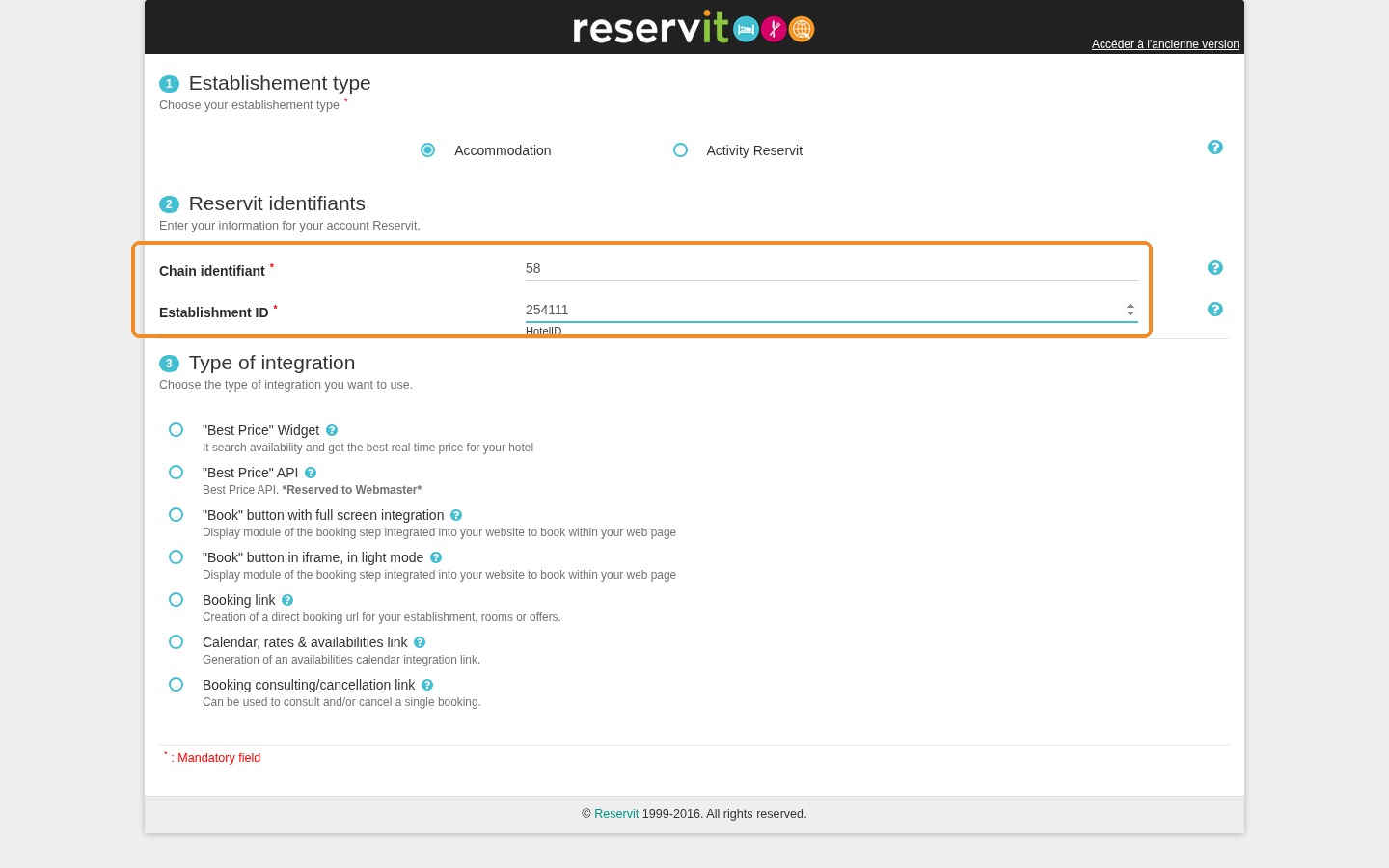
Enter the Reservit identifiers: Fill in the "Chain identifiant" and "Establishment ID" fields.
-
Choose "Booking link": In "Type of integration", select "Booking link" to create a URL to the property, a specific room or a special offer.
-
Generate and copy the URL: Choose the language, click "GENERATE", then copy the URL and add it to the "Book now" buttons of the website.
Why Follow This Guide? This guide helps developers save time by generating accurate, working booking links the first time. You avoid routing errors and make the path from the property's website to its booking engine as smooth as possible, which supports direct bookings.
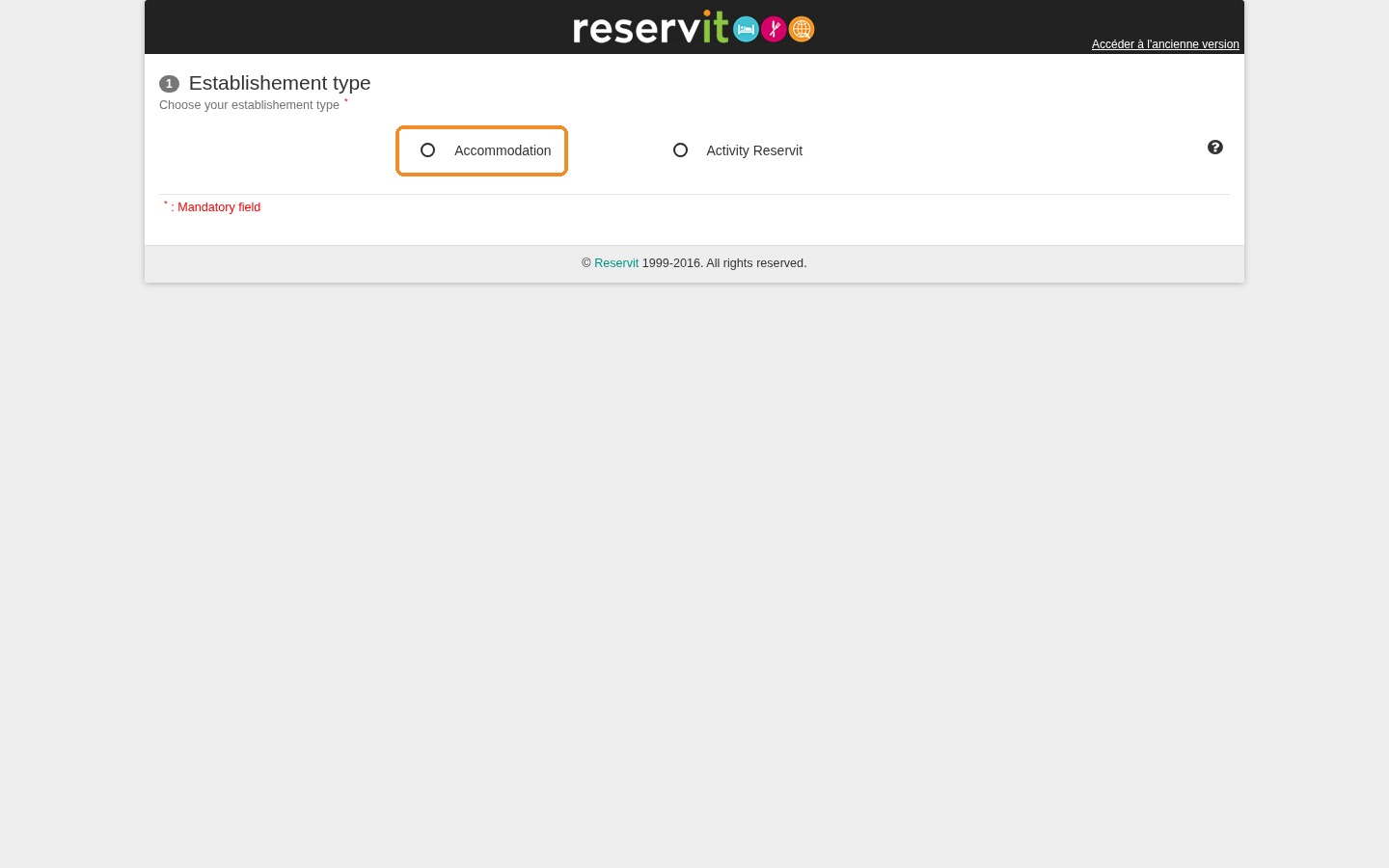
1. Open the Wizard, which lets you generate the links you need: https://secure.reservit.com/wizard/. In "Establishement type", click "Accommodation".
2. To find the property ID, log in to Reservit and click the profile icon (round blue icon) at the top right. In the "My property" panel, under "My information", copy the "Hotel ID" (for example "254111"). Then, back in the Wizard, in "Reservit identifiants", enter the chain ID of your client in "Chain identifiant" and paste the hotel ID in "Establishment ID".
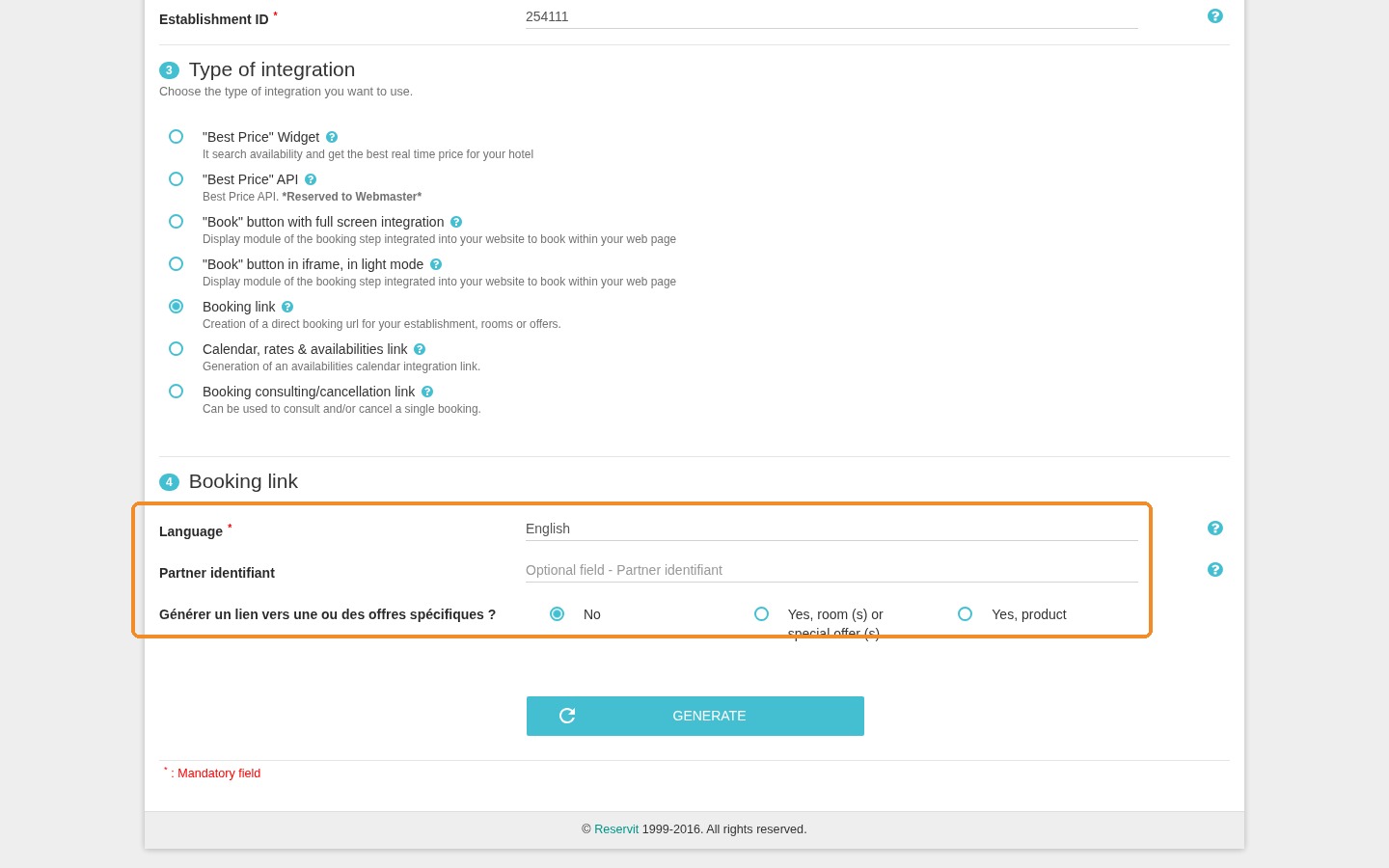
3. In "Type of integration" ("Choose the type of integration you want to use."), click "Booking link" ("Creation of a direct booking url for your establishment, rooms or offers.").
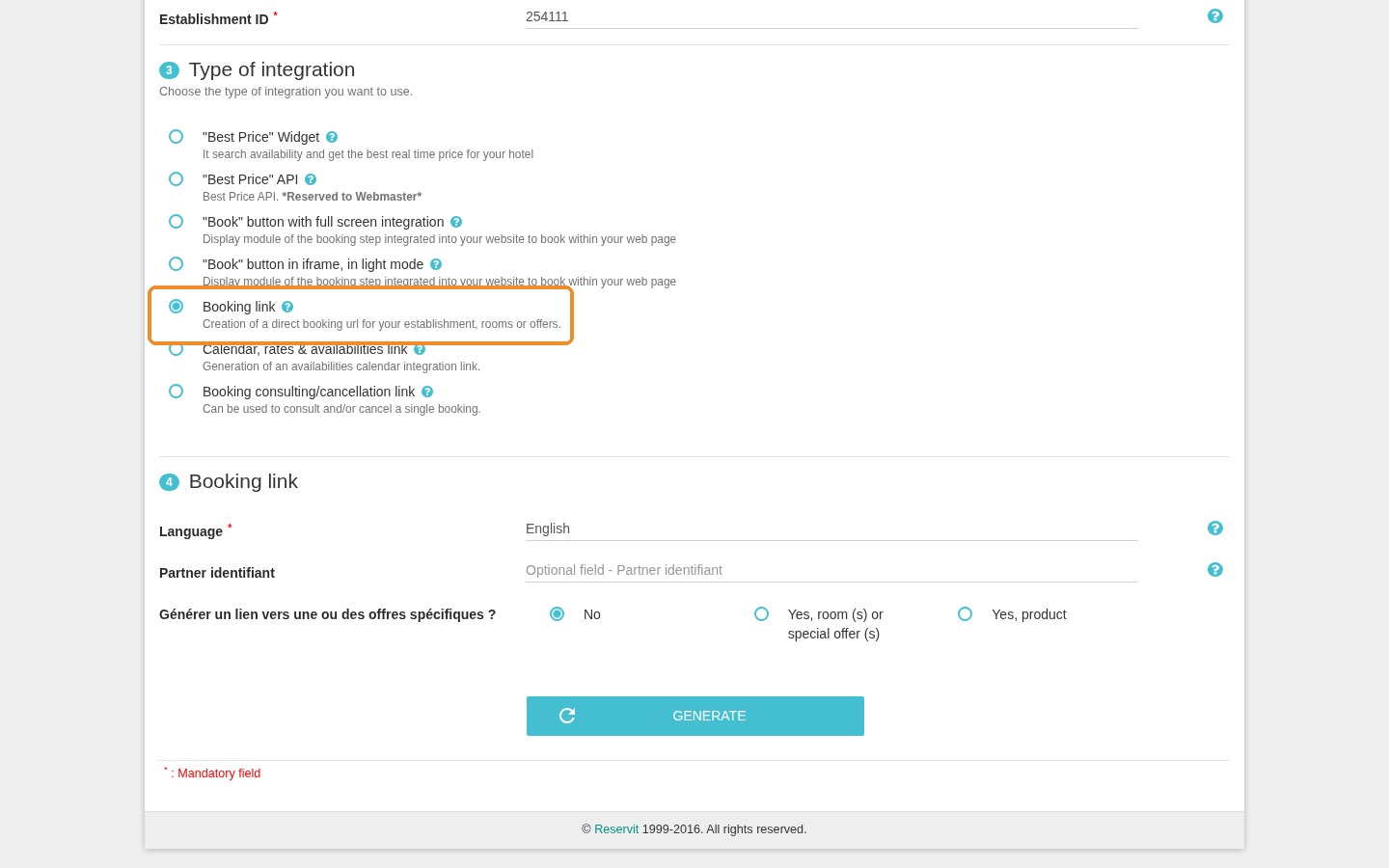
4. In "Language", choose the language of the booking page. Then, to the question about links to specific offers, click "No" for a link to the whole property.
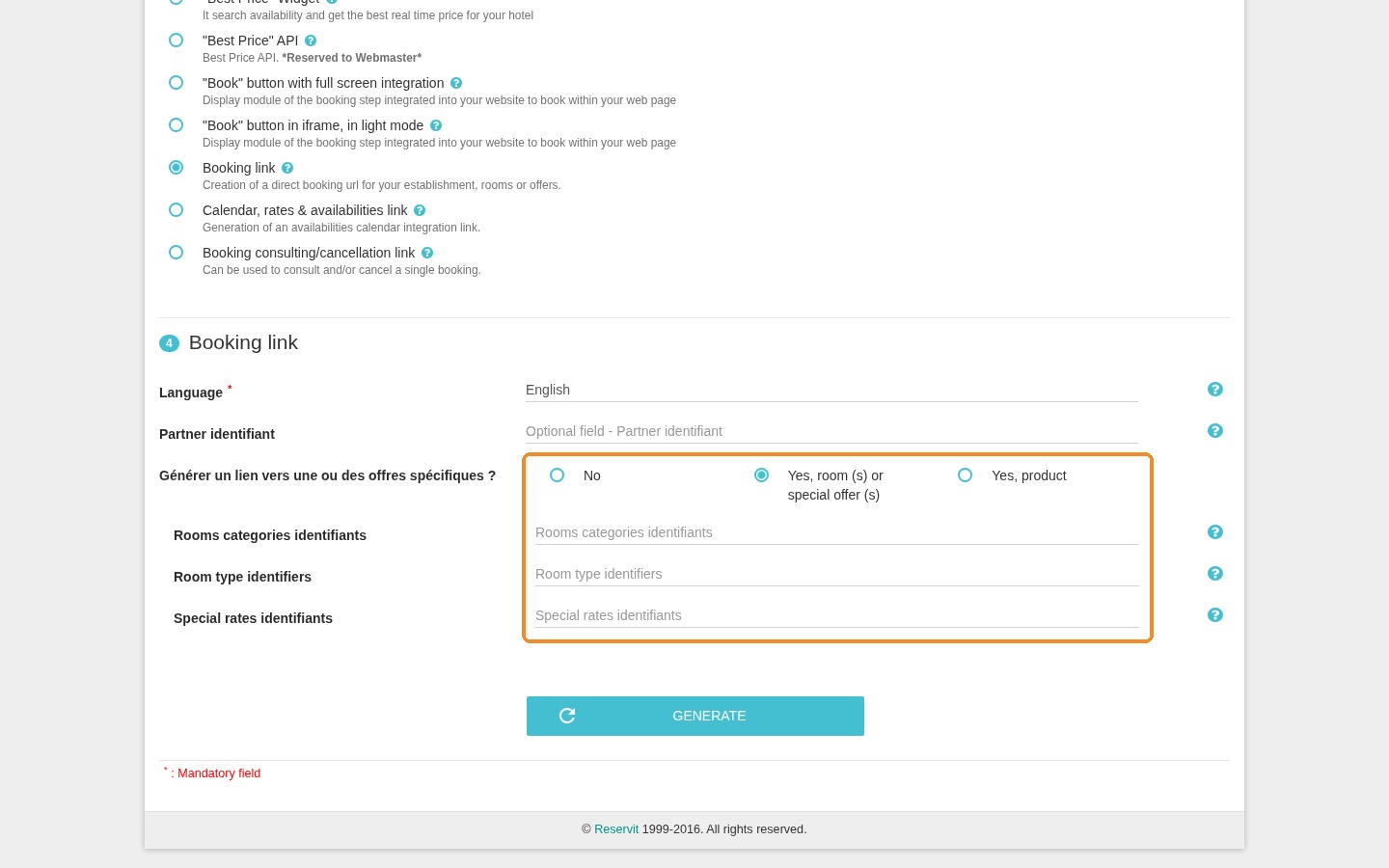
5. For a link to a specific room or offer, click "Yes, room (s) or special offer (s)" instead and enter the identifiers in "Rooms categories identifiants", "Room type identifiers" or "Special rates identifiants".
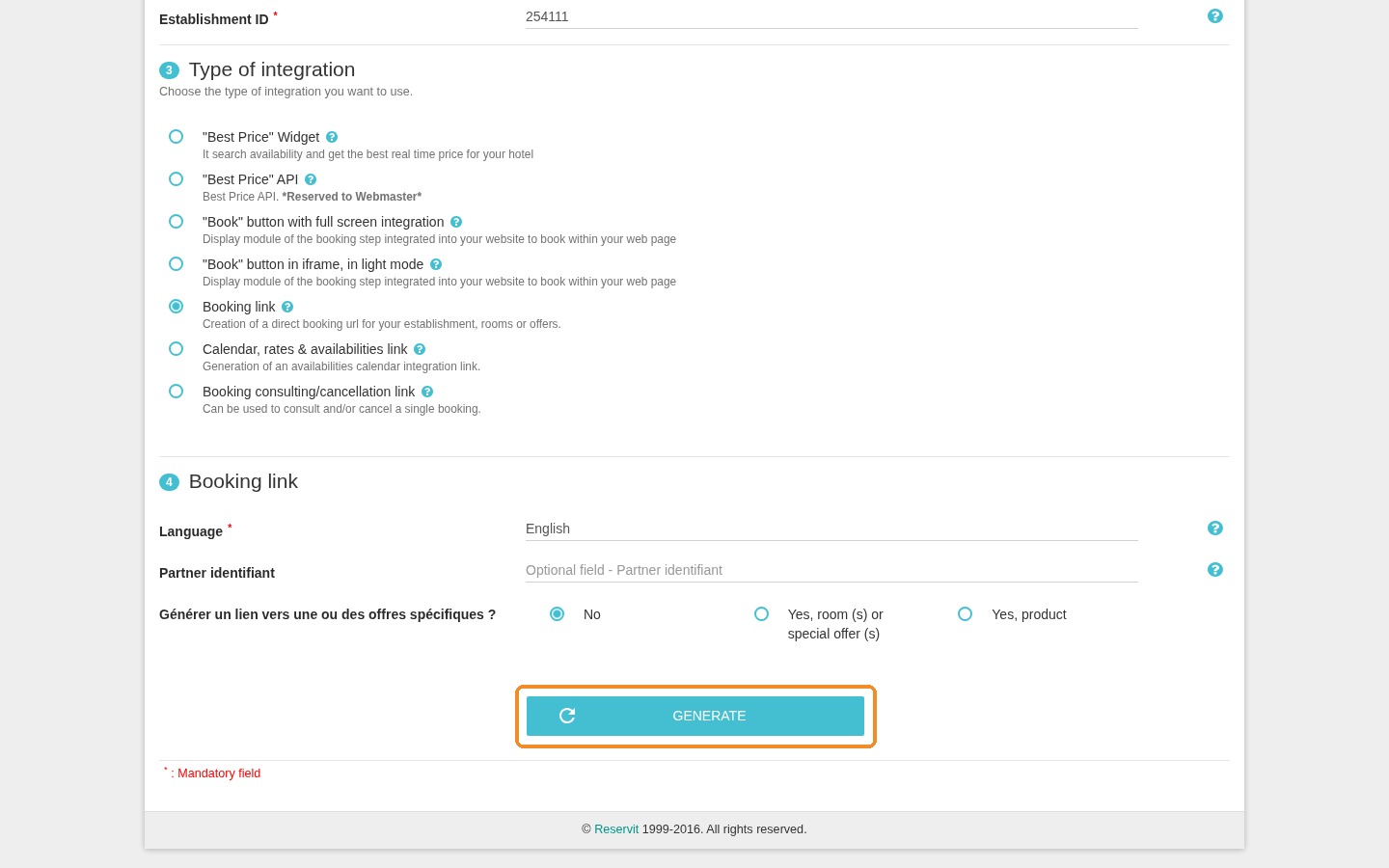
6. Click "GENERATE".
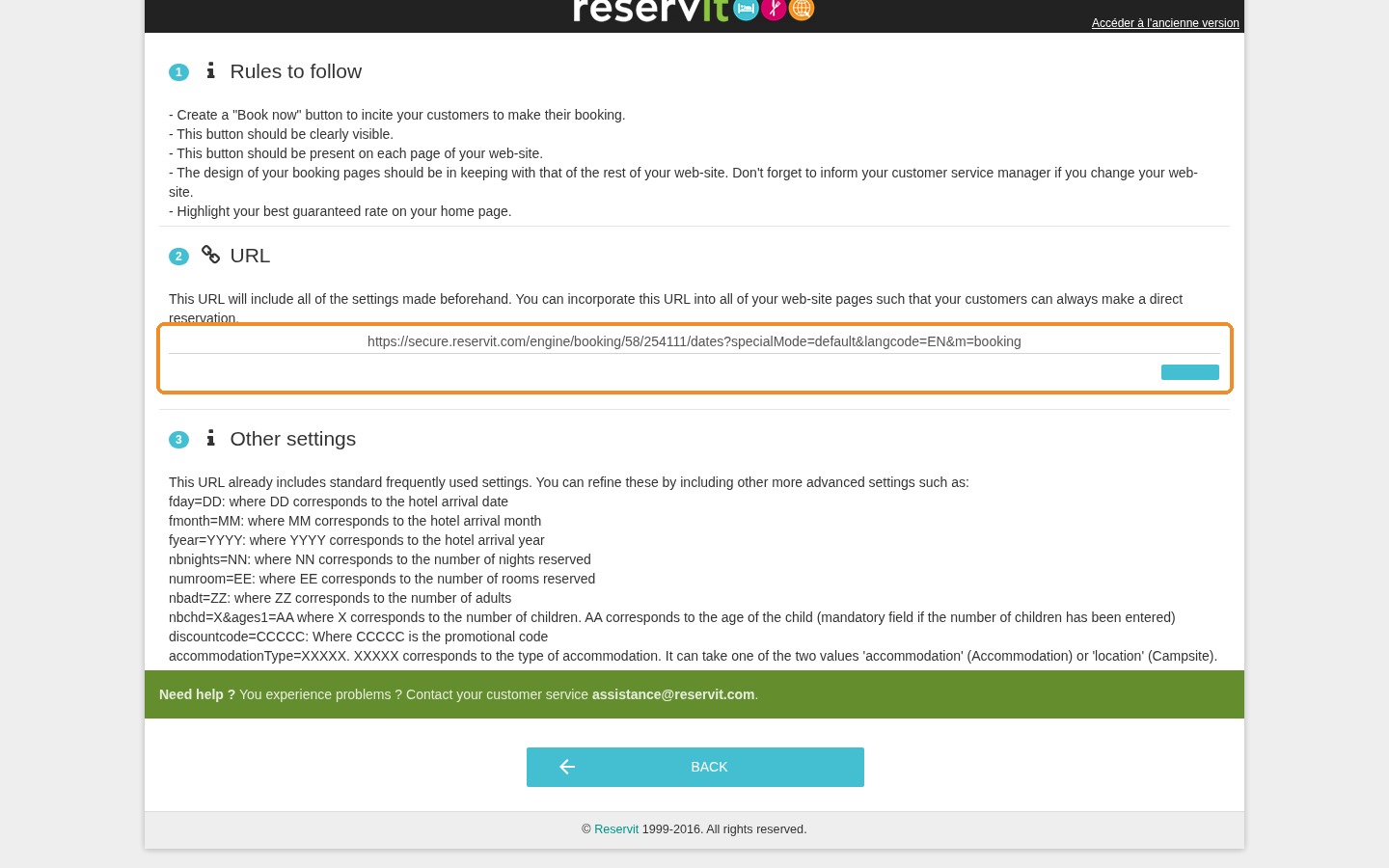
7. The URL is displayed in the "URL" section: copy it with the button below it and add it to the "Book now" buttons of the website. The "Other settings" section lists optional parameters you can add to the URL (arrival date, number of nights, adults, promotional code, etc.).
To create booking links from the Best Price Widget settings in Reservit Accommodation, see How to Generate Booking Links and Create Reservation URLs in Reservit Accommodation.