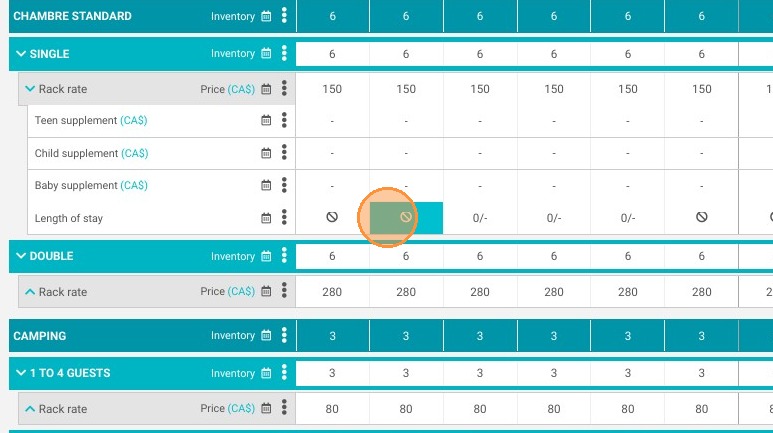
Article Summary: This step-by-step tutorial explains how to set up customized booking rules and calendar restrictions within the Reservit Accommodation platform. You will learn how to efficiently apply minimum length of stay requirements and block specific arrival or departure days for targeted rooms. Mastering these advanced planning settings allows you to optimize your property's occupancy rates and perfectly align your online availability with your overarching revenue management strategy.
The 5 Key Steps to Set Up Booking Restrictions:
-
Access Advanced Editing: Navigate to "My rates and availability," open the "My planning" calendar, and click on the "Advanced editing" tool.
-
Select the Restriction Type: Choose the specific booking rule you want to implement, such as length of stay limits or forbidden arrival and departure days.
-
Target Rooms and Periods: Select the specific accommodation types you wish to restrict, then accurately define the exact date ranges and days of the week the rule will apply to.
-
Duplicate and Apply: Save time by duplicating your new restrictions to other room categories if needed, then click "Apply" to push the setup forward.
-
Confirm and Verify: Confirm your configuration to officially save the changes, then look at your main calendar to verify that the new restrictions are visibly active.
Why follow this guide? Following these steps automates your yield management strategy and prevents unwanted, unprofitable calendar gaps without requiring constant manual oversight. It gives you precise control over your Reservit Accommodation inventory, saving valuable administrative time while maximizing your property's revenue potential.
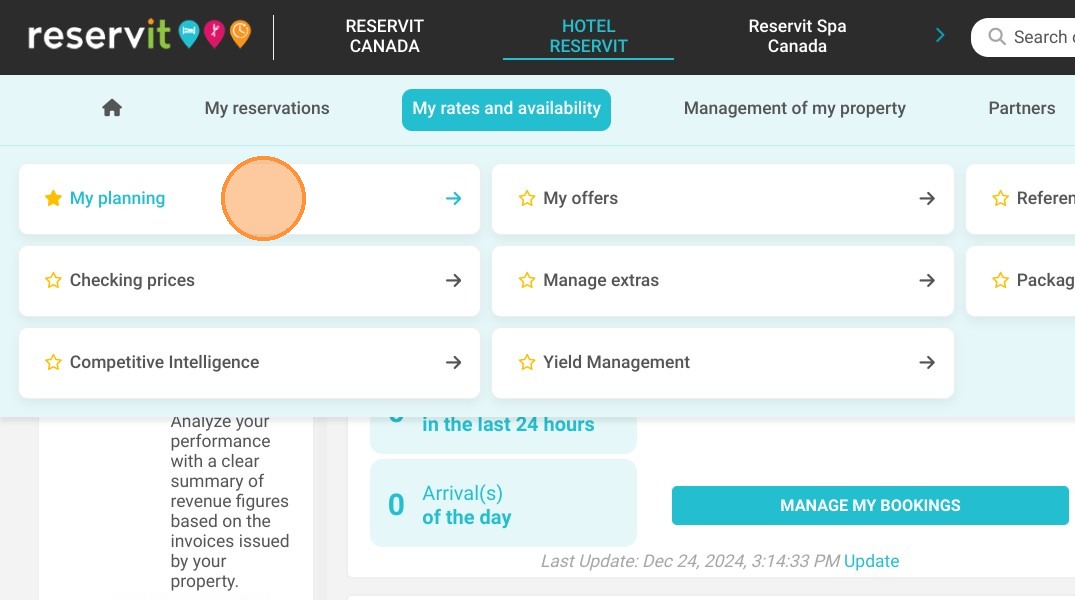
1. Go to My rates and availability > My planning.
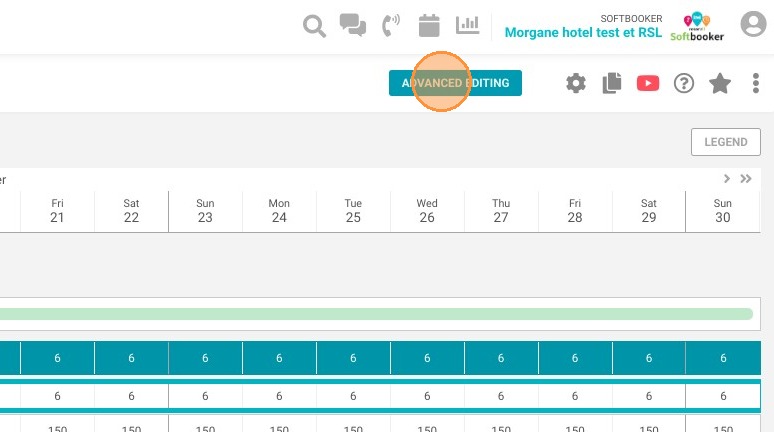
2. Click on advanced editing
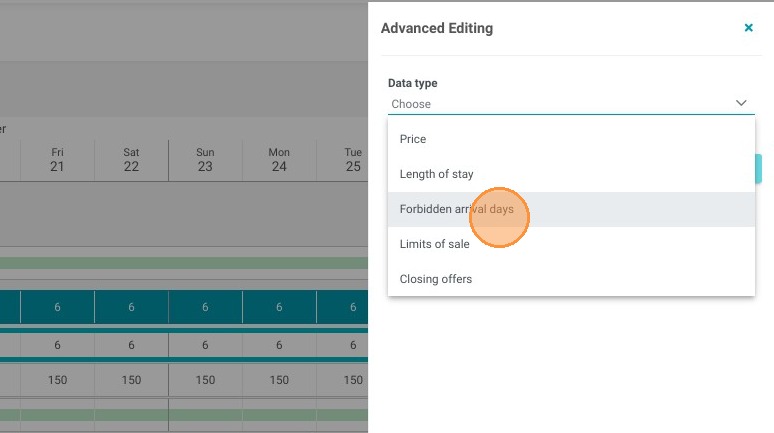
3. Select the restriction to be implemented: Length of stay, forbidden arrival or forbidden departure days
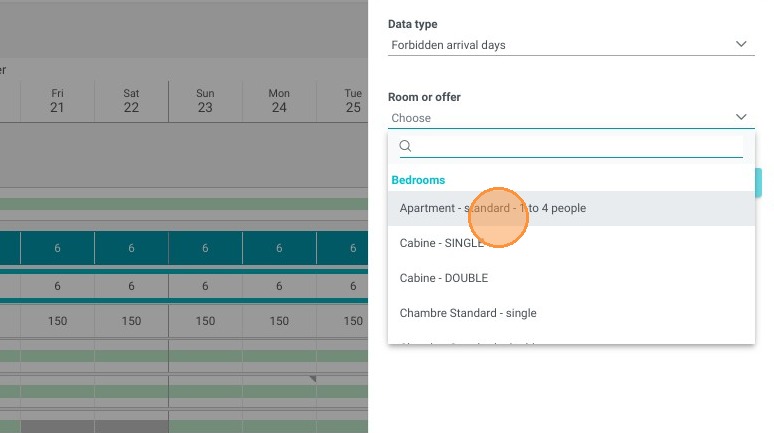
4. Choose the room you want the restriction to apply to.
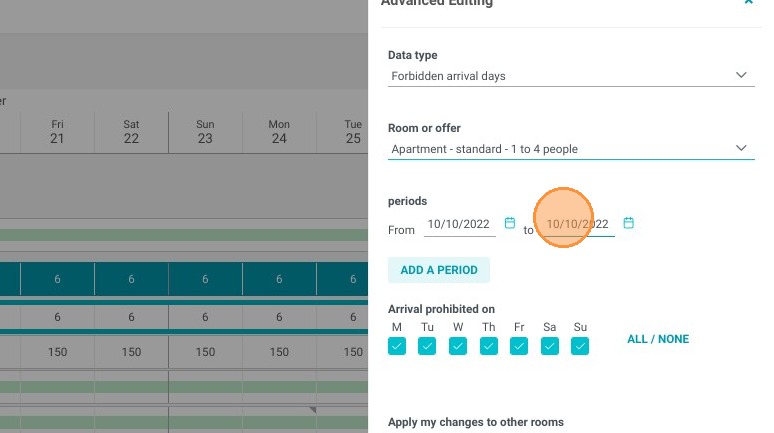
5. Select your period
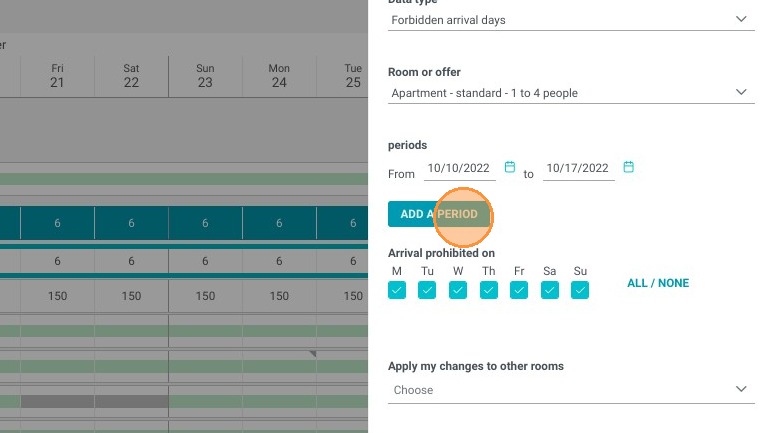
6. You could also add another period
7. You can also choose which days will have the restriction during the time period
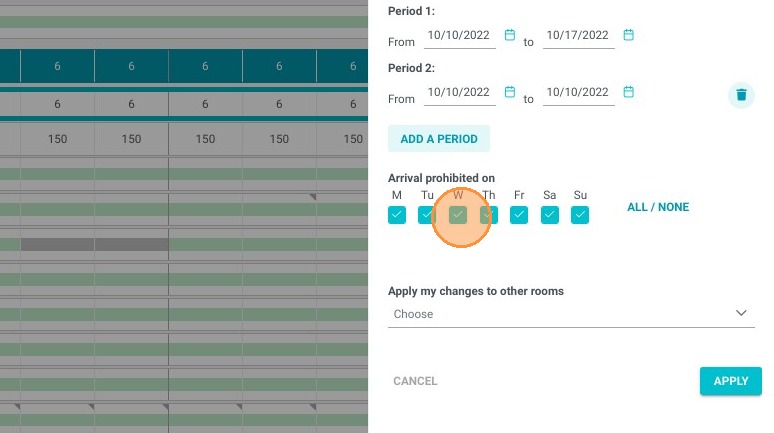
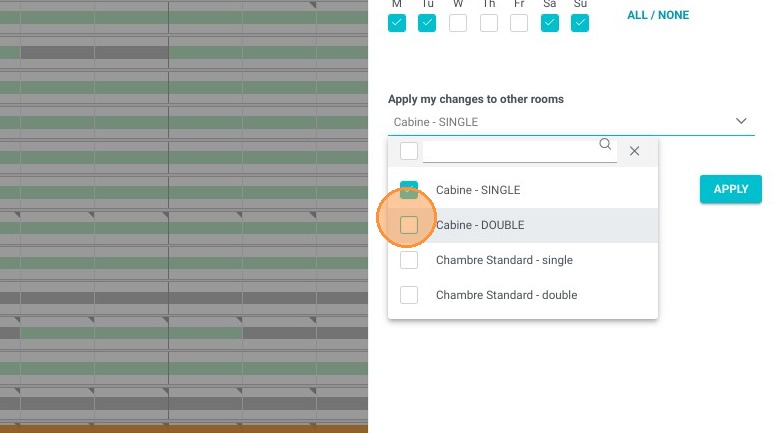
8. Duplicate these restrictions to other types of accommodation if you wish
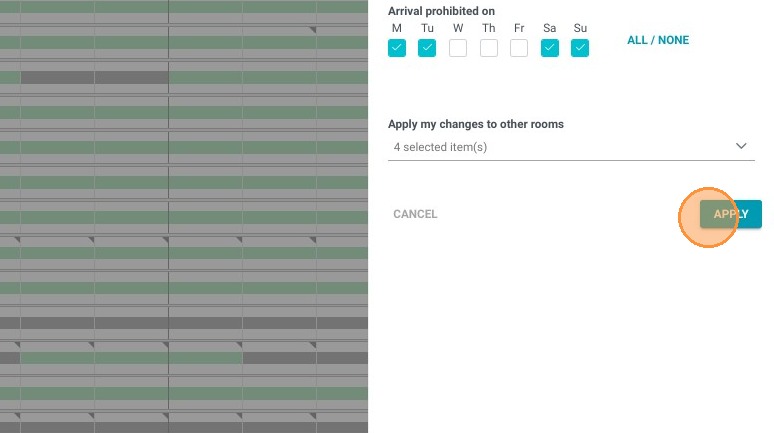
9. Once everything is done you can click on apply
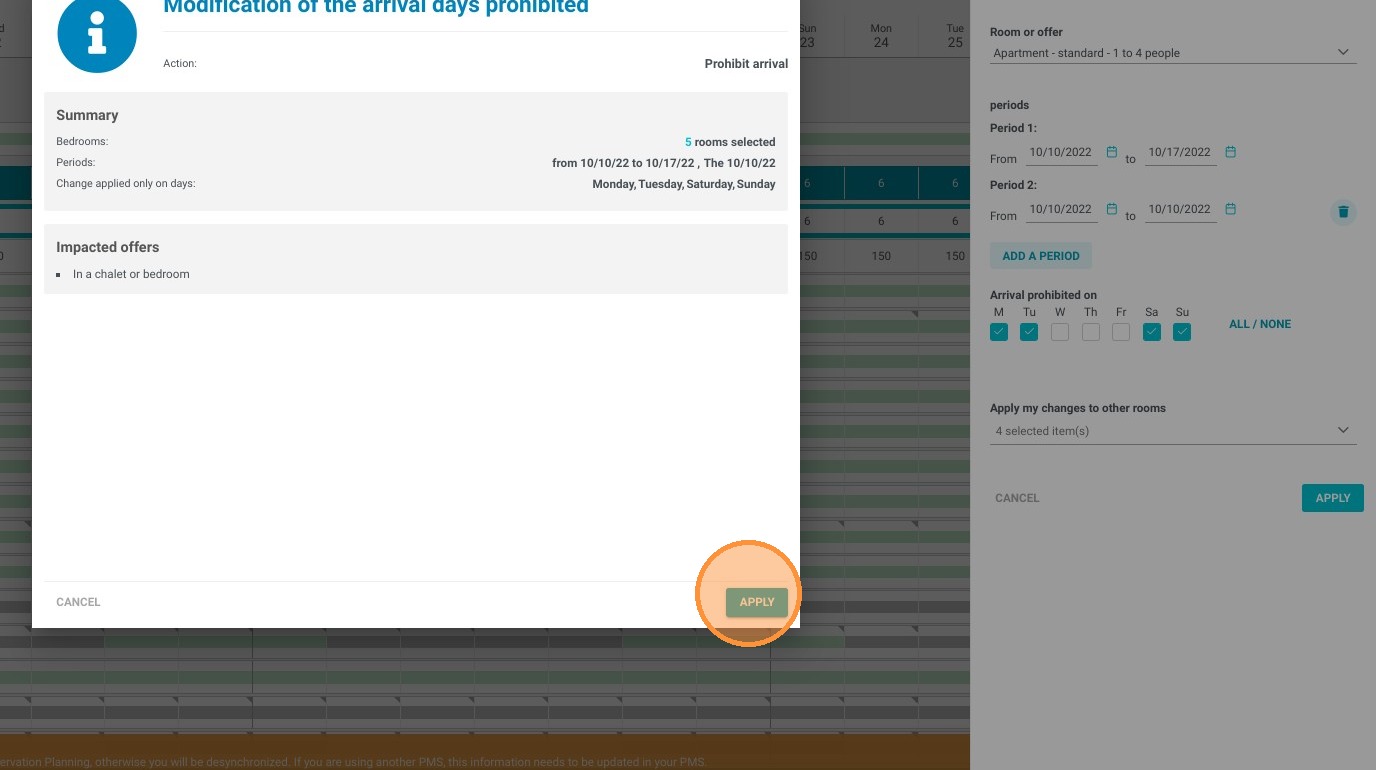
10. And confirm the restrictions you set up
11. The restrictions are visible on the planning