Article Summary: This step-by-step tutorial explains how to effectively define the length of stay in your Reservit hotel management system. You will learn how to set minimum and maximum stay restrictions for different room categories and specific dates, using both standard planning and advanced editing methods. Mastering these settings allows you to optimize your occupancy rates, accurately manage your reservations, and maximize your property's revenue.
The 5 key steps to define length of stay restrictions:
-
Access your planning dashboard: Navigate to "My rates and availability" and open the "My planning" section.
-
Select your category and dates: Expand the RACK RATE line for your specific room category, click on the "Length of Stay" line, and choose the period you want to modify.
-
Set the stay limits: Input your required minimum and/or maximum length of stay for the selected timeframe and click "APPLY."
-
Utilize advanced editing (bulk updates): For broader updates, open "ADVANCED EDITING," select the "Length of stay" data type, and define the parameters to apply them across one or multiple categories simultaneously.
-
Confirm your changes: Review your modifications in the final summary screen and click "APPLY" to officially save your new booking restrictions.
Why follow this guide? Following this guide ensures you accurately implement stay restrictions, preventing costly booking errors and optimizing your hotel's availability calendar. It will save you valuable time in daily rate management while helping you secure more strategic and profitable booking patterns.
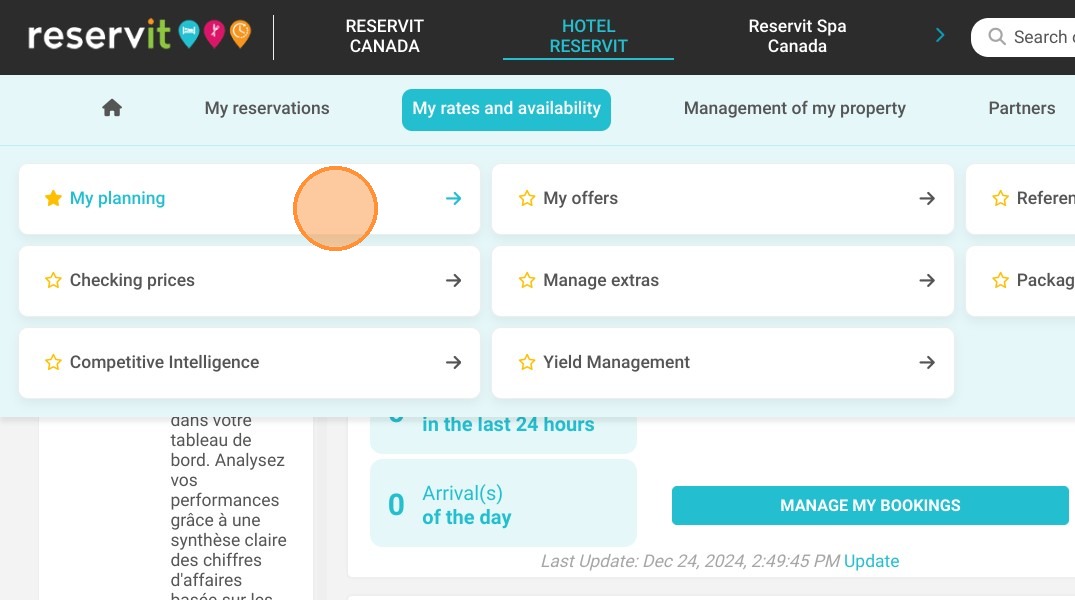
1. Go to My rates and availability > My planning.
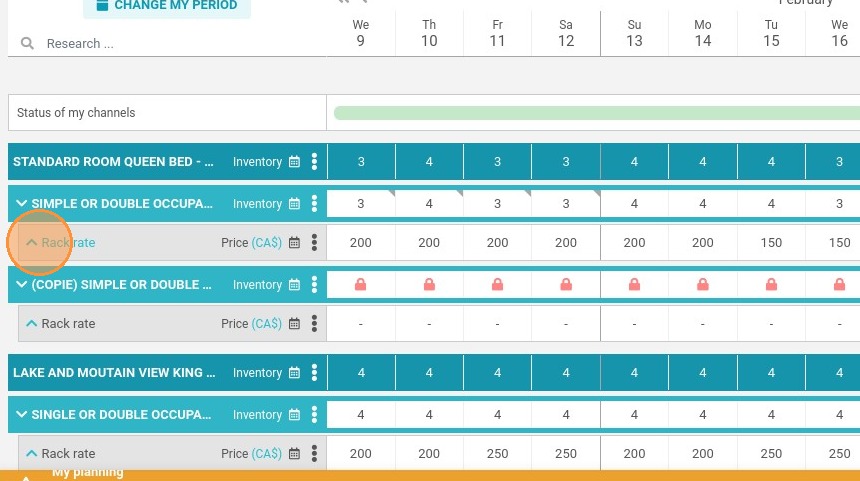
2. On the RACK RATE line of the corresponding category, click to expand the display
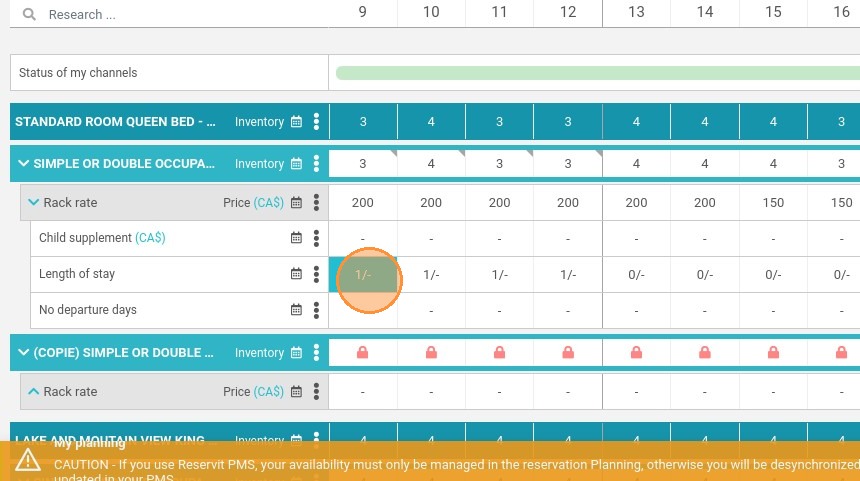
3. On the line Length of Stay, click on the start date of your choice.
4. Choose the period to modify
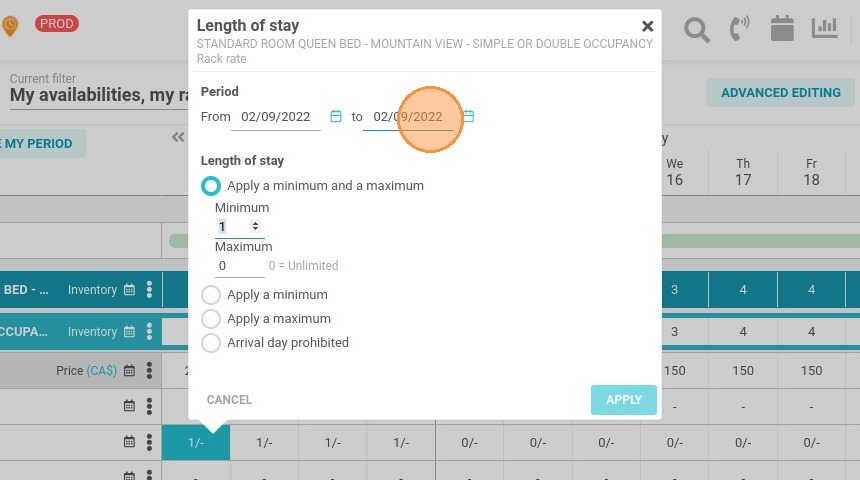
5. You can then choose to apply a minimum and a maximum
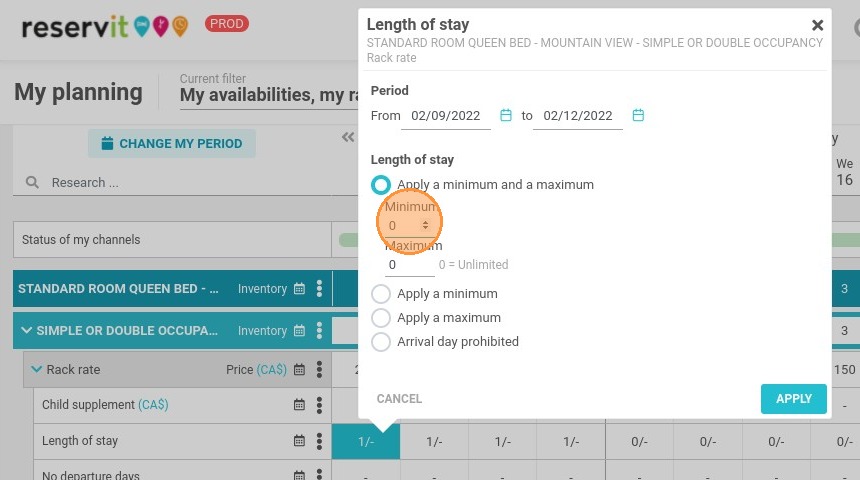
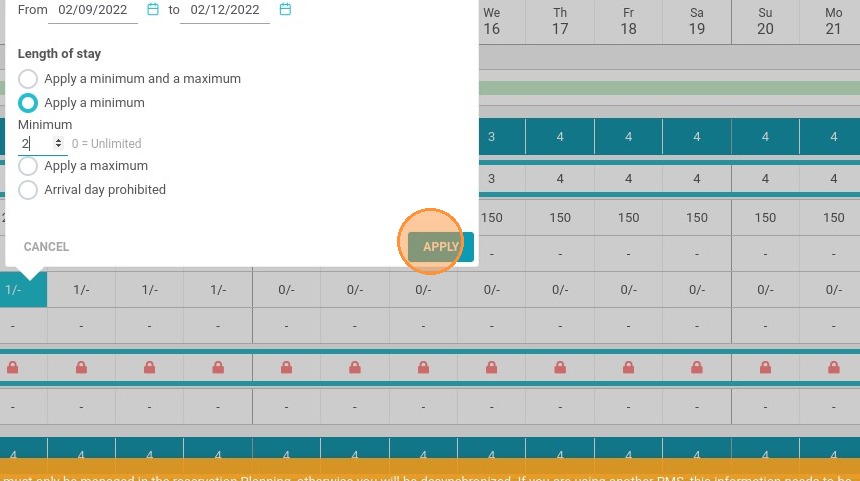
6. Or simply one of the two. Once done, Click on "APPLY"
7. The second method is available in "ADVANCED EDITING"
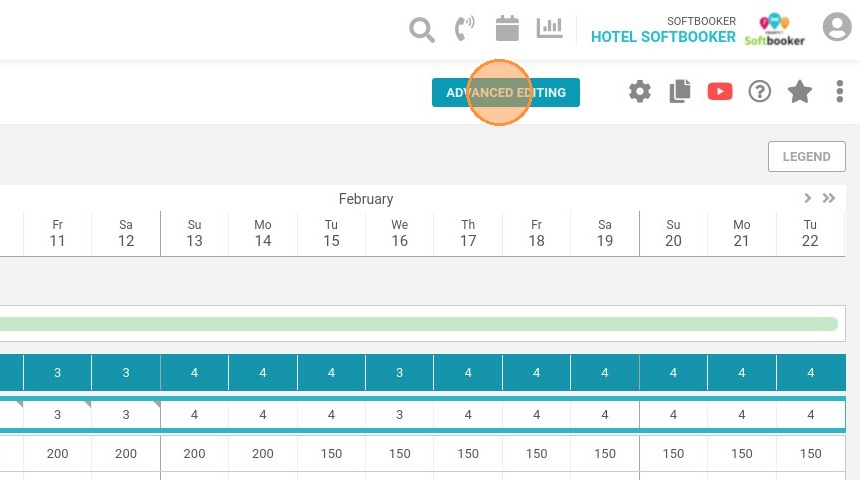
8. Choose the data type "Length of stay"
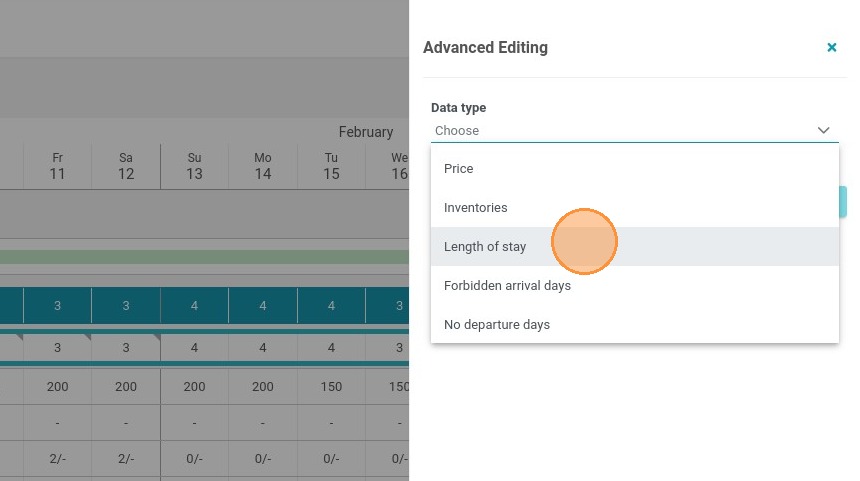
9. Then, the category to modify
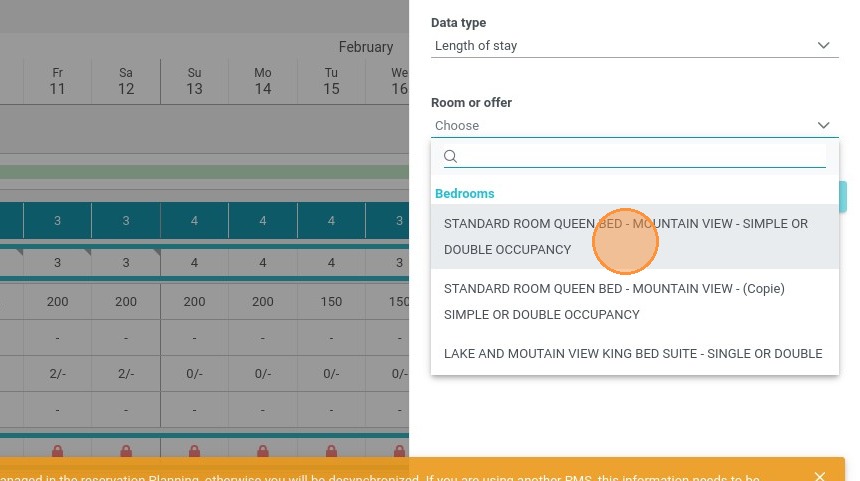
10. Choose the period to modify
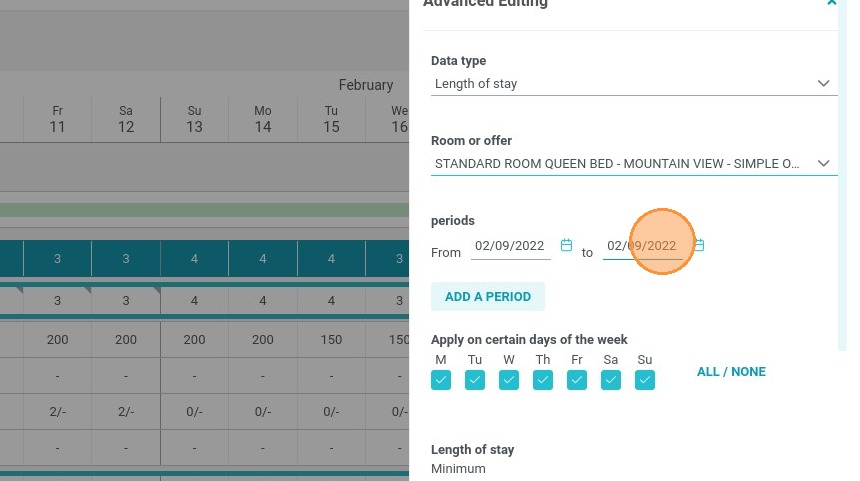
11. Define the length of stay to apply
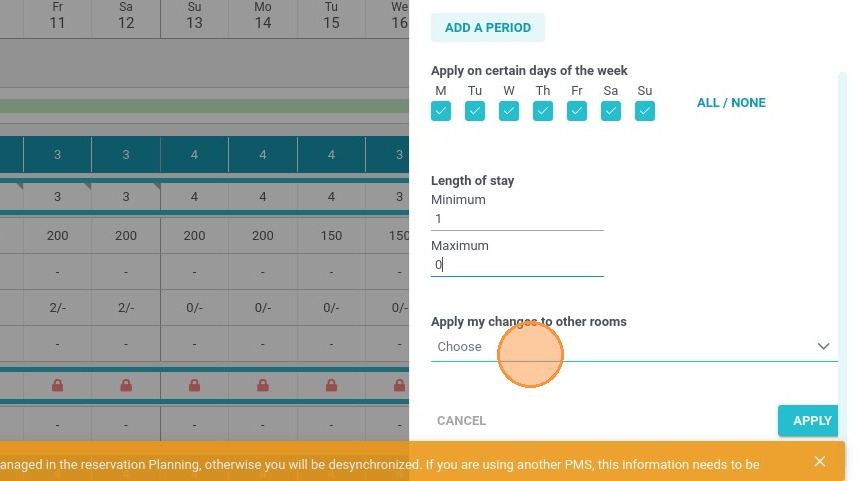
12. You can then apply the modification on all the categories
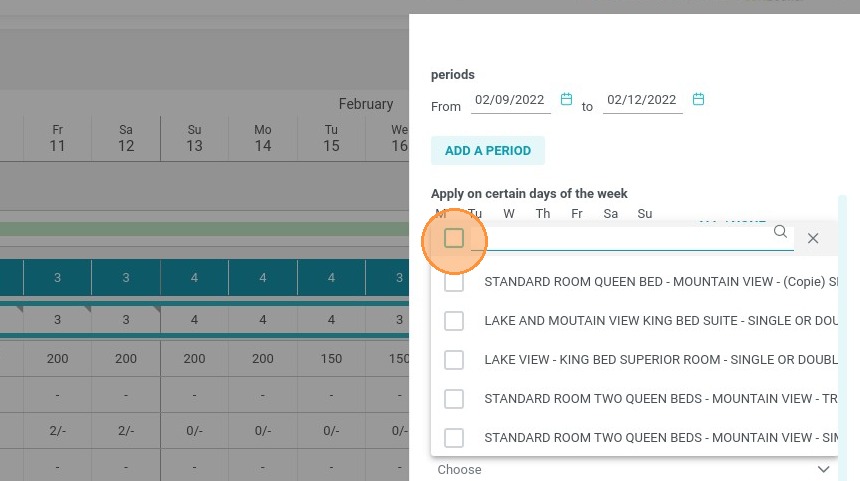
13. To confirm, click on "APPLY"
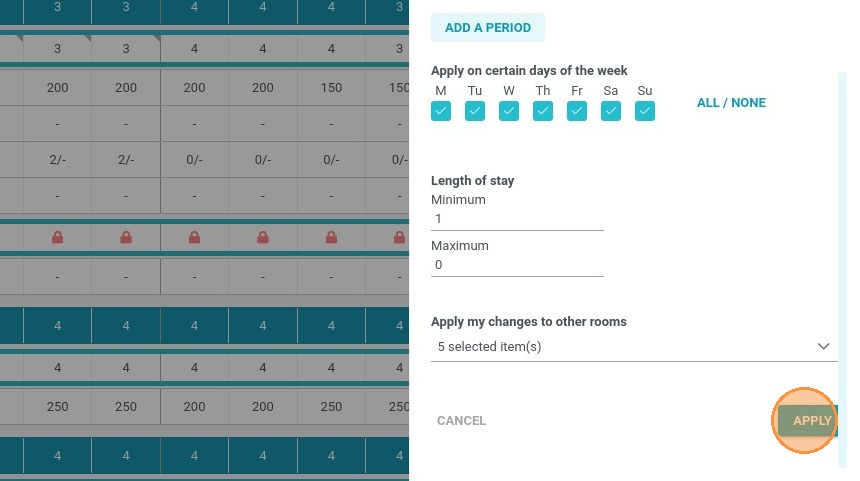
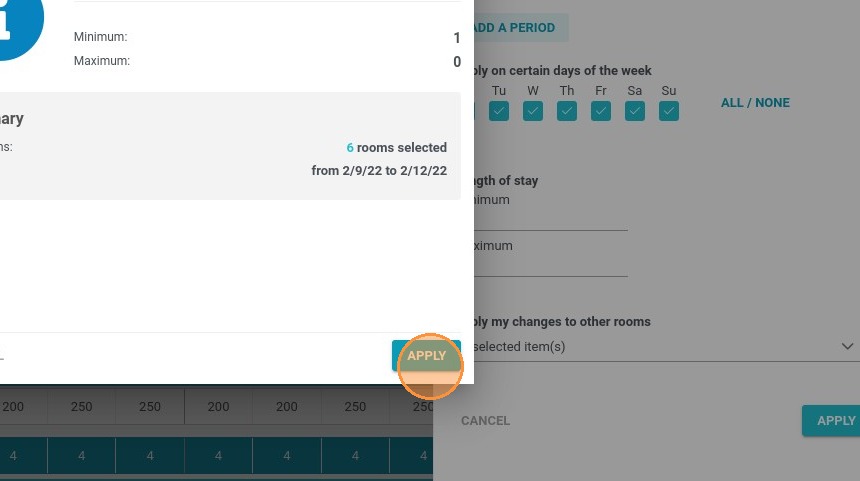
14. You will see a summary. To finalize click on "APPLY"