Article Summary: This straightforward tutorial explains how to quickly and securely cancel a guest booking within the Reservit Accommodation platform. You will learn the exact steps to update a reservation status and accurately categorize the cancellation reason. Mastering this process ensures your room inventory is immediately freed up, allowing you to maximize your occupancy rate and seamlessly welcome new guests.
The 4 Key Steps to Cancel a Booking in Reservit Accommodation:
-
Navigate to Your Bookings: Access the "My reservations" menu from your dashboard and locate the specific reservation you need to modify.
-
Update the Booking Status: Open the reservation details and click the button to update its current status.
-
Categorize the Cancellation: Select the appropriate reason from the drop-down menu, such as "cancelled by the guest," to maintain accurate records.
-
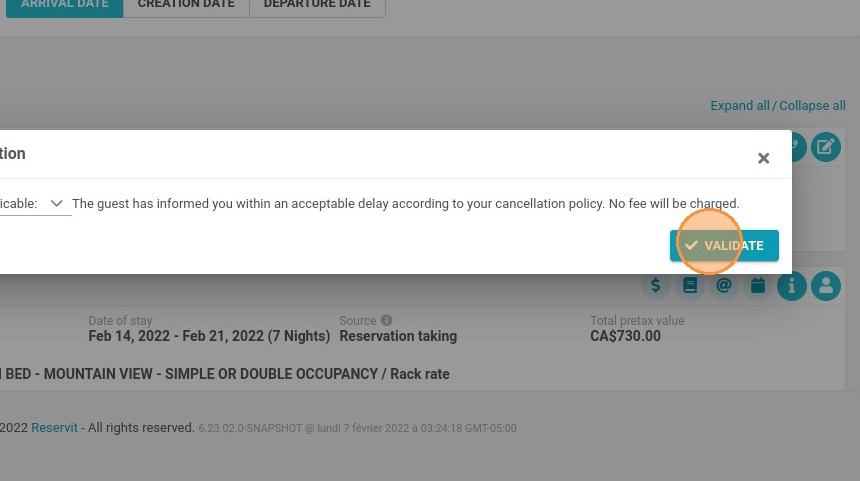
Validate and Finalize: Confirm your action by clicking "Validate" twice to finalize the cancellation, or use the quick-action bin icon directly on your calendar to save time.
Why follow this guide? Following this standardized cancellation procedure prevents costly overbooking errors and saves you valuable administrative time, ensuring your Reservit Accommodation inventory remains perfectly synced and ready for new sales.
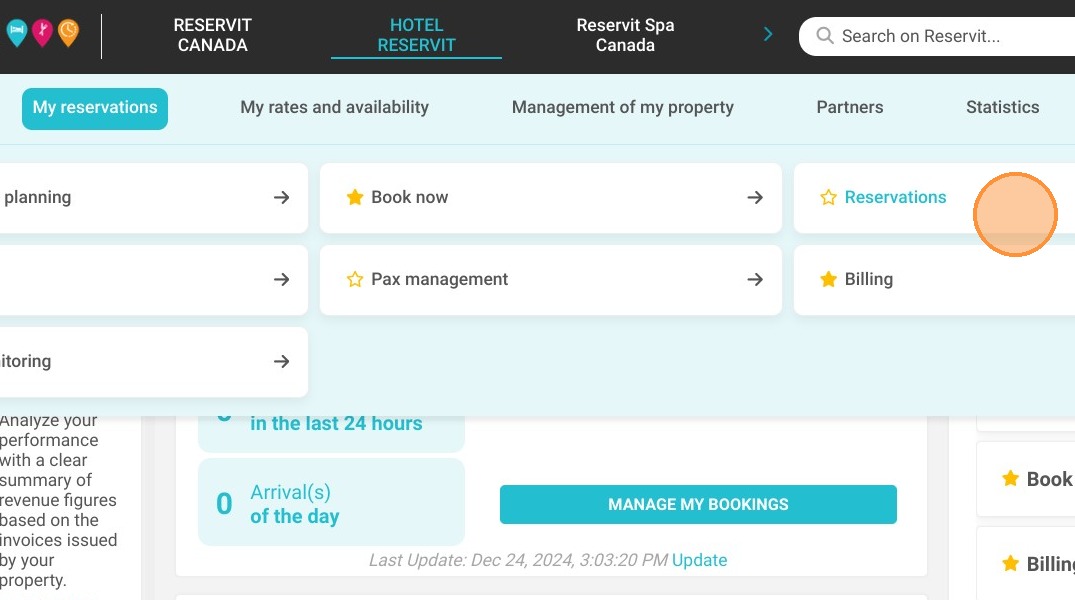
1. Go to My reservations > Reservations.
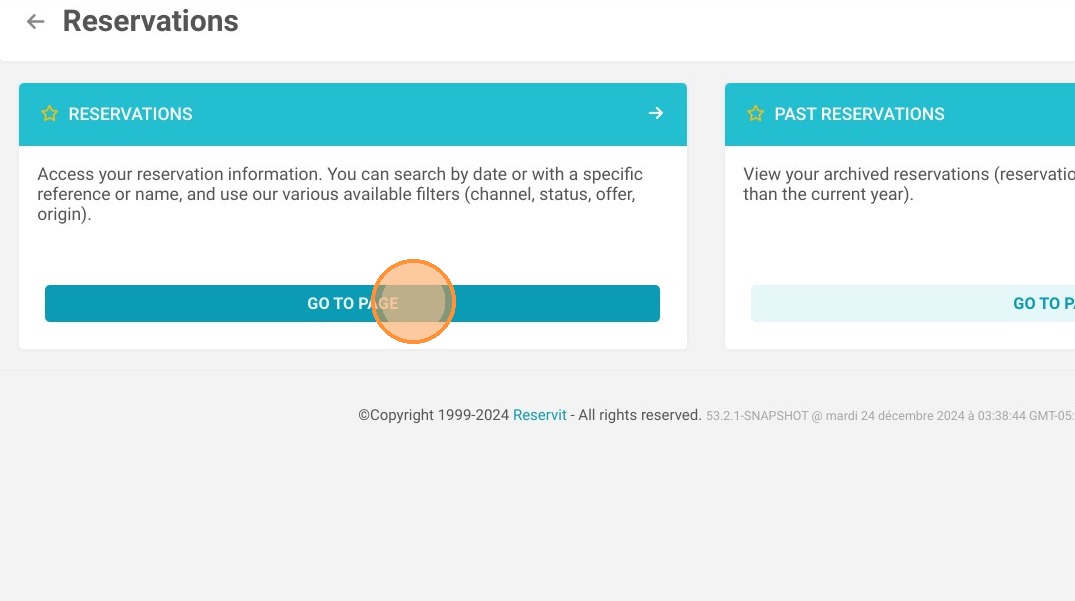
2. Click on Reservations.
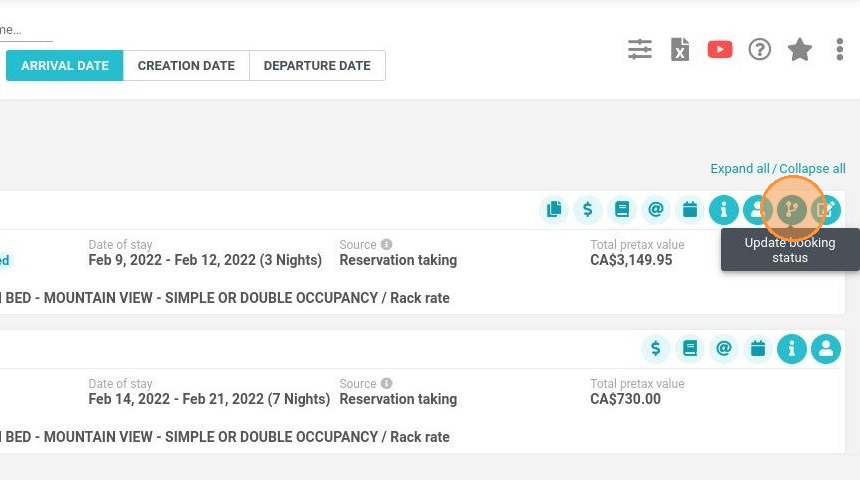
3. Then, on the reservation > Update booking status
4. Select the type of cancellation, for example "cancelled by the guest"
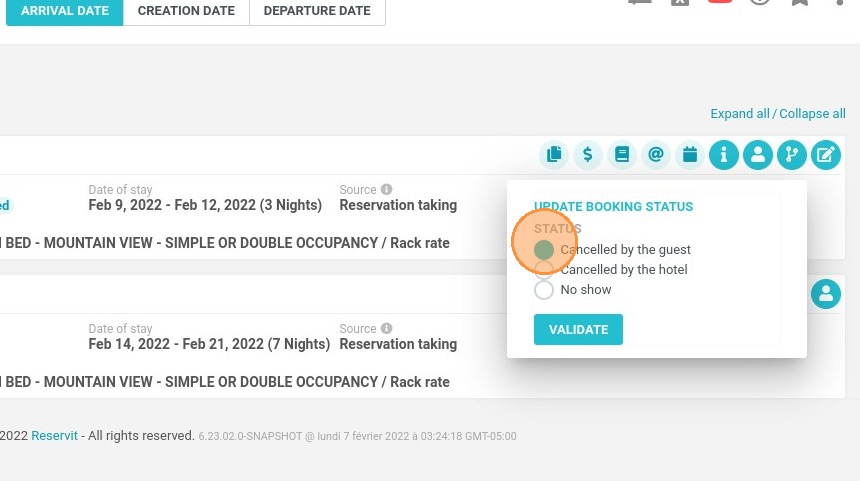
5. Then, click on "VALIDATE"
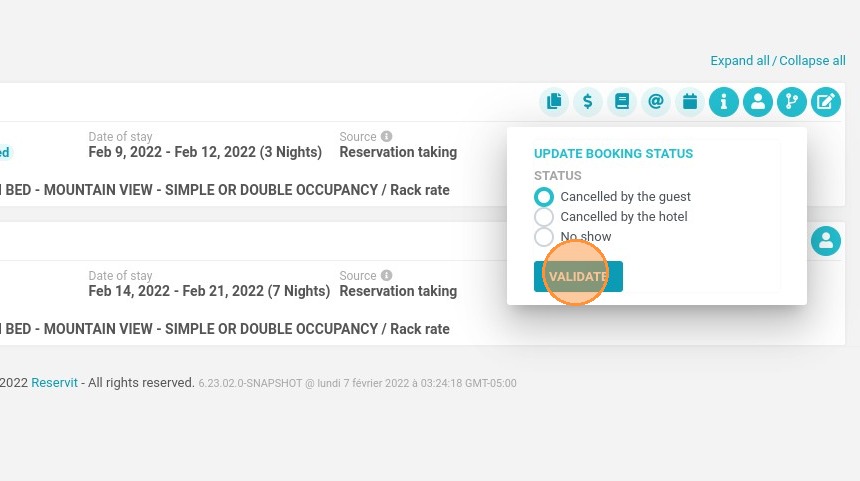
6. To finalize, click again on "VALIDATE"
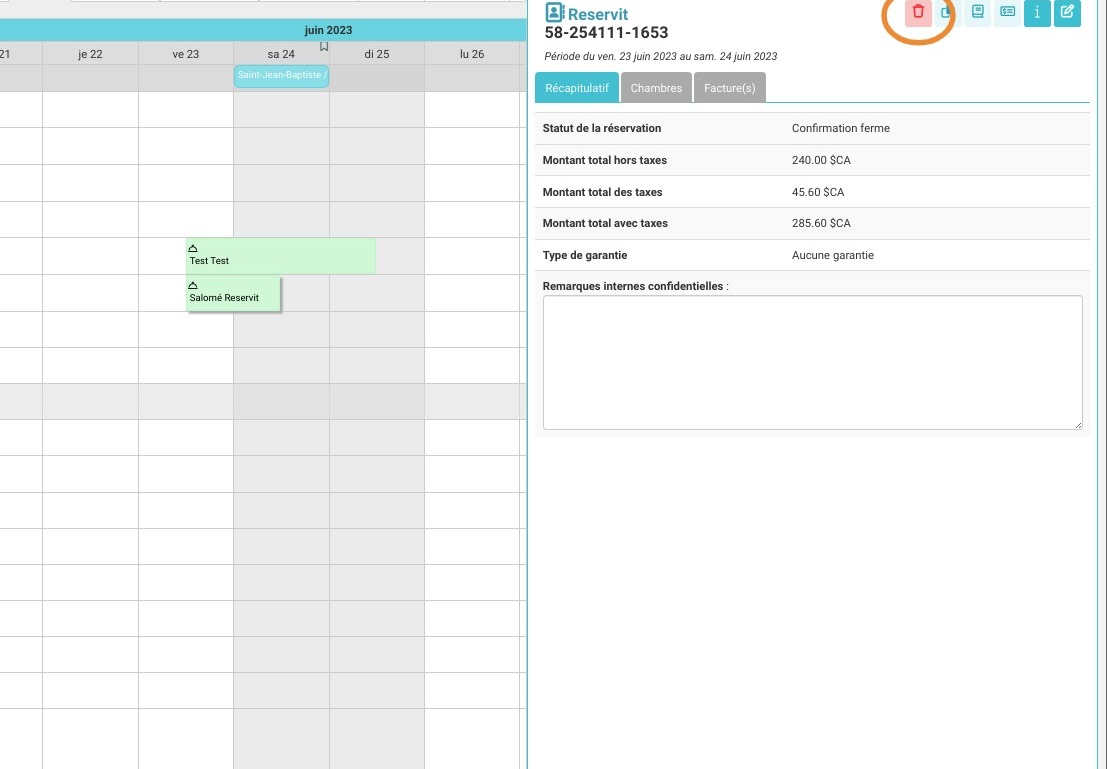
Tip: You can also cancel your reservation directly from your calendar by using the bin icon.