Article Summary: This step-by-step tutorial explains how to easily modify a guest reservation within the Reservit Accommodation platform. You will learn how to efficiently update booking statuses, adjust stay dates, and edit room rates or additional options. Mastering this process ensures your property management system remains perfectly accurate and your guests receive up-to-date booking information.
The 5 Key Steps to Modify a Booking in Reservit Accommodation:
-
Access Your Reservations: Navigate to the "My reservations" menu to locate the specific booking you need to edit.
-
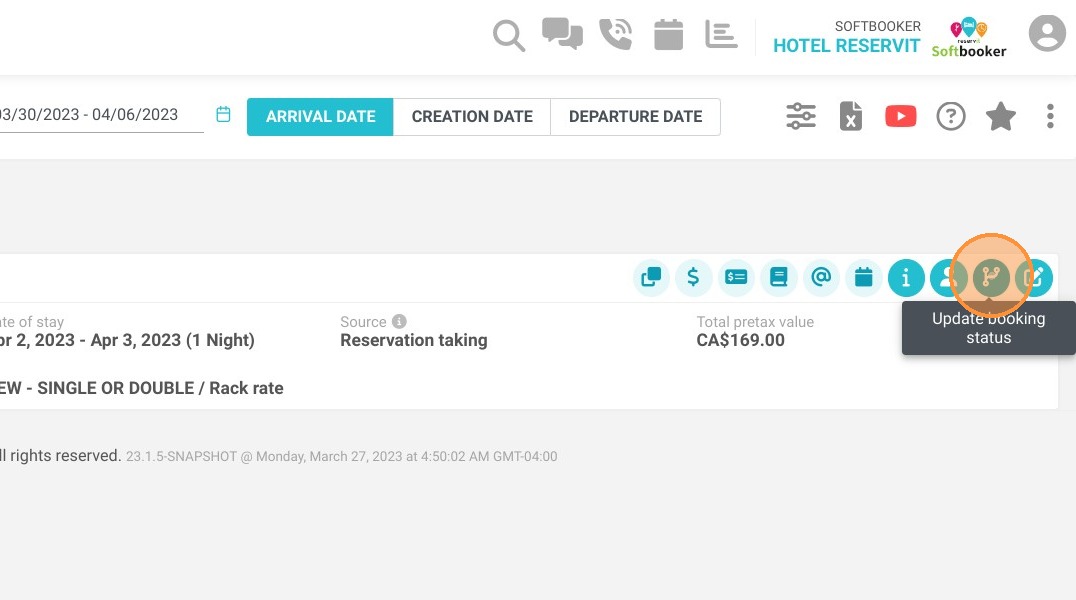
Update the Booking Status: Click the "Update booking status" button to quickly change the current state of the reservation, then validate.
-
Amend Reservation Details: Click on "Amend the booking" to begin adjusting crucial details like stay dates, room rates, or extra options.
-
Make Specific Adjustments: Use the pencil icon in the booking basket to edit specific fields, such as changing the room price.
-
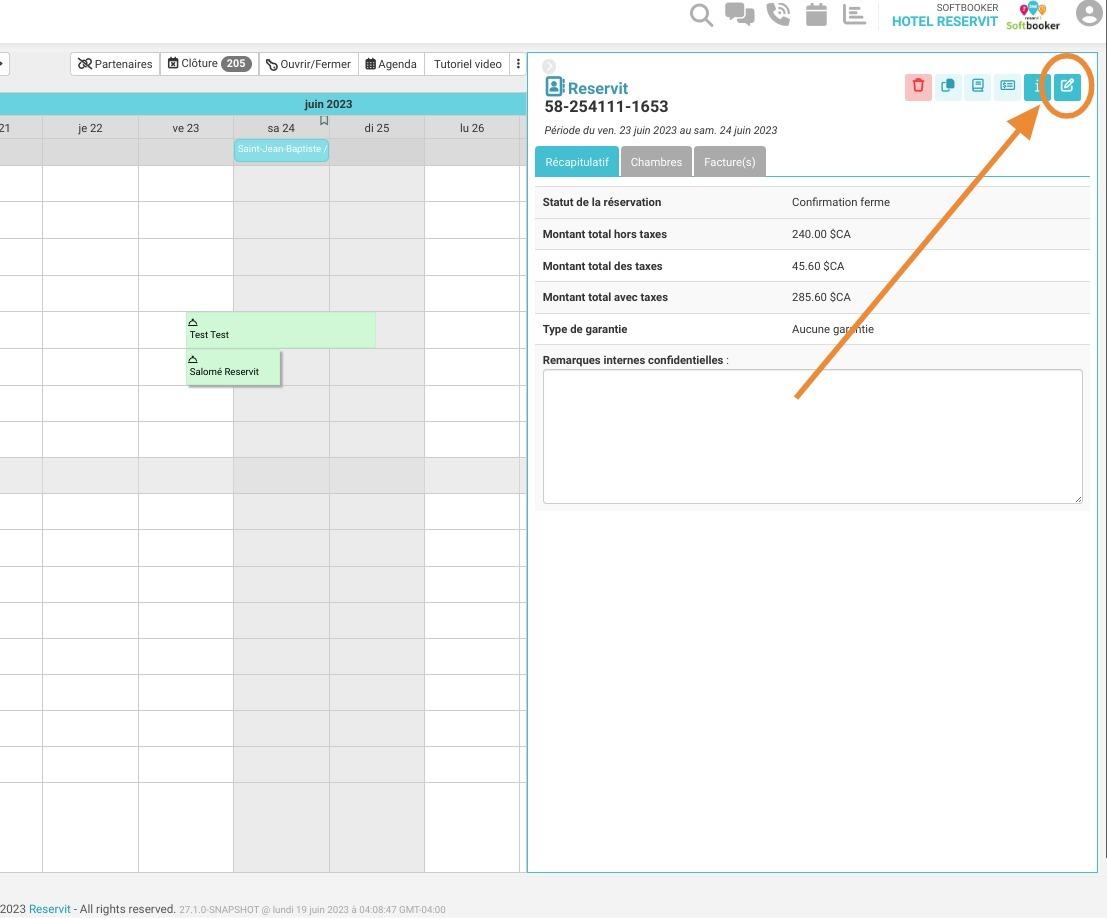
Validate and Confirm: Validate your individual adjustments and click "Confirm" to save all changes. You can also save time by using the quick-action pen icon directly on your planning calendar.
Why follow this guide? Following these streamlined steps prevents costly pricing or scheduling errors, saving you valuable administrative time when handling last-minute guest requests. It ensures your Reservit Accommodation system remains perfectly synchronized and your daily operations run smoothly.
1. Go to My reservations.
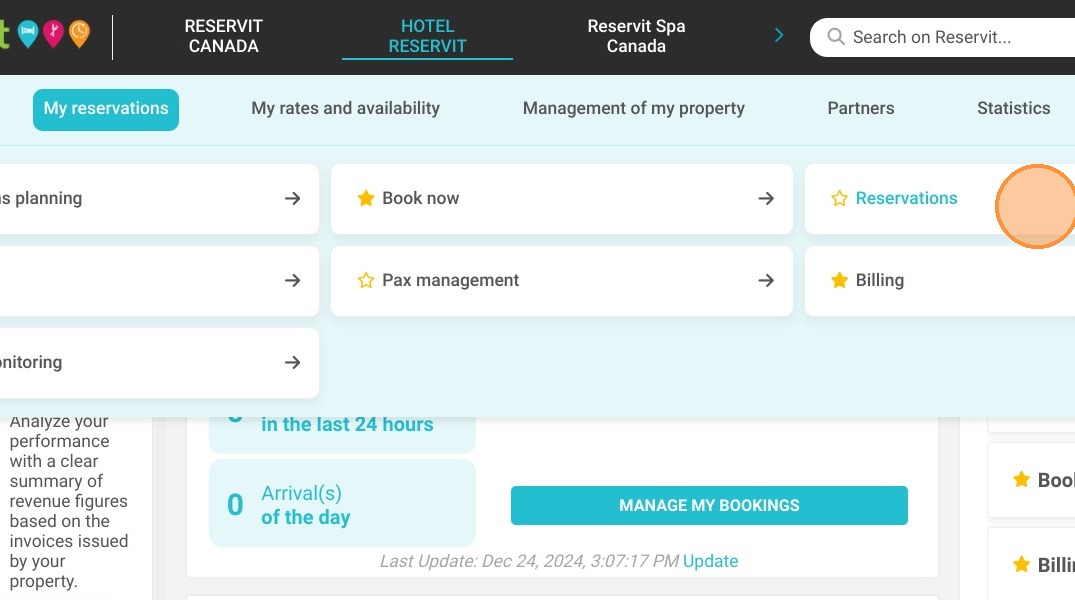
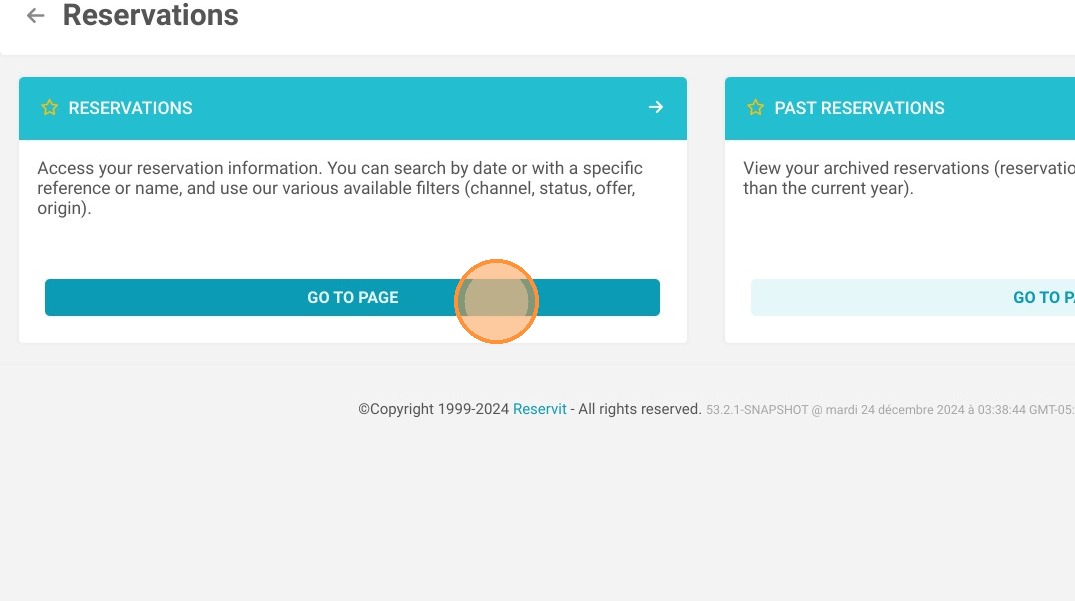
2. Click on Reservations.
3. To change the status of a reservation, click on "Update booking status".
4. Select the desired action and validate.
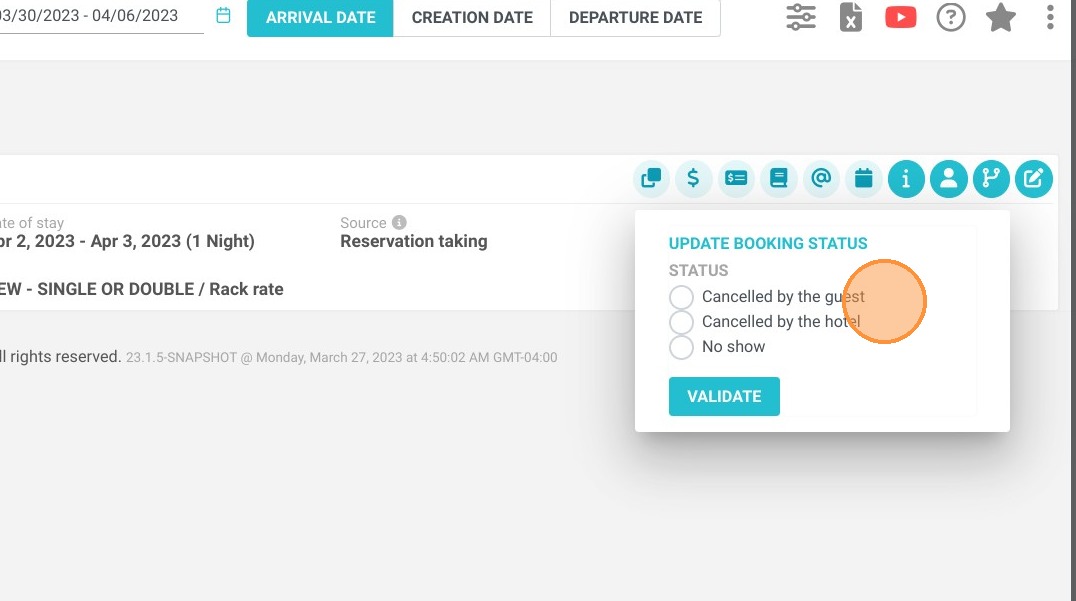
5. To modify dates, rates or options, click on "Amend the booking".
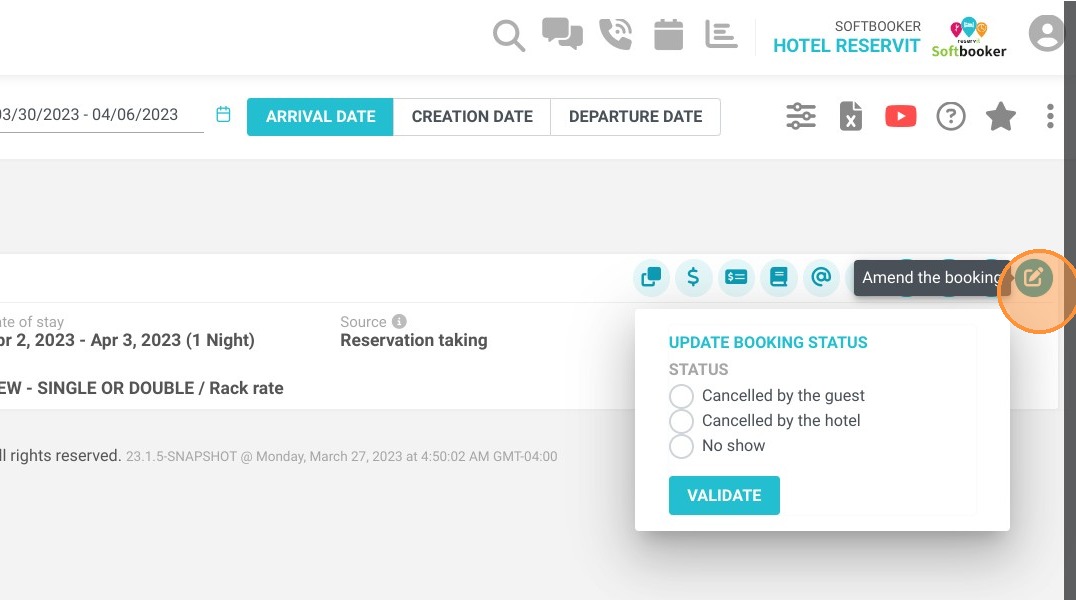
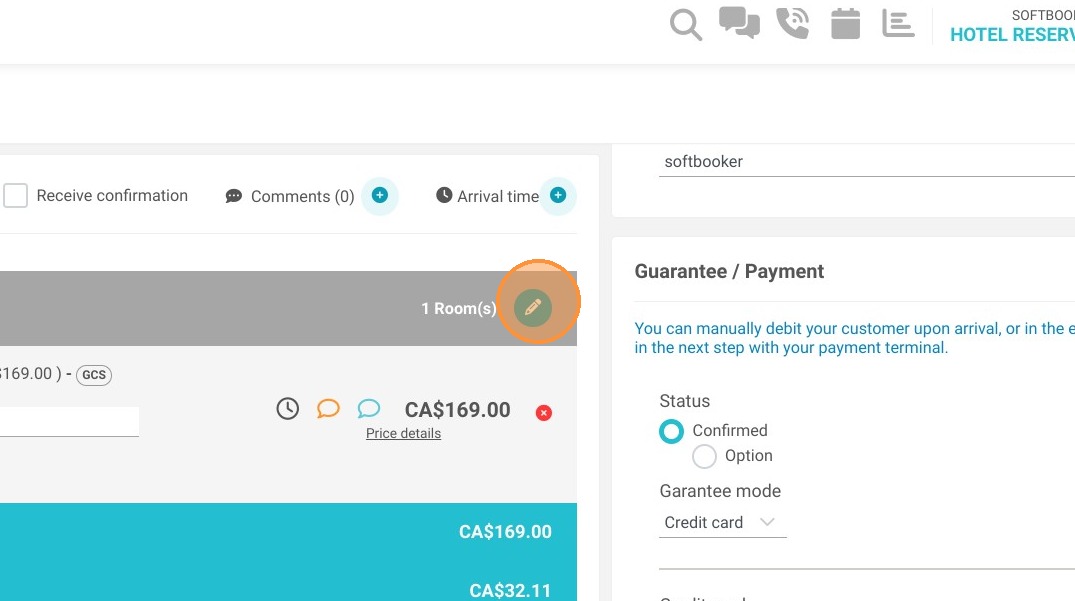
6. In the basket, click on the pencil to modify.
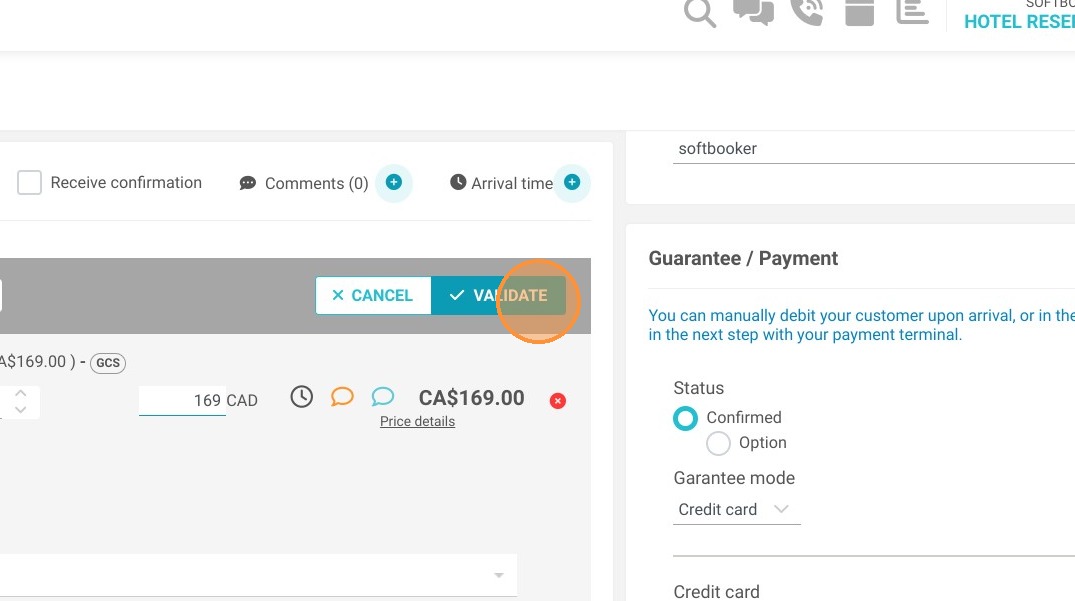
7. Change the price, for instance.
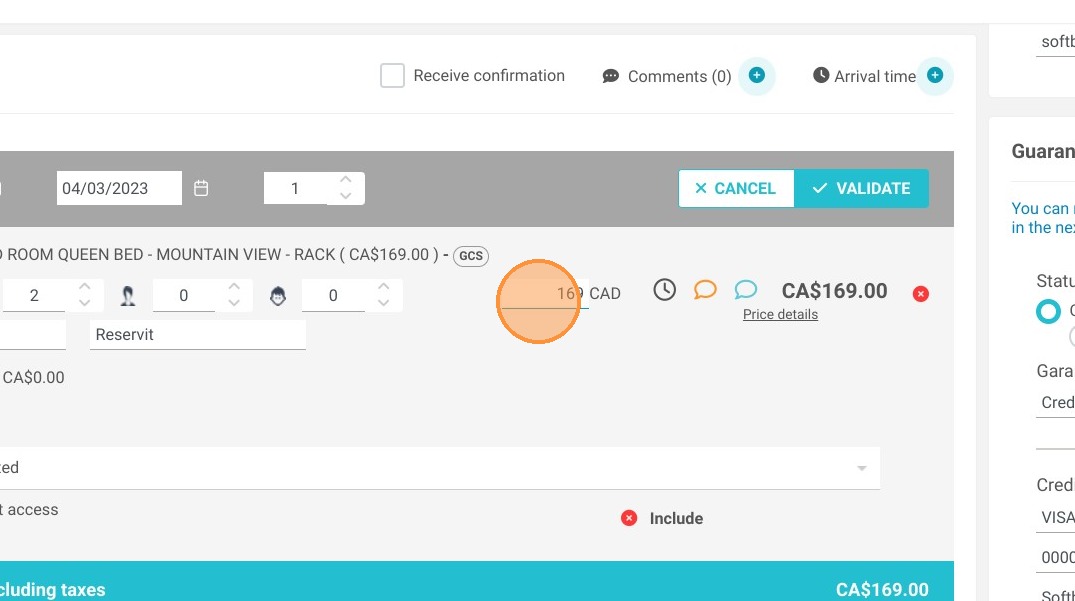
8. Click on "VALIDATE"
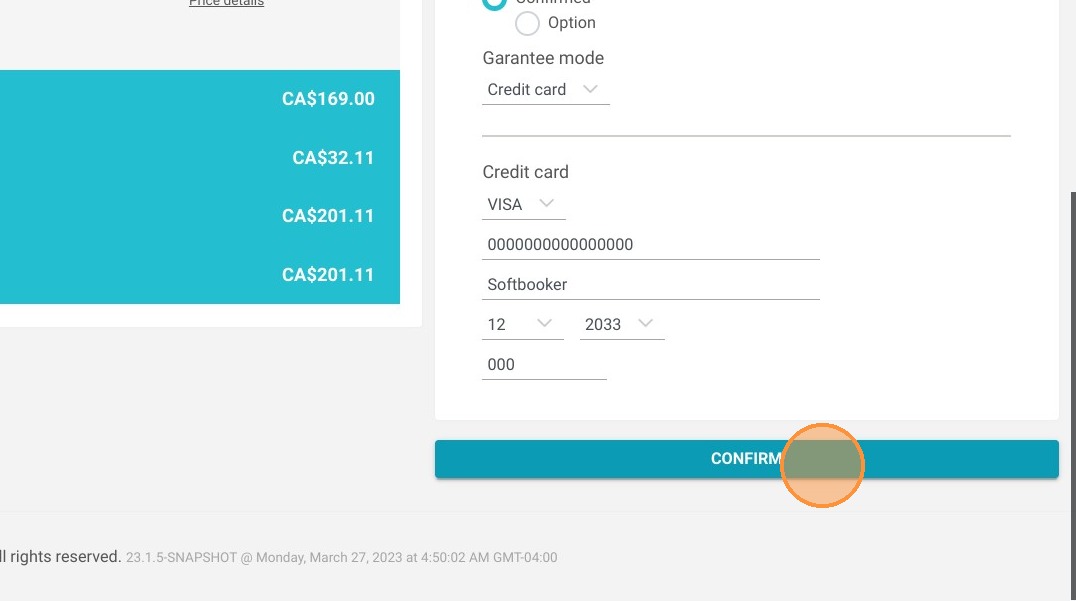
9. When all changes have been made, click on "CONFIRM".
Tip: You can edit a reservation directly from your planning by using the pen.