

Article Summary: This tutorial guides you step by step through issuing an invoice in the name of a distributor or business partner directly from Reservit PMS. You will learn how to set up a company invoice account and transfer the lines of a reservation to it for accurate B2B billing. This way, you streamline your financial management while meeting your partners' administrative requirements.
The 5 Key Steps to Invoice a Distributor:
-
Create the partner account: In "INVOICE ACCOUNTS", click "ADD AN INVOICE ACCOUNT", select the "Company" type and save your partner's details.
-
Open the stay's billing: Open the reservation, go to the "Invoice(s)" tab and click "ACCESS THE BILLING ACCOUNT".
-
Transfer the lines: Click "TRANSFER LINES" and select the partner's invoice account created beforehand.
-
Link the end guest: In the "Address list" tab, select the name of the guest who actually stayed.
-
Generate the invoice: In the account lines, click "BILL": the invoice shows the distributor's name in the header and also mentions the guest who stayed.
Why Follow This Guide? This method standardizes your B2B billing and avoids manual errors and back-and-forth with your partners. You clearly separate the guest from the payer, which gives you compliant documents and speeds up the payment of your distributor invoices.
Create the invoice account in the name of your partner
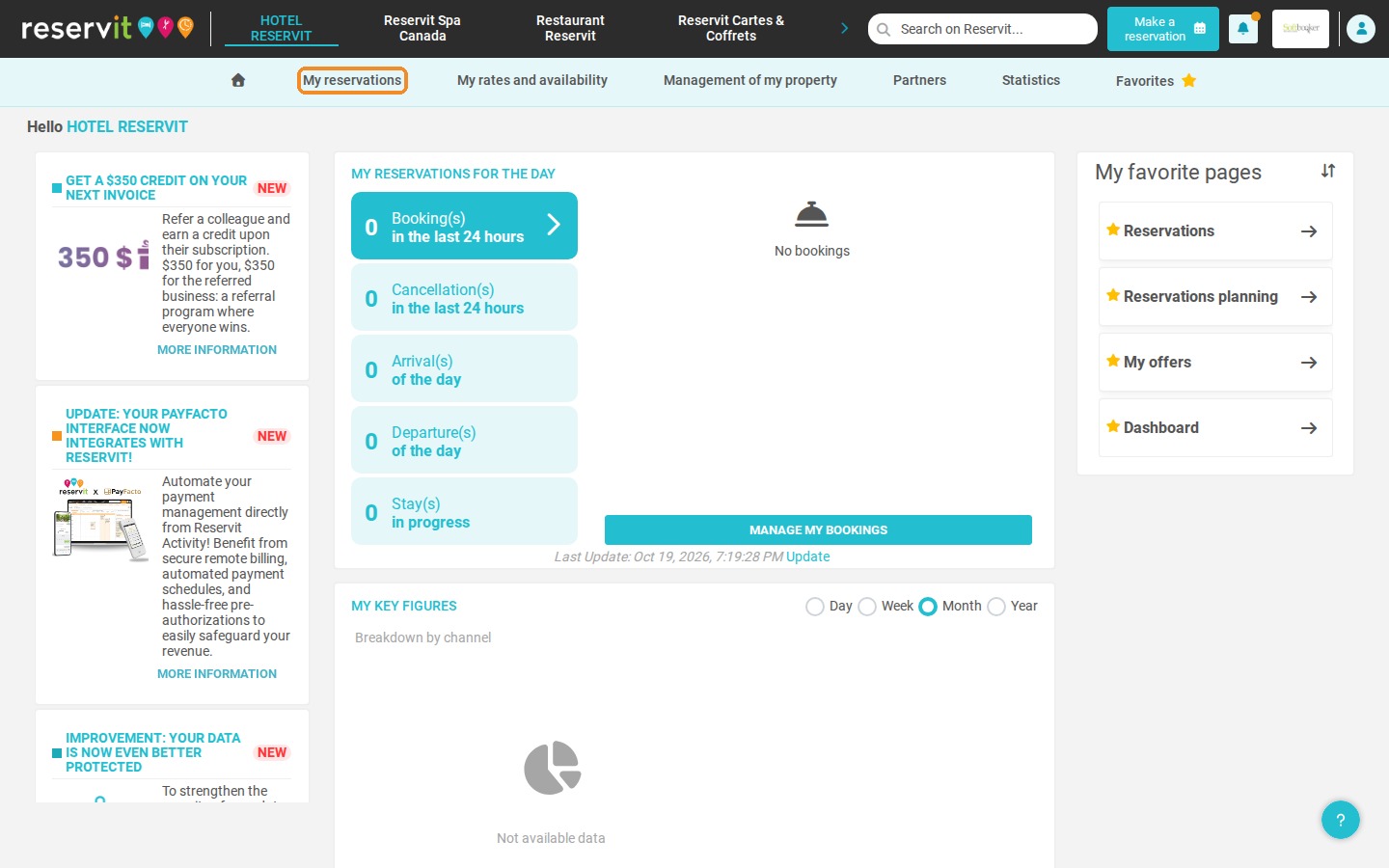
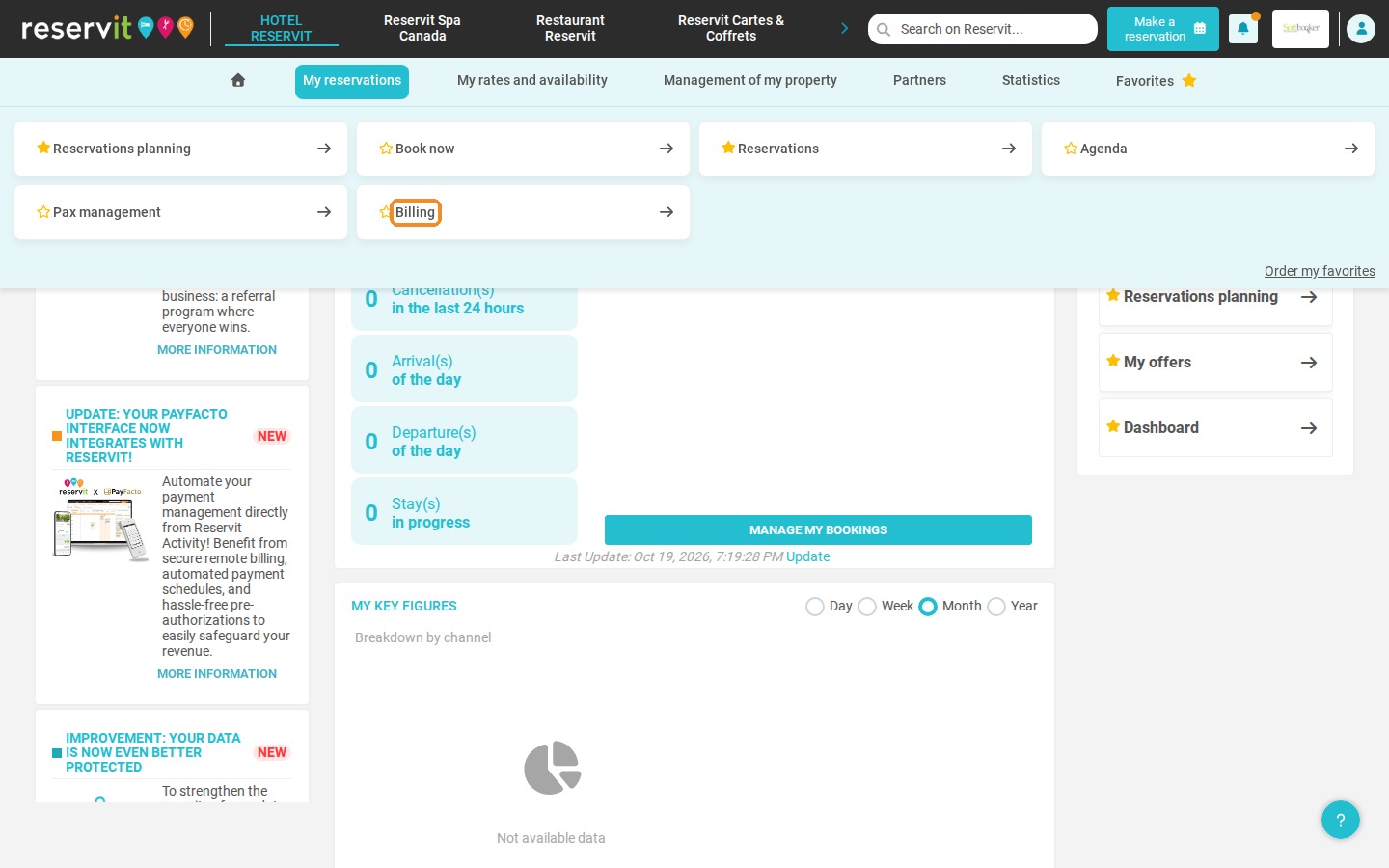
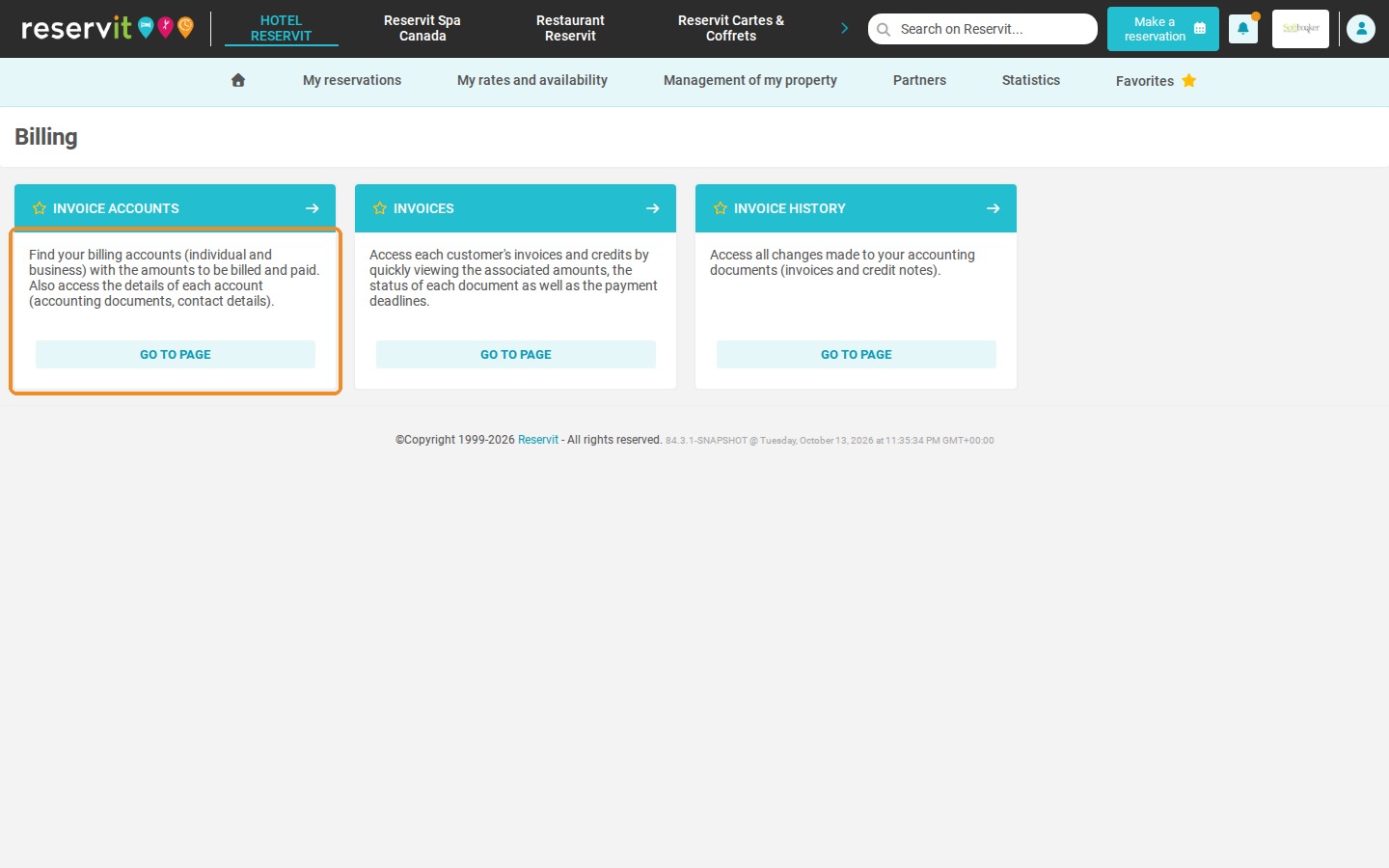
1. Click "My reservations" > "Billing", then "GO TO PAGE" on the "INVOICE ACCOUNTS" tile.
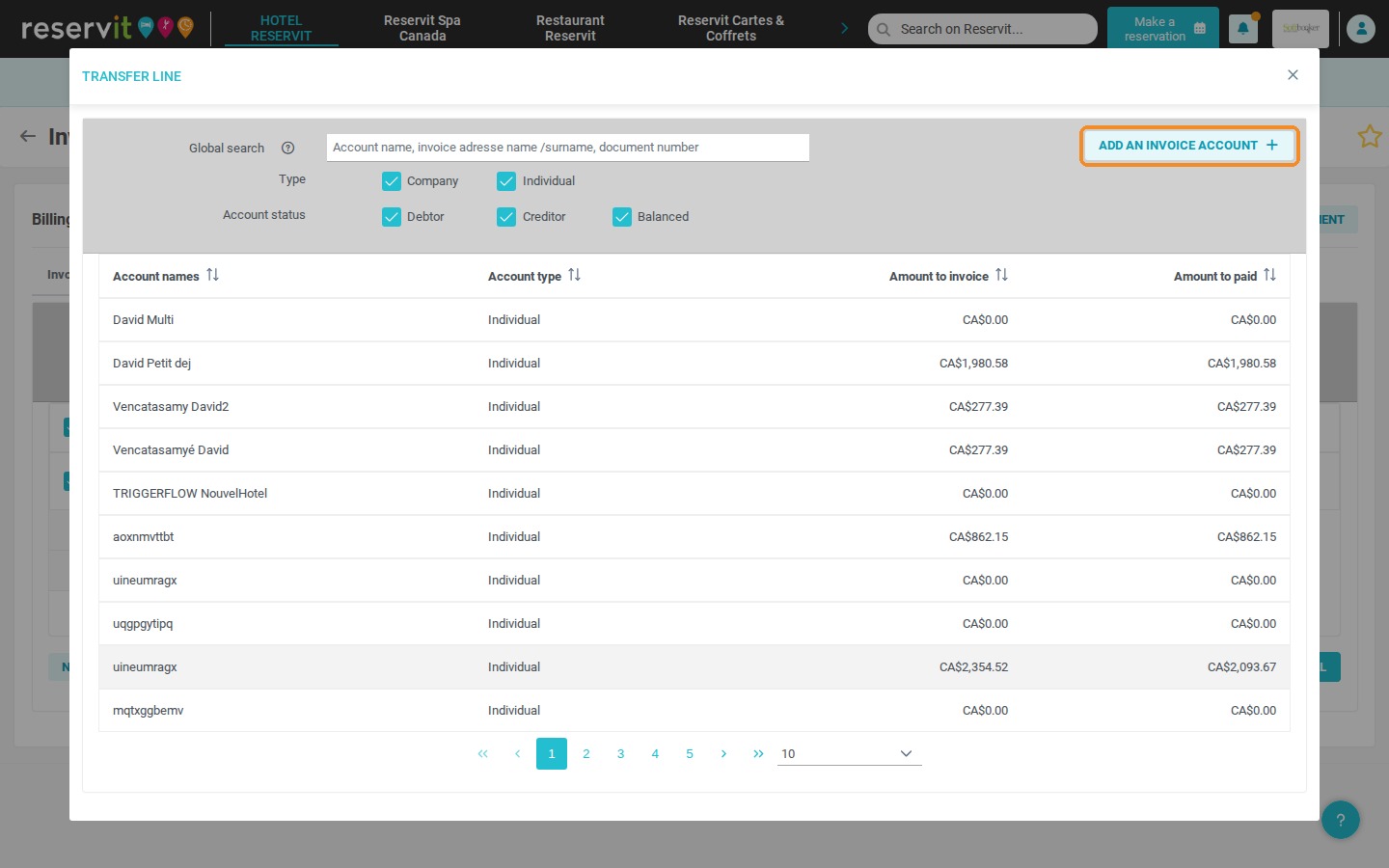
2. Click "ADD AN INVOICE ACCOUNT".
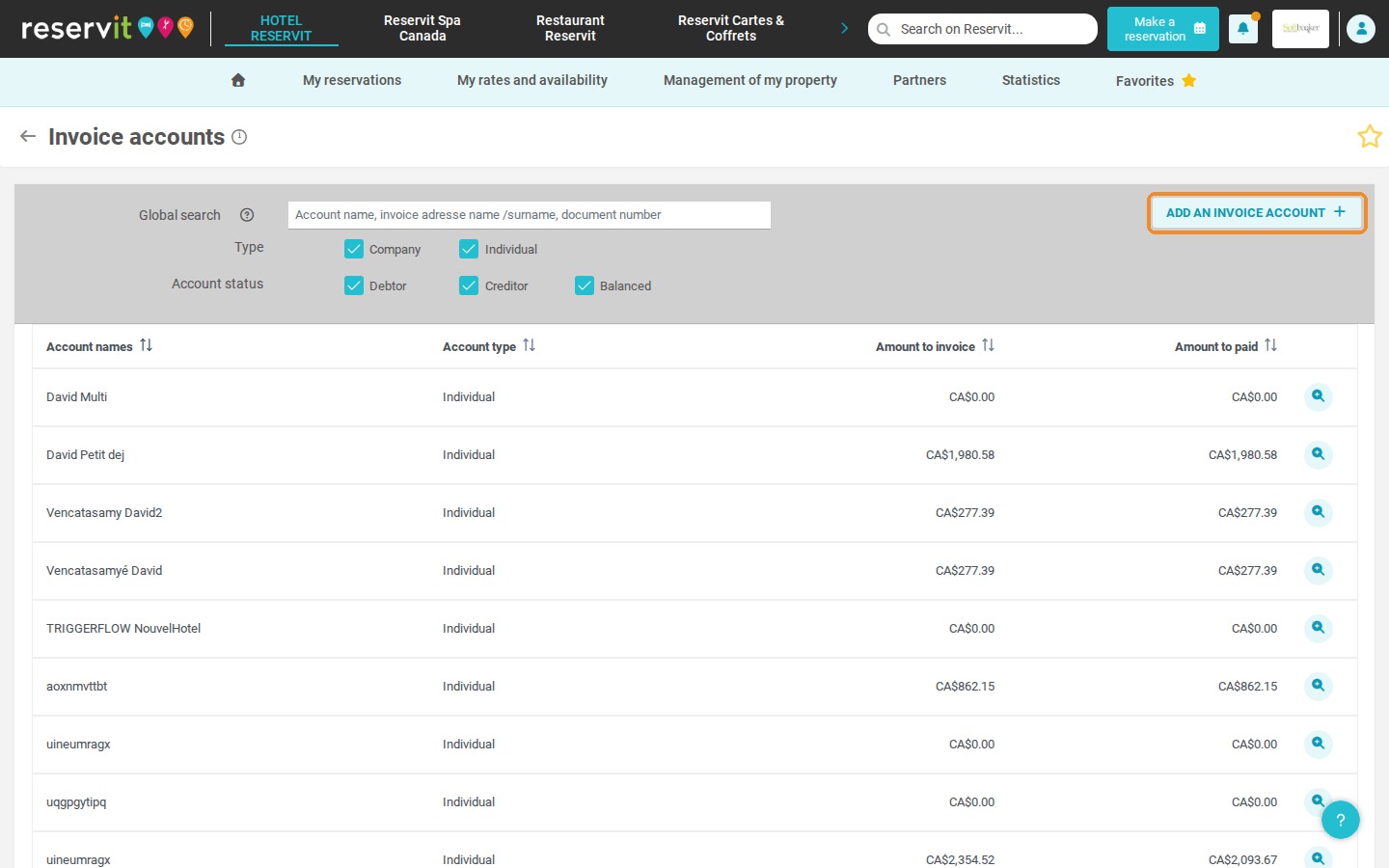
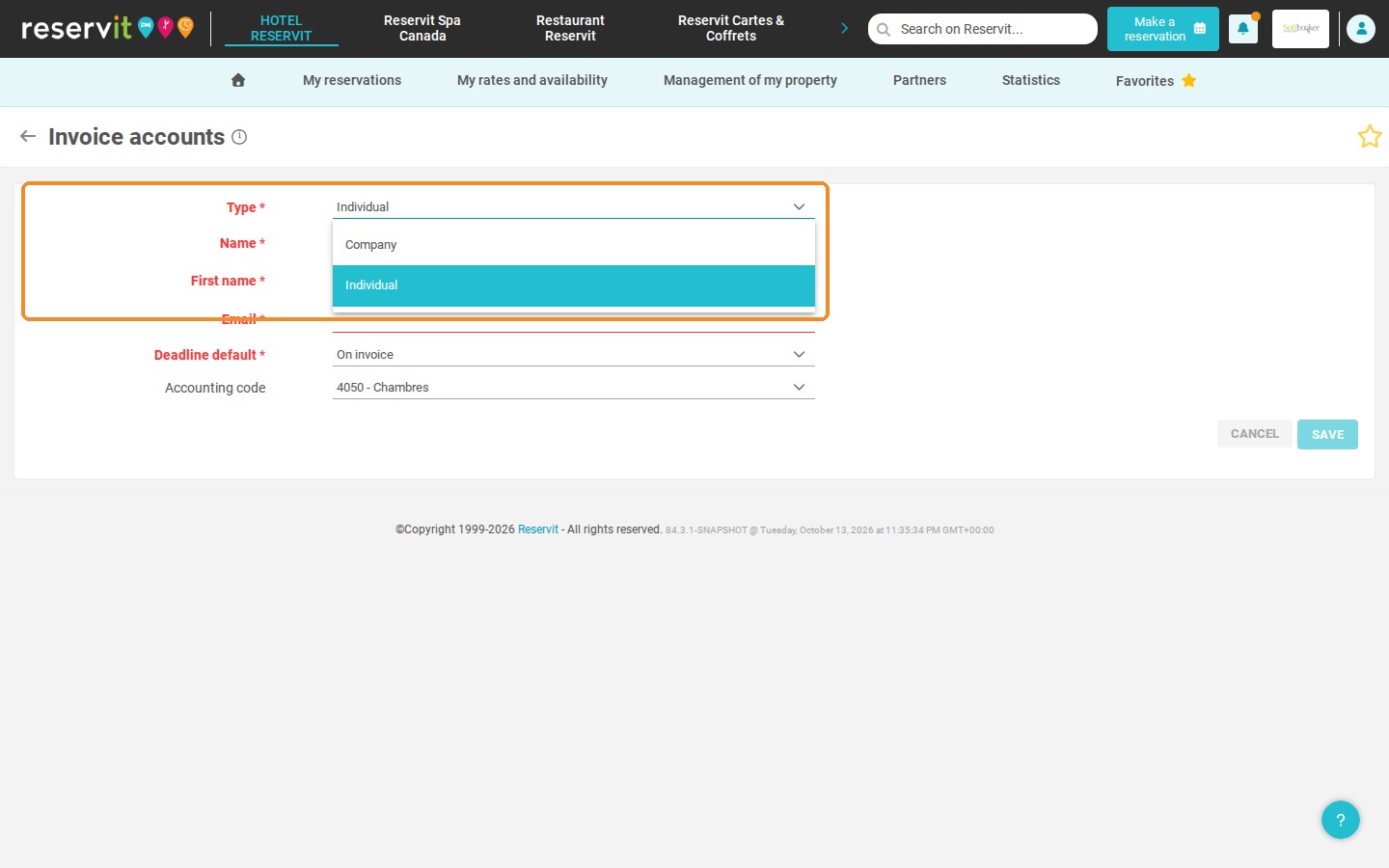
3. In "Type", select "Company".
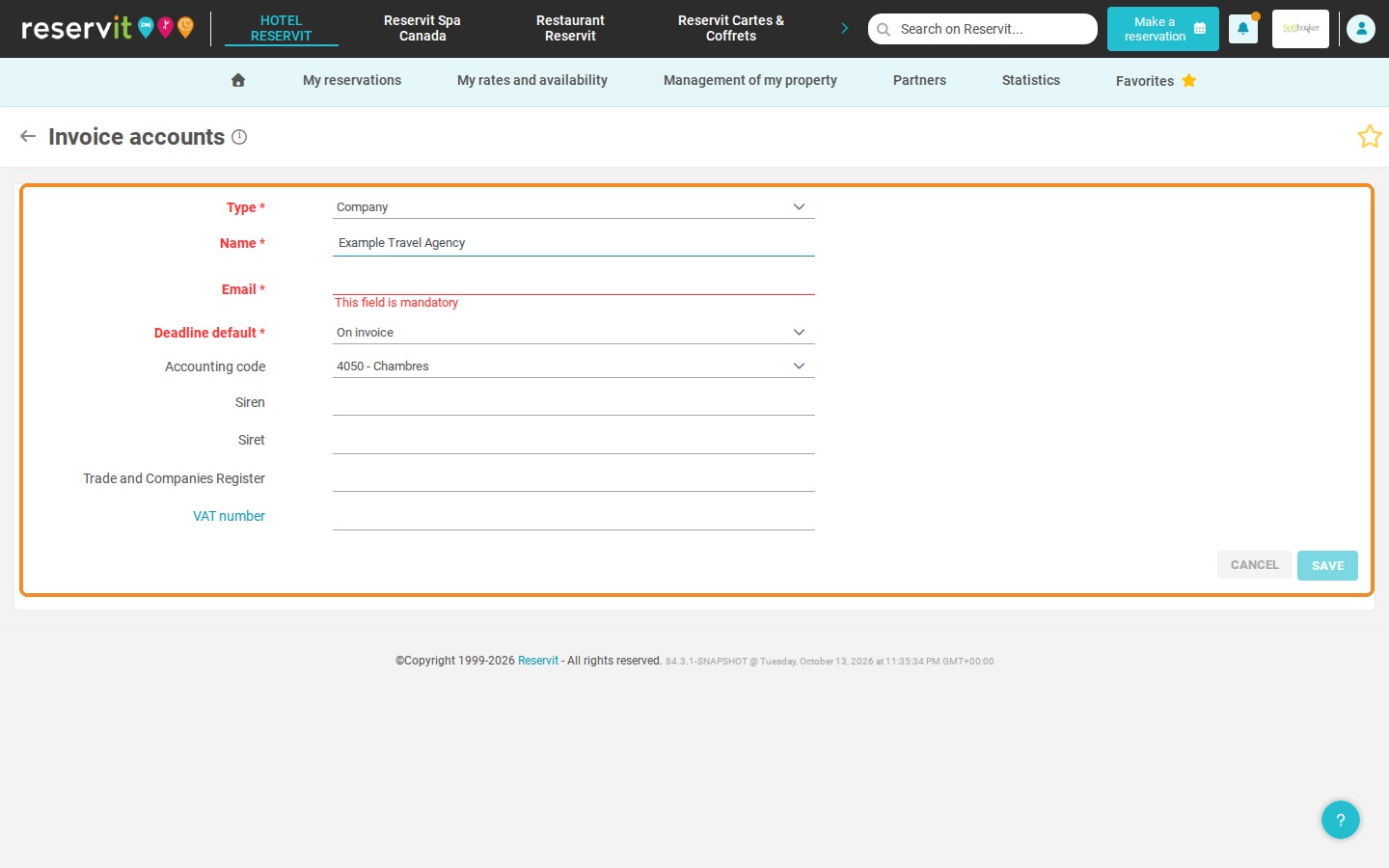
4. Enter your partner's details: "Name", "Email", "Deadline default" (required fields) and, if needed, the accounting code and the company's registration and tax numbers.
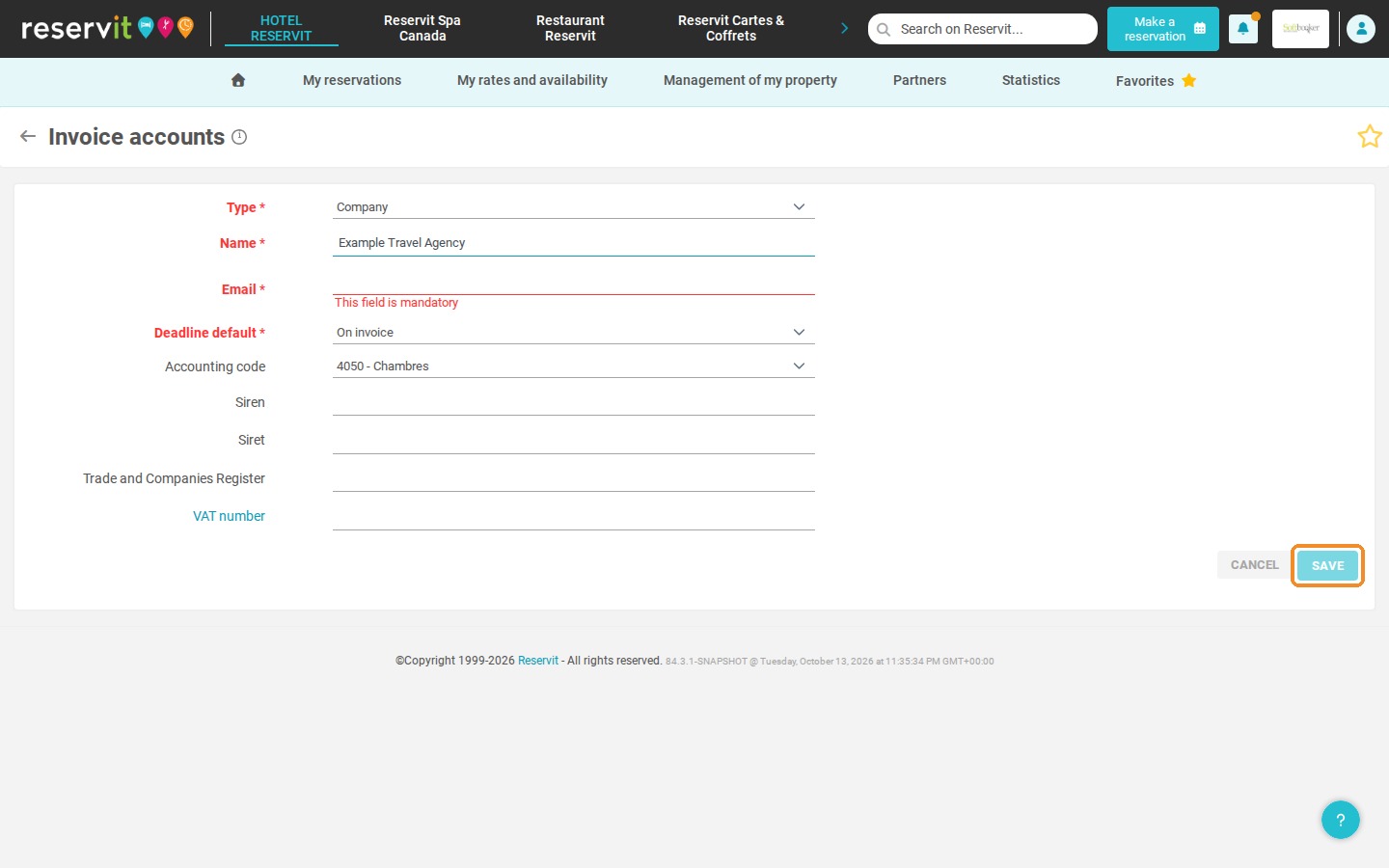
5. Click "SAVE".
Generate the invoice in the name of your partner
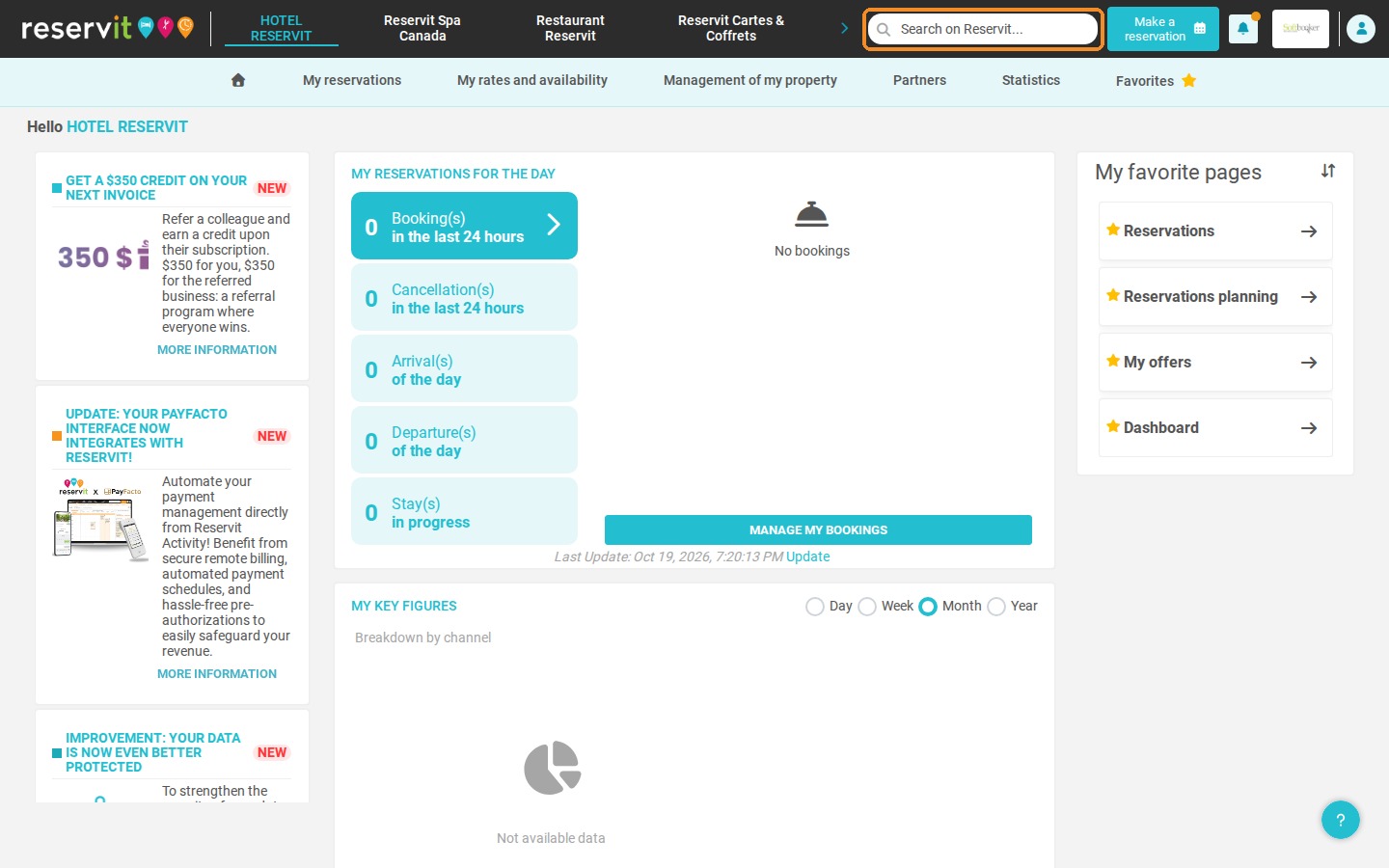
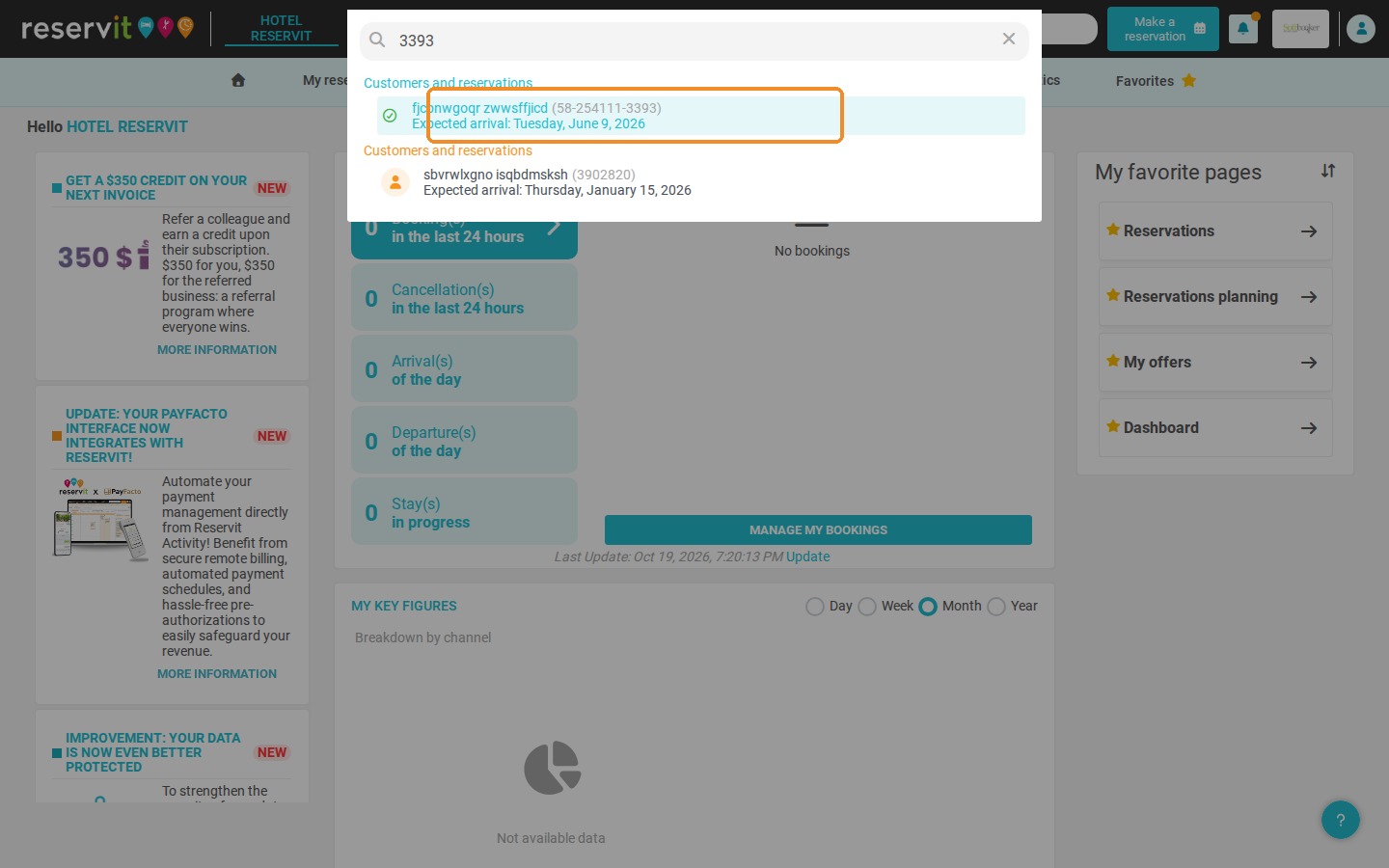
6. Open the reservation you want to invoice in the name of your partner (for example with the "Search on Reservit..." bar).
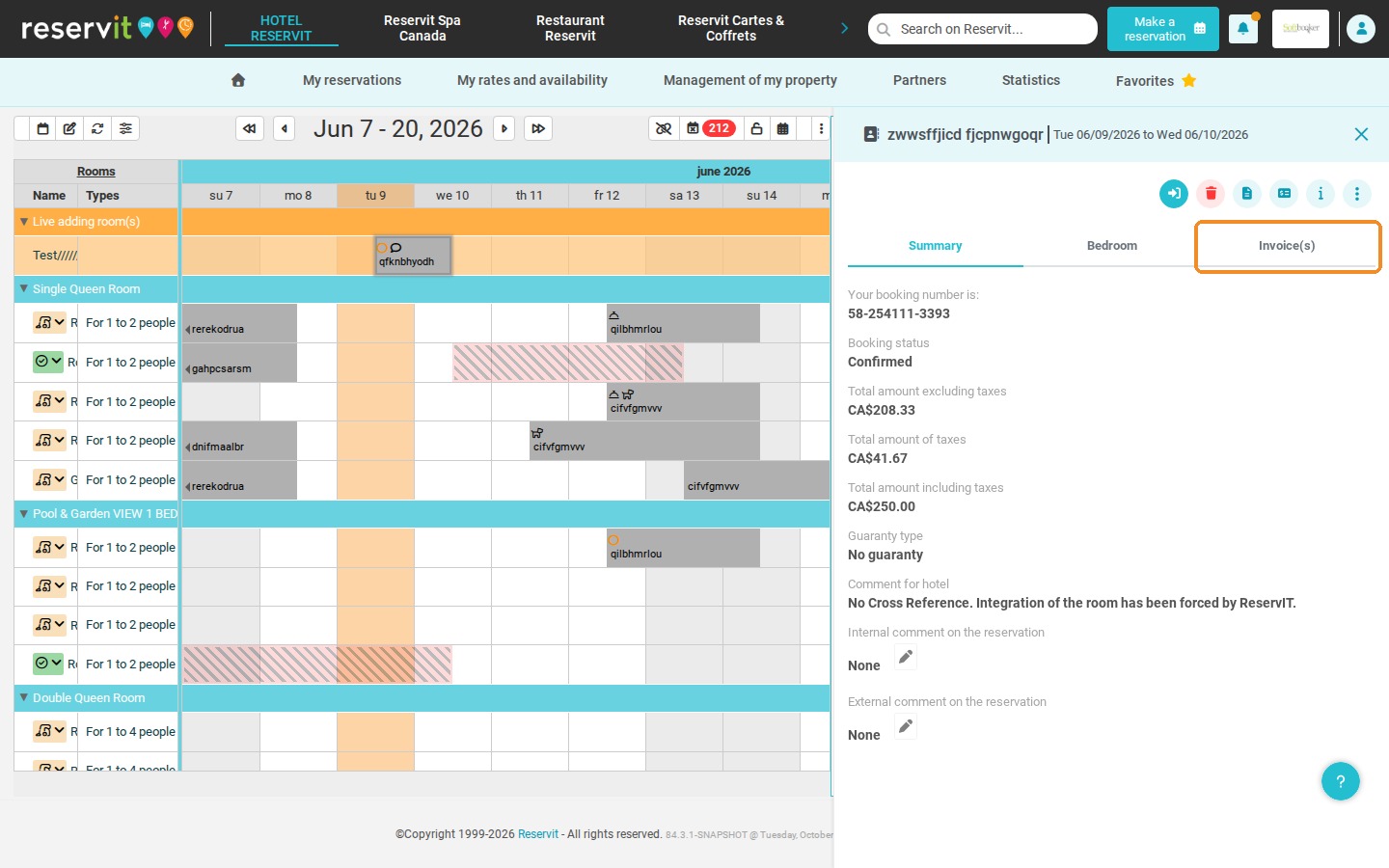
7. Click the "Invoice(s)" tab, then "ACCESS THE BILLING ACCOUNT".
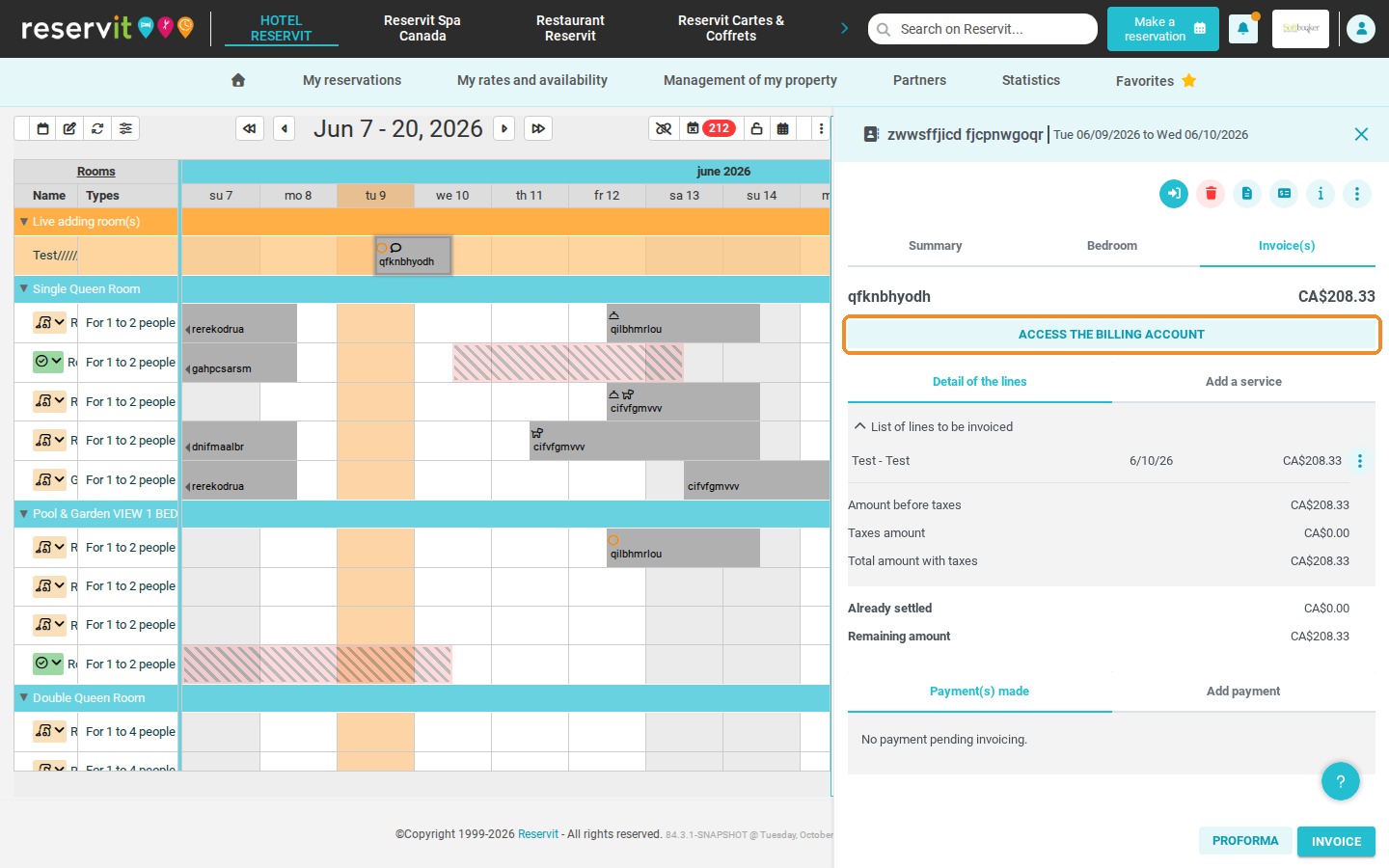
8. In the billing account, select the lines to invoice to the partner and click "TRANSFER LINES".
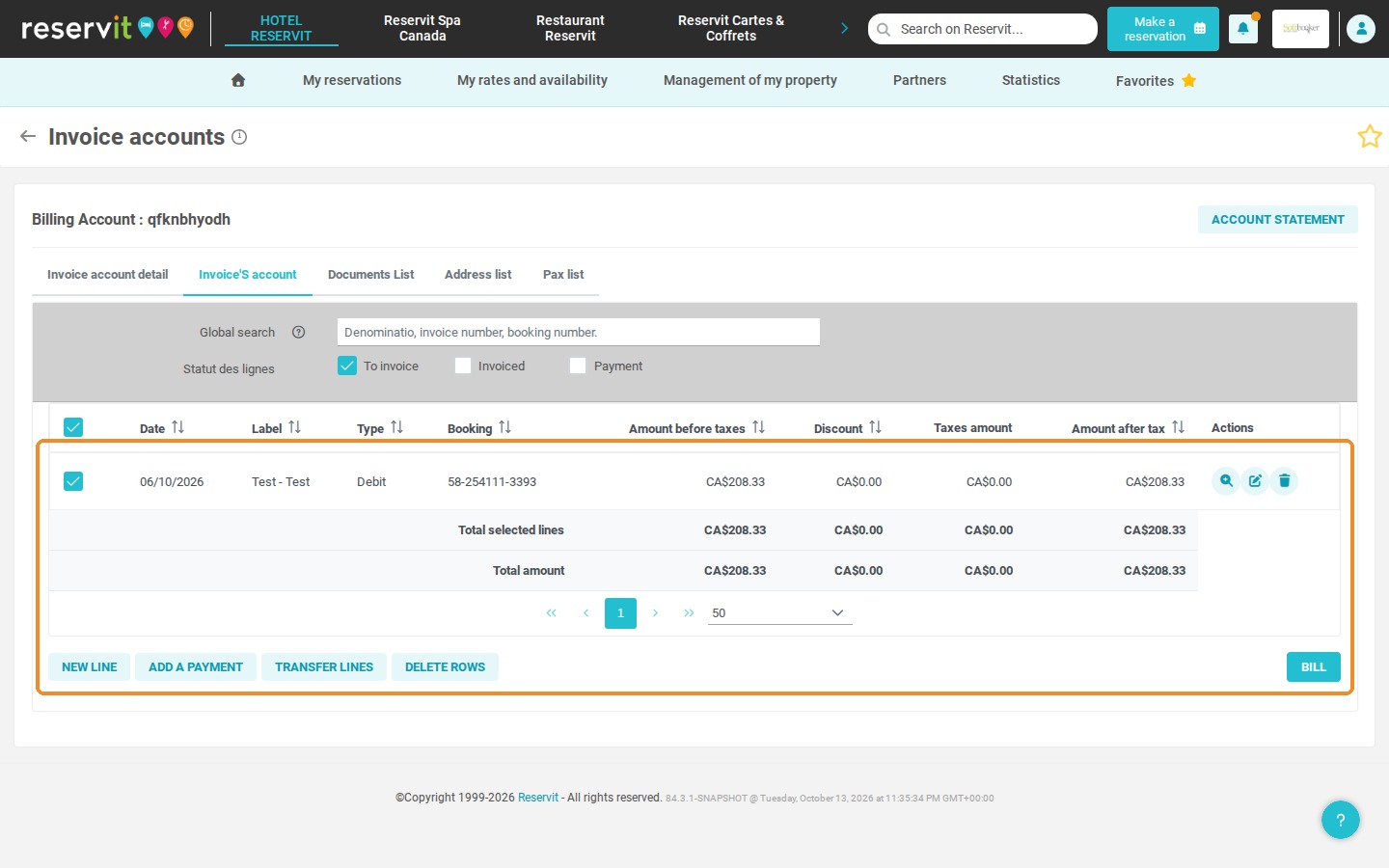
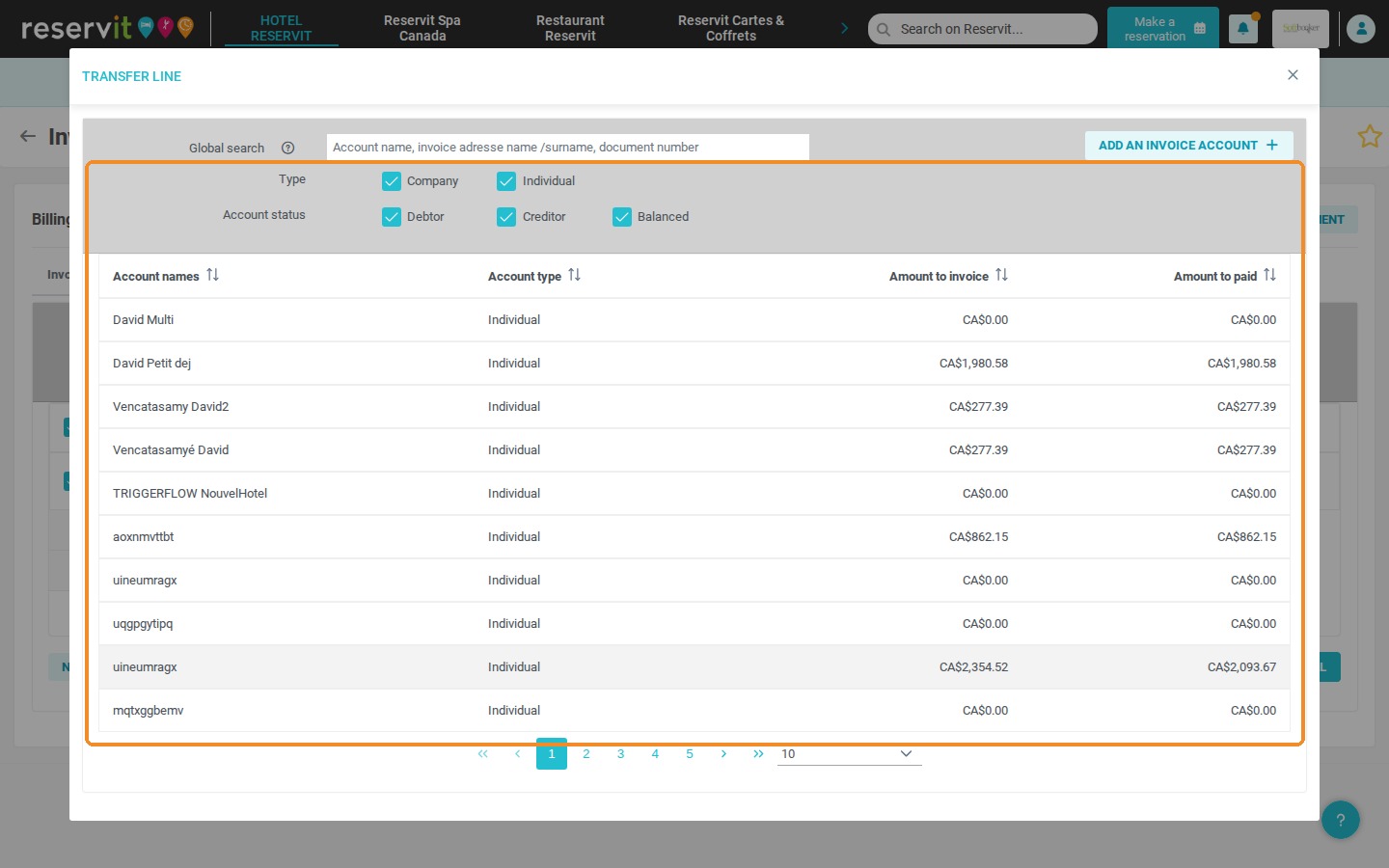
9. In the "TRANSFER LINE" window, select your partner's invoice account (you can filter the list on the "Company" type or use "Global search"), then confirm the transfer to access the account. If the account does not exist yet, you can create it from this window with "ADD AN INVOICE ACCOUNT".
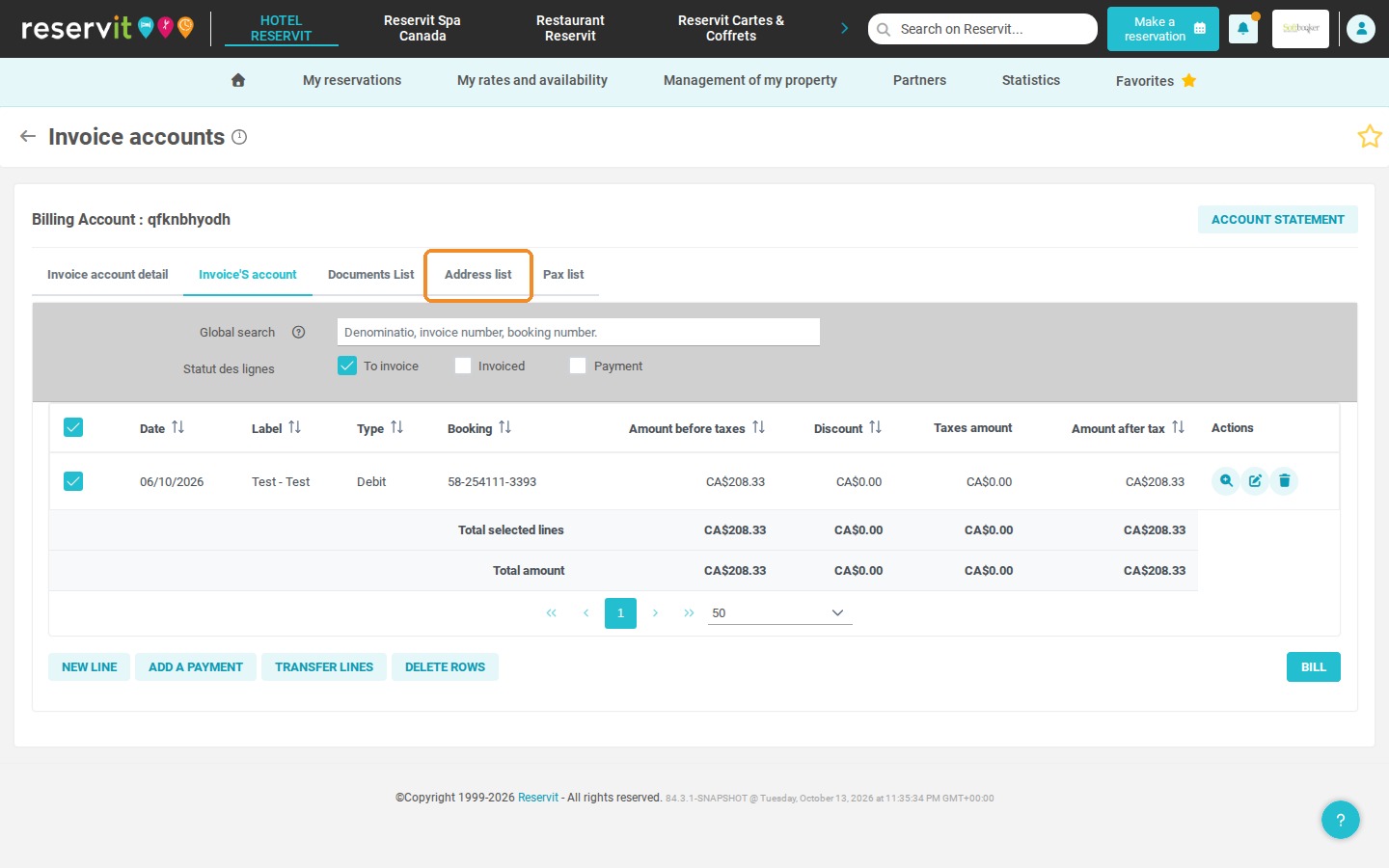
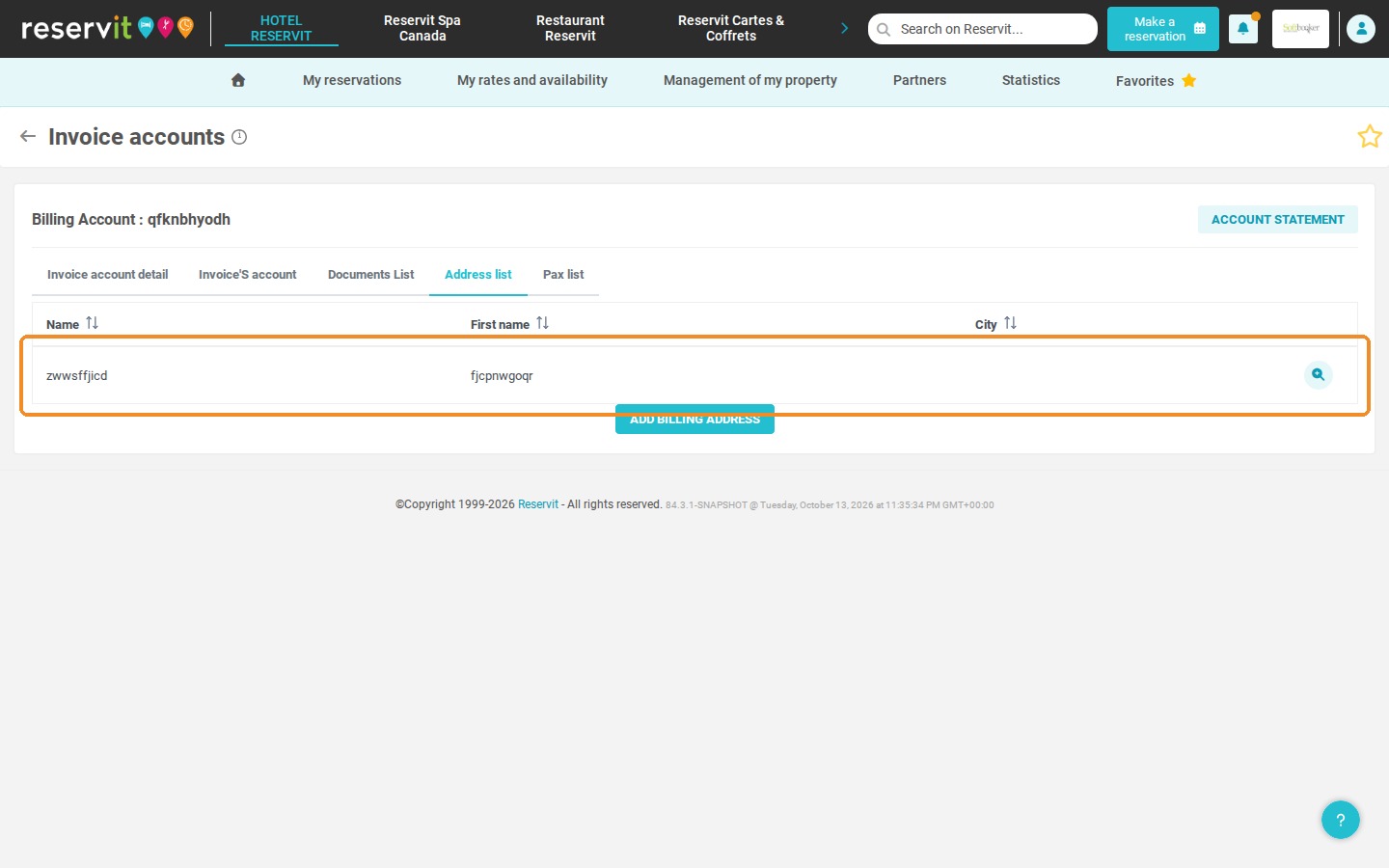
10. Go to the "Address list" tab and select the name of the guest linked to this reservation.
11. Go back to the "Invoice'S account" tab and click "BILL".
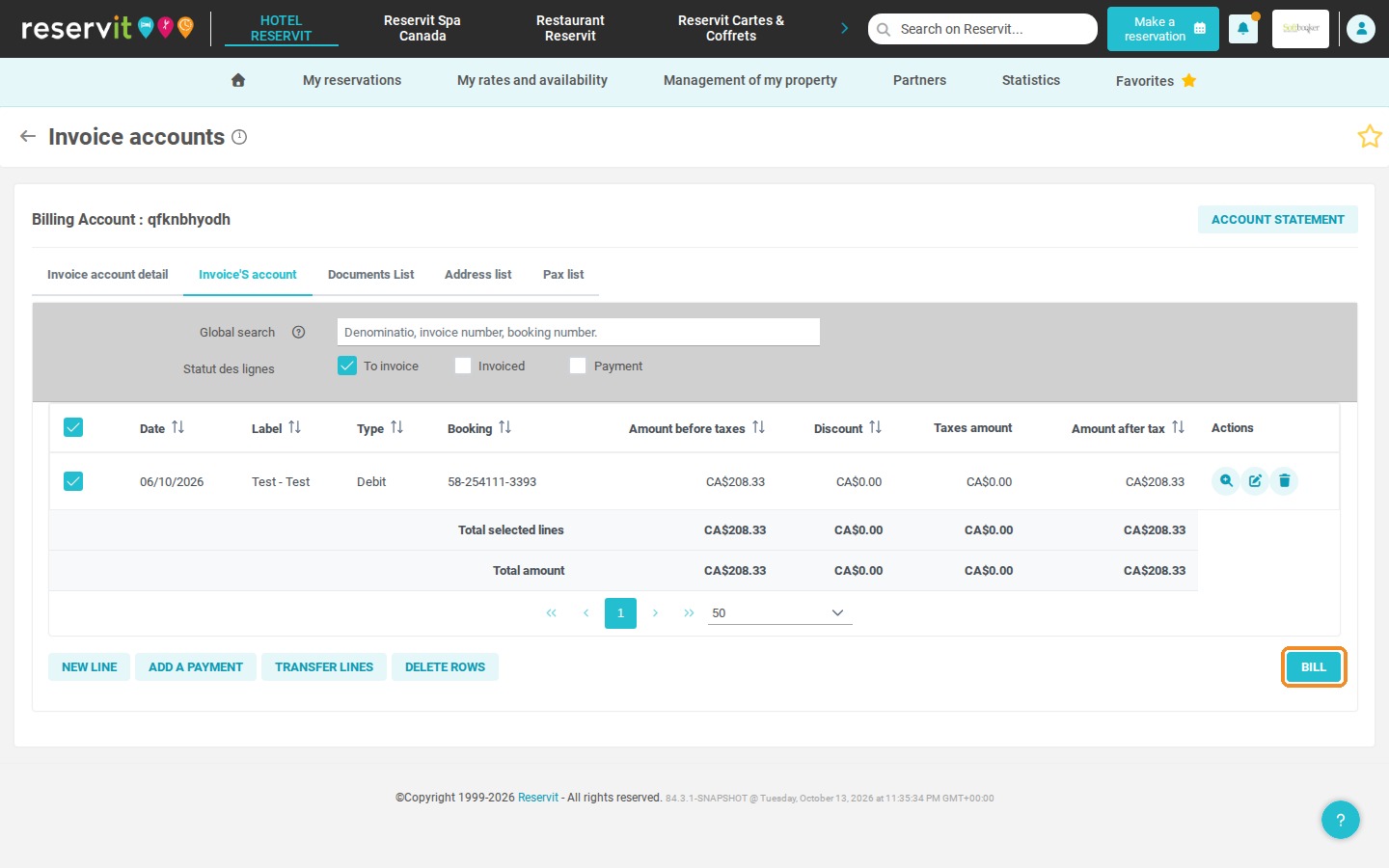
12. The invoice is now issued in the name of your partner, and the name of the guest who stayed is also displayed.