Help for use

How to Allocate Taxes to Units and Manage Accommodation Fees | Reservit Setup Guide

Article Summary: This step-by-step tutorial explains how to accurately allocate taxes and miscellaneous costs to individual units within your Reservit Accommodation platform. You will learn how to navigate your room settings to apply the correct local tax rates directly to your specific accommodation categories. Properly configuring your unit taxes ensures financial compliance and automates accurate pricing for your guests during the online checkout process.

The 4 Key Steps to Allocate Taxes to Units:

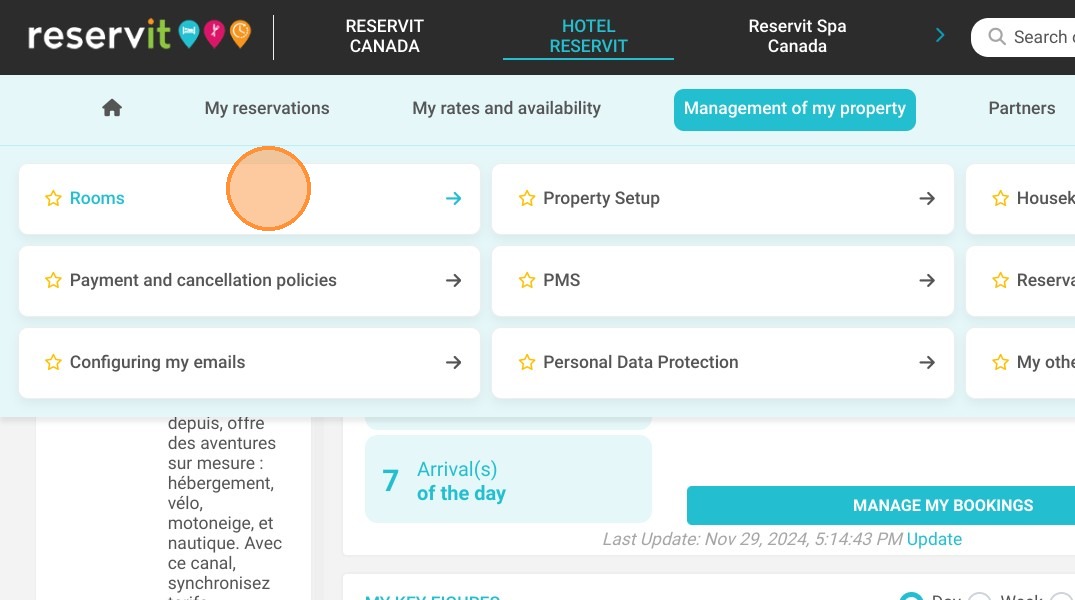
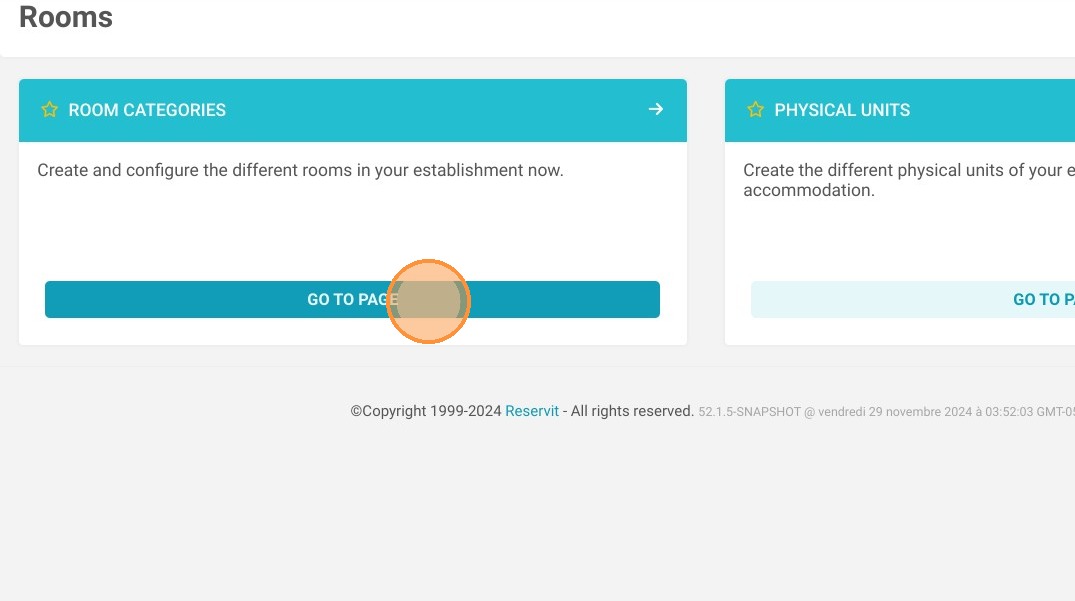
  • Access Room Categories: Navigate to the "Management of my property" tab, select "My Rooms" (or "My Units"), and proceed to "Category."

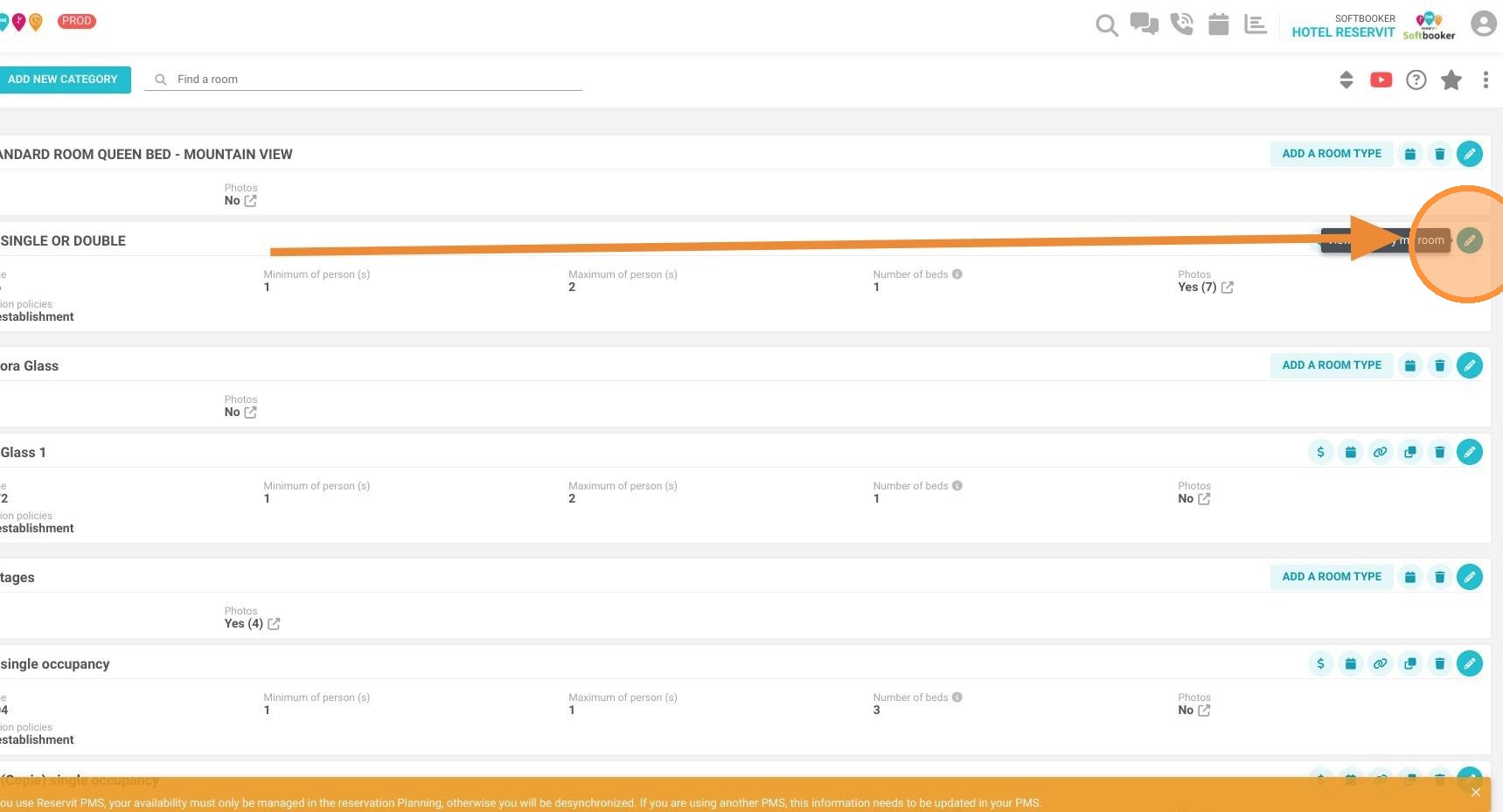
  • Edit Unit Settings: Select the specific accommodation you wish to update and click "Modify" to access its detailed profile.

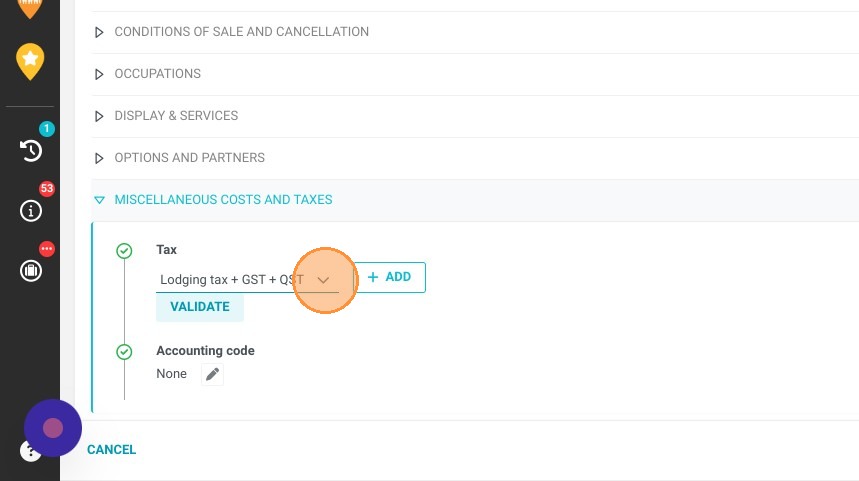
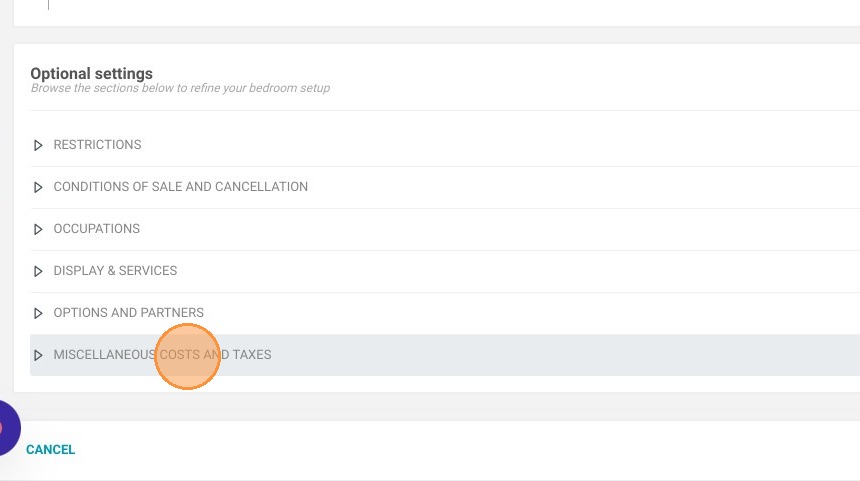
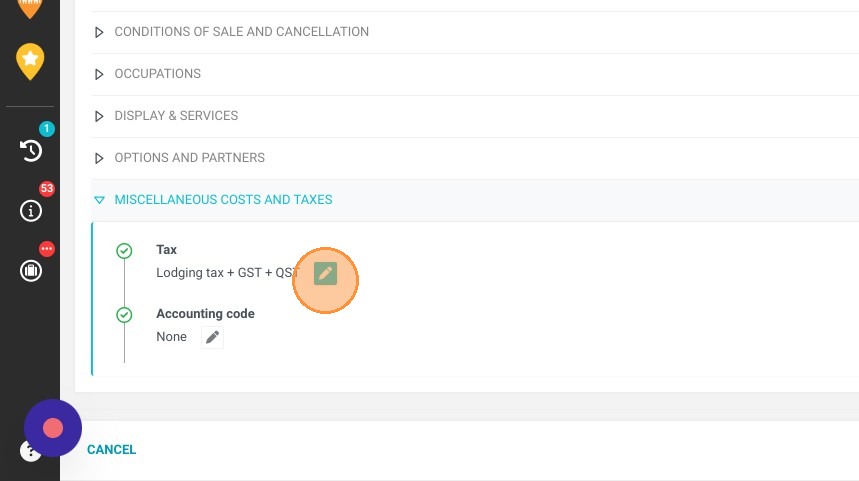
  • Assign Tax Types: Click on "MISCELLANEOUS COSTS AND TAXES," then select the appropriate local tax rate to apply to that specific room type.

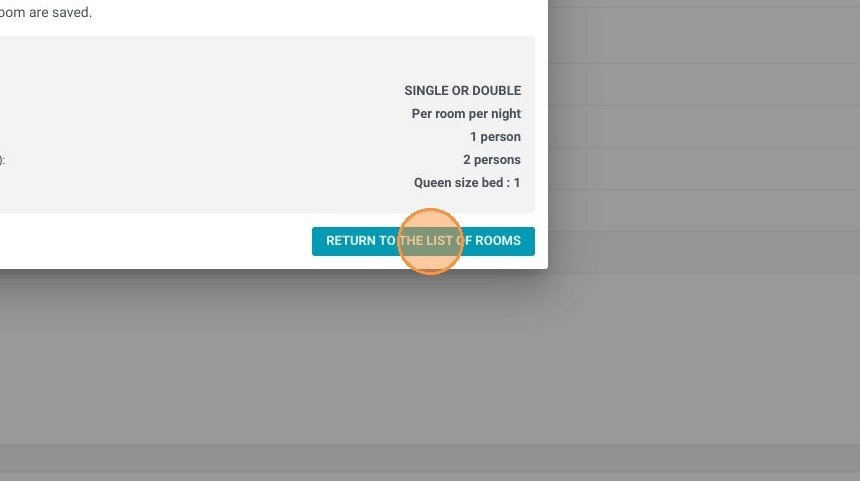
  • Validate and Save: Click "VALIDATE" to confirm the selection, hit "SAVE" to lock in the changes, and return to your room list to finalize the operation.

Why follow this guide? Following these instructions ensures your property remains legally compliant with local tax regulations and prevents costly billing discrepancies. Automating your tax allocation saves your front desk and accounting teams valuable time while providing your guests with transparent, accurate pricing from the very start of their booking journey.


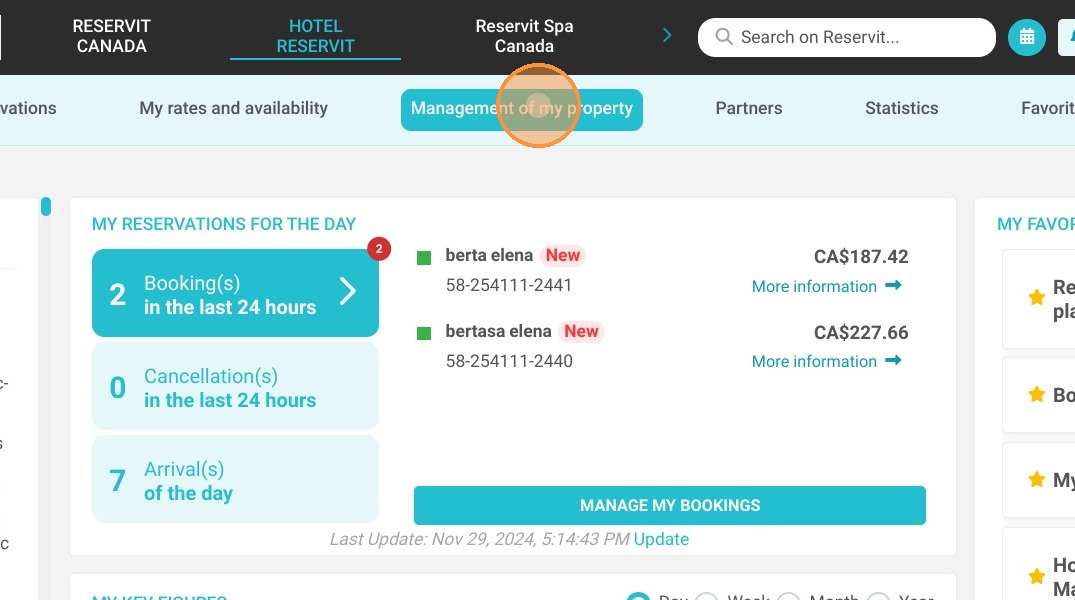
1. Click "Management of my property", ''My Rooms'' or ''My Units'' and ''Category. It can have another name such as my unit, cottage, chalet, etc.
https://colony-recorder.s3.amazonaws.com/files/2024-11-29/5551adb0-e1ab-462c-b0e5-4cfcbeeb0284/File_a2d662d5cc6745e383603dda775e6b72_text_export.jpeg
https://colony-recorder.s3.amazonaws.com/files/2024-11-29/cdcc8327-ca5f-4e1e-ae86-700212b3a207/File_f3fd097f04e040b2b25a5d7209553759_text_export.jpeg
https://colony-recorder.s3.amazonaws.com/files/2024-11-29/e9b1afd5-6d23-4c5e-9a4f-d8ac132e73e1/File_afc96a93f1264c80a0b7ced39f7824b3_text_export.jpeg

2. Click "Modify''

https://colony-recorder.s3.amazonaws.com/files/2024-11-29/4b8f1dfe-6788-4e73-90e9-029808e6ed24/user_cropped_screenshot_1f88fc45c63c442f89613054f0d8b36d_text_export.jpeg

3. Click "MISCELLANEOUS COSTS AND TAXES"
https://colony-recorder.s3.amazonaws.com/files/2023-06-22/0b11e4d3-8c32-40c6-8480-aa2c52a0ce18/ascreenshot_783d3405692a408887d800be420e3b96_text_export.jpeg

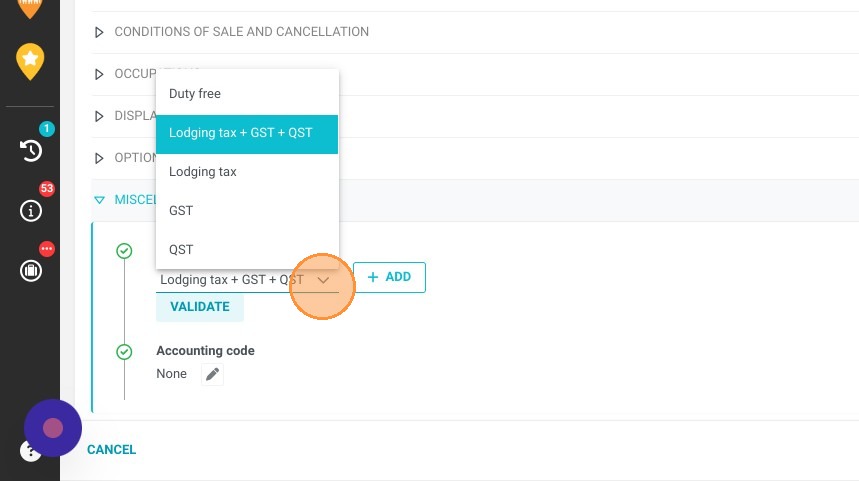
4. Finally select the type of tax to apply. If it does not exist, you can contact us.
https://colony-recorder.s3.amazonaws.com/files/2023-06-22/729ff8bf-70ba-4a27-a4a0-9c875c558c0b/ascreenshot_20a42fcc3b27485e95e565f5abf1f315_text_export.jpeg
https://colony-recorder.s3.amazonaws.com/files/2023-06-22/995acdbf-af57-4027-840e-27110cb93135/ascreenshot_cba44c9634854a36bfd289d582a92298_text_export.jpeg
https://colony-recorder.s3.amazonaws.com/files/2023-06-22/ea2b7fd7-912c-4fa2-ab3d-cd6c327bc5e9/ascreenshot_432f4448a77a4e219b32ddb77c4410af_text_export.jpeg

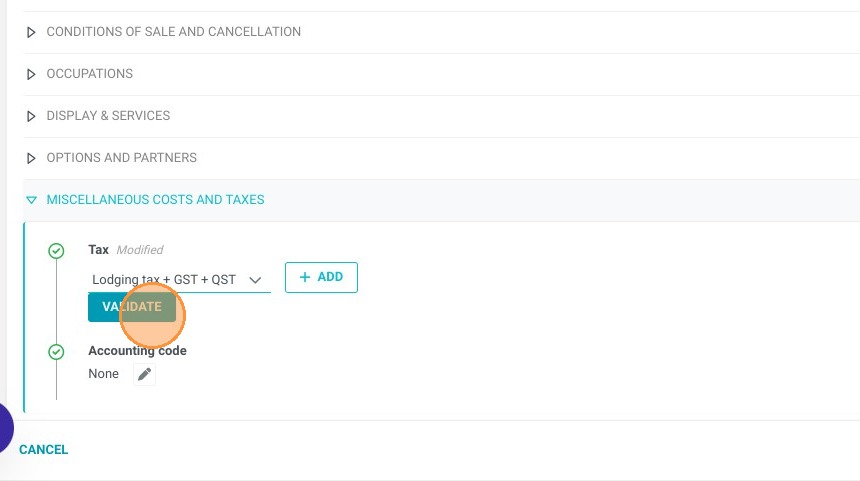
5. Click "VALIDATE"

https://colony-recorder.s3.amazonaws.com/files/2023-06-22/5ee88220-1a91-467b-9439-4fe2ff3d8010/ascreenshot_673e1dd447e0429d93f62465d813fb54_text_export.jpeg

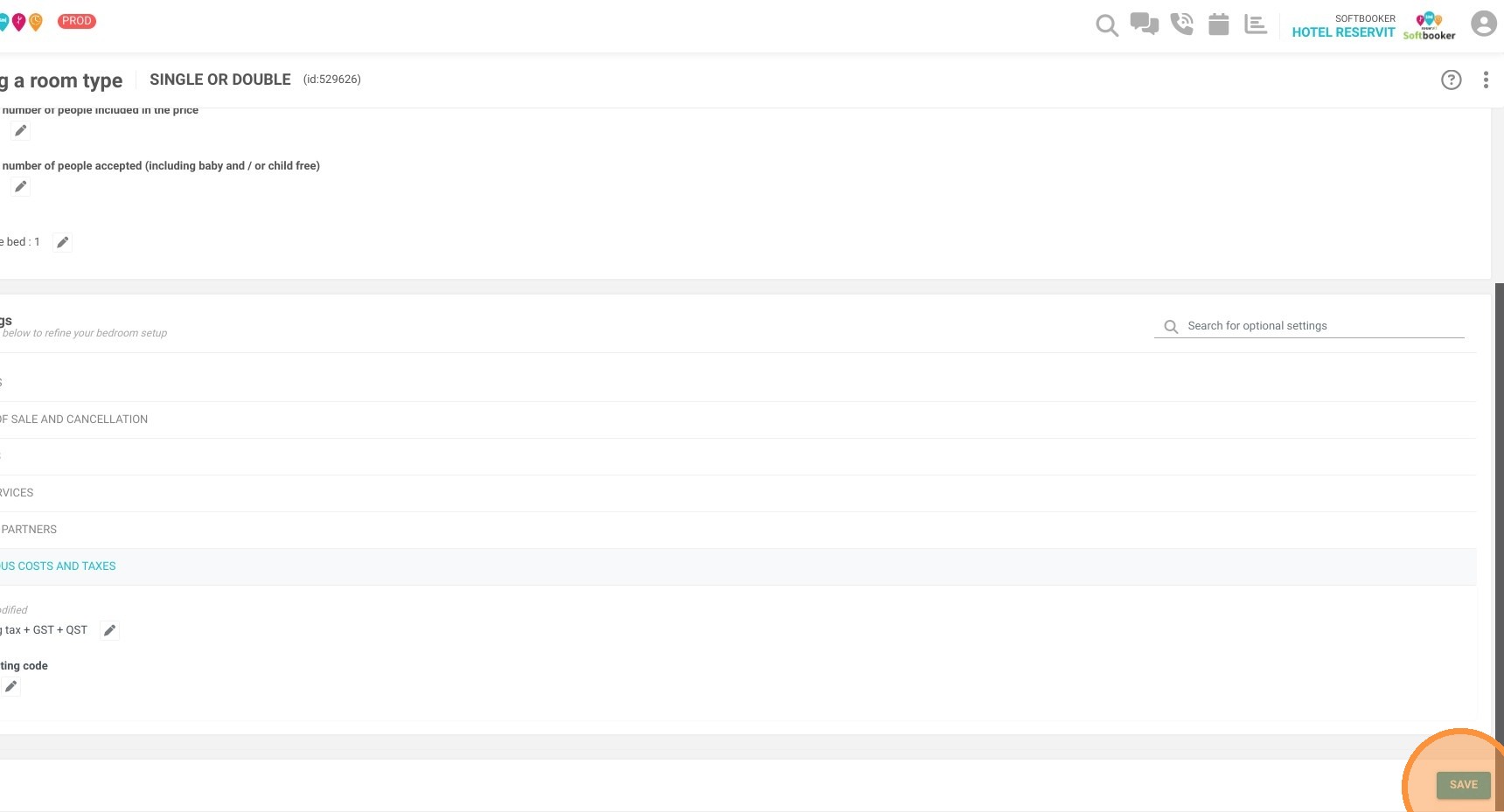
6. Click "SAVE"

https://colony-recorder.s3.amazonaws.com/files/2023-06-22/736e4cd7-b492-45ae-a6fe-5b9a3f95b7b4/user_cropped_screenshot_bfef687fc6be4a158866b3729026c392_text_export.jpeg

7. Click "RETURN TO THE LIST OF ROOMS" to validate the operation.
https://colony-recorder.s3.amazonaws.com/files/2023-06-22/eebbac2a-e905-404c-8e80-55bd129c51c3/ascreenshot_f6931bb963aa4fe8a743d1e872011f20_text_export.jpeg