Article Summary: This step-by-step tutorial explains how to quickly edit your unit descriptions within Reservit Accommodation to ensure your property details are always accurate and enticing. You will learn how to navigate directly to your room categories to modify the text, allowing you to highlight new features or updated amenities. Keeping your accommodation profiles optimized and informative reduces booking hesitation, ultimately enhancing the guest experience and driving more direct reservations.
The 4 Key Steps to Edit Your Room Descriptions:
-
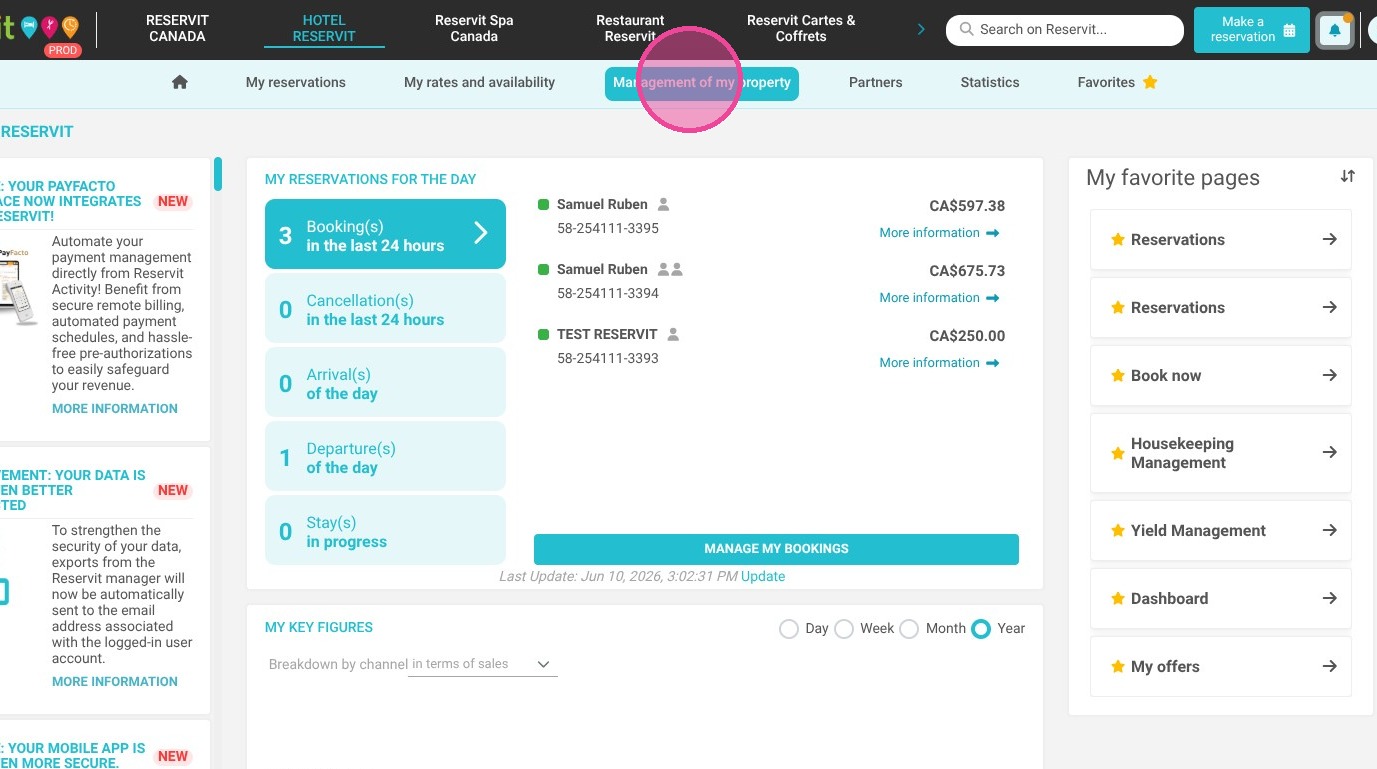
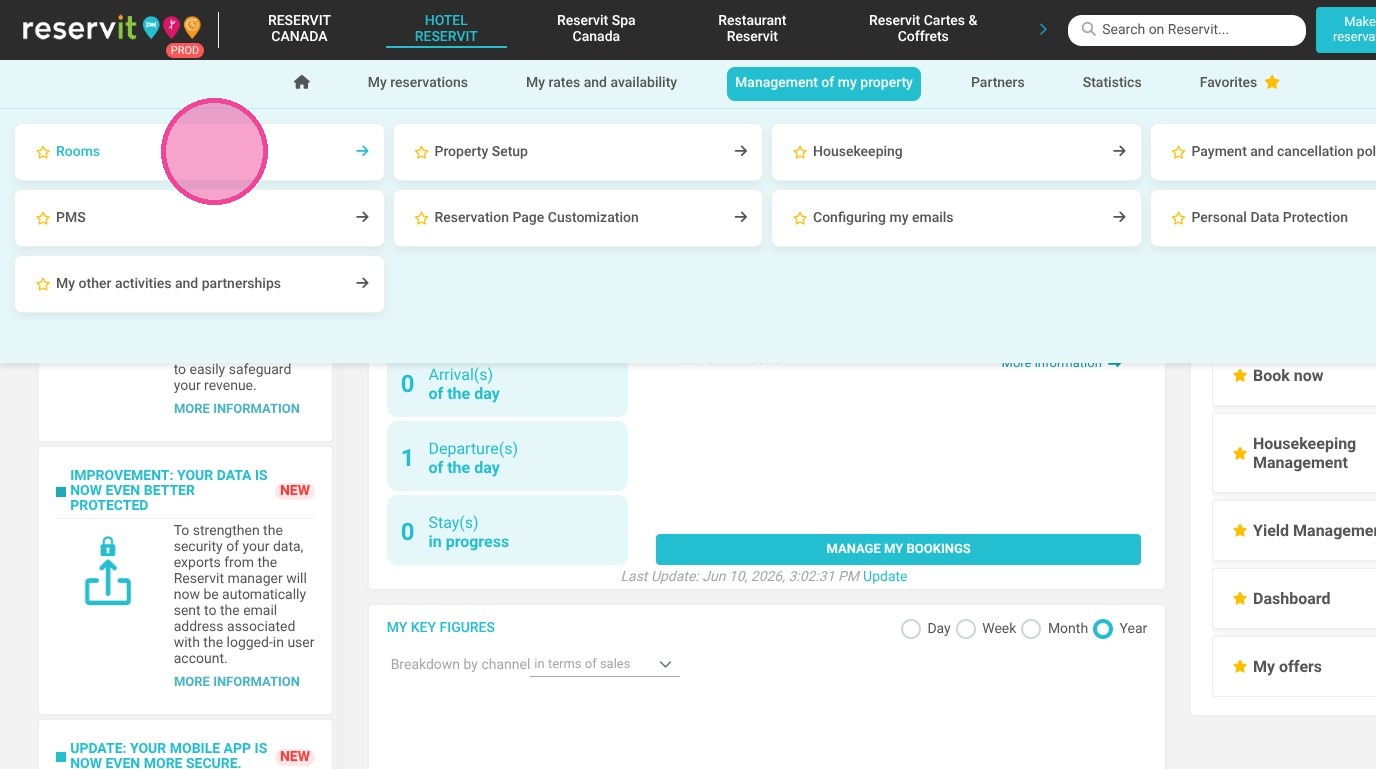
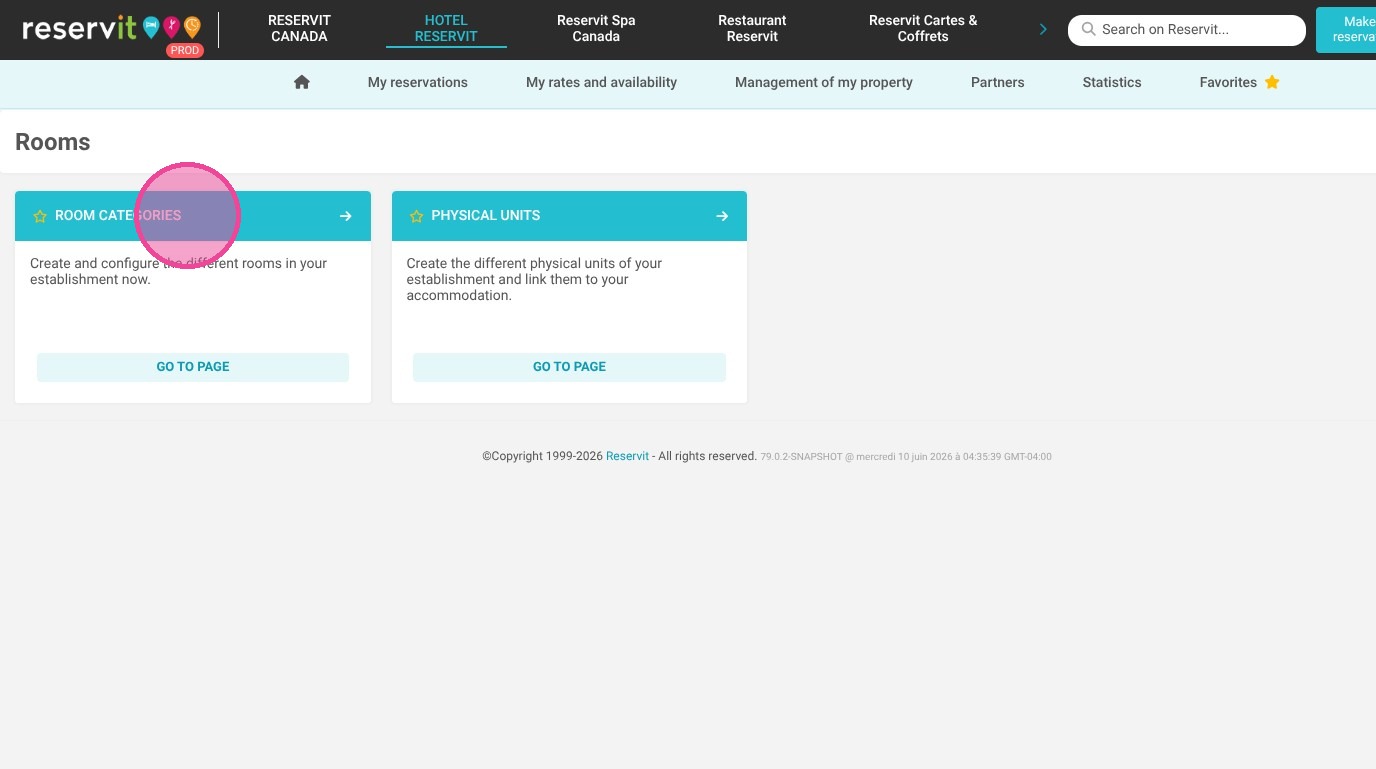
Access Room Management: Log into your Reservit dashboard, select "Management of my property," navigate to the "Rooms" section, and click on "Room categories."
-
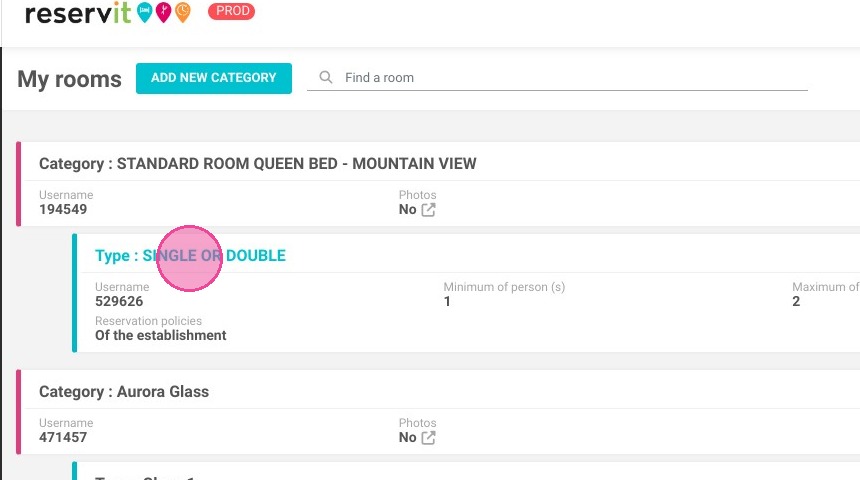
Select the Room Type: Locate and click on the specific unit type you want to modify (for example, "Type: SINGLE OR DOUBLE").
-
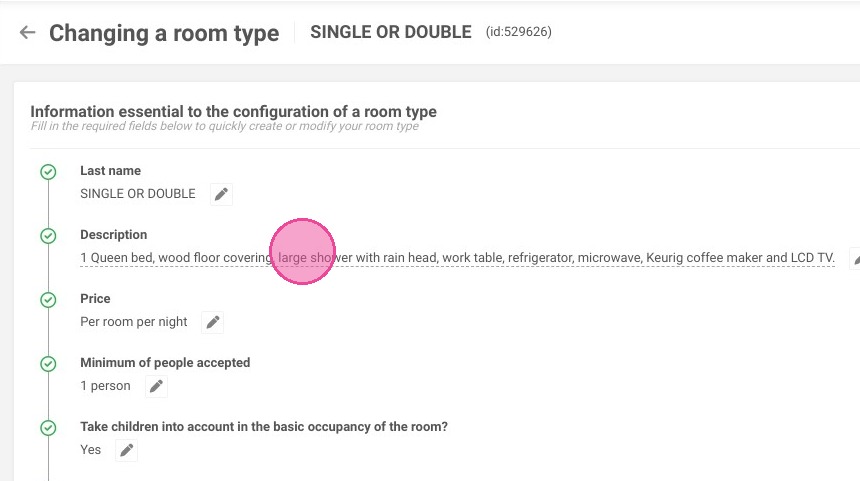
Update the Text: Click directly on the existing description text box to type in your revisions, add new amenities, or refine your marketing copy.
-
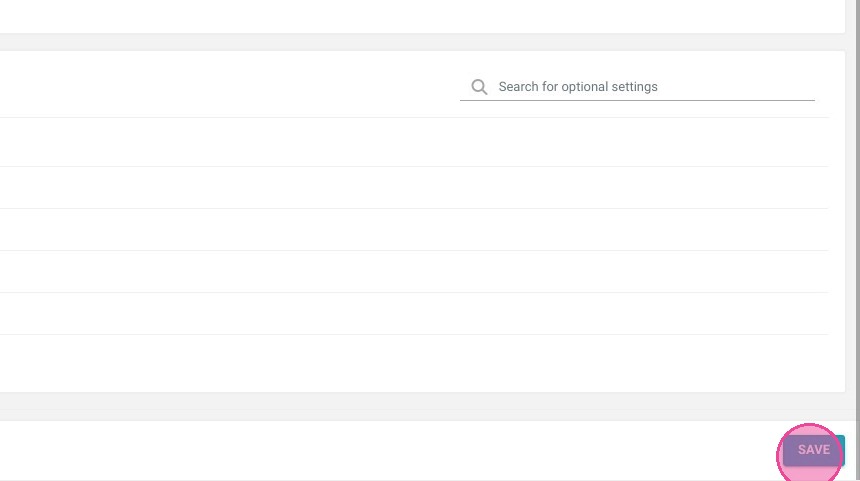
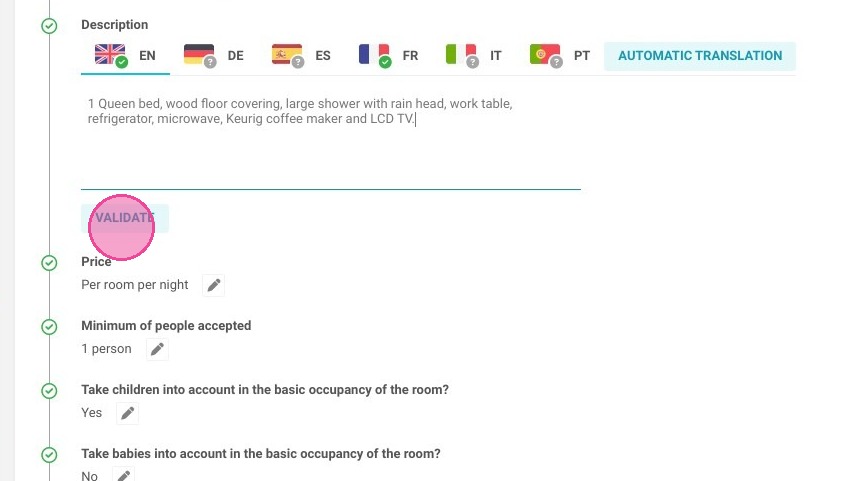
Validate and Save Changes: Click "validate" to confirm your text edits, and then hit "SAVE" to instantly publish the updated description to your live booking engine.
Why follow this guide? Regularly updating your unit descriptions sets clear expectations for your guests, preventing arrival day disappointments and negative reviews. Keeping your room details accurate and appealing saves your staff time by reducing pre-arrival inquiries and actively optimizes your direct sales strategy.
1. Select "Management of my property," navigate to "Rooms," and then choose "Room categories."
2. Click on the type you wish to edit. For example here: "Type: SINGLE OR DOUBLE"
3. To edit the description, click on it.
4. Click "validate" to apply changes.
5. Click "SAVE".