Article summary: This tutorial explains how to easily adjust the room capacity and maximum number of guests for your properties within your Reservit interface. You will learn how to accurately configure guest limits per unit type, distinguishing between people included in the base price and specific age brackets (adults, children, teenagers, babies). Mastering these settings allows you to perfectly adapt your commercial offer, avoid booking discrepancies, and optimize your property's revenue.
The 5 key steps to adjust your unit capacity:
-
Access your online units: Navigate from "Property Management" to the list of your active rooms or cabins.
-
Edit the accommodation: Click on the edit pencil icon to open the configuration settings for the specific unit you want to update.
-
Define overall capacity: Adjust the core fields specifying the maximum number of people included in the standard price and the total accepted capacity.
-
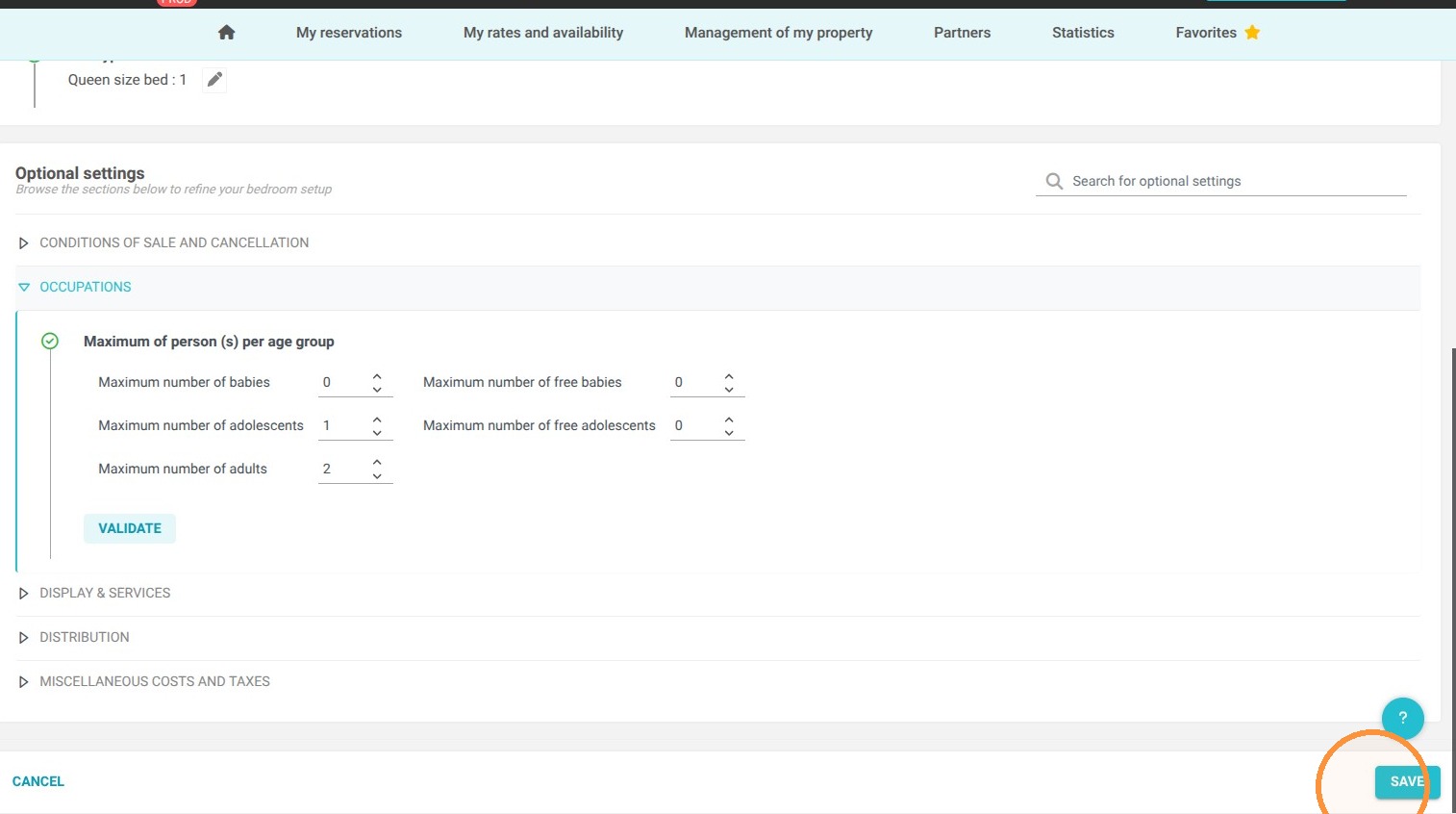
Detail occupancy by age bracket: Go to the "OCCUPANCIES" section to refine your guest rules according to their specific profile (adult, child, teenager, baby).
-
Save your settings: Click on "Save" to apply your modifications and update your live reservation rules.
Why follow this guide? Following this guide ensures optimal online distribution by preventing pricing errors and overbookings caused by incorrect guest allowances. A precise setup of your occupancy rules guarantees accurate billing, respects your infrastructure's true capacity, and streamlines your property's daily operations.
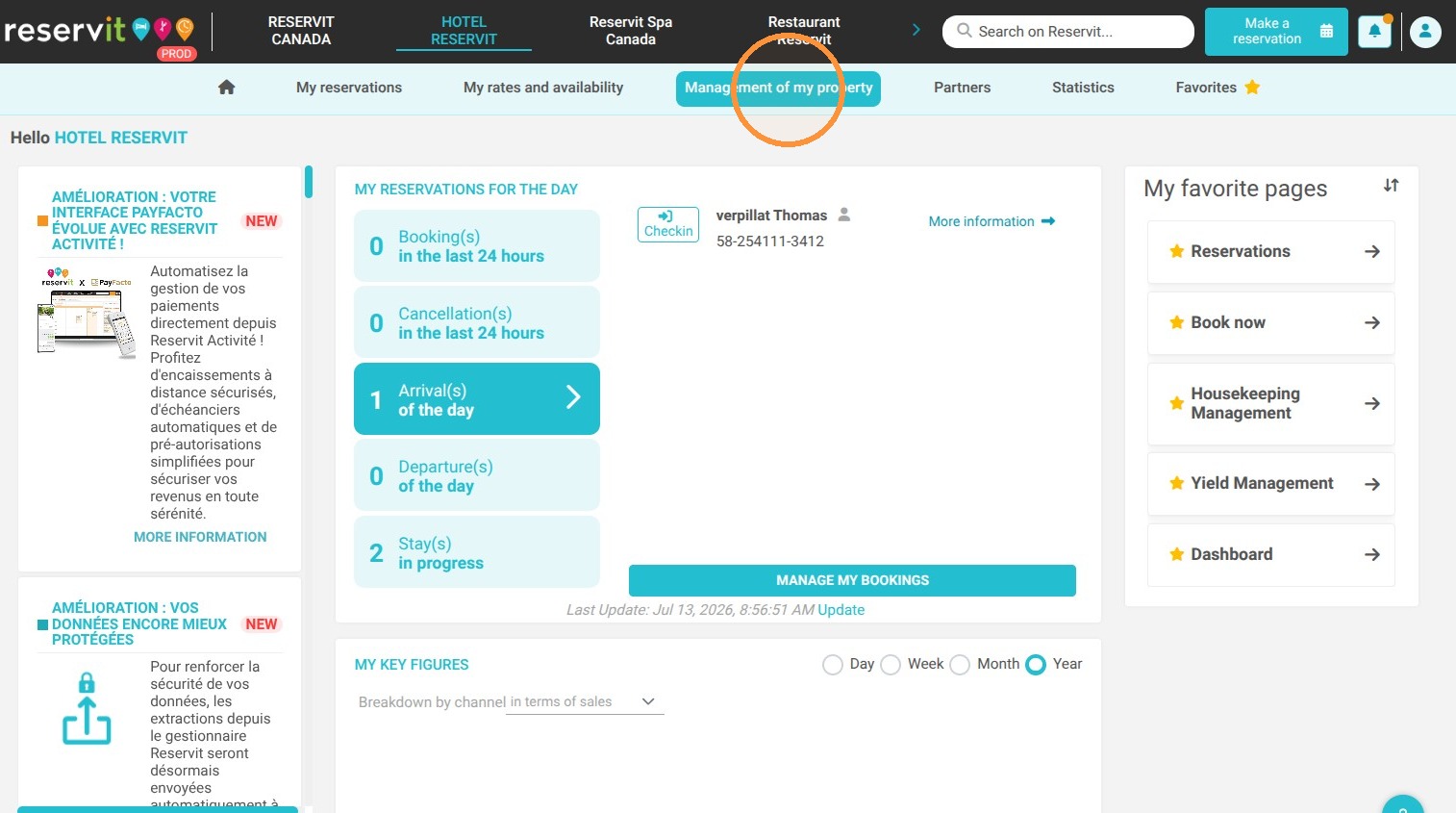
1. Go to "Property Management" then "My Units / My Cabins / My Rooms" then "My Online Units"
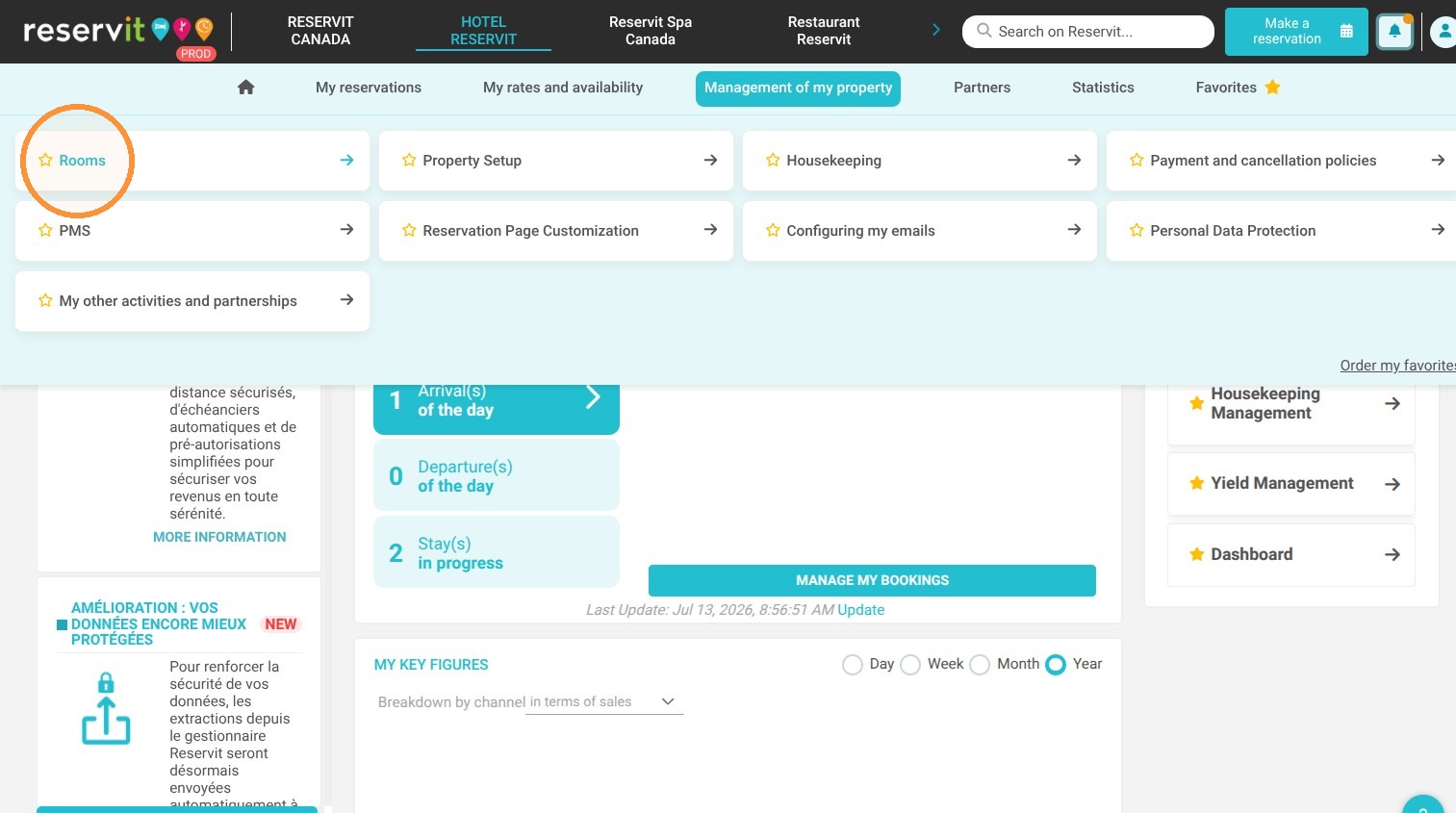
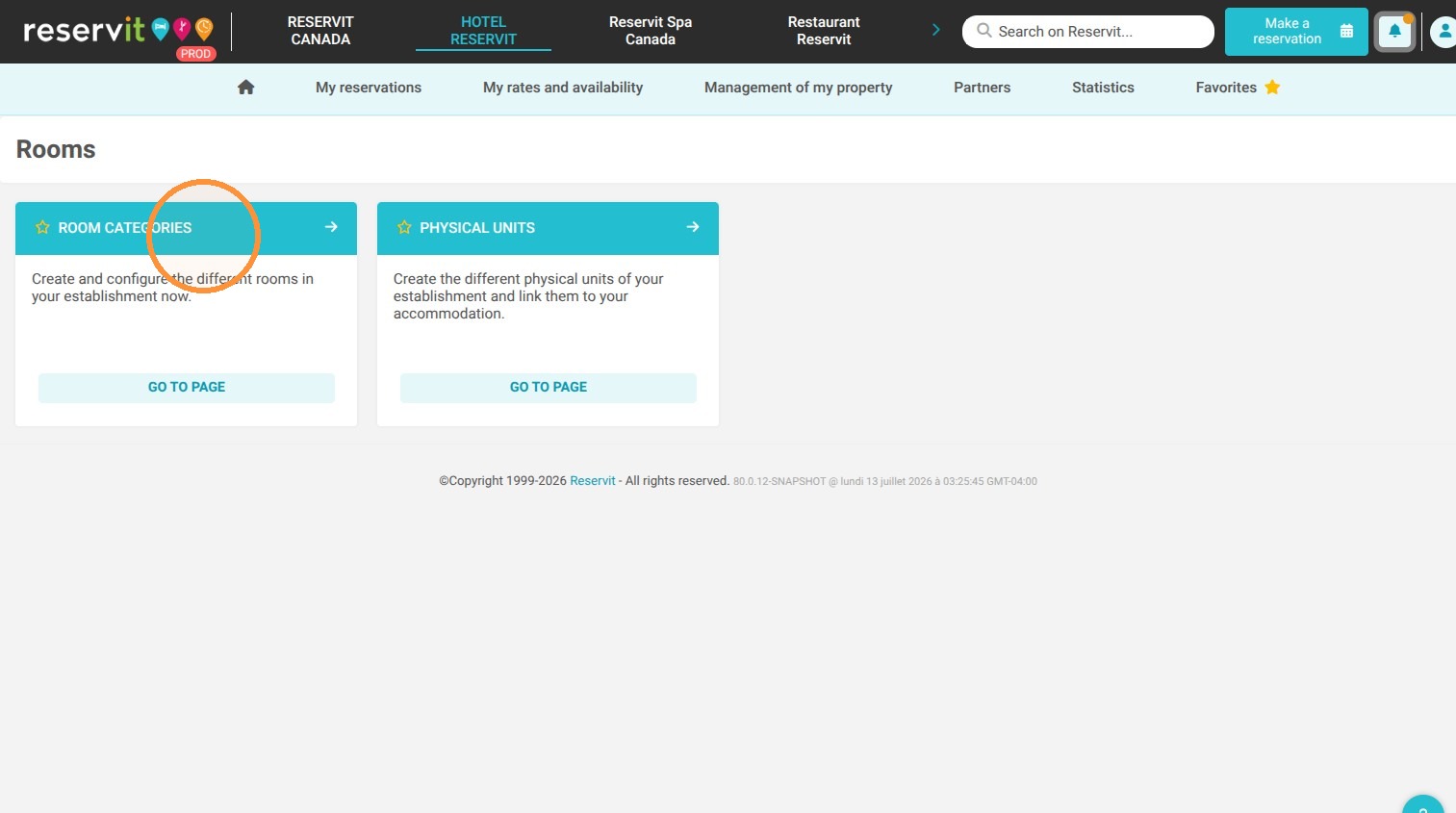
2. Click on the edit pencil icon for the relevant unit
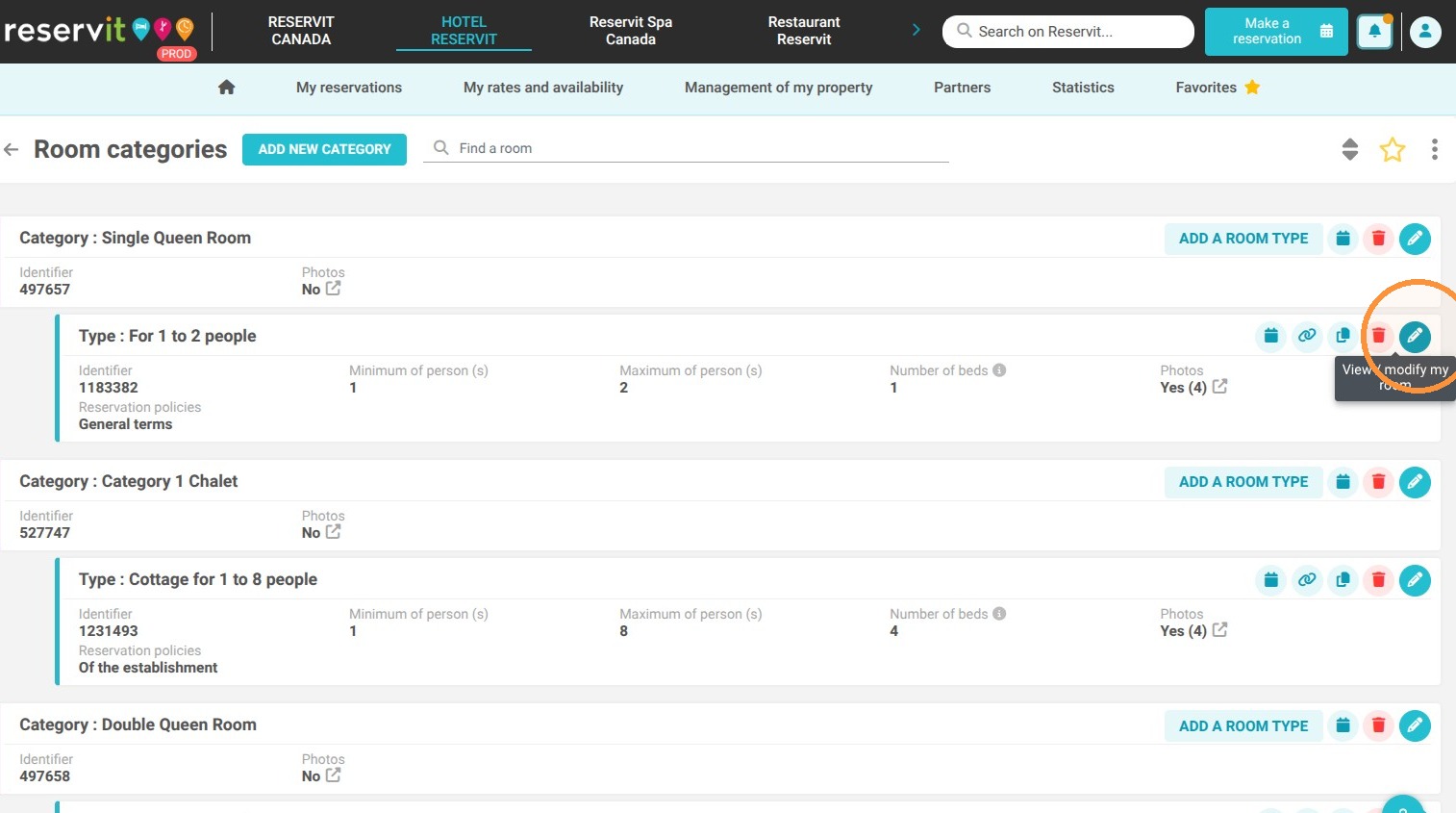
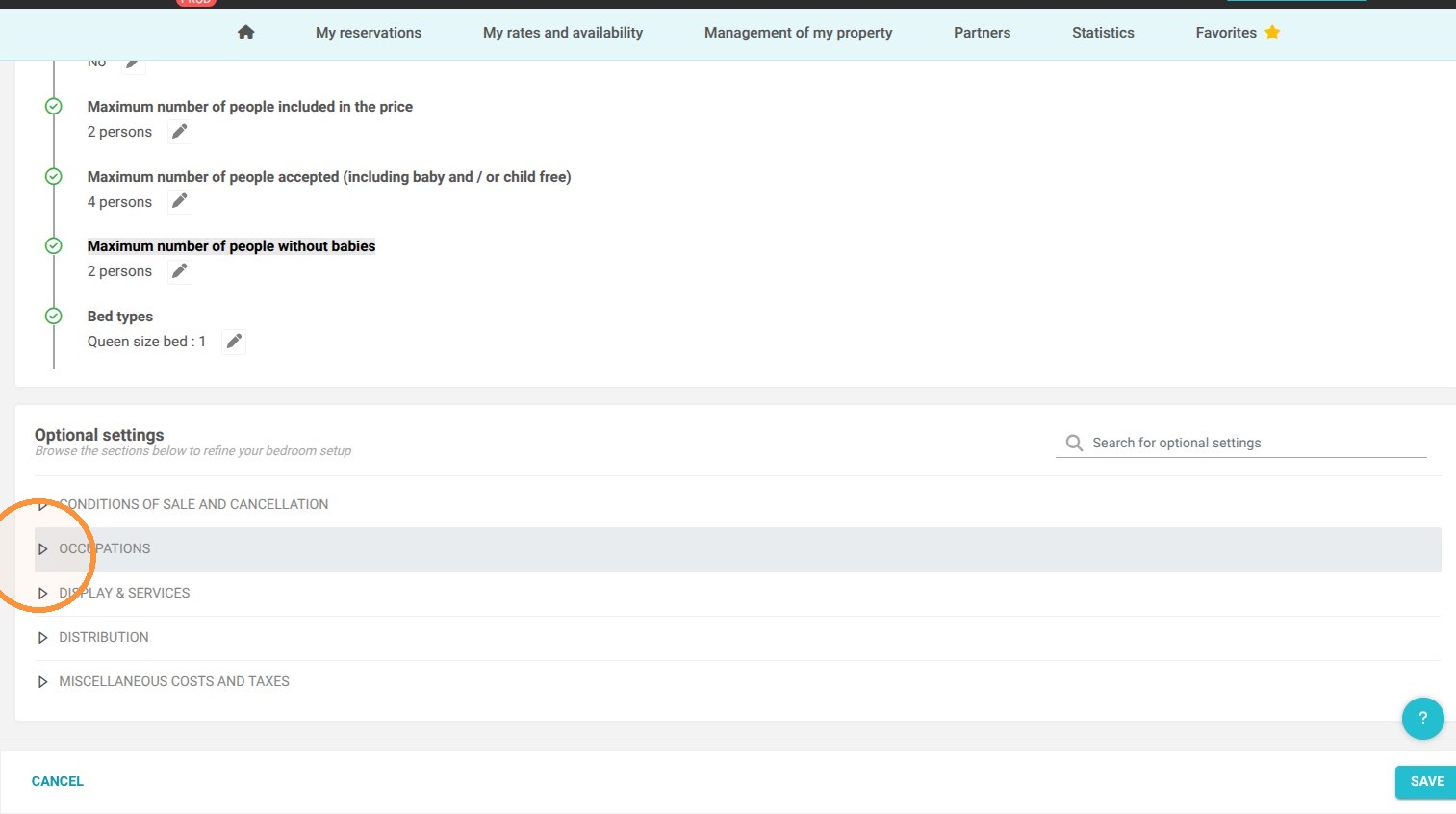
3. Within the configuration, you will see 3 distinct fields allowing you to define the number of people per unit type:
-
"Maximum number of people included in the price"
-
"Maximum number of people accepted (including baby and / or child free)"
-
"Maximum number of people without babies"
These will allow you to adjust the number of accepted and paying people per unit type.
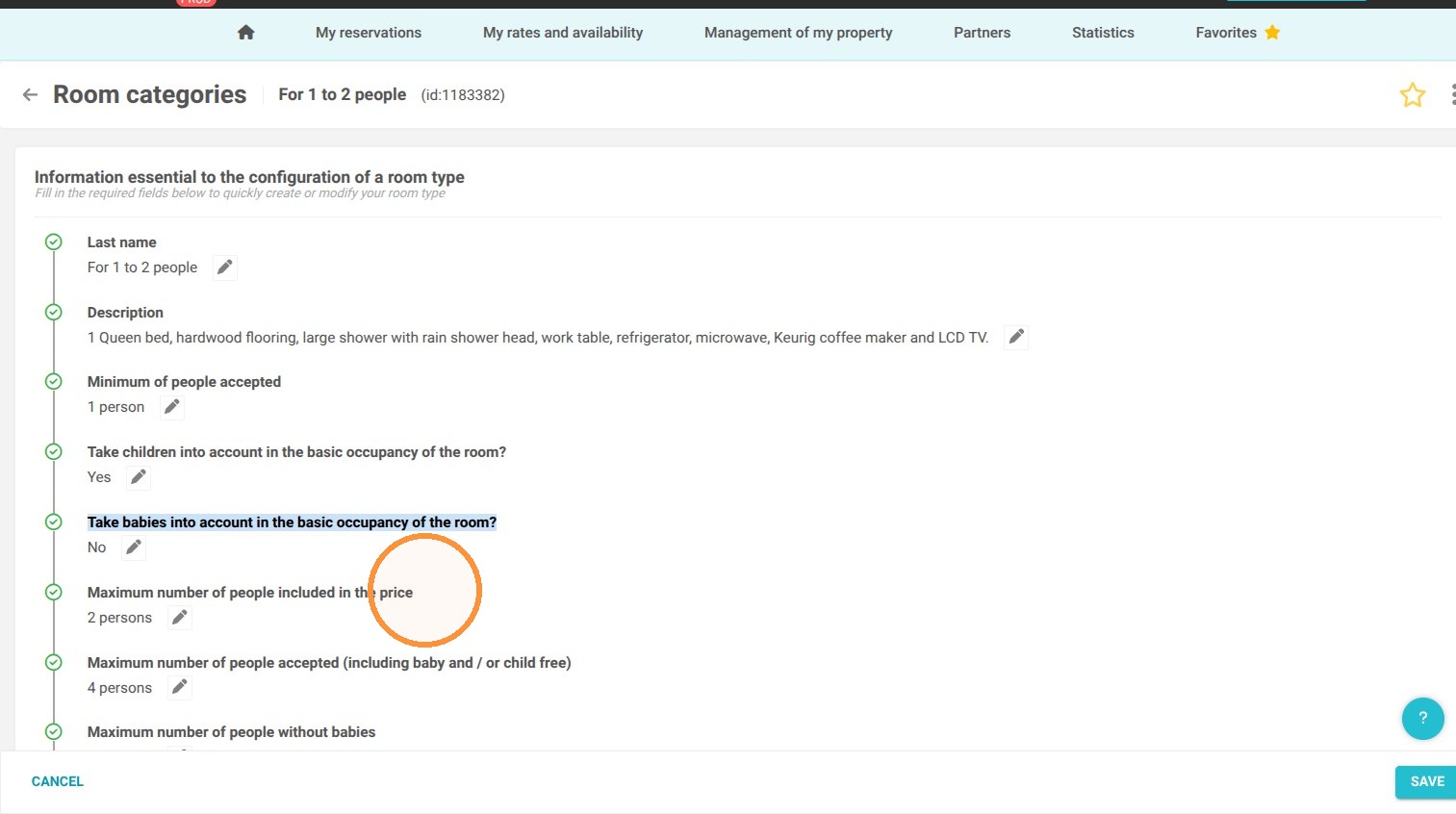
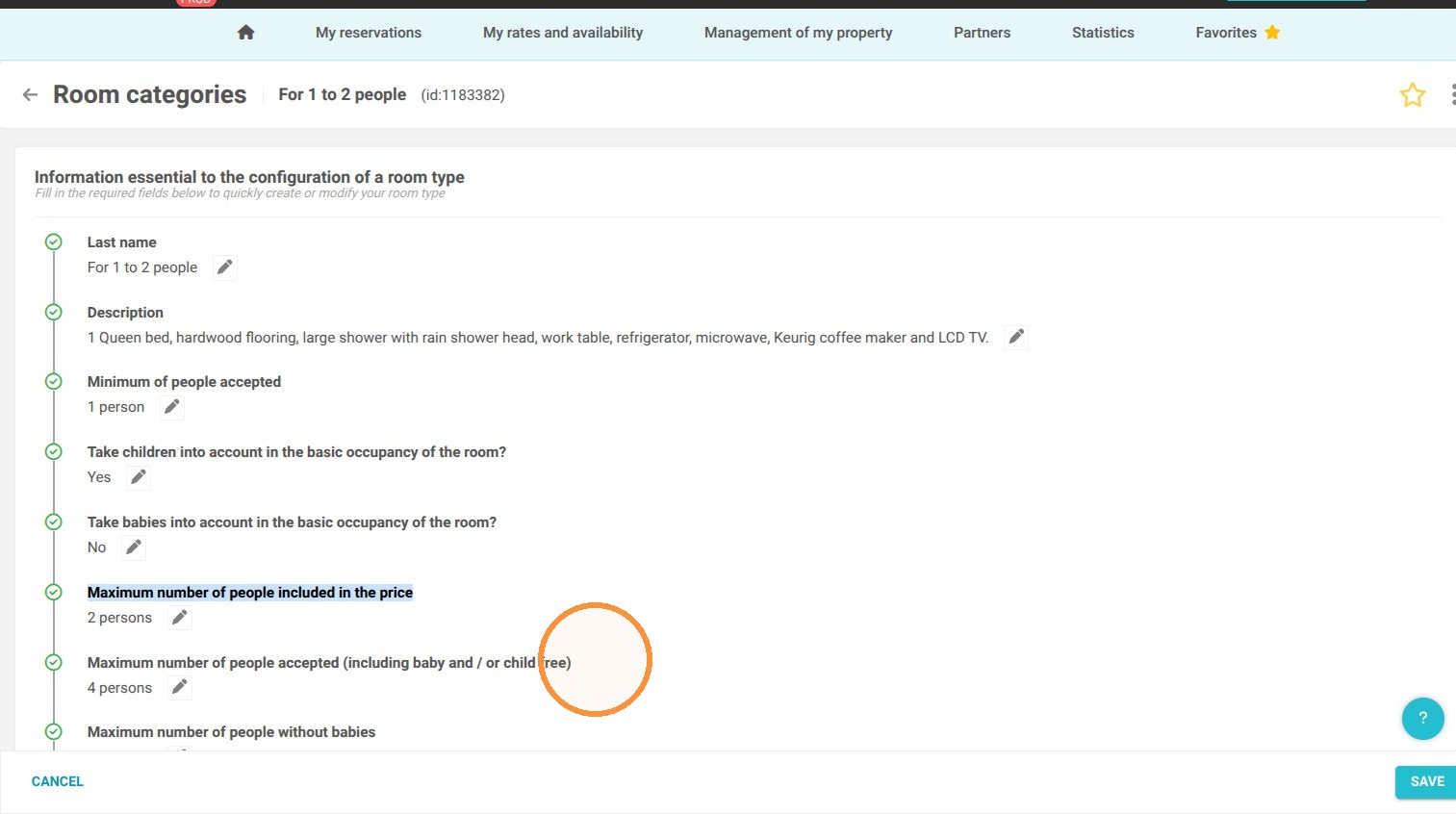
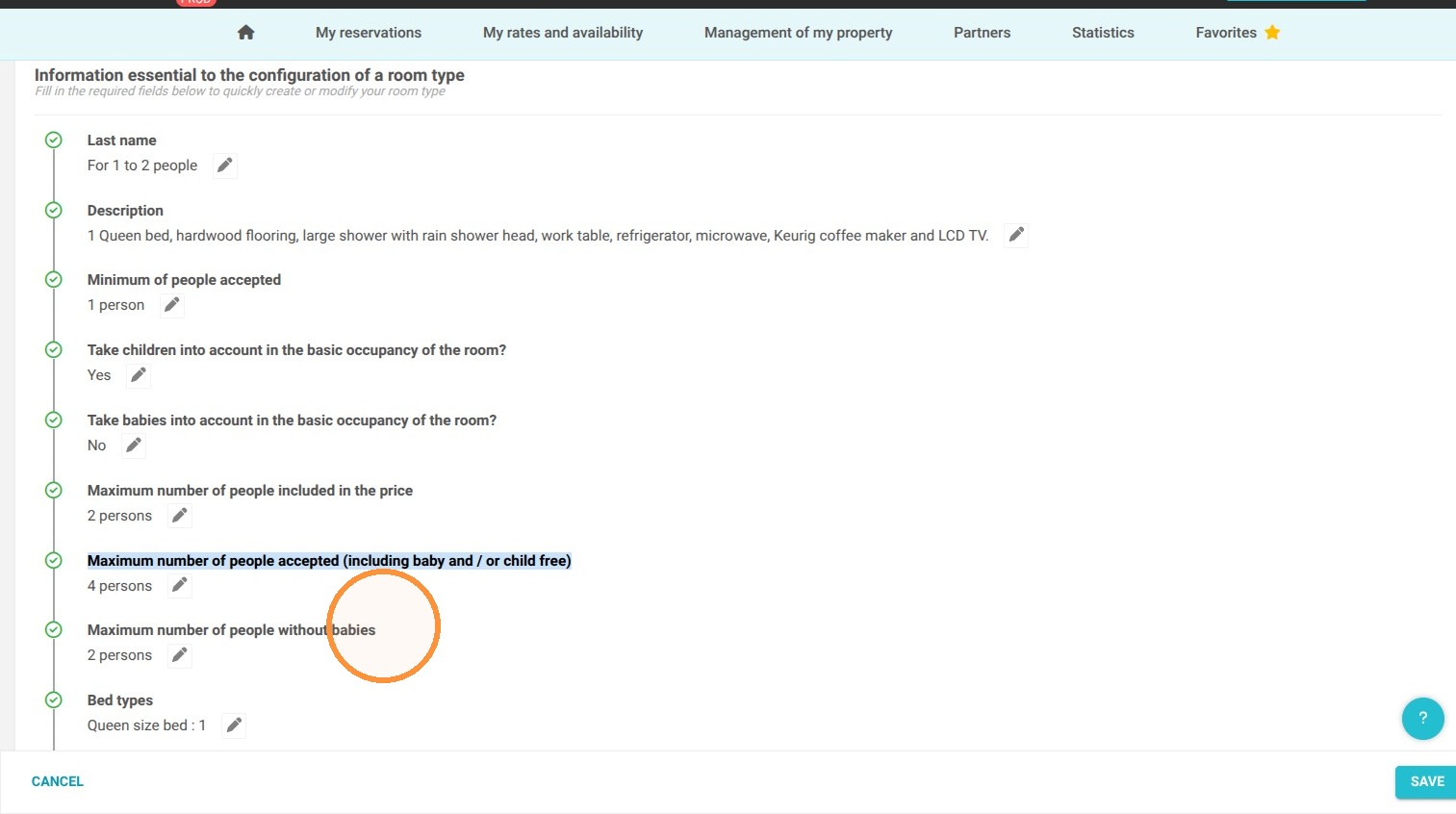
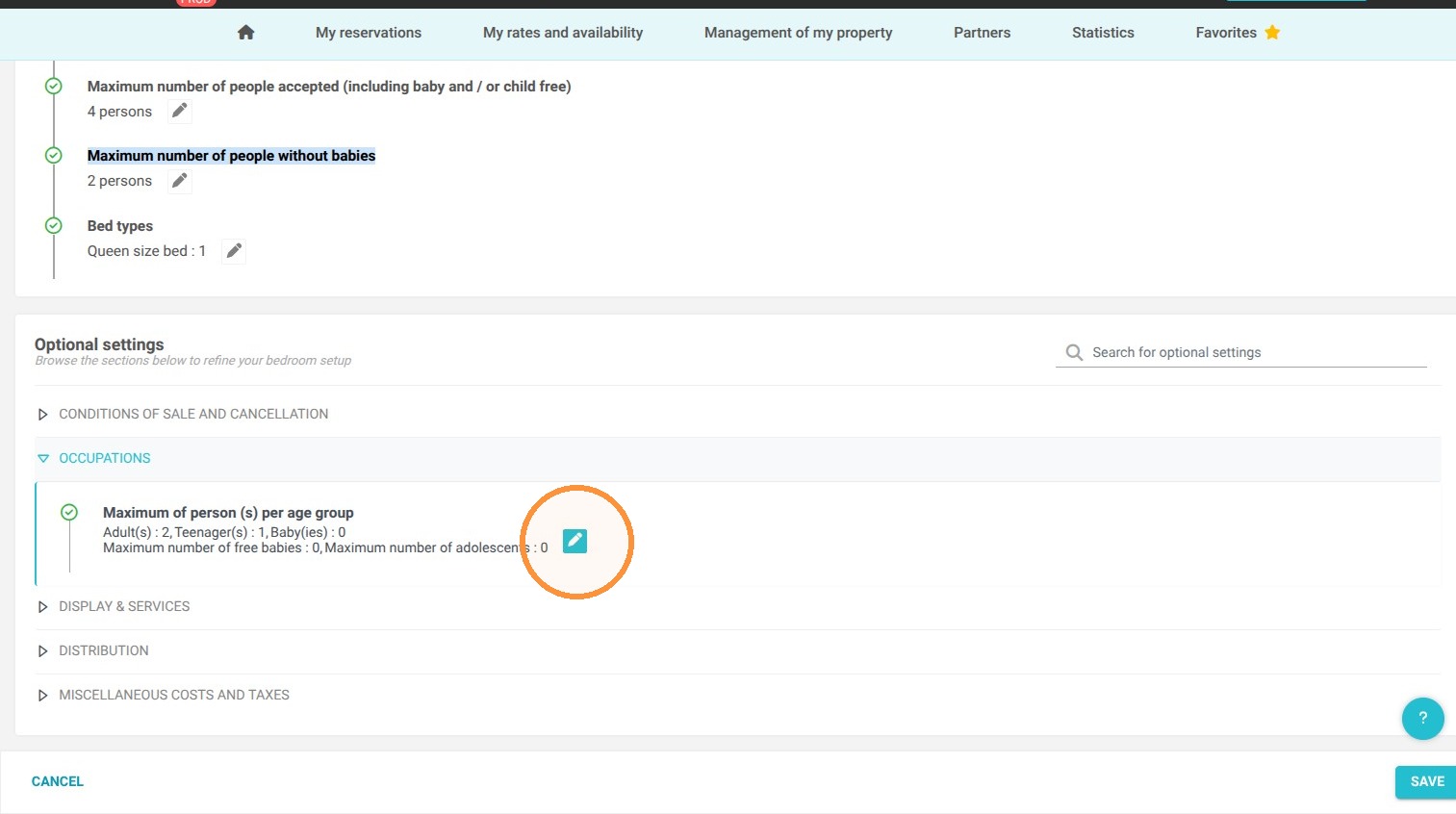
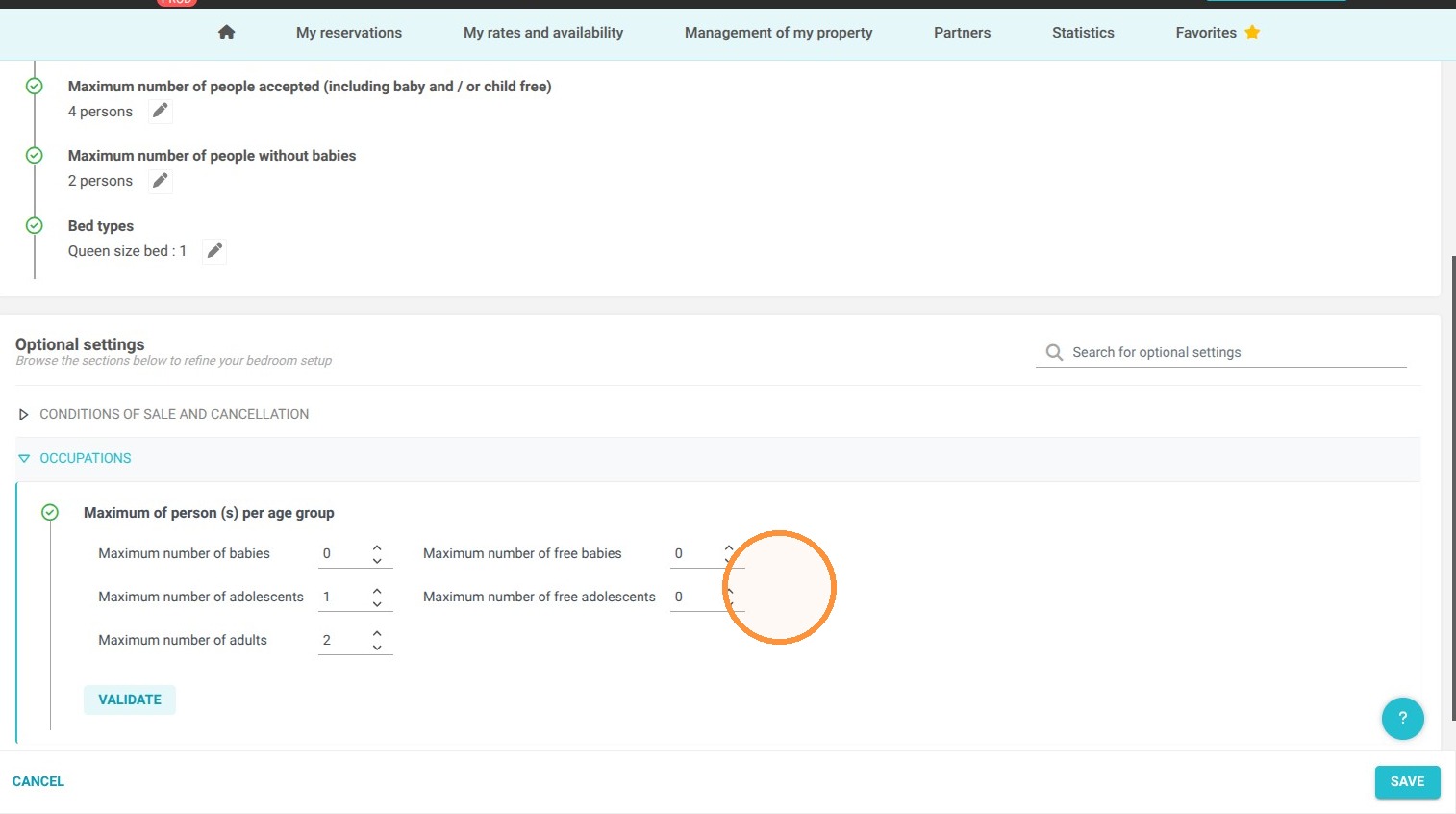
4. If you want to go further, still on the unit type configuration page, go to the "OCCUPANCIES" section.
You will then be able to adjust the permitted occupants in a unit according to their age bracket (adult, child, teenager, and baby).
5. Click on "Save" to save the modification