Article Summary: This step-by-step tutorial explains how to properly create a new unit type within your Reservit Accommodation platform. You will learn how to add detailed room descriptions, set maximum occupancies, apply specific taxes, and utilize automated translations to cater to international guests. Accurately configuring your room types ensures your inventory is professionally showcased on your booking engine, helping you attract more direct reservations and set clear expectations for your customers.
The 5 Key Steps to Create a Unit Type:
-
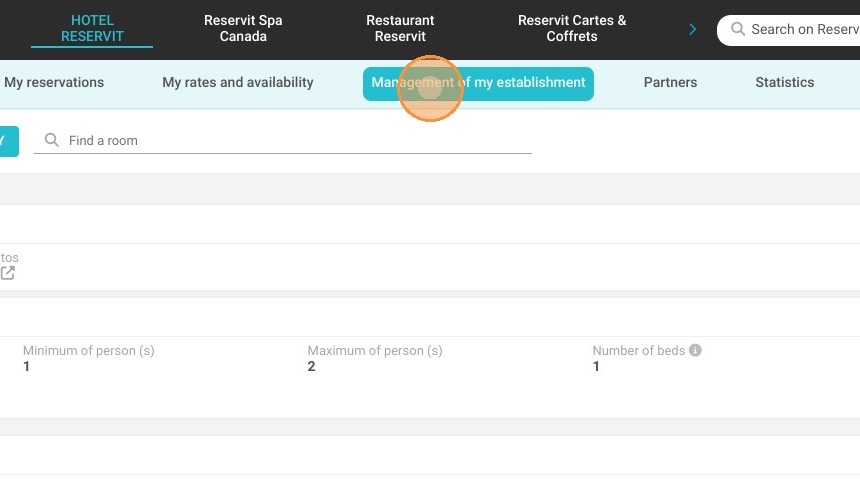
Access Room Management: Navigate to the "Management of my establishment" tab, select "My rooms online," and click the "ADD A ROOM TYPE" button.
-
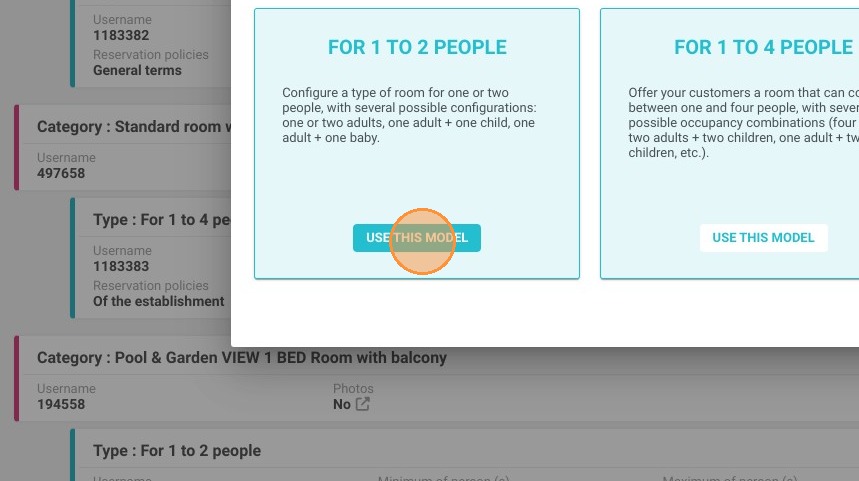
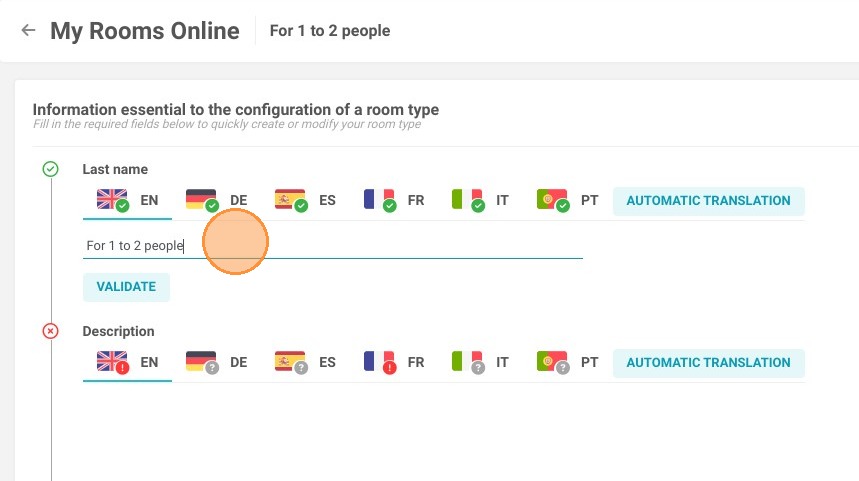
Define and Translate Details: Choose an existing template or start from scratch, then input the room's name and description, utilizing the automatic translation feature to reach a broader audience.
-
Configure Mandatory Settings: Fill in all required system fields, outline the included equipment, and carefully set the maximum capacity limits for adults and children.
-
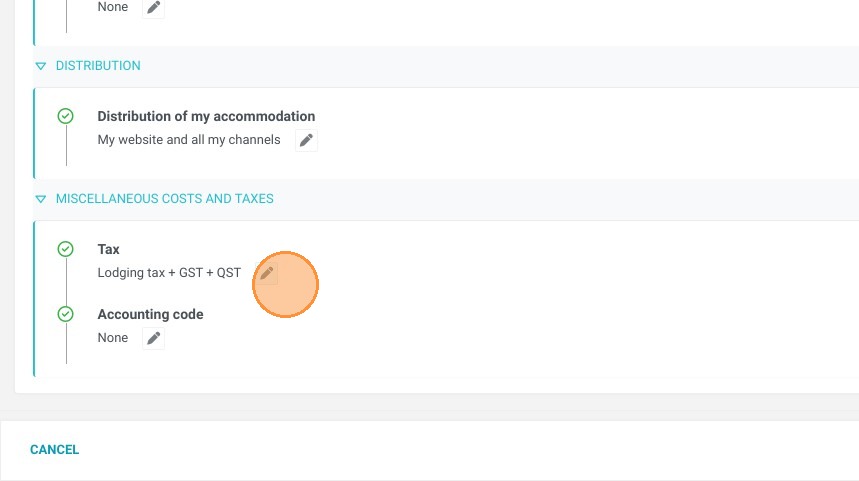
Set Distribution and Taxes: Customize your distribution strategy by explicitly excluding specific sales channels if necessary, and assign the appropriate local taxes for this specific accommodation.
-
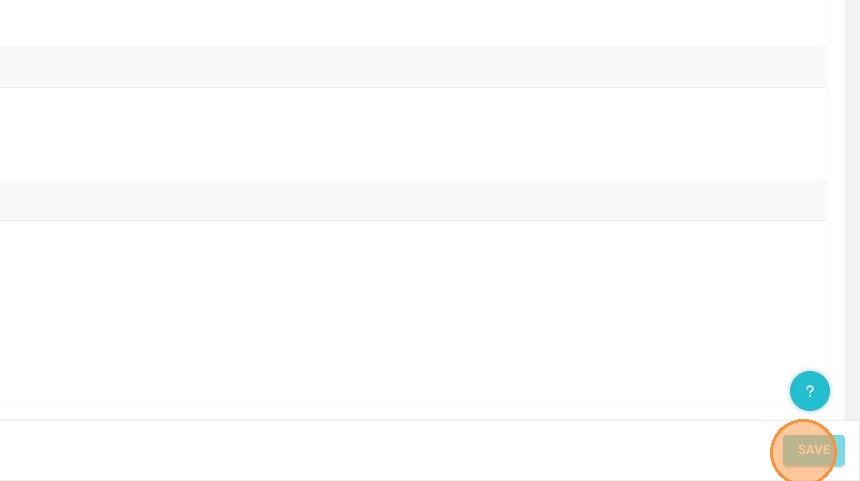
Save and Verify: Click "Save" to finalize the creation, then return to your locations list to double-check that all provided information is perfectly accurate.
Why follow this guide? Following this guide ensures your property's inventory is structured correctly from the start, preventing costly mapping errors with your channel manager and ensuring tax compliance. A well-defined room setup significantly reduces administrative troubleshooting for your staff and optimizes your overall online distribution strategy.
1. Click "Management of my establishment"
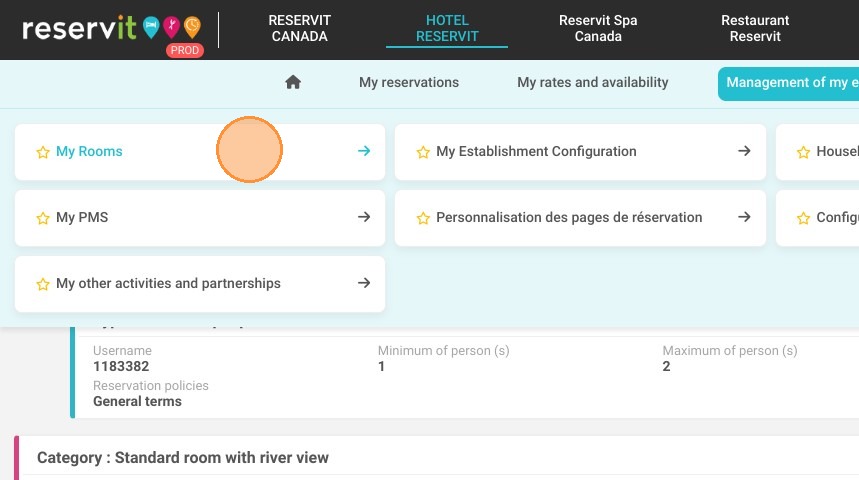
2. My rooms
3. My rooms online
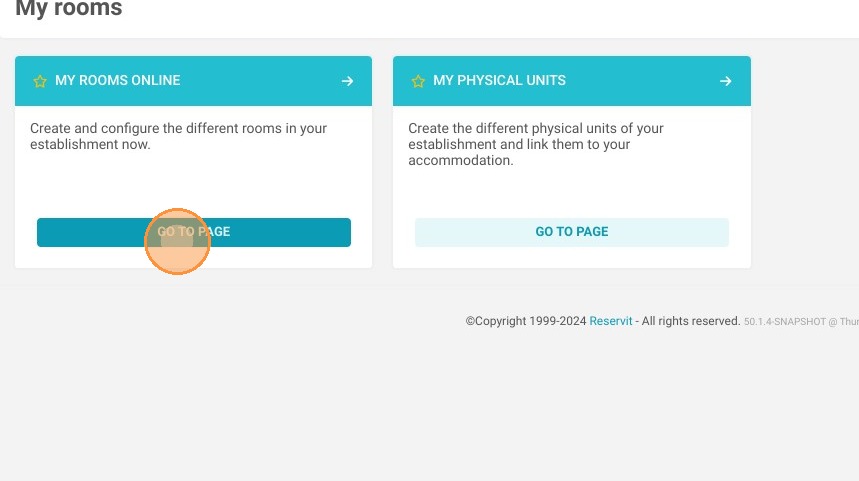
4. Select "ADD A ROOM TYPE"
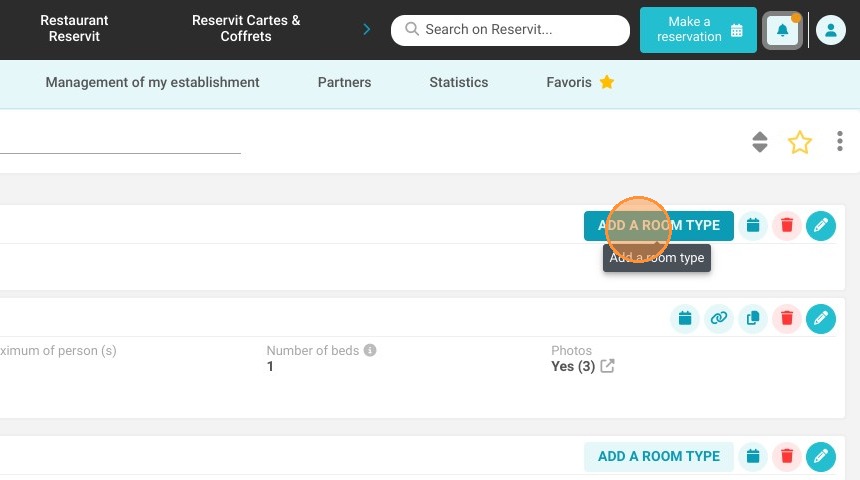
5. Choose a template or create a new type from the start.
6. Enter the name of the type > fill in your translation or click on automatic translation (clicking automatic translation > translate)
7. Do the same for the description of your type.
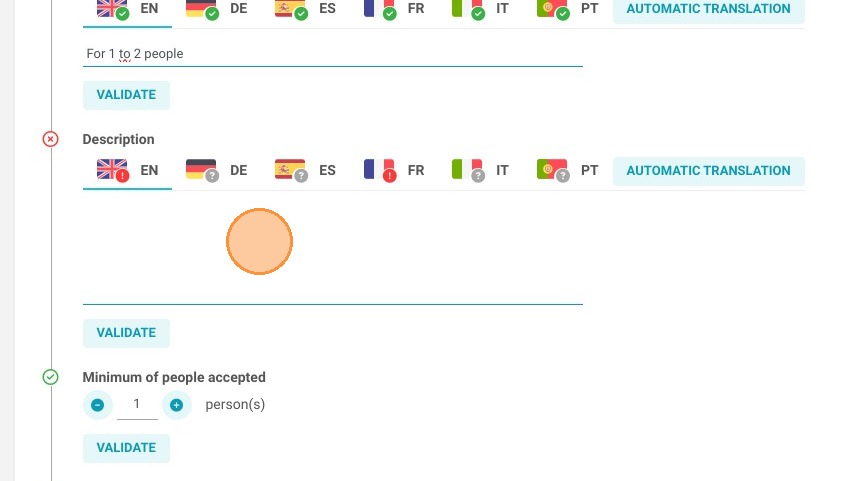
8. The following fields are all mandatory. You can also specify the equipment for this type.
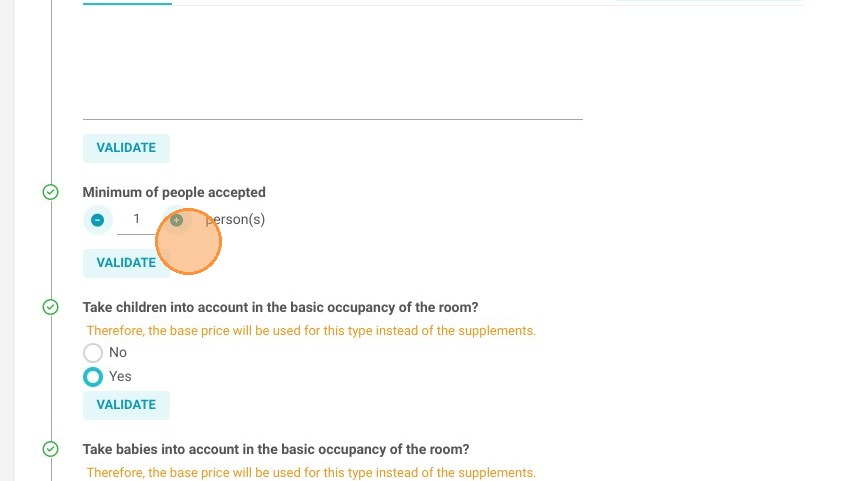
9. You can then move on to the second block, which contains additional non-mandatory information.
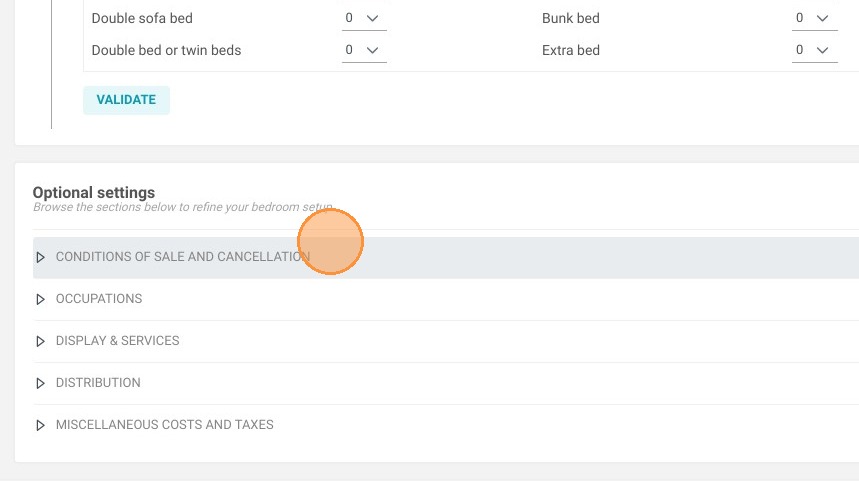
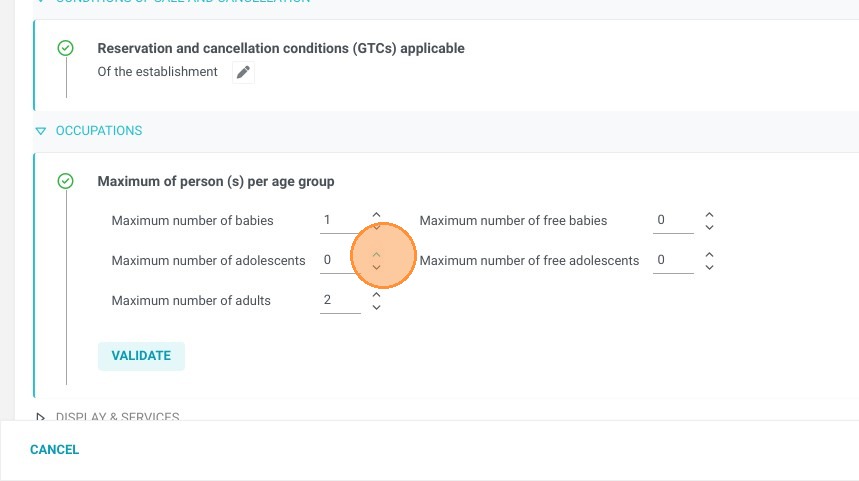
10. You can change the maximum number of adults and children accepted in each room type.
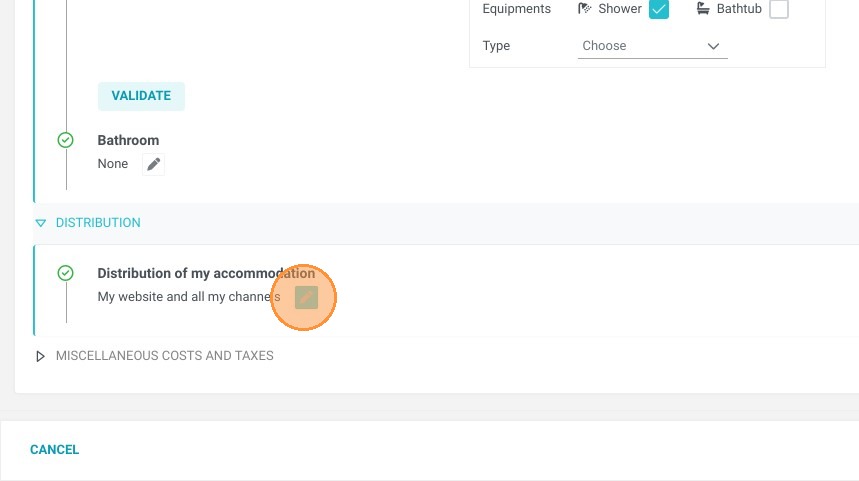
11. You can exclude this type from being distributed to some channels.
12. You can also choose specific taxes for this type.
13. When you're done, click on "save" > "return to the list of locations" and check the information provided.