

Article Summary: This step-by-step tutorial explains how to assign specific accounting codes to your accommodations, extras, and activities within the Reservit platform. You will learn how to efficiently link your property's services to your existing financial framework by modifying unit settings and supplementary options. Properly categorizing these revenue streams ensures seamless integration with your accounting software and simplifies your overall financial reporting.
The 4 Key Steps to Assign Accounting Codes:
-
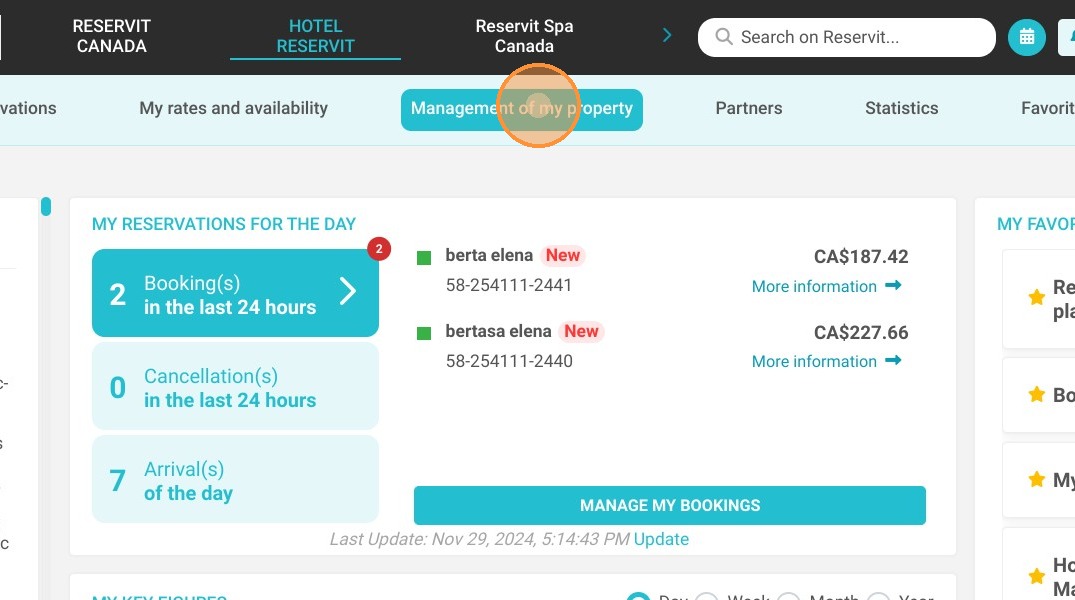
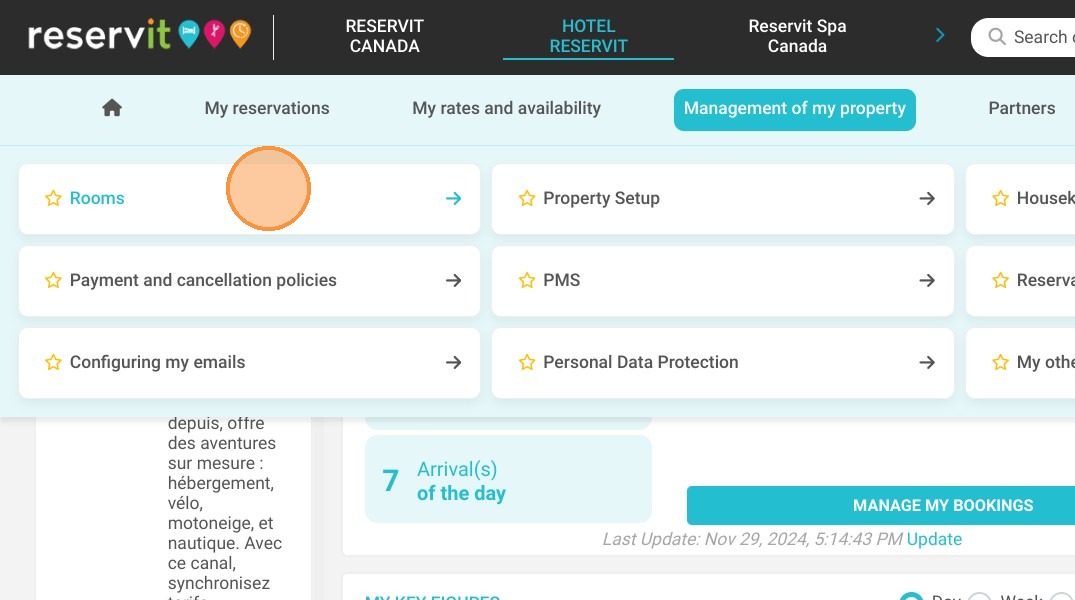
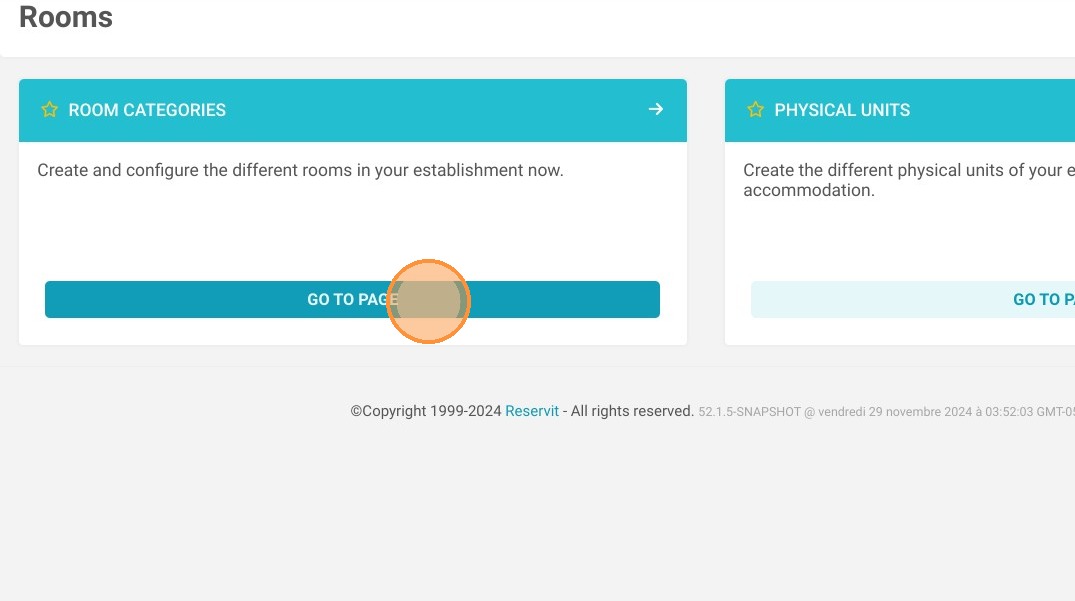
Access Accommodation Settings: Navigate to "Management of my property," select "My Rooms" (or "My Units"), and click on the "Category" tab to view your current offerings.
-
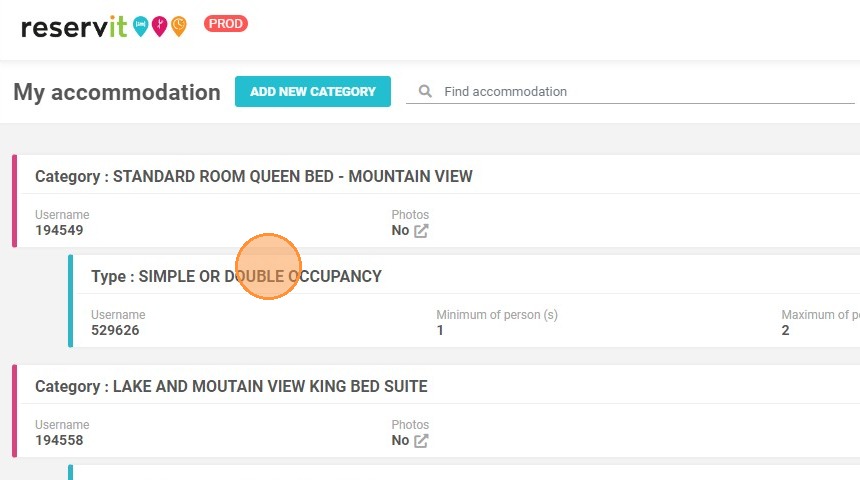
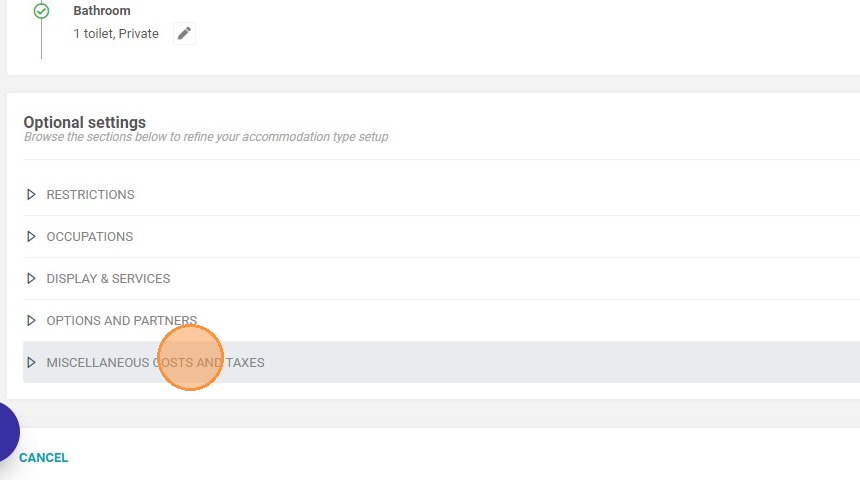
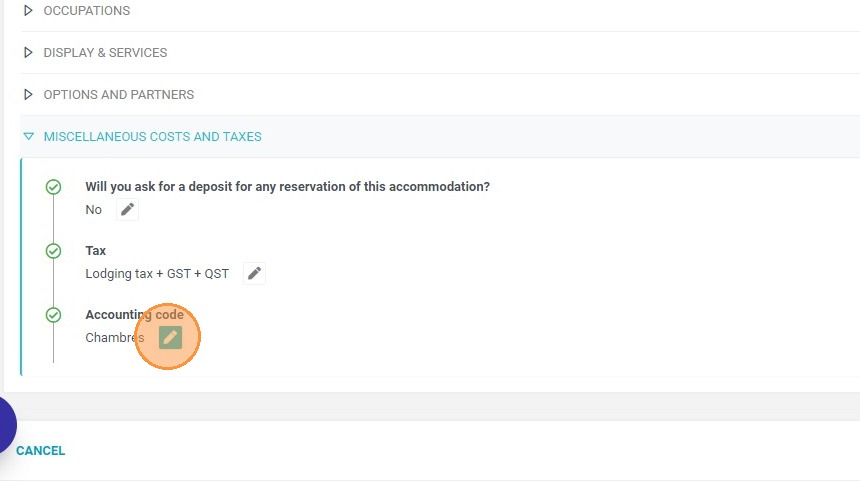
Edit Unit Accounting Codes: Select a specific accommodation type to modify, scroll to the "MISCELLANEOUS COSTS AND TAXES" section, and choose the correct accounting code from your configured list.
-
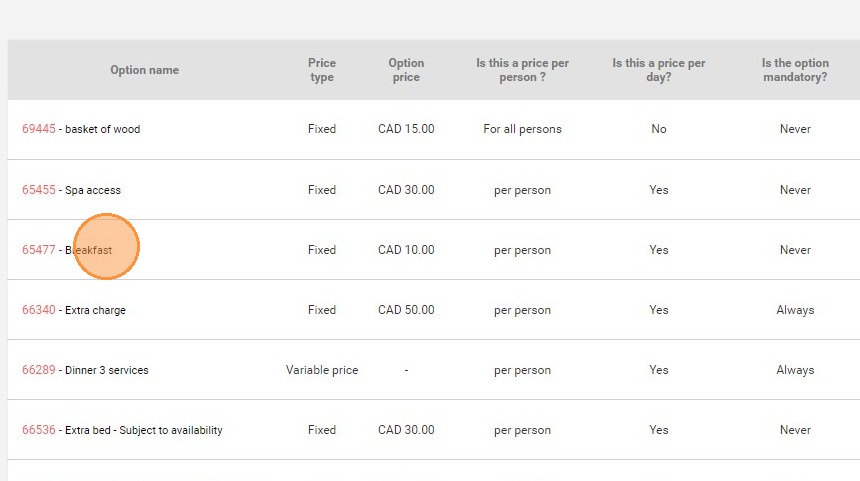
Access Extra Services: To categorize your additional revenue streams, navigate to "My rates and availability" and select "Manage extras."
-
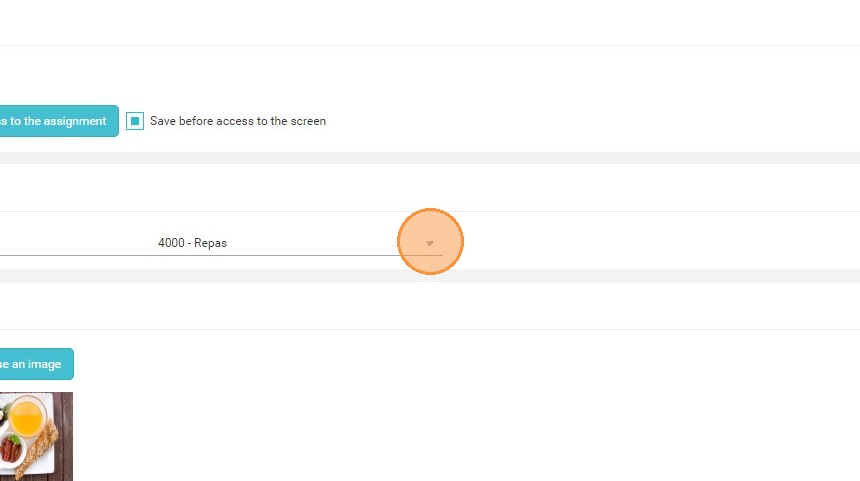
Assign Codes to Extras: Open the specific extra option you wish to update, scroll to the bottom of the page, select its designated accounting code, and save your changes.
Why follow this guide? Accurately assigning accounting codes to your services streamlines your bookkeeping processes and drastically reduces manual data entry errors during financial reconciliation. Following these steps ensures your revenue is correctly tracked and categorized from the moment a reservation is made, saving your accounting team hours of administrative work.
1. Click "Management of my property", ''My Rooms'' or ''My Units'' and ''Category''
2. Click on a room type to modify it.
3. Go to the section "MISCELLANEOUS COSTS AND TAXES"
4. The field "Accounting code" allows you to assign the code of your choice among those configured.
5. You can do the same in ''My rates and availability'' > ''Manage extras''. Click on the option you want to change.
6. At the bottom of the page you will find the field to select the accounting code.
Tip: If you use Reservit Activities with billing, you can also assign accounting codes to your services.