

Article Summary: This guide provides clear instructions on how to easily change the communication language for a guest reservation in Reservit Accommodation. You will learn the two distinct methods for updating language preferences—either permanently through the customer cardex or directly within a specific booking. Mastering these steps guarantees that your guests receive their confirmation and pre/post-stay emails in their preferred language, instantly improving their booking experience.
The 5 Key Steps to Change a Reservation Language:
-
Select Your Update Method: Choose whether to update the language permanently in the customer profile (cardex) or apply it only to a specific booking.
-
Modify via Customer Cardex (Option 1): Open the guest's file from the cardex link and click "Modify" to change their default language settings.
-
Edit Directly in the Booking (Option 2): Use the pencil icon on the reservation calendar to access and edit the specific booking details.
-
Update the Language Settings: Navigate to the "More Information" tab to select the guest's new preferred communication language.
-
Save and Confirm: Save your changes, keeping in mind that modifying the language directly within the reservation will automatically trigger a new confirmation email, while a cardex update will not.
Why follow this guide? Following this guide ensures accurate, multilingual guest communication, helping you avoid misunderstandings and allowing you to deliver a highly personalized, professional customer experience right from the initial confirmation.
OPTION 1 - Change the language in the customer cardex
1. Click on the cardex link
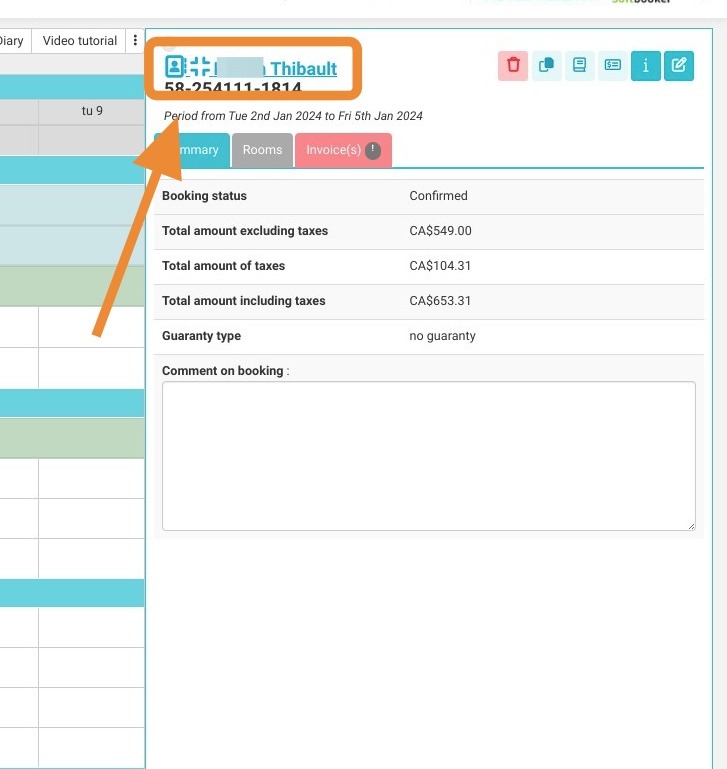
2. The customer file opens, click on "MODIFY".
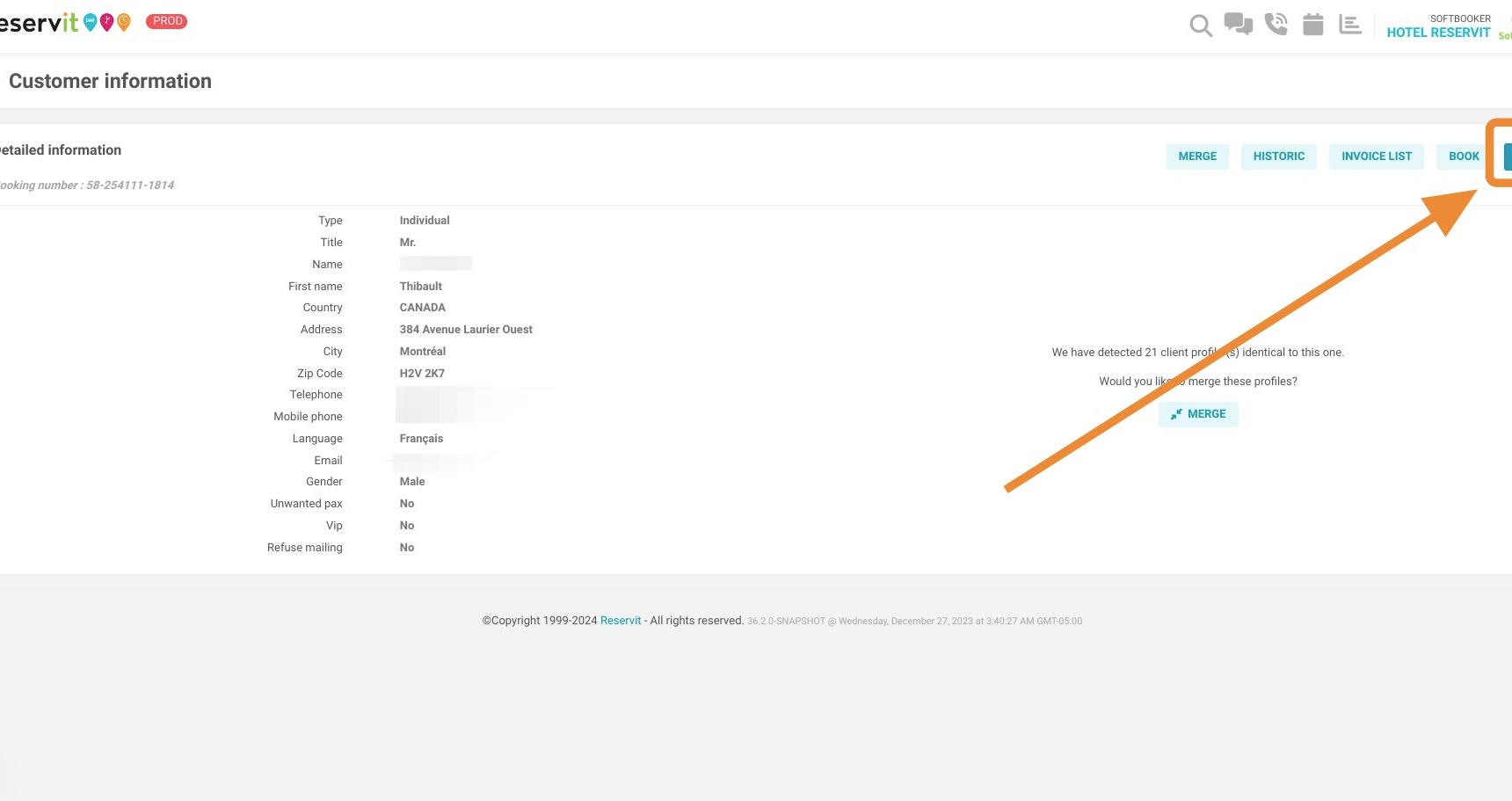
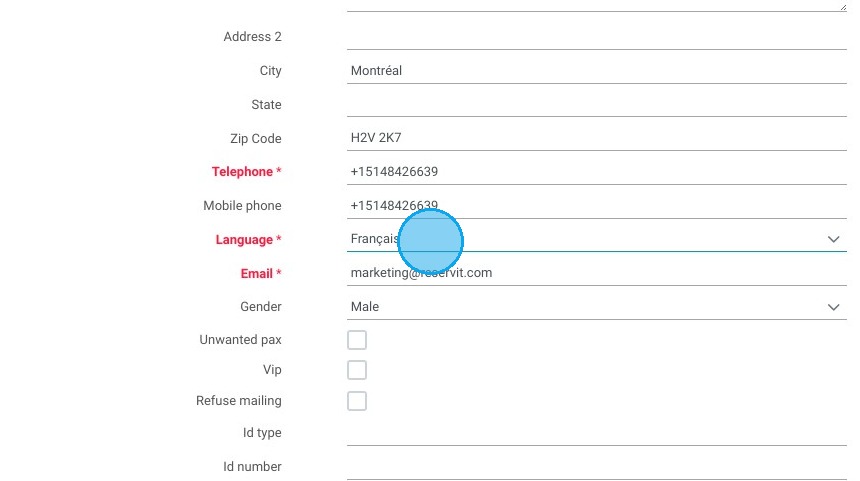
3. You can then change the customer's language, which will have an impact on the communications they receive (confirmation e-mail, pre/post-stay e-mail, etc.).
Click "English"
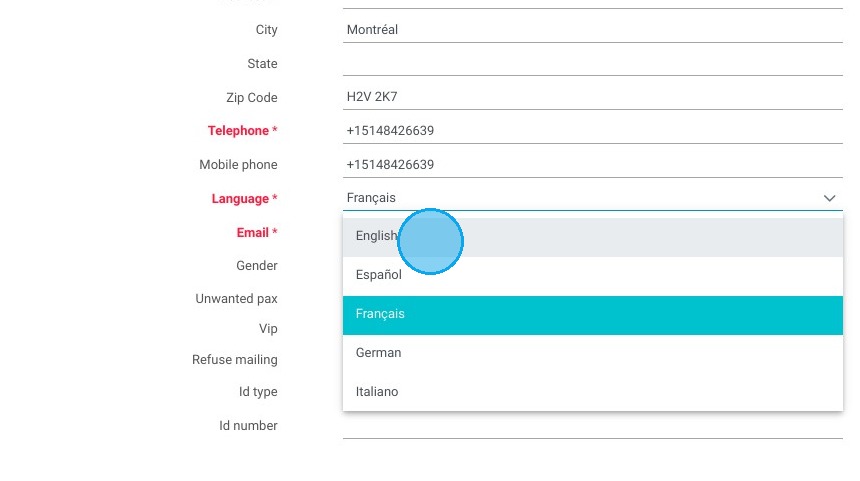
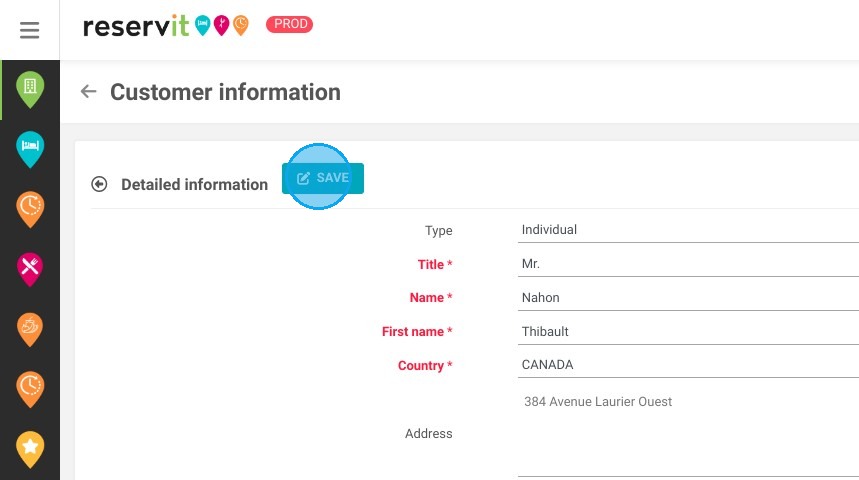
4. Click "SAVE"
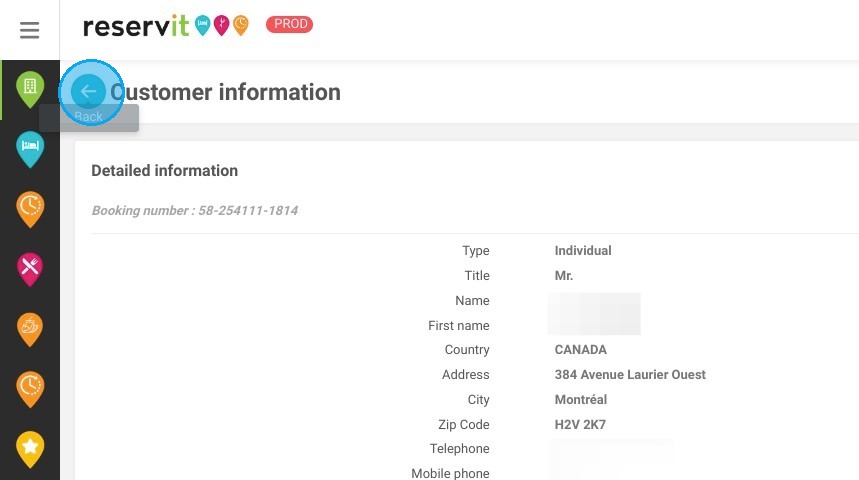
5. Click on the back arrow to return to the booking calendar.
Alert! Modifying the customer master record will not automatically send the confirmation e-mail in the customer's new language.
OPTION 2 - Change language within the reservation
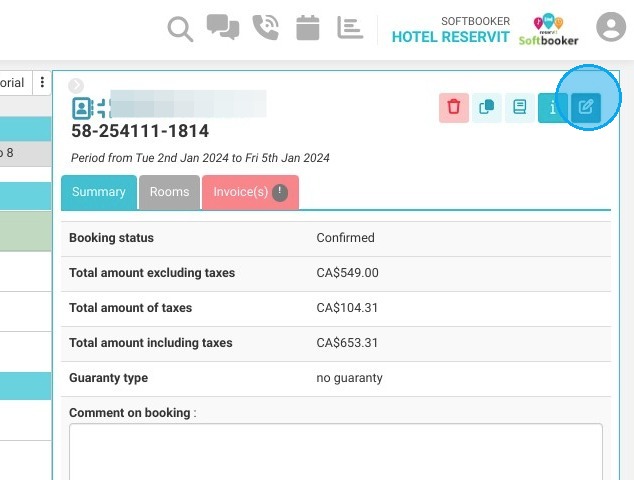
6. Click on the pencil to edit the reservation
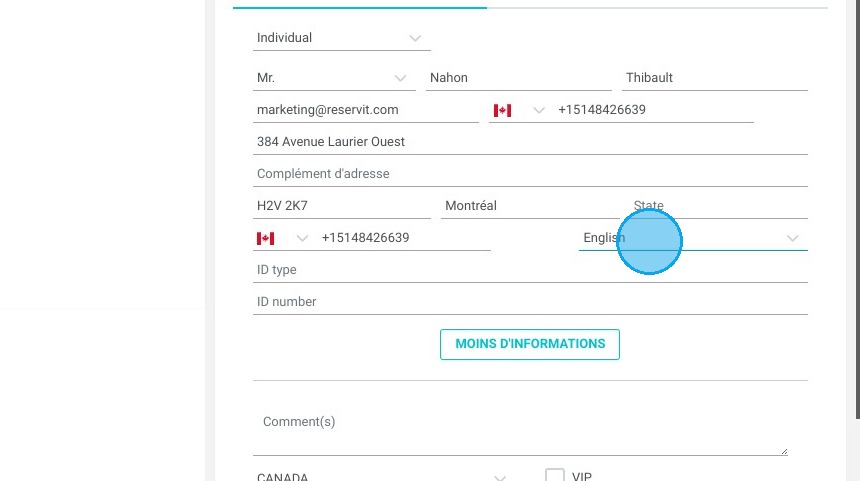
7. Click "MORE INFORMATION"
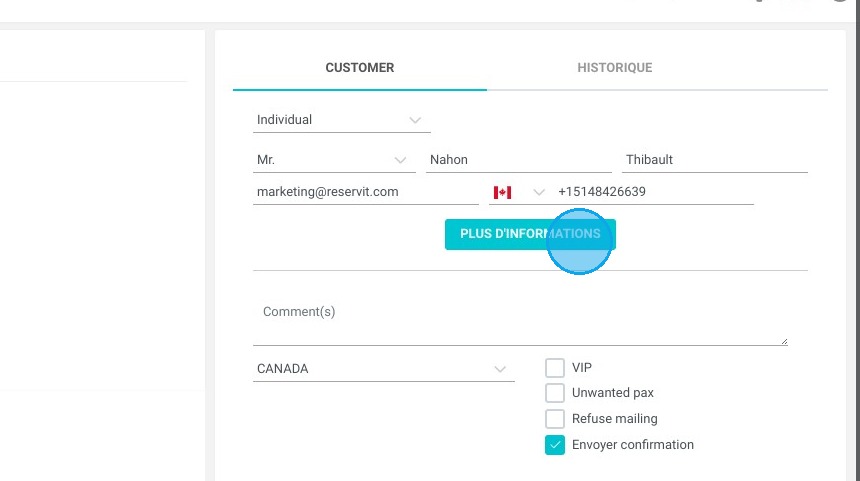
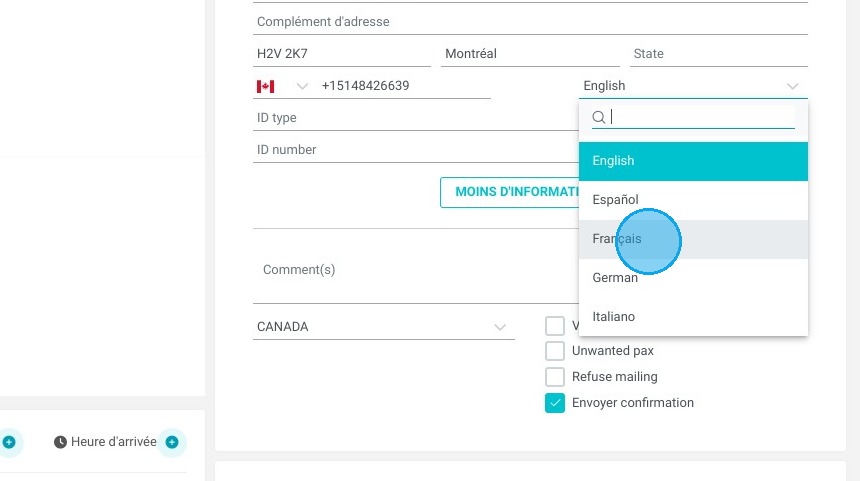
8. You can then select the customer's language of communication. This will have an impact on the communications they receive (confirmation email, pre/post-stay email, etc.).
9. Click on "CONFIRM" to confirm the change.
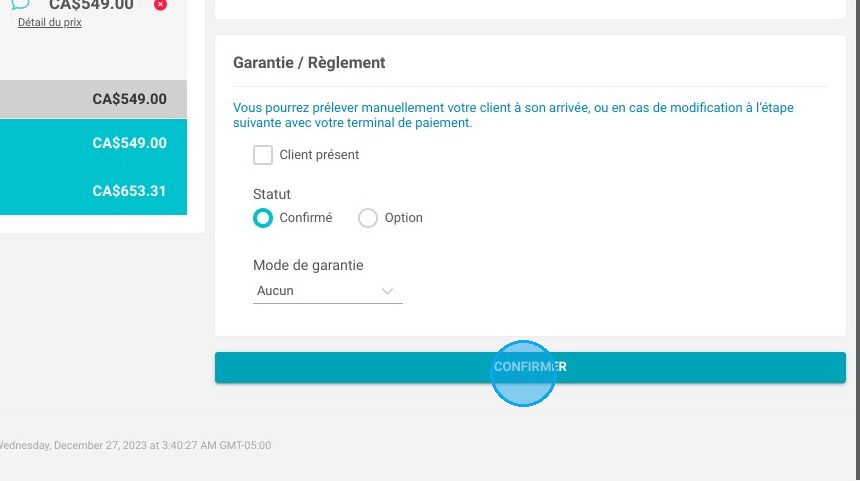
Alert! Booking changes automatically transmit the confirmation e-mail in the customer's new language.