Article Summary: Learn how to easily find a reservation or search for a guest file in Reservit Accommodation. This tutorial explains how to use the quick search bar and the reservation management menu to instantly retrieve the information about a stay. Mastering these shortcuts will help you welcome your guests and streamline front desk operations.
The 4 Key Steps to Find a Reservation:
-
Use the search shortcut: From any page, click the "Search on Reservit..." bar at the top of the screen.
-
Enter the stay information: Type the guest's name, the reservation number or a keyword, then click the right result.
-
View the reservation in the PMS (if equipped): If you use Reservit PMS, the result opens the stay directly in your reservations planning.
-
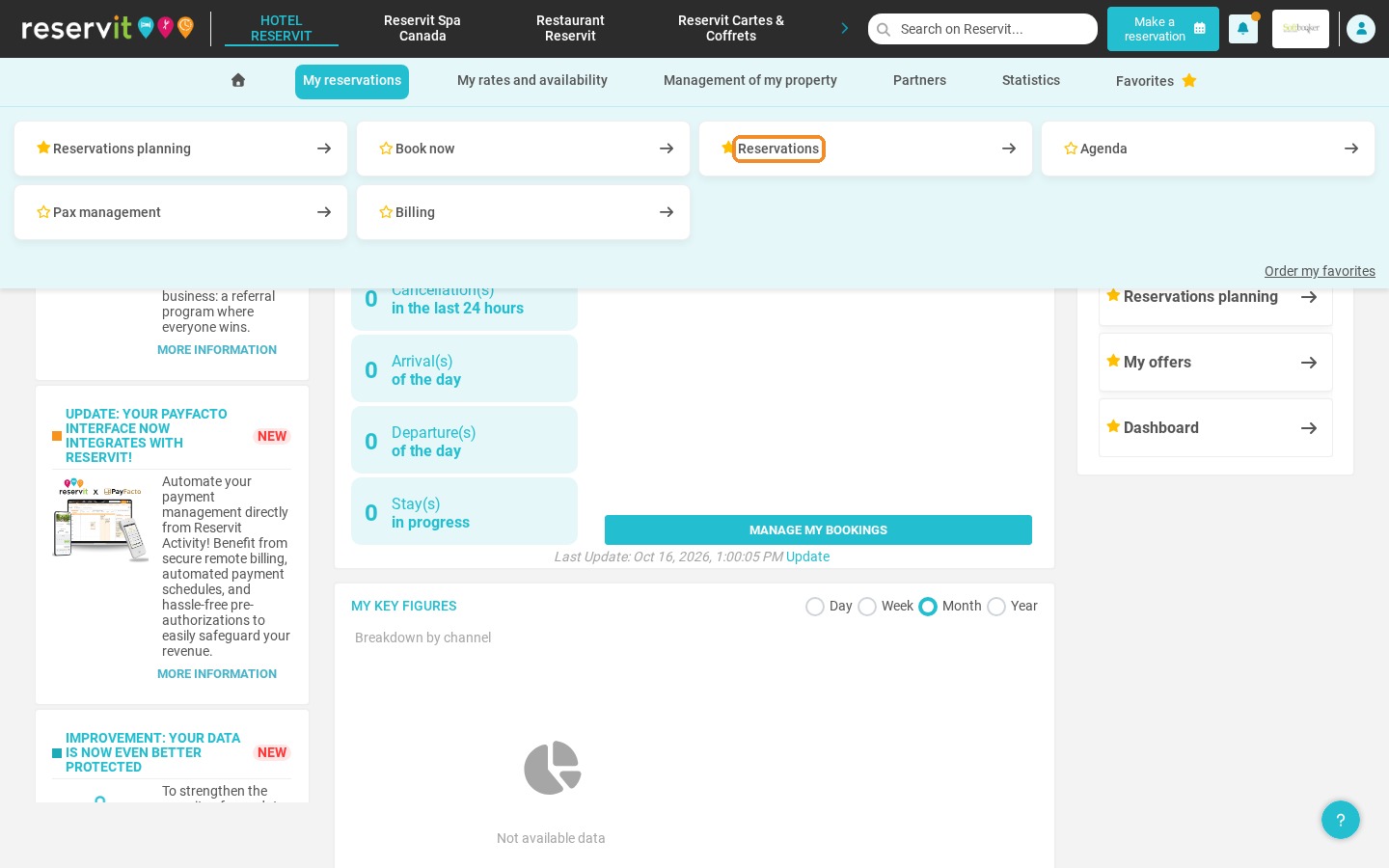
Use the reservations menu: You can also find any reservation from "My reservations" > "Reservations".
Why Follow This Guide? The global search saves you valuable time at the front desk, especially during busy periods or while on the phone. Finding a file in a few seconds lets you provide a responsive, professional and stress-free service to your guests.
1. From the Reservit home page, or any other page, click the search bar "Search on Reservit...".
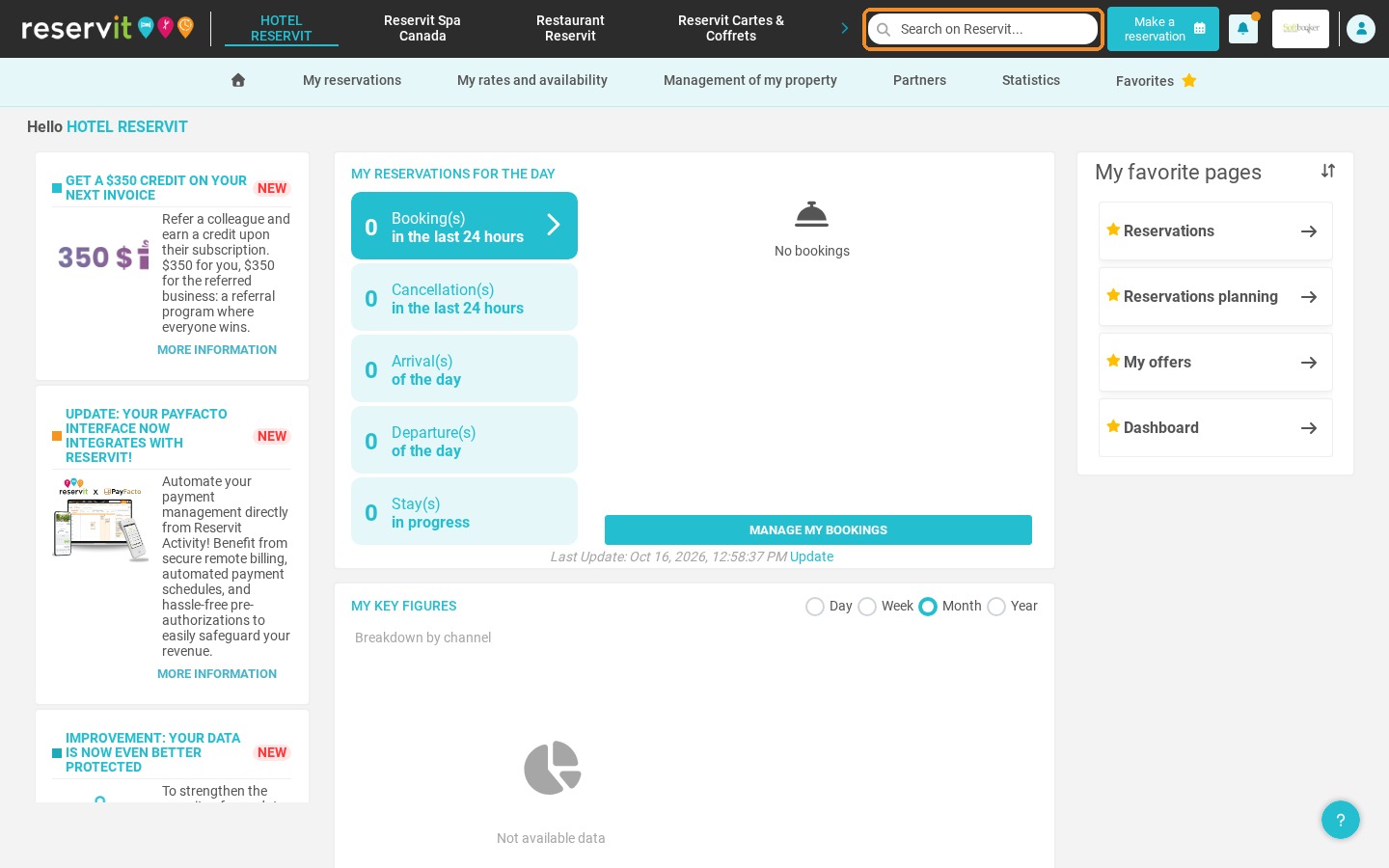
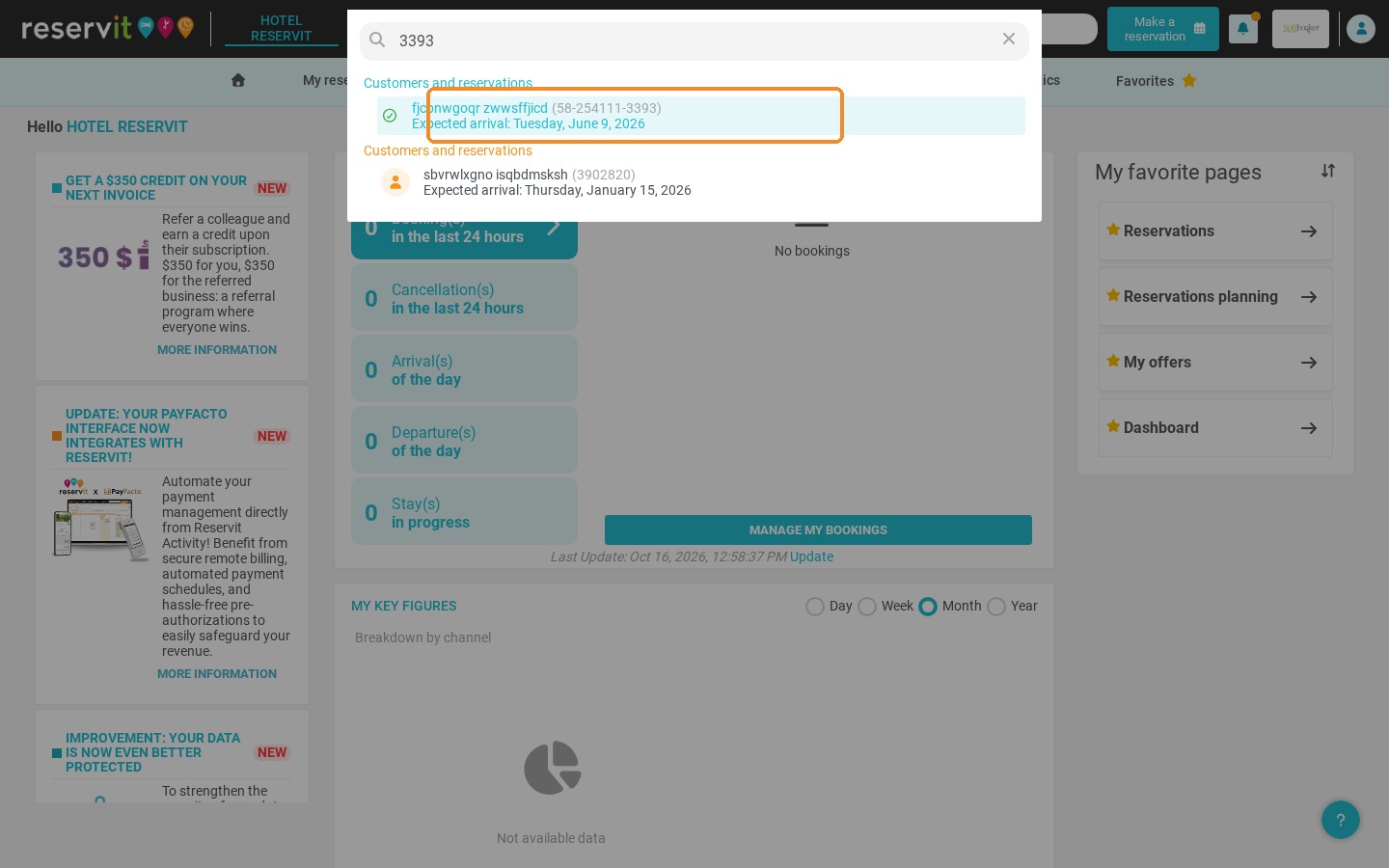
2. This is a global search: you can type a keyword, a menu name, a reservation number or a guest's name. Type your search, then click the right result under "Customers and reservations".
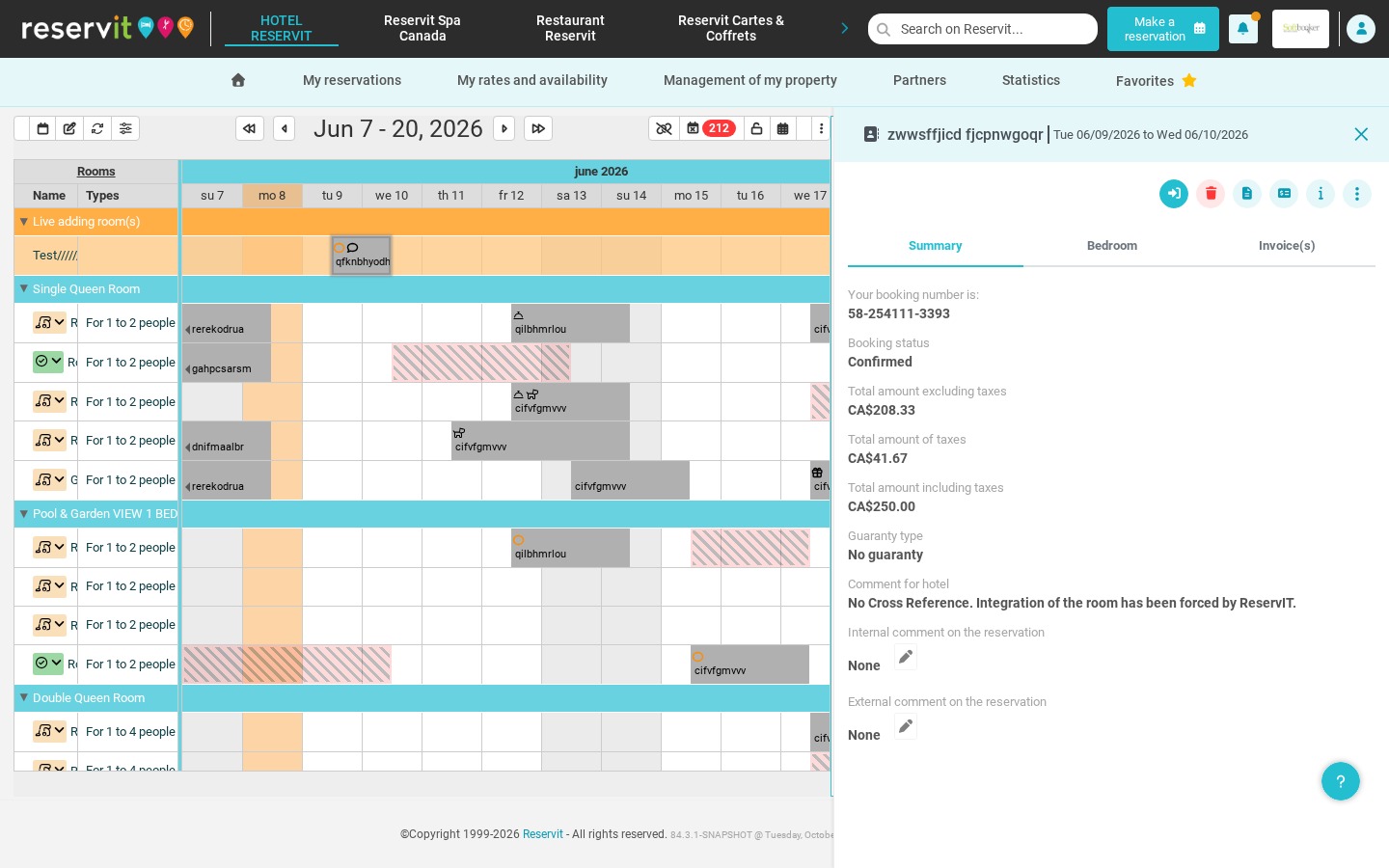
3. If you use Reservit PMS, you are taken directly to the reservation in your reservations planning.
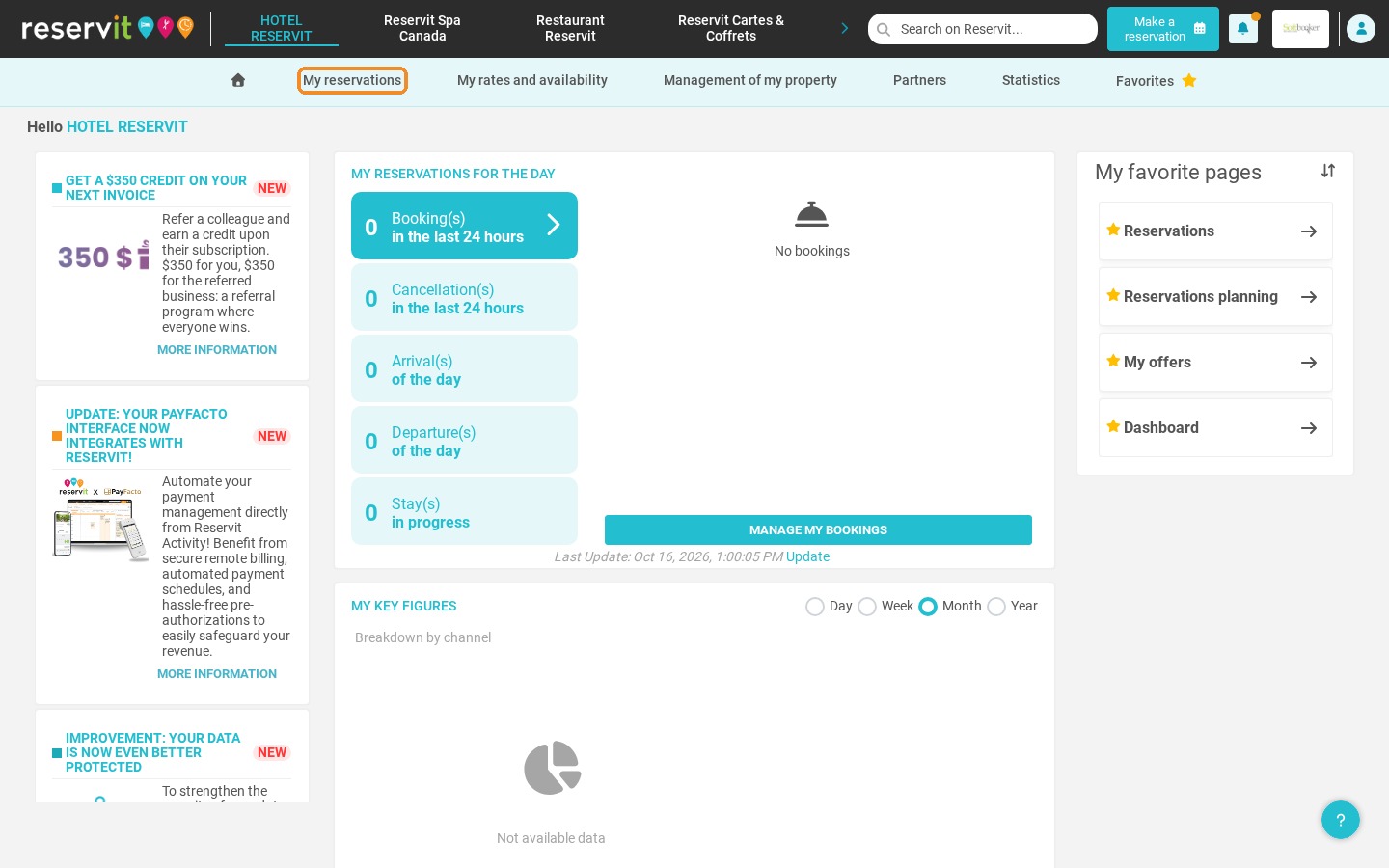
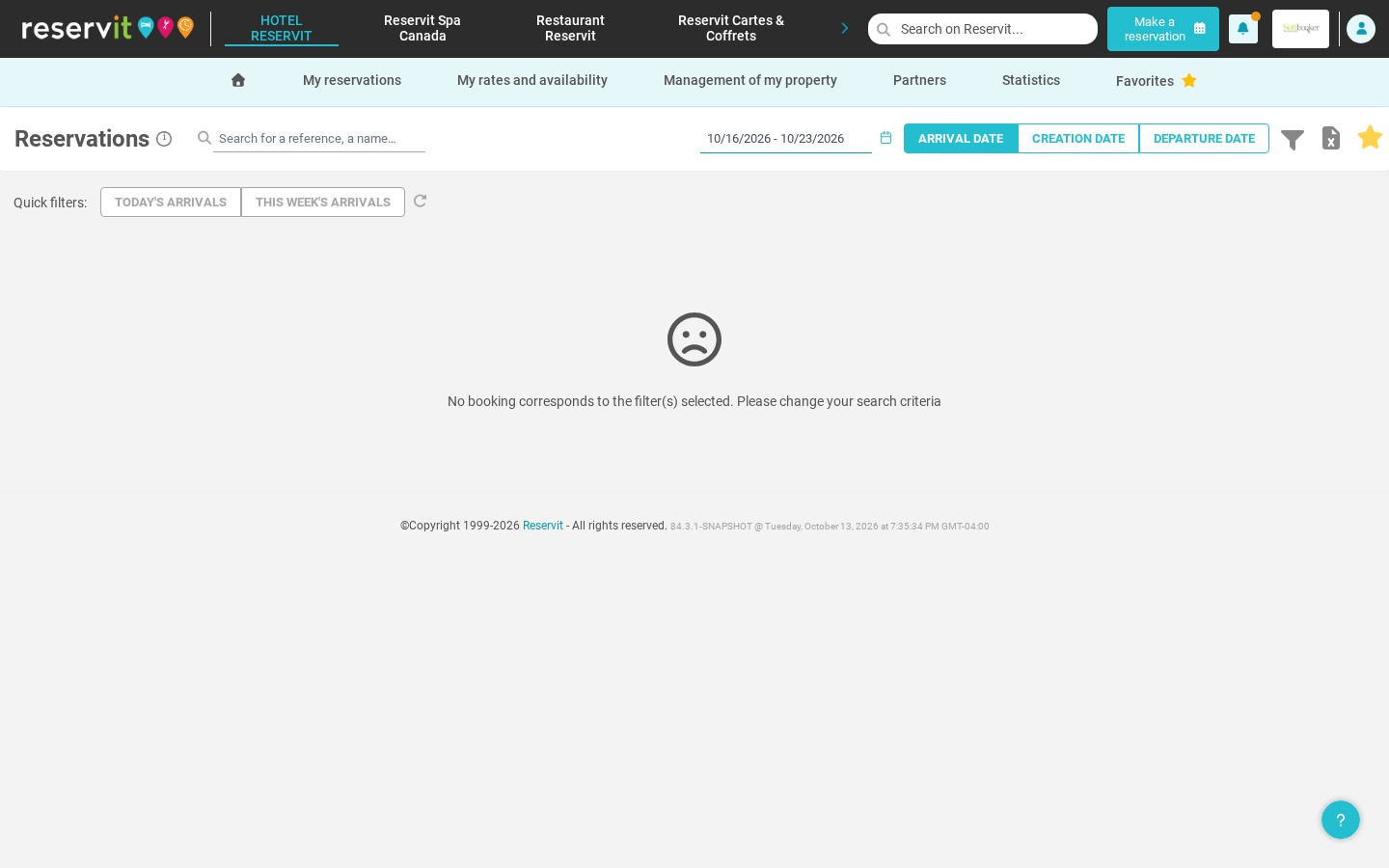
4. You can also go to "My reservations" > "Reservations" to search and filter your reservations by arrival, creation or departure date.