

Article summary: On the Reservit PMS calendar, small icons appear next to the guest name: a cup for breakfast, a flower for the spa, a P for parking, a dog for pets. This tutorial explains where these icons come from and how to display them by assigning each option to the right category.
The 3 key steps to show option icons on the calendar:
-
Understand the icons: the Caption button of the calendar explains each icon.
-
Choose the option category: in the option, the Category of the option in the CA report field decides which icon is shown.
-
Check the calendar: reservations that include the option show the icon.
Why follow this guide? At a glance, your team sees which guests booked breakfast, a spa treatment or a parking space, or are coming with their pet, without opening each reservation.
1. Understand the calendar icons
1. Go to My reservations > Reservations planning.
2. Click Caption, at the top left of the calendar.

3. In the Booking informations section, you find the icons linked to options:
|
Icon |
Meaning |
Option category |
|---|---|---|
|
Cup |
Breakfast |
Breakfasts |
|
P |
Car park |
Parking/Garage |
|
Dog |
Animals |
Animals |
|
Flower |
Spa |
Swimming pool/SPA |
|
Bell |
Other option |
All other categories |
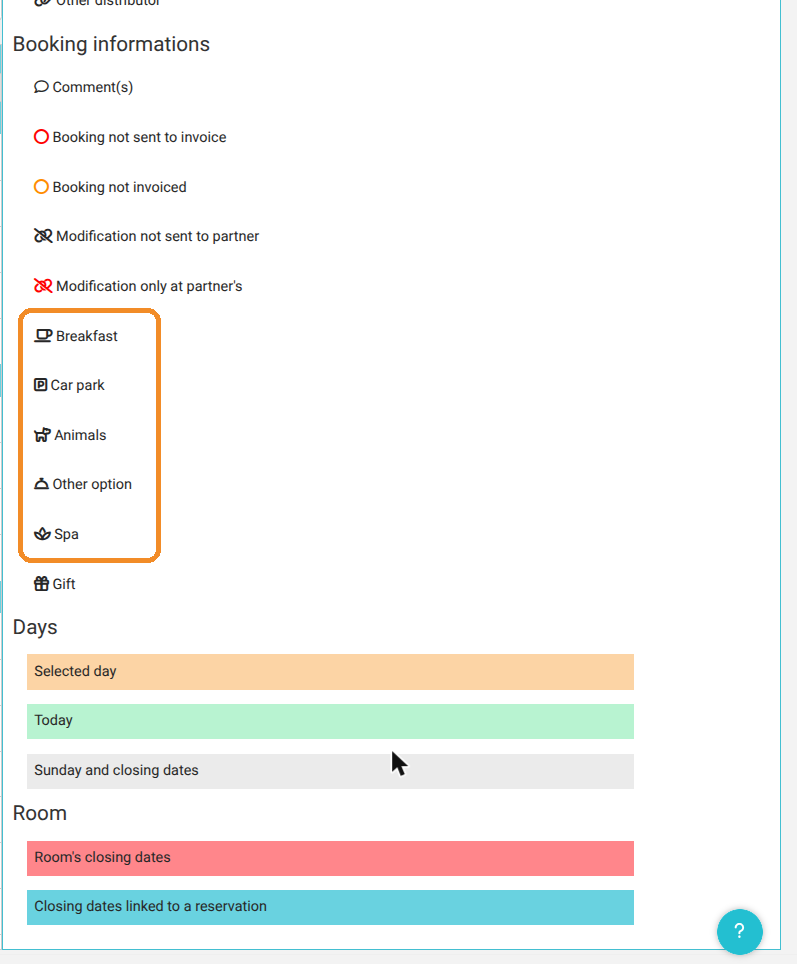
Good to know: the Gift icon shows a reservation made on a gift box offer. It does not depend on options.
2. Assign an option to the right category
4. Go to My rates and availability > My options, then click the pencil of the option, for example your breakfast.
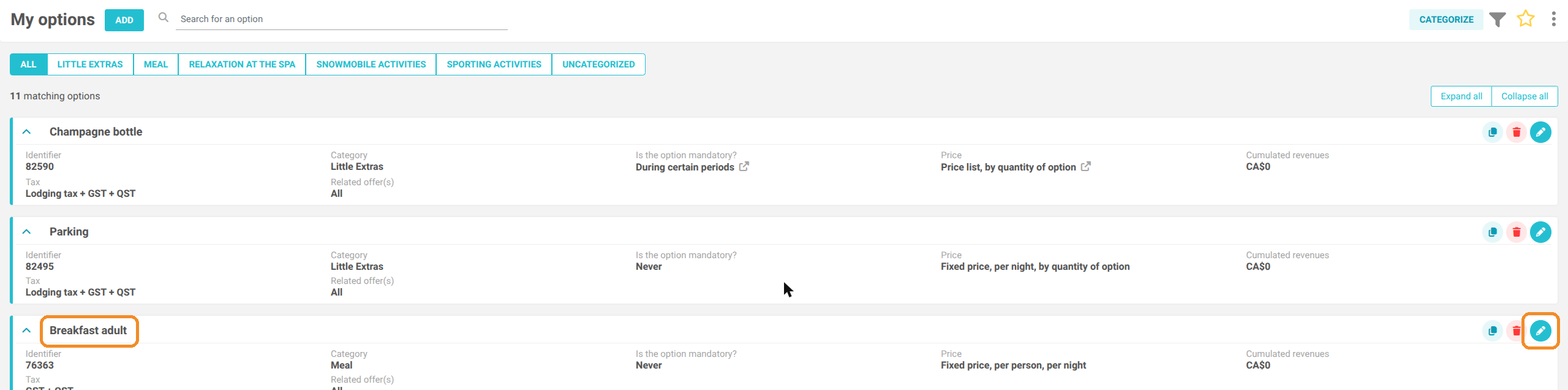
5. In the Billing information block, find the Category of the option in the CA report field, then click its pencil.
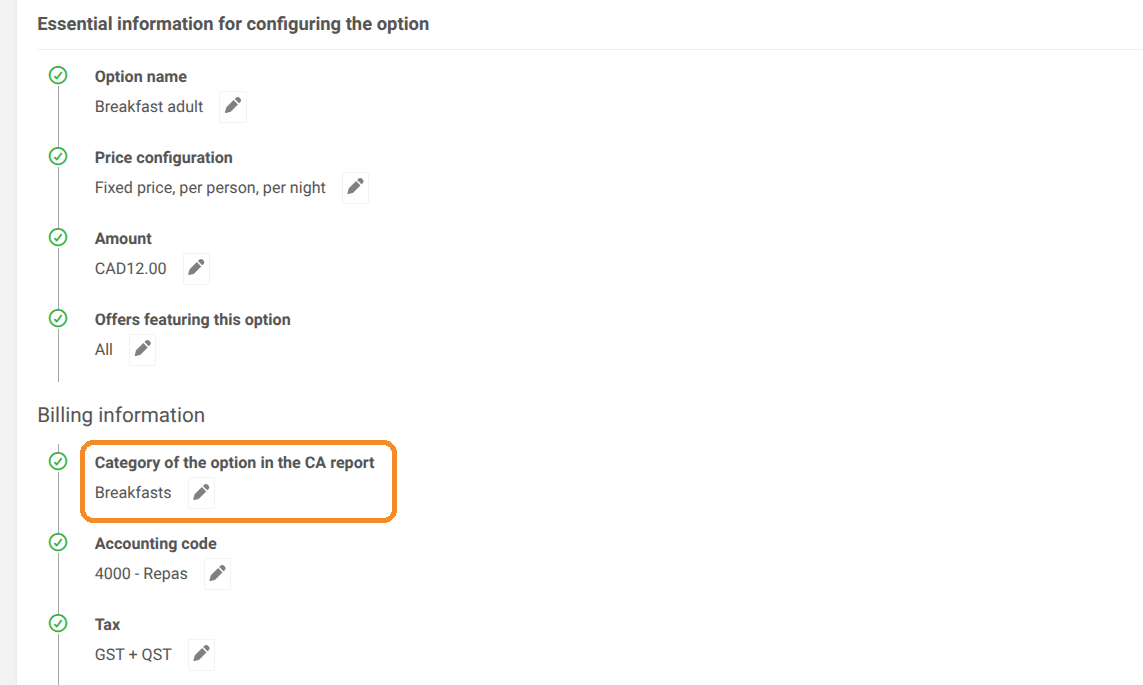
6. Choose the category that matches the icon you want (for example Breakfasts for the cup), click TO VALIDATE, then SAVE MY OPTION, at the bottom right.
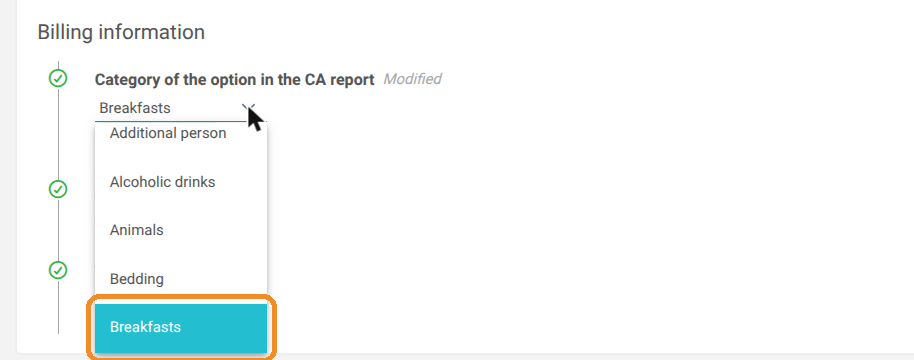
Do not mix up the two categories. The "Category" shown in the My options list (for example Meal, Little Extras) is used to present your options on your booking engine. The Category of the option in the CA report is the one that decides the icon on the calendar.
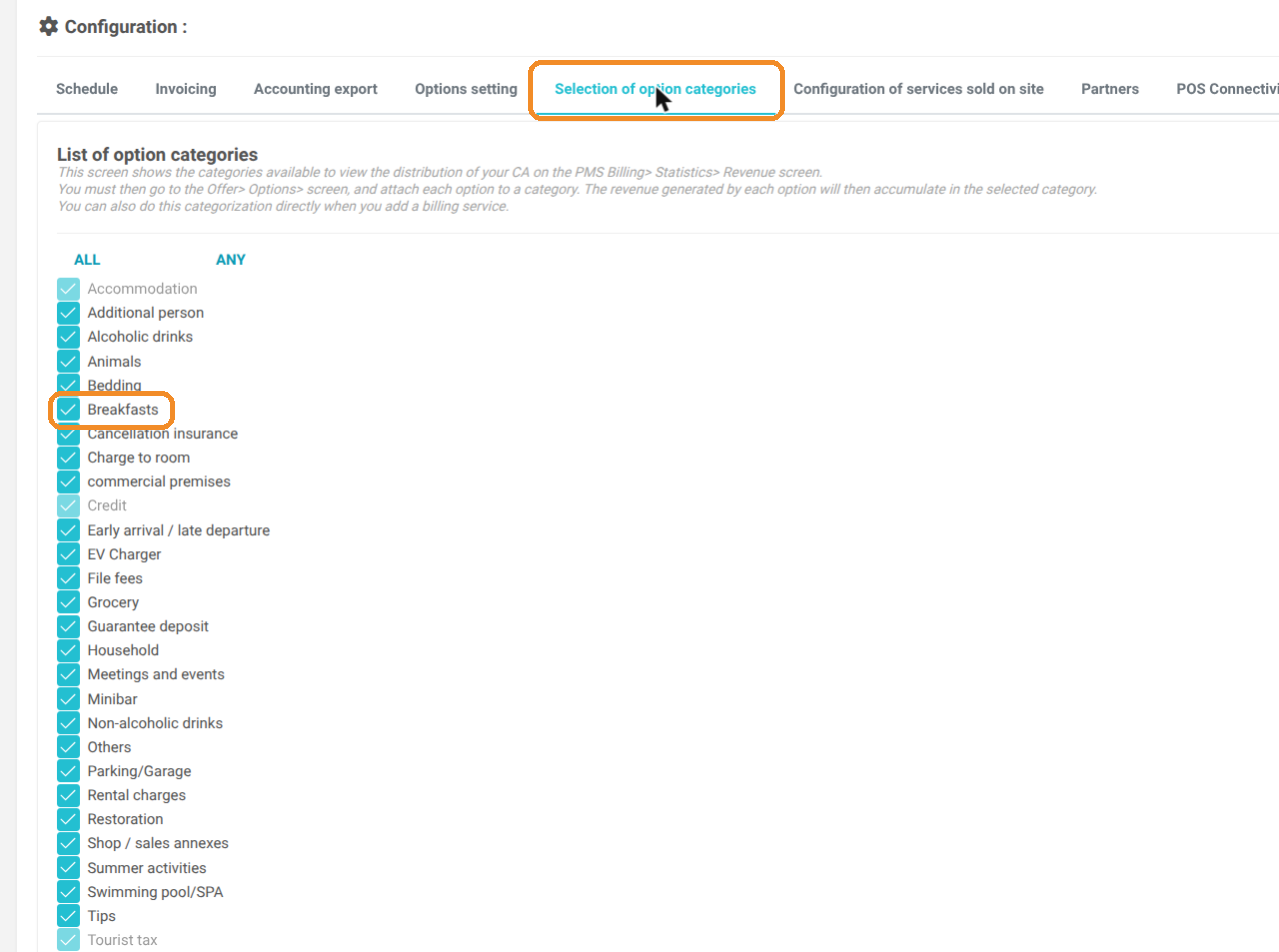
The category you want is not in the list? The available categories are set in Management of my property > Property Setup > Reservit PMS Setup, Selection of option categories tab. Tick the category, then save.
3. Check the calendar
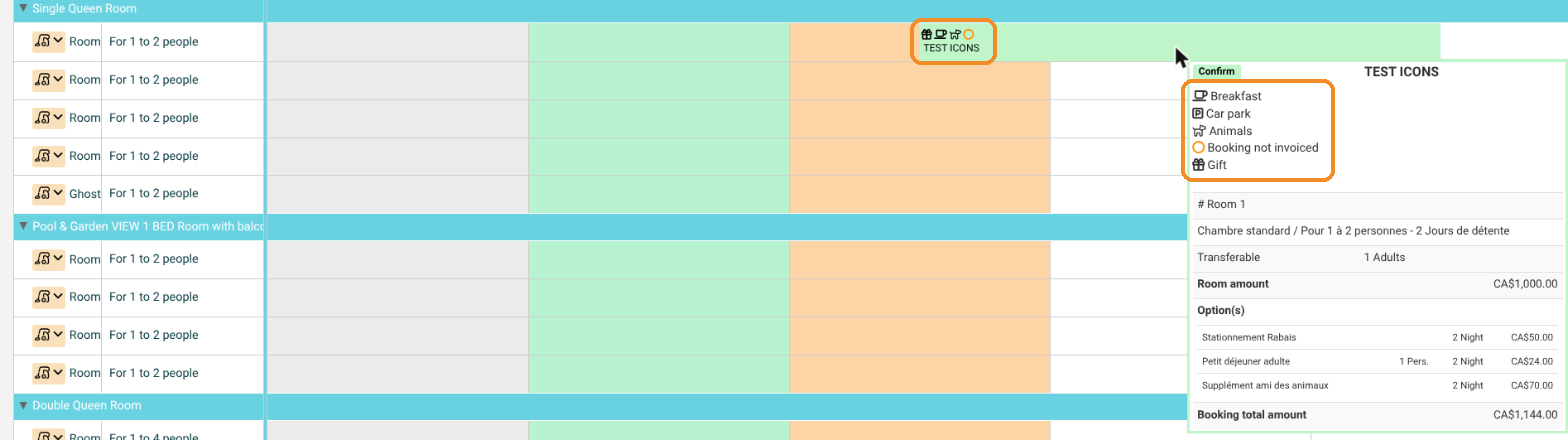
7. Go back to the Reservations planning. Reservations that include the option show the icon next to the guest name.
8. Hover over a reservation: the summary also lists the icons and the option details.
If the icon still does not appear, check that the option is part of the reservation, then contact the Reservit support team.