Help for use
Auto Light Dark
Auto Light Dark

How to create a reservation for a business in Reservit Accommodation (Entering a corporate stay)

Article Summary: This tutorial explains how to easily enter a reservation for a company or business traveler in Reservit Accommodation. You will learn how to set up a business profile so that billing is automatically addressed to the relevant company, while correctly entering the contact details of the employee staying at the property. By mastering this procedure, you will simplify your accounting management and provide seamless service to your B2B clients.

The 5 key steps to create a corporate reservation:

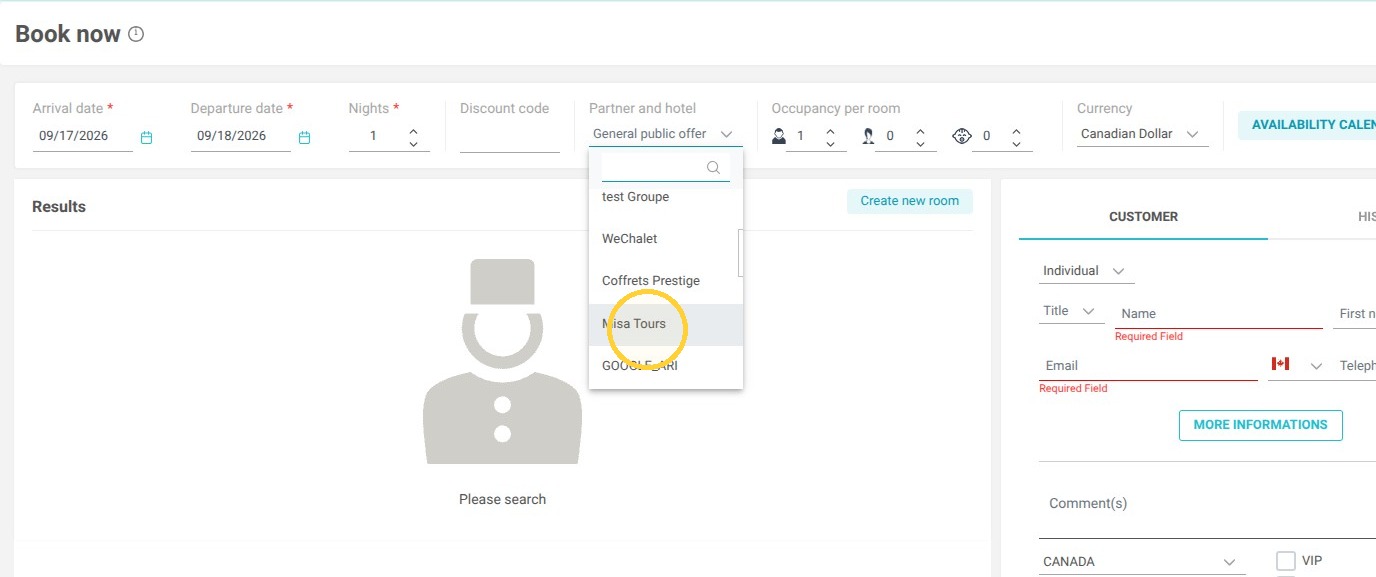
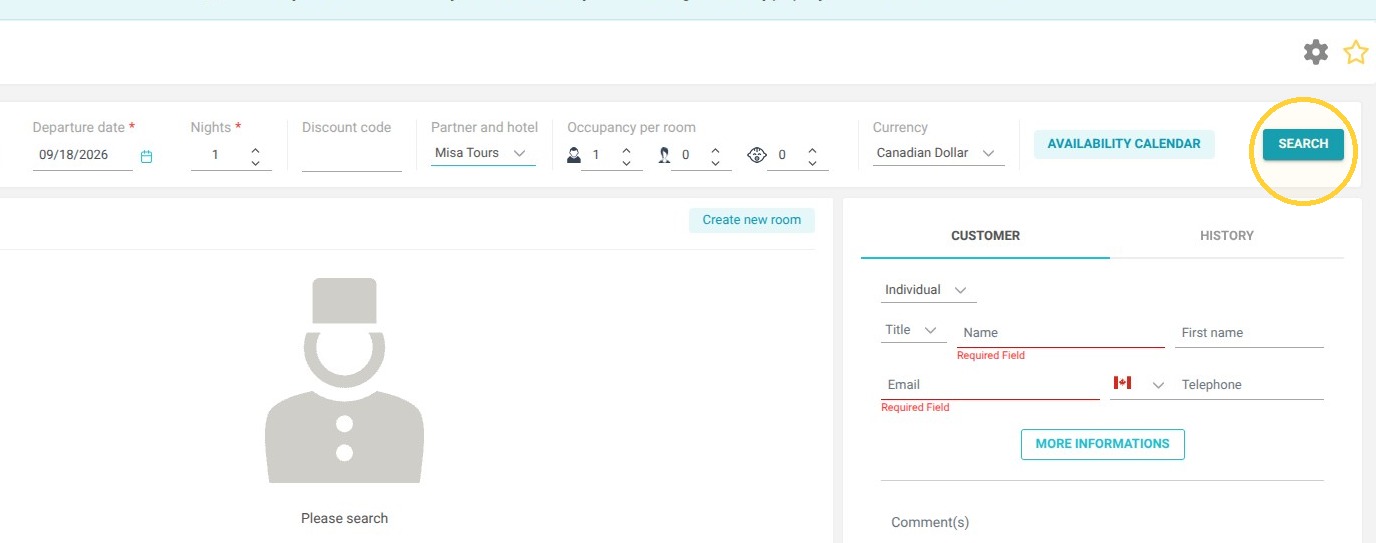
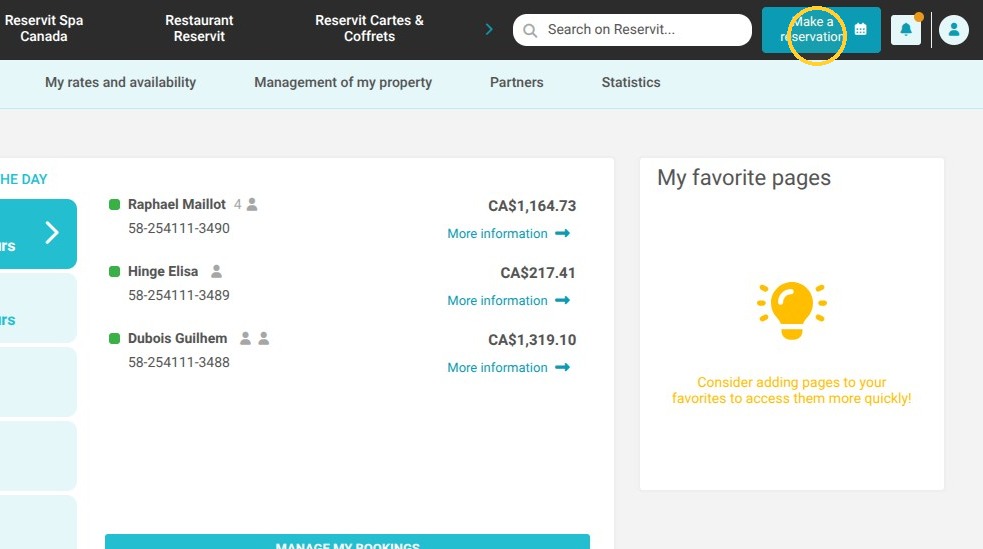
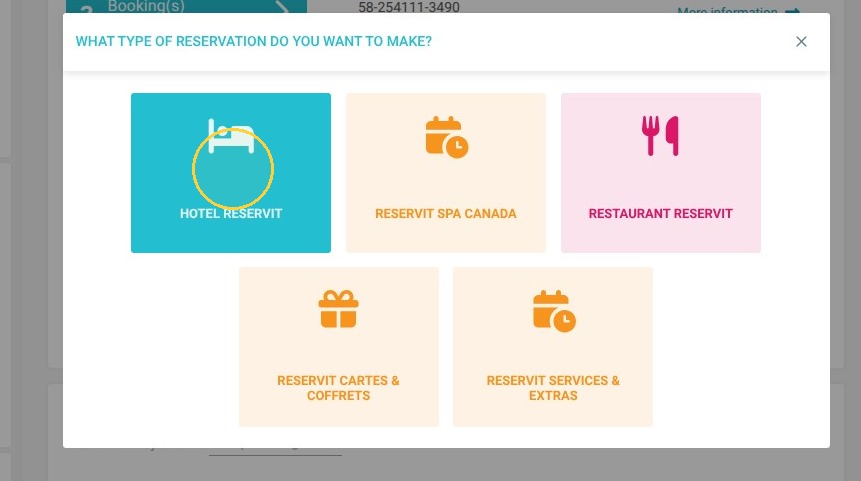
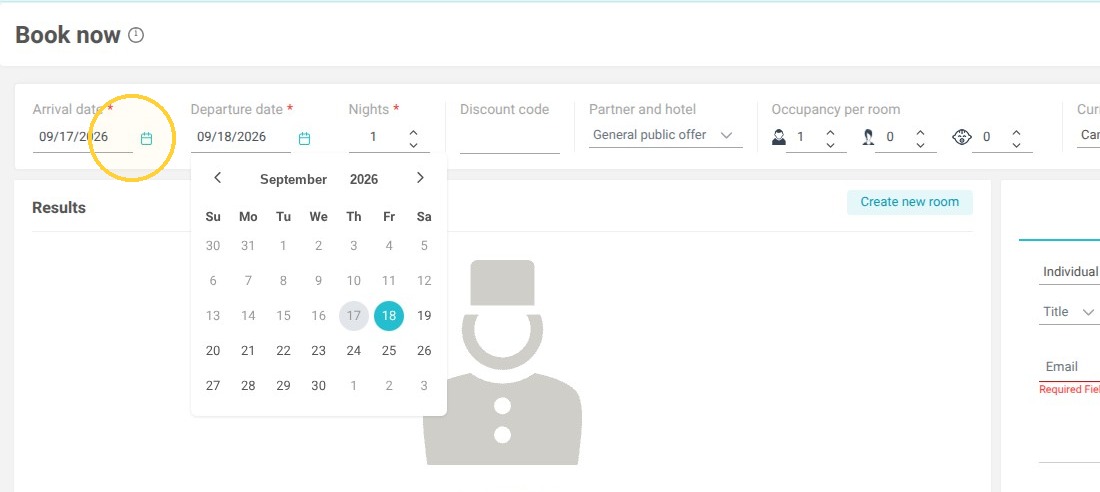
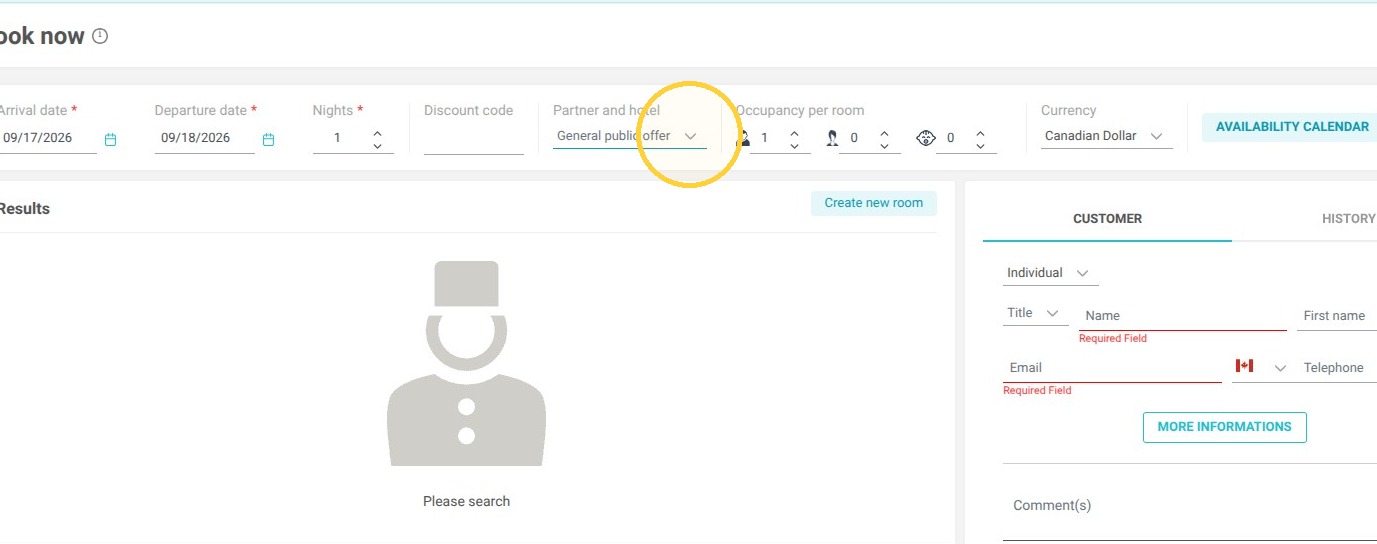
  • Start the search: Click "Make a reservation", select the accommodation module, then enter the stay criteria (dates, number of nights, occupancy, and any applicable partner) before launching the search.

  • Select the rate: Choose the desired rate (for example, the standard rate) and click "Add room to guest cart".

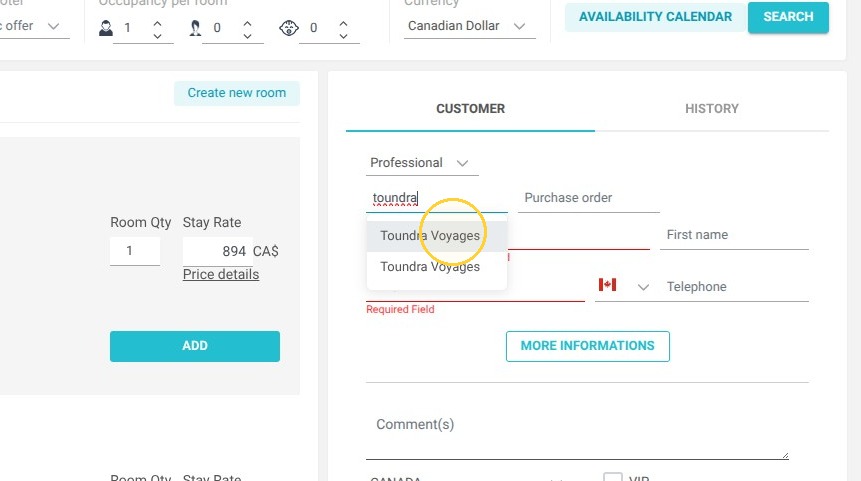
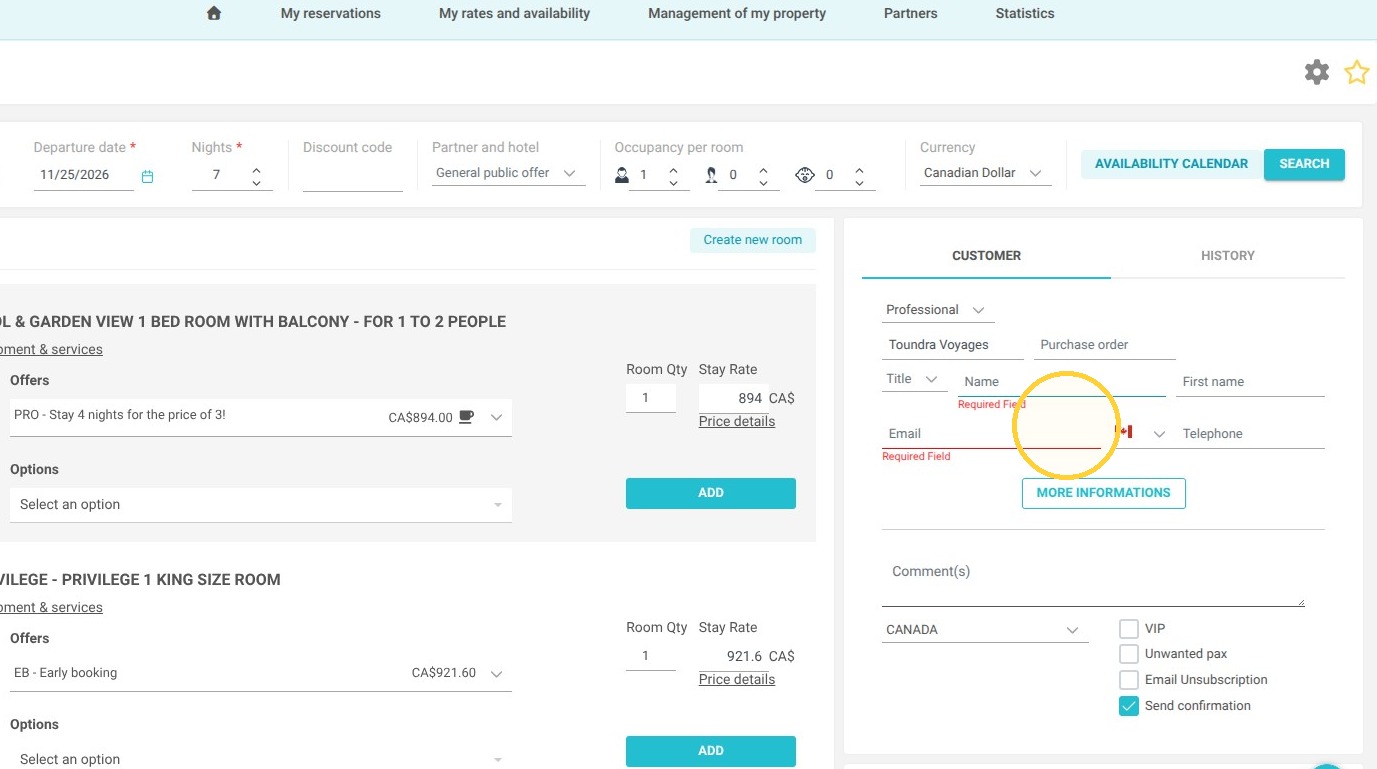
  • Enter the business profile: In the guest form, change the status from "Individual" to "Professional" (or "Business"), enter the company name, and then complete the personal information for the person who will be staying at your property.

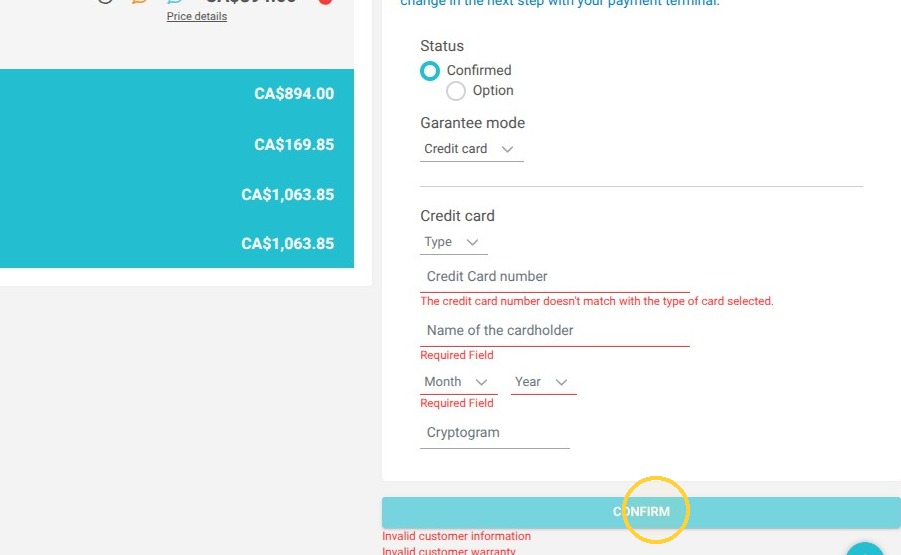
  • Guarantee and confirm: Enter the credit card details required to guarantee the booking, then finalize and confirm the reservation.

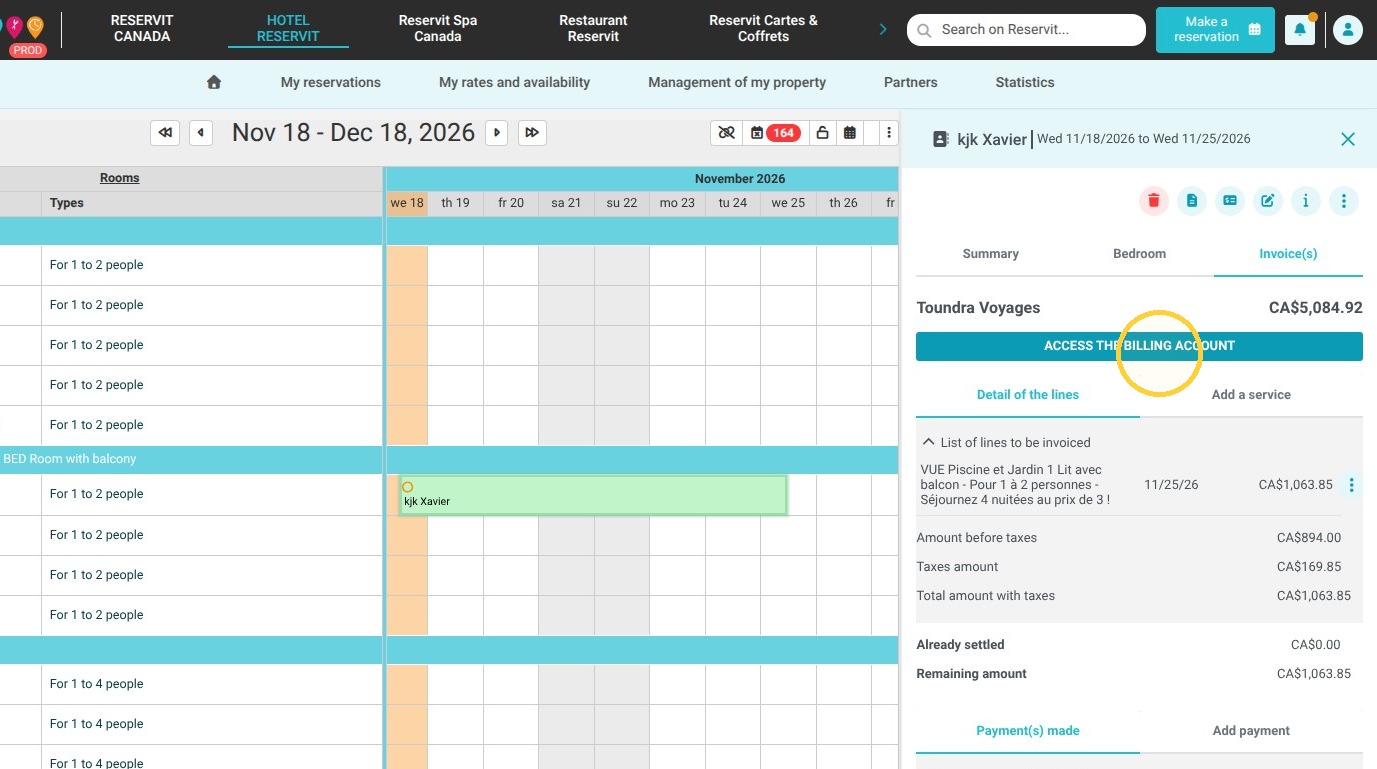
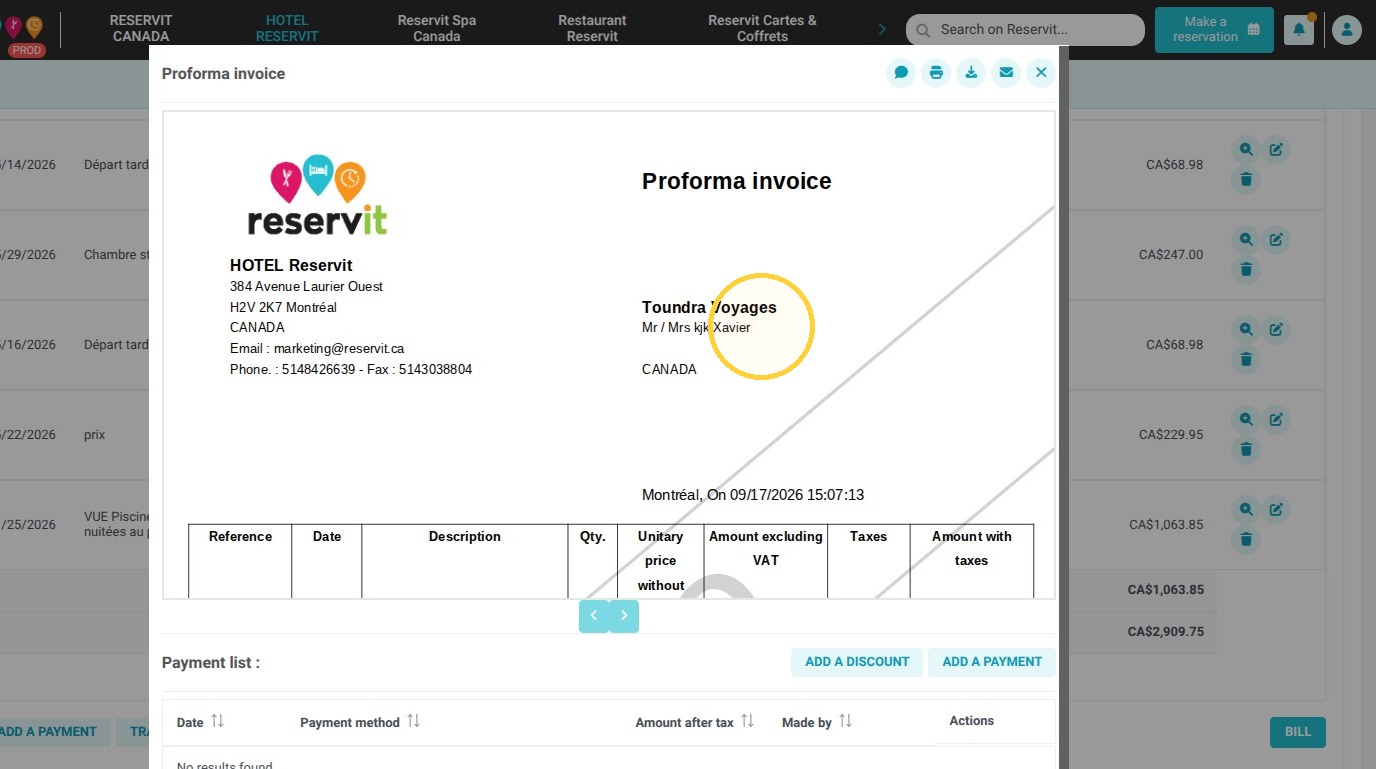
  • Verify the billing: Go to the reservation calendar and check the guest's account to confirm that the future invoice is properly linked to the company and not to the individual traveler.

Why follow this guide? Following this guide helps you avoid tedious administrative errors when issuing invoices for your business clientele. Correctly entering the corporate profile from the start saves valuable time for your accounting department and reinforces your property's professionalism with your corporate partners.


1. "Click 'Make a reservation', then select the module to enter the reservation, in this case, the accommodation section."
https://colony-recorder.s3.us-west-1.amazonaws.com/files/2026-09-17/1d3f12a6-237f-4feb-8374-72c3d4aab3c6/action-e23315db68c14dd99318fa794c1b9d3e_c239bd803ca0464cb366c870de0fafab_text_export.jpeg
https://colony-recorder.s3.us-west-1.amazonaws.com/files/2026-09-17/bd669bb7-14c0-4c9f-971e-18dfe0729a52/action-c8914b79fd4d4e08b6626a73da1b4241_d0967f3b8ccb415e952704b5c2875a59_text_export.jpeg

2. Enter the reservation details: date, number of nights, occupancy... You can select a partner / agency if one has been created in Reservit. Finish by clicking 'Search'
https://colony-recorder.s3.us-west-1.amazonaws.com/files/2026-09-17/42290244-374b-4f1e-bae5-644100adb0fa/user_cropped_screenshot_f19d1b9b42434cf39d557e311d59f6dd_text_export.jpeg
https://colony-recorder.s3.us-west-1.amazonaws.com/files/2026-09-17/33fddbc0-2db8-4847-8458-7ee091b4d090/user_cropped_screenshot_bad48856da4e48239f5639d01ad0712b_text_export.jpeg
https://colony-recorder.s3.us-west-1.amazonaws.com/files/2026-09-17/a20a3330-b0d0-44b6-b67c-cfc99a746971/user_cropped_screenshot_cb51ee155fda44e2b72a5e3cbf3a356b_text_export.jpeg
https://colony-recorder.s3.us-west-1.amazonaws.com/files/2026-09-17/87365709-9783-4ab0-8f5a-22f5546b9626/user_cropped_screenshot_59ccf7f854744190bc1e79acdeb6398b_text_export.jpeg

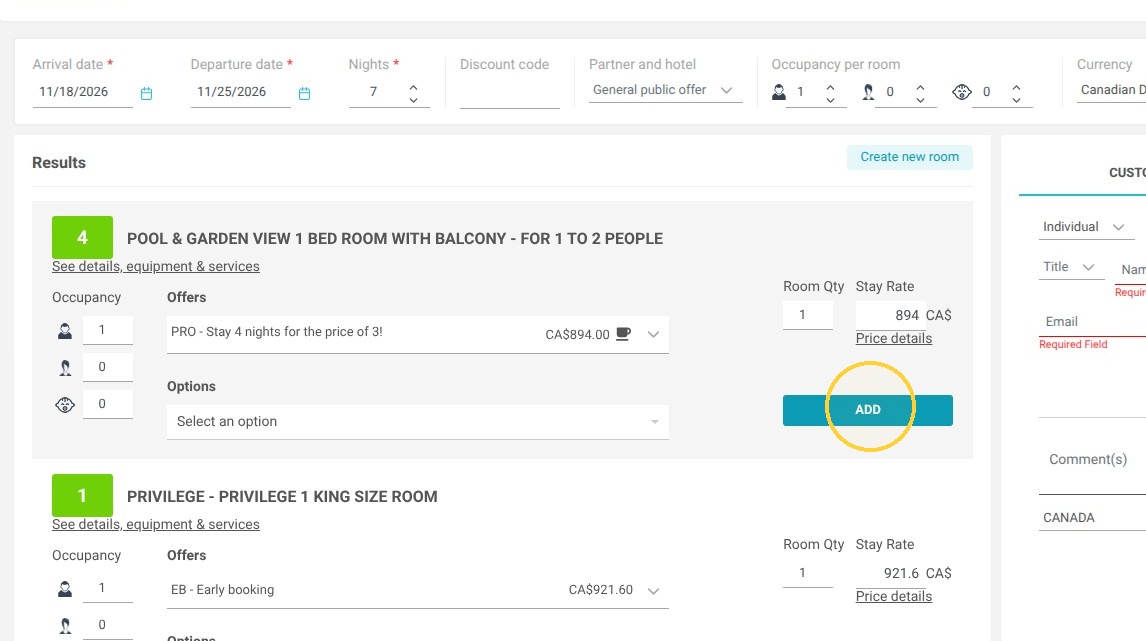
3. Select the desired rate. In this example: 'Stay 4 nights for the price of 3'. Then 'Add the room to the customer's cart'.
https://colony-recorder.s3.us-west-1.amazonaws.com/files/2026-09-17/b1ed34c5-0fef-465f-b81f-9585f3755437/action-9a919998fba140d7856c820ab9677f3e_e914d38a7b444bc58e88f96e0ec58dc9_text_export.jpeg

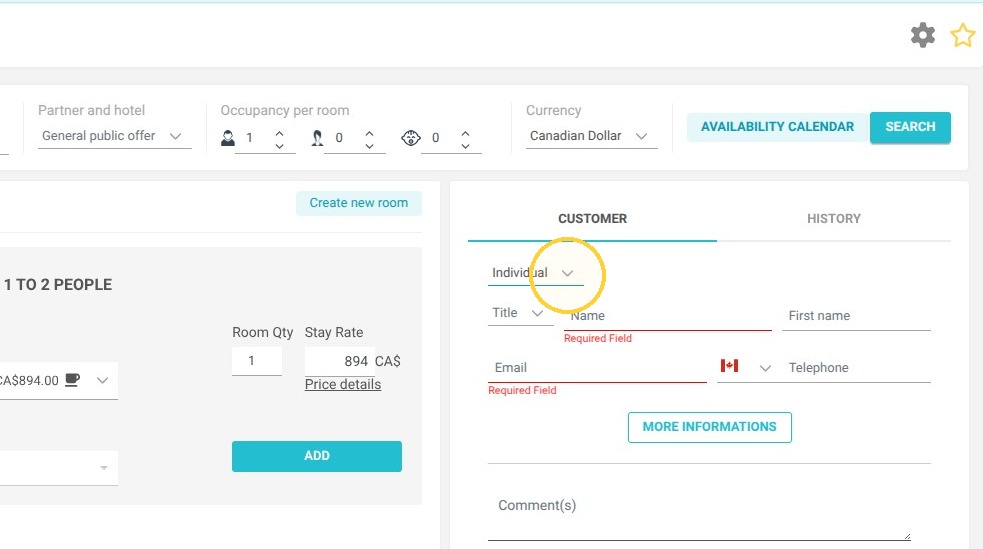
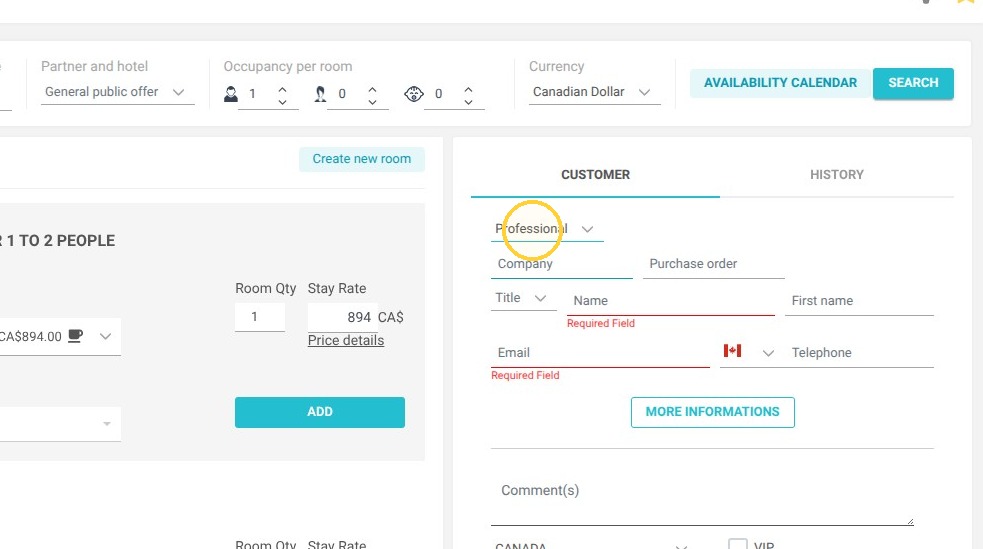
4. In the 'Individual' field, select 'Professional' and enter the name of the company the guest is traveling for below. Then, fill in the contact details of the person who will be staying at the property."
https://colony-recorder.s3.us-west-1.amazonaws.com/files/2026-09-17/2cf00eb5-55e5-403e-ab33-43bd03fc136a/action-e1c168d49df747b9b30969d612b1ee97_678d4c3610284c048845f973b1dbfa04_text_export.jpeg
https://colony-recorder.s3.us-west-1.amazonaws.com/files/2026-09-17/97579e6e-3a45-40f6-ad43-8d6698e97a4a/action-bf640a36ec904d57b1827da2244ed67a_85fc1a9b370a4d048fdfce9cf95575ce_text_export.jpeg
https://colony-recorder.s3.us-west-1.amazonaws.com/files/2026-09-17/ce30ca74-122b-47c9-9e20-13efad24918a/action-222155d6120044fba7bf5fcbc64a3a45_e0d5f11a04cb44e18783e4dbb60463e1_text_export.jpeg
https://colony-recorder.s3.us-west-1.amazonaws.com/files/2026-09-17/fee12410-b65b-4e93-b68e-f9043b7040b8/action-0af09a4226394975b79a6f37dc18ec91_a501b1456f1642e4a366bb10521644ef_text_export.jpeg

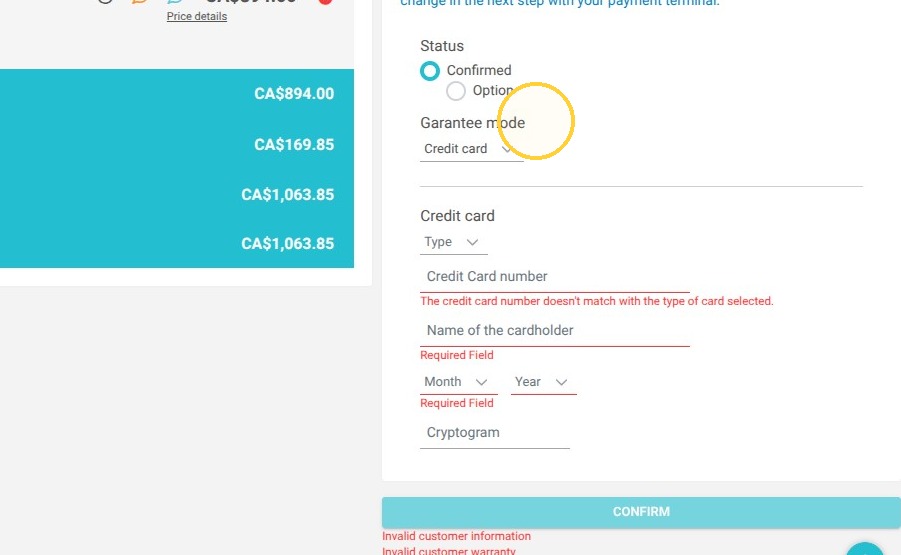
5. Enter the guest's credit card details, then confirm the reservation
https://colony-recorder.s3.us-west-1.amazonaws.com/files/2026-09-17/d9ac1a1a-5df6-467b-b50a-a7763183a03c/user_cropped_screenshot_9bf6f1f9da734a98a999c939974a0b98_text_export.jpeg
https://colony-recorder.s3.us-west-1.amazonaws.com/files/2026-09-17/d9ac1a1a-5df6-467b-b50a-a7763183a03c/user_cropped_screenshot_d1389e24726645648b4c99251e4795da_text_export.jpeg

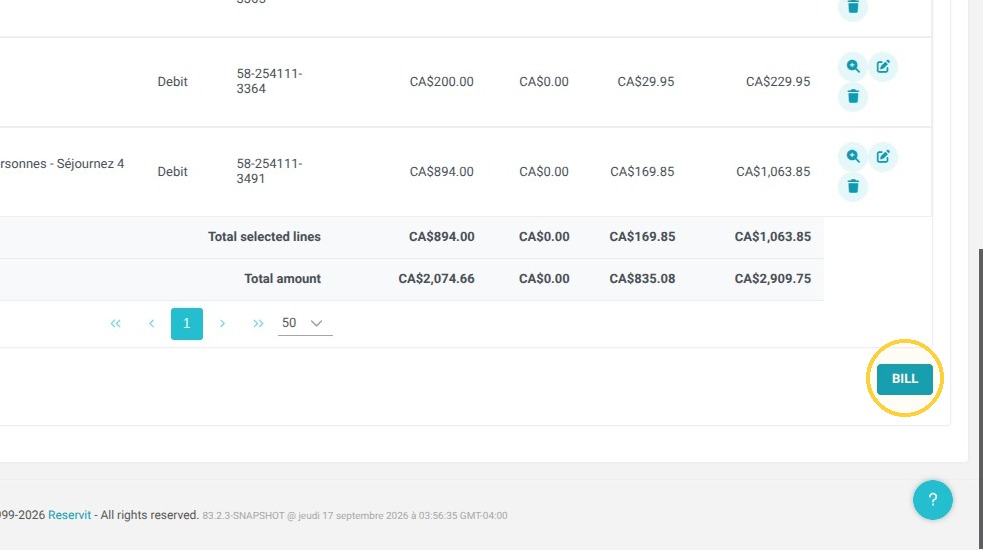
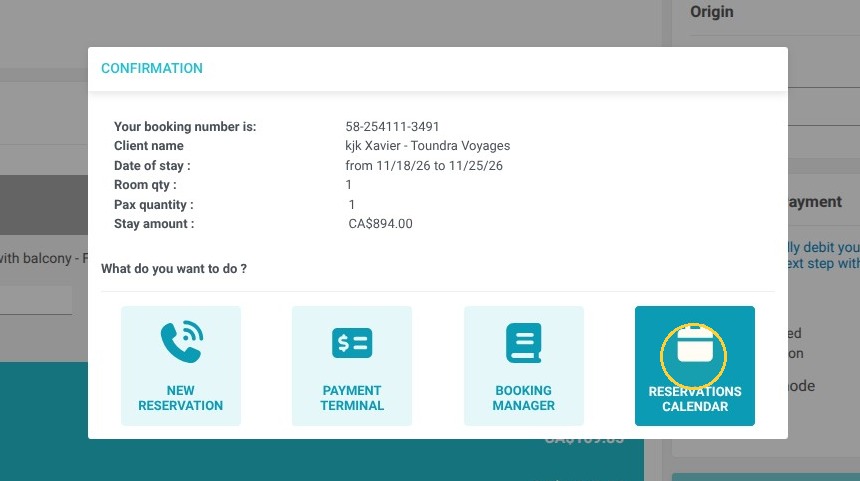
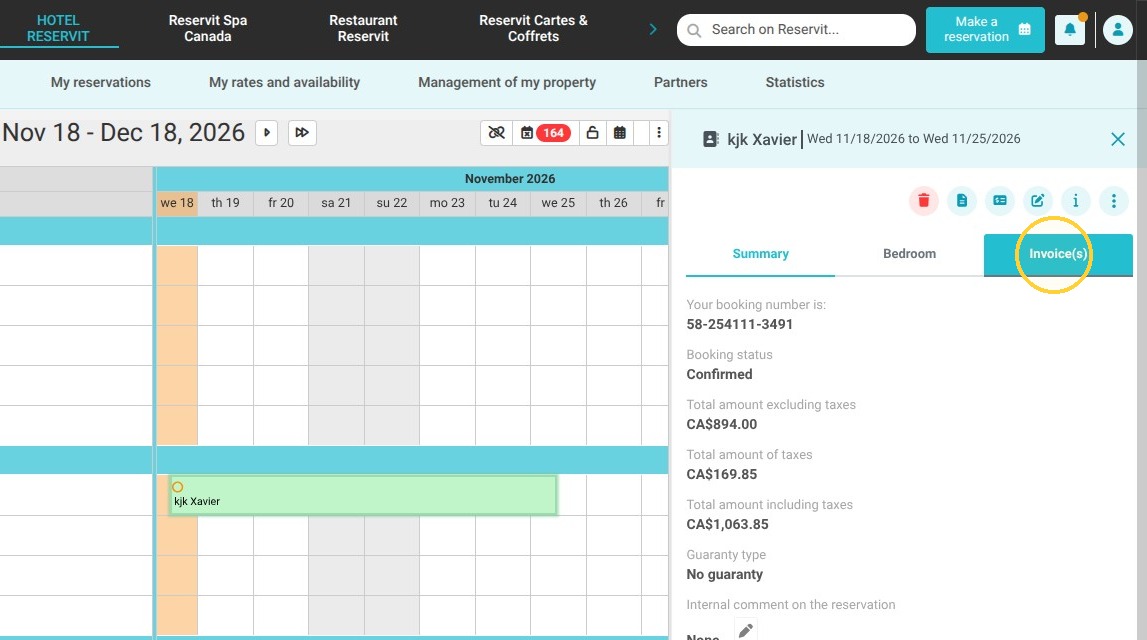
6. If you then go to the reservation calendar and the guest's billing account, you will see that the invoice is addressed to the company in question
https://colony-recorder.s3.us-west-1.amazonaws.com/files/2026-09-17/0cbb5a56-d050-49c4-a2e9-7a5b6da8c733/action-c57869736f19412098899ad5d371ef4a_d3d07d29c3ea4a4cbac2f8b78f95550f_text_export.jpeg
https://colony-recorder.s3.us-west-1.amazonaws.com/files/2026-09-17/7f70a1f6-9a53-4ba0-8b3a-4f8bbf5d8434/action-2e4cba97481a4e3ba388aaa3127fb6ae_a617196616f14abb97402c1b46b3fe09_text_export.jpeg
https://colony-recorder.s3.us-west-1.amazonaws.com/files/2026-09-17/90aab0f1-1527-4344-92db-979d910de3ea/action-486bb7c19b4d46928f60e91df531c860_0b9d49b6f506416c8fc7478ea2bf044f_text_export.jpeg
https://colony-recorder.s3.us-west-1.amazonaws.com/files/2026-09-17/5dbf9cb2-cd74-4678-a7ba-c8c39c85b333/action-2bd499cd7f154bffaafbce9f13ada211_1f9277b20d1d4c278ffb250d3f37c06c_text_export.jpeg
https://colony-recorder.s3.us-west-1.amazonaws.com/files/2026-09-17/b32fa3b6-f253-445d-86cb-215485bd5327/action-2777d9a753954e728c2bf7126a36a947_0d31e012571349e1b592f6eff93000bf_text_export.jpeg