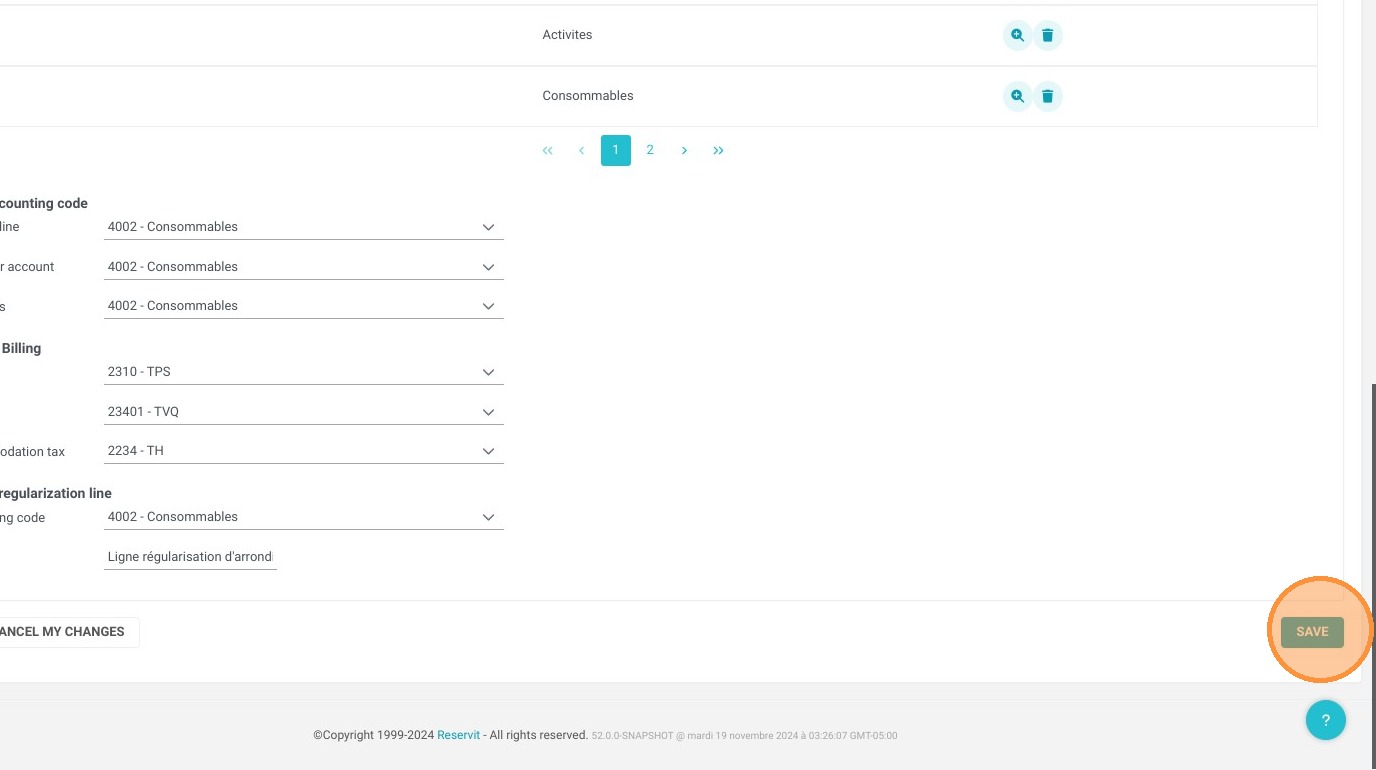
Article Summary: This straightforward guide explains how to easily configure and change the accounting export file format inside Reservit Accommodation. You will learn how to navigate to your system's setup parameters and select the exact file layout required by your external bookkeeping platform (such as Acomba). Adjusting these settings ensures seamless data transfers between your property management system and back-office financial accounts.
The 4 key steps to edit your accounting export format:
-
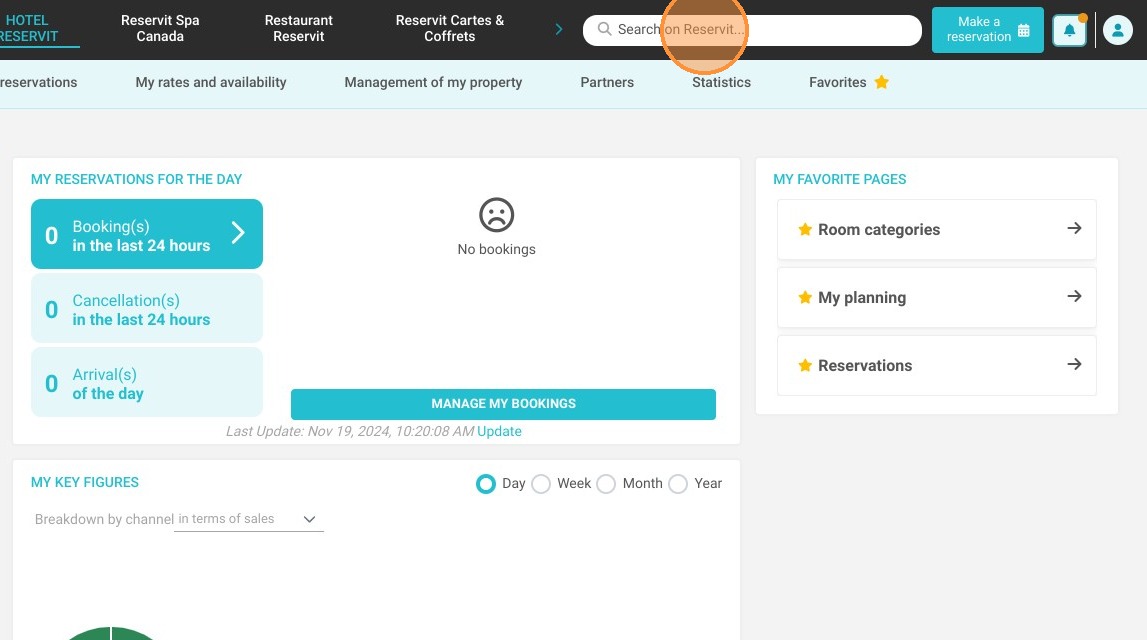
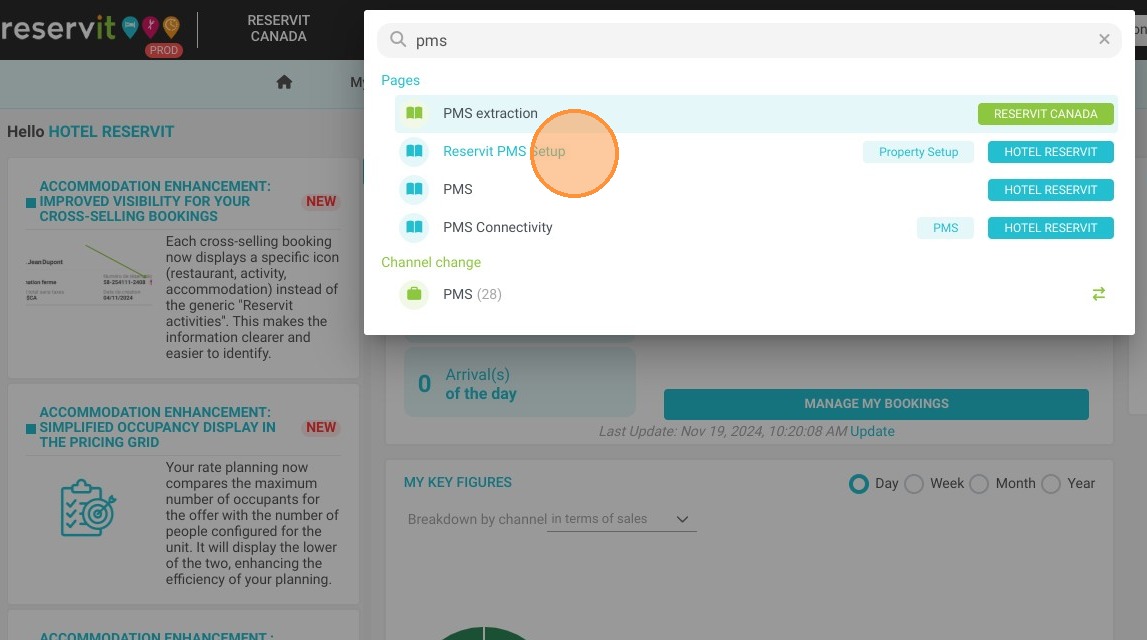
Access PMS Setup: Click on the "Search on Reservit..." bar, type in "PMS," and select the "PMS Setup" option from the results.
-
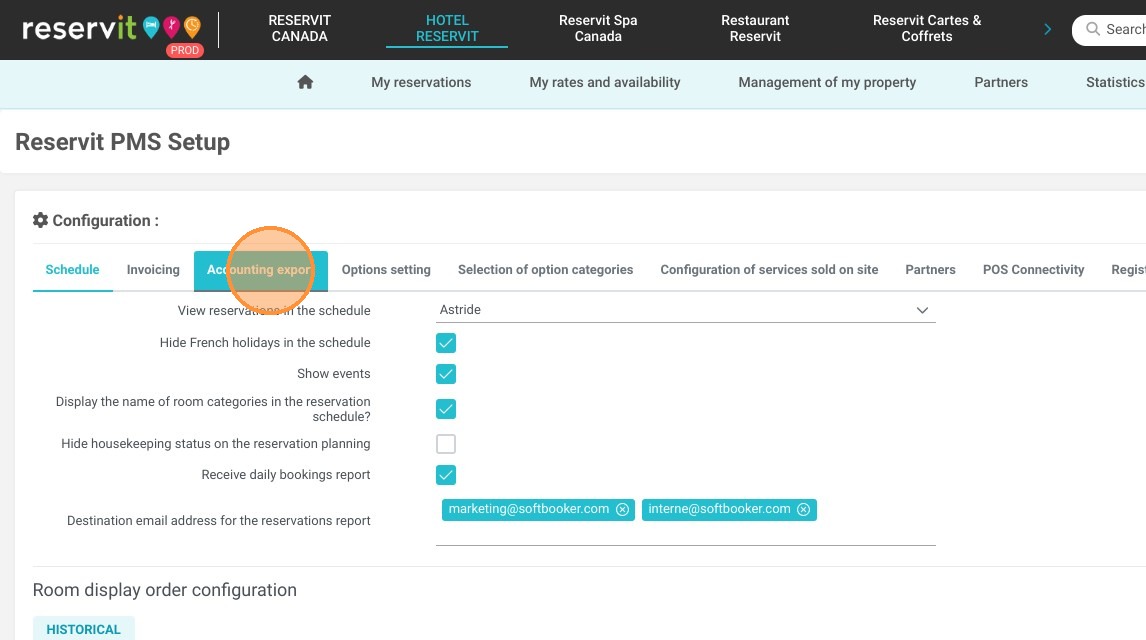
Open the Export Menu: Click directly on the "Accounting export" section within the configuration settings.
-
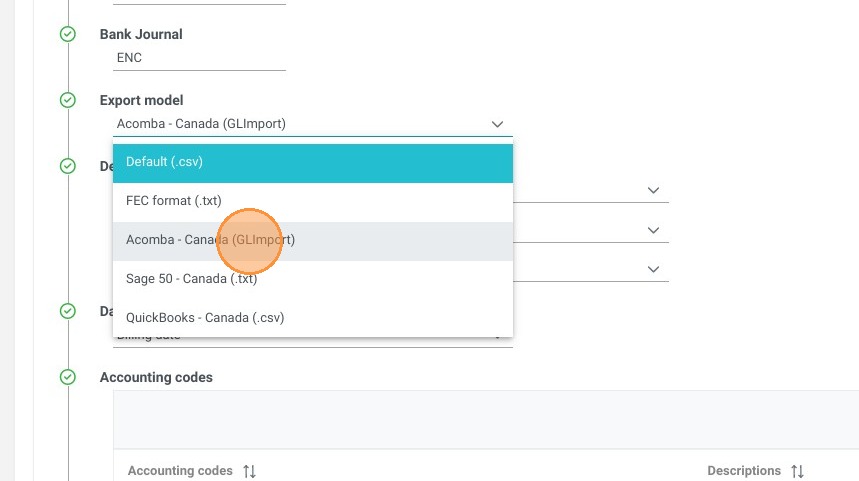
Select Your Software Format: Locate the format selection dropdown and choose the specific option that matches your property's third-party bookkeeping software (e.g., "Acomba - Canada (GLImport)").
-
Save Your Settings: Click the "Save" button to finalize your selection and securely apply the new configuration.
Why follow this guide? Following this tutorial ensures that your exported daily financial data seamlessly aligns with your external accounting platform without requiring tedious manual file conversions. It optimizes your back-office efficiency, preventing system-sync errors and ensuring clean, automated ledger reporting for your accounting team.
1. Click and type ''PMS'' on "Search on Reservit...". Select ''PMS Setup''
2. Click "Accounting export"
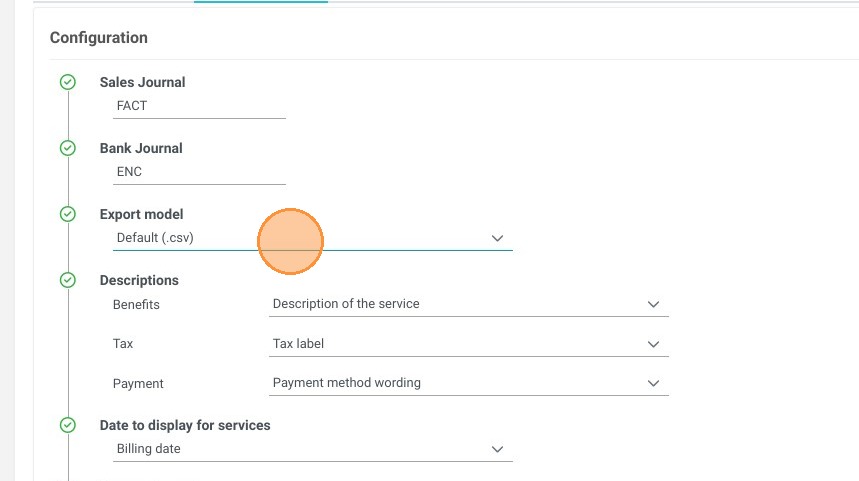
3. You will then find the line allowing you to choose the format for your accounting exports (depending on the accounting software used).
4. for example: "Acomba - Canada (GLImport)"
5. Click "Save"