Article Summary: This tutorial explains how to create an accounting export of your invoices and credit notes directly from Reservit PMS. You will learn how to find your accounting documents, select the ones to transfer and generate the export file for your accounting software. Mastering this feature saves you manual data entry and speeds up your month-end closing.
The 5 Key Steps to Generate an Accounting Export:
-
Check the prerequisites: Make sure your accounting codes are set up in Reservit PMS before exporting.
-
Go to Billing: Click "My reservations" > "Billing".
-
Open the invoice list: Click "Go to page" on the "Invoices" tile to display all your invoices and credit notes.
-
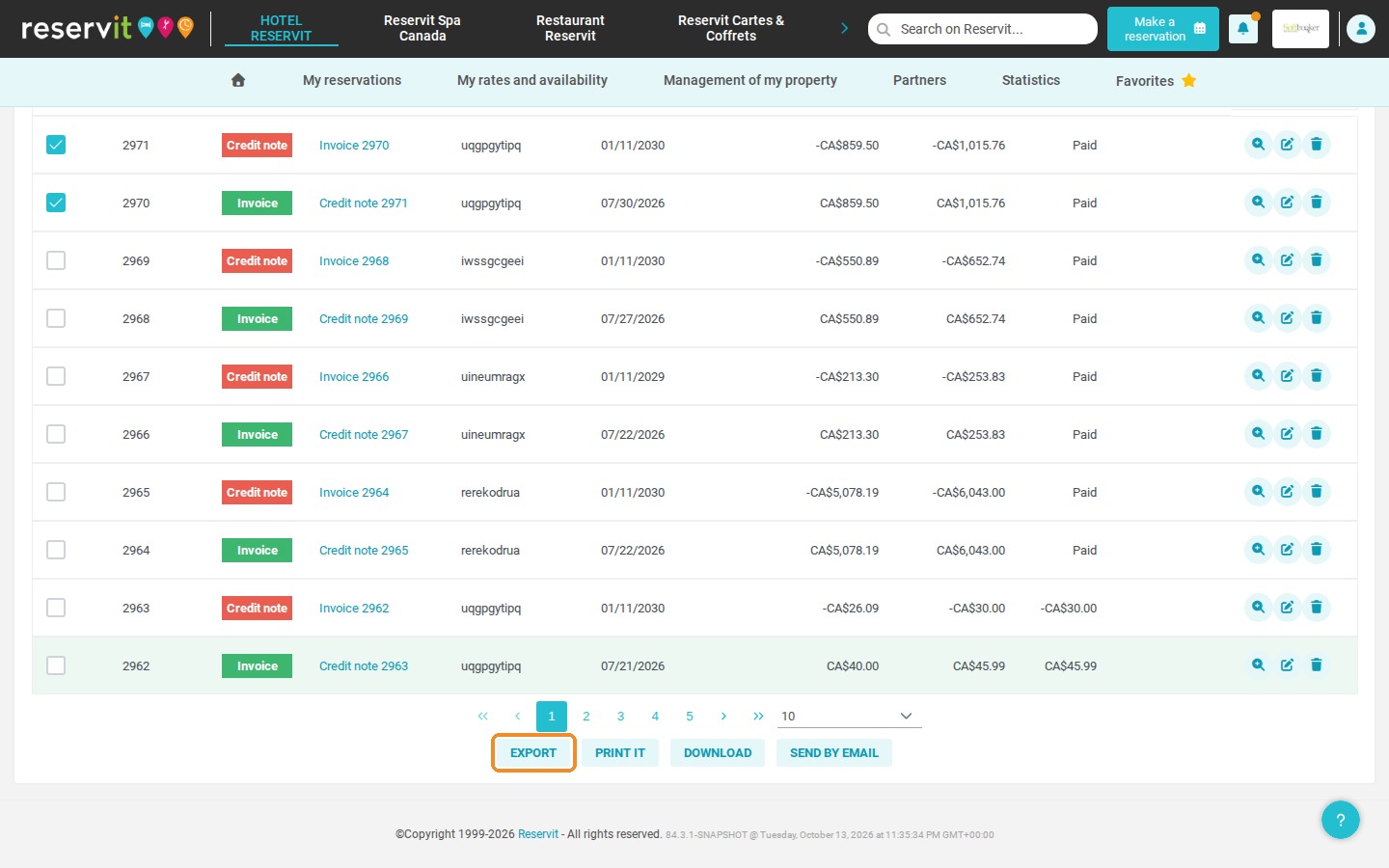
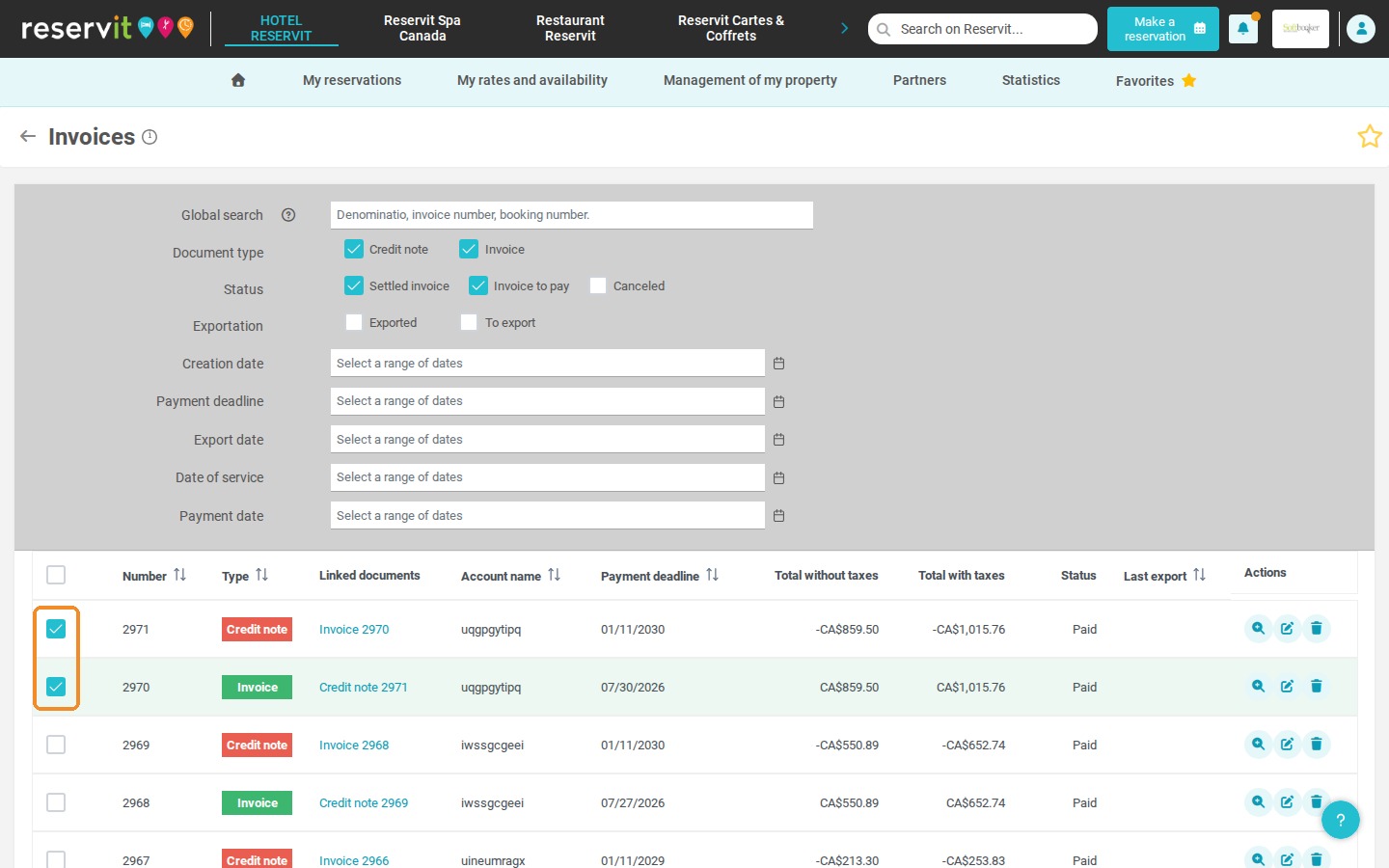
Select the documents: Tick the invoices and credit notes you want to include in the export.
-
Start the export: Click "EXPORT" to generate your accounting file, ready to be imported into your accounting software.
Why Follow This Guide? This method avoids entering your financial transactions twice and removes the risk of manual errors. By exporting data structured with your own accounting codes, you save your administrative team valuable time and keep your books accurate.
1. Before you start, you must have set up your accounting codes. Please refer to the related procedure.
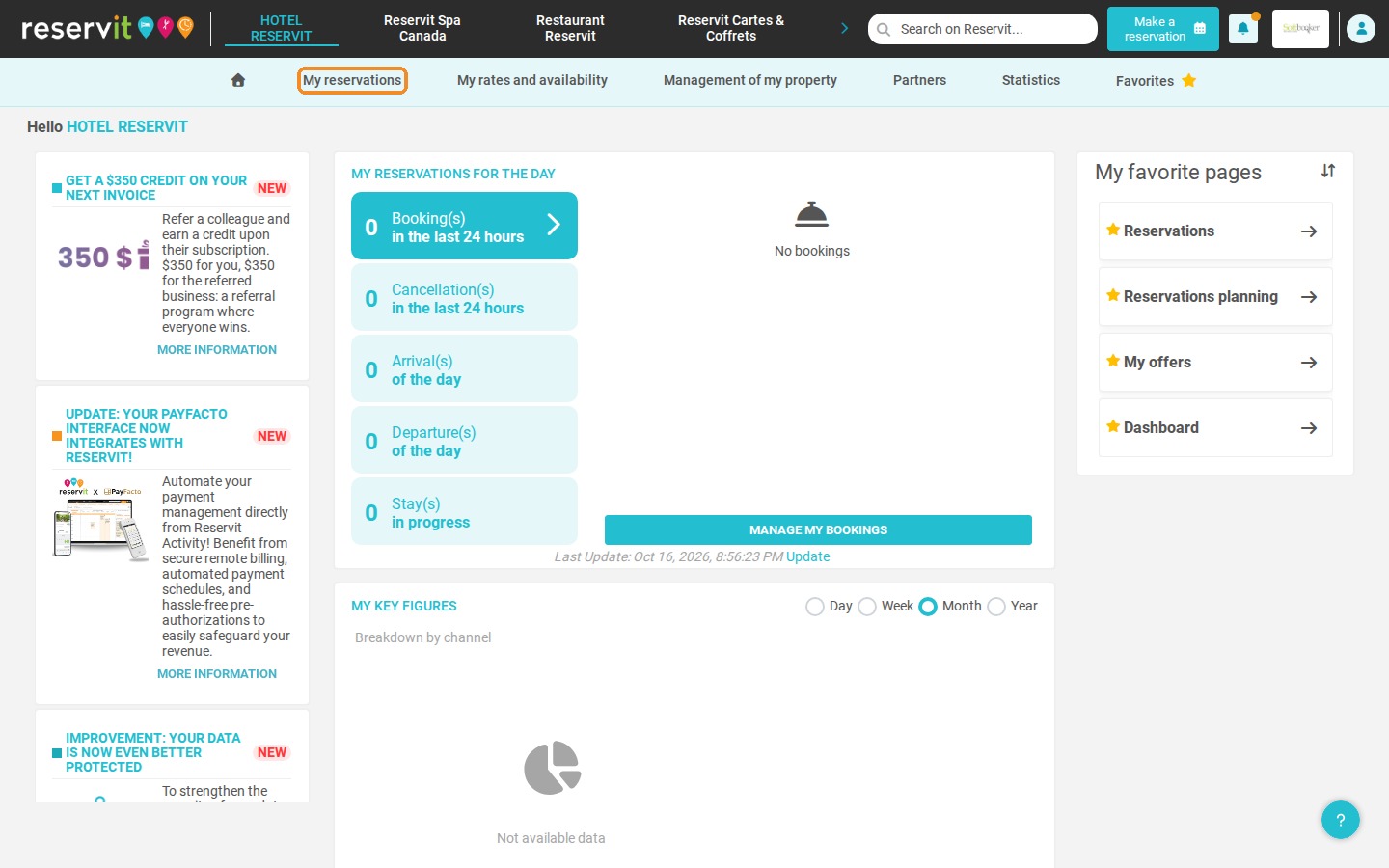
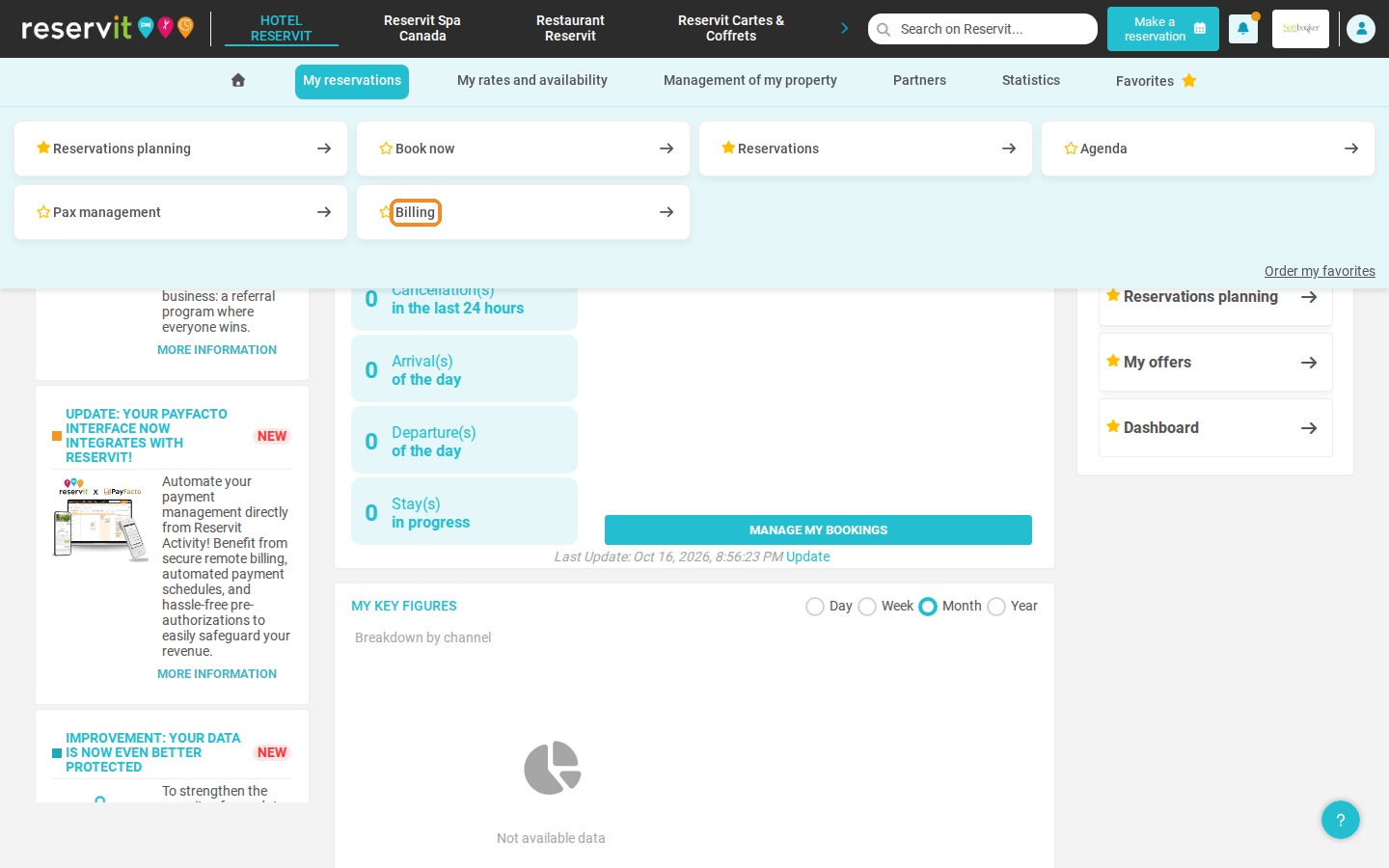
2. Click "My reservations", then "Billing".
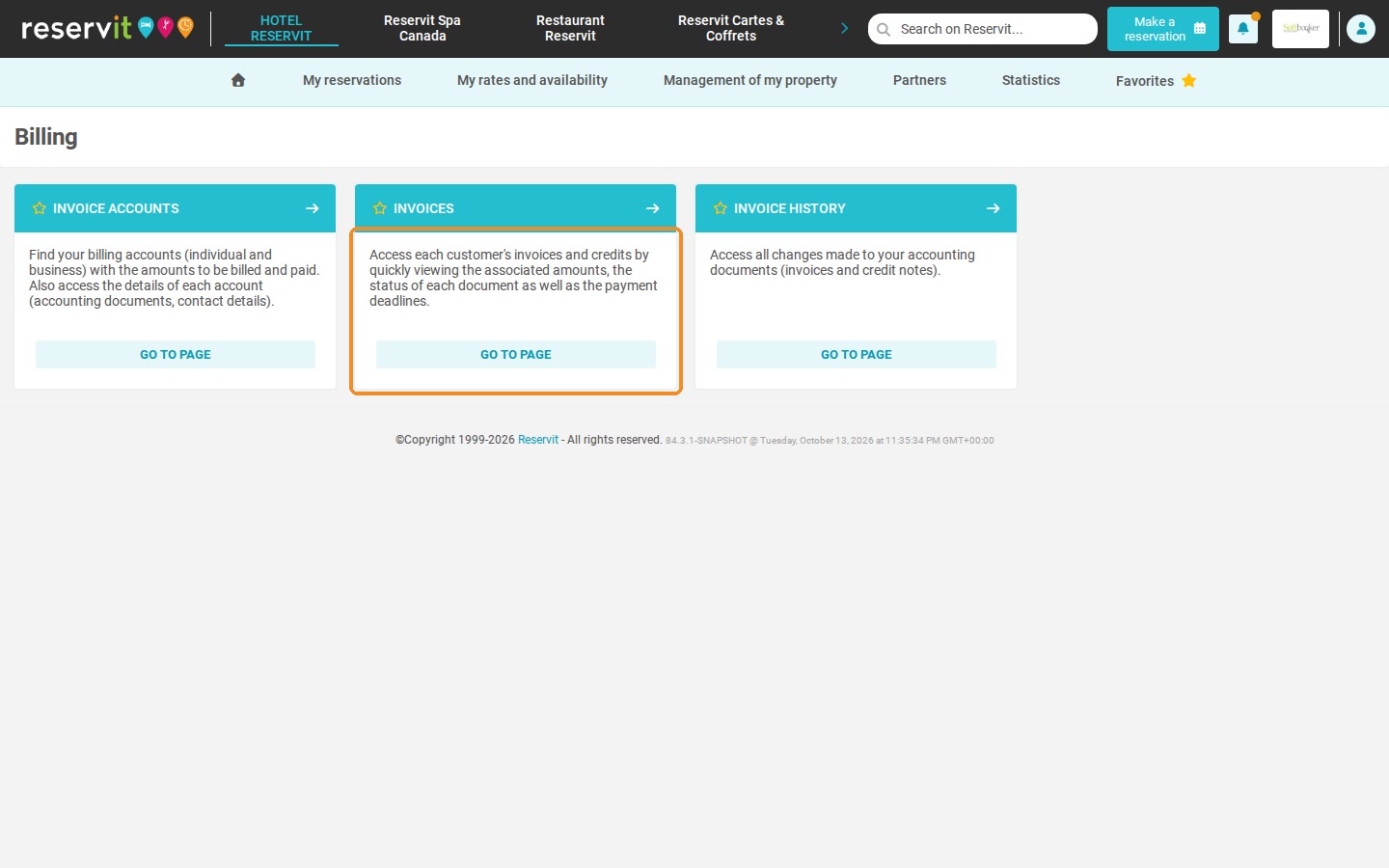
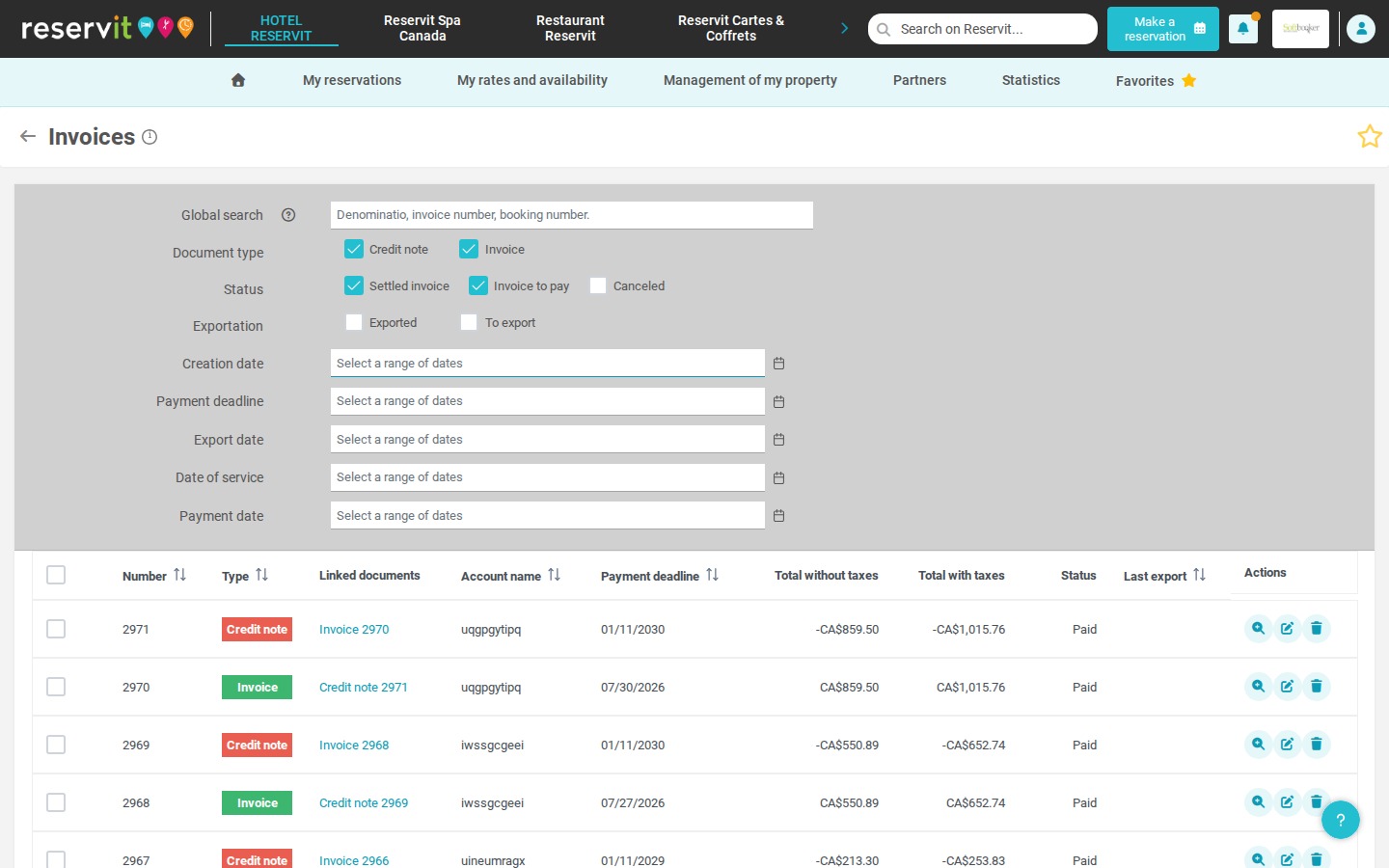
3. On the "Billing" page, click "Go to page" on the "Invoices" tile. The list shows your invoices and credit notes; use the filters at the top (document type, status, exportation, creation date, etc.) to narrow it down if needed.
4. Tick the invoices and credit notes of your choice in the left-hand column.
5. Click "EXPORT" below the list to generate your accounting export file.