

Article Summary: This tutorial explains how to export your invoices and credit notes from Reservit PMS and import them into your Acomba accounting software. You will learn how to select your documents in bulk and import the generated entries file (GL IMPORT) into Acomba. Mastering this bridge automates the transfer of your data and speeds up your accounting closings.
The 5 Key Steps to Export Your Data to Acomba:
-
Check the accounting prerequisites: Make sure your accounting codes are set up in Reservit PMS before exporting.
-
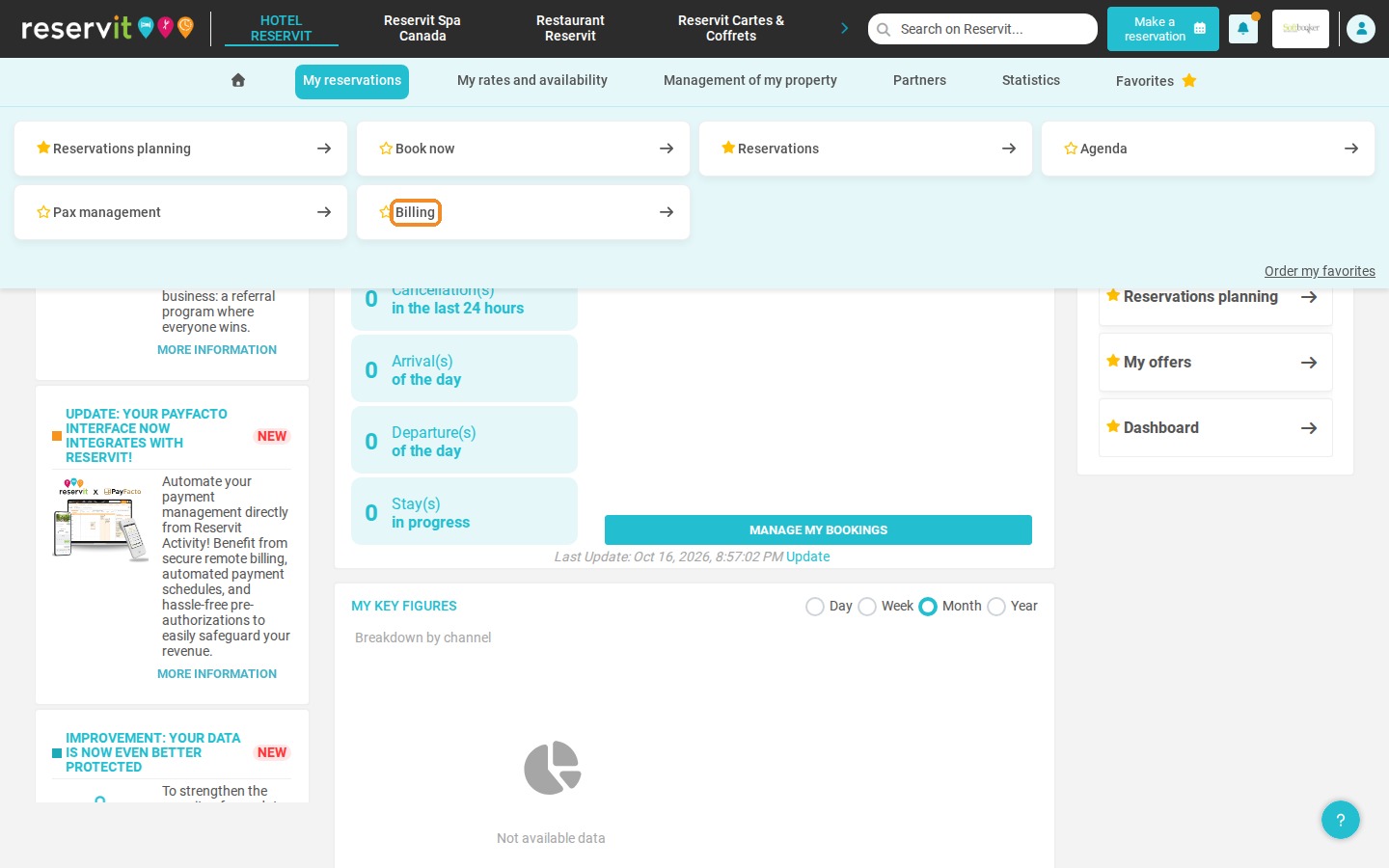
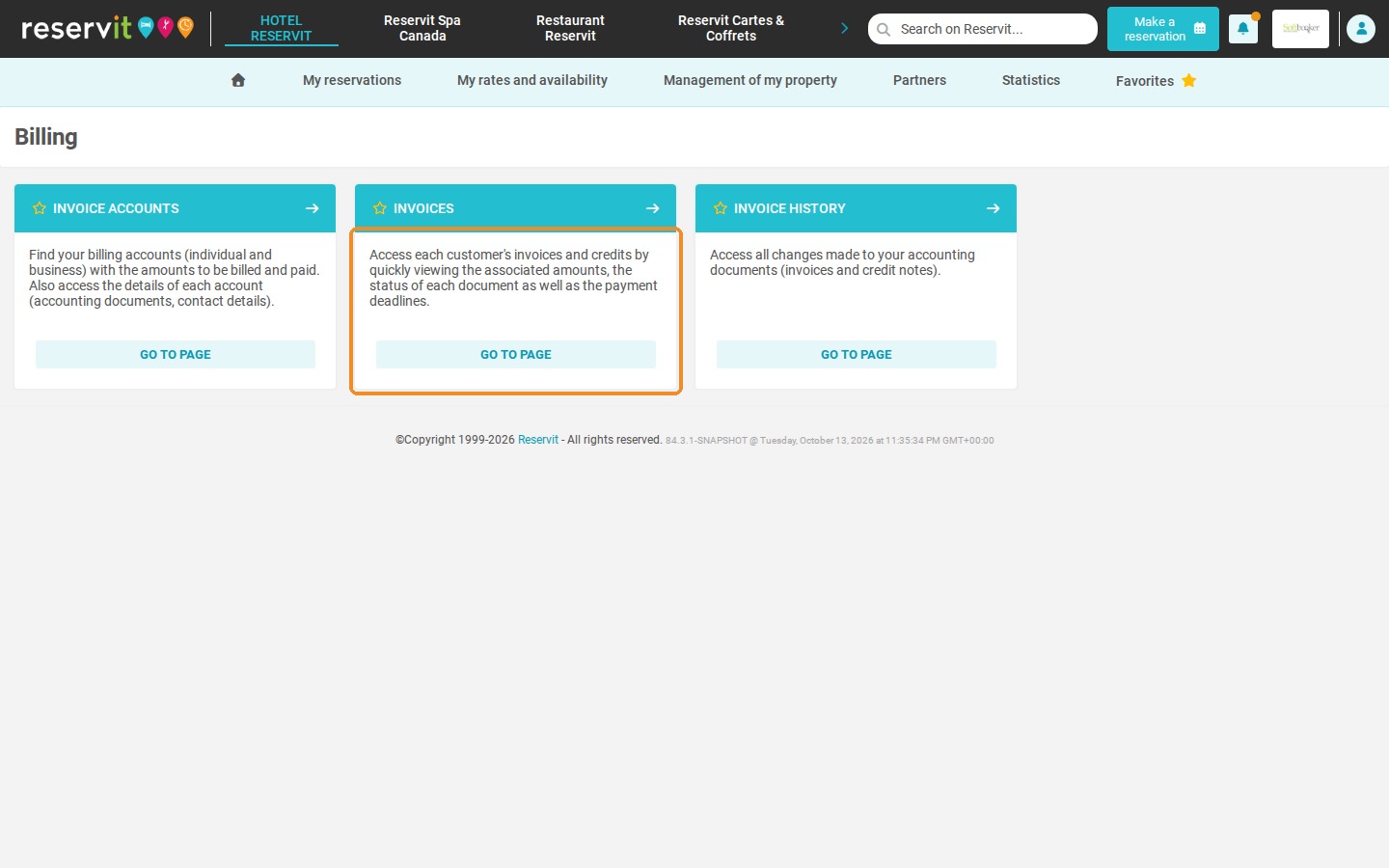
Open the invoice list: Click "My reservations" > "Billing", then "Go to page" on the "Invoices" tile.
-
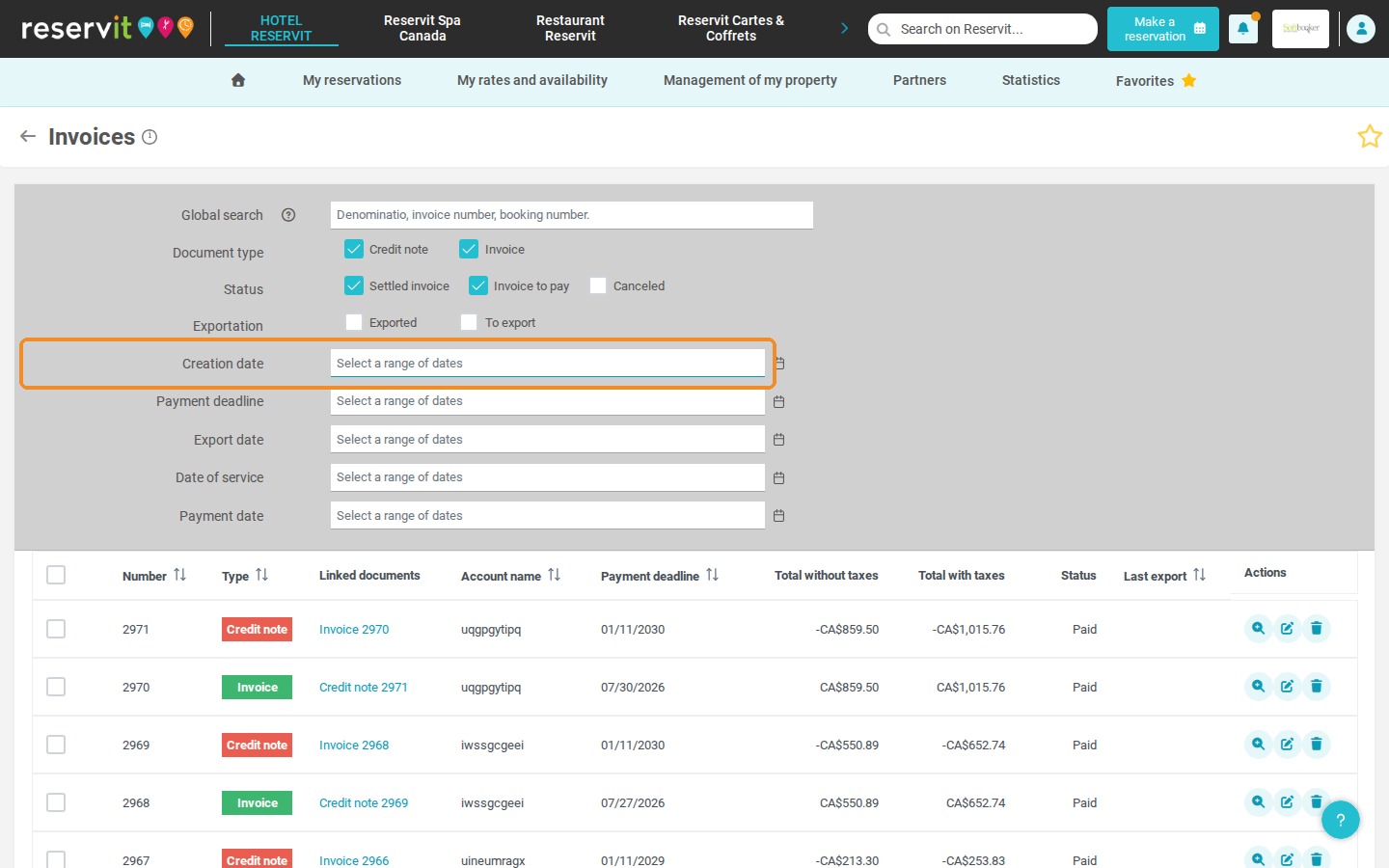
Select the documents in bulk: Choose your date range, display 500 lines per page, then tick the box next to the "Number" column to select all documents at once.
-
Generate the export file: Click "EXPORT" to generate the "GL IMPORT" file.
-
Import the entries into Acomba: In Acomba, go to Saisie > Utilitaire > Importation > Comptabilité > Transaction and import the GL IMPORT file (answer "Yes" if asked about upper/lower case).
Why Follow This Guide? This method saves you from re-entering your financial transactions in Acomba and removes transcription errors. Automating this import makes your property's accounting more reliable and saves your team hours at month-end.
Part 1 - Reservit
1. Before you start, you must have set up your accounting codes. Please refer to the related procedure.
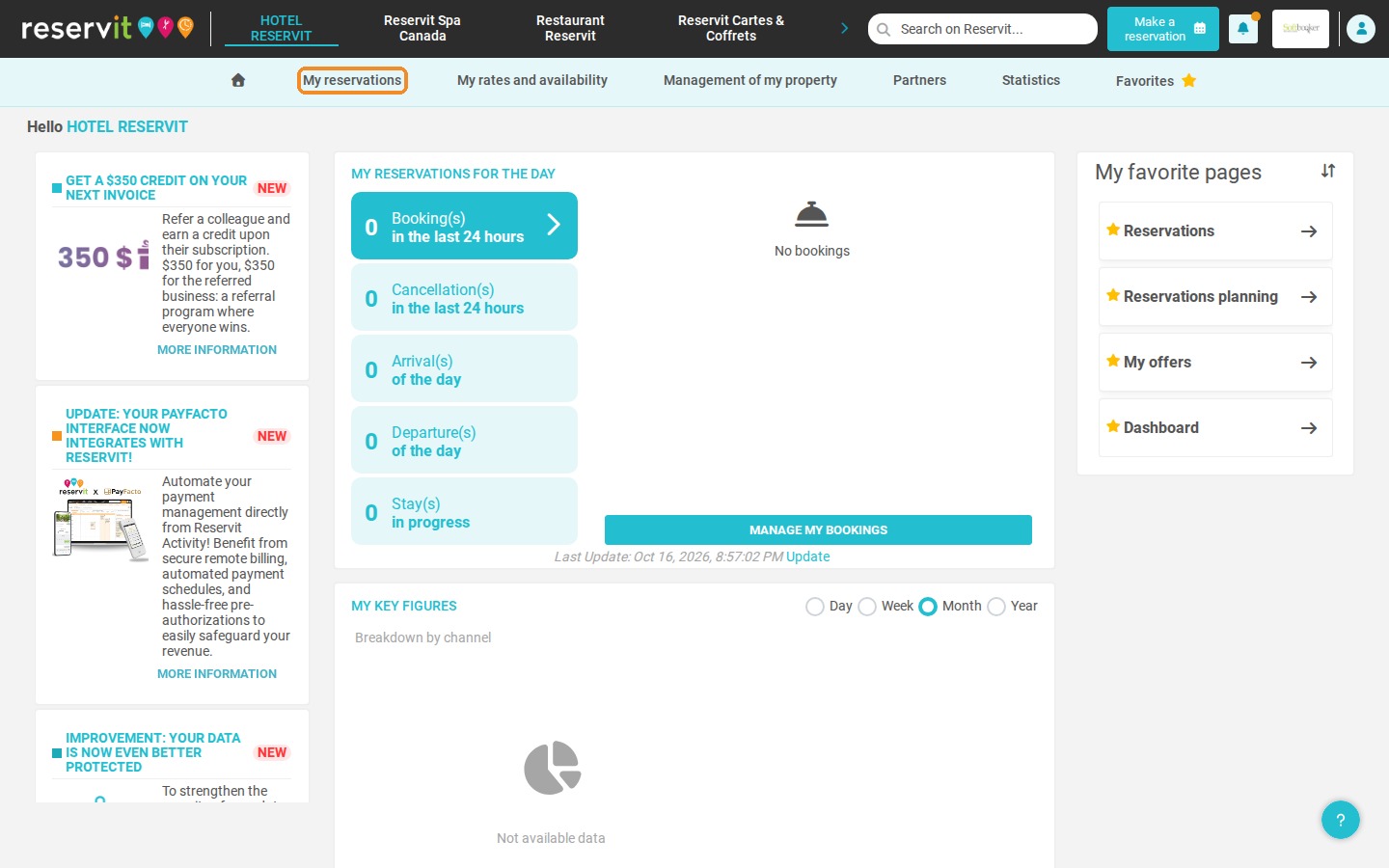
2. Click "My reservations", then "Billing".
3. On the "Billing" page, click "Go to page" on the "Invoices" tile.
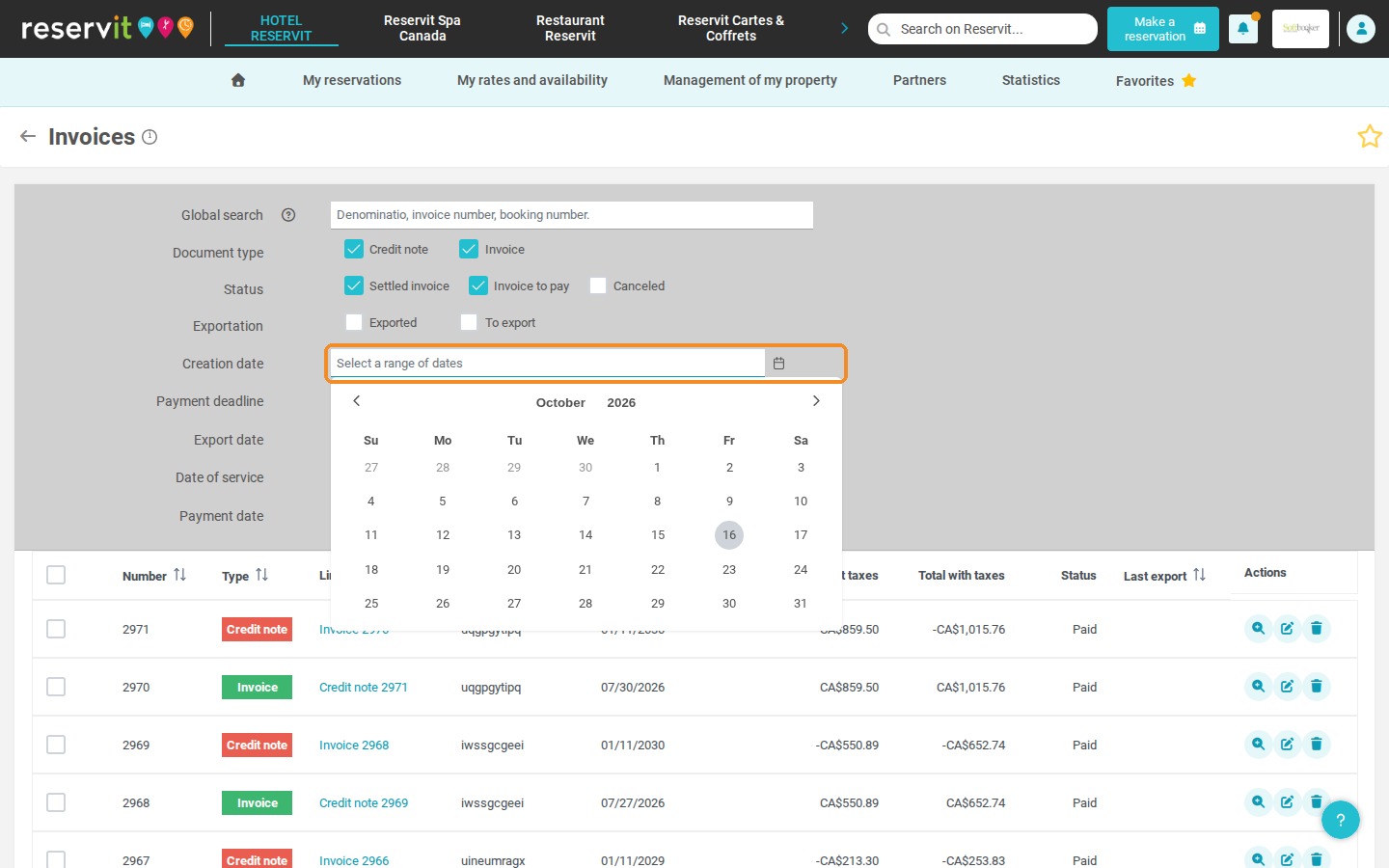
4. Select the date range you want, for example in the "Creation date" field.
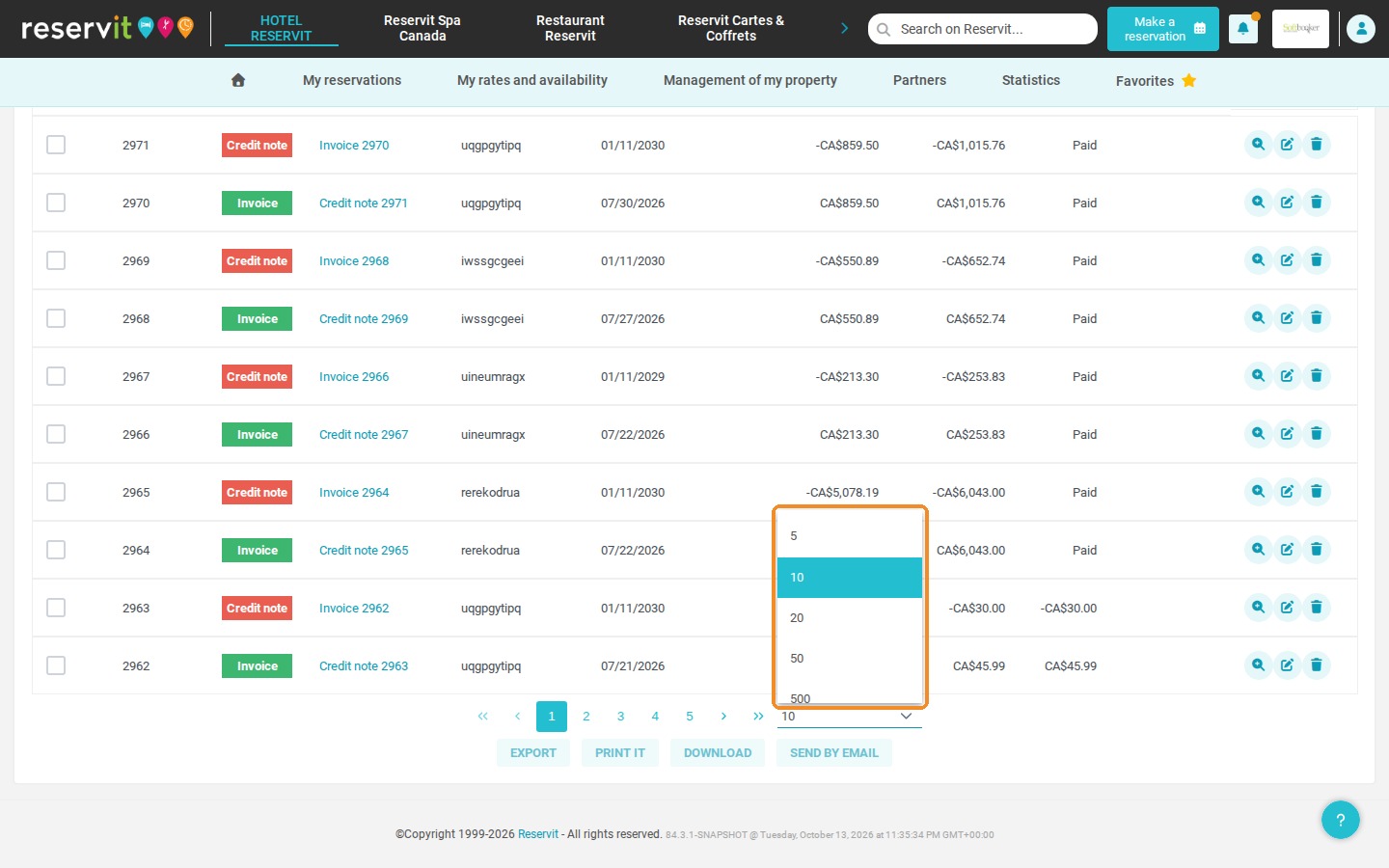
5. At the bottom of the page, choose to display 500 lines.
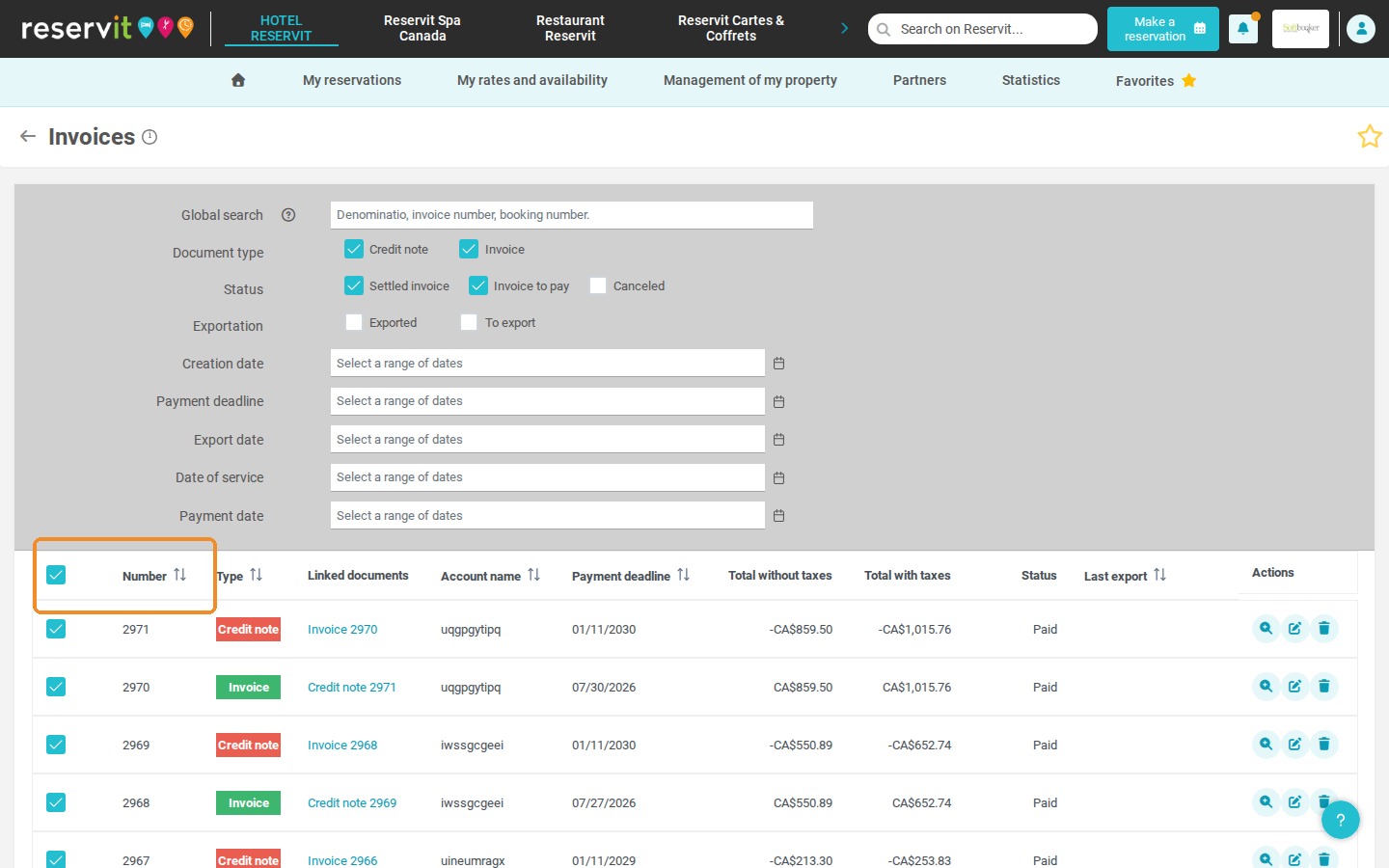
6. Tick all the documents at once with the checkbox to the left of the "Number" column.
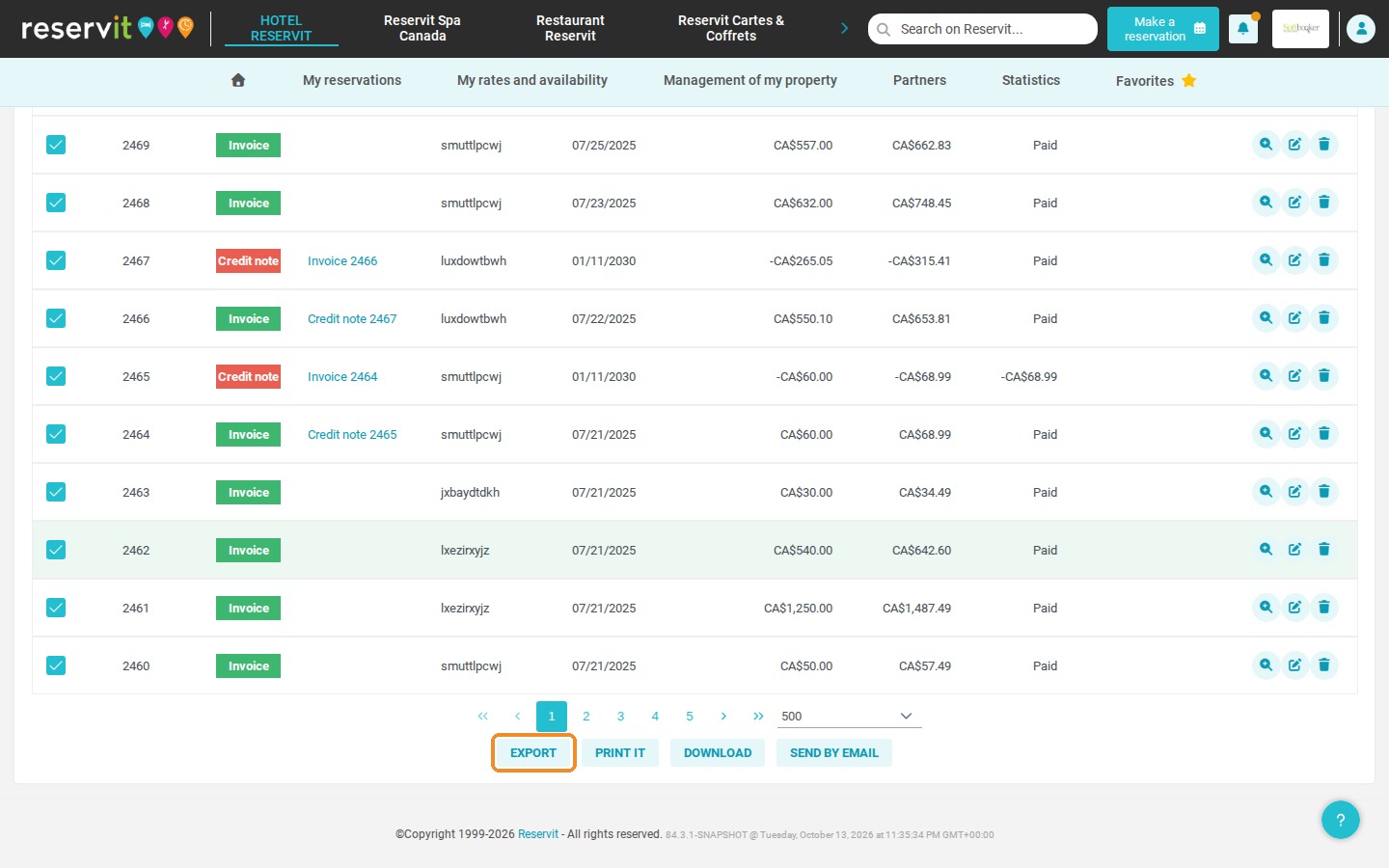
7. Click "EXPORT". A "GL IMPORT" file is generated.
Part 2 - Acomba
8. In Acomba, go to Saisie > Utilitaire > Importation > Comptabilité > Transaction (menu names as shown in the French version of Acomba). Import the GL IMPORT file you saved (usually in your Downloads folder). If Acomba asks whether everything must be in upper/lower case, answer "Yes".