Article Summary: This practical guide explains how to customize the specific dates included for services and payments within your Reservit PMS accounting exports. You will learn how to navigate your system setup and align your export files with your exact bookkeeping rules by choosing between service, invoice, or payment dates. Mastering this configuration ensures clearer financial reporting and flawless synchronization with your property's external accounting requirements.
The 4 key steps to select dates for accounting exports:
-
Access PMS Setup: Navigate directly to your primary "Reservit PMS Setup" configuration dashboard.
-
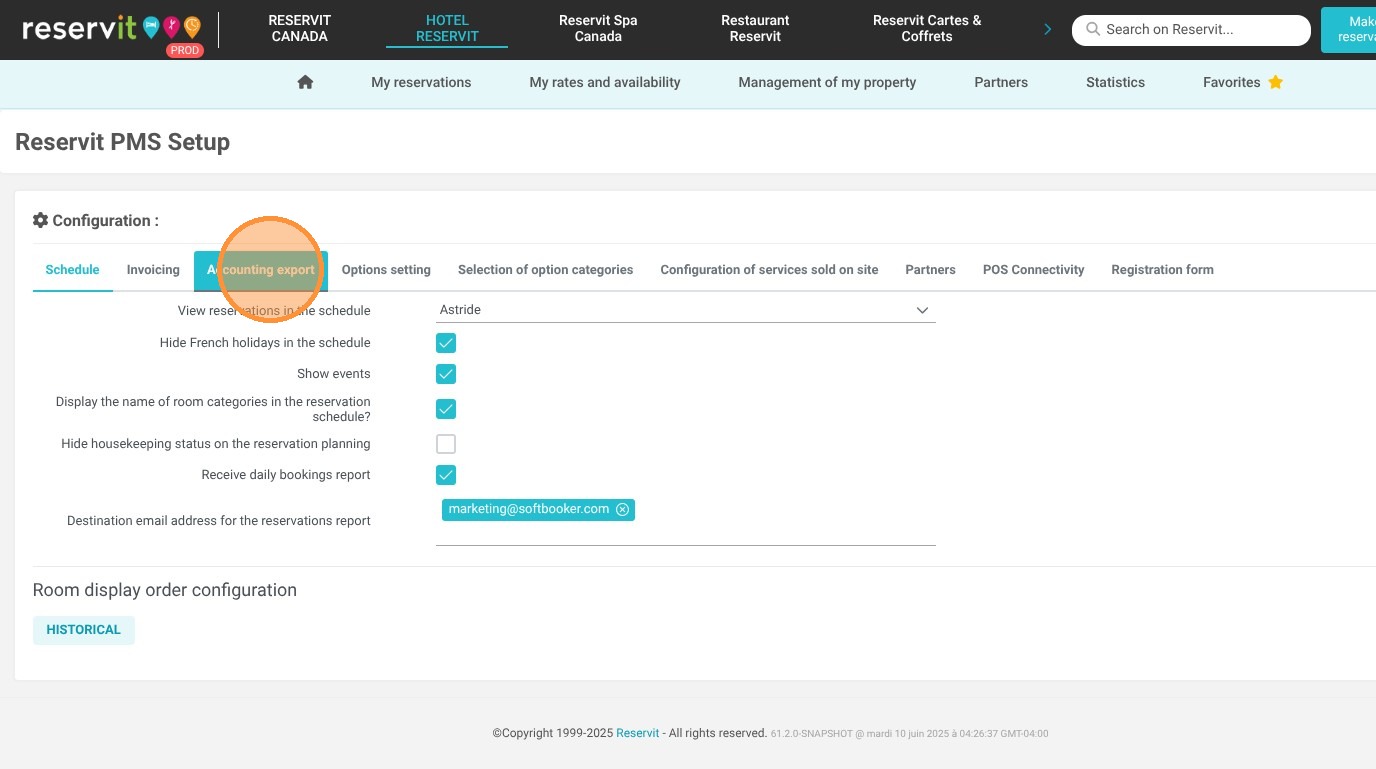
Open Export Preferences: Click on the "Accounting export" menu to load your system's data-sharing parameters.
-
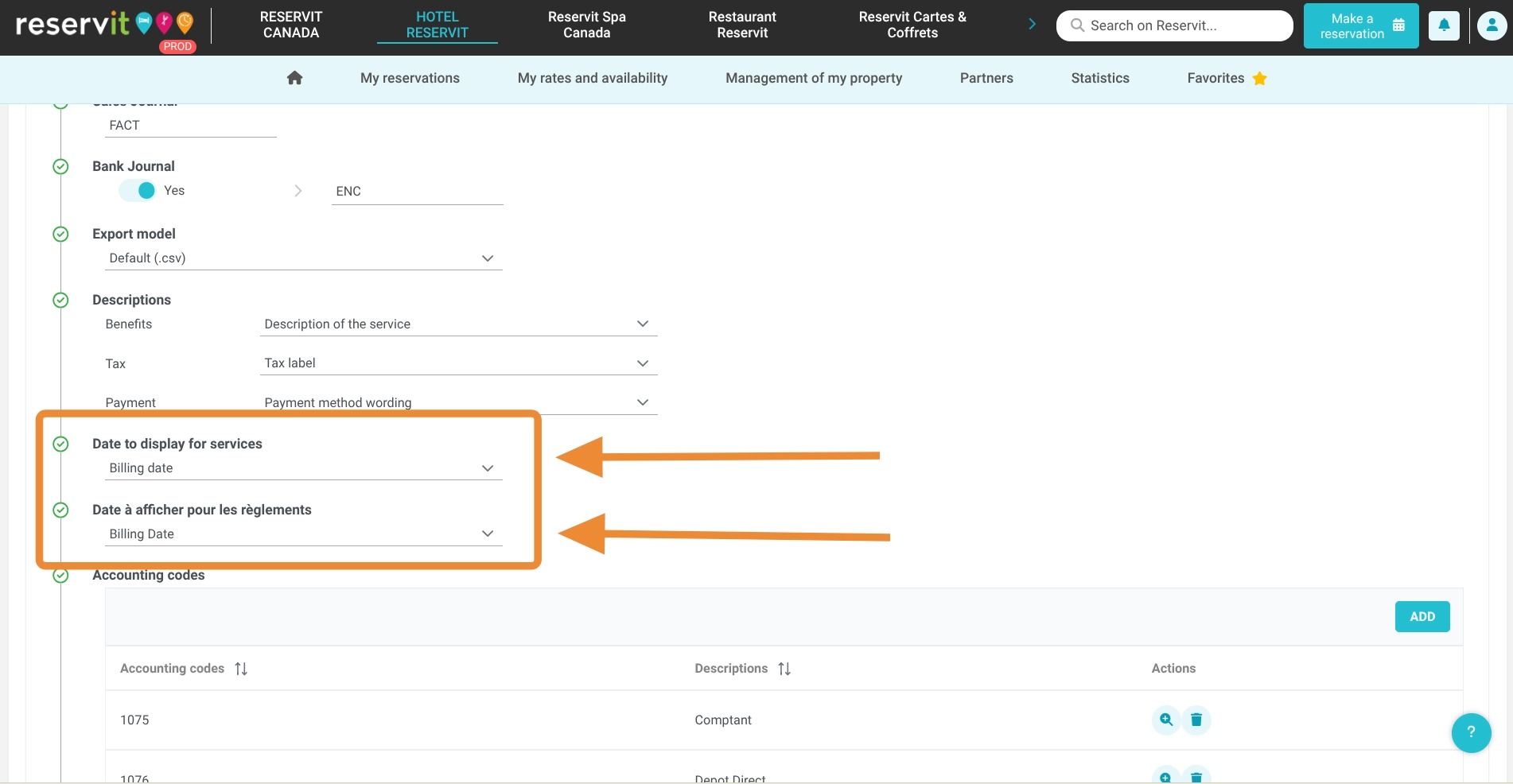
Configure Date Options: Define your display parameters by choosing between the Service Date and Invoice Date for your services, and the Invoice Date and Payment Date for your recorded payments.
-
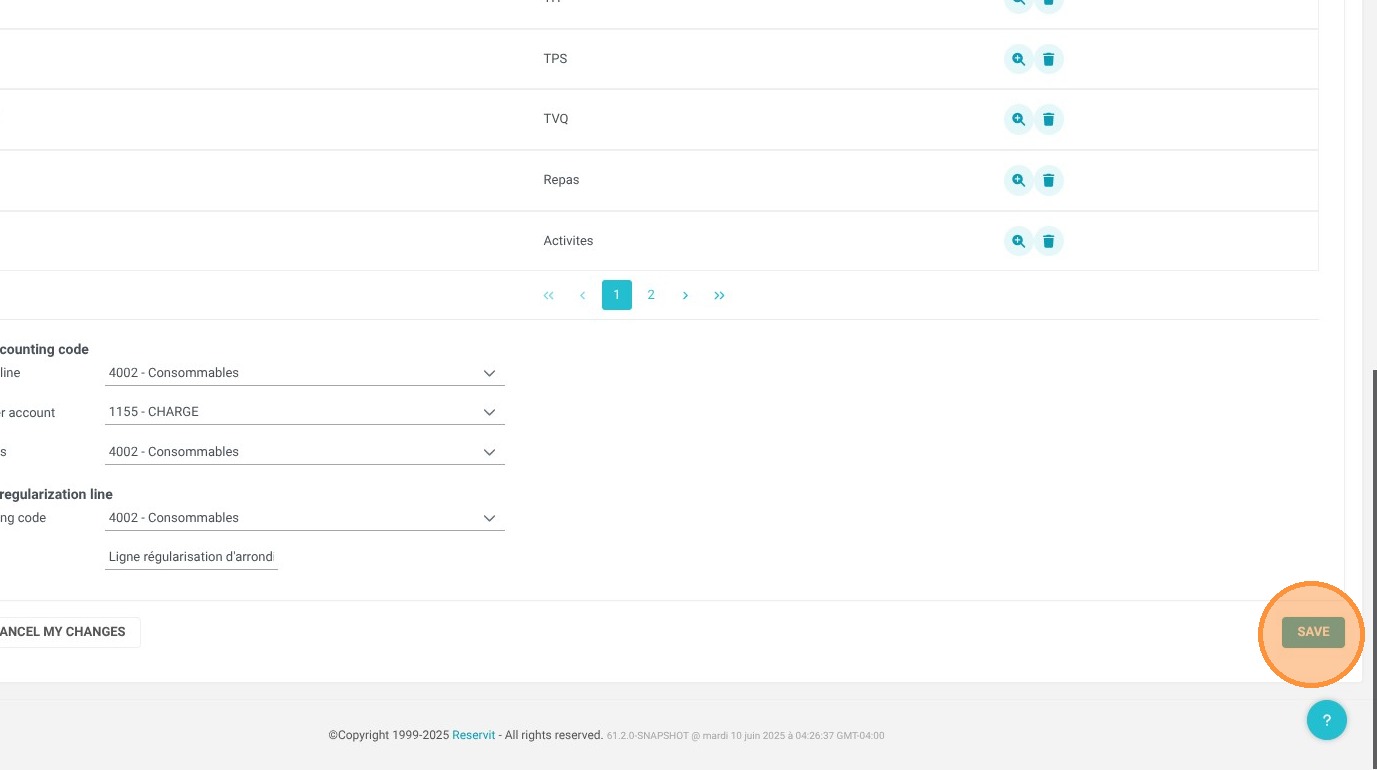
Save Your Settings: Click the "Save" button to securely apply your date preferences and update your automated export layouts.
Why follow this guide? Following this tutorial ensures that your exported financial data perfectly satisfies your back-office auditing requirements, eliminating the need for tedious manual data adjustments. It optimizes your financial workflows, providing clearer, more cohesive reporting that directly reflects your property's established revenue recognition practices.
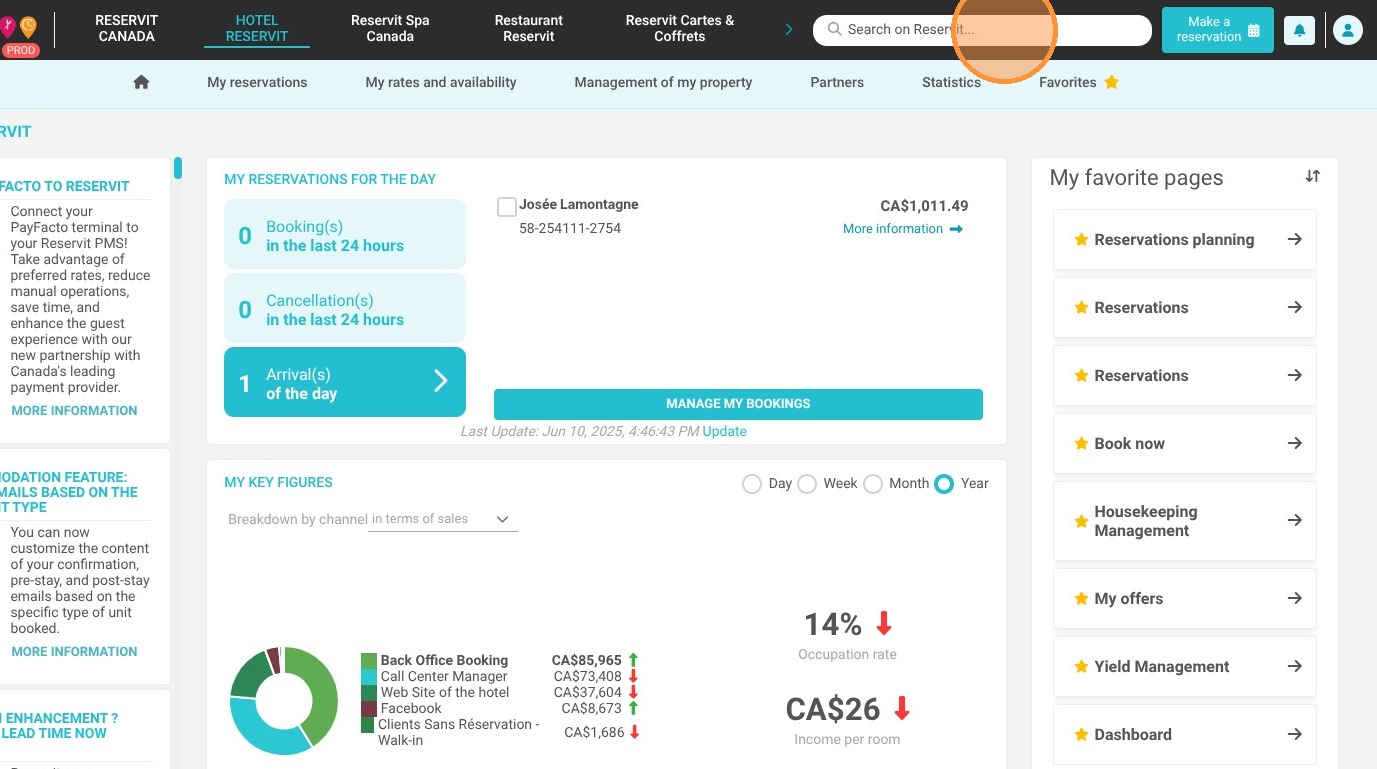
1. Go to your "Reservit PMS Setup" screen.
2. Click "Accounting export"
3. Date to Display for Services
Now choose between the Service Date and the Invoice Date.
Date to Display for Payments
Now choose between the Invoice Date and the Payment Date.
4. Click "Save"