

Article Summary: This tutorial explains how to change the label of a line before issuing a Reservit PMS invoice, for example to replace "Privilège - Chambre Privilège 1 Lit King-Size - Réservez en direct" with "Management Seminar - Accommodation". You will also see how to show or hide the room name above each line.
The 3 Key Steps to Change the Label of an Invoice Line:
-
Open the line: on the reservation calendar, click the booking, open the "Invoice(s)" tab, click the three dots of the line, then "edit".
-
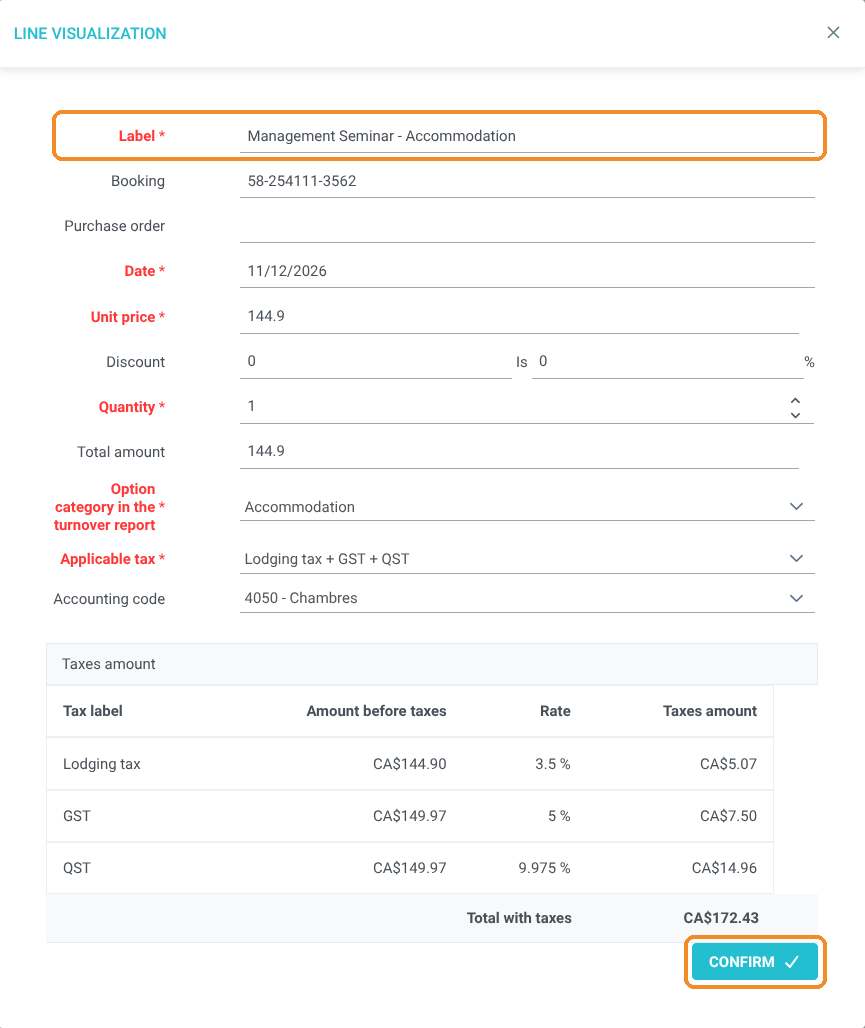
Change the label: type the text you want in the "Label" field, then click "CONFIRM".
-
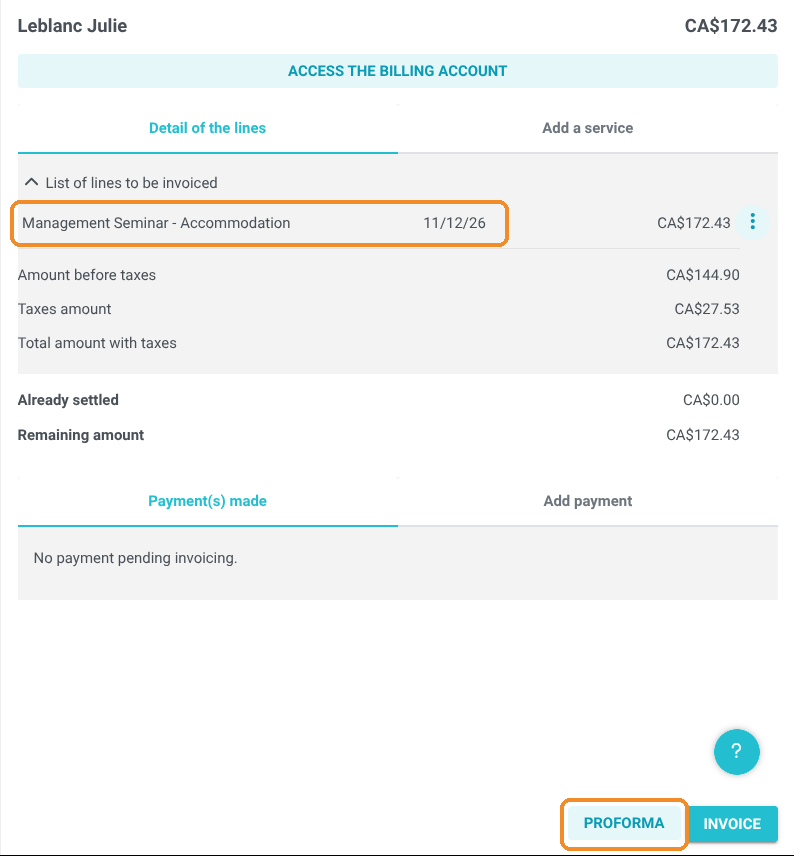
Check before invoicing: click "PROFORMA" to check the result, then issue the invoice.
Why follow this guide? By default, each line shows the name of the room and offer that were booked. Some guests, especially companies, need a clearer description on their invoice (name of a seminar or an event, internal reference). This guide lets you adapt it without changing the amount or the taxes.
Warning: change the label before issuing the invoice. An invoice that has been issued can no longer be changed.
Open the line to change
1. On the reservation calendar ("My reservations" menu), click the booking, then the "Invoice(s)" tab of the side panel. In "List of lines to be invoiced", click the three dots of the line, then "edit".
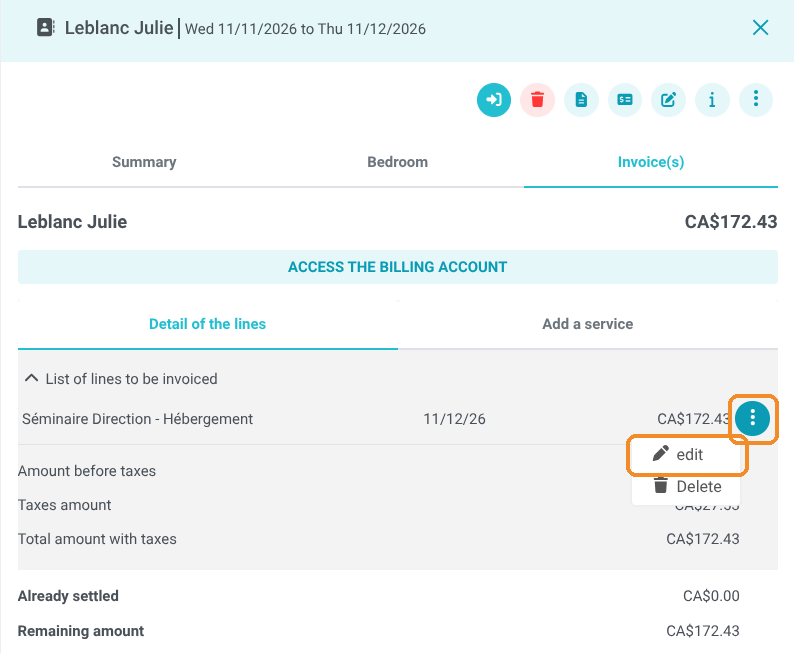
Tip: you can also click "ACCESS THE BILLING ACCOUNT", open the account lines tab, then click the pencil icon of the line. The editing window is the same.
Change the label
2. The line window opens. Replace the text of the "Label" field with the description you want, then click "CONFIRM". Leave the other fields (price, quantity, taxes) unchanged if you only want to change the description.
Check before invoicing
3. The new label is shown in the list of lines. Click "PROFORMA" to check the document before issuing the invoice.
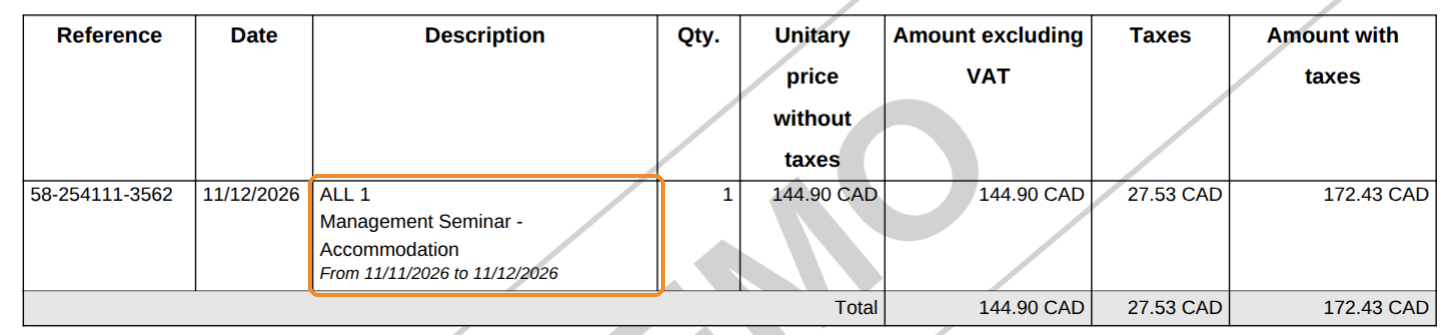
4. In the "Description" column, the line shows the room name (here "ALL 1"), your new label, then the dates of the stay.
Show or hide the room name
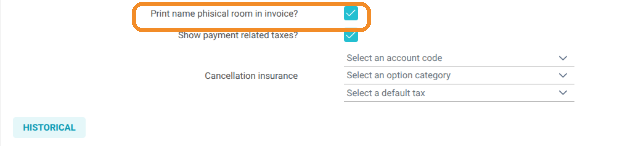
5. The room name shown above the label depends on a setting of your property. In "Management of my property", open the configuration of your property, click "GO TO PAGE" on the Reservit PMS configuration tile, then open the "Invoicing" tab of the "Reservit PMS Setup" page.

6. At the bottom of the tab, tick or untick "Print name phisical room in invoice?", then click "SAVE" at the bottom right. The setting applies to all your invoices.
Good to know: to change the name or address of the guest shown on the invoice, see the tutorial How to update a guest's details on a Reservit PMS invoice.