Article Summary: This tutorial provides a complete walkthrough on how to activate and configure the interactive map feature for your Reservit Accommodation Camping module. You will learn how to enable the map display, customize location filters, and choose specific measurement units to provide guests with a highly visual booking experience. Implementing this interactive floor plan allows campers to seamlessly select their ideal pitch, significantly boosting your direct reservation rates.
The 5 Key Steps to Configure the Interactive Map:
-
Access Customization Settings: Navigate to "Management of my property," click "Reservation Page Customization," and access the main booking engine configuration page.
-
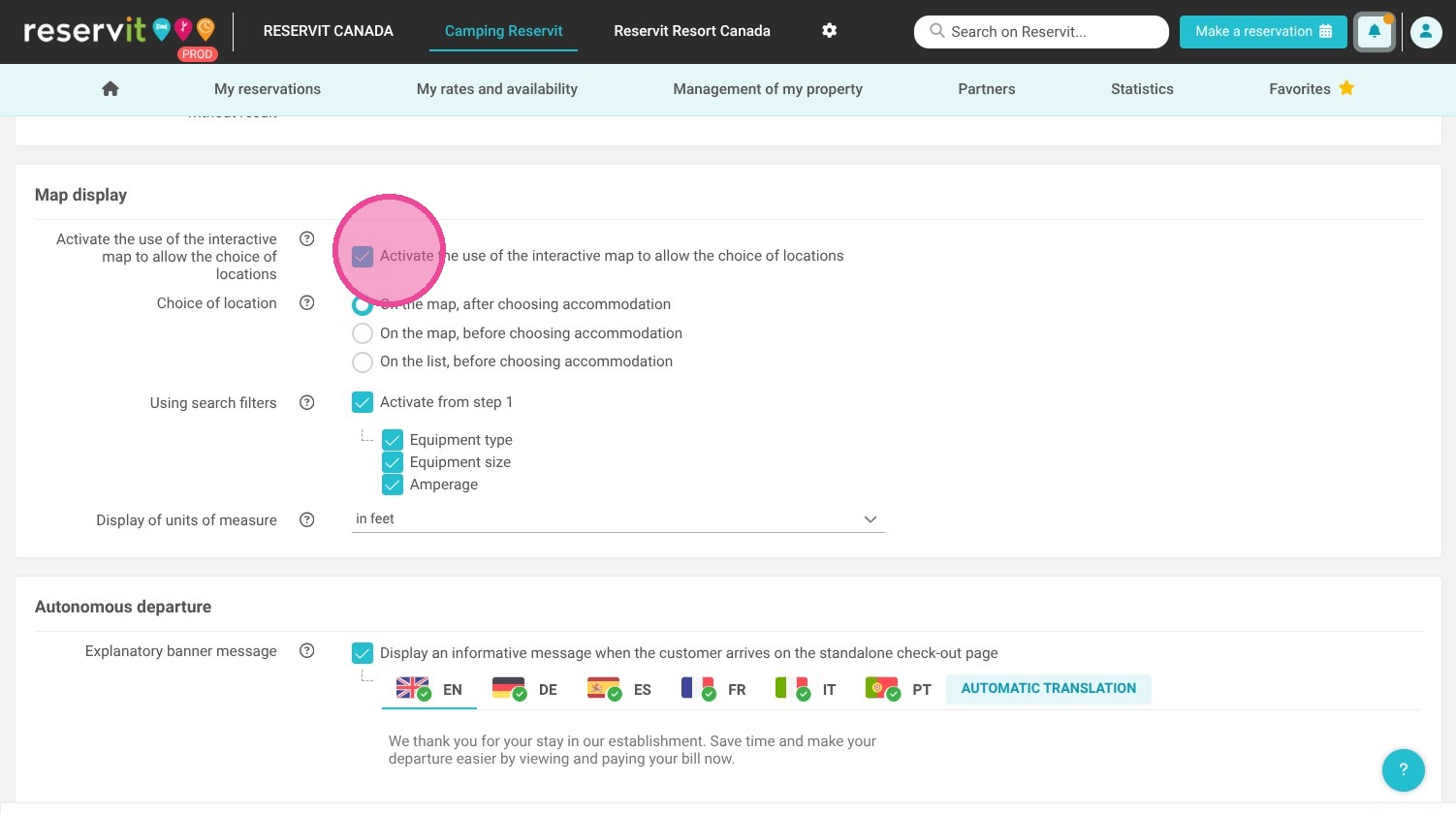
Enable Map Display: Scroll down to locate the map settings and activate the interactive map for your campsite.
-
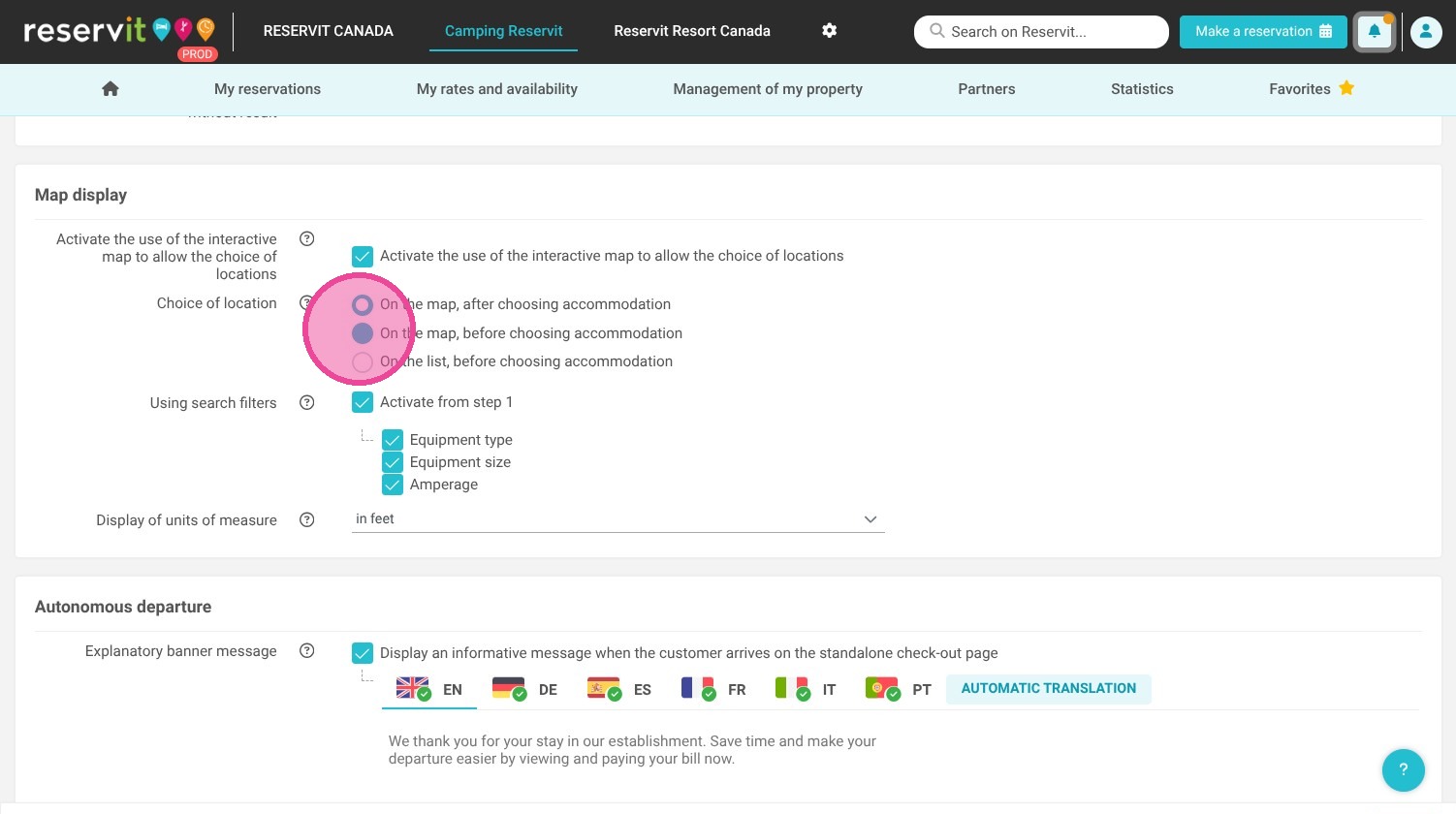
Set Location Options: Define how guests will select their accommodation locations directly on the map.
-
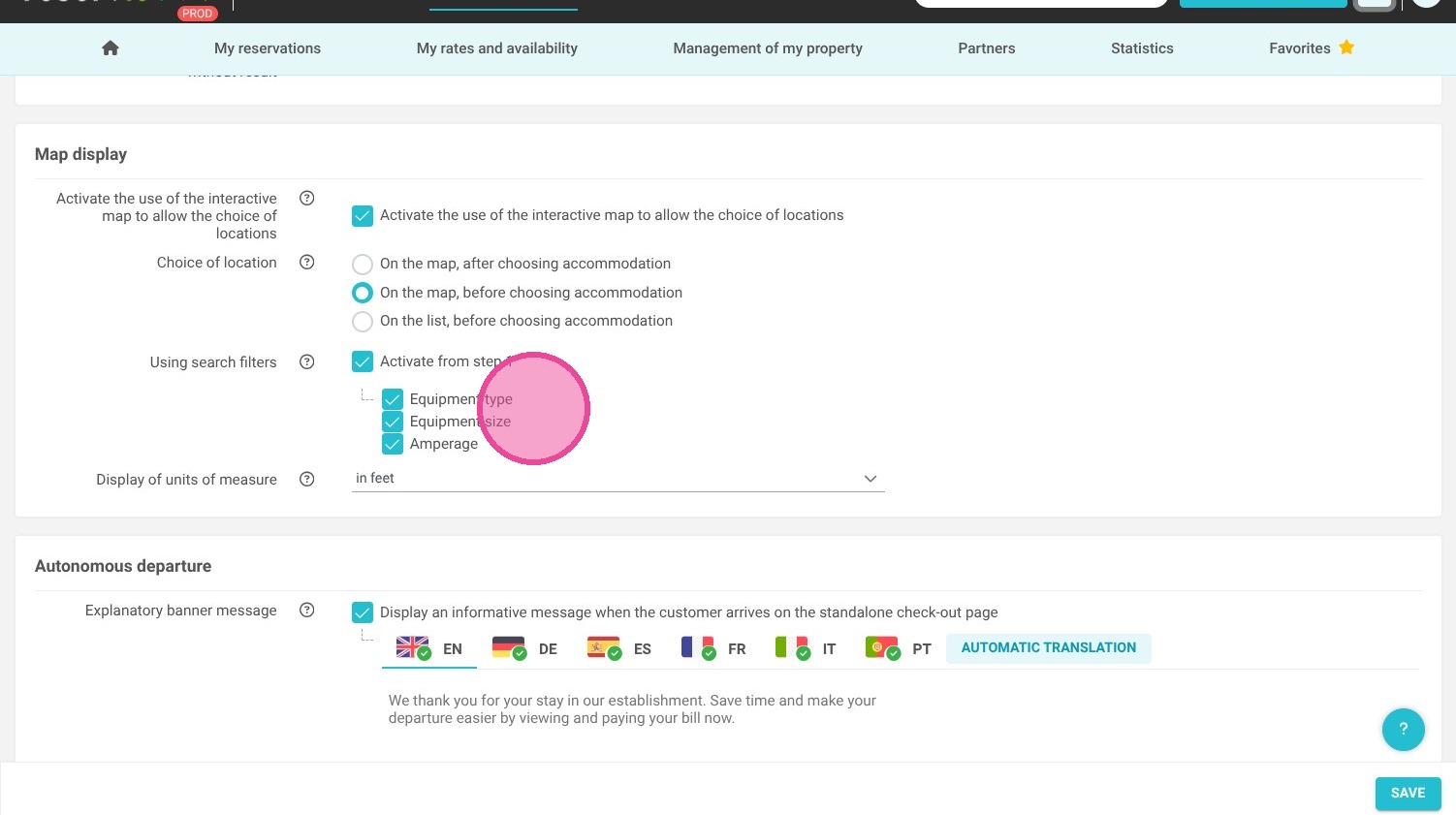
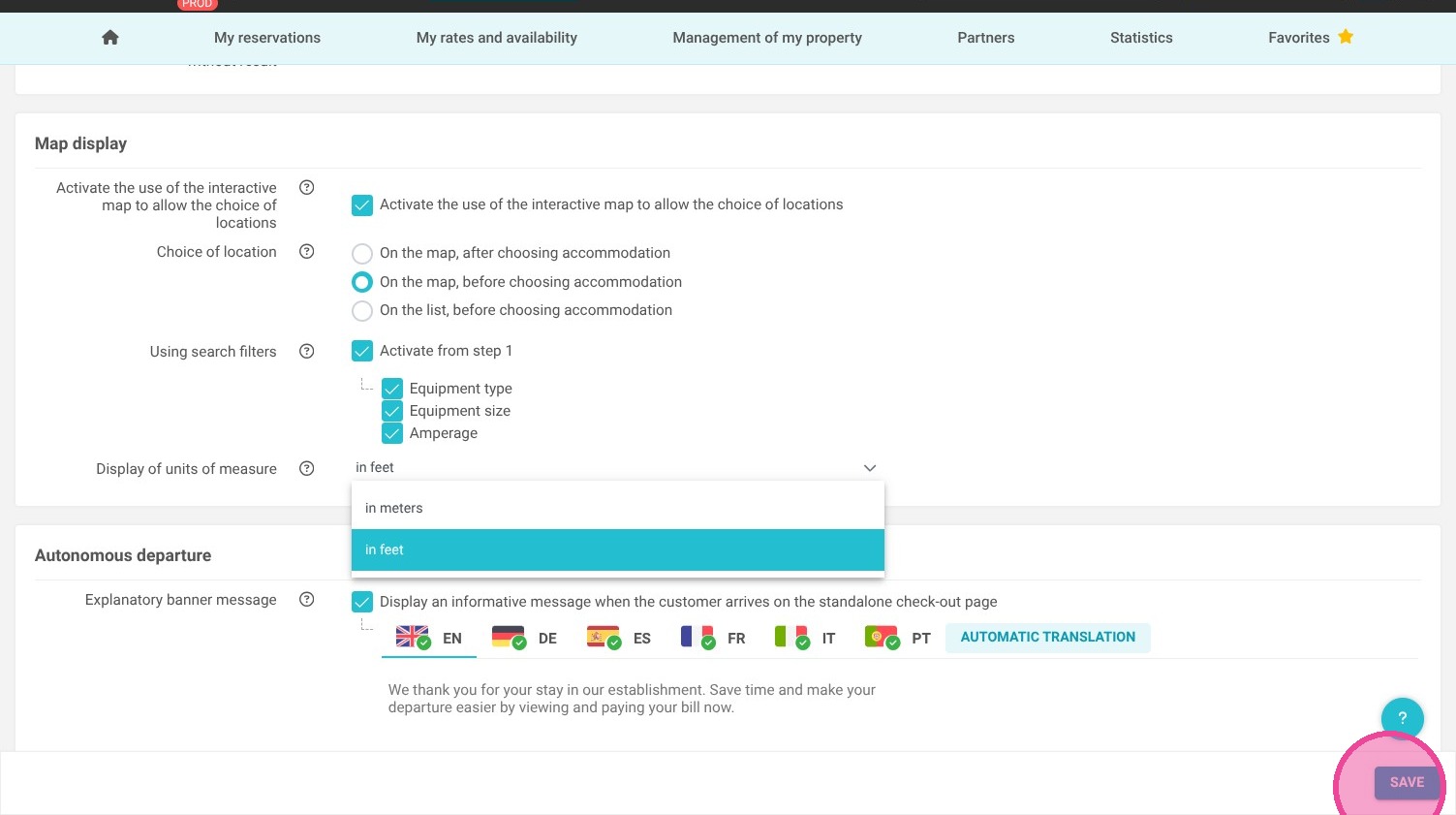
Configure Filters and Units: Apply relevant search filters for the initial booking step and choose your preferred measurement display unit (meters or feet).
-
Save Your Configuration: Click the "Save" button to instantly apply your new interactive map settings to your live booking engine.
Why follow this guide? Configuring an interactive map saves your staff valuable time by reducing location-based inquiries and helps guests confidently pick their preferred campsite. This optimized visual booking journey prevents reservation errors and elevates the overall customer experience, giving your campground a distinct competitive edge.
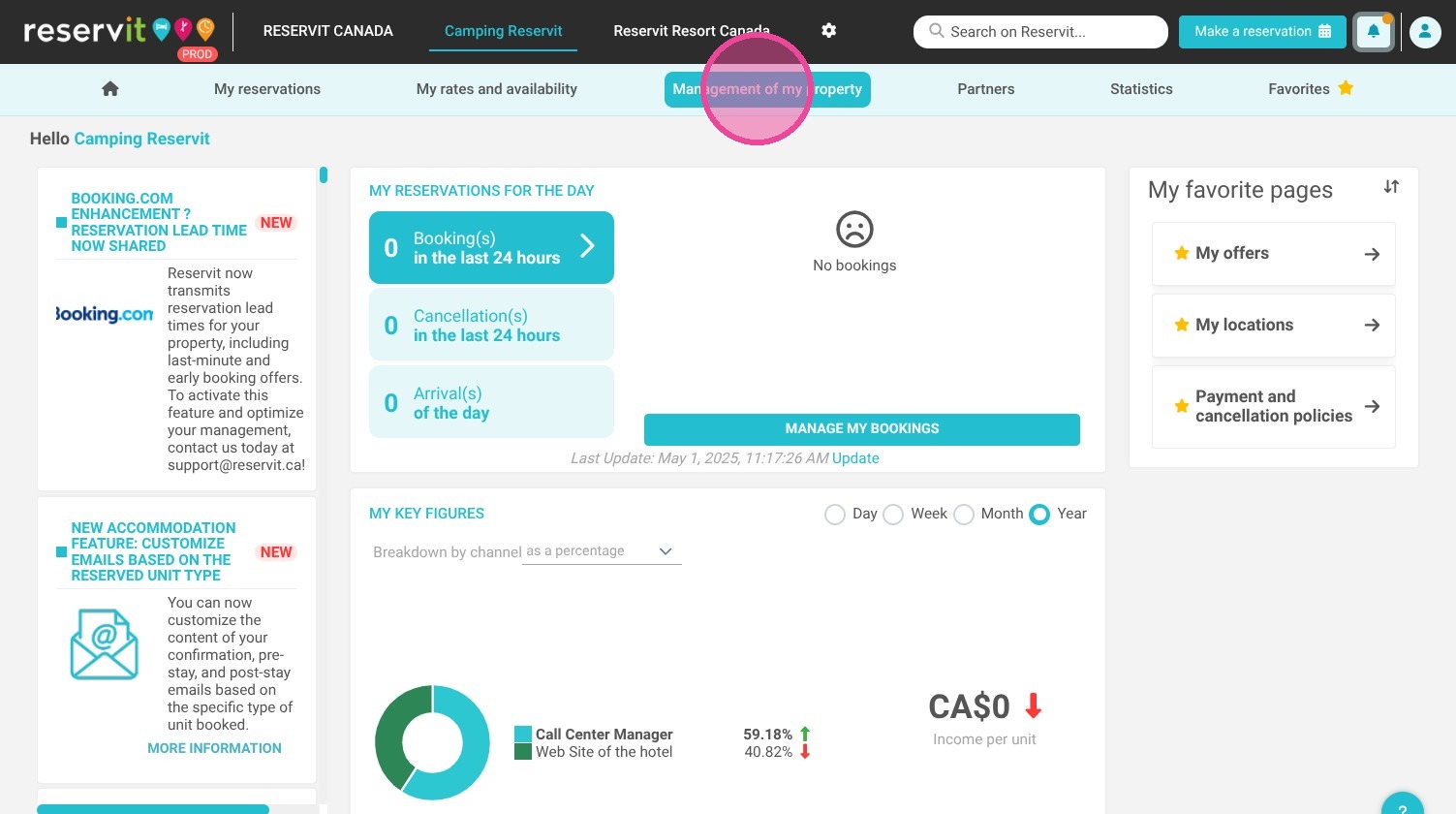
1. Click "Management of my property"
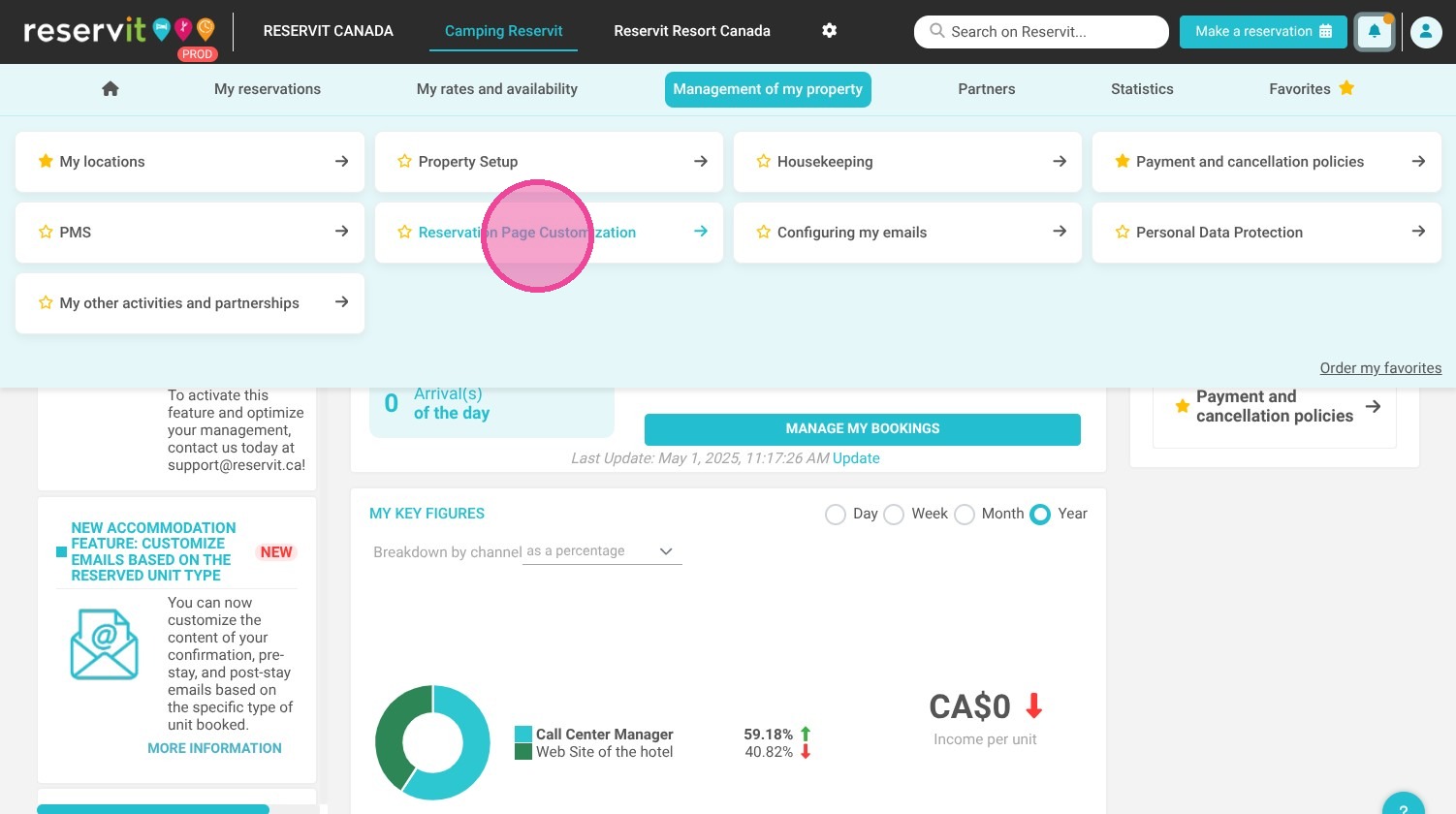
2. Click "Reservation Page Customization"
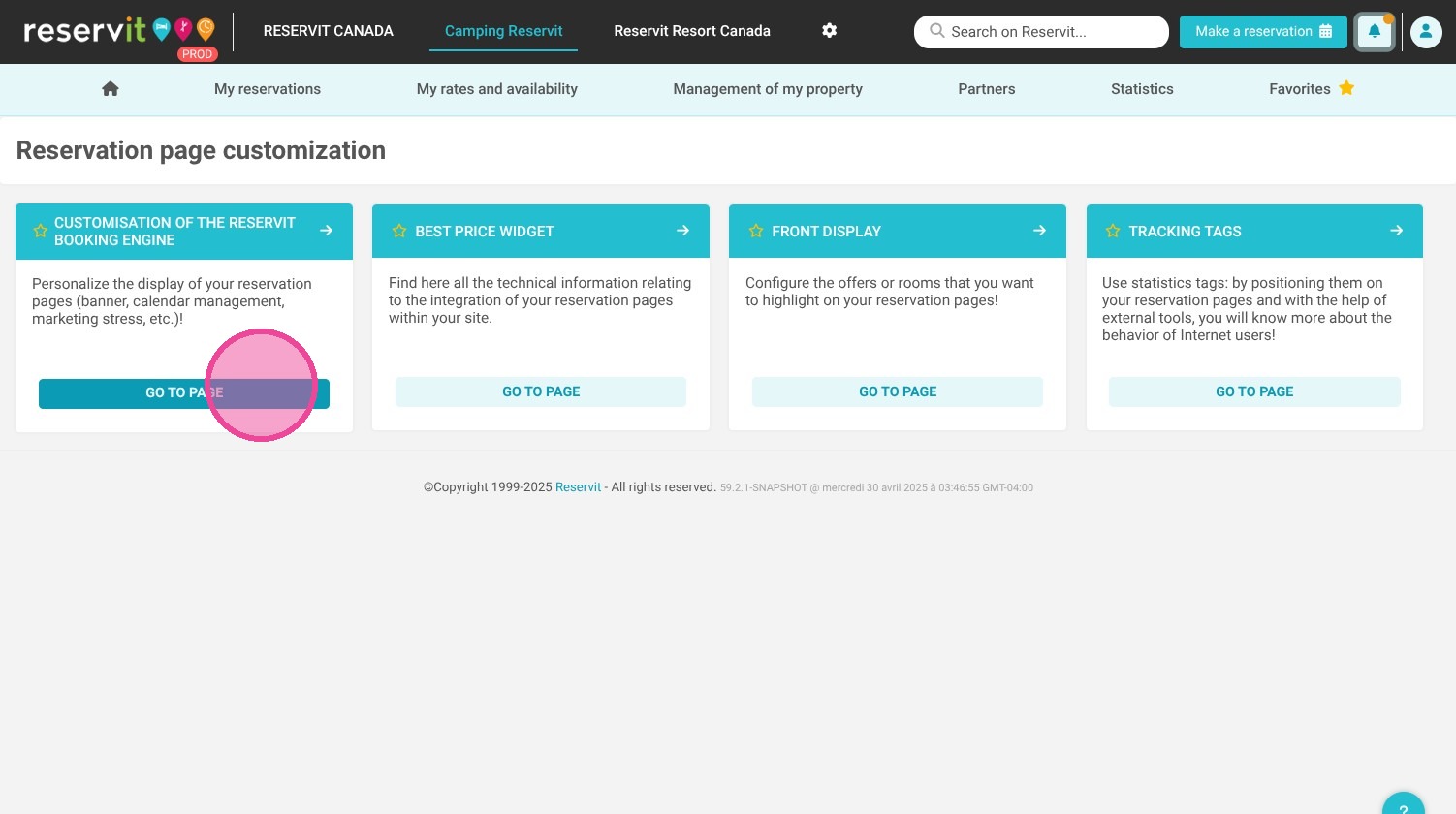
3. Click "Go to page"
4. Scroll down until you see the settings for the map display. You can activate it or not.
5. Choose where to select the accommodation's place.
6. You can choose search filters from step one.
7. You have the possibility to choose between "meters" or "feet" for the measured display of units.
8. Click "save".