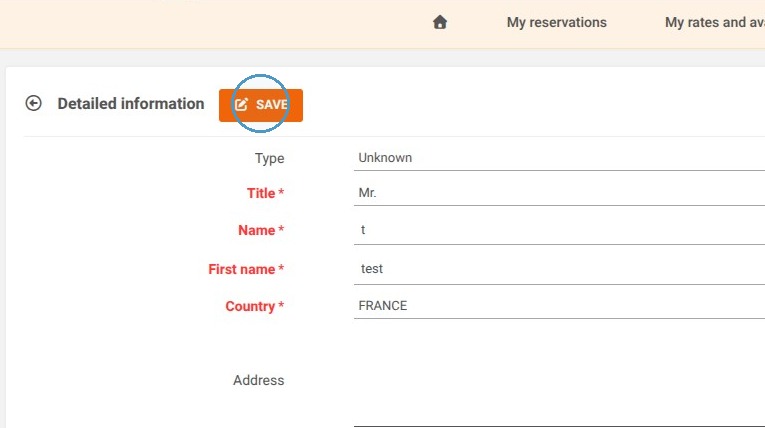
In Reservit Gift Cards and Certificates, customer profiles (purchasers and beneficiaries) can be viewed and edited in the same way as in Reservit Activities: follow the steps below.
Article Summary:
This tutorial explains how to access your database and modify personal customer information in Reservit Activities and Reservit Gift Cards and Certificates. You will learn how to use search tools to find a profile, view booking history, and easily update contact details. By mastering customer profile management, you ensure seamless communication and high-quality sales tracking.
The 5 key steps to managing customer information:
-
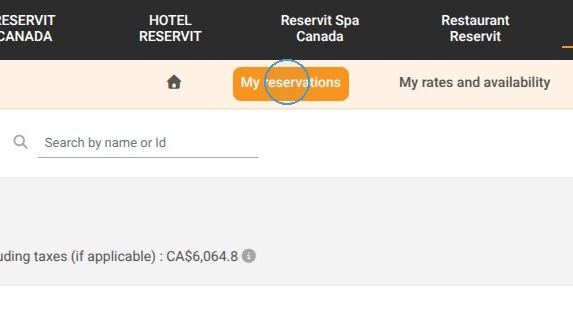
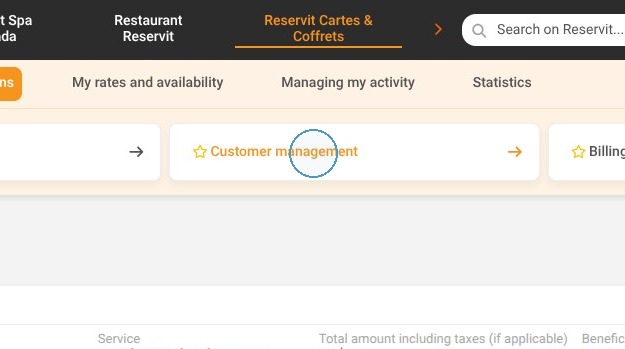
Access the database: Go to the "My reservations" menu, then select "Customer Management" to open your directory.
-
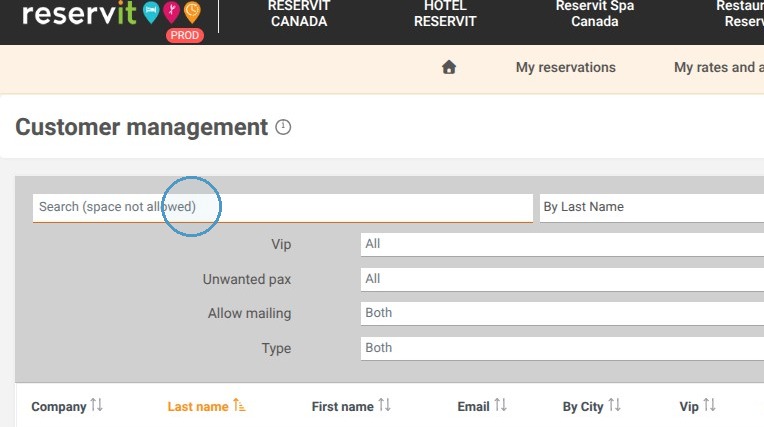
Search for a profile: Use the search bar (by last name, first name, company, or city) or the "Advanced Search" feature to quickly find a specific contact.
-
View the customer profile: Click directly on the customer's name to view all their contact details and access their full booking history.
-
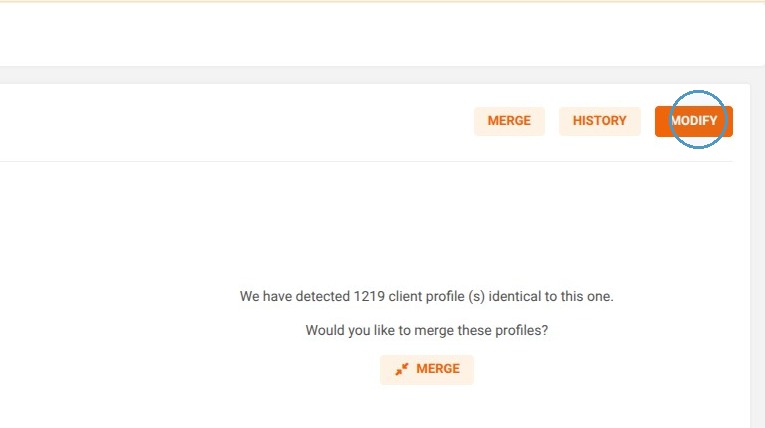
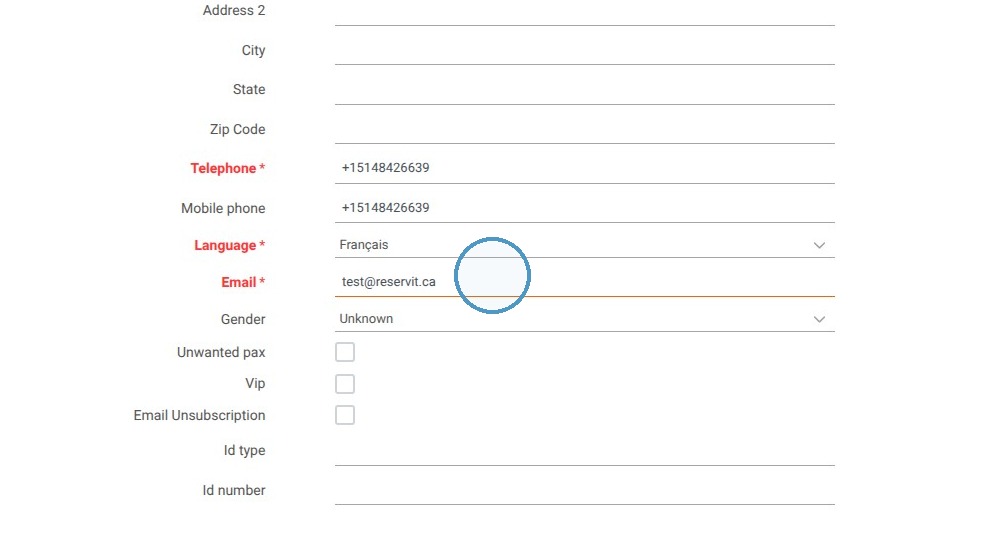
Update information: Click the "Modify" button to adjust information (such as email address), ensuring all mandatory fields are completed.
-
Save changes: Click the save button at the bottom of the page to confirm and instantly apply the new information to the profile.
Why follow this guide?
Keeping customer profiles fully up to date prevents communication errors (such as email delivery failures) and secures your customer follow-ups. Rigorous database management saves you valuable time on a daily basis and directly contributes to customer loyalty.
1. Click "My reservations" Click "Customer management"
2. You can search by last name, first name, company, or city.
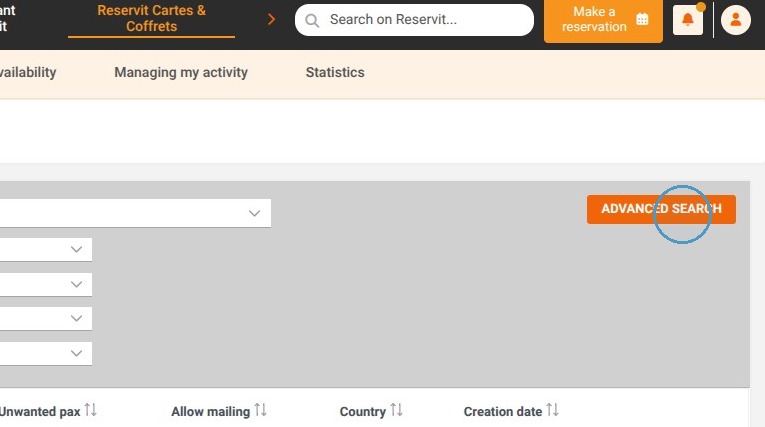
3. You can also perform a more specific search by clicking ADVANCED SEARCH
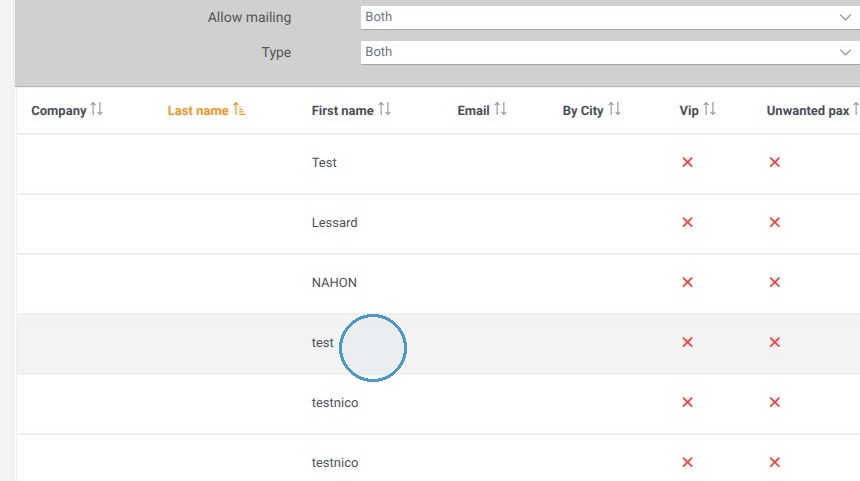
4. Click on the customer to view their details.
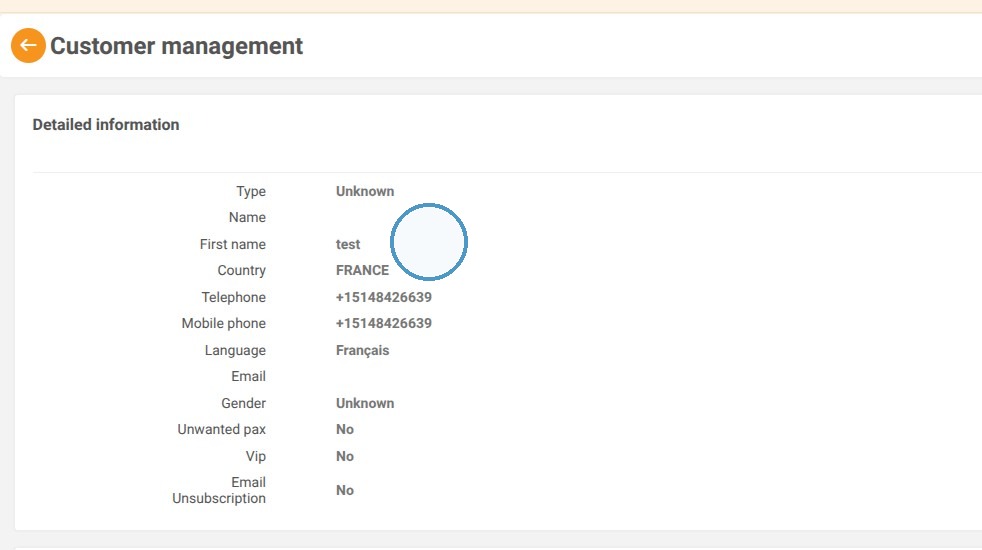
5. The customer's information will now be displayed.
6. You can access the customer's history in this section.
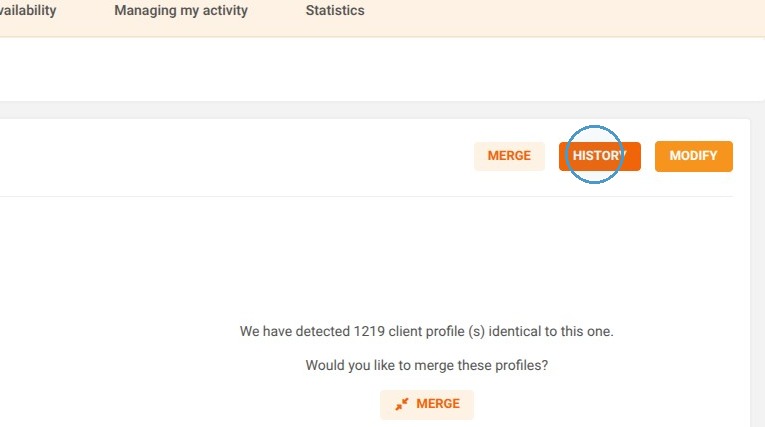
7. If you want to modify customer information, click Modify.
8. For example, you can edit the customer's email address.
9. Do not forget to fill in the mandatory fields!
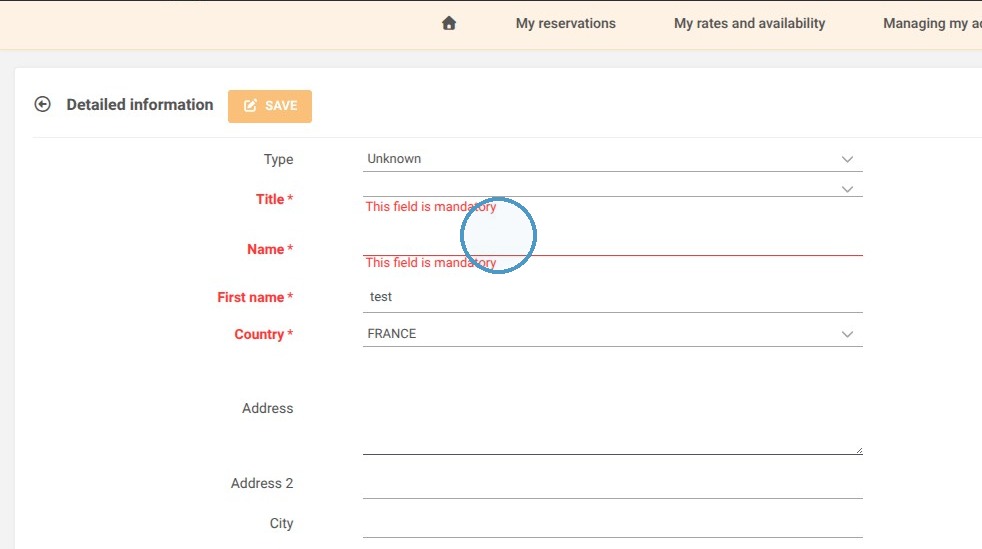
10. Then, click save and the updated customer information will be saved.