

Article Summary: This tutorial guides you step by step through the creation of a gift box offer in Reservit Accommodation, the first part of setting up a gift box that can be bought online. You will learn how to create the offer, enter its essential information and apply the right distribution and sales settings. Mastering this setup lets you diversify your revenue and offer a new direct purchase option on your website.
The 4 Key Steps to Create Your Gift Box Offer:
-
Create the offer: Click "My rates and availability" > "My offers" > "MY GIFT BOXES", then "ADD".
-
Enter the essential information: Enter the name of the gift box in all your languages, the stay period, the valid days, the terms of sale and the bookable rooms.
-
Apply the right settings: Distribute the offer on your website only, keep no striked price, no sales limit and no specific sales period, and keep the OTA code "GIFT".
-
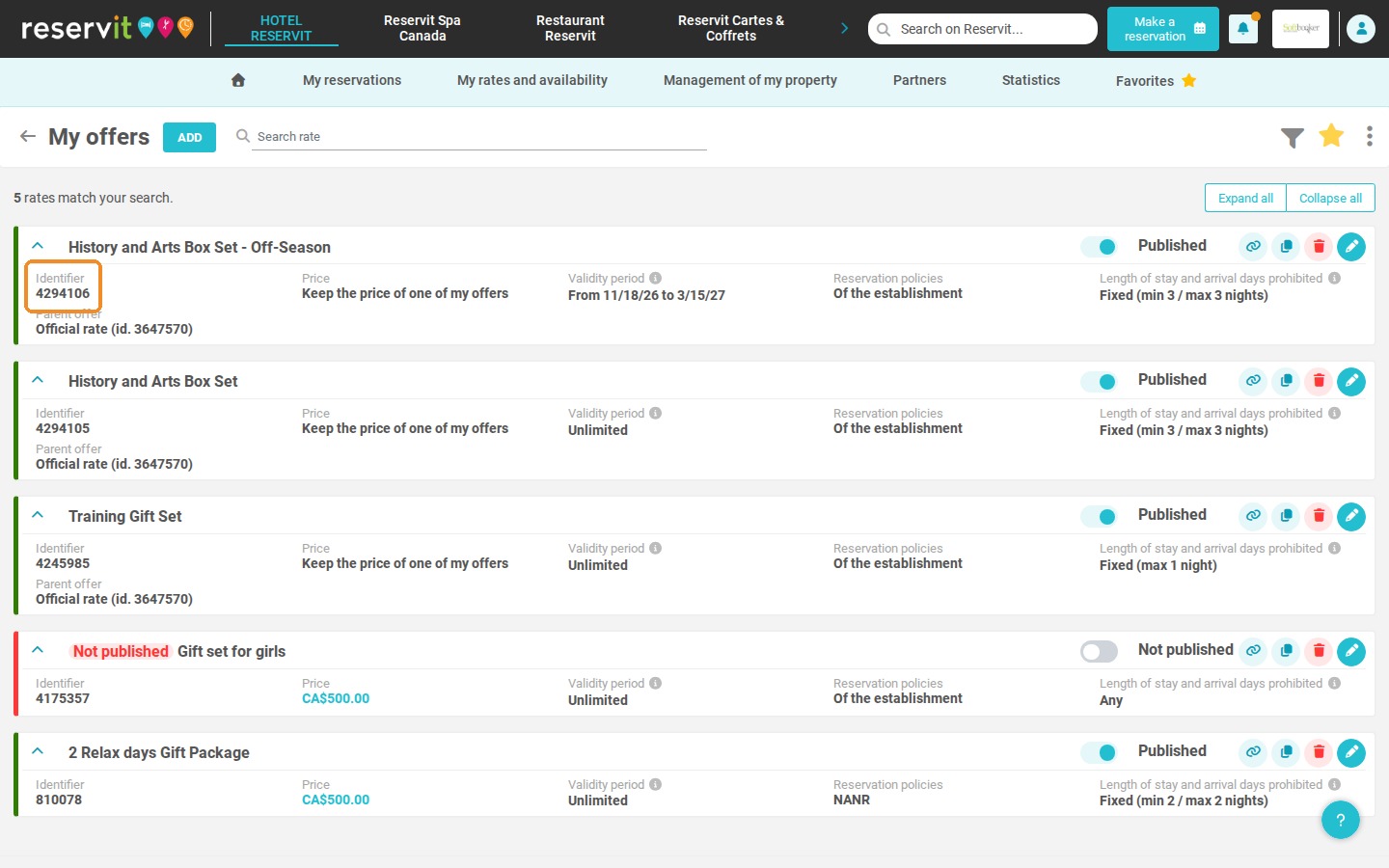
Save and note the identifier: Click "SAVE MY OFFER" and note the offer identifier shown in your gift box list.
Why Follow This Guide? Following these settings avoids the most common configuration errors (such as sales limits or restricted sales periods) that would prevent your customers from booking their gift box. It also prepares the link with Reservit Gift Cards & Boxes and with your PMS, which saves you time later on.
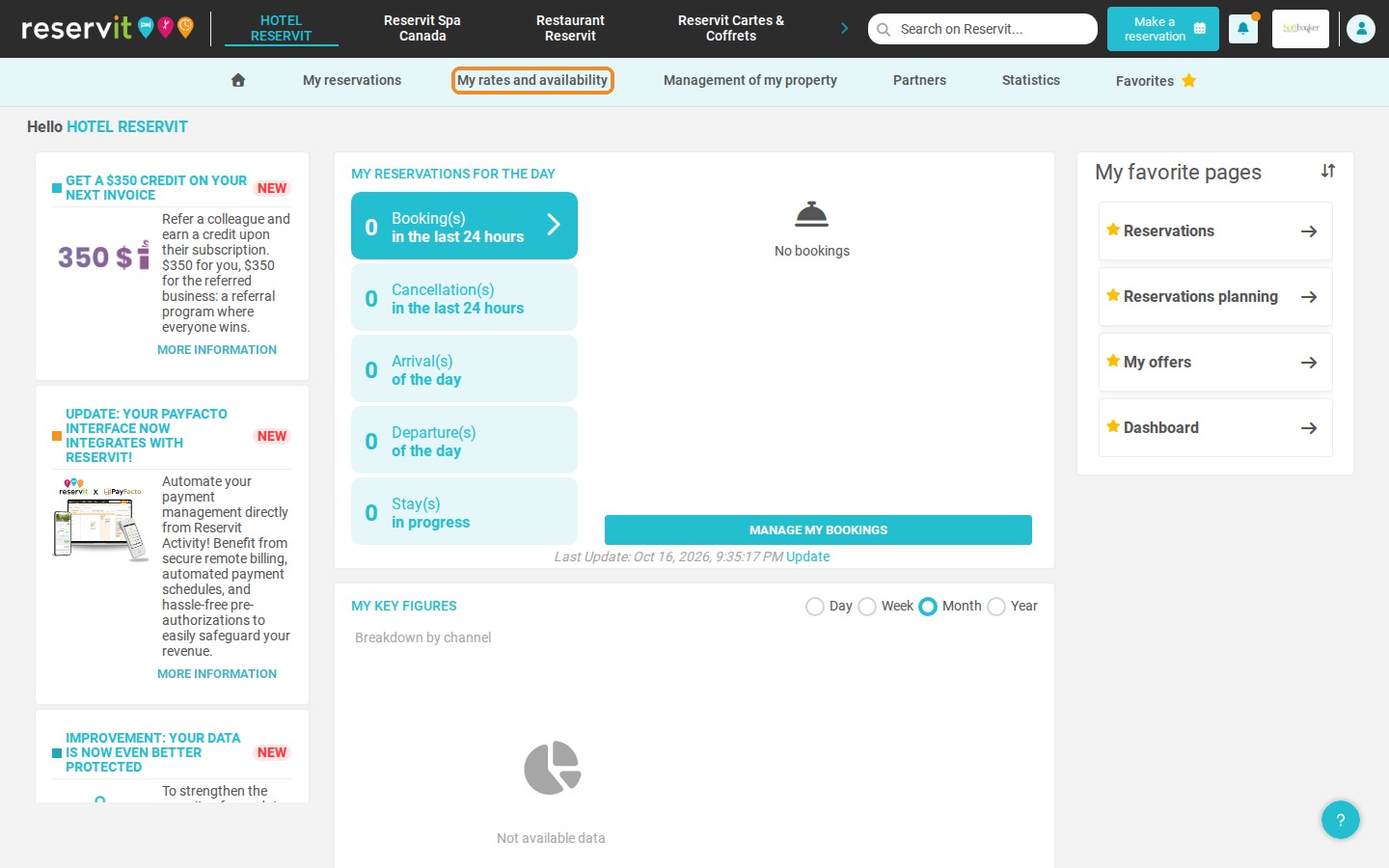
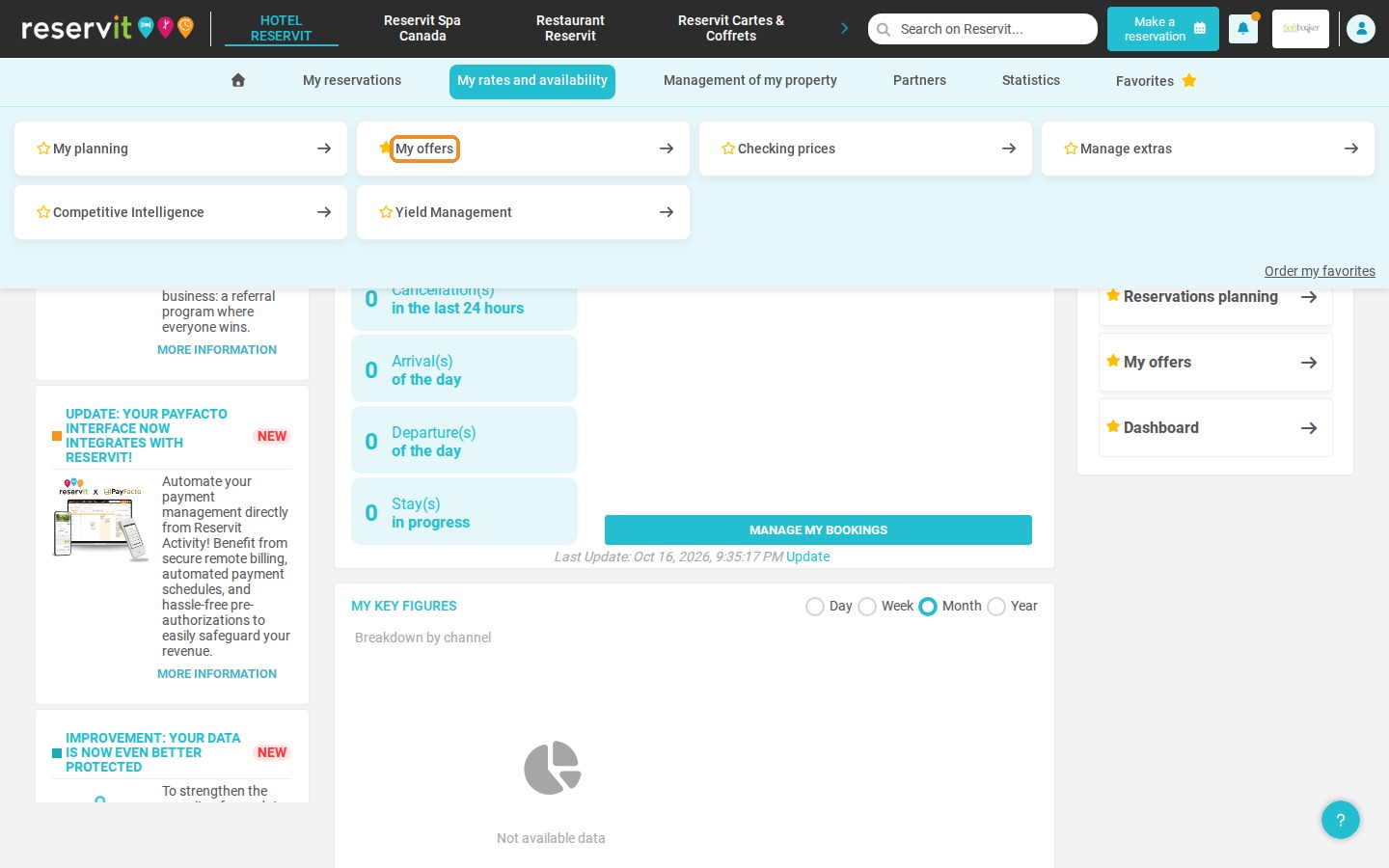
1. If you use Reservit Accommodation, start by setting up the gift box offer: click "My rates and availability" > "My offers".
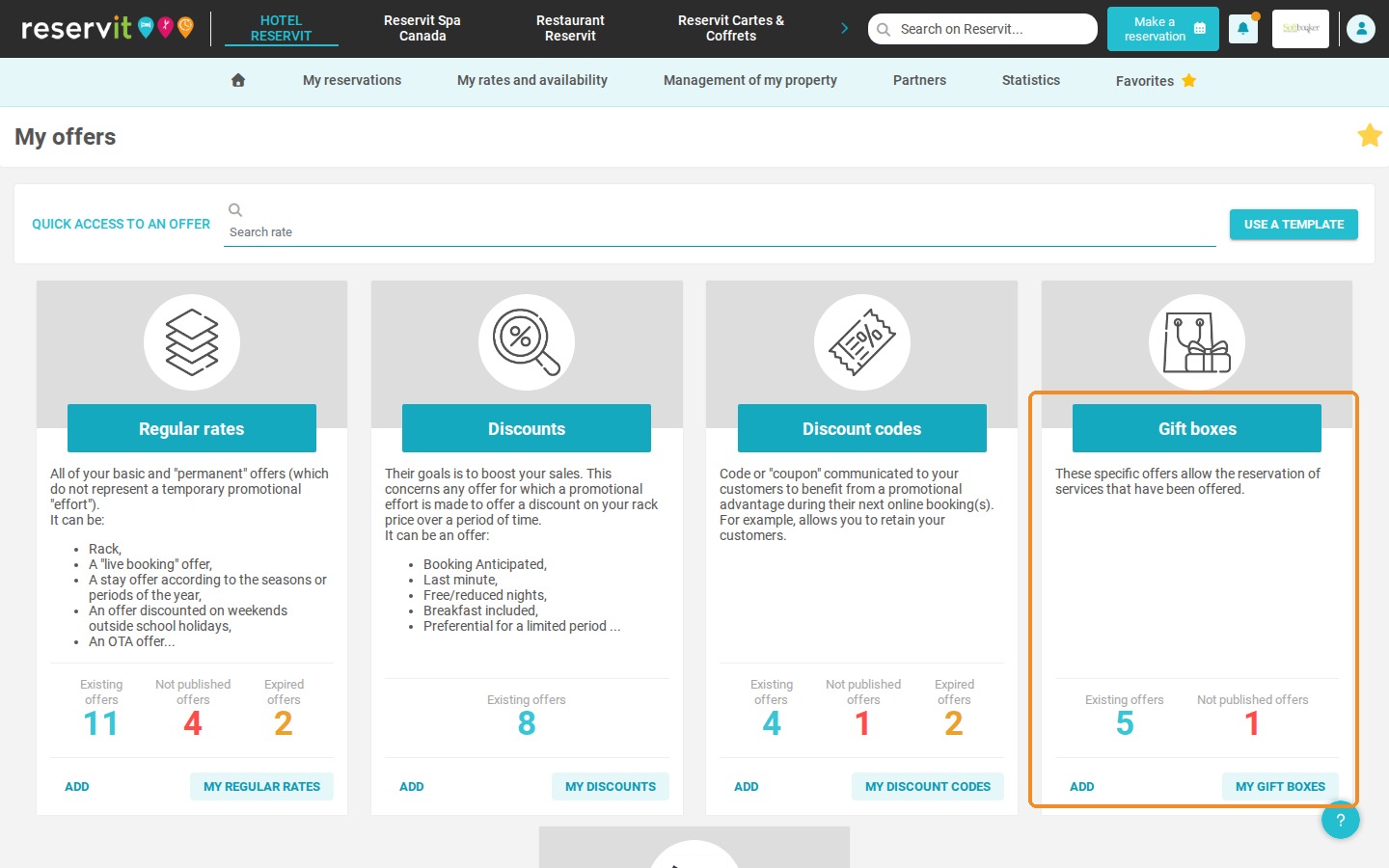
2. On the "Gift boxes" tile, click "MY GIFT BOXES".
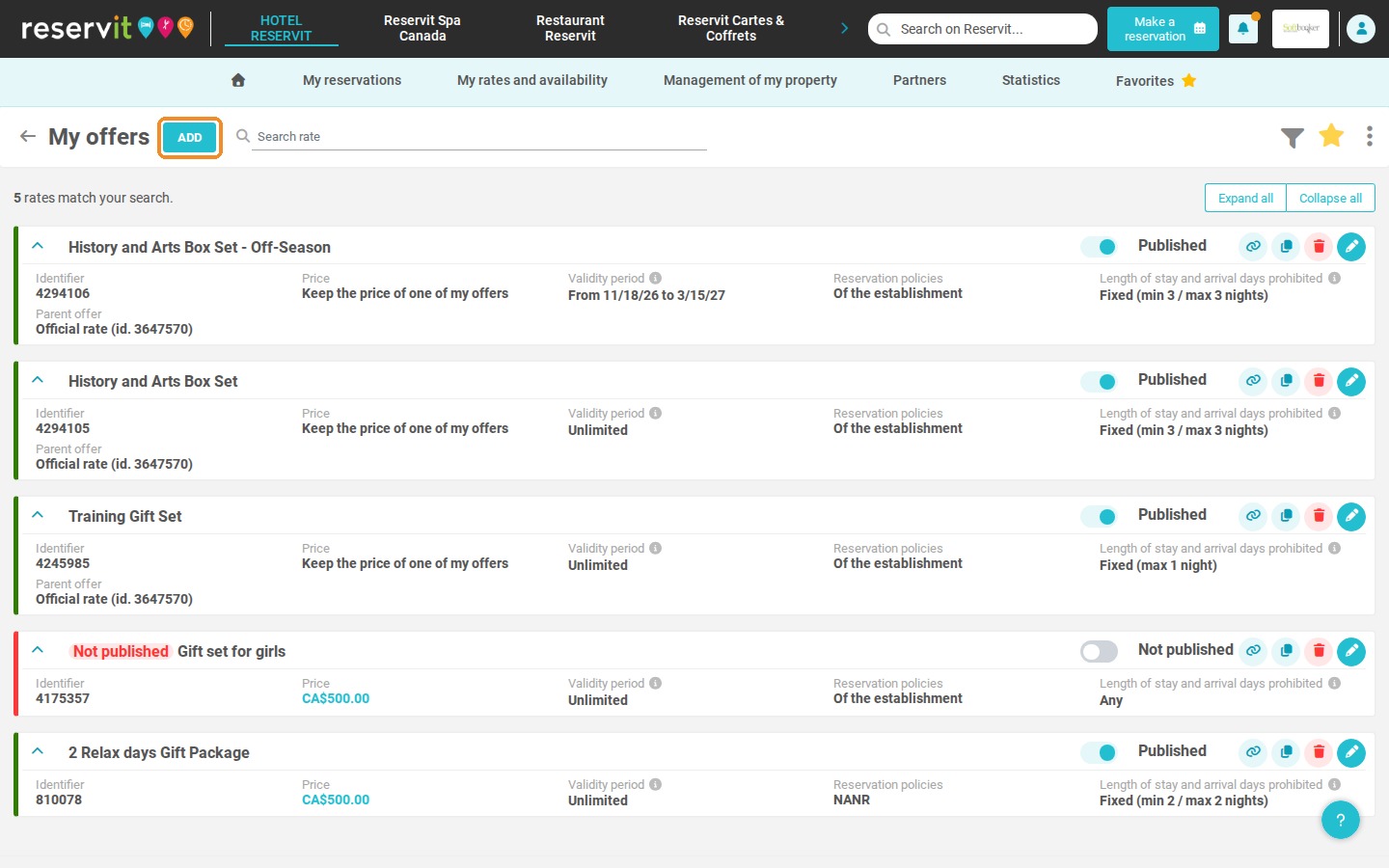
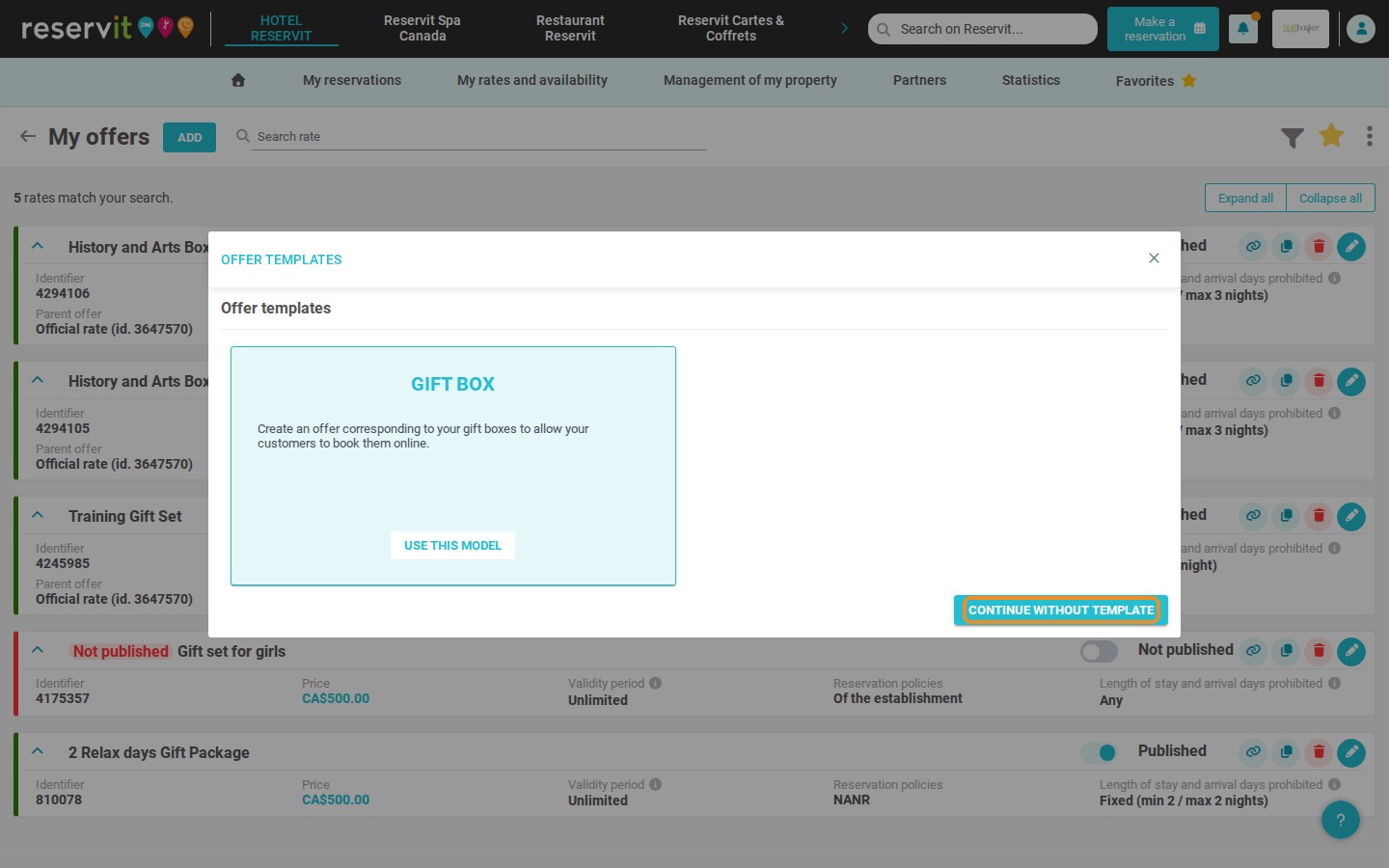
3. Click "ADD". In the "OFFER TEMPLATES" window, click "CONTINUE WITHOUT TEMPLATE" (or "USE THIS MODEL" on the "GIFT BOX" template).
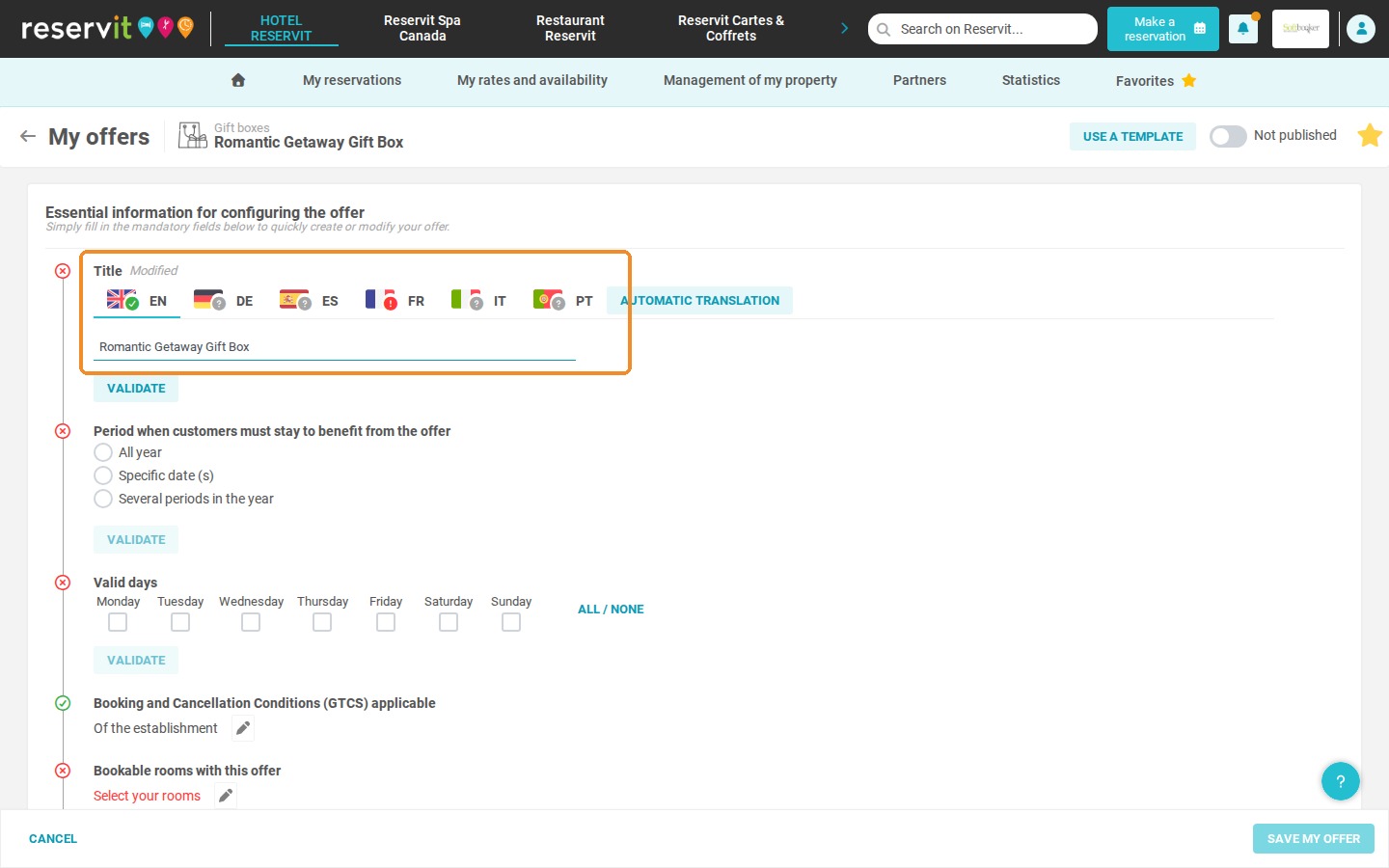
4. Enter the name of the gift box in the "Title" field.
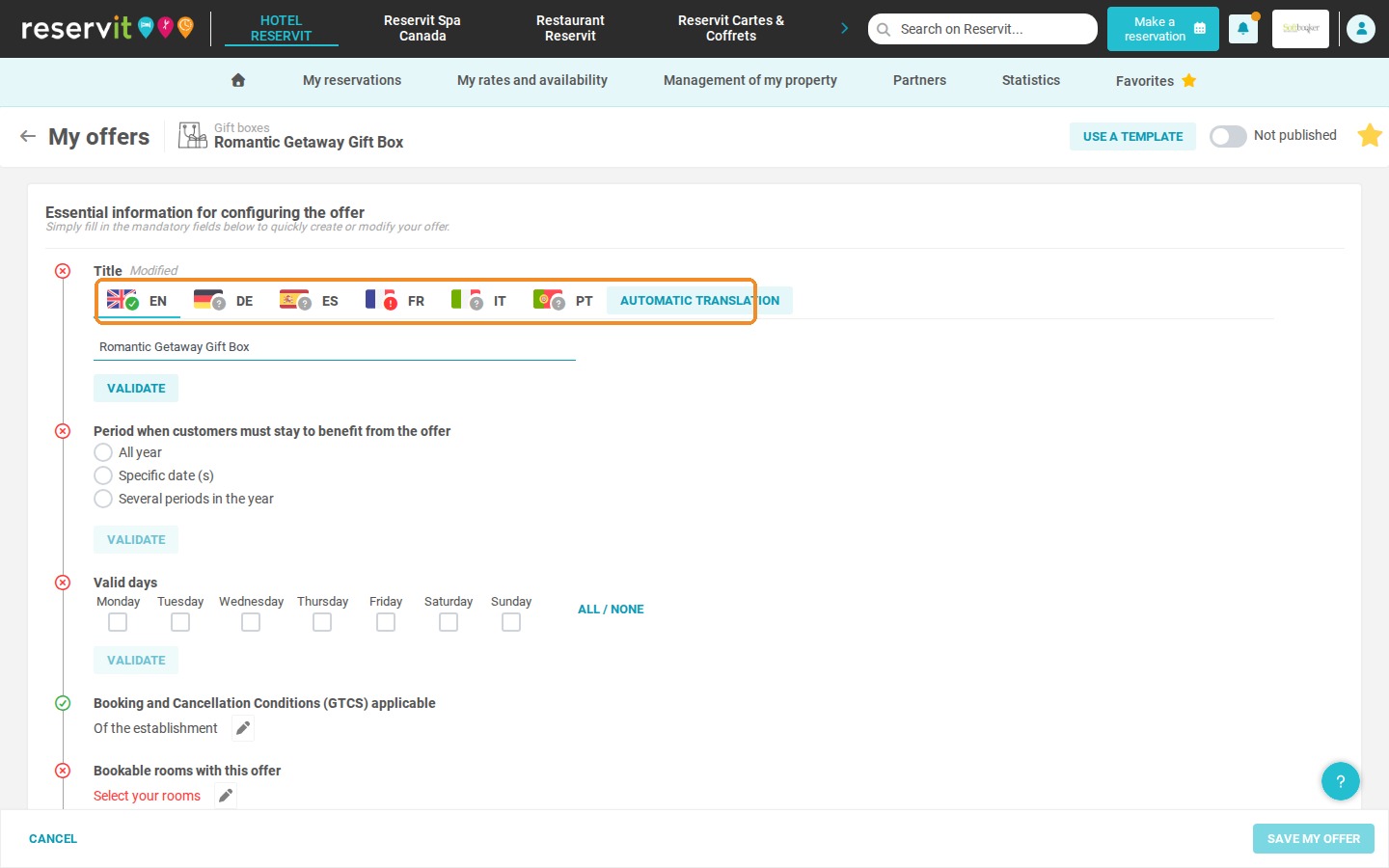
5. Don't forget to enter the title in your other languages too (for example French), using the language tabs or "AUTOMATIC TRANSLATION".
6. Follow the steps and fill in all the essential information: the period when customers must stay, the valid days and the bookable rooms.
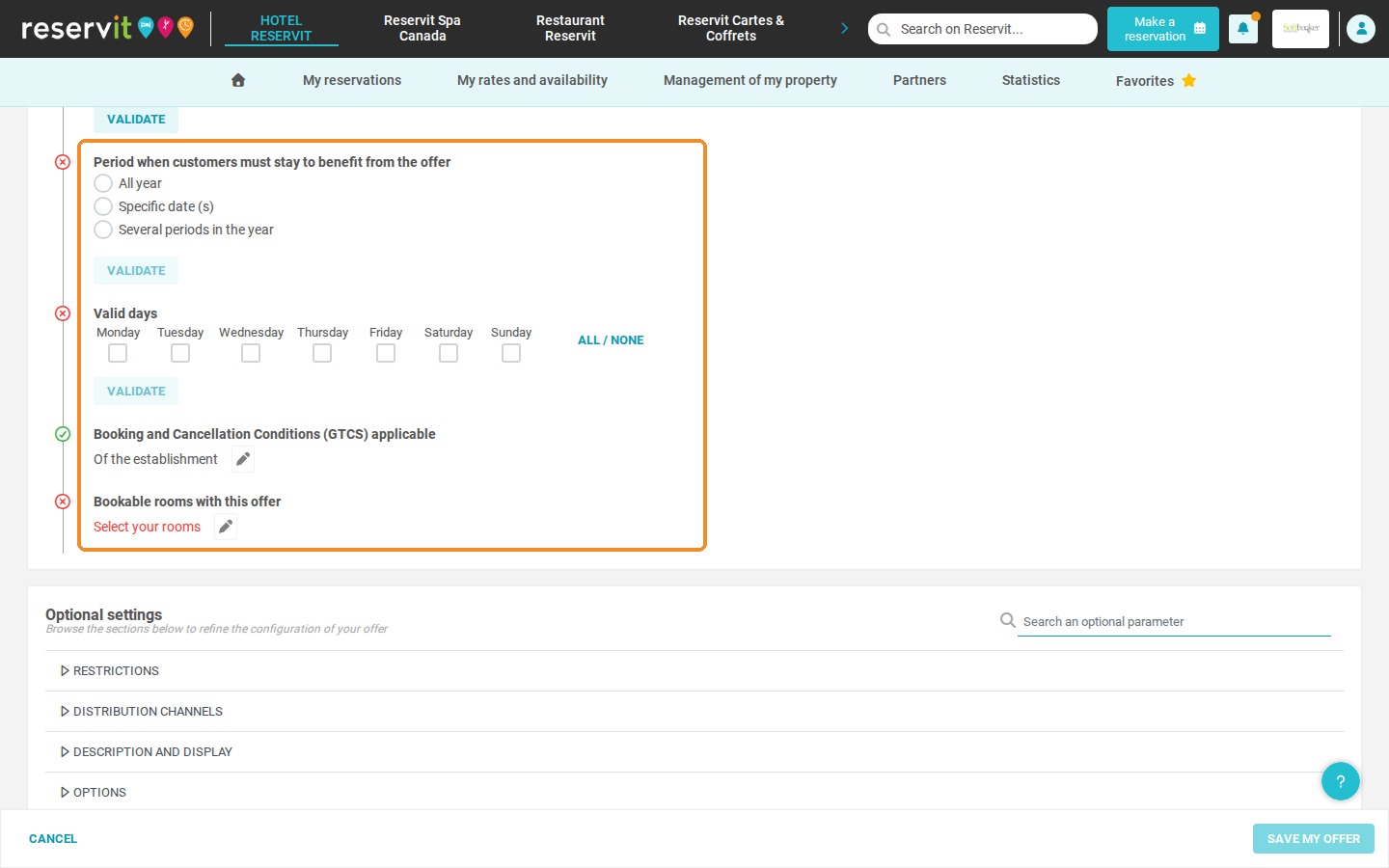
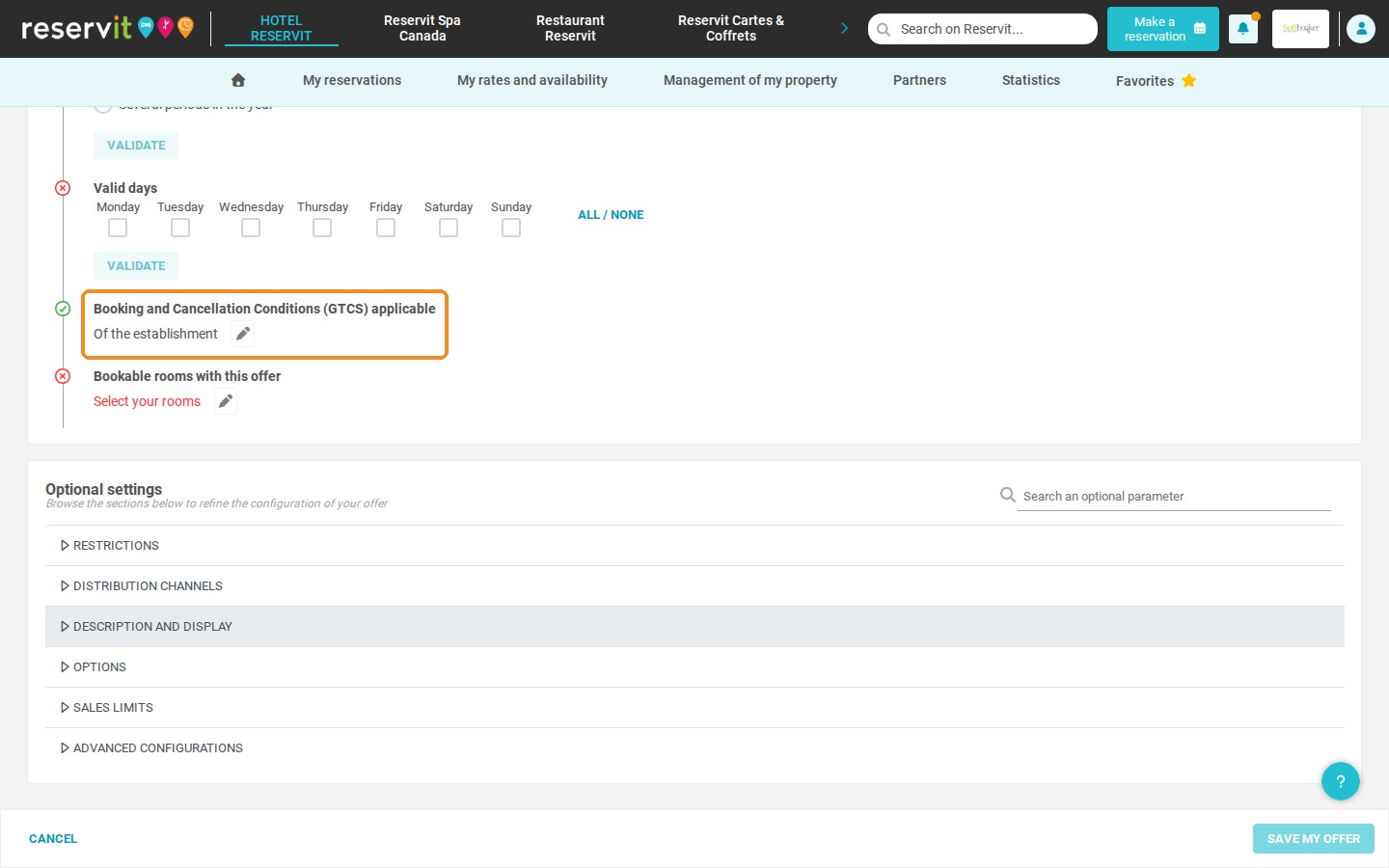
7. The terms of sale ("Booking and Cancellation Conditions (GTCS) applicable") are the conditions that will be visible to the beneficiary of the gift box.
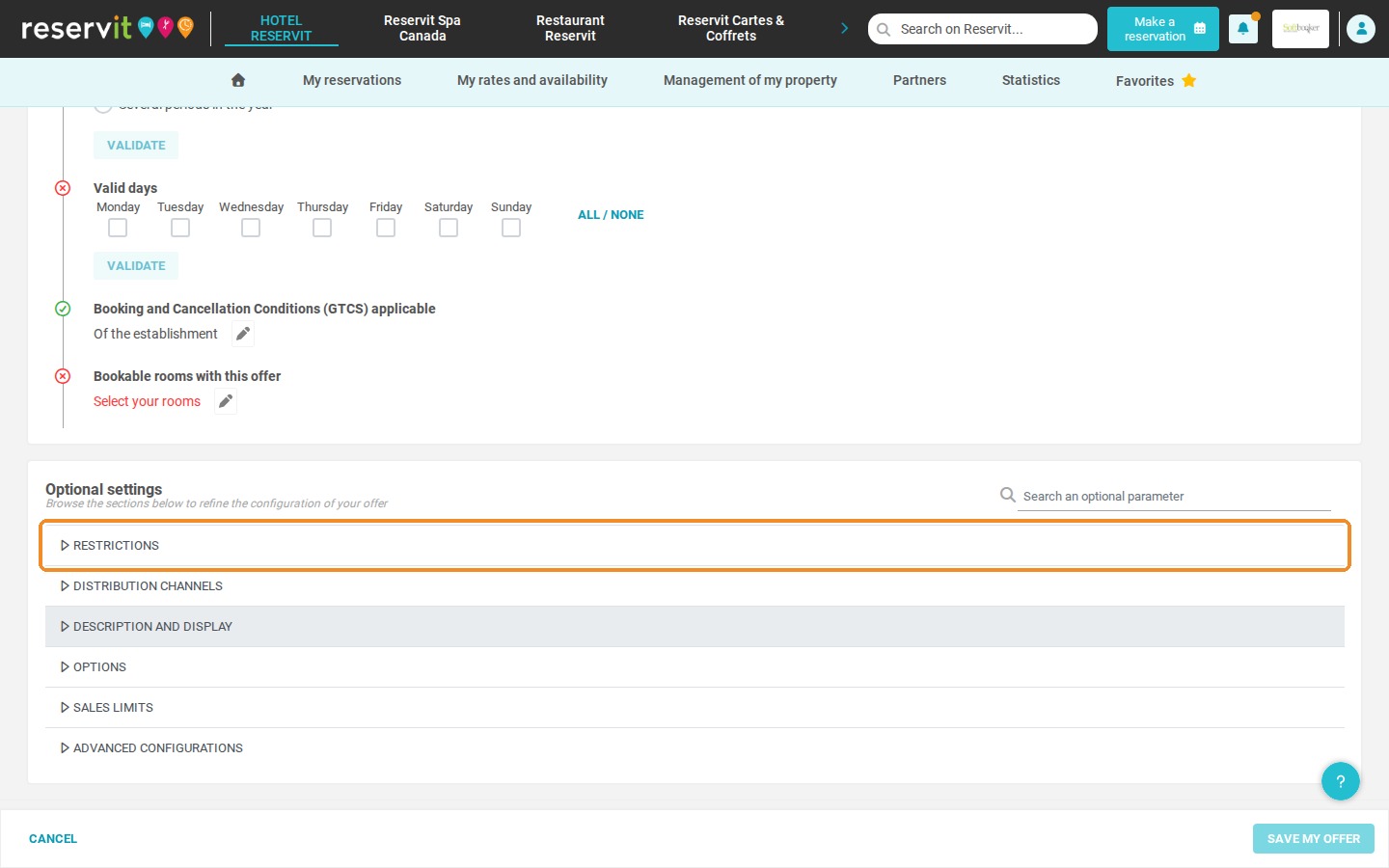
8. In the "Optional settings", click "RESTRICTIONS".
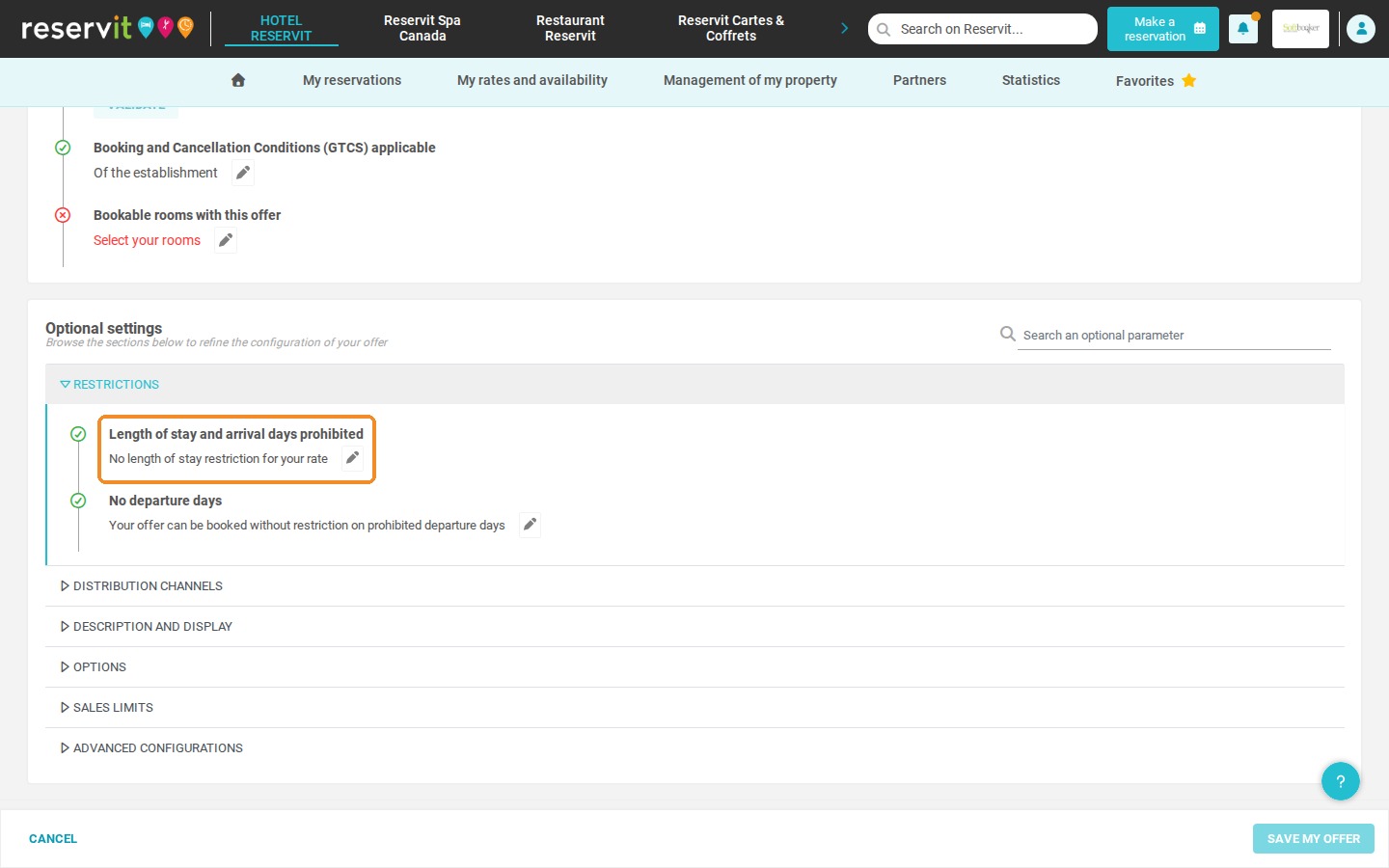
9. In this section, you can specify the length of stay ("Length of stay and arrival days prohibited").
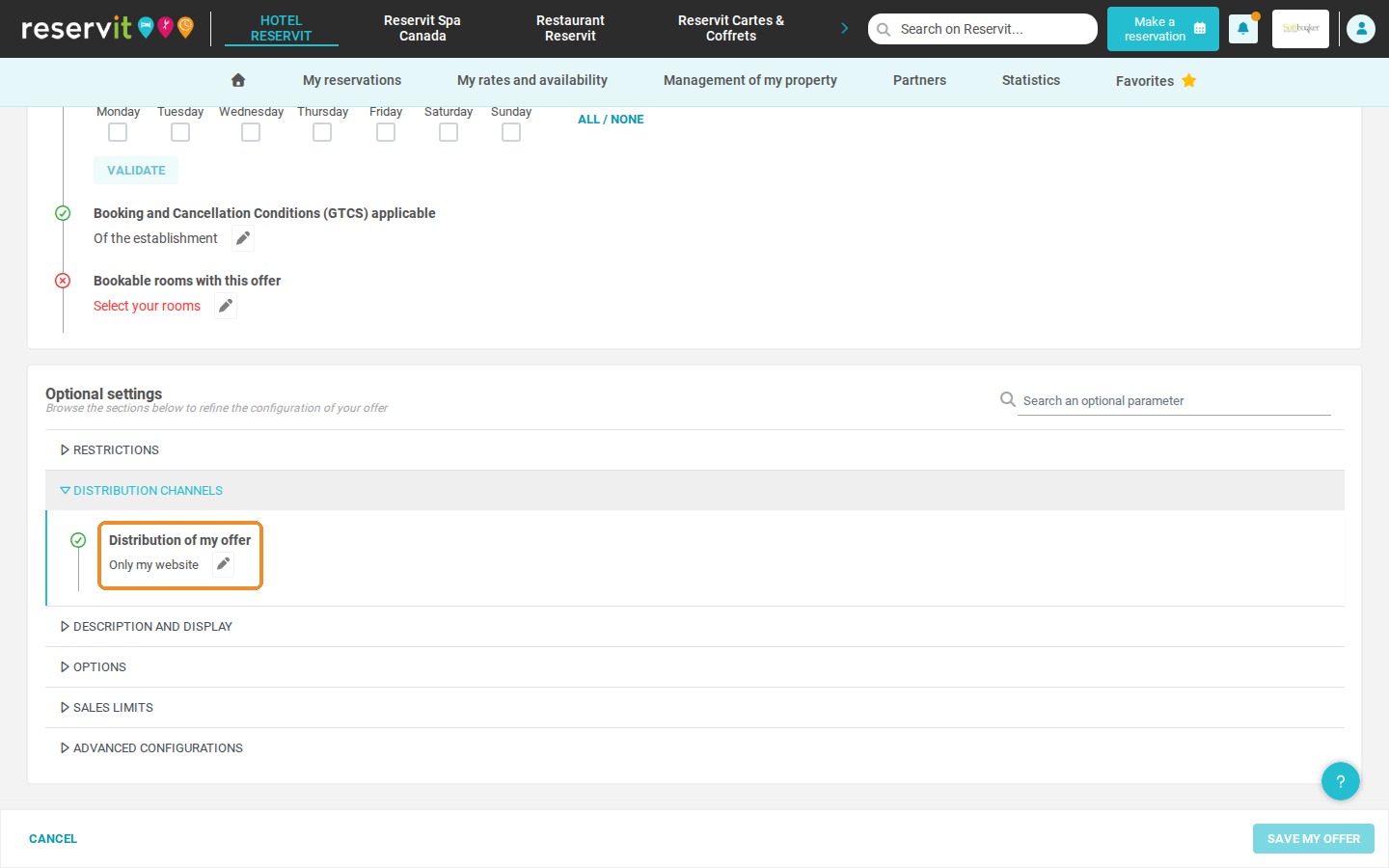
10. In "DISTRIBUTION CHANNELS", set "Distribution of my offer" to your website only ("Only my website").
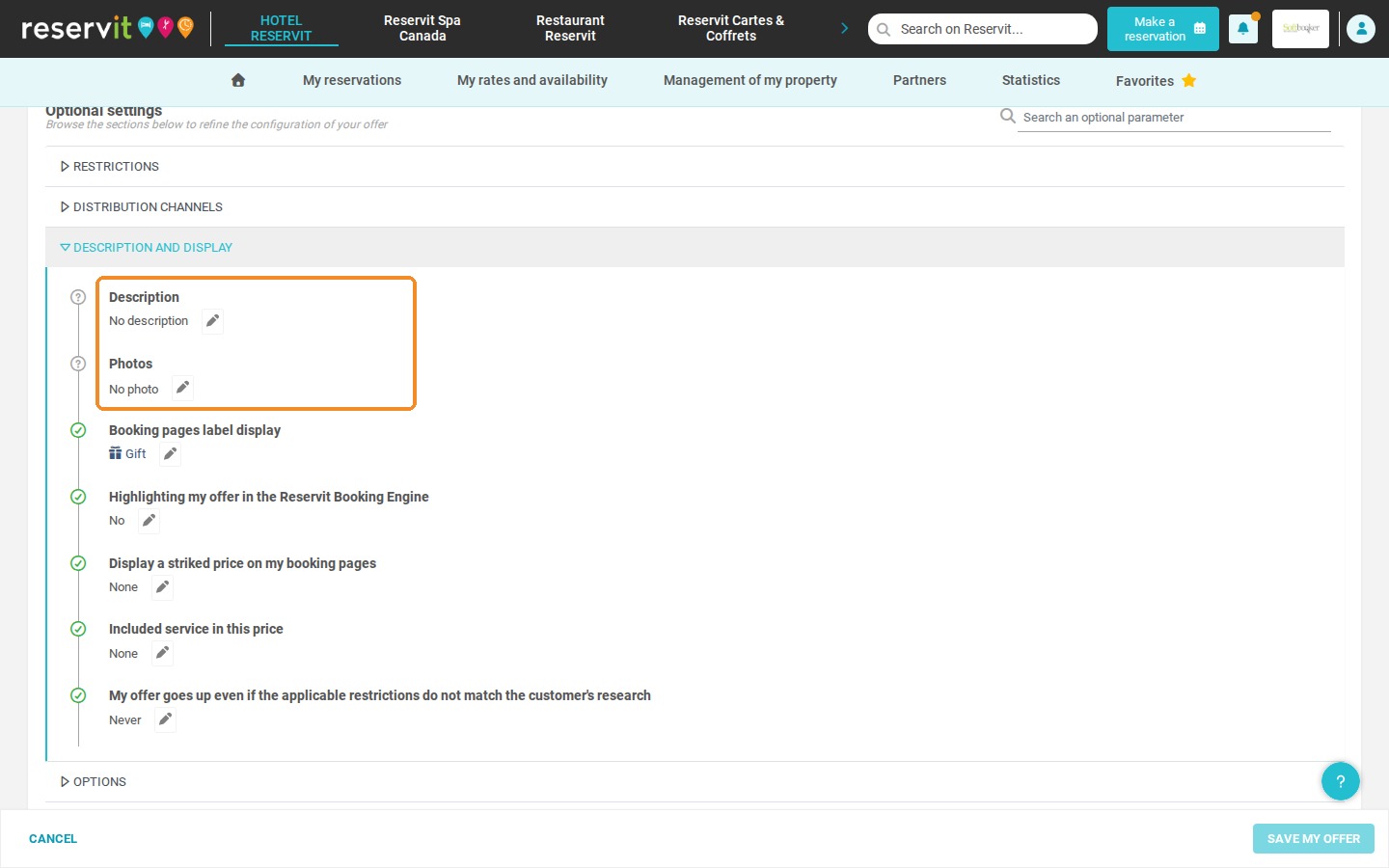
11. In "DESCRIPTION AND DISPLAY", you can add a description and a photo.
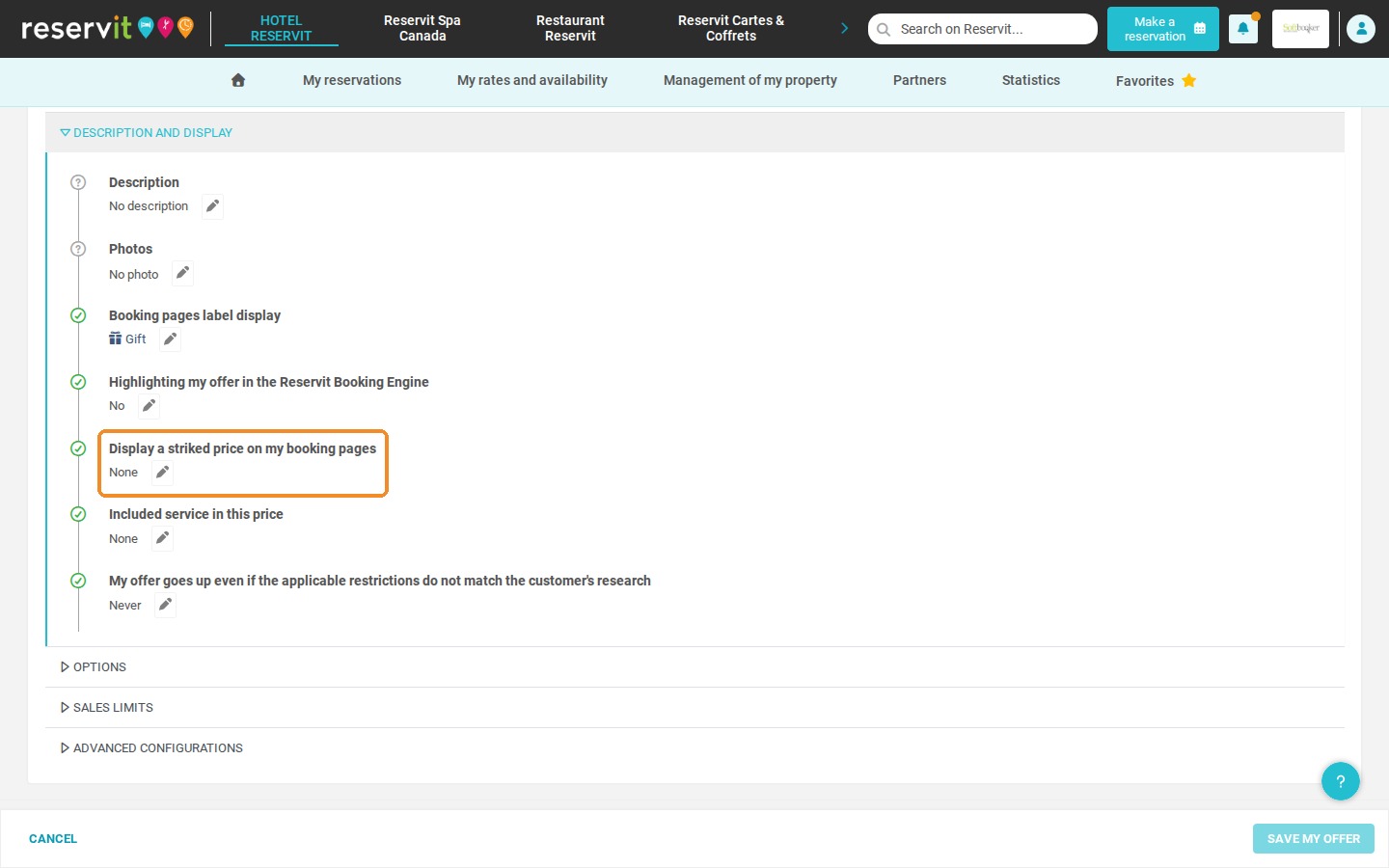
12. ALWAYS keep "None" for "Display a striked price on my booking pages".
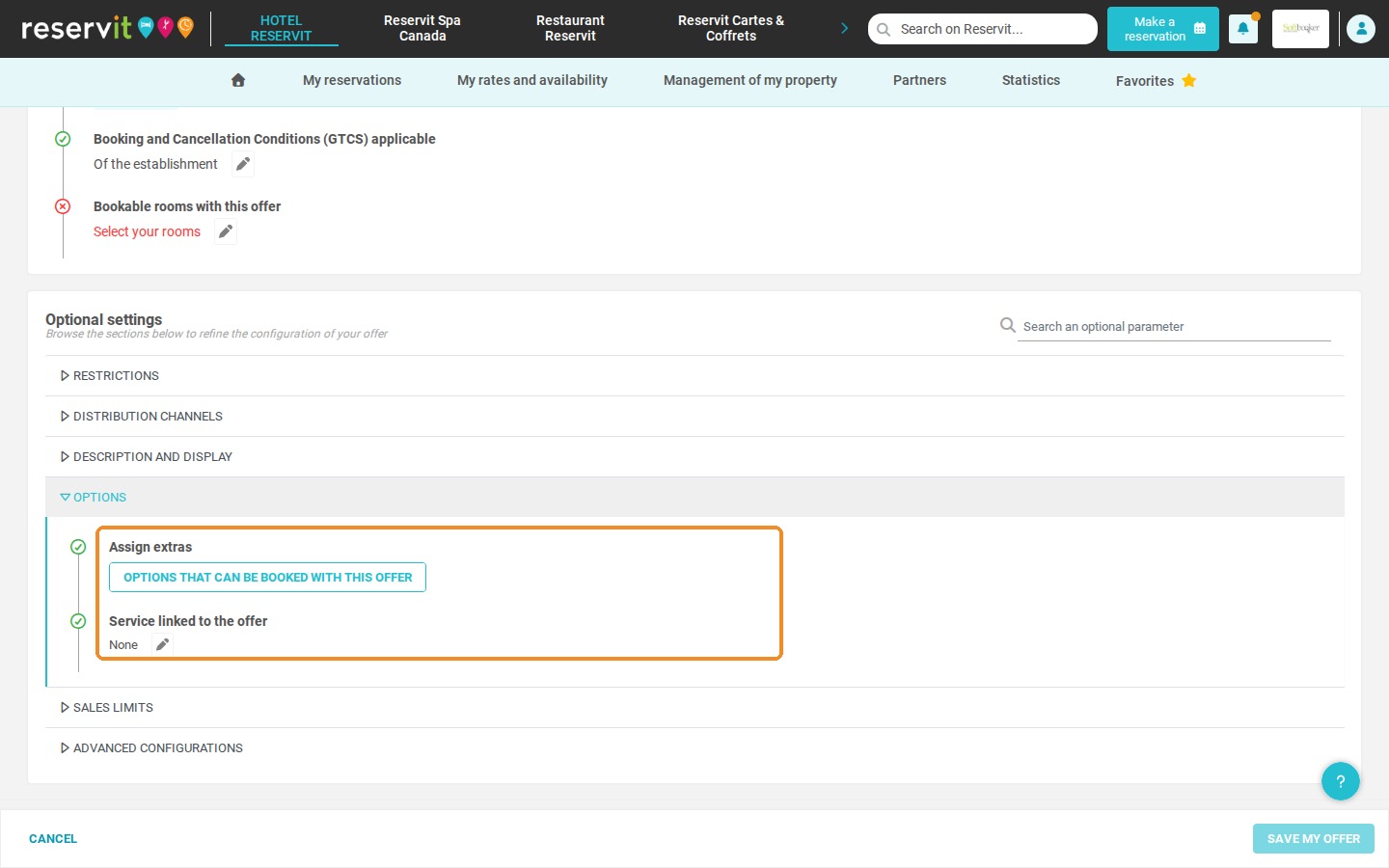
13. You can also add extras that the gift box beneficiaries will be able to book, in "OPTIONS" > "Assign extras".
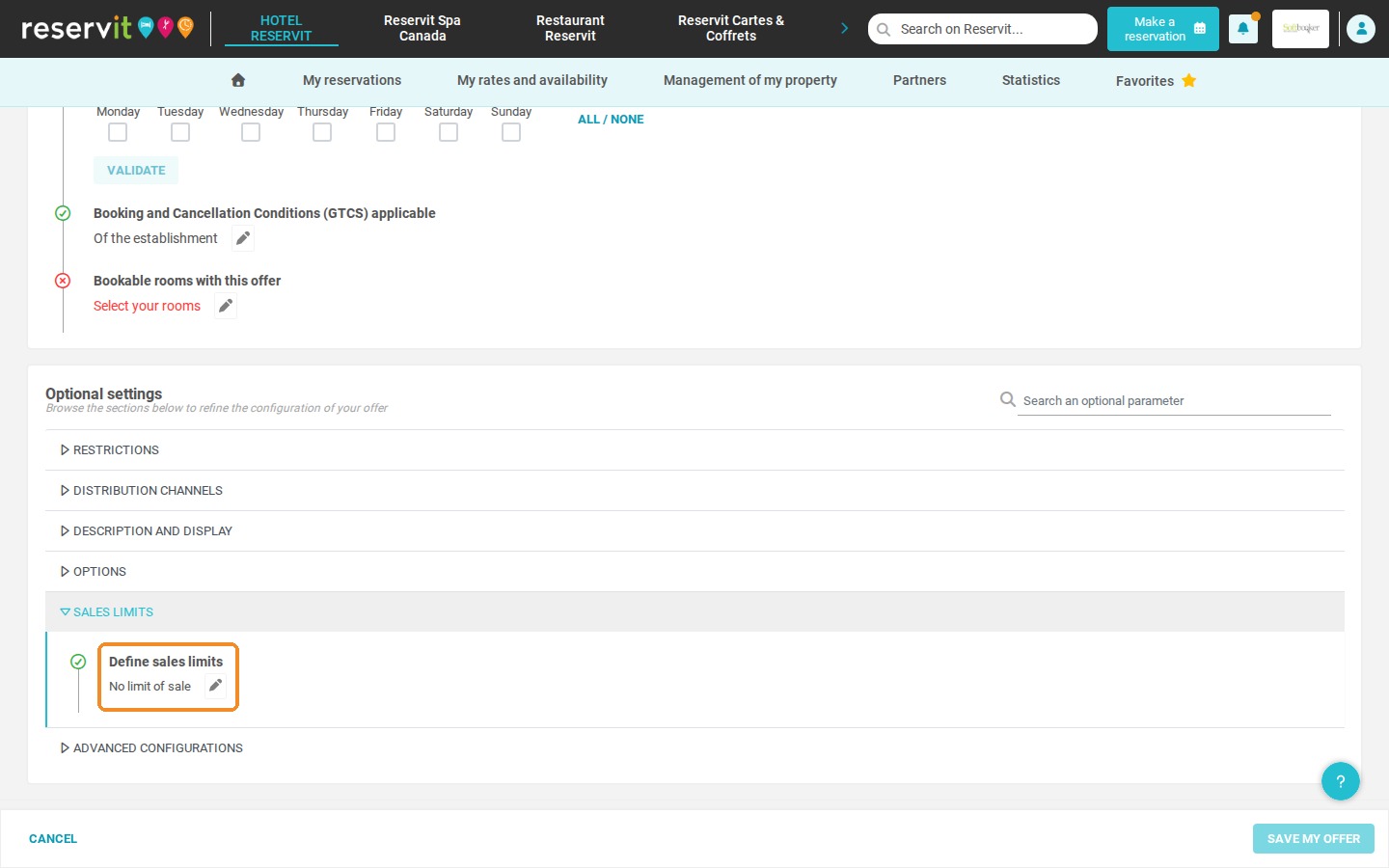
14. ALWAYS keep "No limit of sale" in "SALES LIMITS" > "Define sales limits". Otherwise, the customer may not be able to book their gift box.
15. If you have a PMS, in "ADVANCED CONFIGURATIONS", enter the price of the gift box in "Price to send to the PMS".
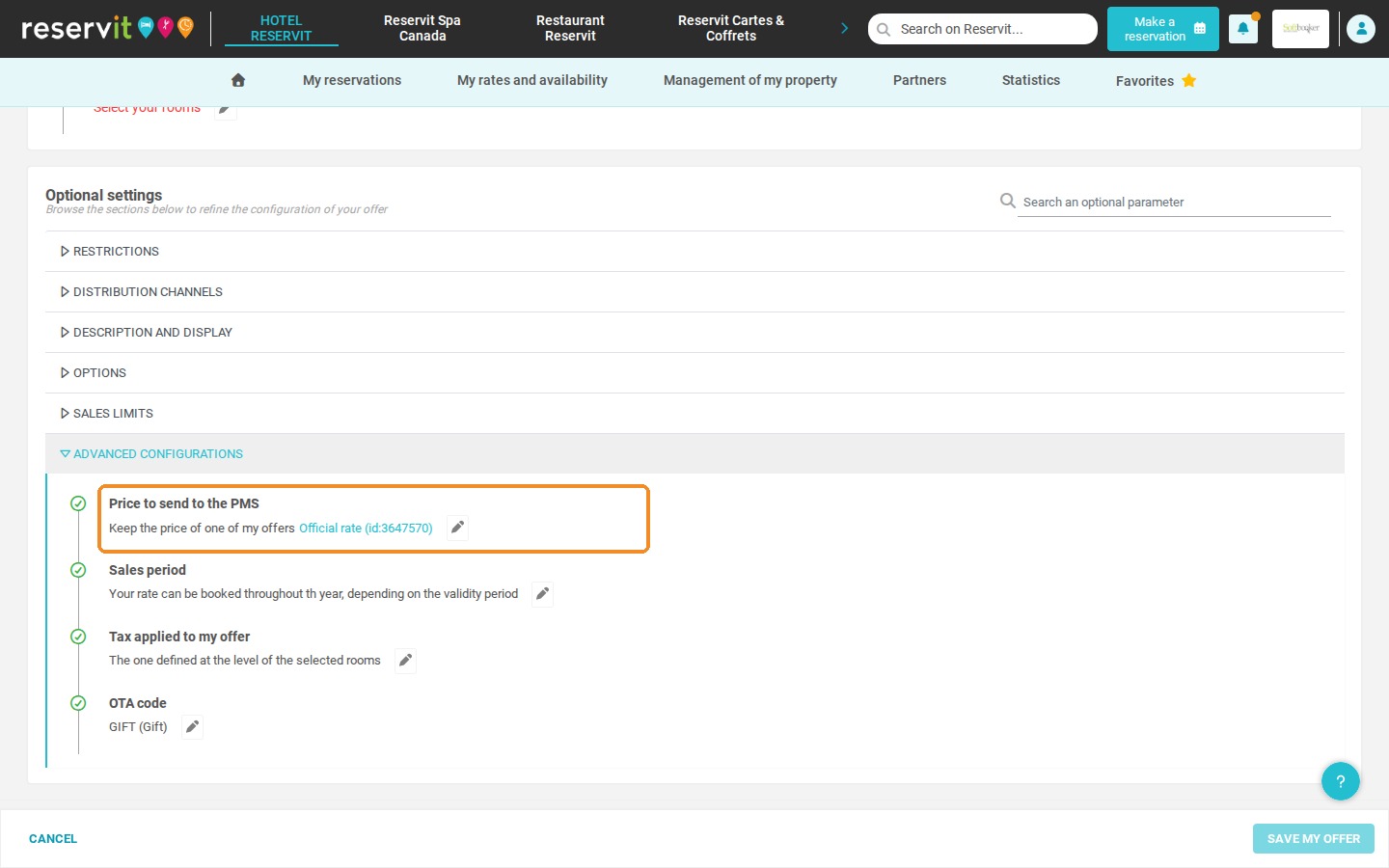
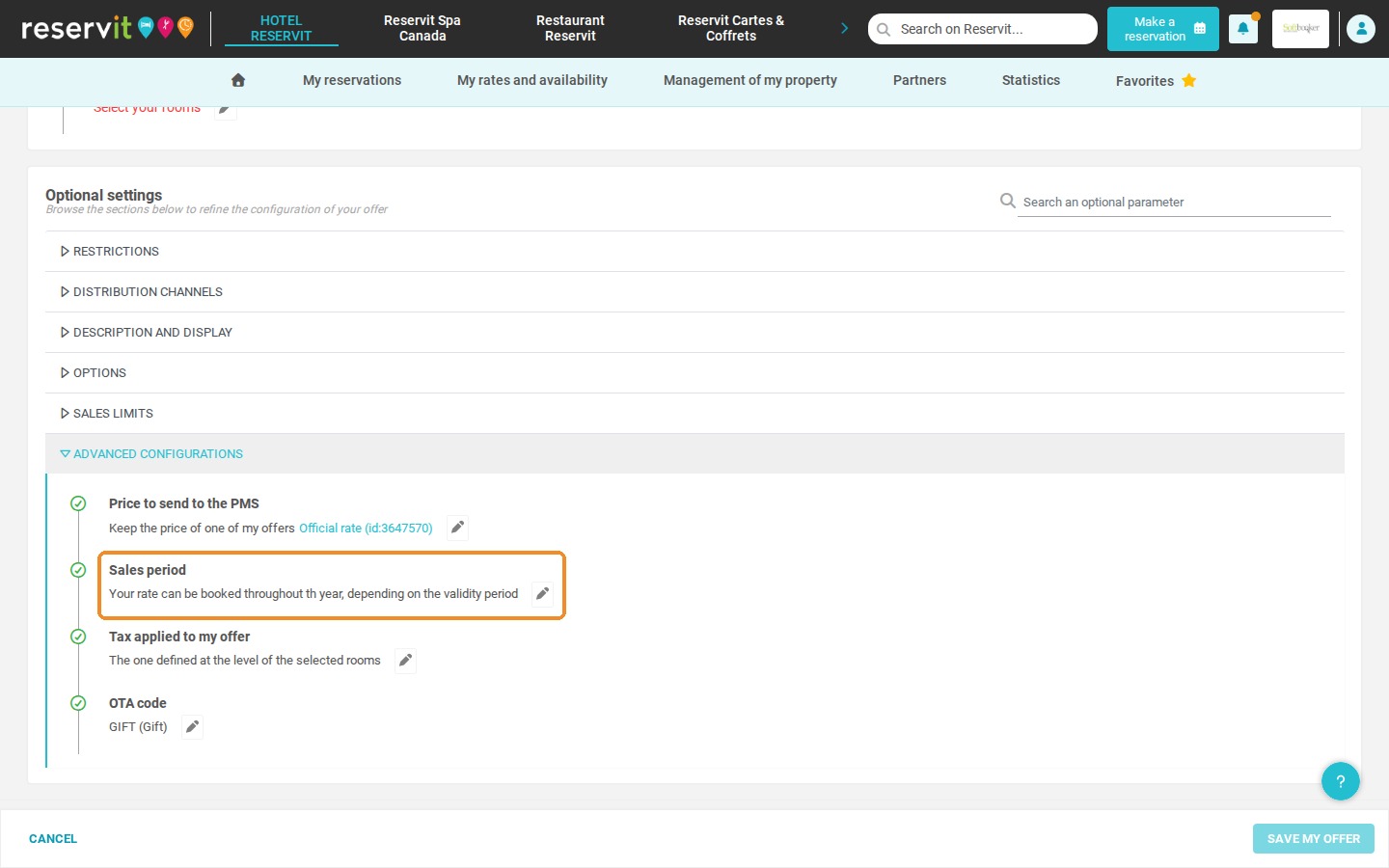
16. DO NOT set a "Sales period": keep "Your rate can be booked throughout th year, depending on the validity period". Otherwise, the customer may not be able to book their gift box.
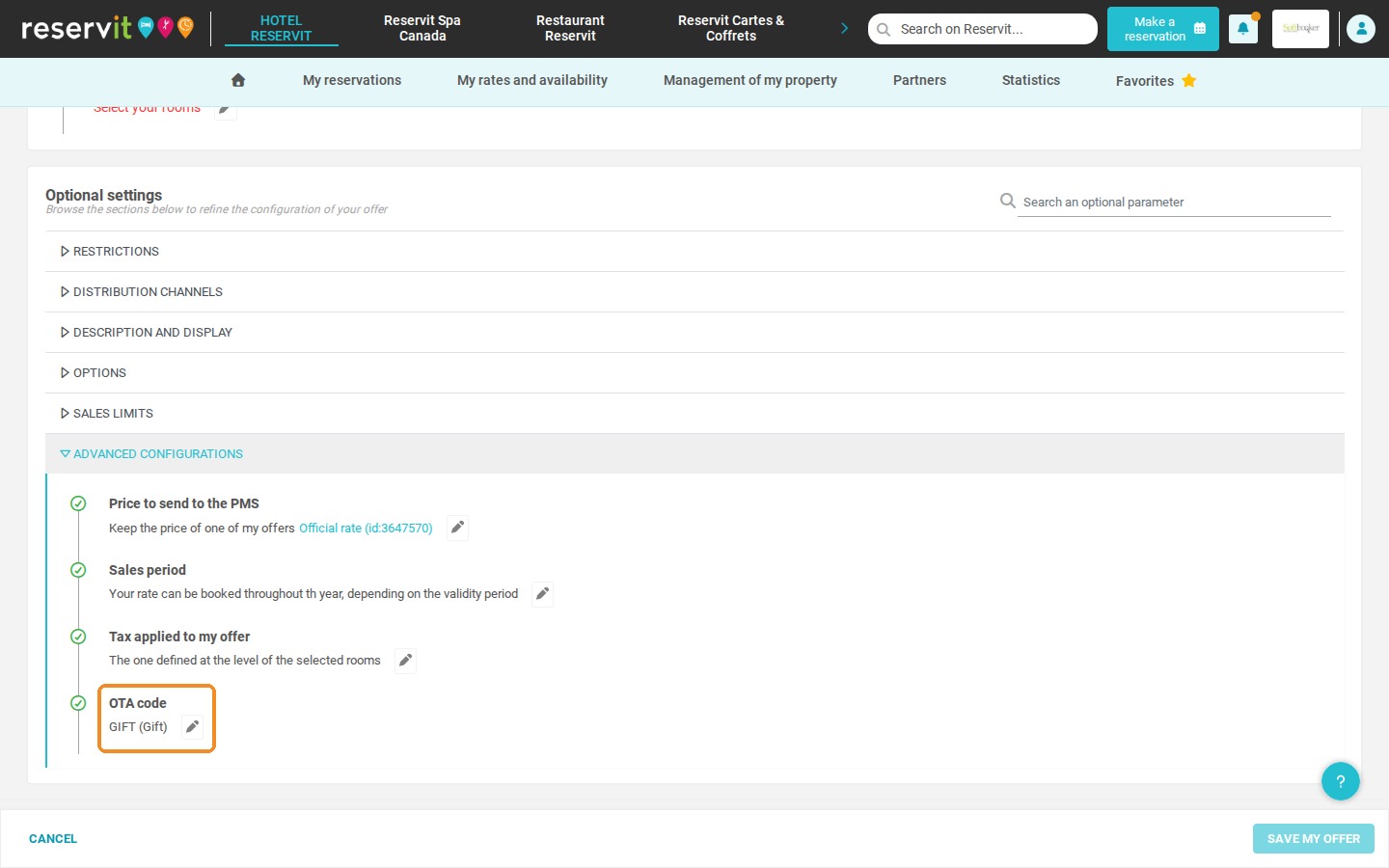
17. Keep the "OTA code" set to "GIFT (Gift)".
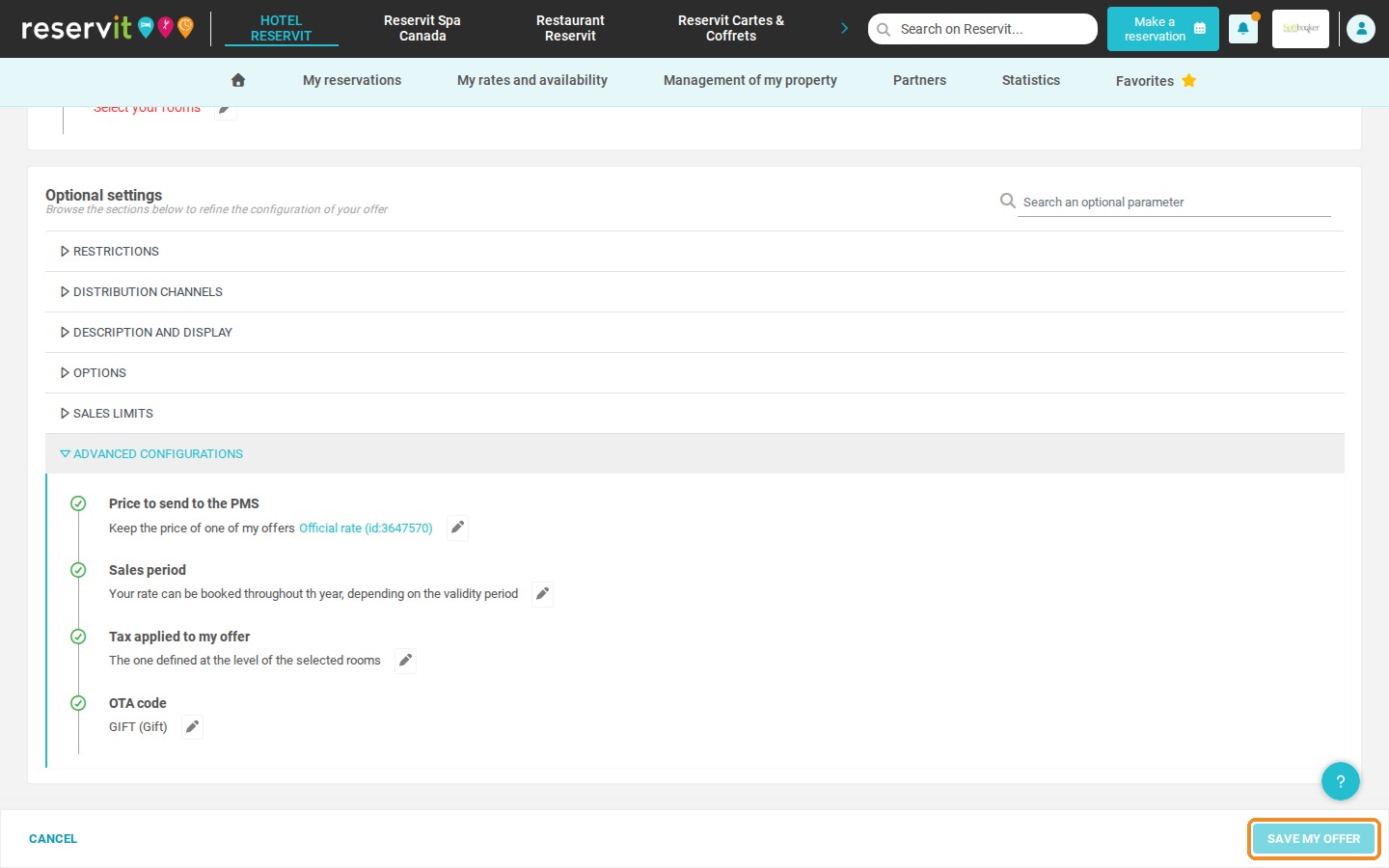
18. Finally, click "SAVE MY OFFER" to save your offer.
19. Tip: with some PMS, Reservit offers must be linked to the offers in the PMS. To do so, you need the offer identifier, which you can find in your gift box list ("Identifier").
20. Next step: the setup continues in Reservit Gift Cards & Boxes, where you create the gift box product and link it to the offer you have just created, using its identifier. See How to Create and Set Up a Gift Box in Reservit (Part 2: Reservit Gift Cards & Boxes).
Related article: How to Set Up and Sell Gift Cards (Gift Certificates) in Reservit