Article Summary: This tutorial is the second part of setting up a gift box that can be bought online: it takes place in Reservit Gift Cards & Boxes, once the gift box offer has been created in Reservit Accommodation. You will learn how to create the gift box category and product, set its price and online booking rules, add photos and link it to the Reservit Accommodation offer using its identifier. Once this link is in place, your customers can buy the gift box online and its beneficiaries can use it on your booking engine.
The 4 Key Steps to Create Your Gift Box Product:
-
Create the category: Click "My rates and availability" > "My Services" > "CATEGORIES", open "Add a type of offer", enter the name in all your languages, select the activity and save.
-
Create the product: In "SERVICES SETUP", open the "Product" tab, click "Add a product", enter the name of the gift box in all your languages and the other information, then save.
-
Set the prices and photos: In the "Prices" tab, enter the price, the terms and conditions and set "Price to be booked online" to "100% (Yes)"; add up to 3 photos in the "Photos" tab.
-
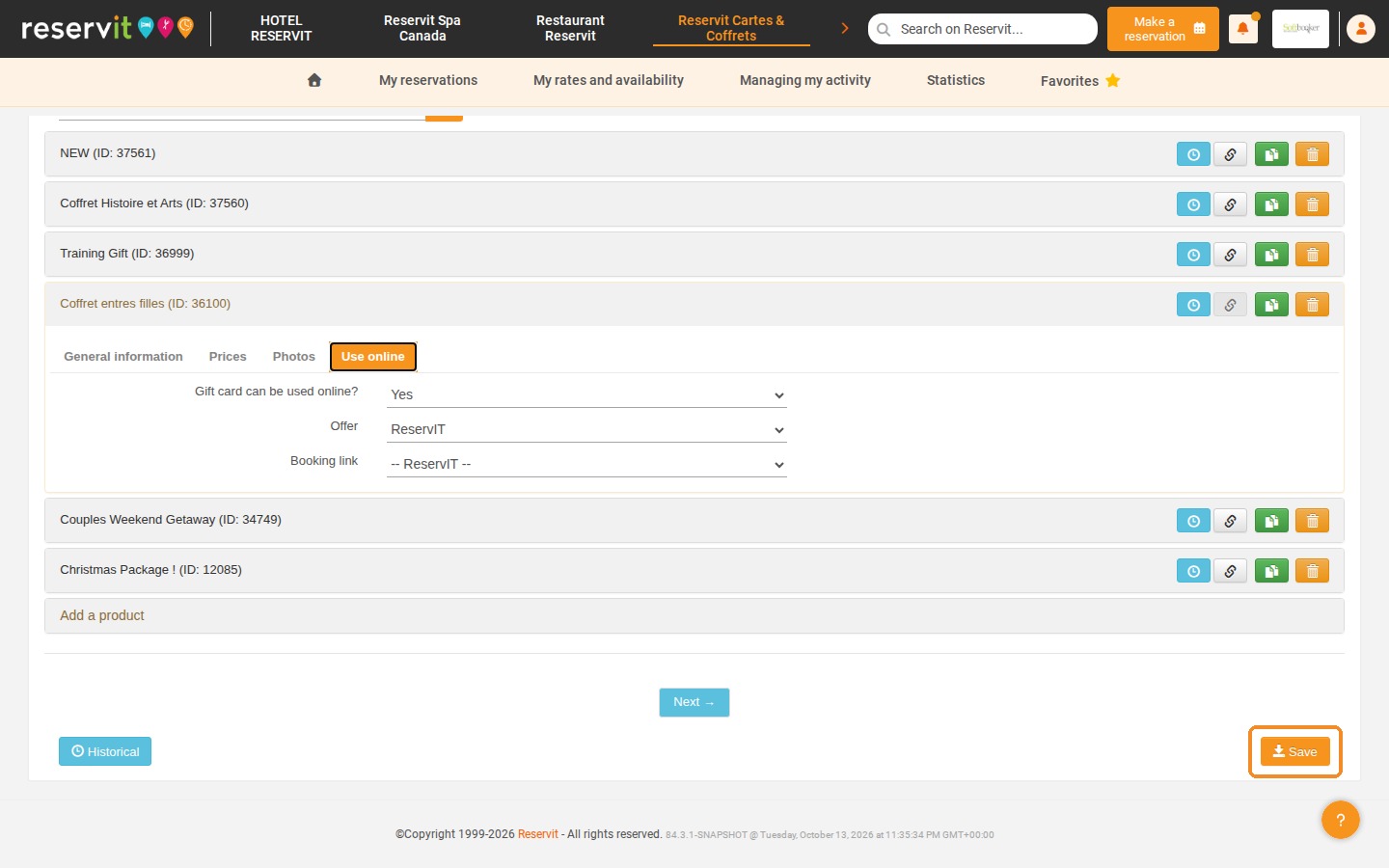
Link the product to the offer: In the "Use online" tab, set "Gift card can be used online?" to "Yes", choose "ReservIT" in "Offer" and select the Reservit Accommodation offer in "Booking link", then save.
Why Follow This Guide? Linking your gift box product to the Reservit Accommodation offer is what allows the beneficiary to book their stay online with the gift box. Following these settings precisely (100% bookable online, correct terms and conditions, right offer identifier) avoids sales blockages and keeps Reservit Accommodation, Reservit Gift Cards & Boxes and your PMS in sync.
1. This tutorial follows Part 1, in which you created the gift box offer in Reservit Accommodation and noted its identifier. Keep this identifier at hand: you will need it at the end of this tutorial.
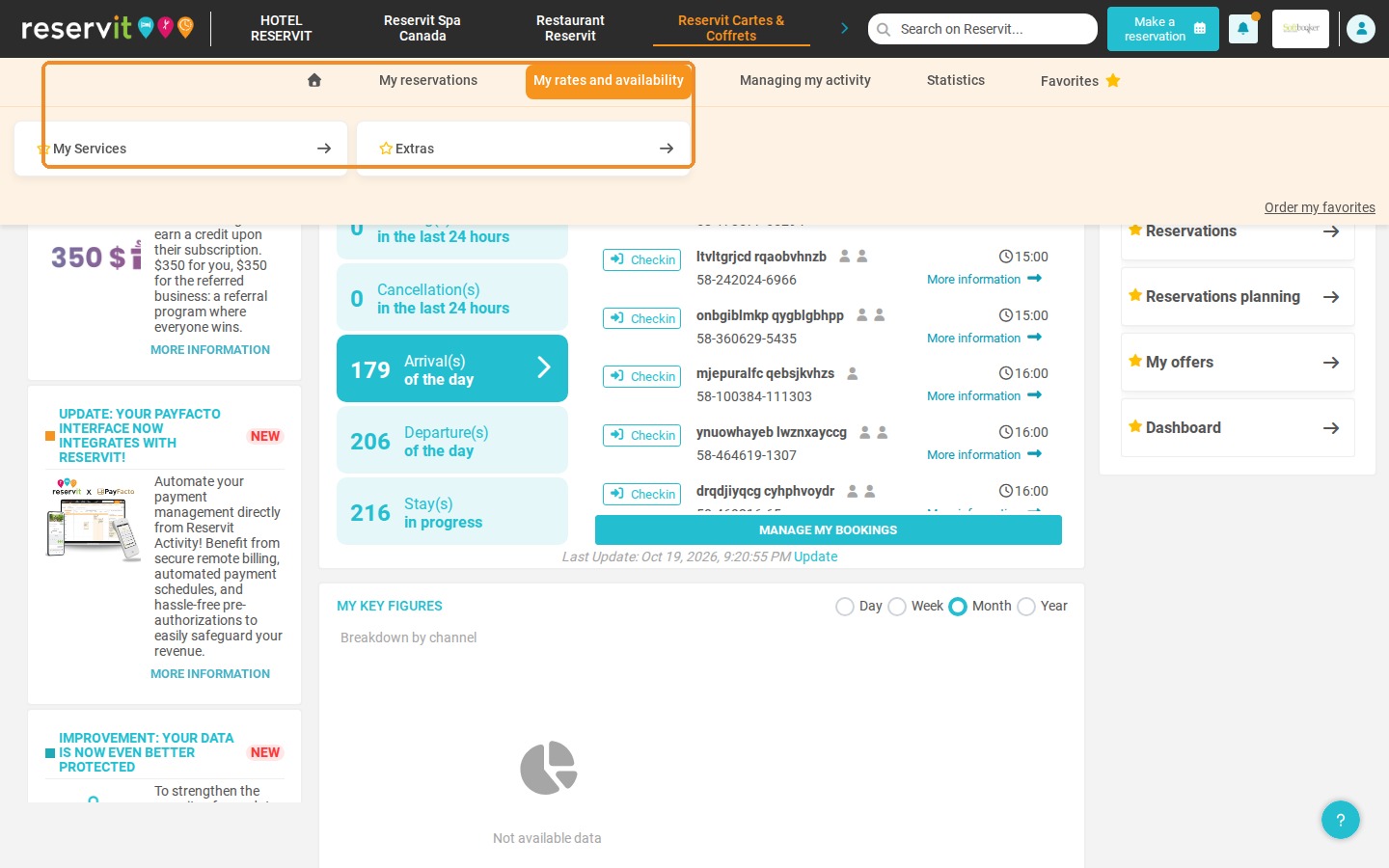
2. In Reservit Gift Cards & Boxes, click "My rates and availability" > "My Services".
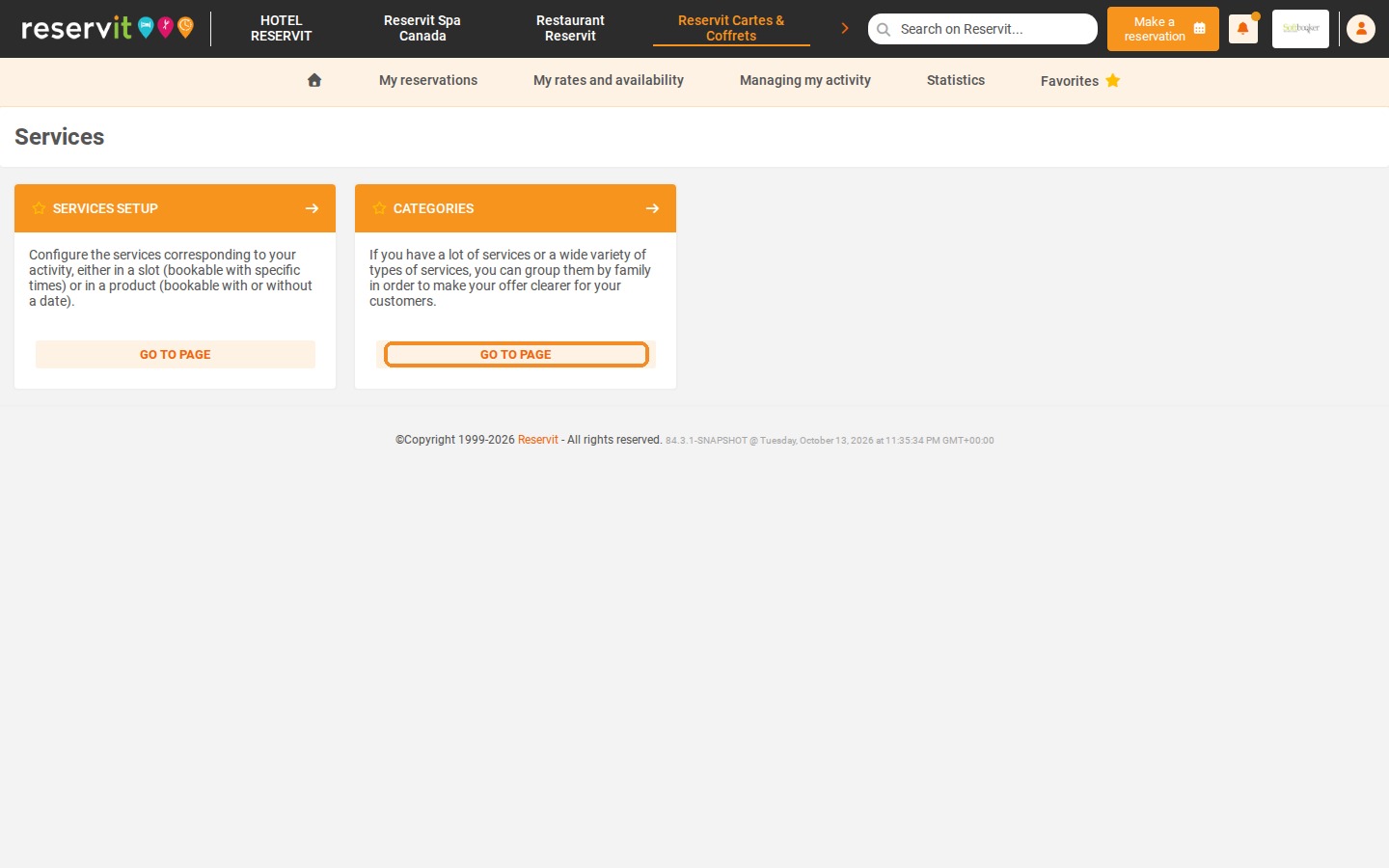
3. Click "GO TO PAGE" on the "CATEGORIES" tile.
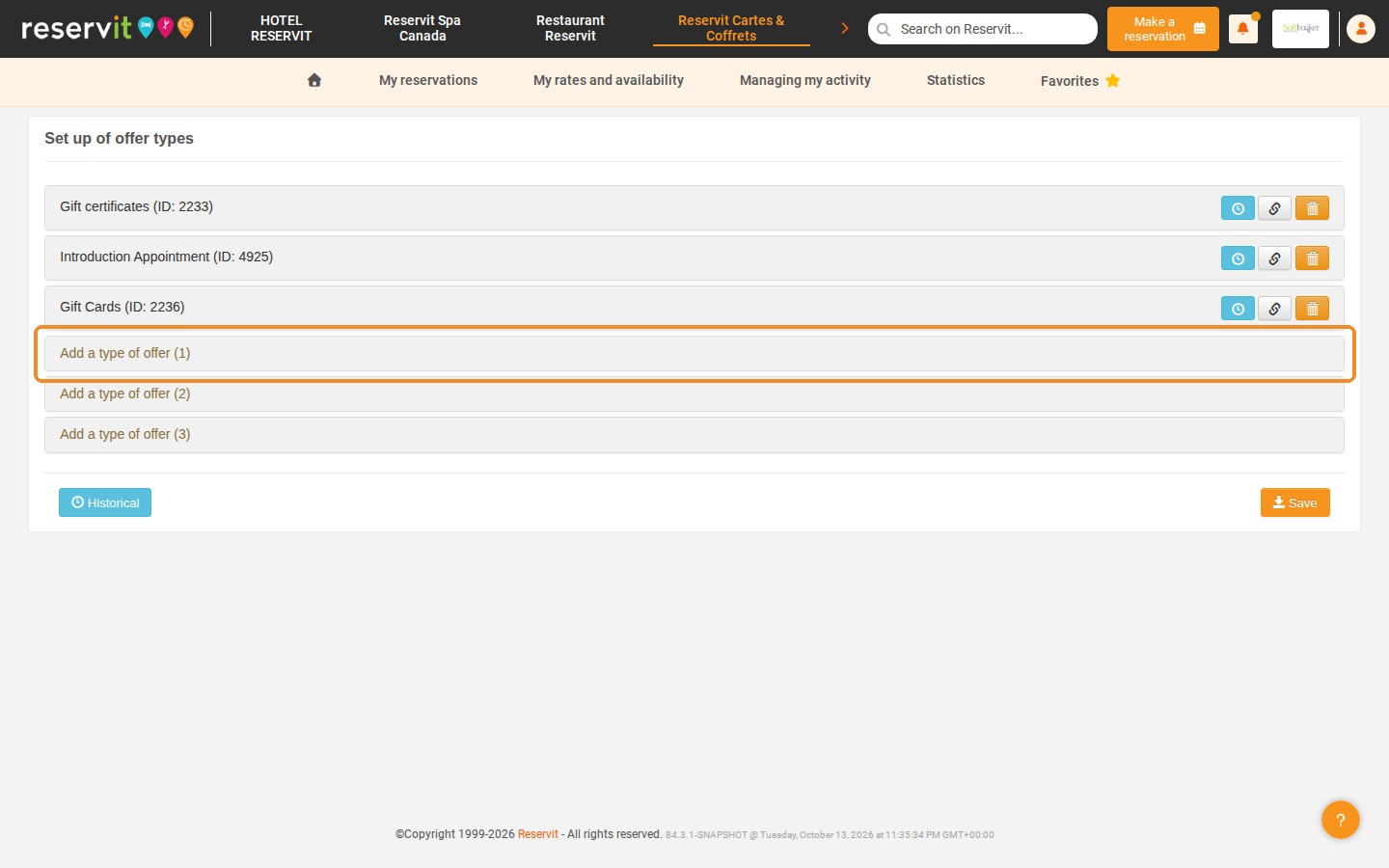
4. On the "Set up of offer types" page, click "Add a type of offer (1)" to add a category.
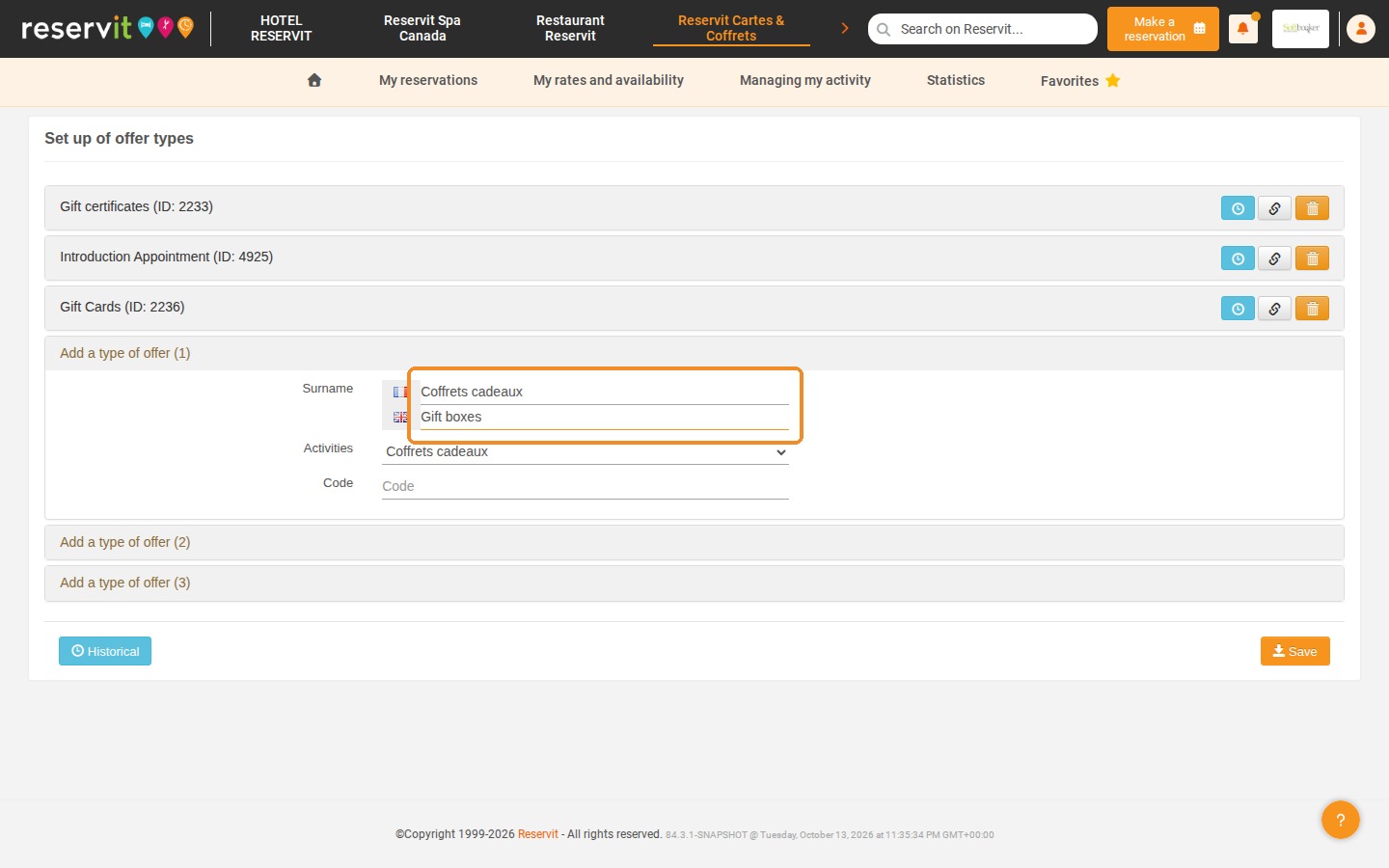
5. Enter the name of the category, for example "Gift boxes", in each language (French and English flags).
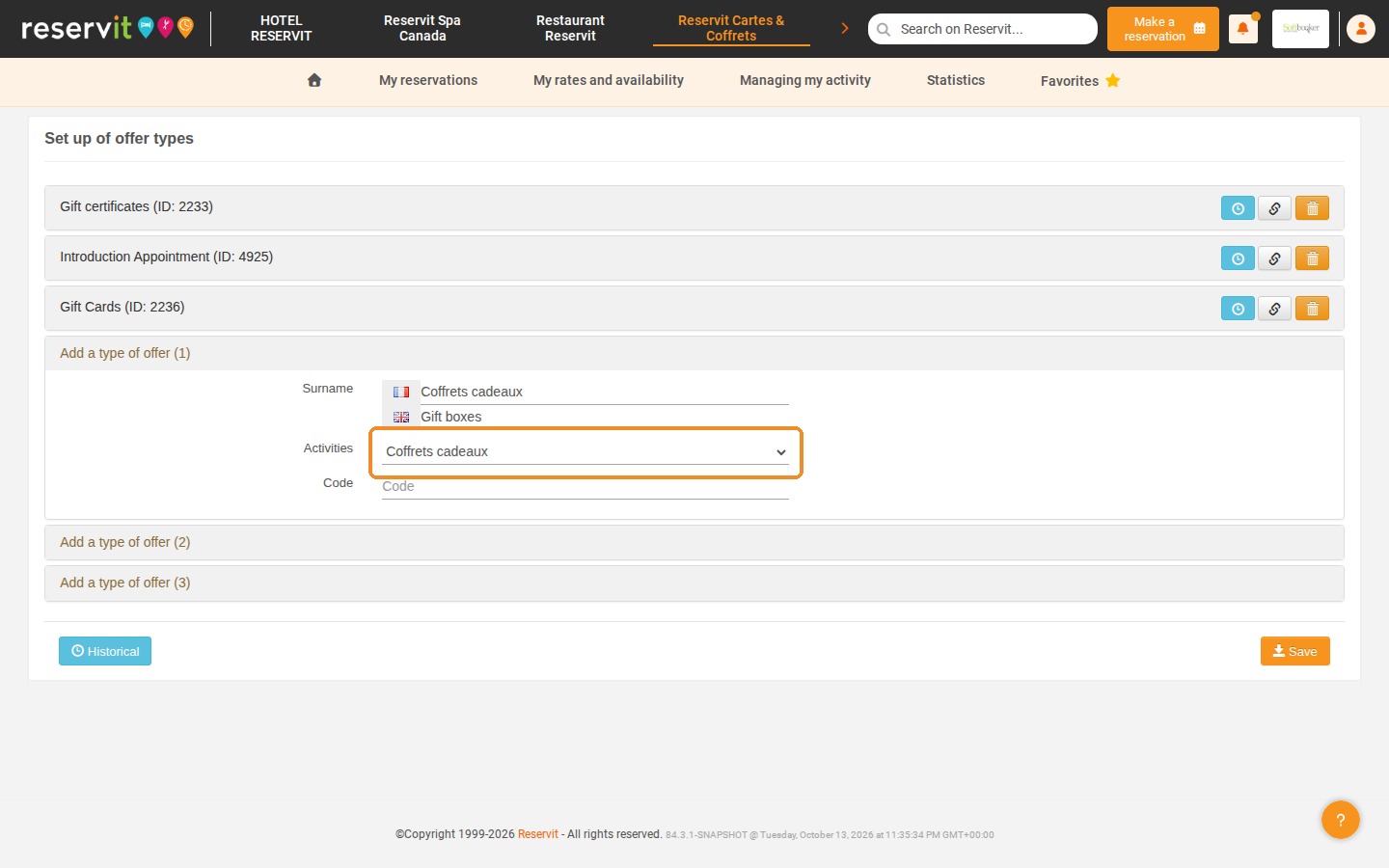
6. Also select the activity in the "Activities" list ("Coffrets cadeaux", gift boxes).
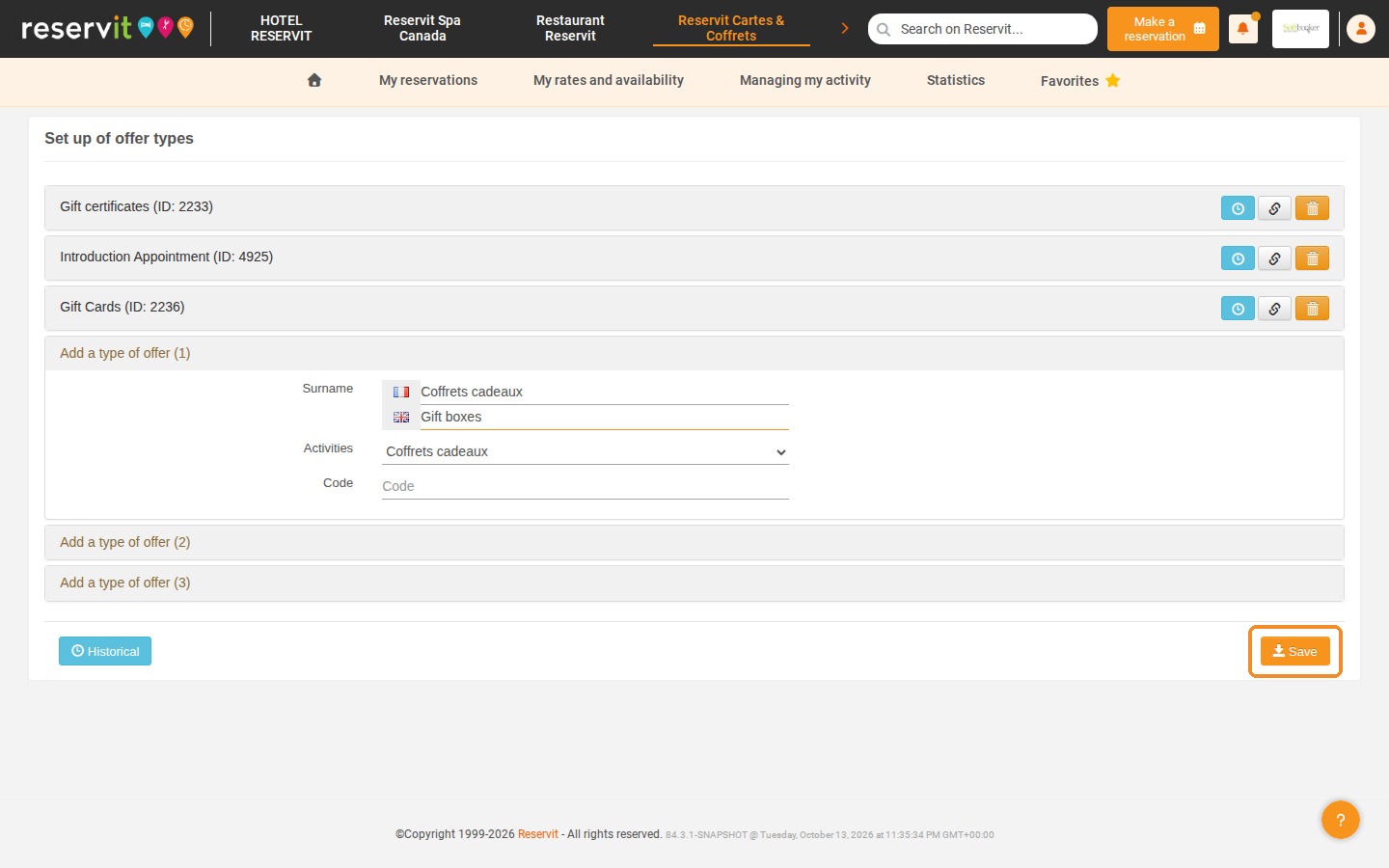
7. Click "Save" to save the category.
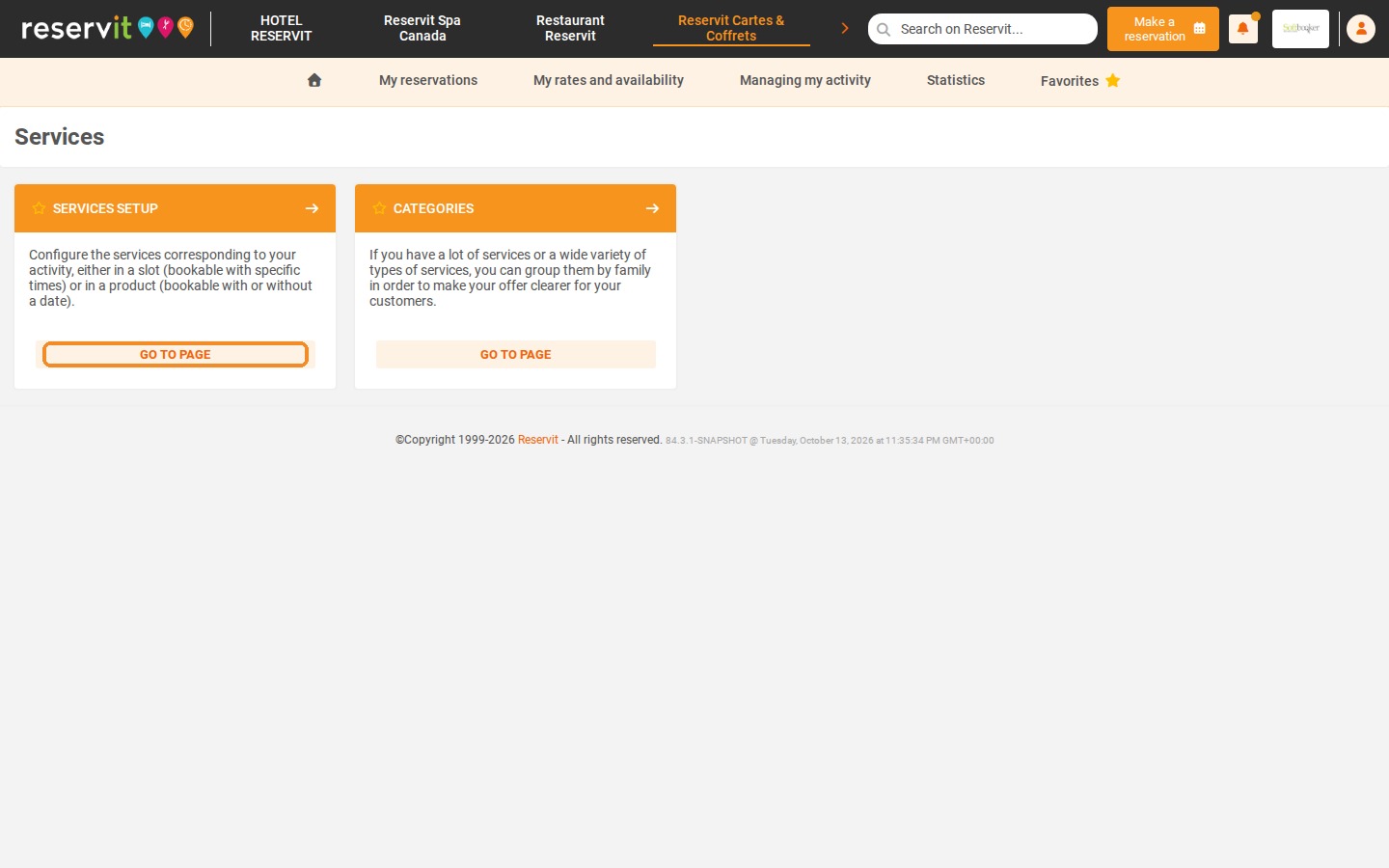
8. Then click "My rates and availability" > "My Services" again, and click "GO TO PAGE" on the "SERVICES SETUP" tile.
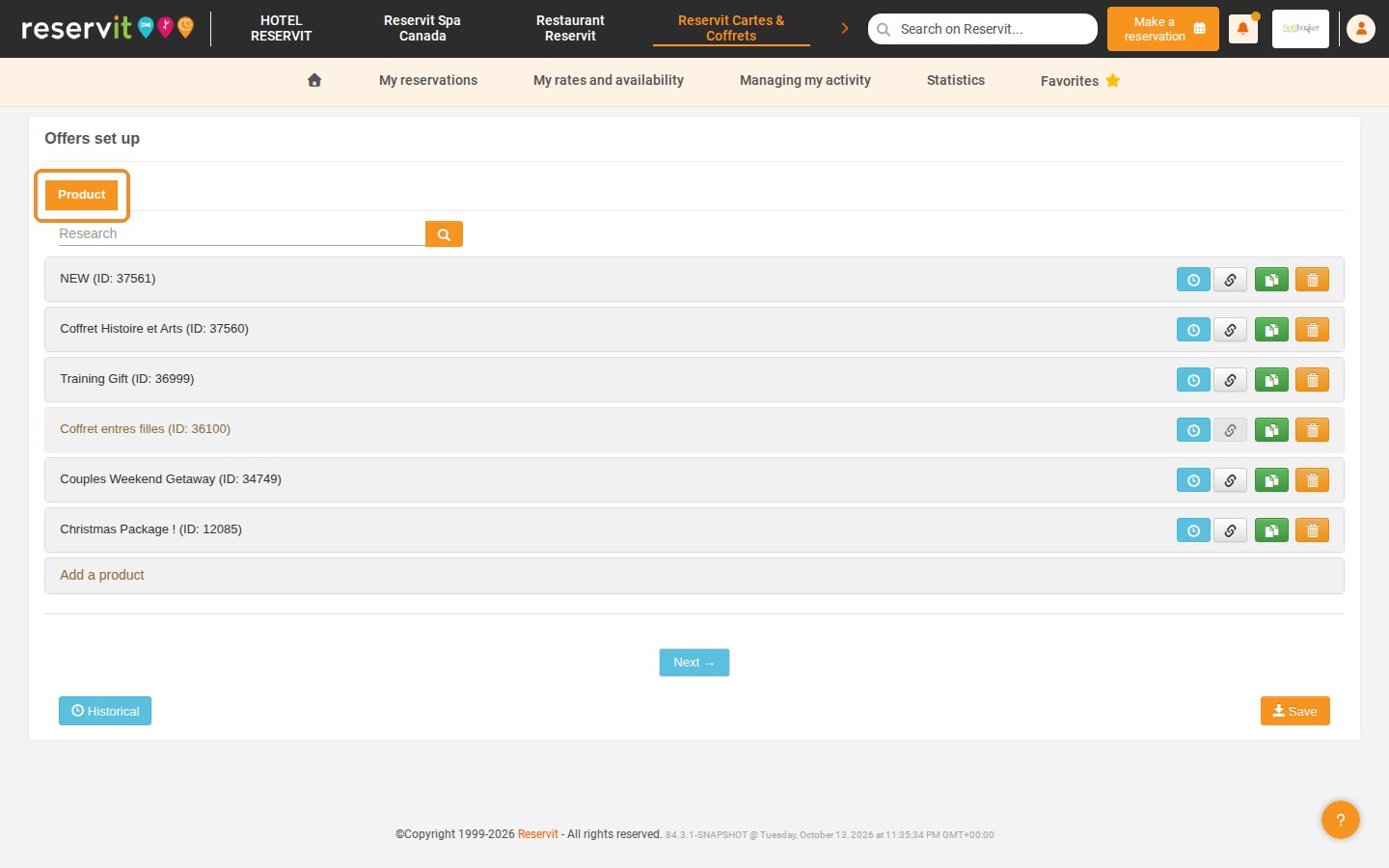
9. Click the "Product" tab.
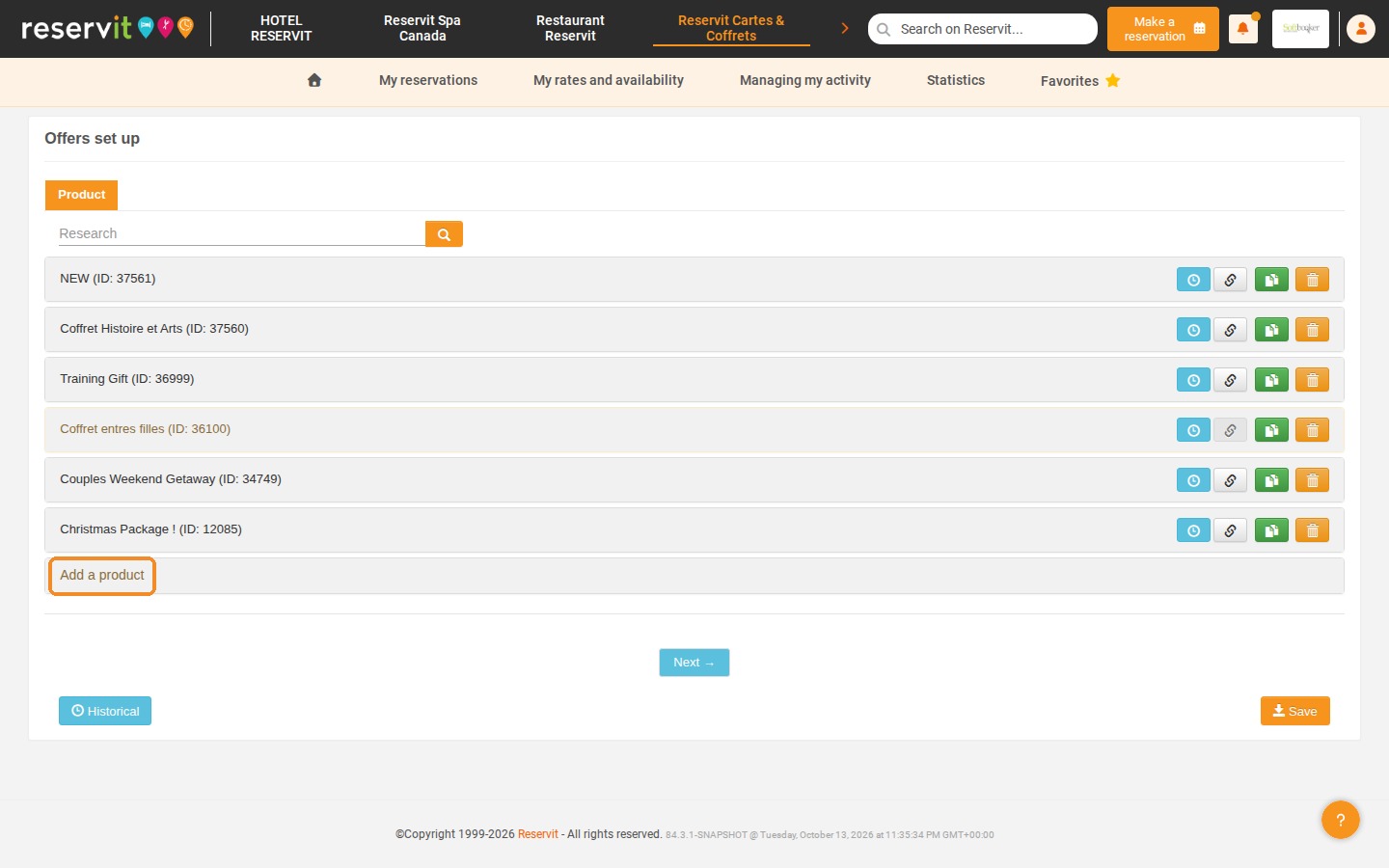
10. Click "Add a product".
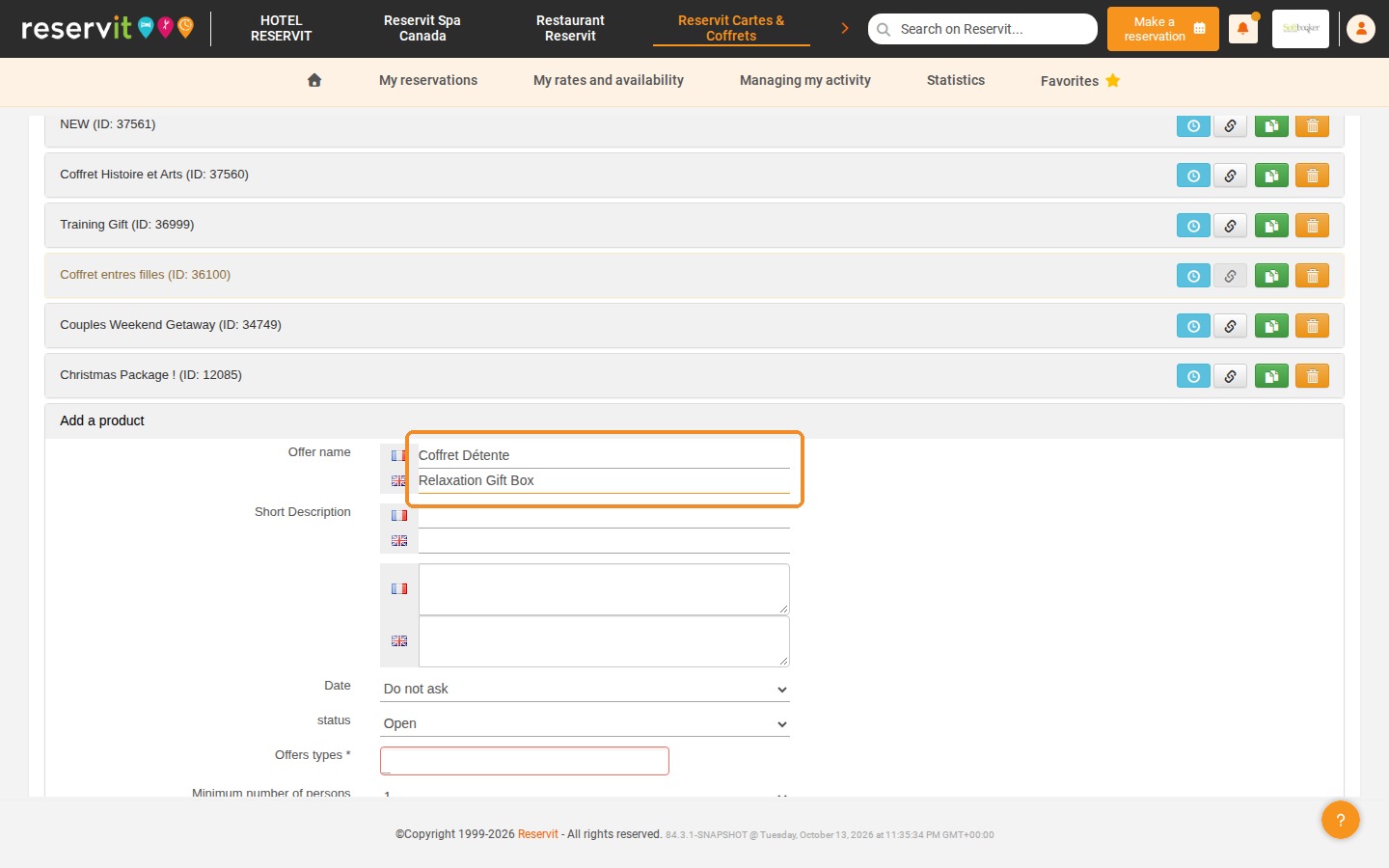
11. First enter the name of the gift box in French and in English in "Offer name".
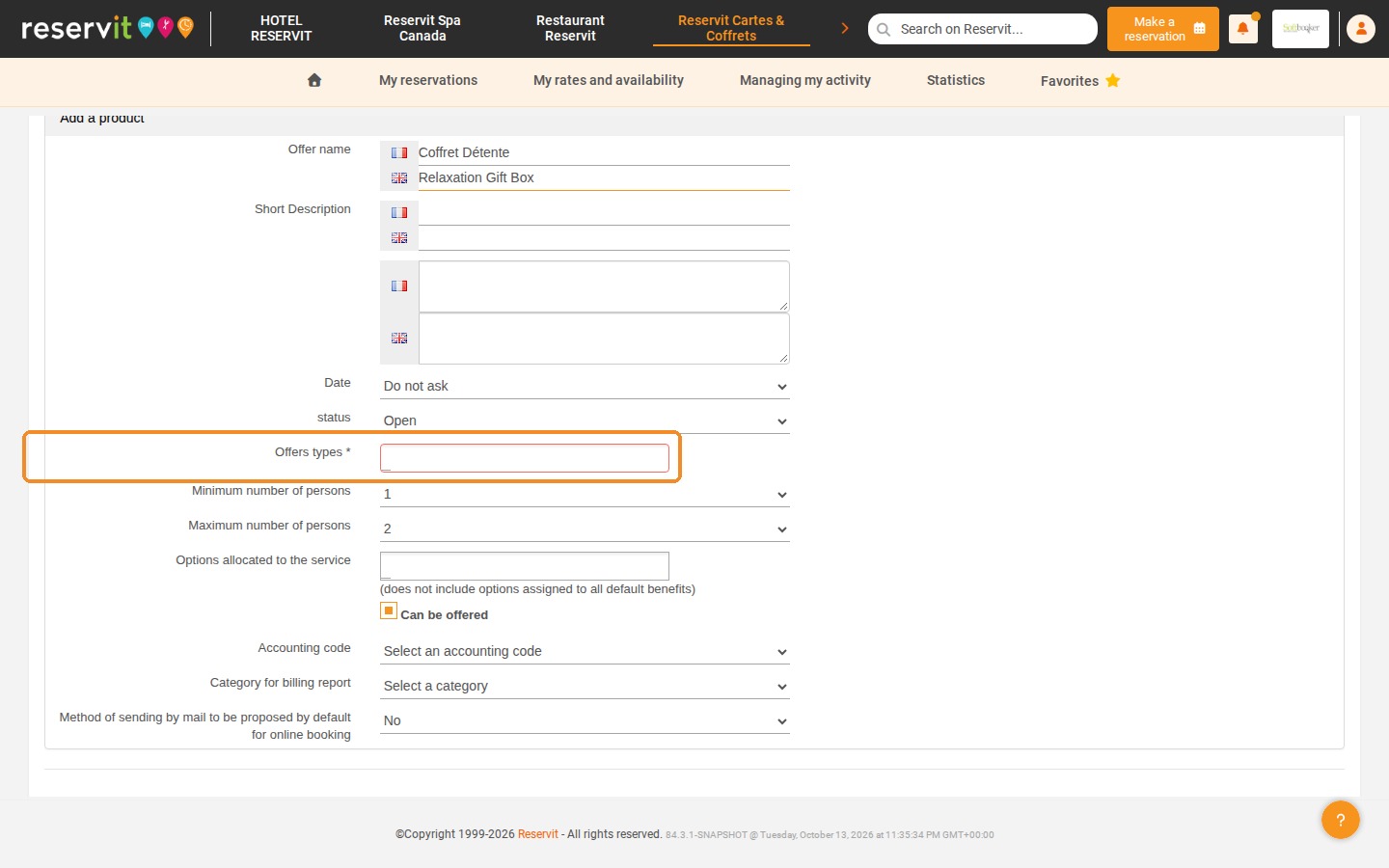
12. Then fill in the remaining information: description, date, status, number of persons and, above all, the category you have just created in "Offers types *".
13. Click "Save". The "Prices", "Photos" and "Use online" tabs of the product are available once it has been saved.
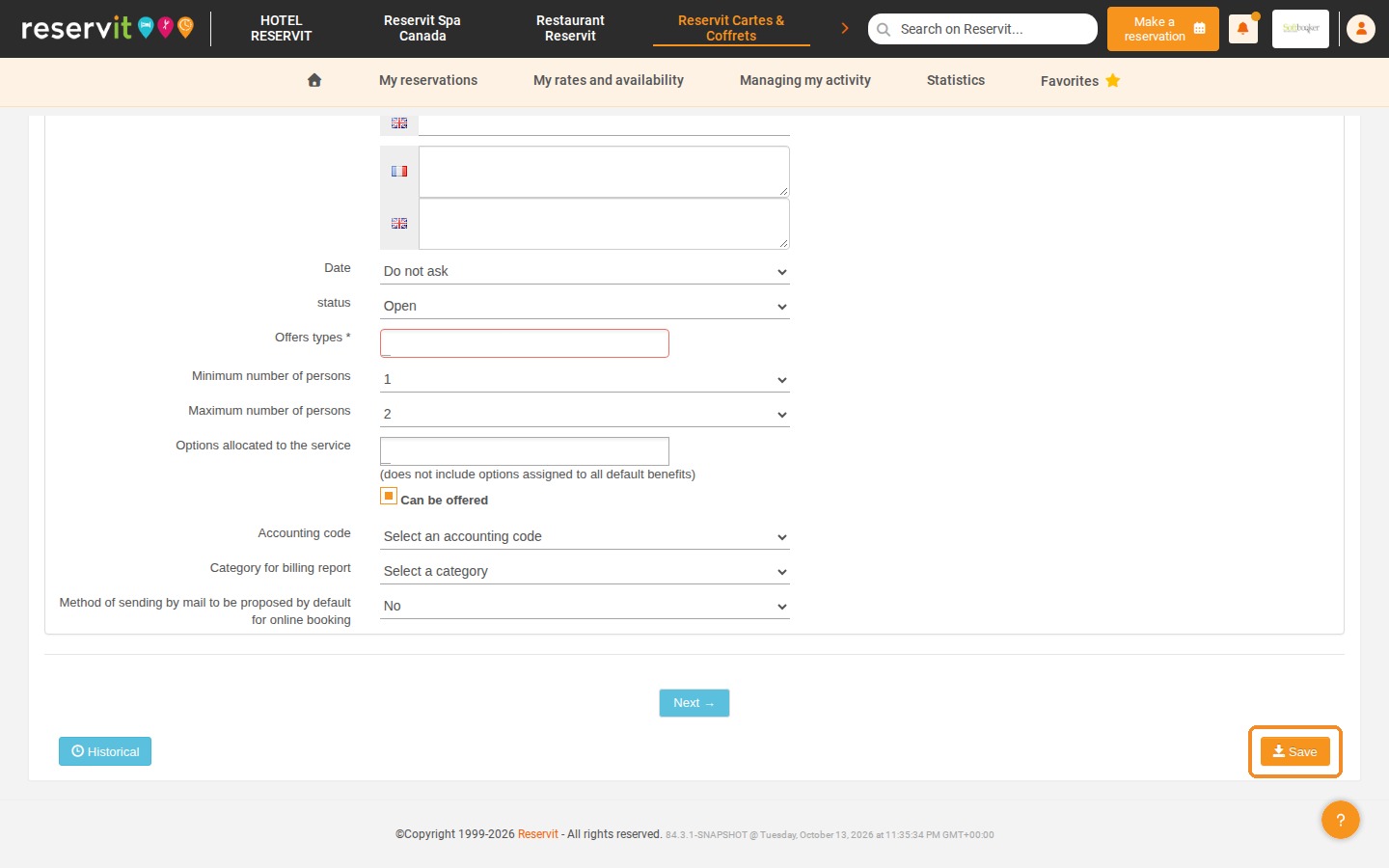
14. Open the product again from the "Product" list and click the "Prices" tab.
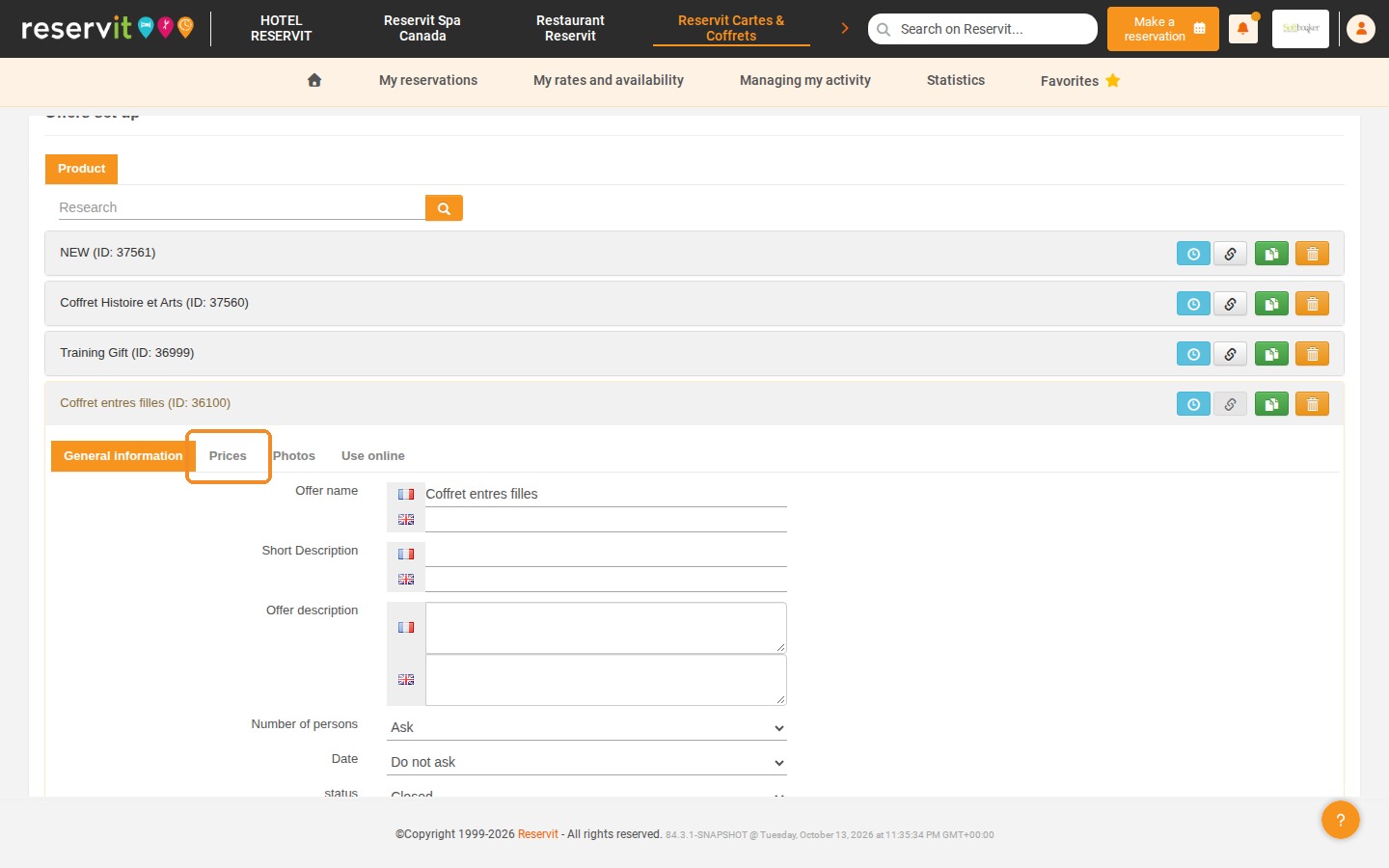
15. Enter the price of the gift box in "Season Price".
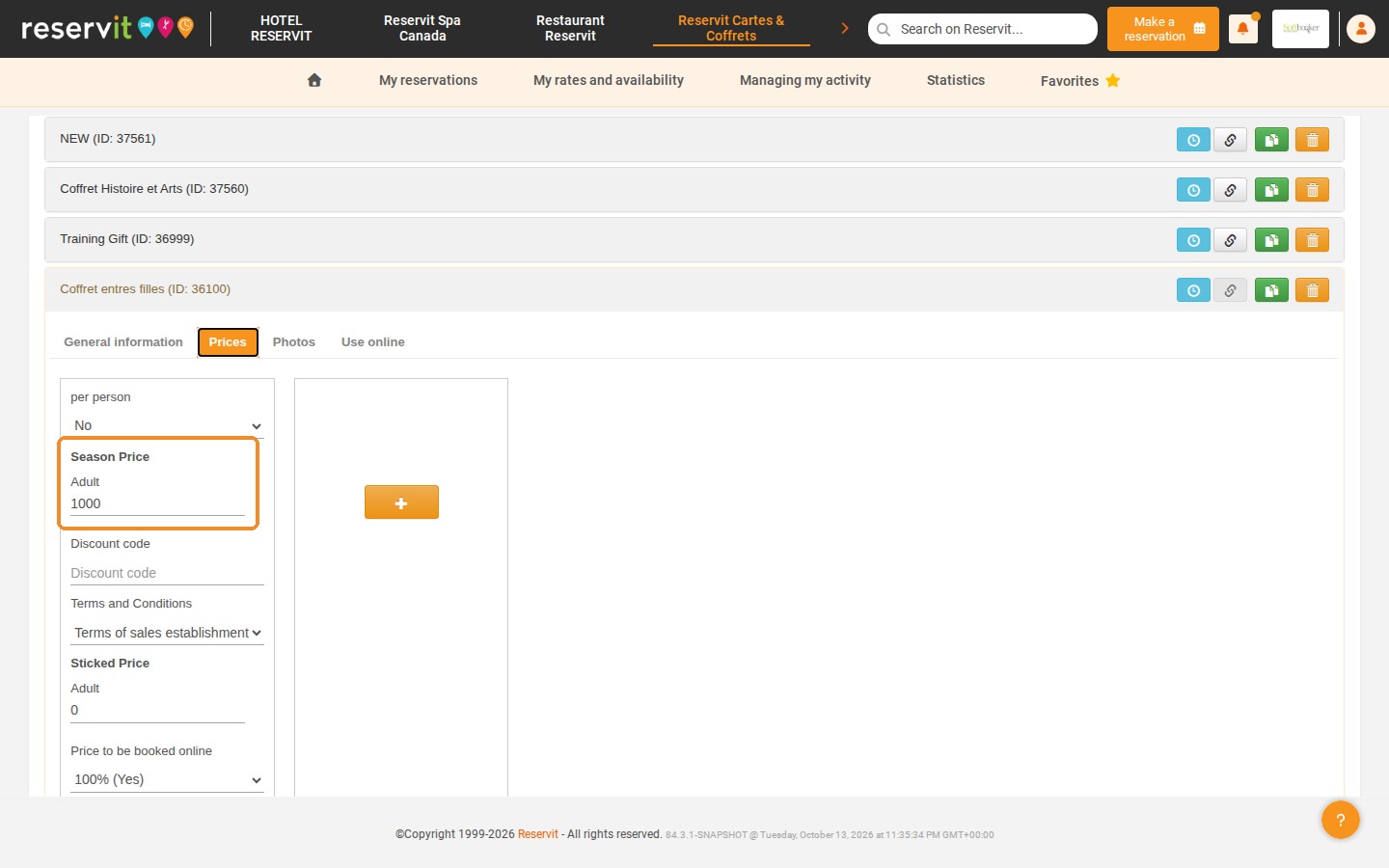
16. If you have several terms and conditions, make sure you select the right one in "Terms and Conditions".
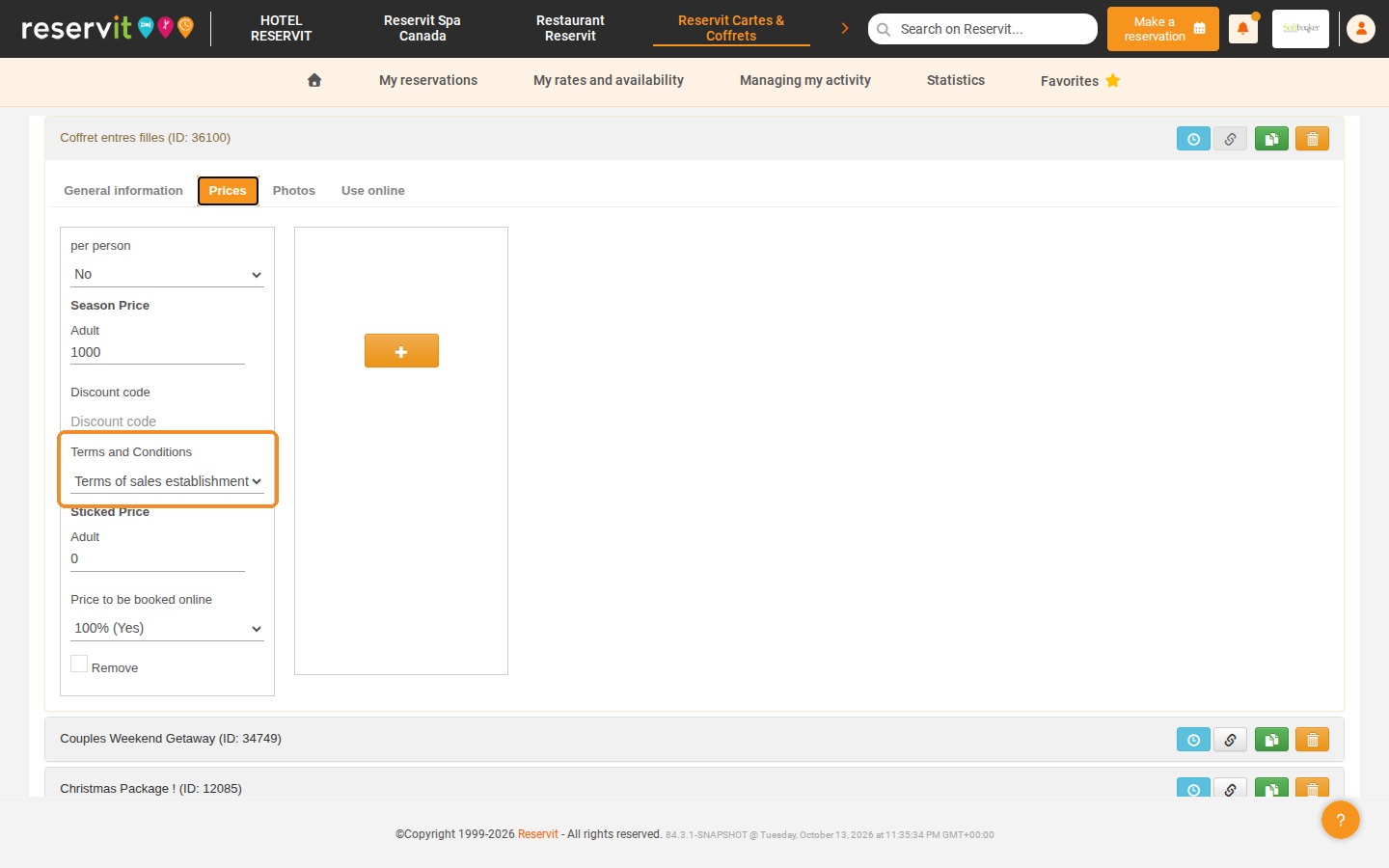
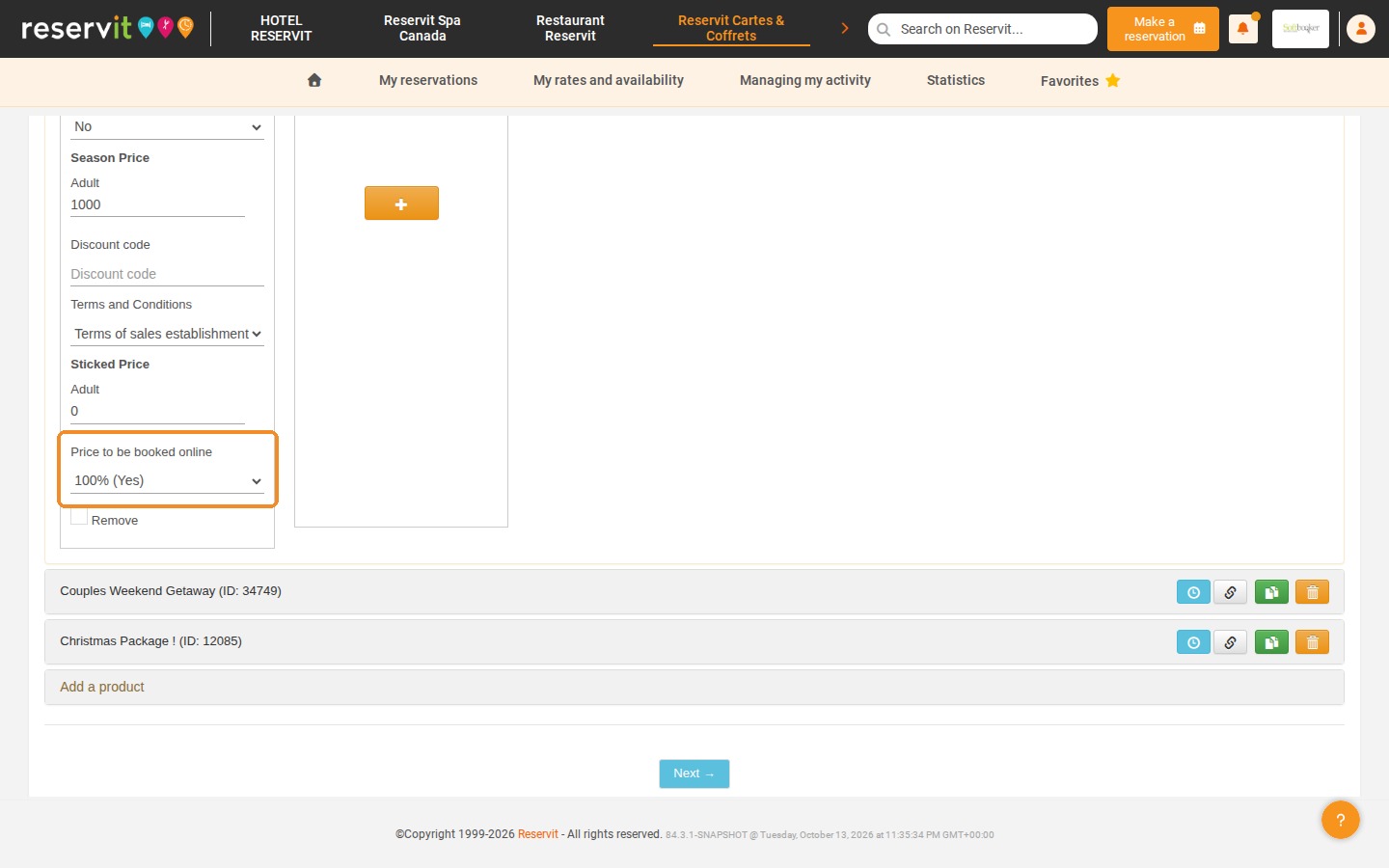
17. Set "Price to be booked online" to "100% (Yes)".
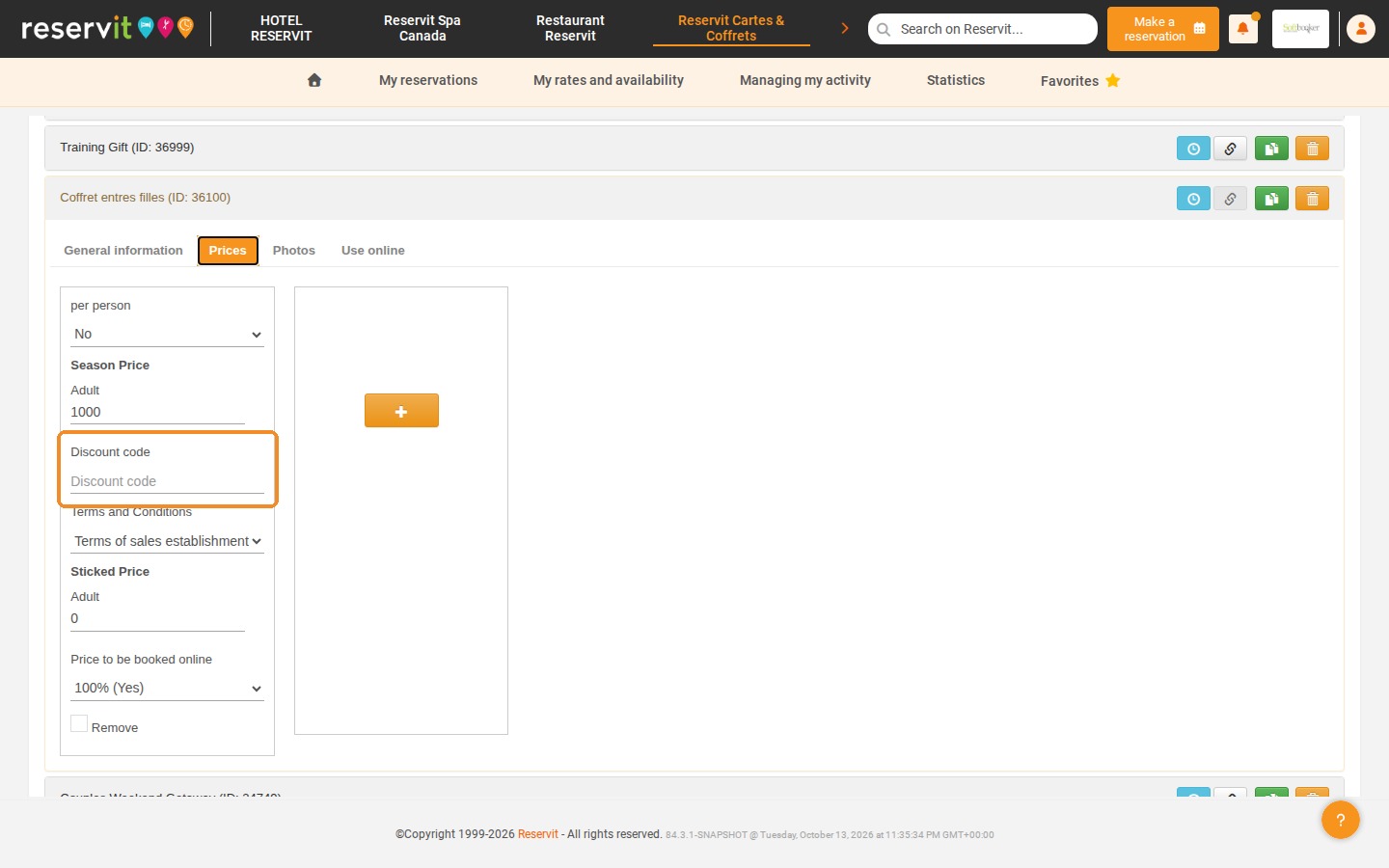
18. You can also enter a "Discount code" for specific customers.
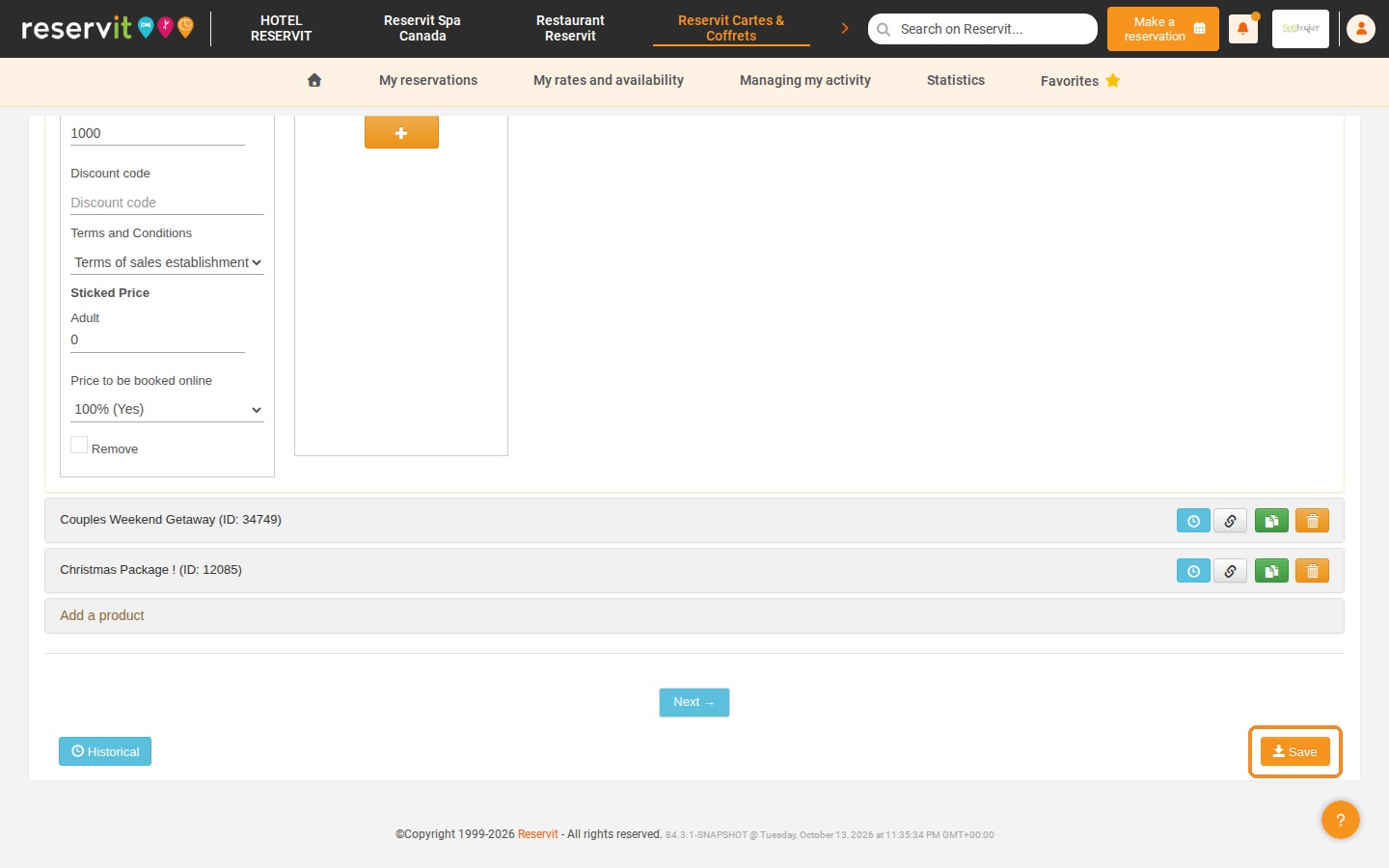
19. Click "Save".
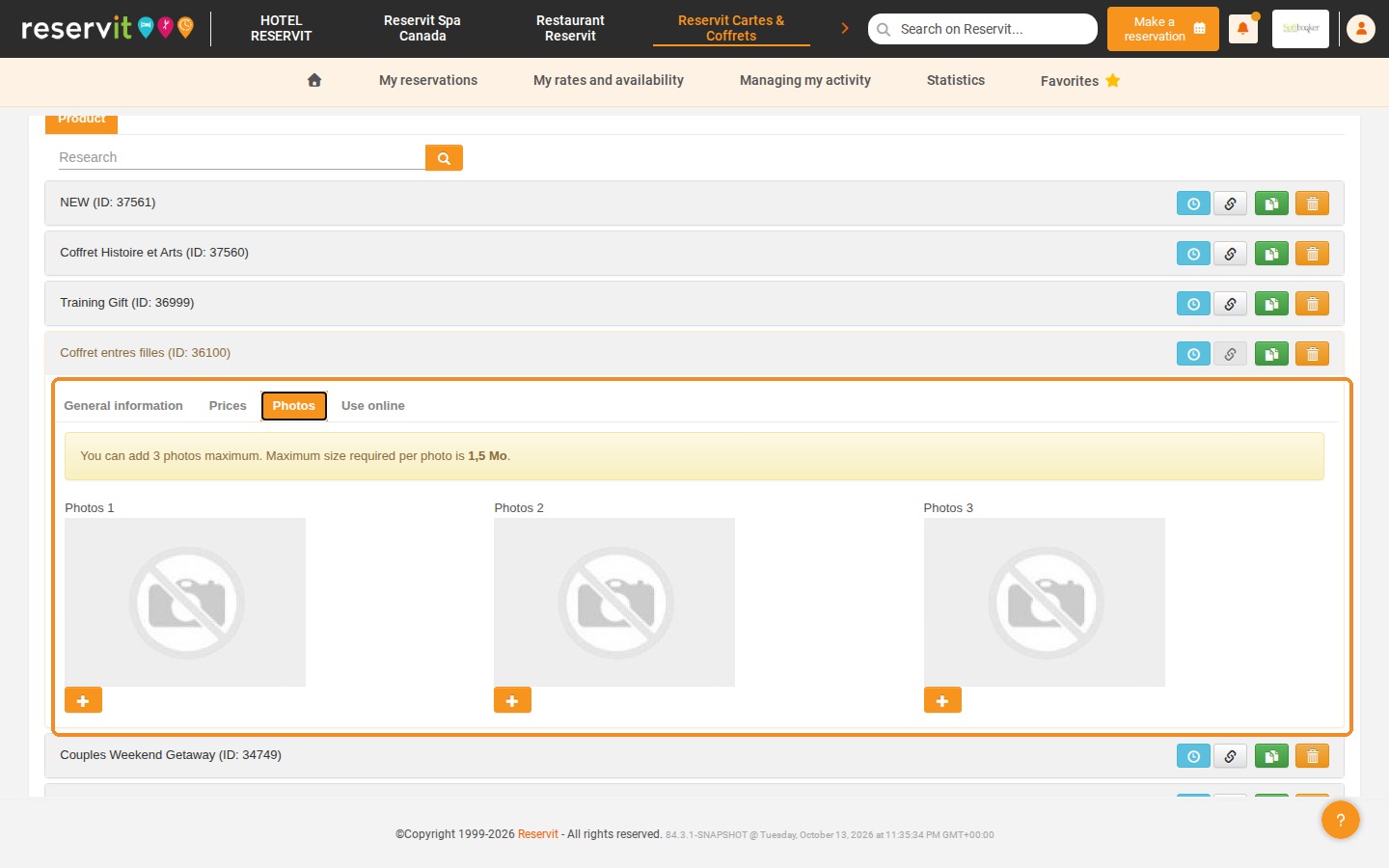
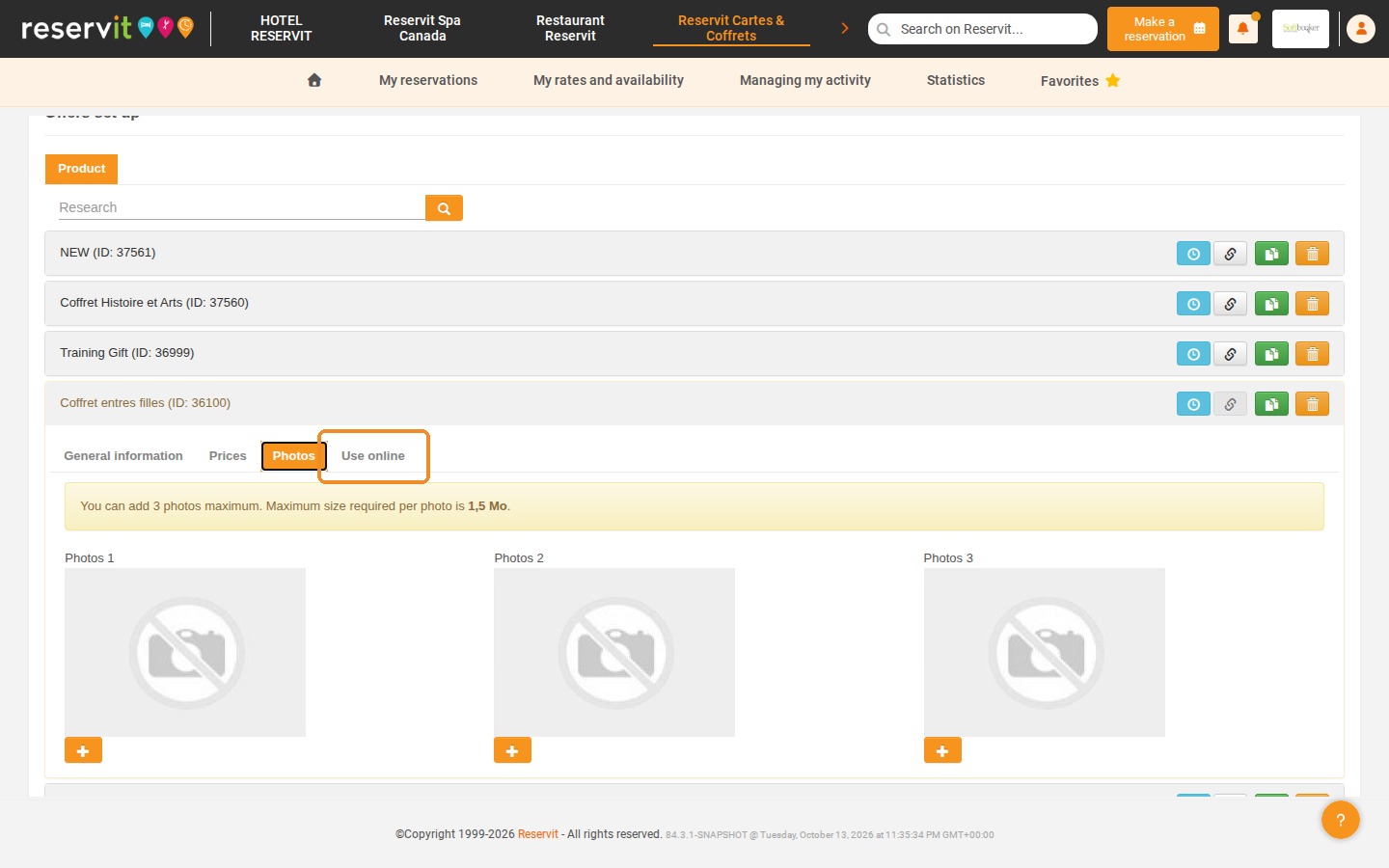
20. In the "Photos" tab, you can add up to 3 photos to your gift box (1.5 MB maximum per photo).
21. Click the "Use online" tab.
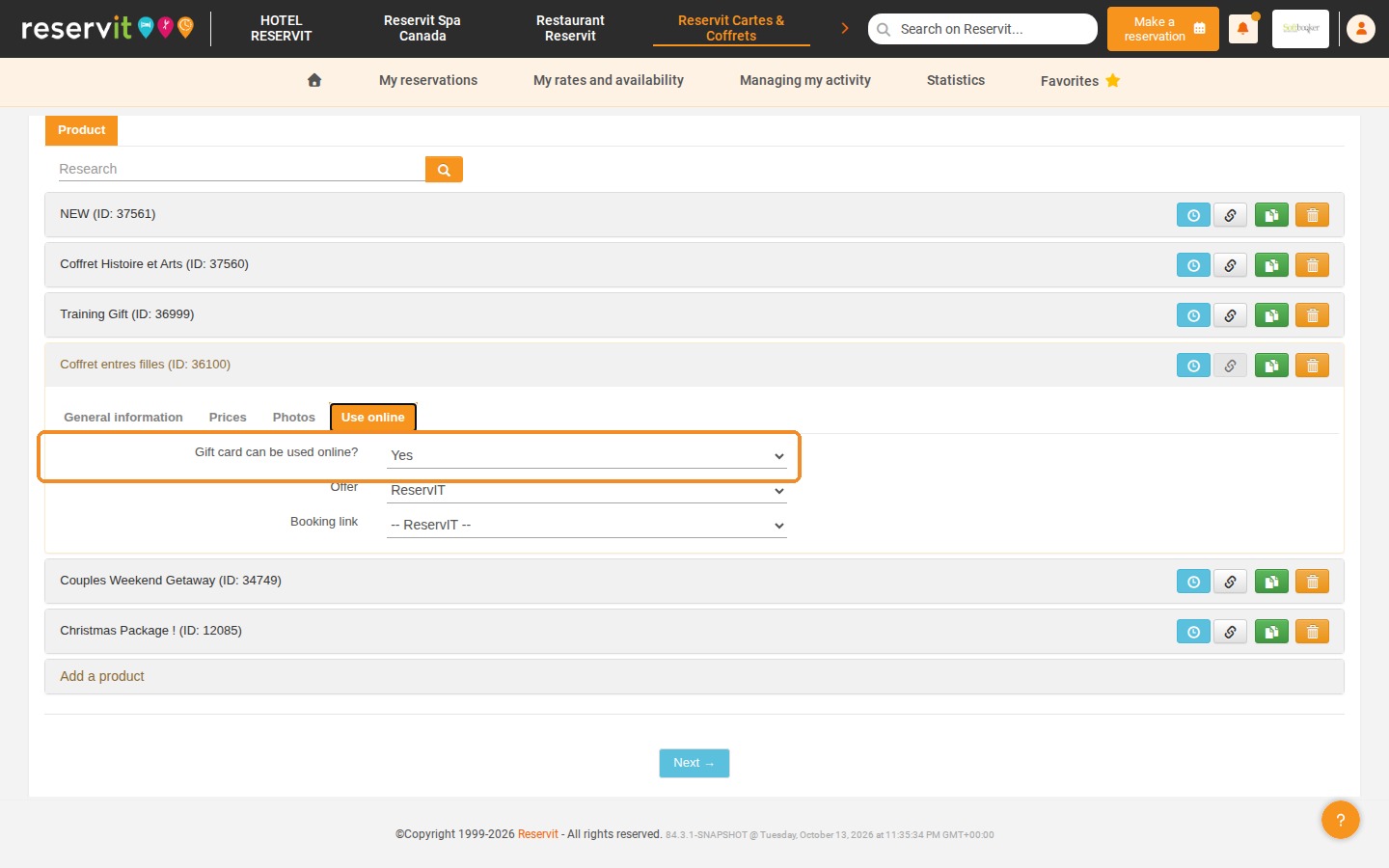
22. Set "Gift card can be used online?" to "Yes".
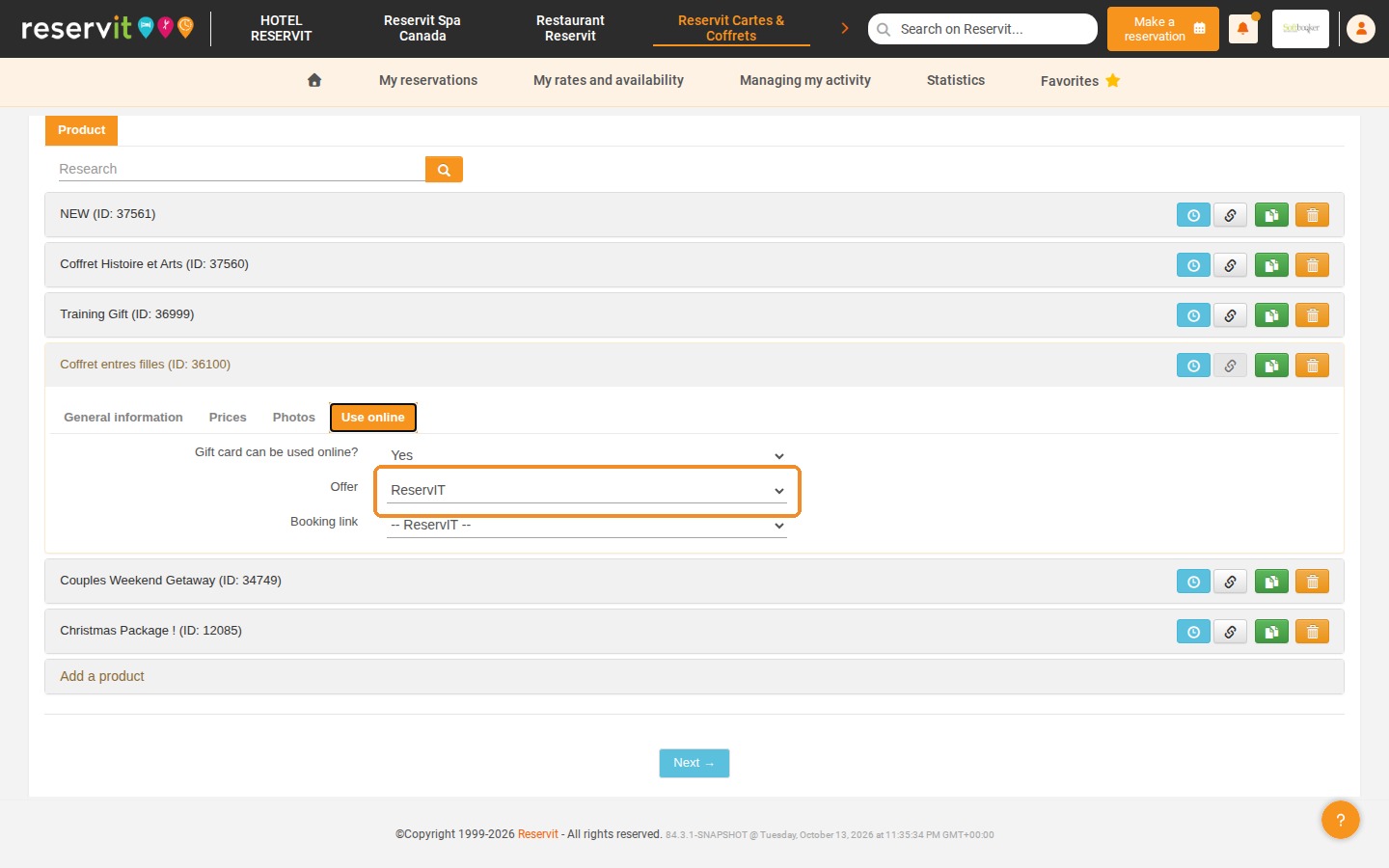
23. In "Offer", choose "ReservIT" to link the gift box product of Reservit Gift Cards & Boxes (orange) to the offer you created in Part 1 in Reservit Accommodation (blue).
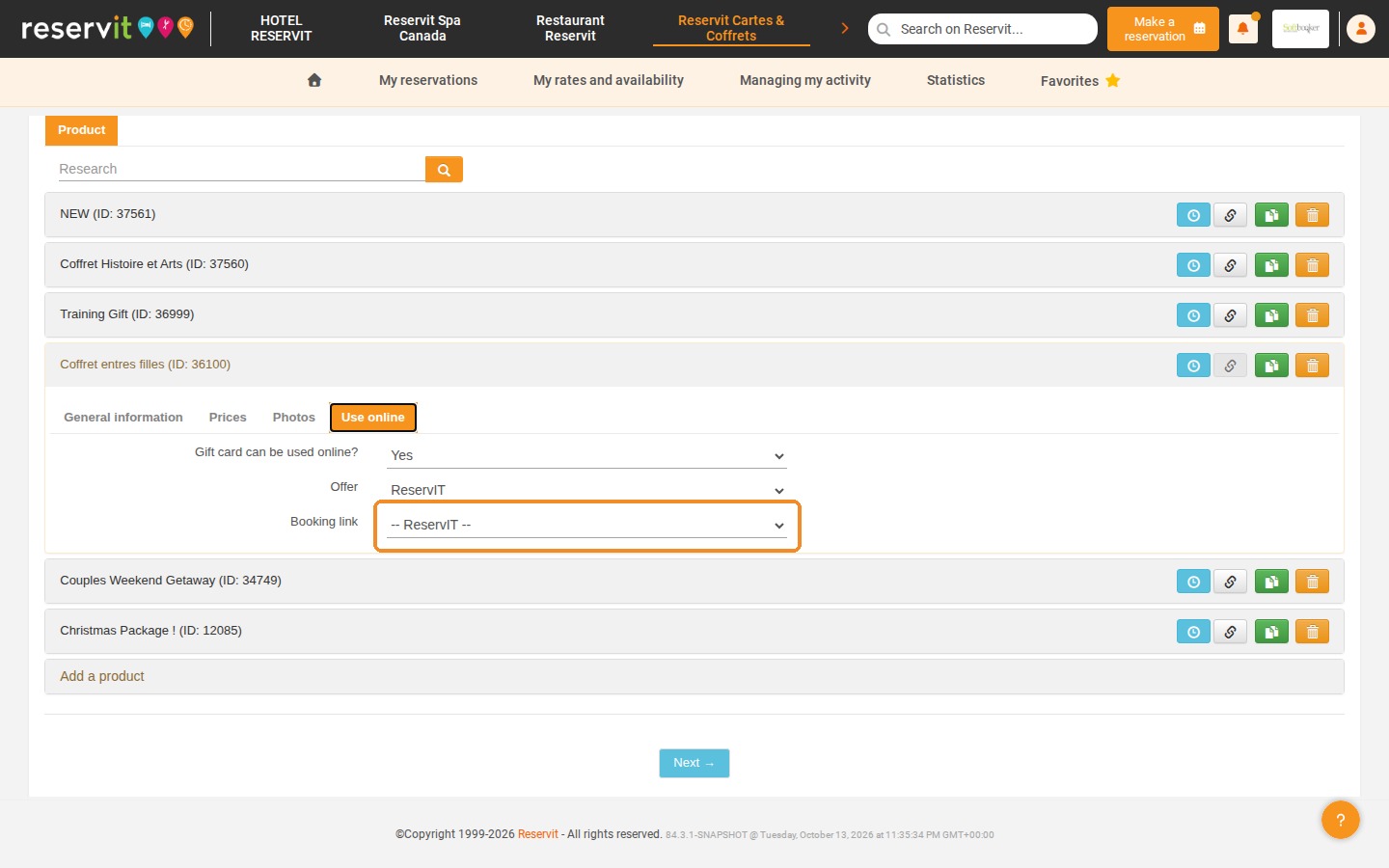
24. In "Booking link", select the offer that matches the gift box: the number in brackets is the identifier of the offer created in Reservit Accommodation.
25. Click "Save" to finalize your gift box.