

Article Summary: This comprehensive guide explains how to enable and customize the automated daily reservation report feature directly from your Reservit Activities dashboard. By following this tutorial, you will learn how to set up automated email alerts so your team receives a detailed morning summary of payment statuses, scheduled activities, and daily arrivals directly in their inbox.
The 5 Key Steps to Automate Your Reservation Report:
-
Access Settings: Log into your dashboard and navigate to "Managing my activity", then select "Property Setup" and "Property information".
-
General Information: Open the "General establishment information" tab to access your global account settings.
-
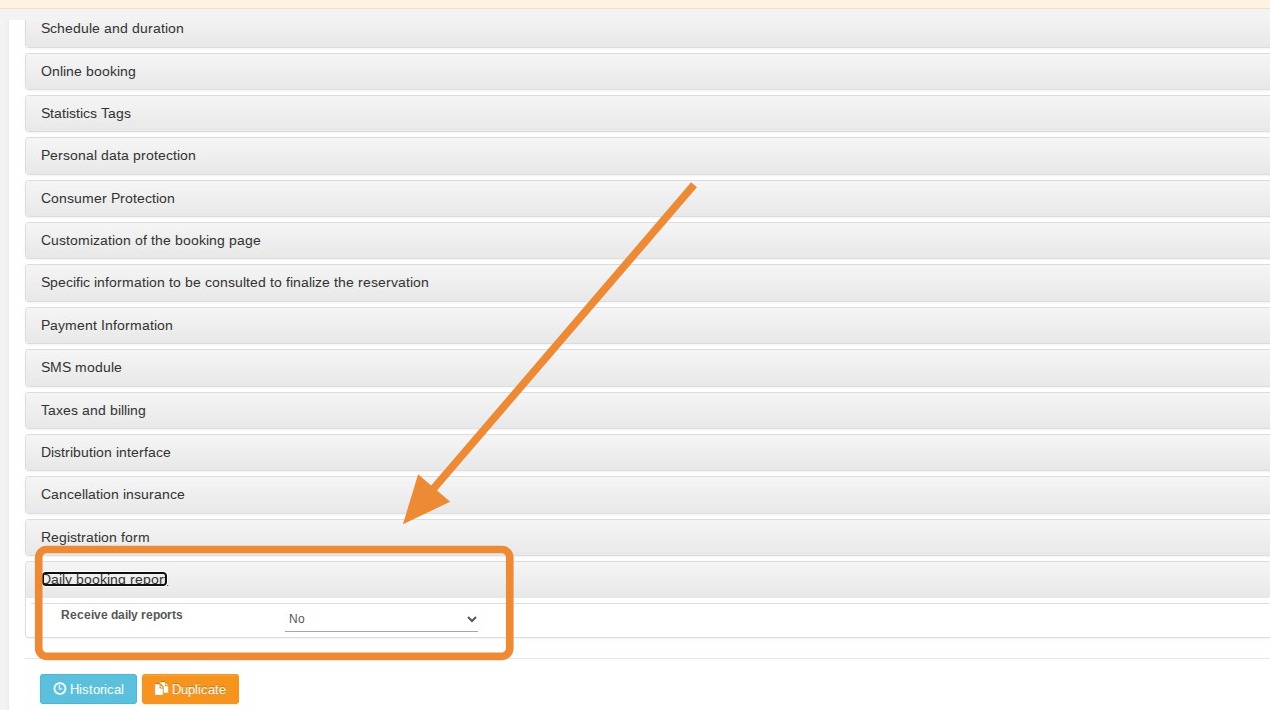
Locate the Report Option: Scroll down to the bottom of the page and find the "Daily booking report" section.
-
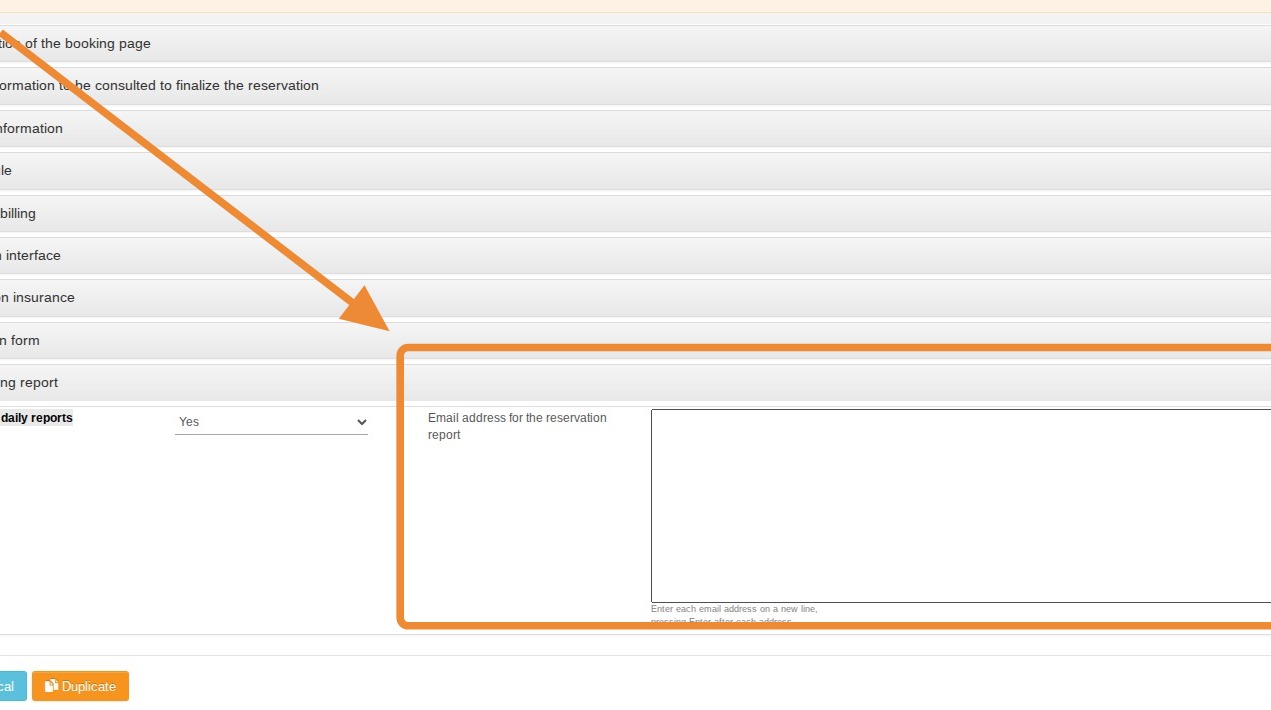
Enable the Automation: Toggle the "Receive daily reports" field to "Yes" to activate the feature.
-
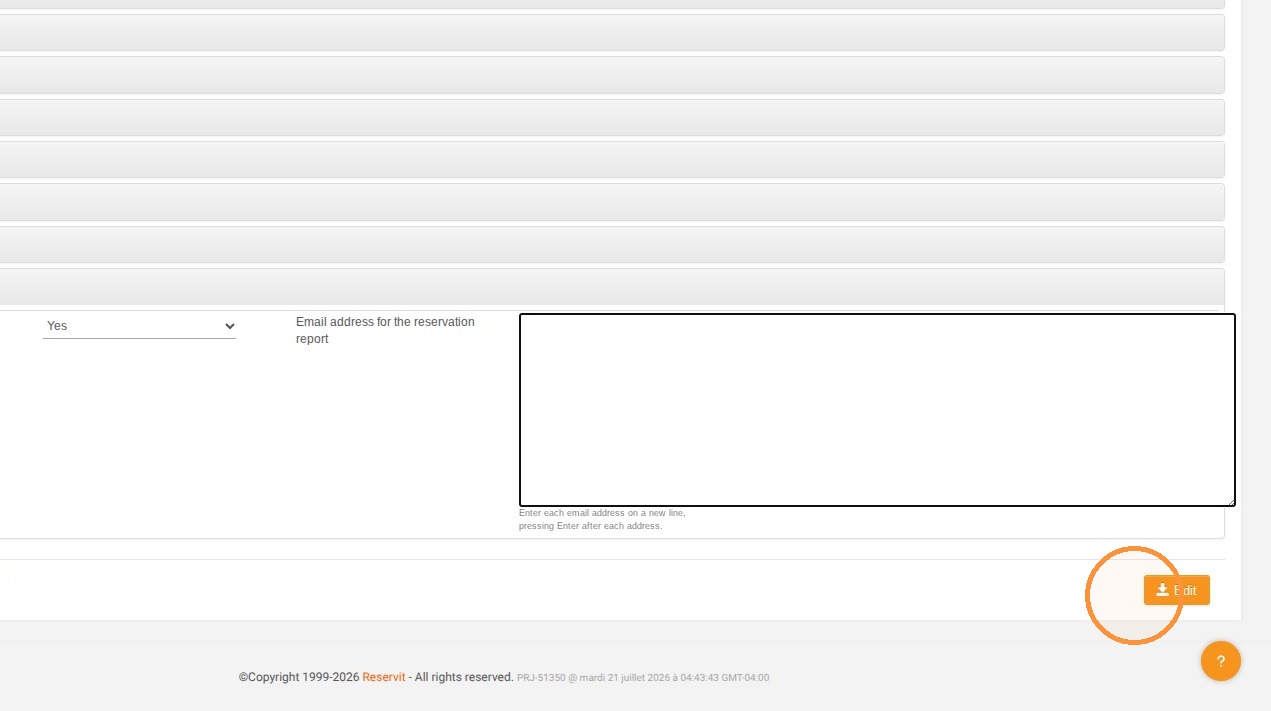
Add Recipients and Save: Enter the email addresses of the staff members who should receive the report (pressing Enter after each one), then click "Edit" to save your changes.
Why follow this guide? Automating this daily report saves your staff valuable time every morning and ensures perfect visibility over the day's scheduled activities and payment balances. This proactive configuration prevents billing tracking errors and optimizes the preparation of client arrivals for a much smoother operational workflow.
Here are a few details about how this daily report works.
This report includes:
-
Payment status: paid, unpaid, prepaid, included in the package, on-site payment, offline payment, or pending balance
-
Service
-
Booking number: corresponds to the cart number (if there are multiple services in a single booking, the report will show multiple rows, i.e., one row per service)
-
Duration
-
Customer name
-
Occupancy: corresponds to the number of people on the booking
-
Participant list
-
Employee (if applicable): corresponds to the resource configured under "My resources" > "Team management"
-
Options (if applicable)
-
Booking details: corresponds to the billing line items if billing is enabled; if billing is disabled, this cell is left blank.
-
Remaining balance due: displays pre-tax amounts for Canada, with a separate line for the tax amount.
Only time-slot bookings are included in this file. Additionally, the report will be sent between 5:00 AM and 6:00 AM. If no bookings are scheduled for the day, the report will not be sent. The report is sent in the business's default communication language.
1. Click "Managing my activity" then "Property Setup" and "Property information"
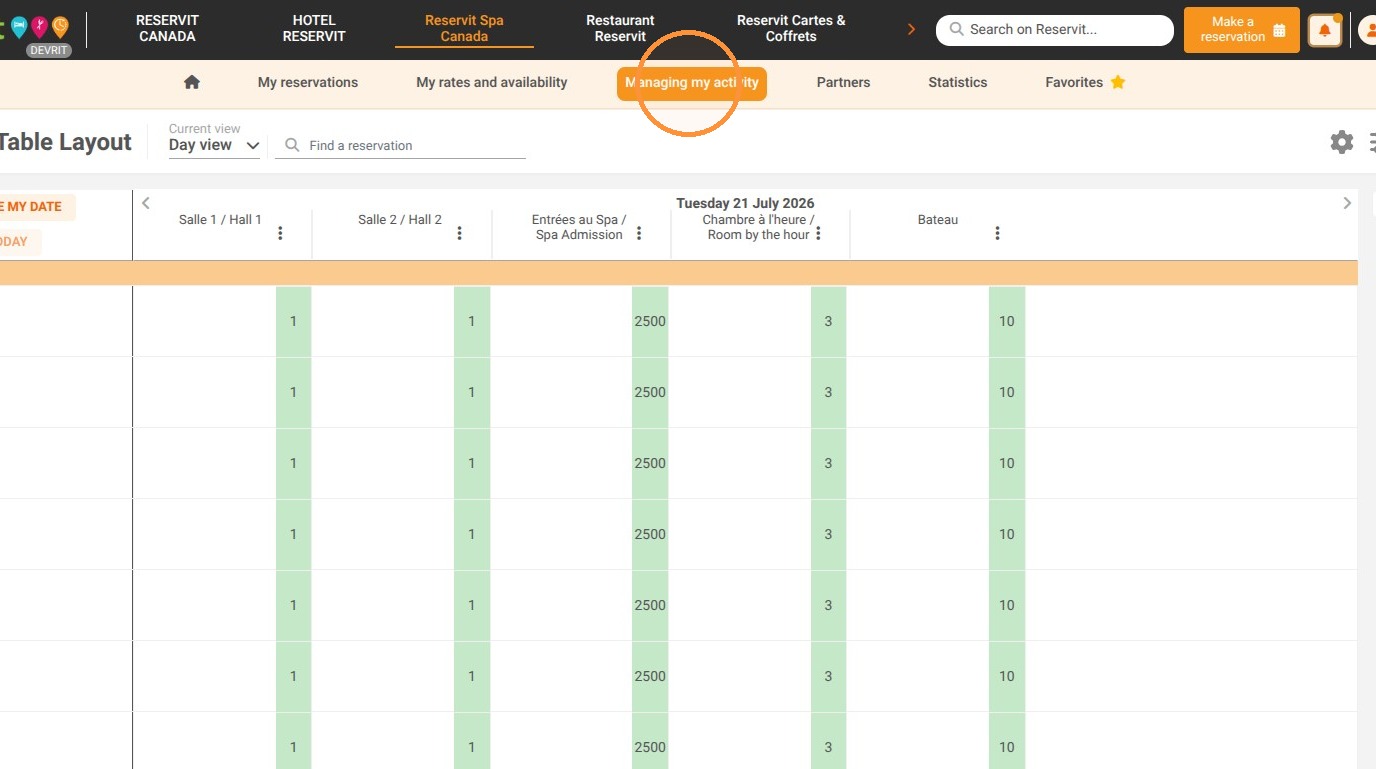
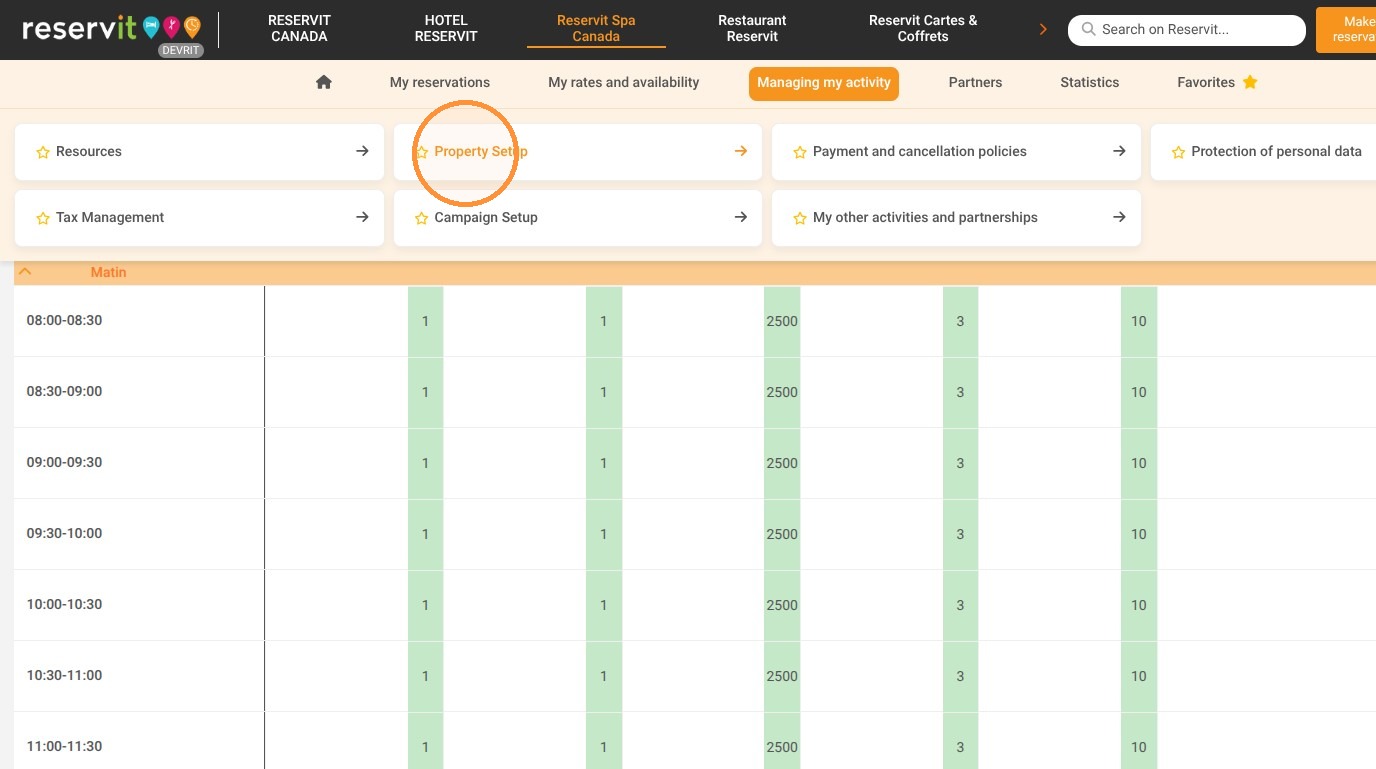
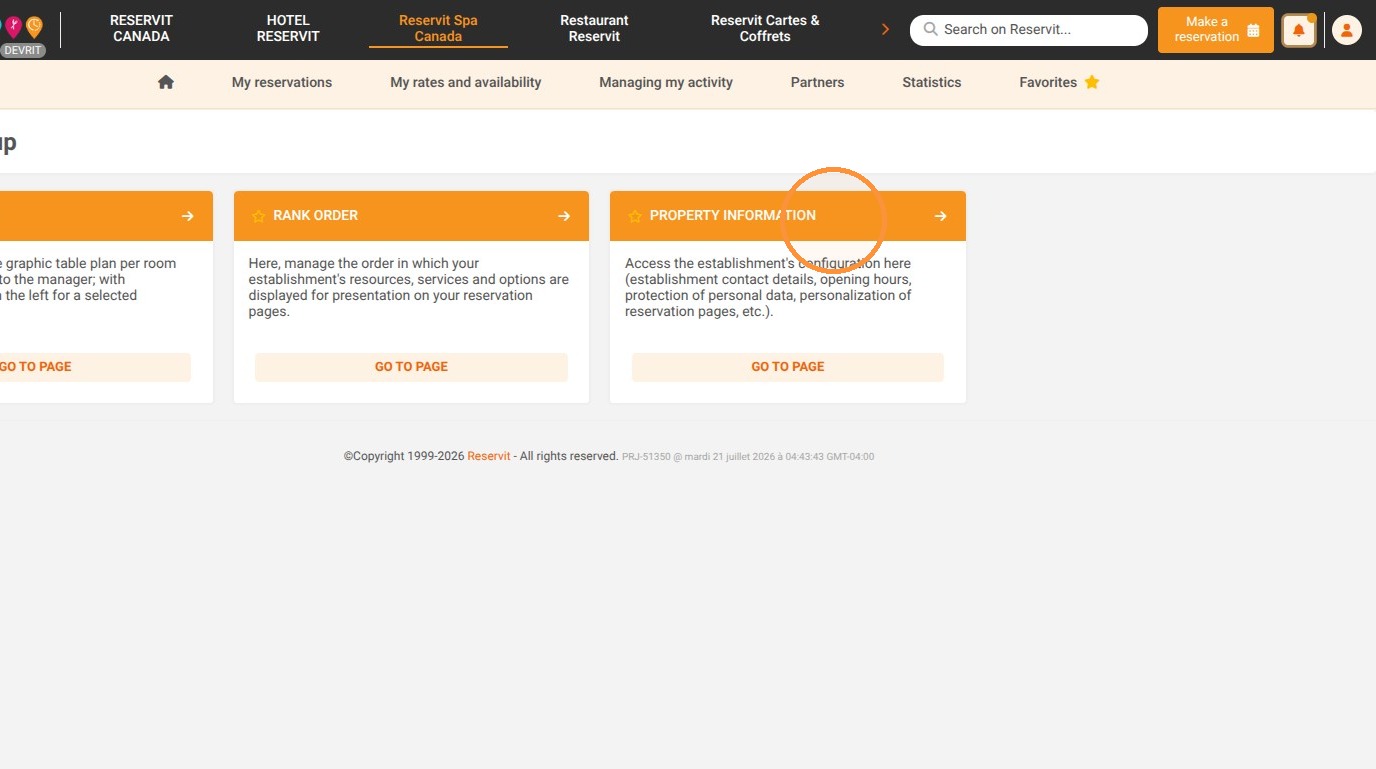
2. Scroll down to the bottom of the page and find the "Daily booking report" section.
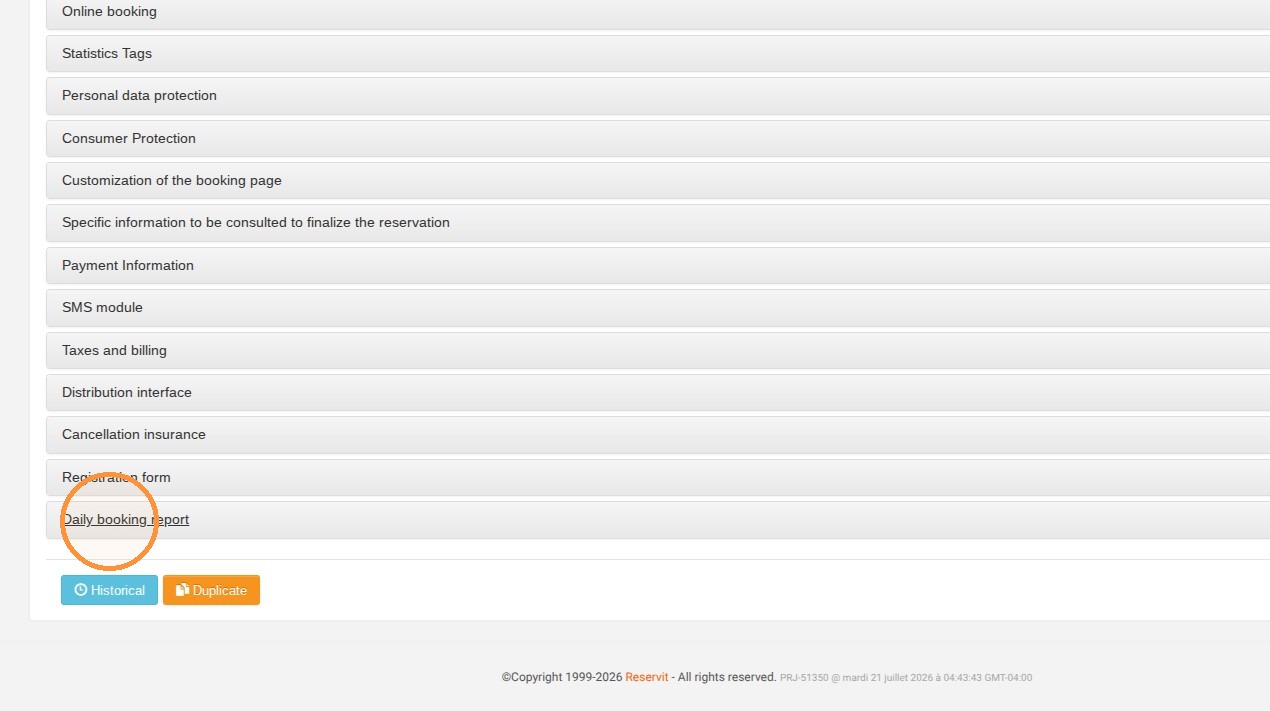
3. Toggle the "Receive daily reports" field to "Yes" to activate the feature.
4. Enter the email addresses of the staff members who should receive the report (pressing Enter after each one).
5. Then click "Edit" to save your changes.
⚠️ Automated delivery management
If the field is enabled but no email address is specified, the report is automatically sent to the default location's address.
If the field is enabled with a defined email address, the report is sent to that specific address rather than the location's address.