Article Summary: This step-by-step tutorial explains how to customize the visual appearance of your Reservit Activities booking engine to perfectly match your brand identity. You will learn how to easily update colors, buttons, logos, and page banners, as well as add multilingual pop-up messages for your guests. Creating a cohesive and attractive booking page enhances the user experience, builds trust, and helps increase your direct conversion rates.
The 5 key steps to customize your booking engine:
-
Access customization settings: Navigate to "Managing my activity", go to "Property Setup", and select "Customization of the Booking page".
-
Update colors and layout: Choose your preferred display colors and style your booking buttons and price displays to align with your brand.
-
Add branding elements: Upload or change your header banner, company logo, and main booking page images for a professional look.
-
Configure pop-up messages: Create informative welcome messages or alerts that appear upon arrival, and translate them into multiple languages.
-
Save your changes: Click "Edit" to confirm your visual updates and instantly publish them to your live reservation portal.
Why follow this guide? Taking a few minutes to visually brand your reservation system builds immediate trust with your customers and prevents booking abandonment. A professional, customized setup ensures a seamless transition from your main website to your booking engine, optimizing your overall sales funnel and elevating the guest experience.
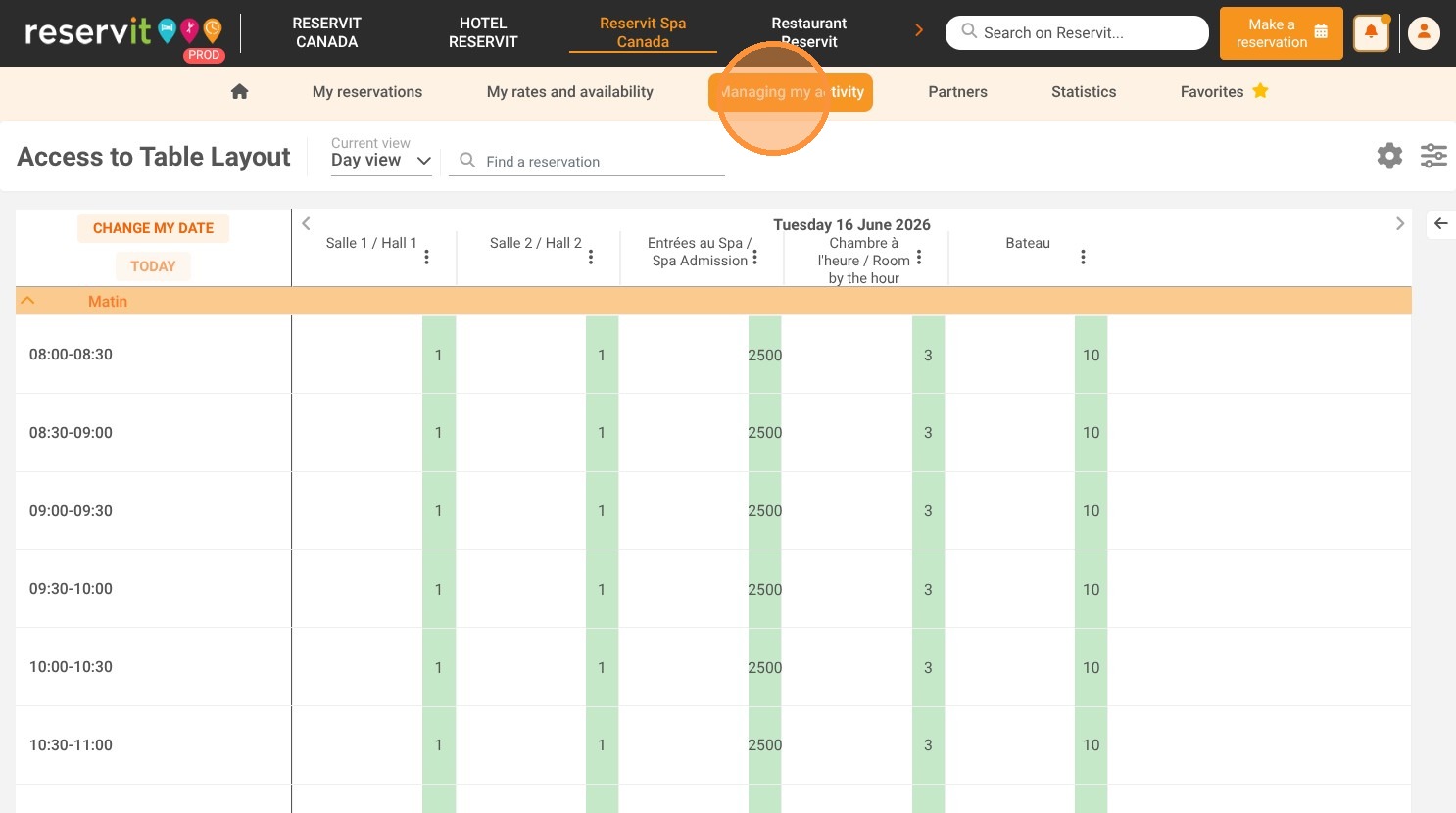
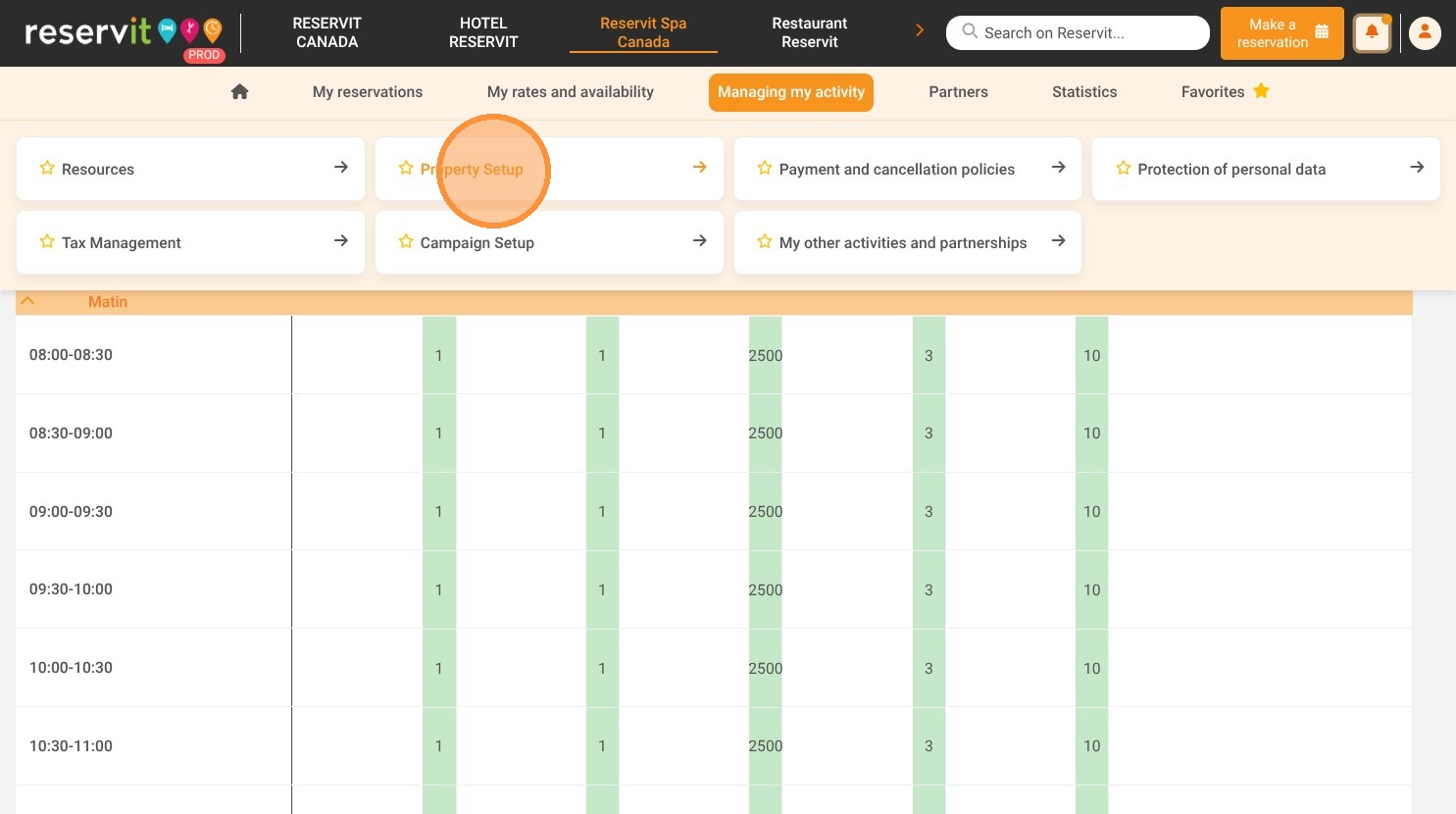
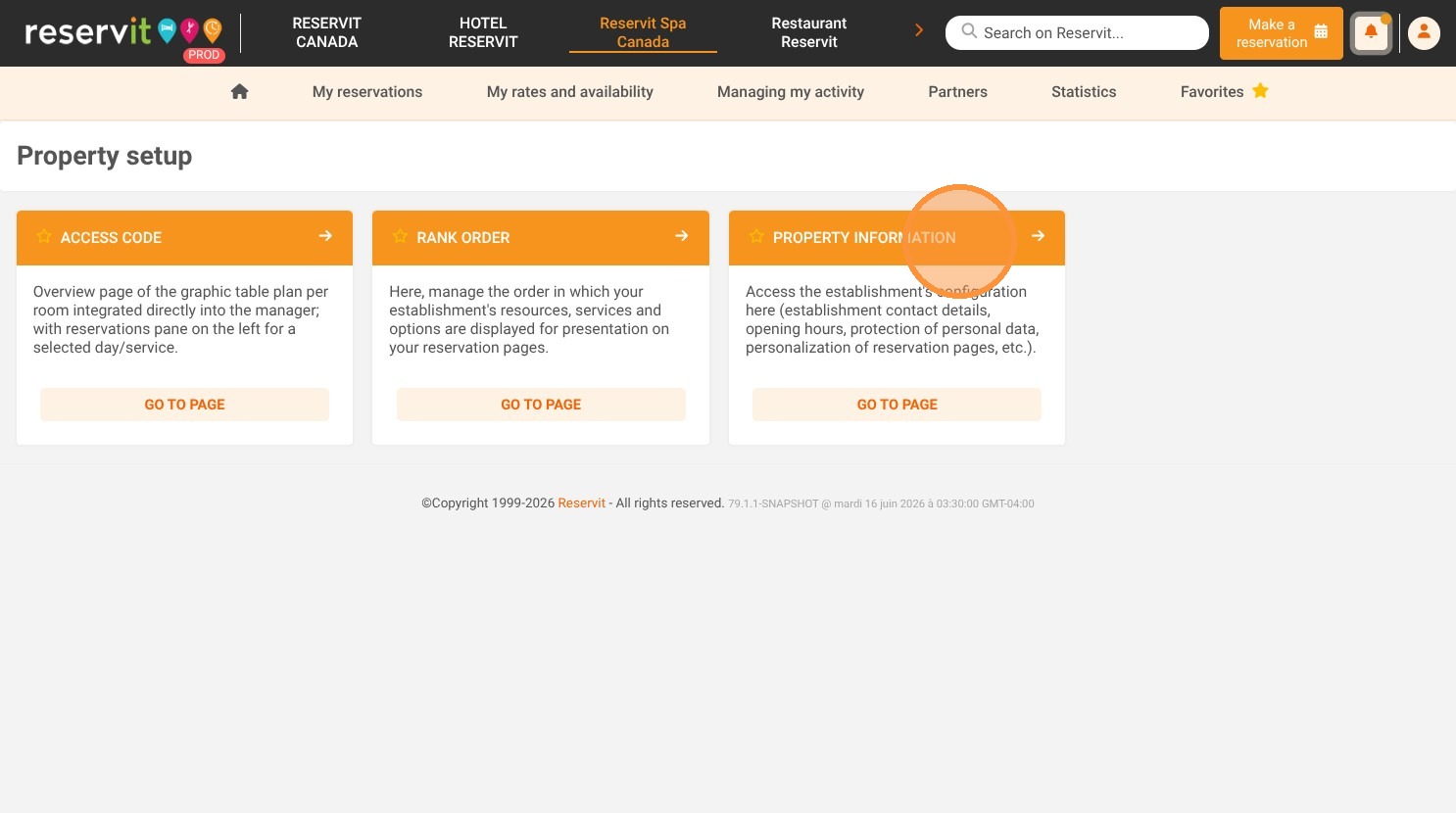
1. Click "Managing my activity" then "Property Setup" and "Property information". Select "Customization of the Booking page"
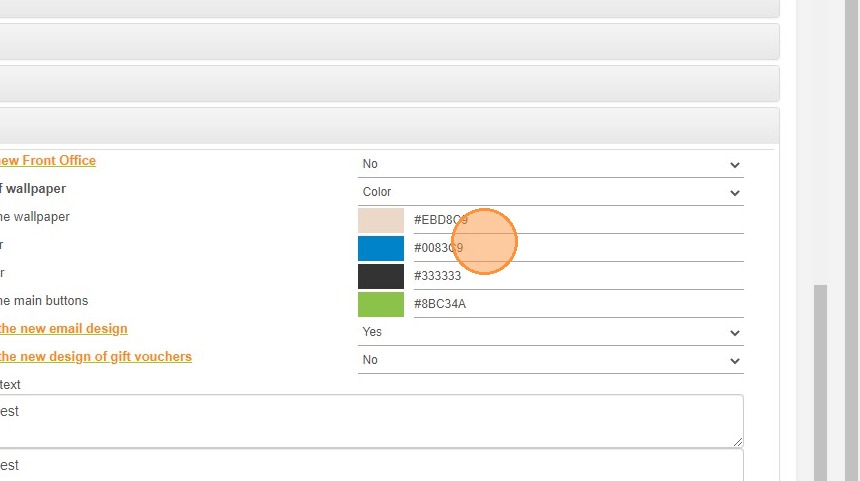
2. You will be able to choose the display color, booking buttons and prices.
3. You can change the banner or logo in the header of your pages.
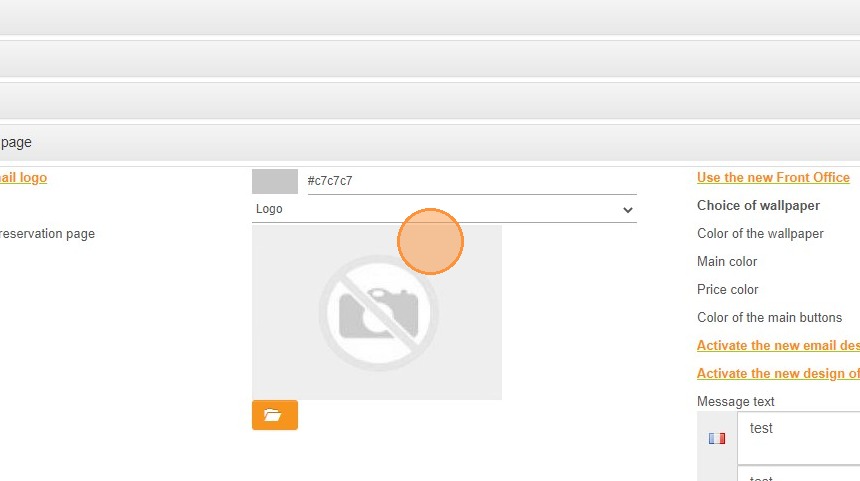
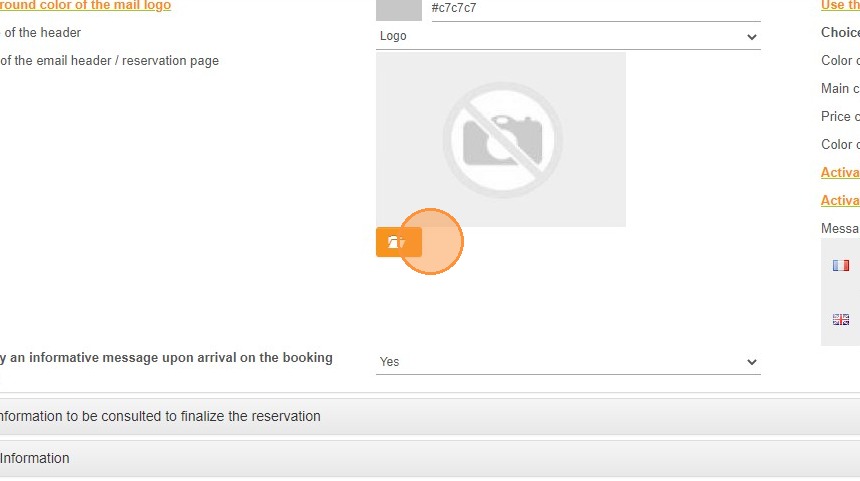
4. You can also change the image of your booking pages.
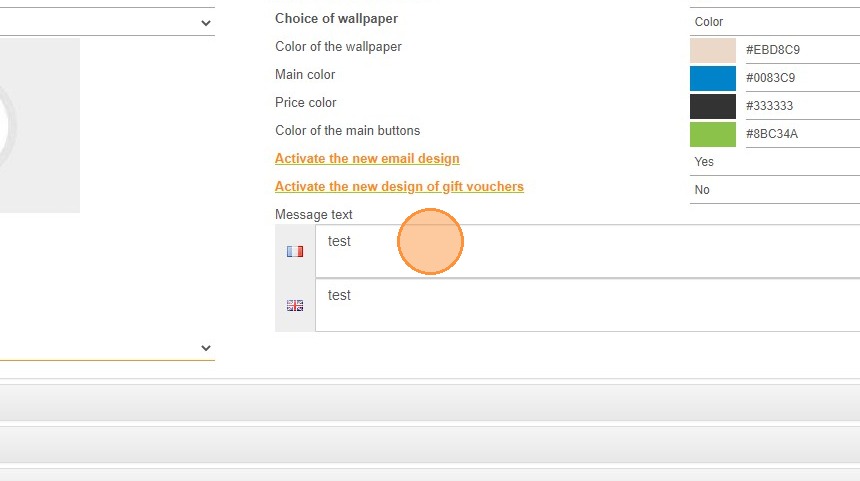
5. You also have the possibility to write a message that will appear in a pop-up window on arrival on the reservation pages.
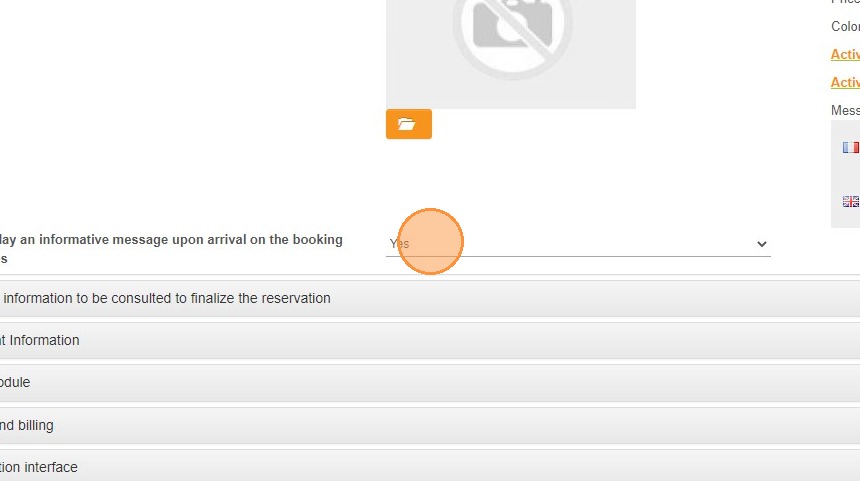
6. You can write this message in several languages.
7. Click on Edit to save the changes.