Article Summary: This practical guide provides step-by-step instructions on how to seamlessly generate and send a secure payment link directly from the Reservit PMS. You will learn how to access the integrated payment terminal, customize the requested amount and link expiration date, and easily track completed guest transactions. Mastering this feature streamlines your remote billing process, securing your property's revenue while significantly improving the guest checkout experience.
The 5 key steps to generate and send a payment link:
-
Locate the Reservation: Navigate to the reservation management page and click on the specific guest booking you need to bill.
-
Access the Payment Terminal: Open the booking details, click on the "Payment terminal" icon, and select the "Payment Link" option.
-
Customize Link Details: Adjust the specific payment amount requested and set a secure expiration date for the payment order.
-
Save and Send: Click "Save" to confirm your configured details, then click "Send" to automatically deliver the secure URL to your customer.
-
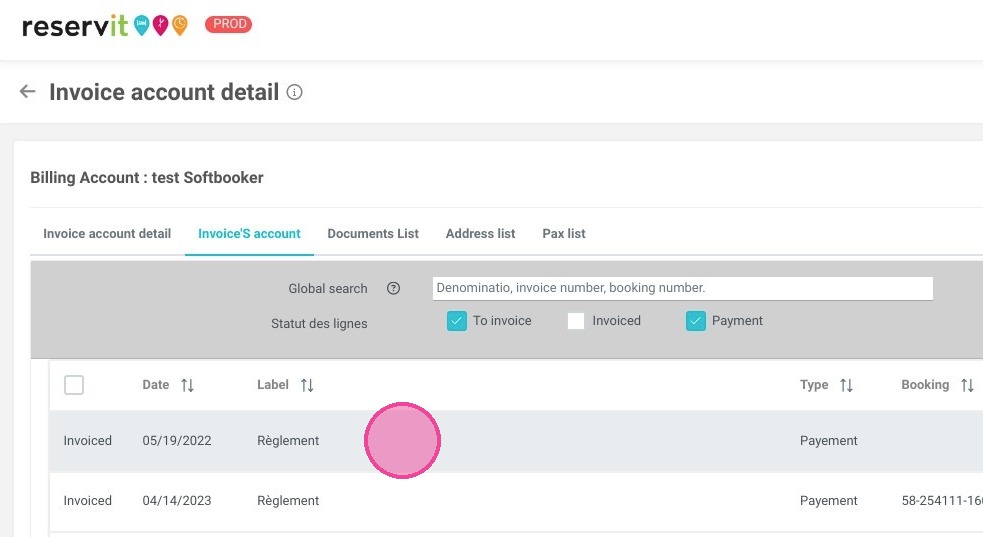
Track the Transaction: Monitor the guest's billing account, where the completed transaction will automatically appear as a new "Payment" line once the customer successfully pays the invoice.
Why follow this guide? Following this tutorial will accelerate your remote payment collection process and reduce the risk of credit card fraud by empowering guests to pay securely on their own personal devices. It optimizes your daily front-desk operations, ensuring faster revenue collection and providing a modern, contactless payment experience for your clients.
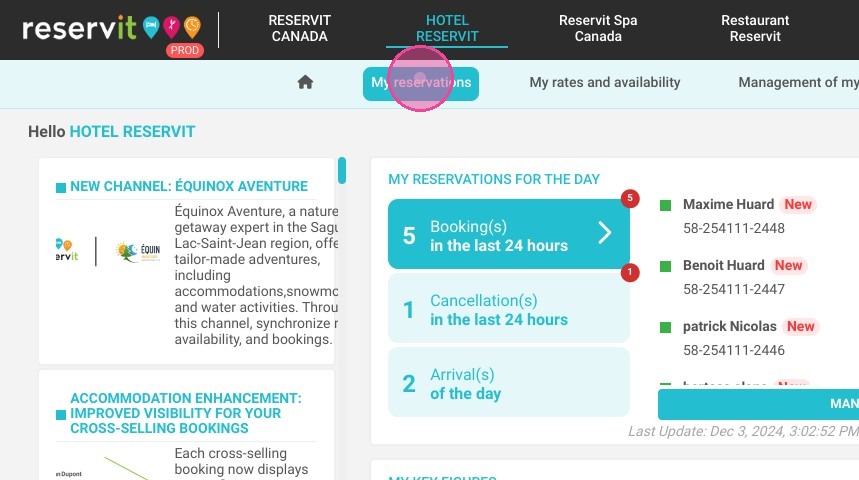
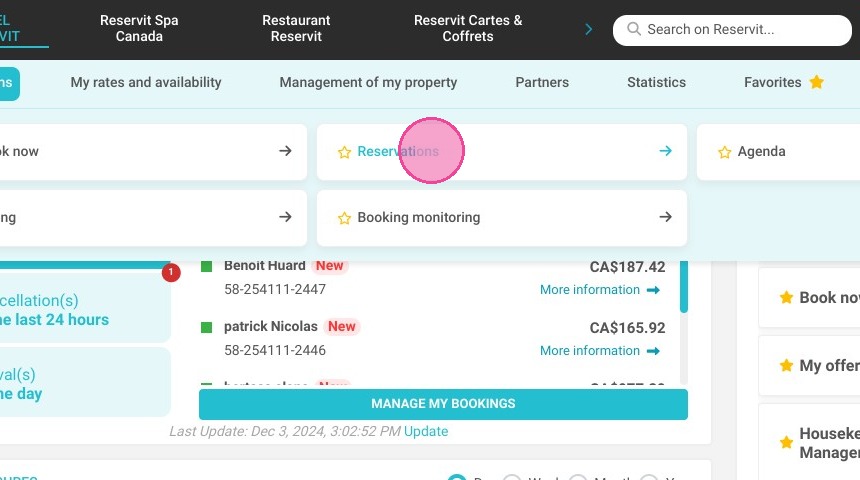
1. To send payment links to your customers, click on the reservation management page.
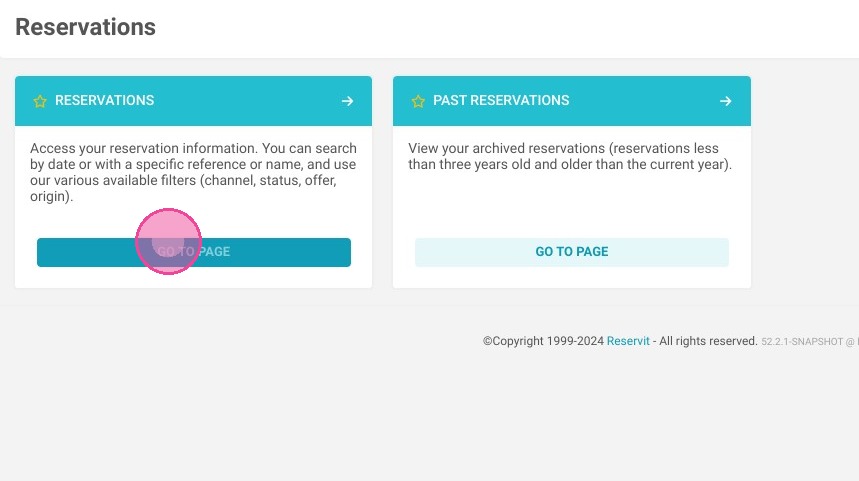
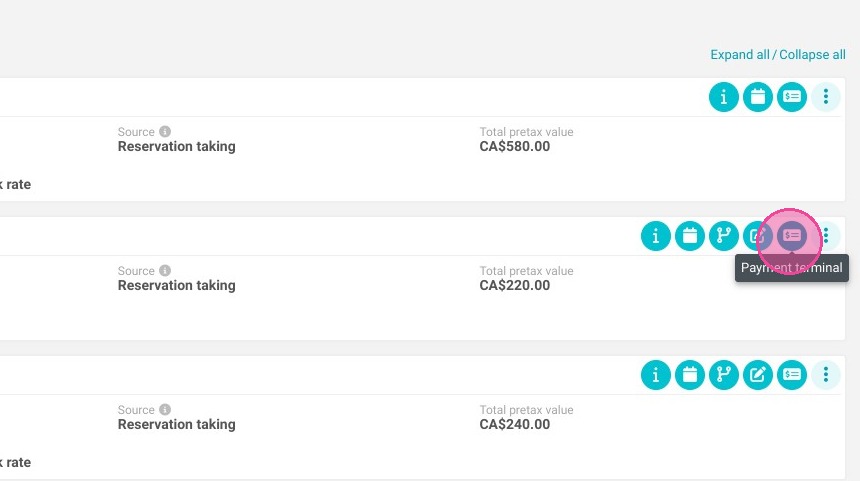
2. Once you have found your reservation, click on the "Payment terminal" icon
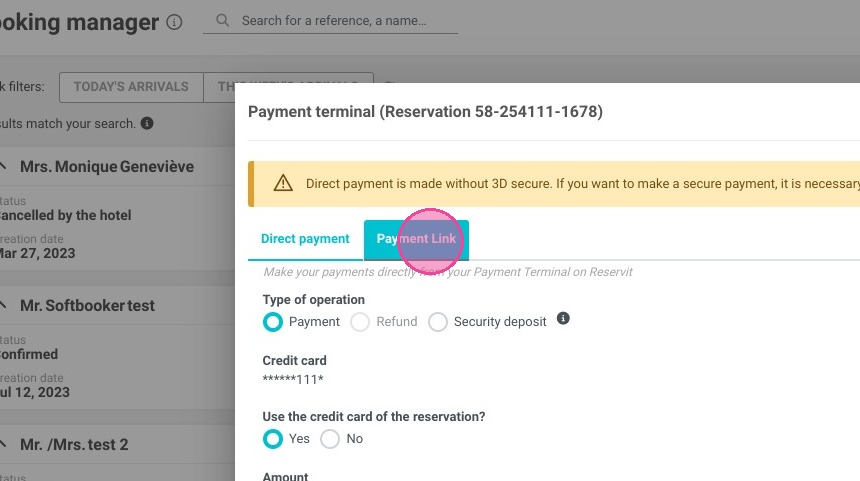
3. Select "Payment Link"
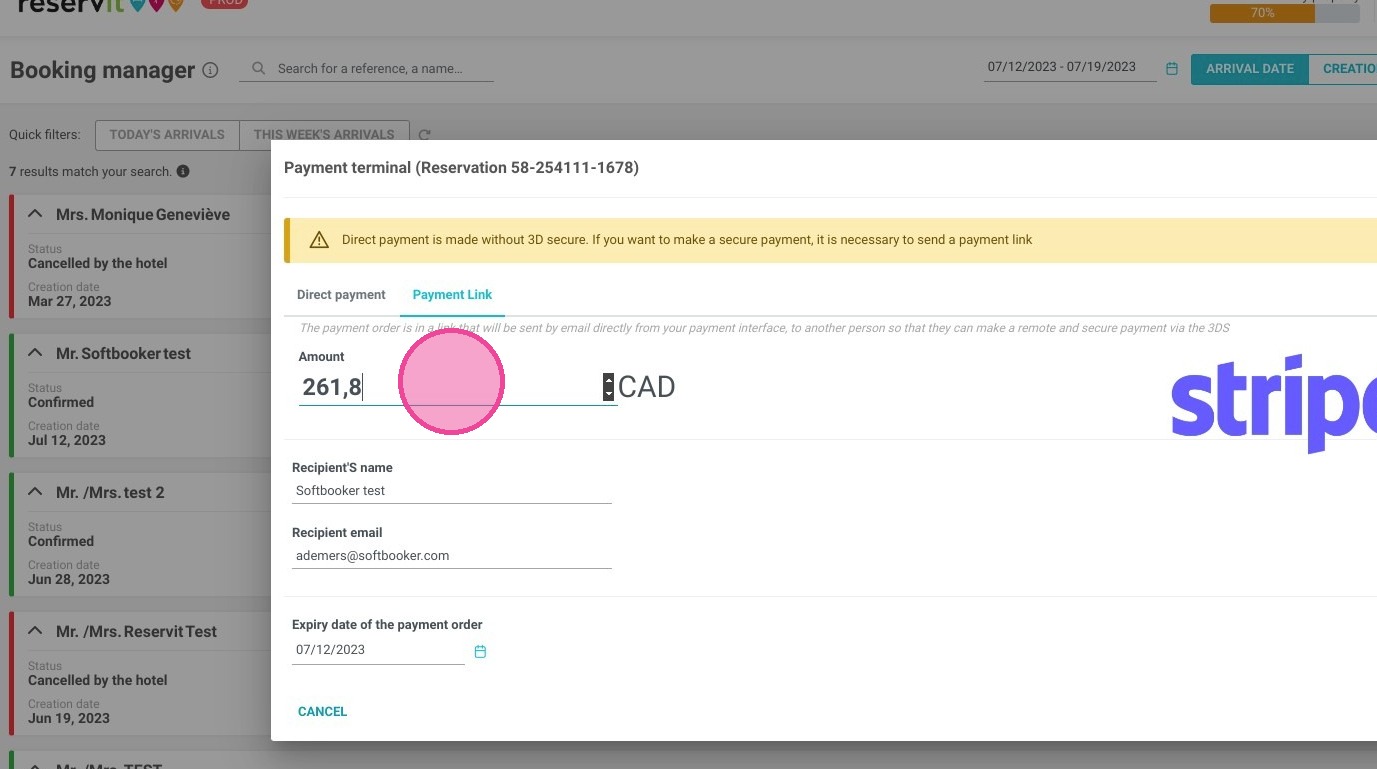
4. You can adjust the amount. You also have the possibility to change the expiry date of the payment order.
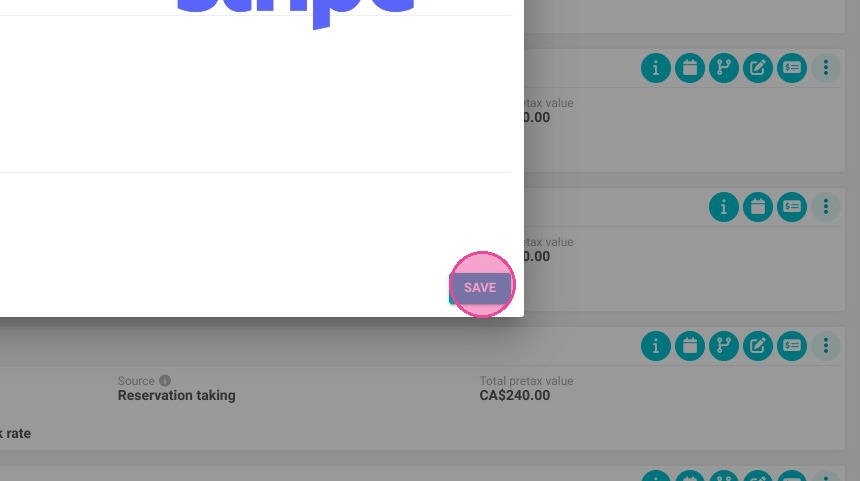
5. Click "SAVE"
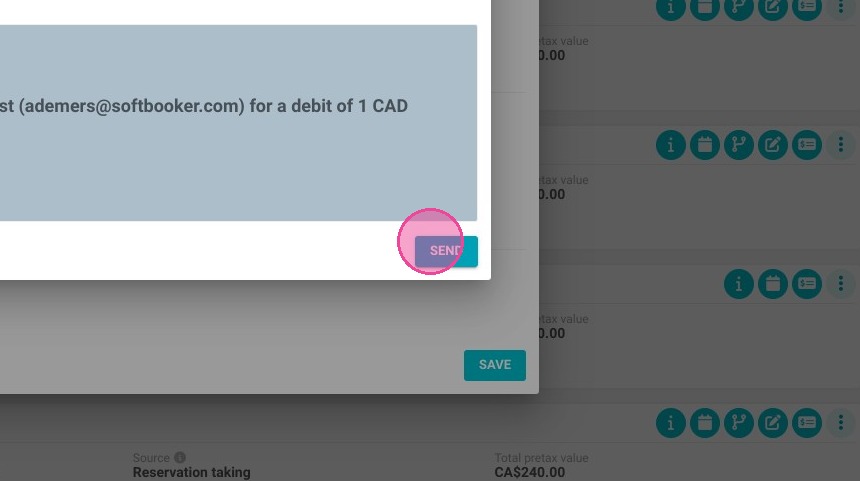
6. Click "SEND"
7. Once your customer has paid the invoice, a new line called "Payment" will appear, like this one.