

Article Summary: This step-by-step guide explains how to effectively manage and cash in a guest's security deposit using the integrated Reservit PMS payment terminal. You will learn how to access previously blocked funds, specify the exact amount to be captured, and successfully process the final transaction. Mastering this feature ensures your property can securely collect damage fees or incidentals while automatically maintaining transparent email communication with your customers.
The 4 key steps to manage and capture a security deposit:
-
Access the Payment Terminal: Open the specific guest reservation and navigate directly to the integrated payment terminal module.
-
Select the Deposit Option: Choose the "Security Deposit" field to access the pre-authorized funds (note: this option only appears if a deposit hold was previously secured).
-
Define the Capture Amount: Input the exact monetary amount of the deposit you need to cash in—whether partial or in full—and select the transaction date.
-
Save and Validate: Click "Save" and confirm the action a second time to officially process the payment and automatically send a confirmation email to the guest.
Why follow this guide? Following this tutorial ensures that you correctly process damage claims or incidental charges from pre-authorized credit cards without making critical billing errors, as deposits can only be captured once. It heavily optimizes your financial security by guaranteeing that held funds are successfully and professionally collected.
Tip: A security deposit is a pre-authorization: the amount is held but not collected. This tutorial shows how to capture it in full or in part.
Alert: An amount on a security deposit can only be taken once!
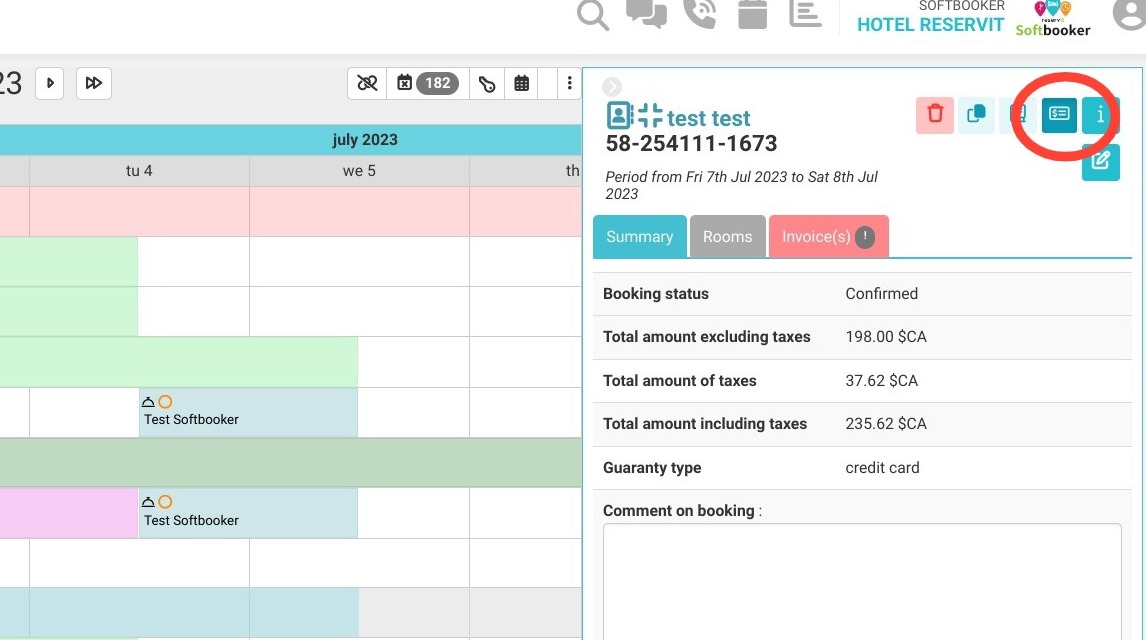
1. Access the payment terminal from the reservation.
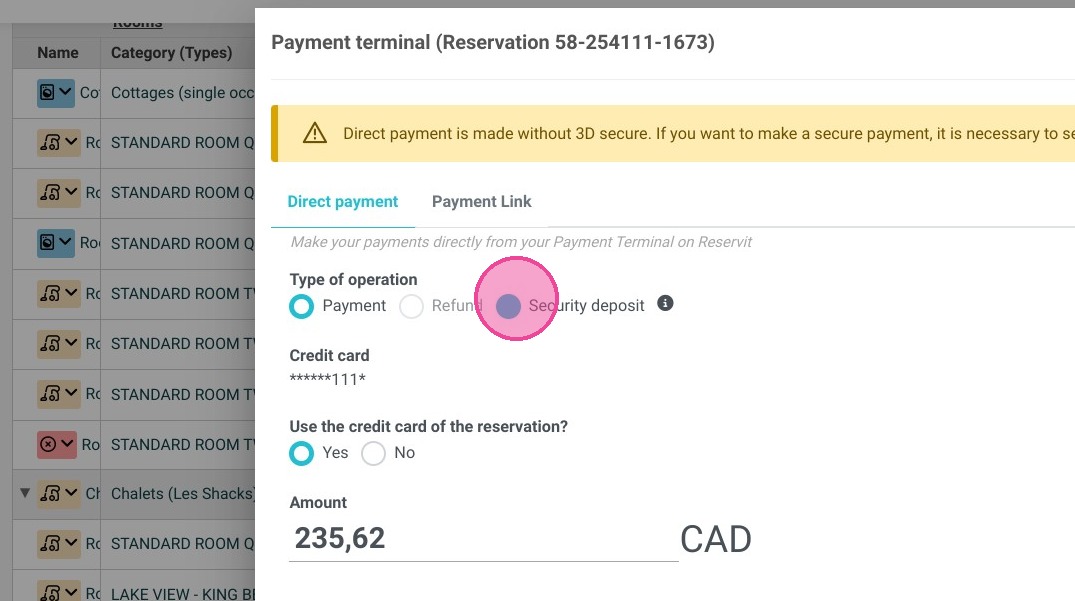
2. Select ''Security Deposit''. If this field does not appear, the security deposit was not taken with the reservation.
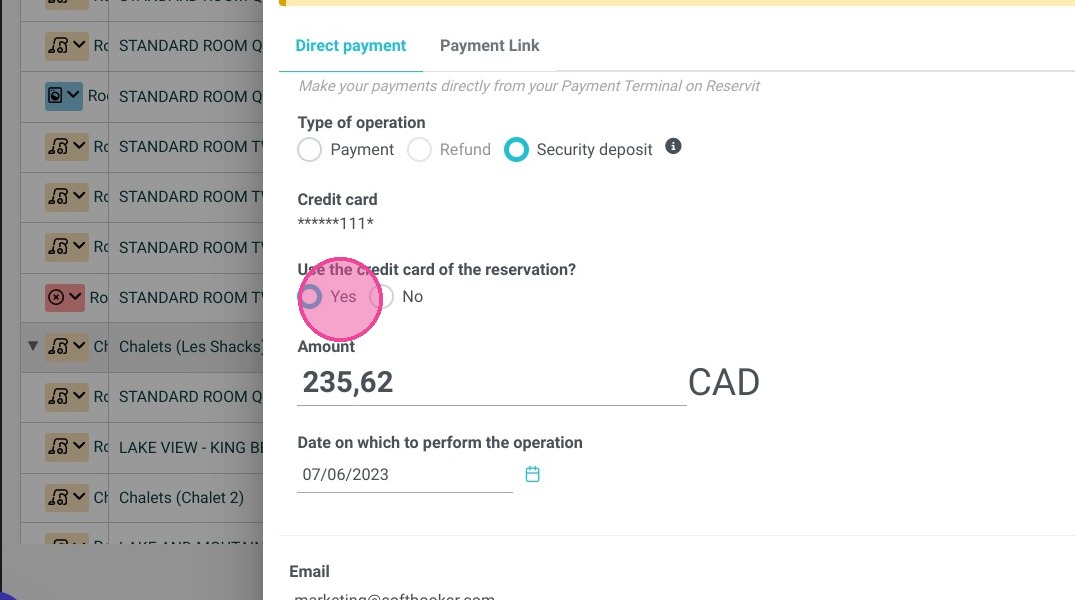
3. Click "Yes" or "No"
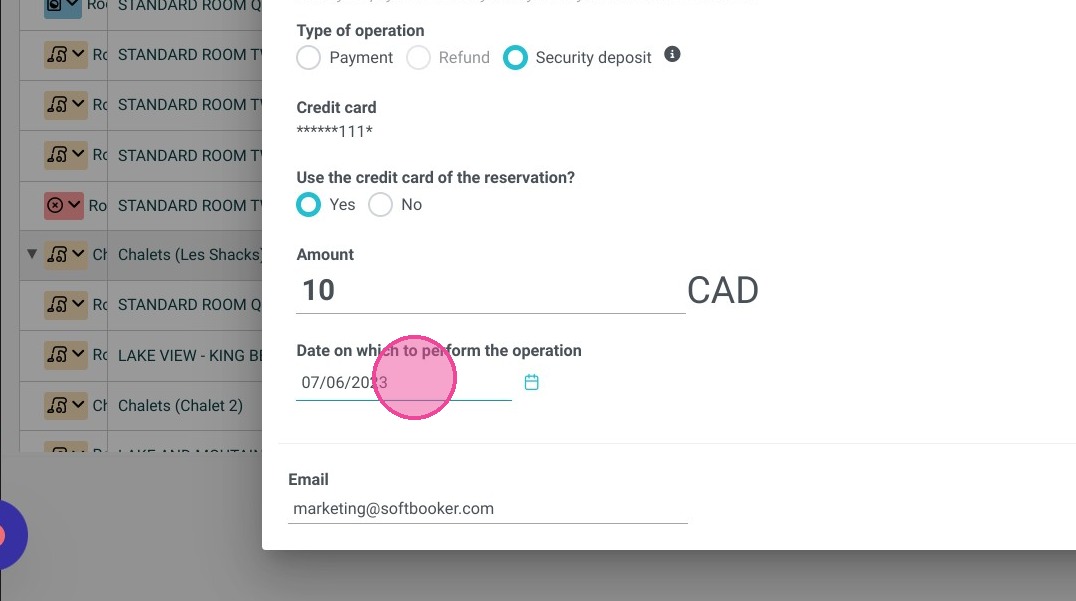
4. Enter the amount of the security deposit in the field "Amount" and choose the date of the Deposit
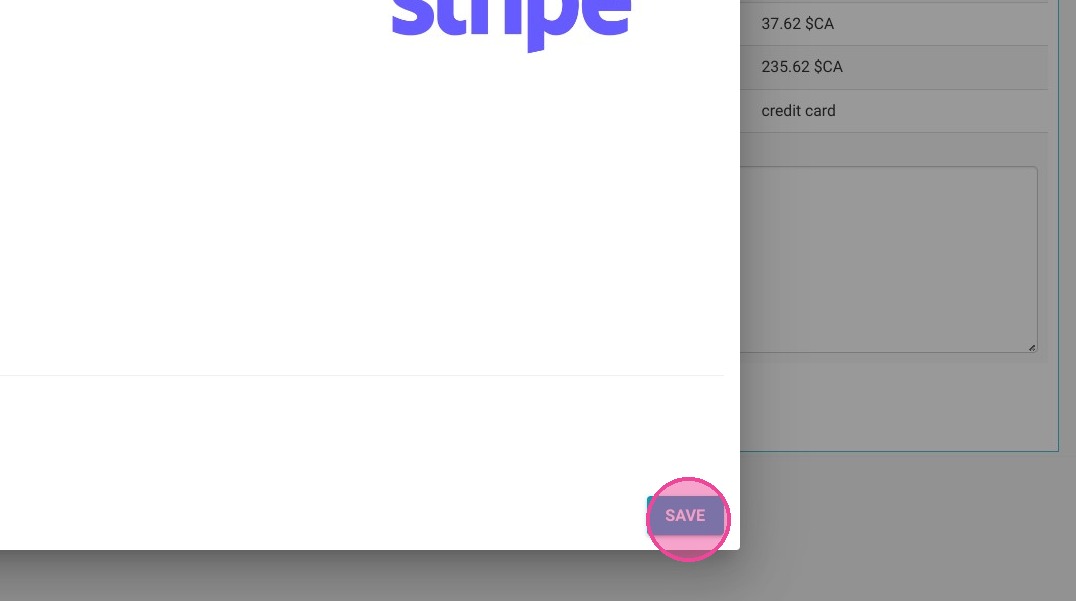
5. Remember to ''Save'' your action for it to apply.
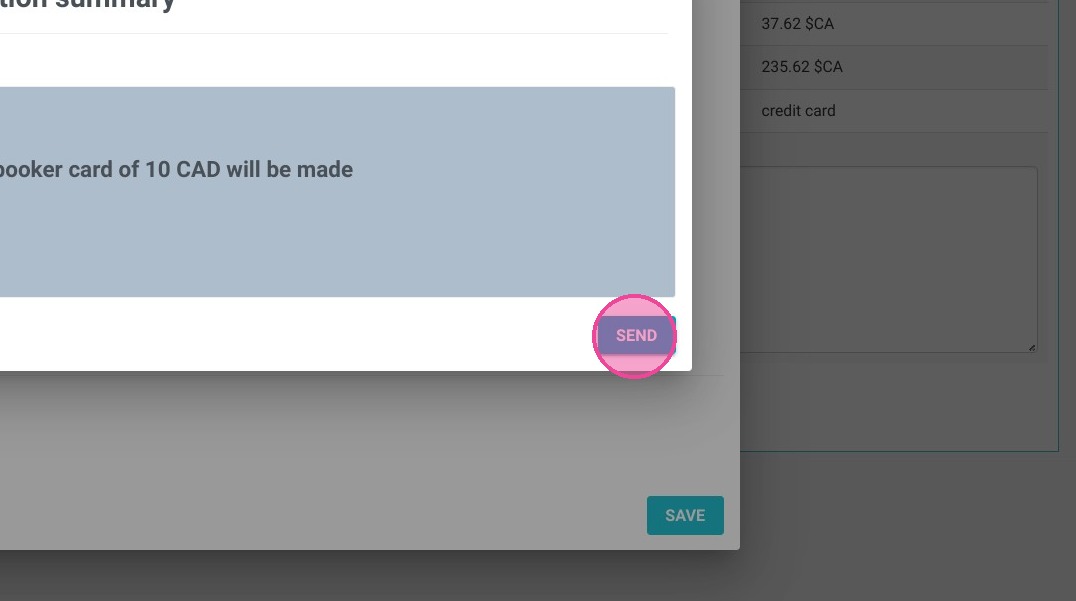
6. The action will have to be validated a second time.
Tip: If the action was successful you will get a success message and an email with the amount withdrawn will then be sent to the customer.