

Article Summary: This comprehensive guide provides step-by-step instructions on how to seamlessly process payments using the integrated terminal within Reservit PMS. You will learn how to access the payment module to either charge a saved credit card directly or send a secure online payment link to your guests. Mastering this feature ensures highly efficient revenue collection and keeps your reservation statuses perfectly synchronized with real-time financial transactions.
The 4 key steps to process payments with the terminal:
-
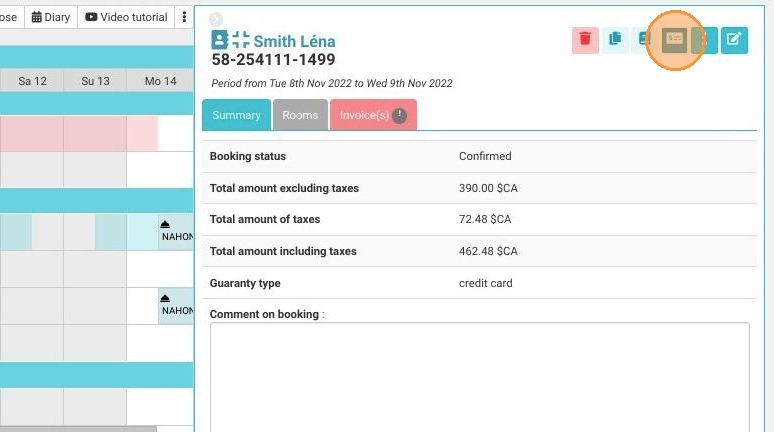
Access the Payment Terminal: Navigate to your reservation planning dashboard and click the dedicated terminal button located within the specific booking's summary.
-
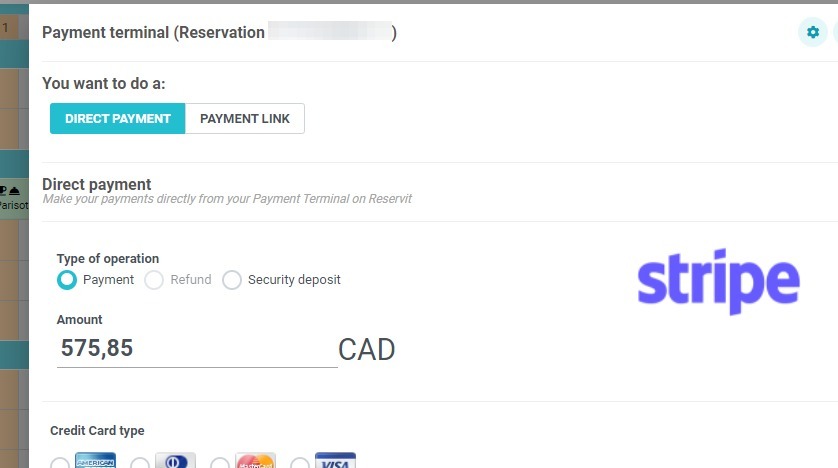
Process a Direct Payment: Use the credit card information securely retrieved from the initial booking to charge the customer directly within the system.
-
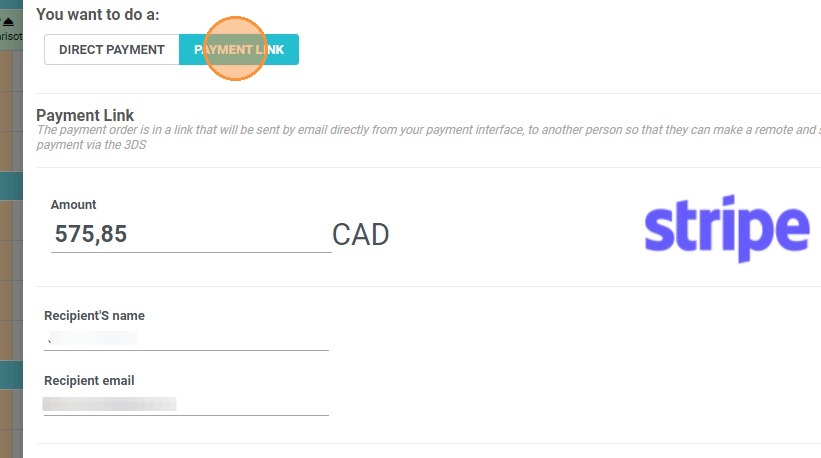
Send a Payment Link: Alternatively, select the option to send a secure payment link directly to your customer's email and click "Send" to confirm the action.
-
Monitor Booking Statuses: Track the reservation as it automatically updates from "Confirmed and awaiting payment" to fully paid, and be prepared to issue a new link if an expired payment turns the booking status to "Suspect."
Why follow this guide? Following this tutorial streamlines your daily front-desk billing operations and guarantees secure, PCI-compliant payment processing. It significantly reduces manual accounting errors and prevents lost revenue by automating reservation status updates based directly on successful guest transactions.
1. In your reservations planning, you'll find a dedicated button in the recap of each reservation to access the terminal.
2. You can then take a payment directly in Reservit.
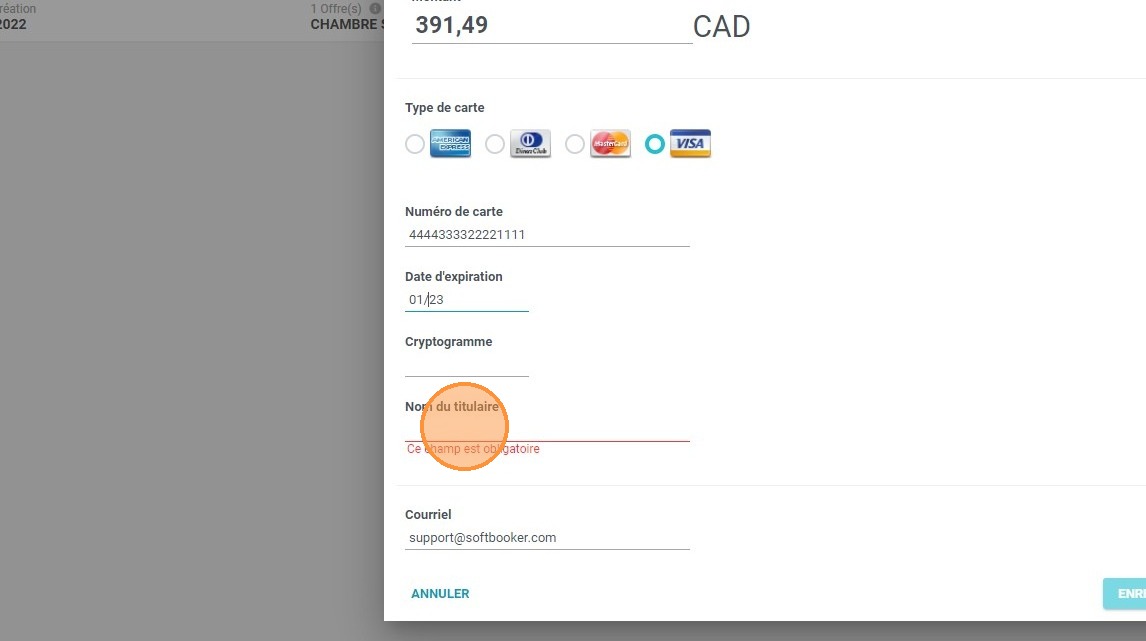
3. If credit card information was added when the booking was confirmed, it will be generated automatically on this page.
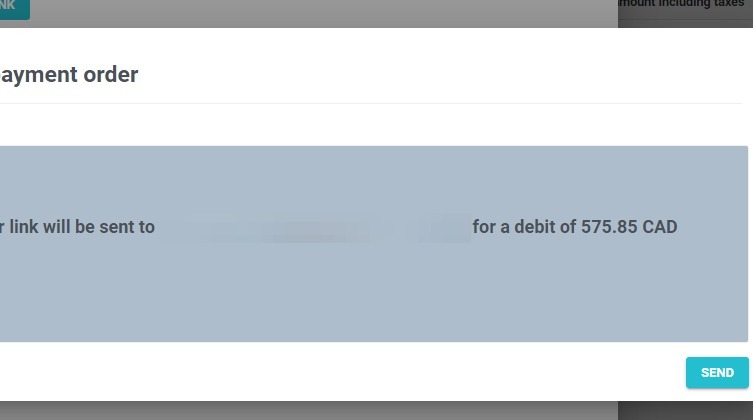
4. If you do not wish to take the payment directly in Reservit, you can send a link to your customers.
5. Click on "Send" to confirm the action.
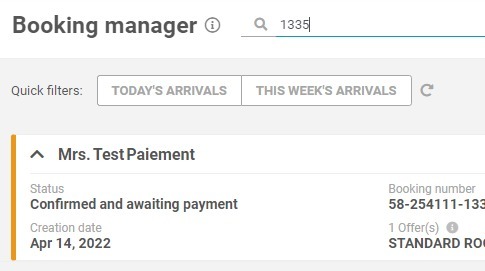
6. Booking status will be "Confirmed and awaiting payment" until payment is done.
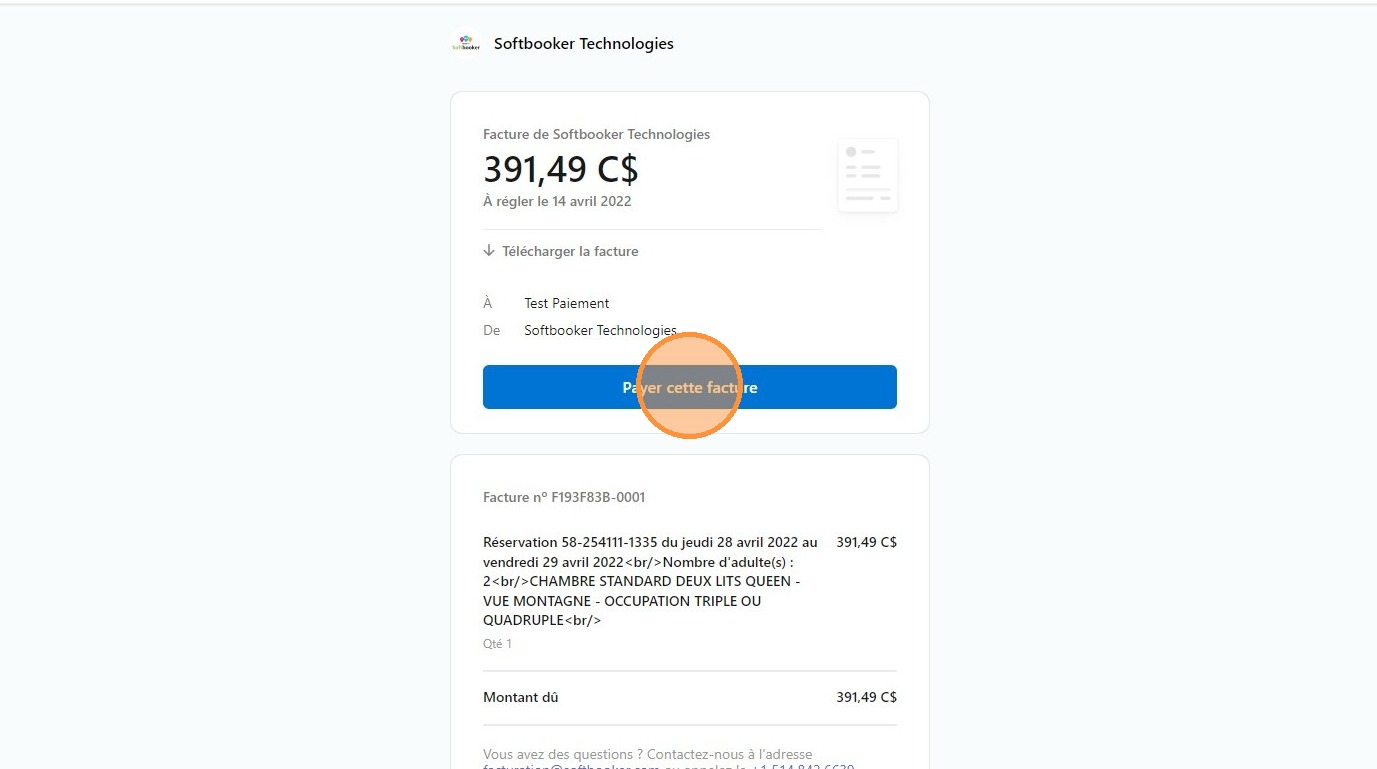
7. Your client receives the link by email.
8. Once done, the booking status will be updated accordingly. If you use Reservit PMS, it will appear in the invoicing system.
Alert: If the payment link expires, the booking status will switch to ''Suspect'' because the payment will not have been processed in time. You will have to send them a new link.