Article Summary: This practical guide provides step-by-step instructions on how to effectively manage reservations and customize invoices within the Reservit PMS system. You will learn how to easily access the invoicing module to add, edit, or safely delete specific billing lines on a guest's account. Mastering these essential invoicing processes ensures your property's billing is highly accurate, adaptable, and perfectly aligned with your guests' specific charges.
The 4 key steps to manage your invoices and billing lines:
-
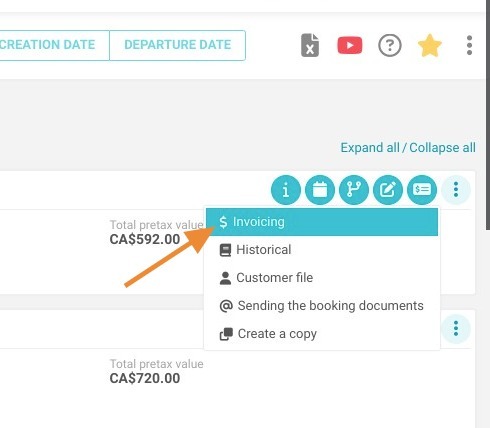
Access the Invoicing Module: Open the specific reservation and click on "Invoicing" to view the current billing details and account lines.
-
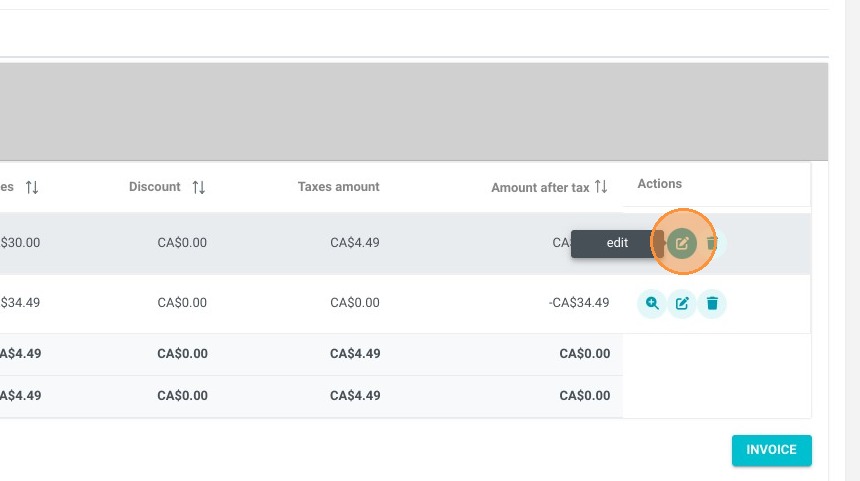
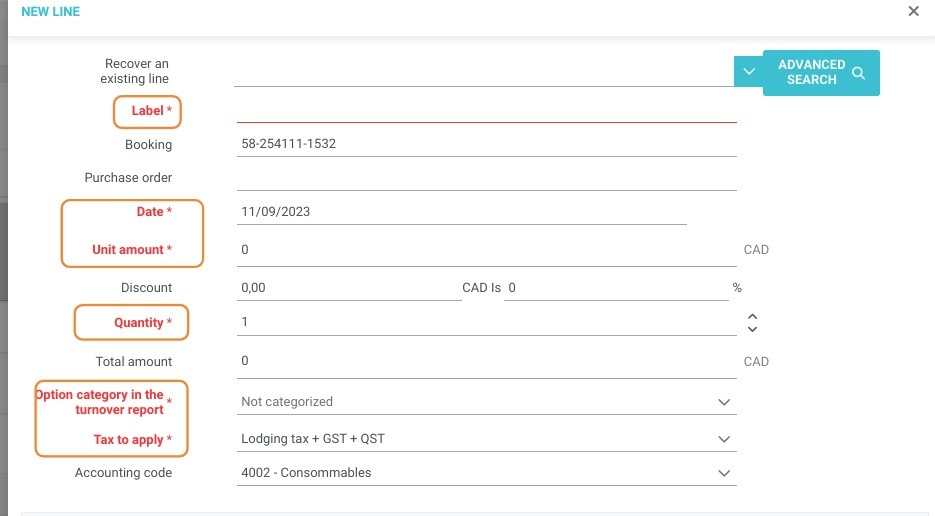
Edit Existing Lines: Click the blue pencil icon next to a specific charge to update its details, making sure to accurately fill in all the required fields.
-
Delete Incorrect Charges: Click the blue trash can icon and confirm your choice to safely remove any unwanted or incorrect lines from the invoice.
-
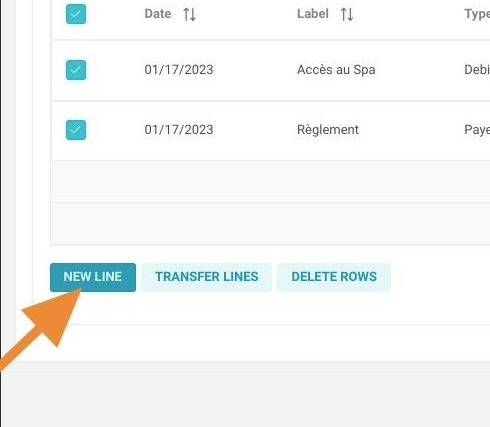
Add New Billing Lines: Click on "new line" to manually add extra charges, products, or services to the guest's financial account.
Why follow this guide? Following this tutorial will save you valuable time and help you prevent costly accounting errors by allowing you to quickly adjust guest folios on the fly. It optimizes your daily front-desk operations, ensuring that every invoice is perfectly accurate and complete before processing final payments.
1. Click on "Invoicing"
You want to edit a line.
2. Click on the blue pencil icon.
3. Fill in all the required fields.
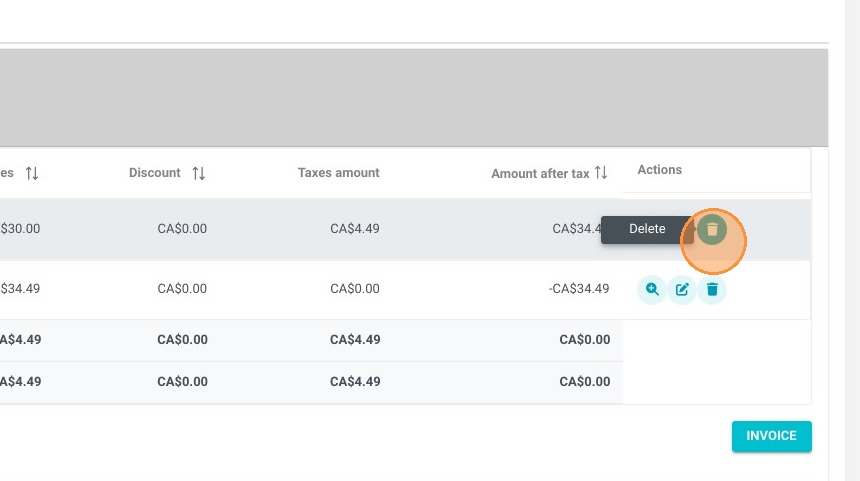
You want to delete a line.
4. Click on the blue trash icon and confirm.
You want to add a line.
5. Click on "new line".