

Yes, it is absolutely possible to allow single-night bookings under specific conditions, which is ideal for filling gaps in your calendar.
Since your property typically requires a minimum stay, the best solution is to create a specific last-minute promotion. Here is how to set it up:
-
Create a new last-minute offer in your system.
-
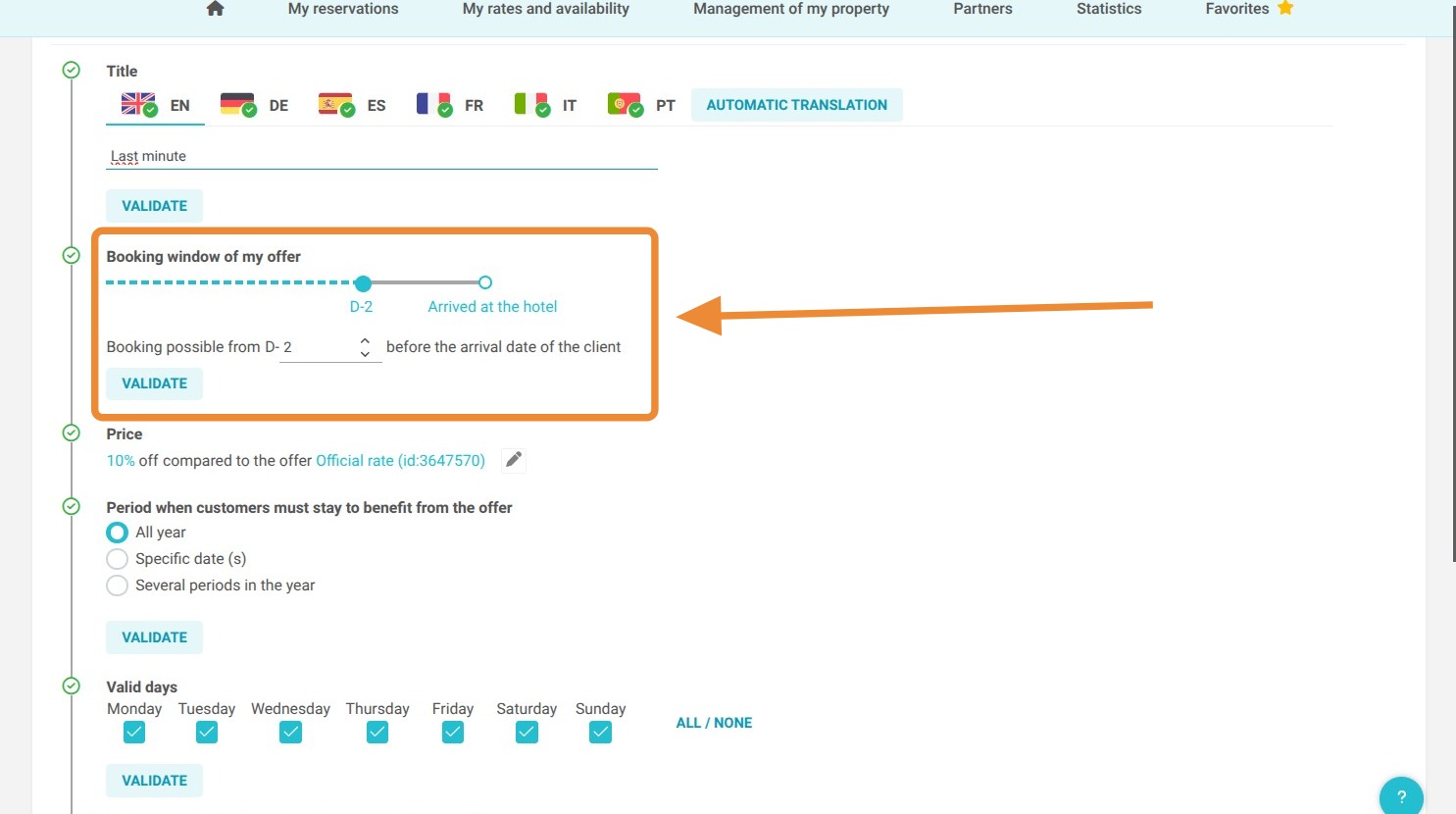
Set the booking window so that the offer only appears shortly before the stay (for example, 48 hours prior to the arrival date).
-
Apply a one-night minimum restriction specifically to this offer.
With this setup, your standard two-night minimum rule will remain active at all times for regular bookings, and guests will only be able to book your single nights at the very last minute, helping you maximize occupancy.
Here is a tutorial to create a last minute offer:
Article Summary: This tutorial explains how to easily create and configure a last-minute promotion within your Reservit account. You will learn how to set up the booking window, adjust pricing, and define the specific rooms and channels for your discount. Mastering this process helps you maximize occupancy and boost revenue by quickly selling your remaining inventory.
The 5 Key Steps to Create a Last-Minute Offer:
-
Navigate and Add: Go to your offers menu ("My rates and availability") and create a new "Last minute" discount.
-
Set Pricing and Timeframes: Define the specific booking window, set your desired price, and choose the valid dates for the promotion.
-
Target Rooms and Channels: Select the applicable room categories and specify the distribution channels where the offer will be bookable.
-
Refine Restrictions and Limits: Configure any necessary length of stay rules, display settings, and advanced sales limits.
-
Save and Publish: Finalize your configurations, save the offer, and publish it so it becomes visible to your guests.
Why follow this guide? Following this step-by-step guide ensures you accurately apply your last-minute discounts without pricing errors, allowing you to quickly optimize your yield management and fill empty rooms with minimal manual effort.
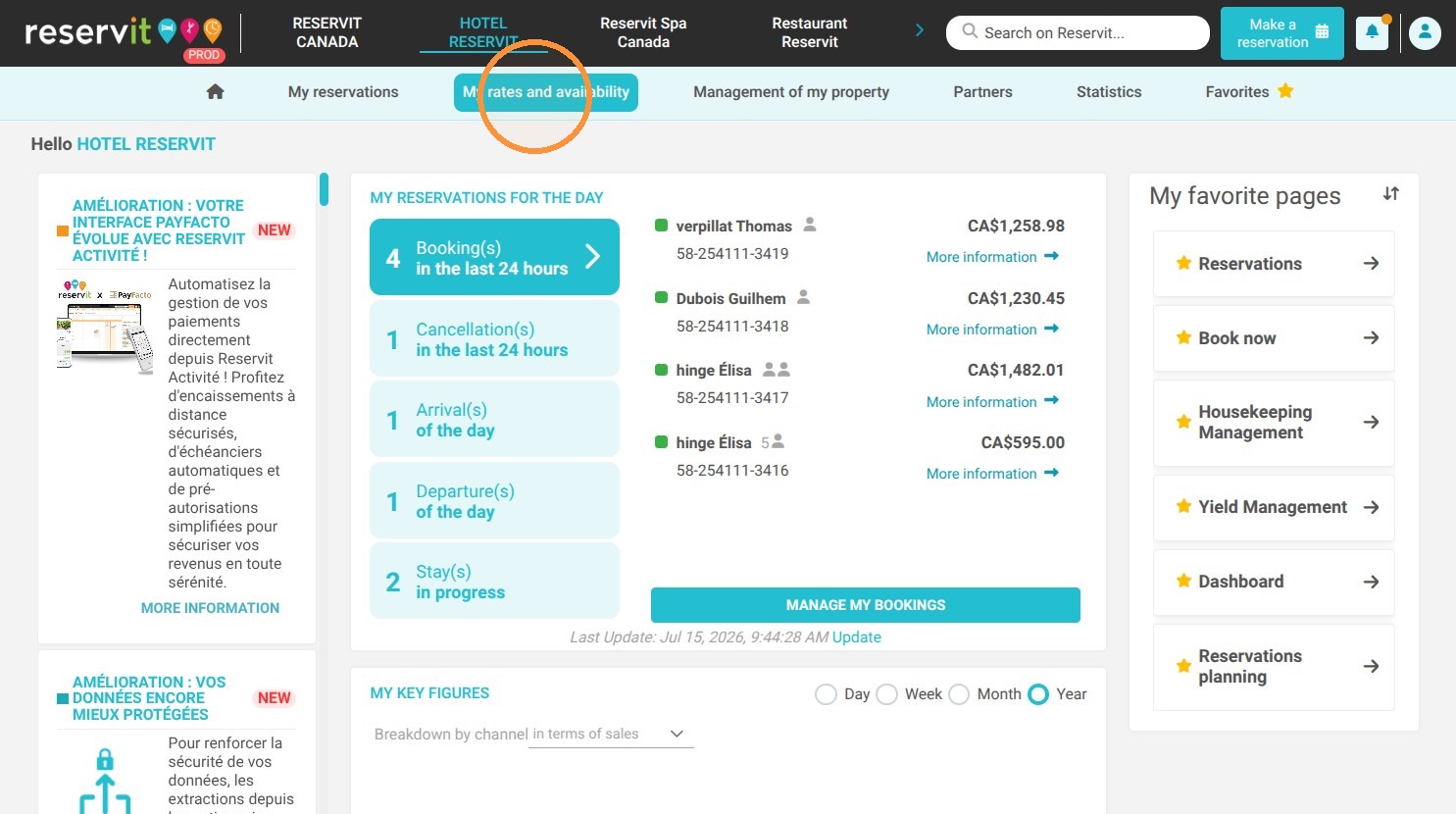
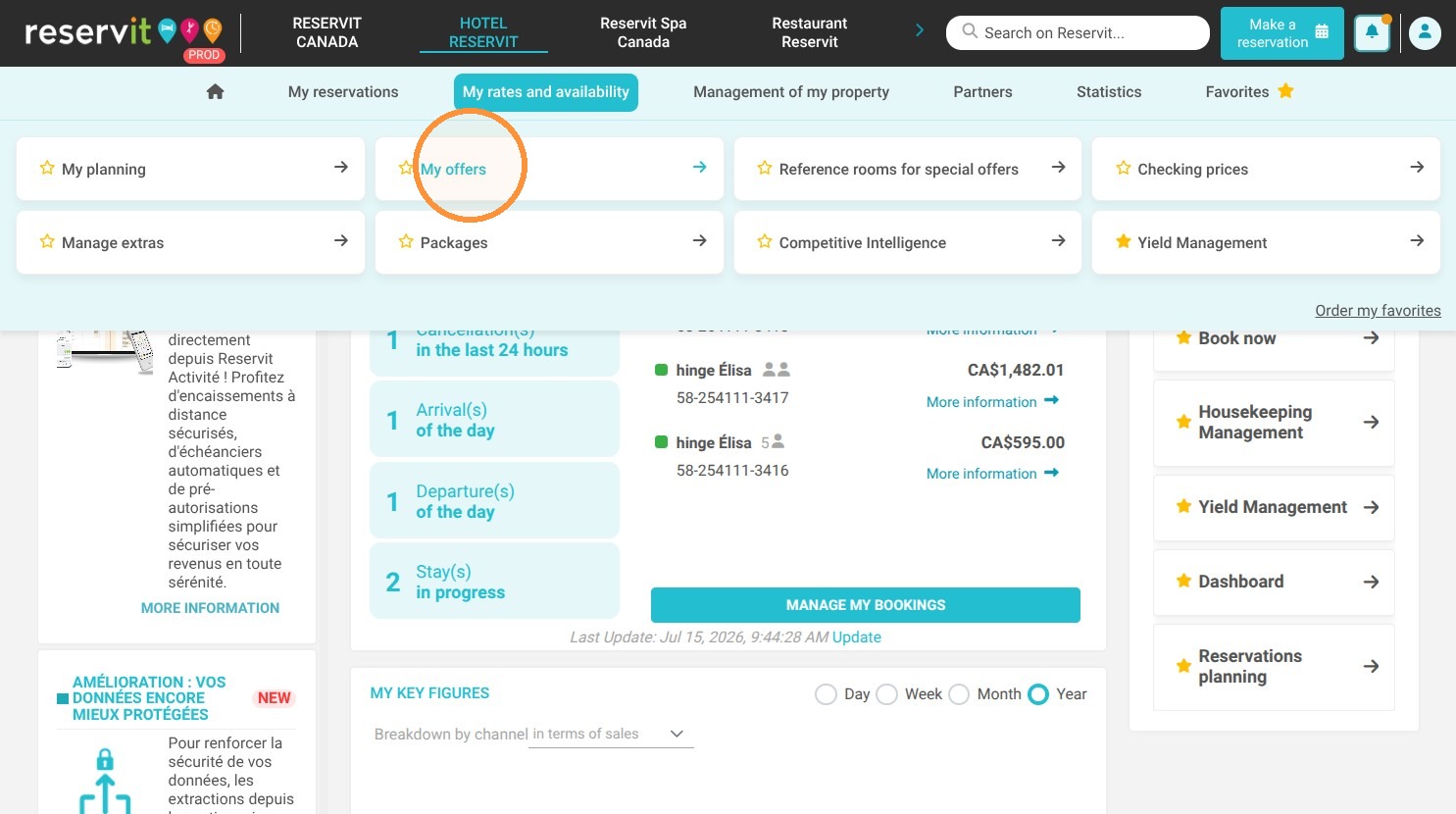
1. Go to My rates and availability > My offers
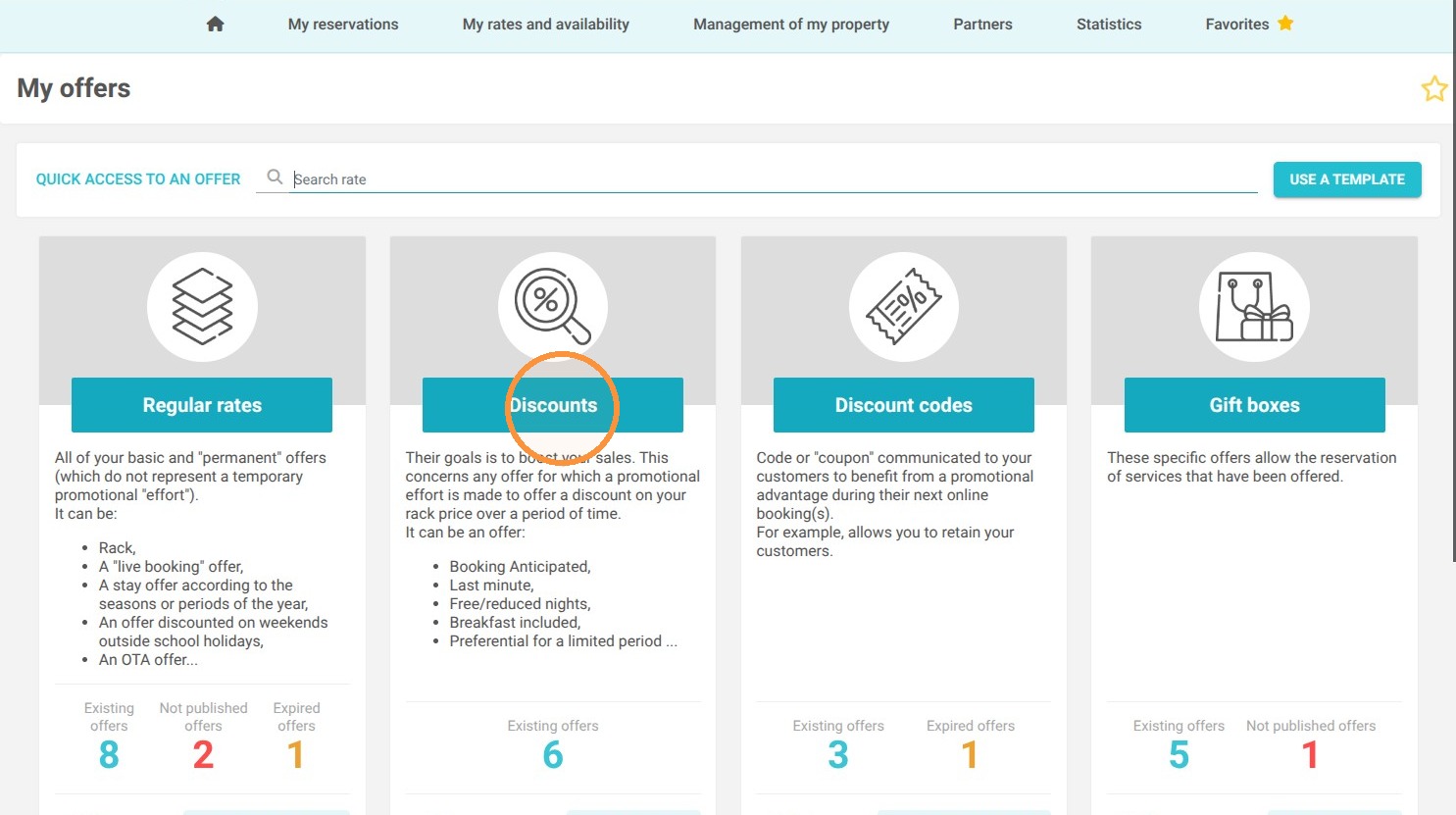
2. Click on "Discounts"
3. Click "Add"
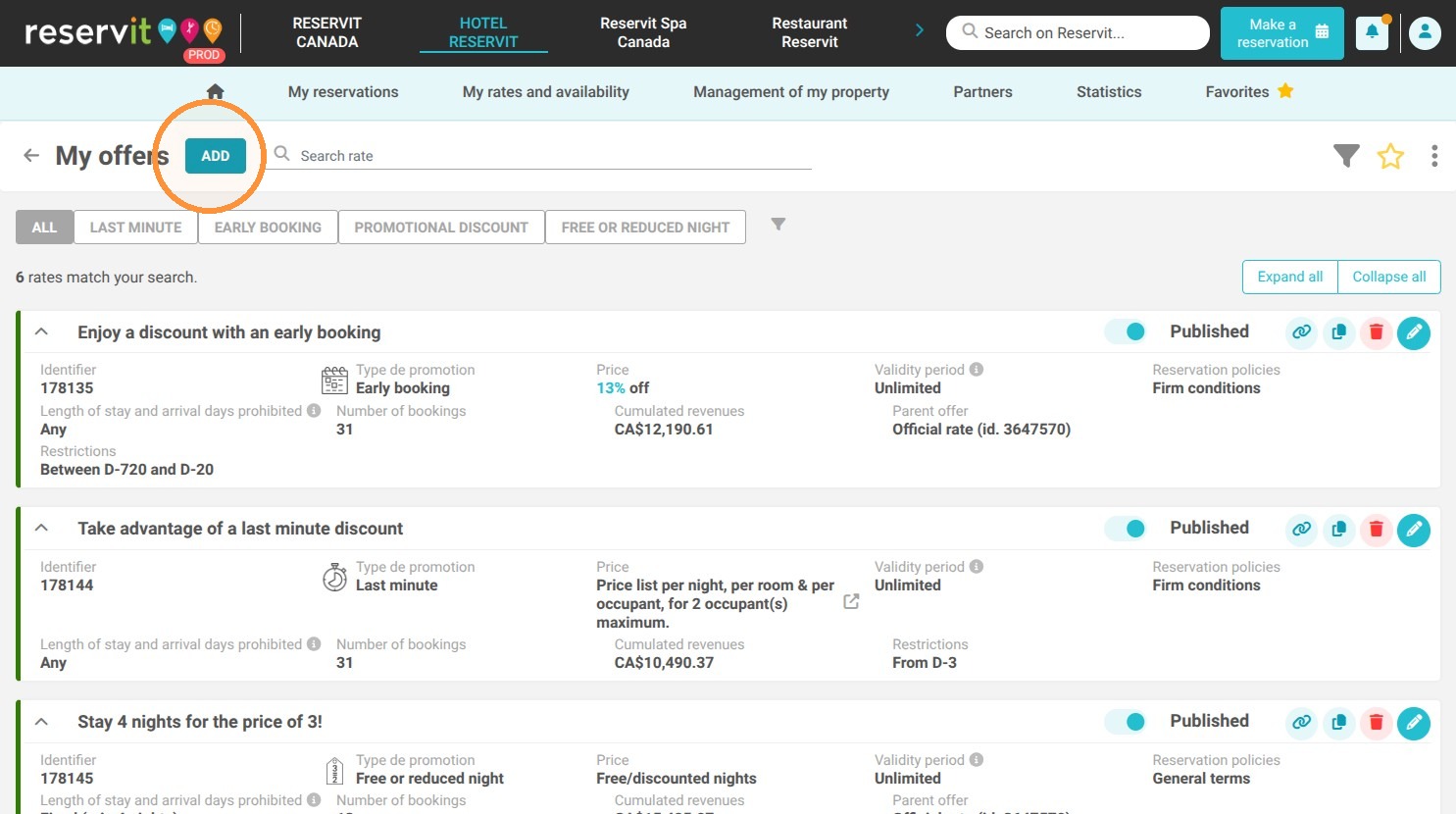
4. Choose the promotion type "Last minute"
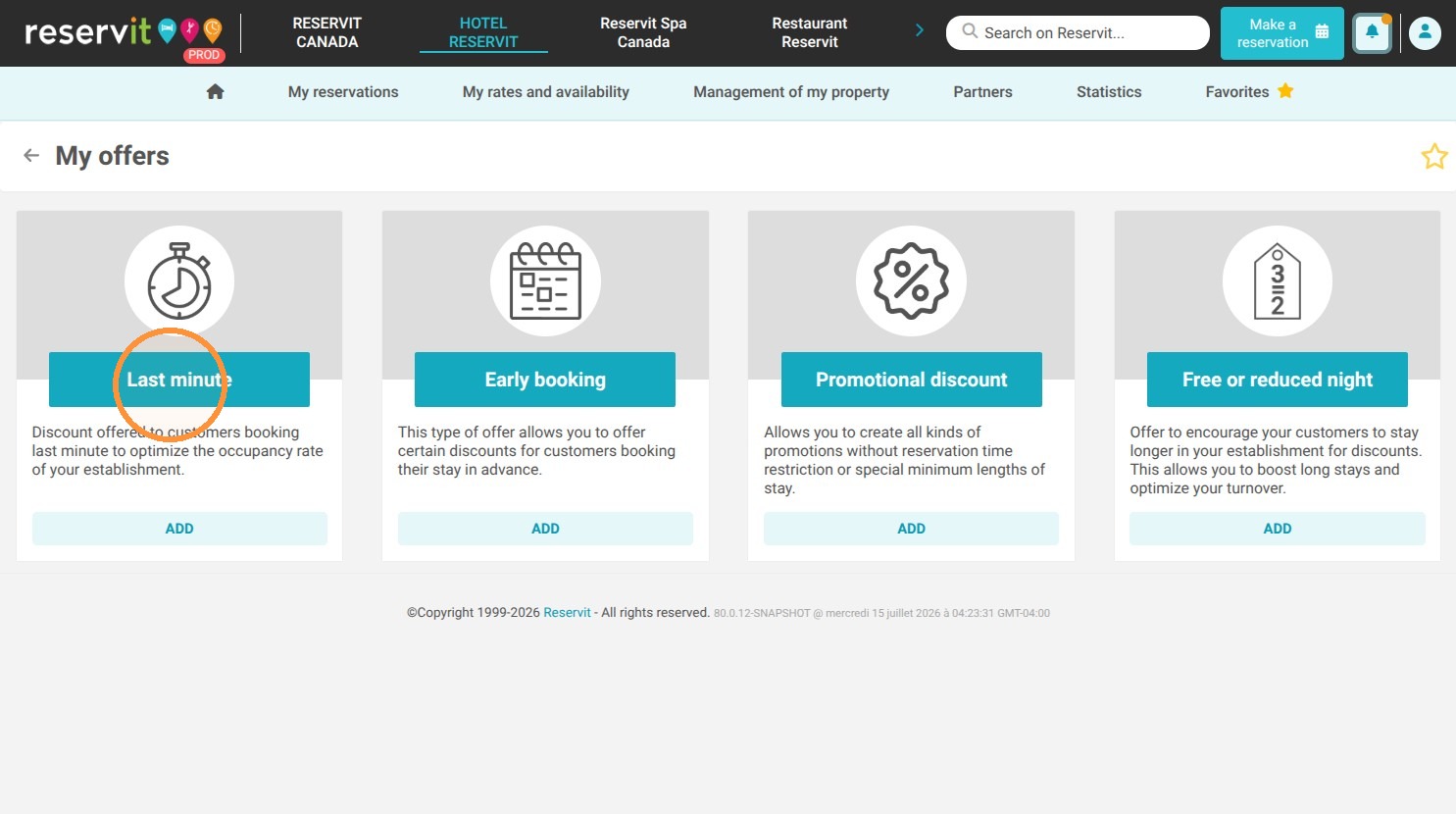
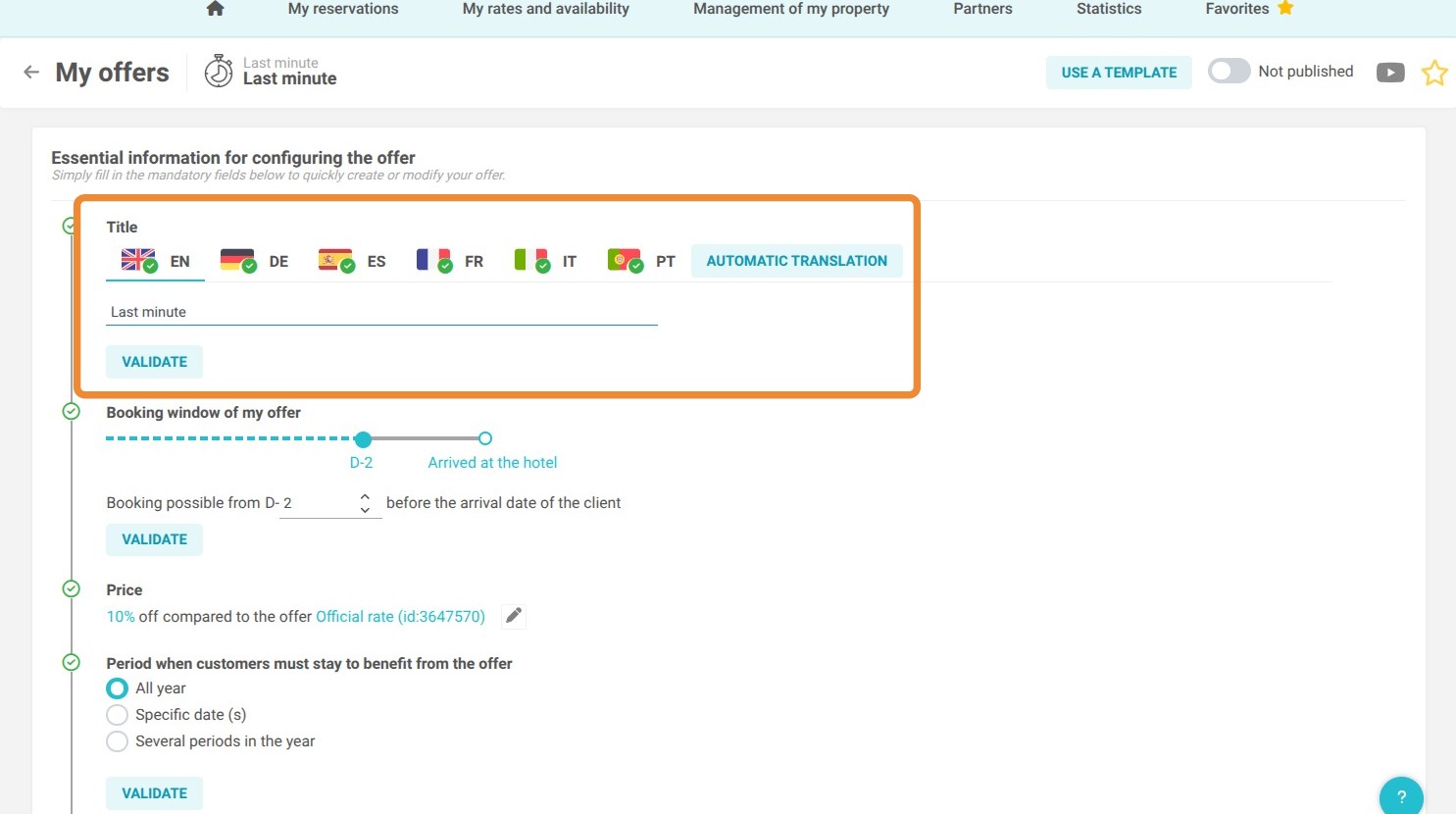
5. Enter the name of the offer
6. Fill in the "Booking window", which is the time frame during which your last-minute offer will be available to the customer.
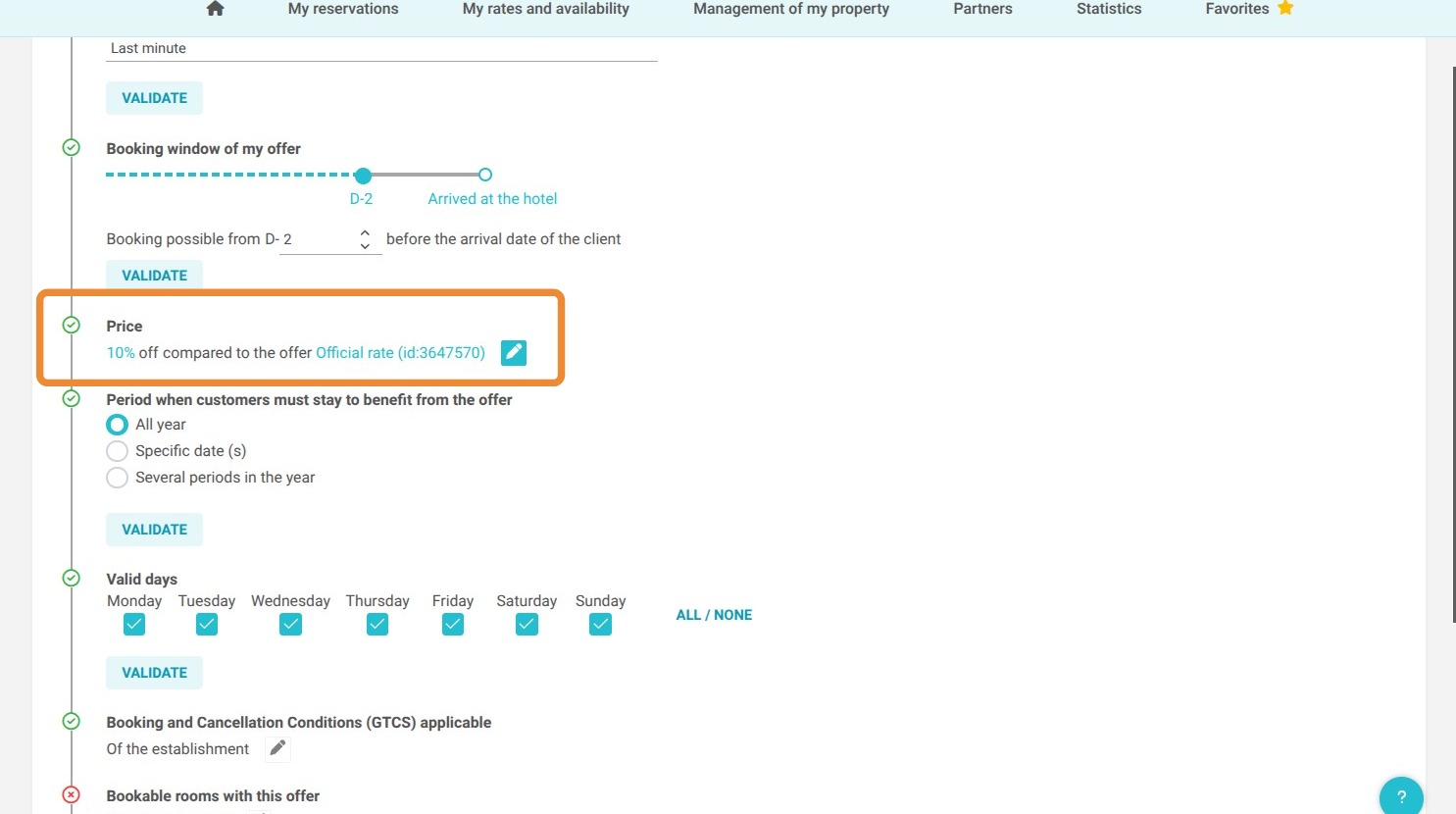
7. Configure the desired price
8. Set the valid dates period
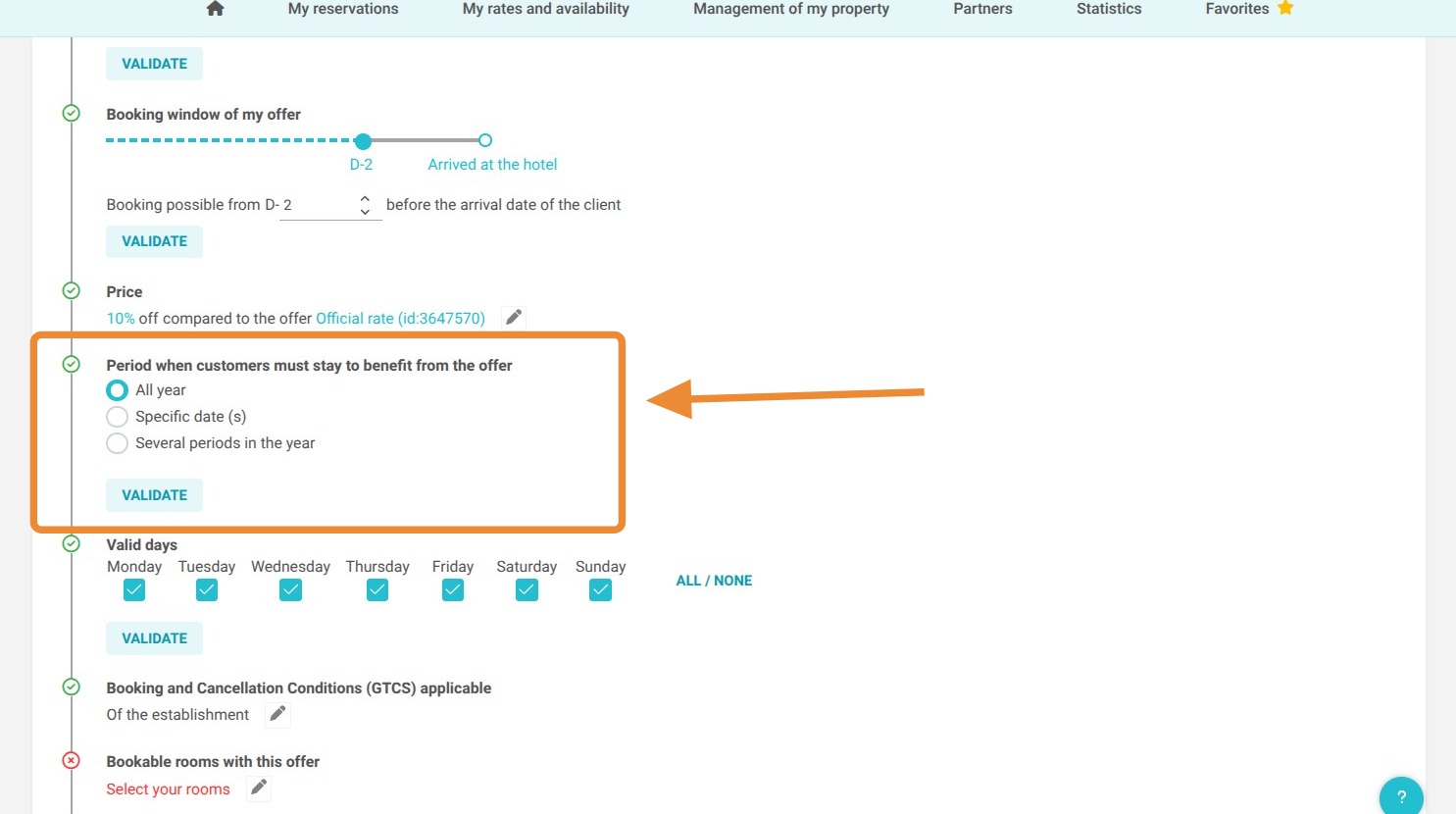
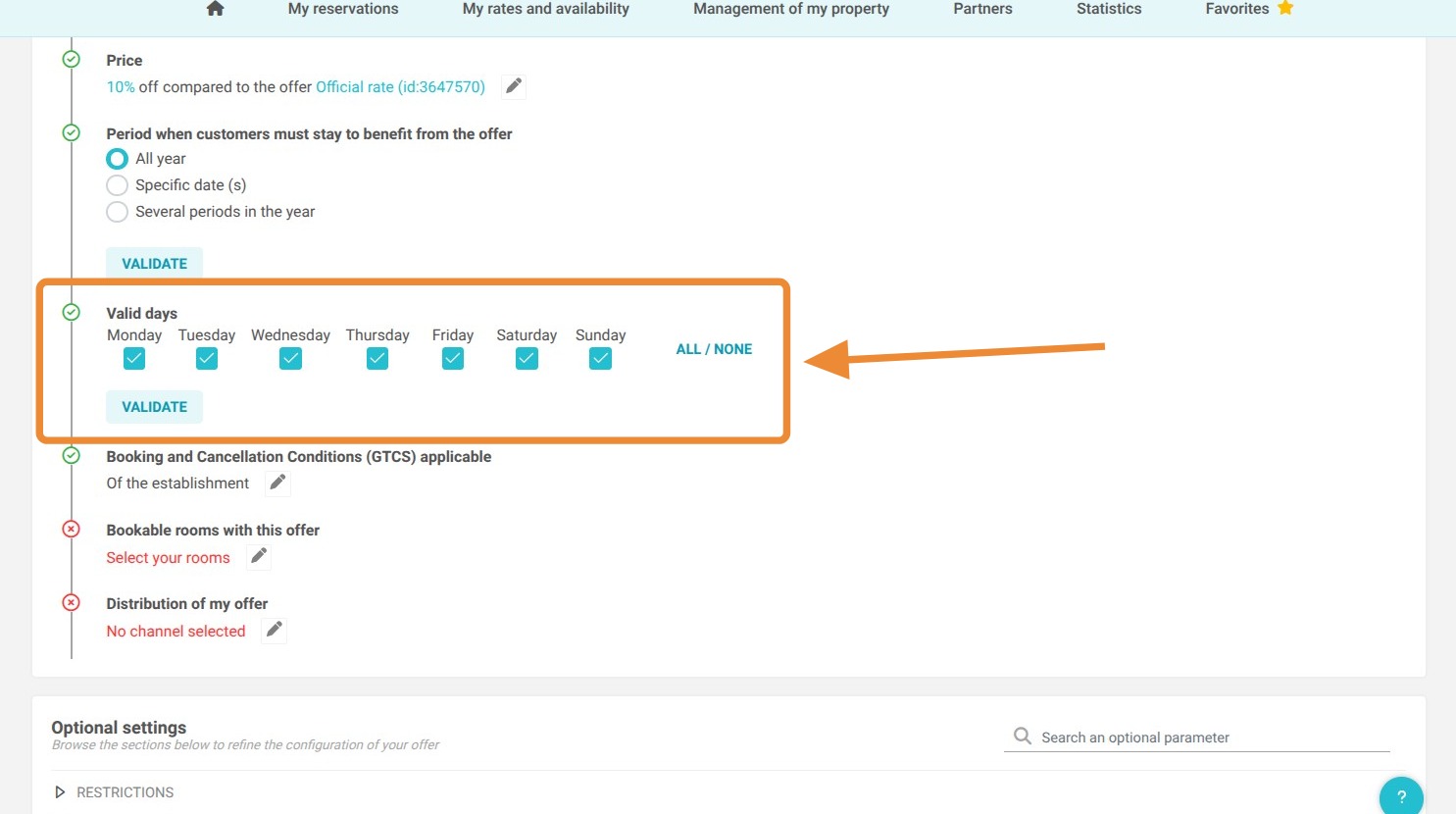
9. Select the applicable days
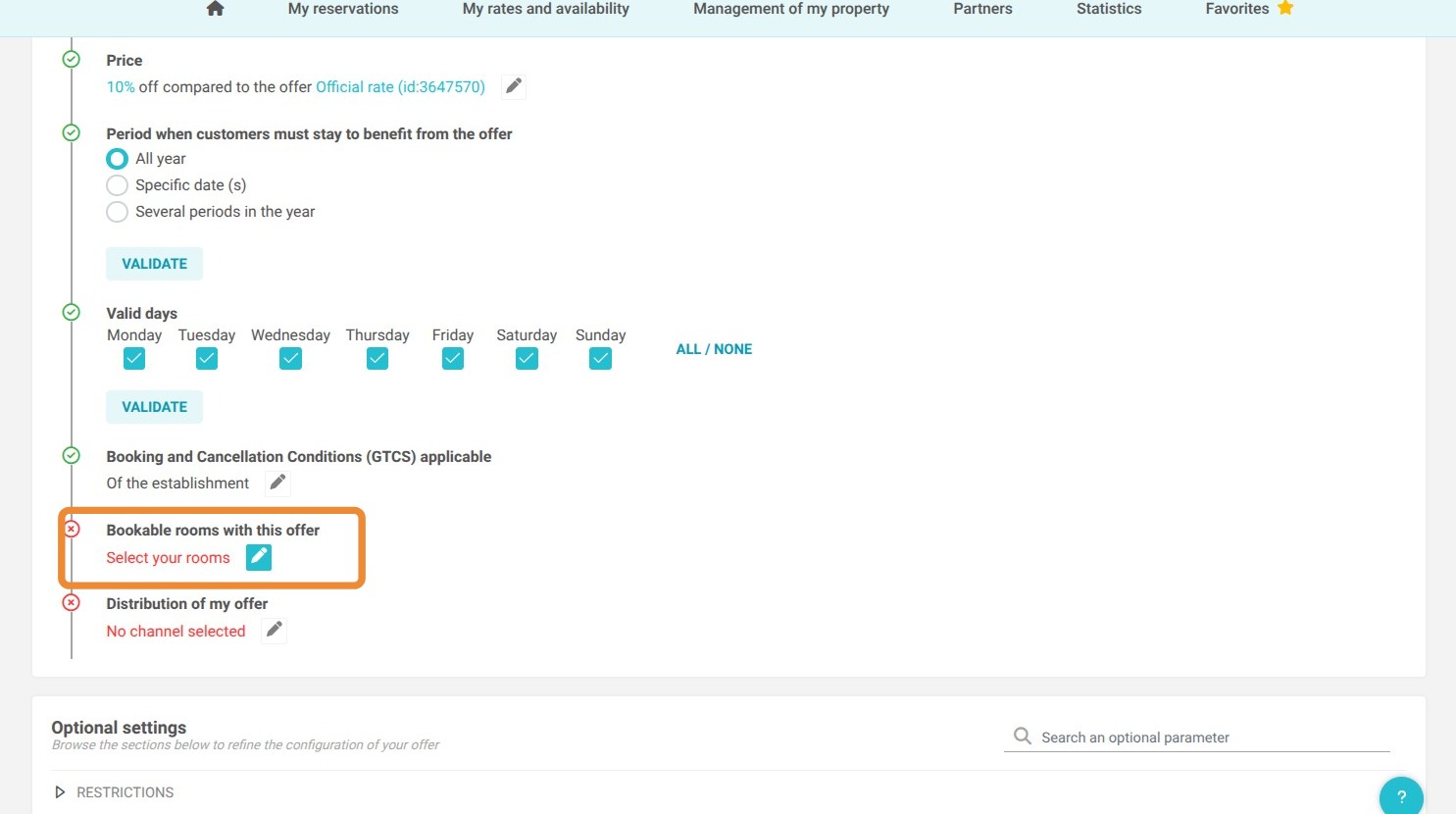
10. Select the applicable room categories
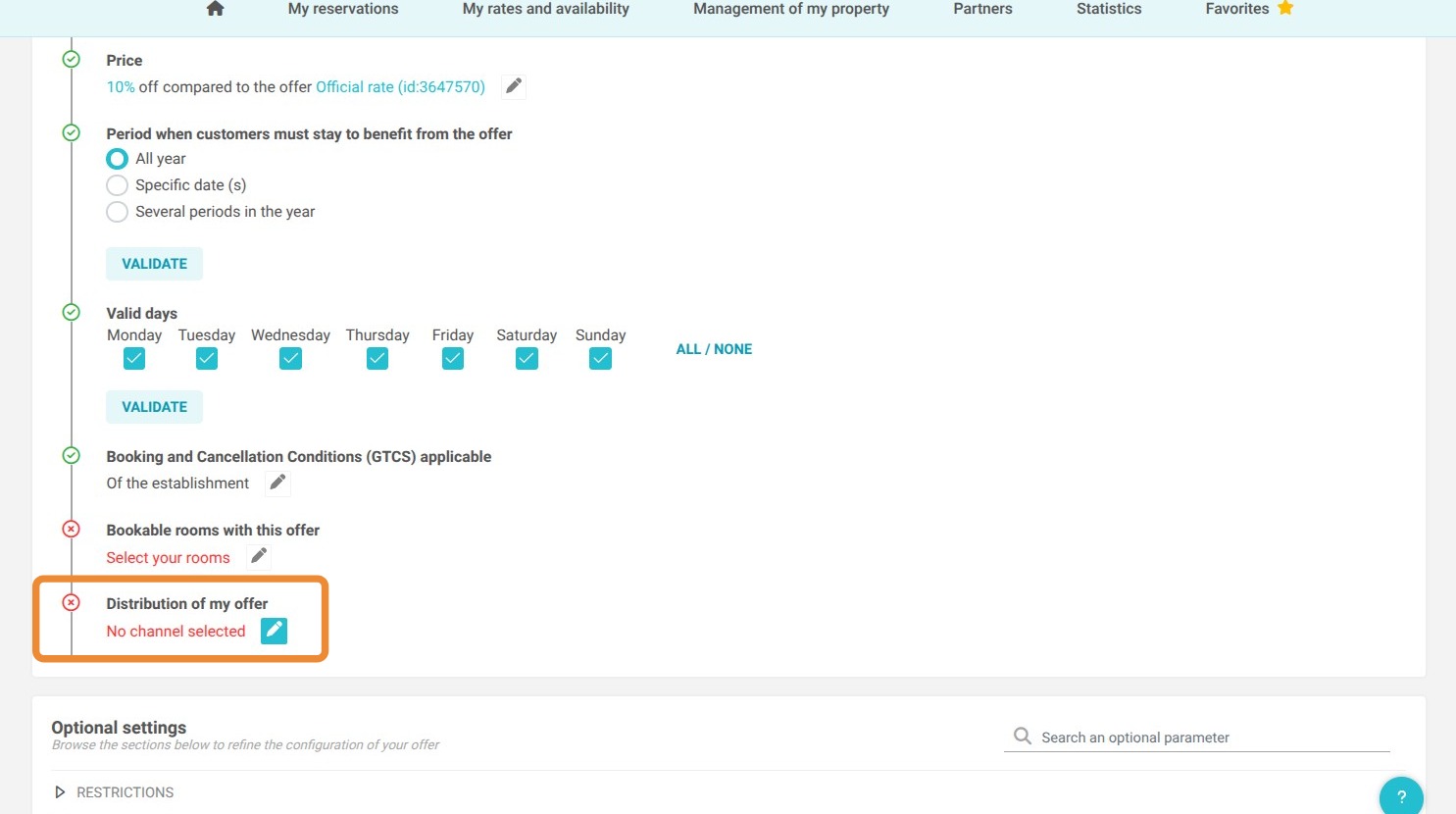
11. Choose the channel(s) where it will be bookable
12. Set length of stay restrictions if applicable
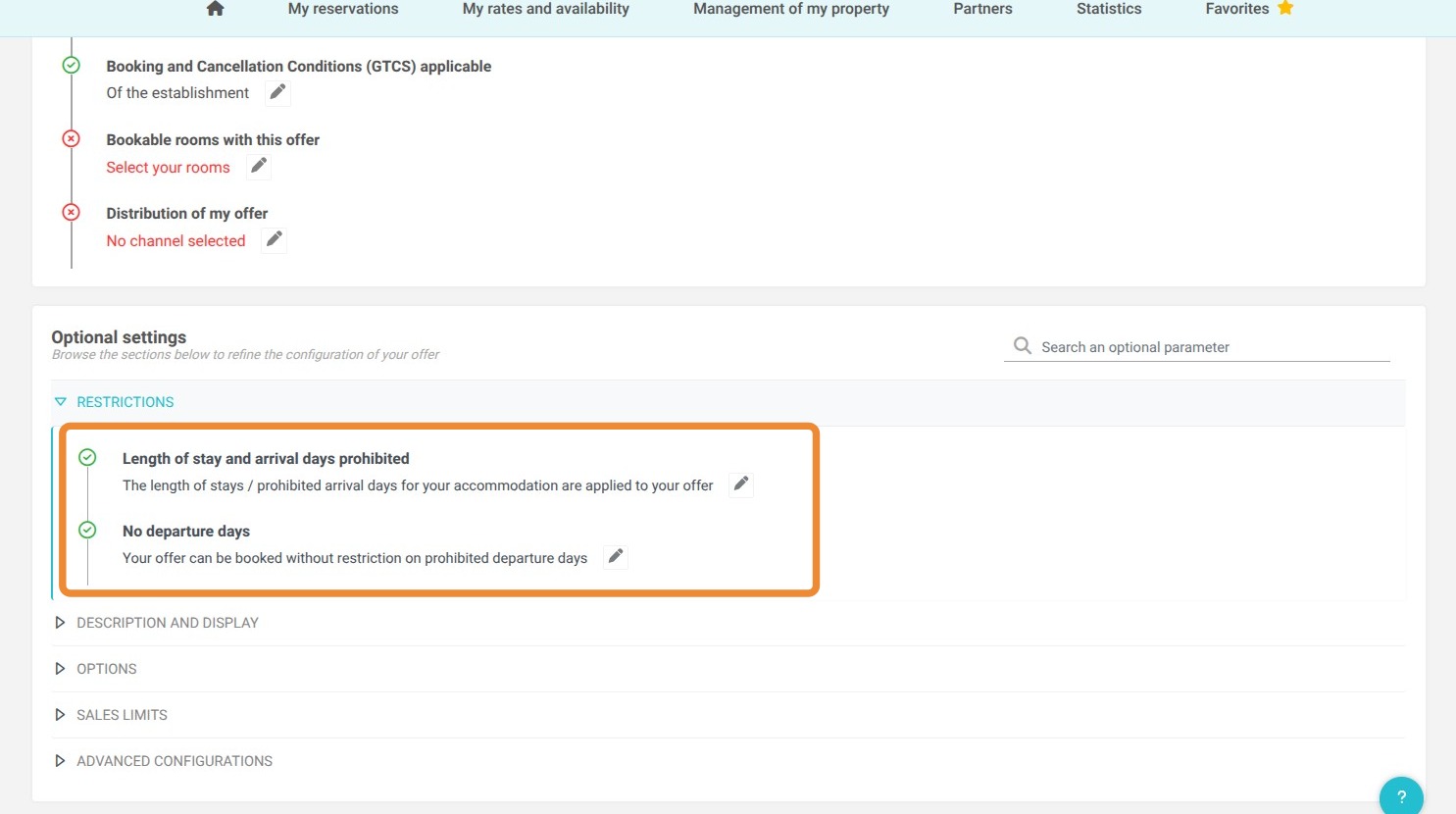
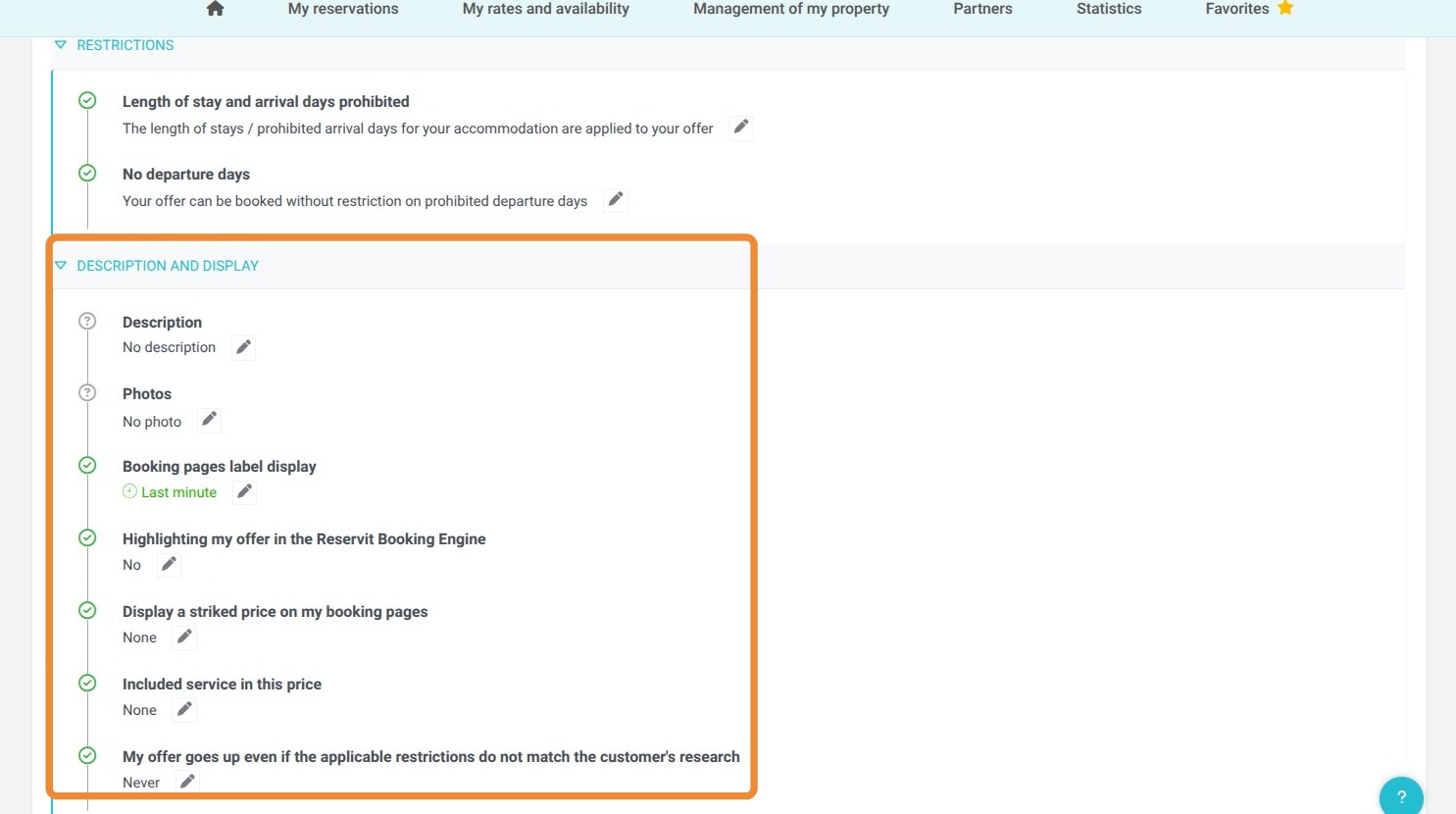
13. Configure the display settings
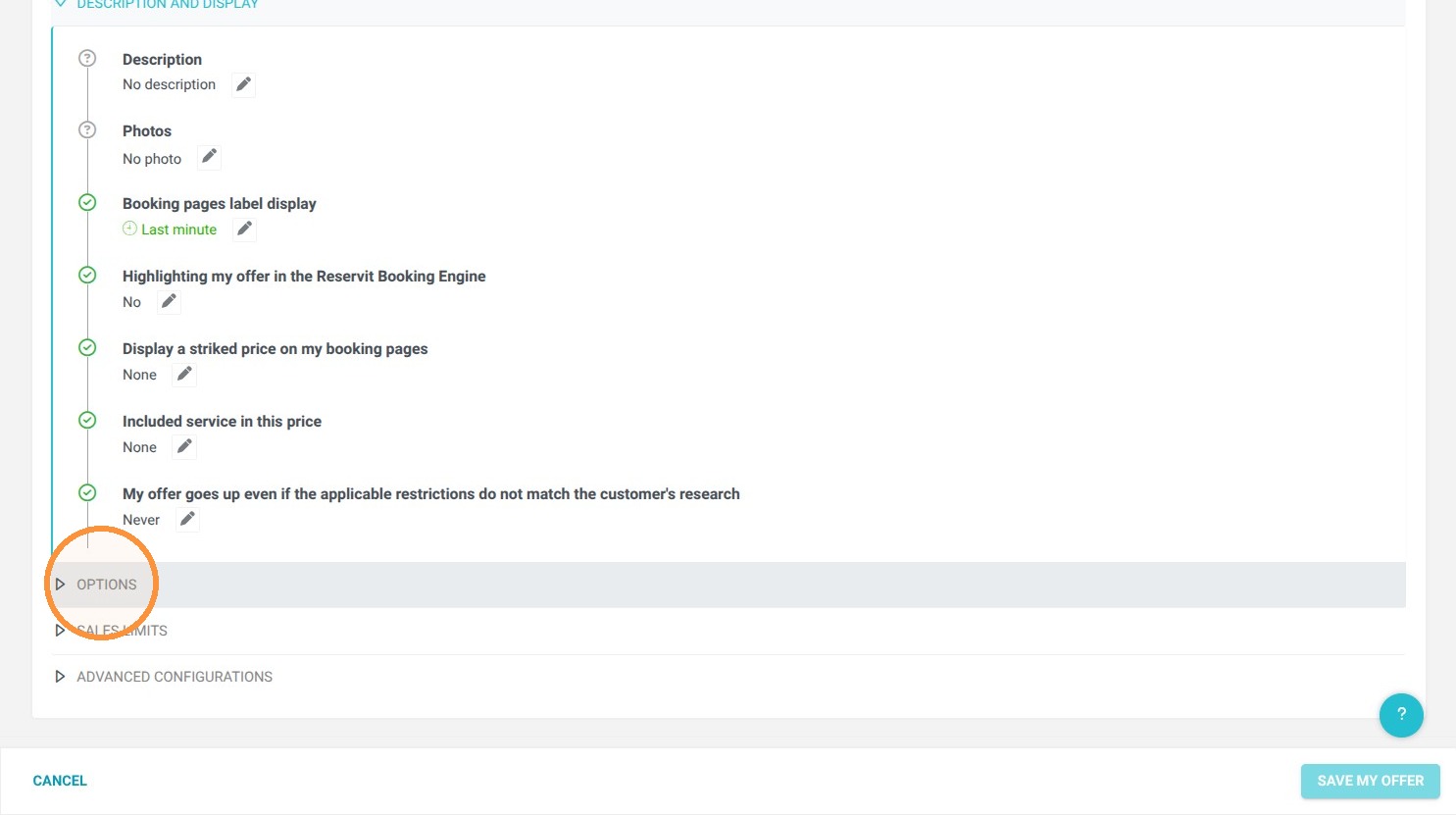
14. Assign options if necessary
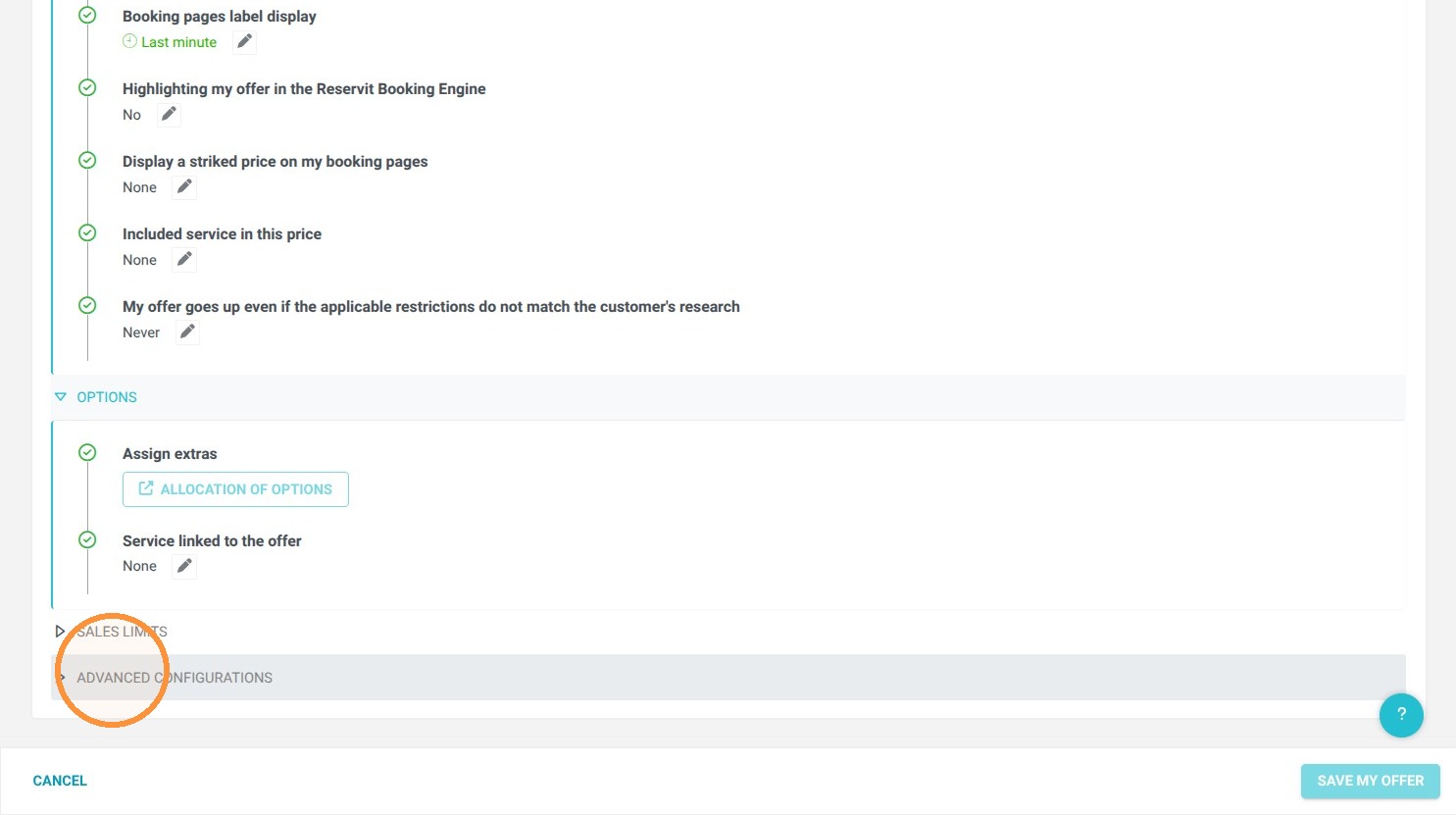
15. Apply sales limits if necessary and in "Advanced configurations" you can choose a sales opening period, meaning the date from which this offer is available to be booked.
16. Save your offer and don't forget to publish it so it becomes visible!