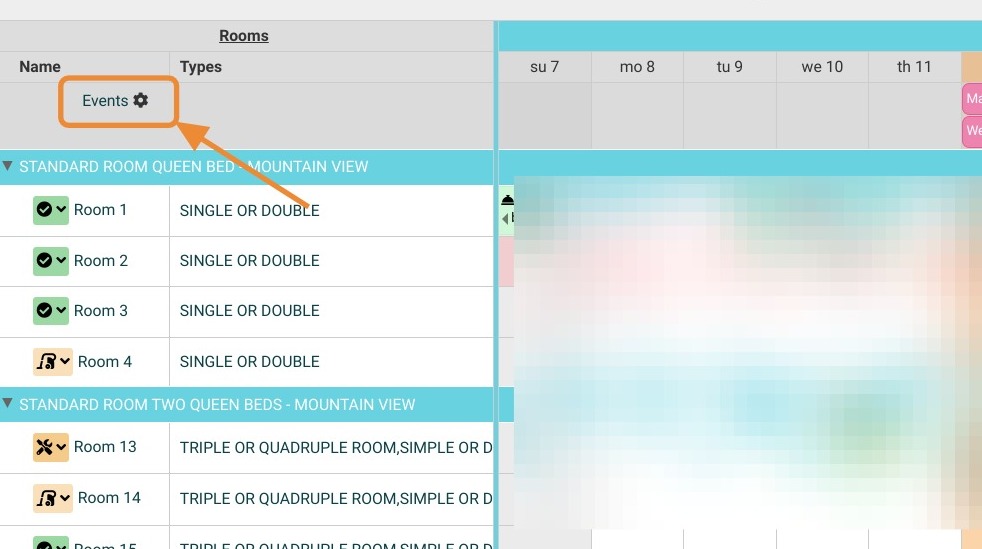
Article Summary: Learn how to easily create and manage schedule indicators within your Reservit PMS planning calendar to optimize your property's daily operations. This step-by-step tutorial will teach you how to add important events, local seasonal highlights, or internal reminders directly to your dashboard. By utilizing this feature, you will enhance team communication, improve occupancy forecasting, and maintain a clear visual overview of your booking timeline.
The 5 Key Steps to Add an Event in Reservit Planning:
-
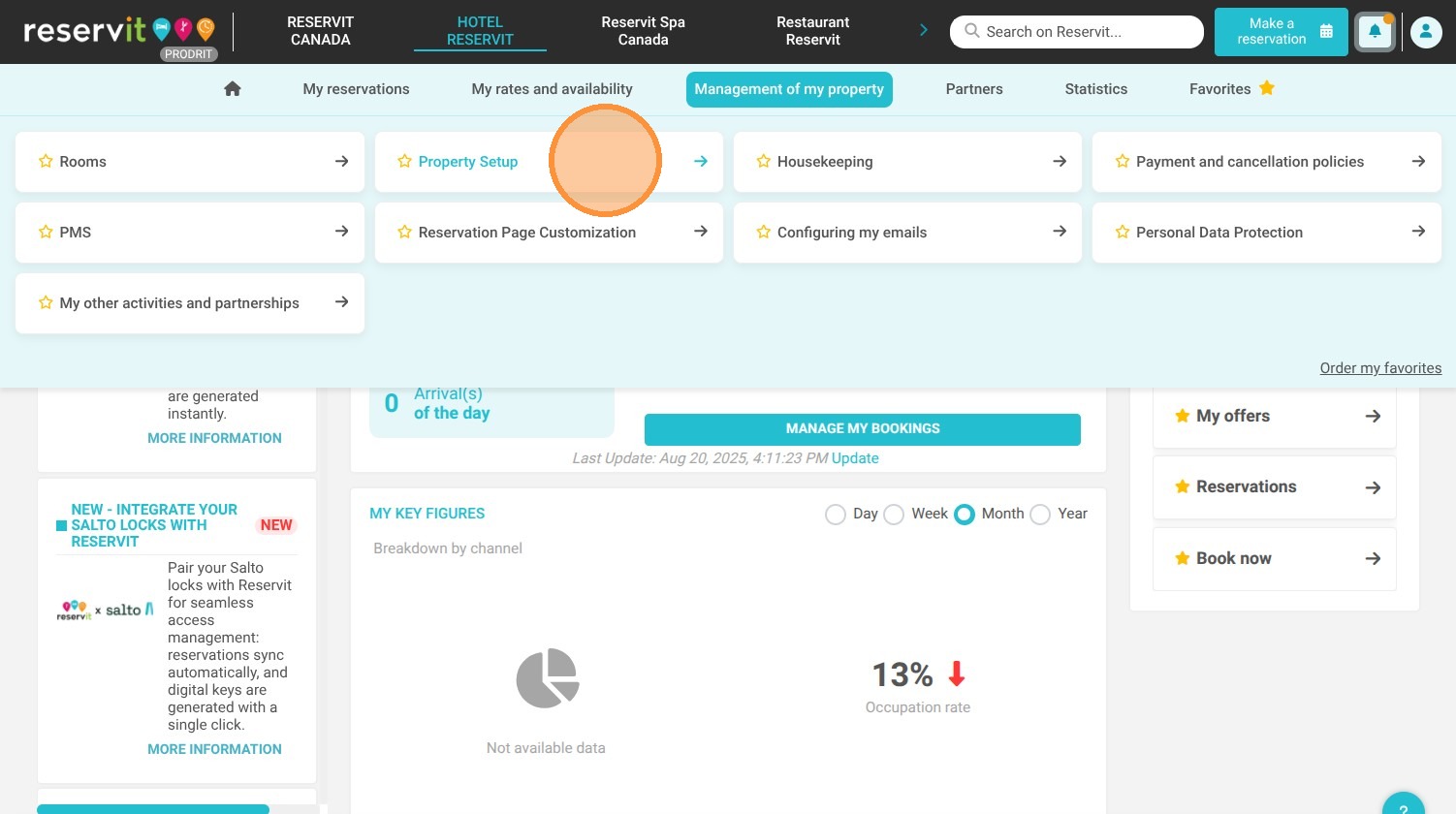
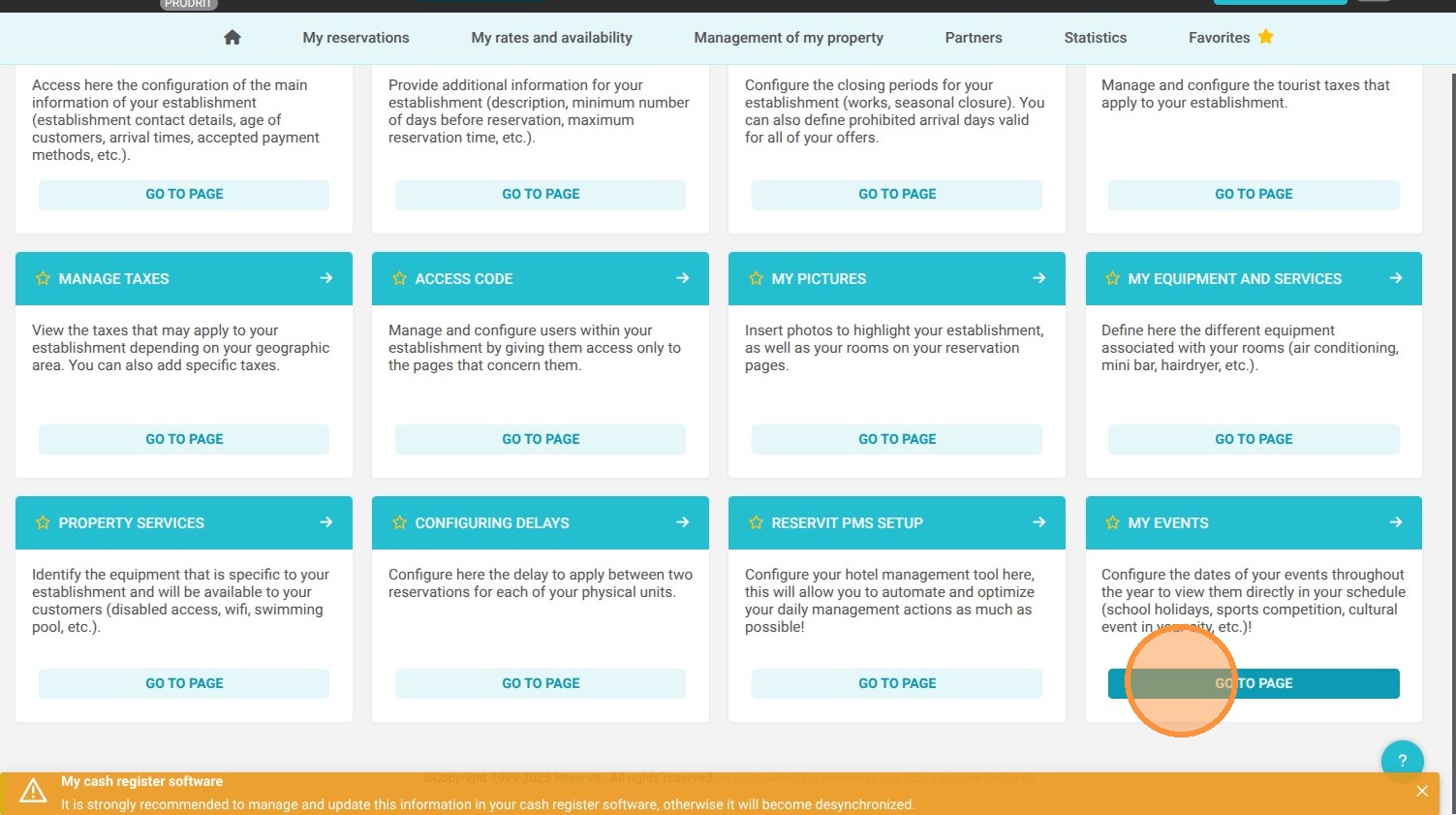
Navigate to the events section: Go to "Management of my property," click on "Property Setup," and select "My events."
-
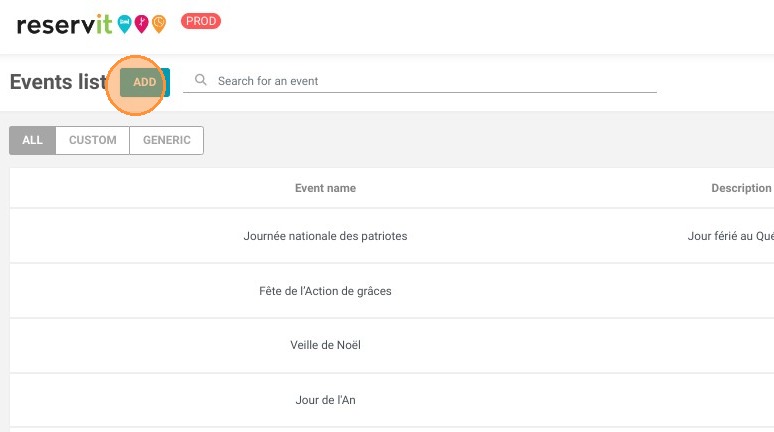
Create a new entry: Click the "ADD" button to open the event creation window.
-
Fill in the event details: Enter the required information in the various configuration fields, such as dates, titles, and operational notes.
-
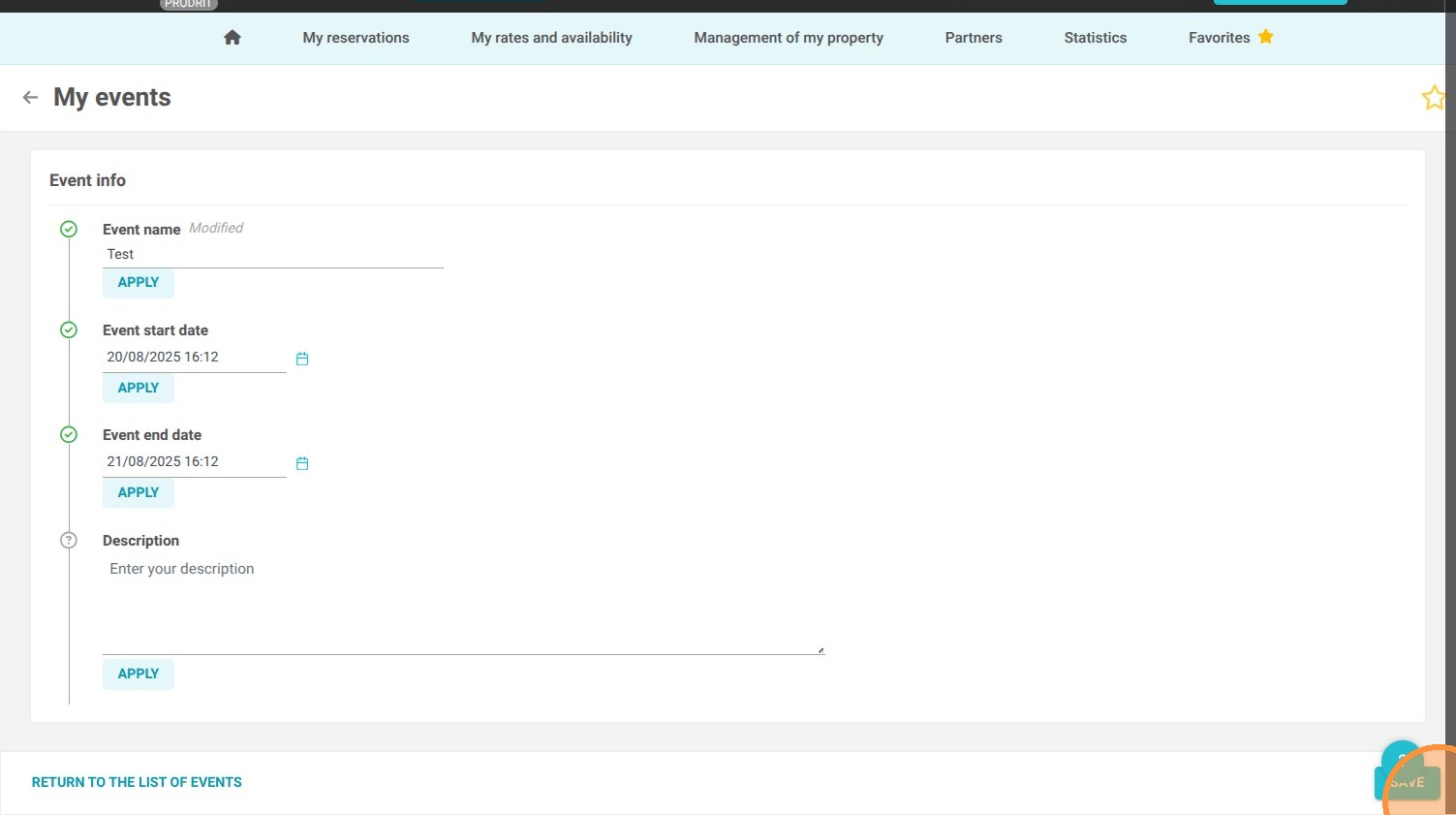
Save your changes: Click the save button to confirm and register the event in your property management system.
-
Monitor directly on your calendar: View your newly added event displayed directly on your main planning grid, where you can also manage or update it as needed.
Why Follow This Guide? Keeping your planning calendar updated with local festivities, maintenance periods, or corporate groups prevents operational bottlenecks and helps your team proactively adjust booking strategies. This guide provides an effortless way to streamline internal organization and maximize efficiency at the front desk.
1. Go to Management of my property > Property Setup.
2. Go to My events.
3. Click "ADD"
4. Fill in the various fields.
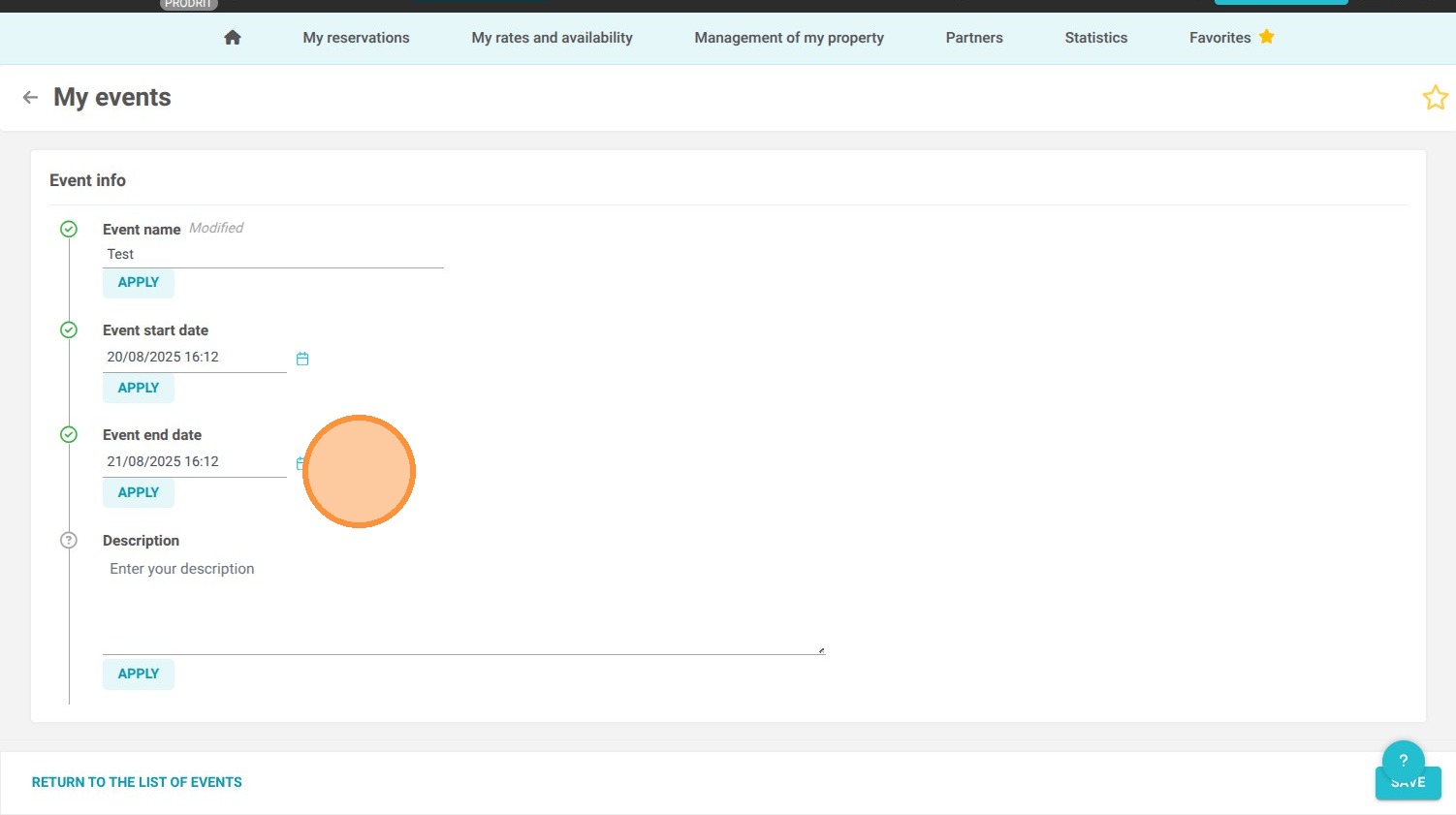
5. Save the changes.
6. Your event now appears in your planning.
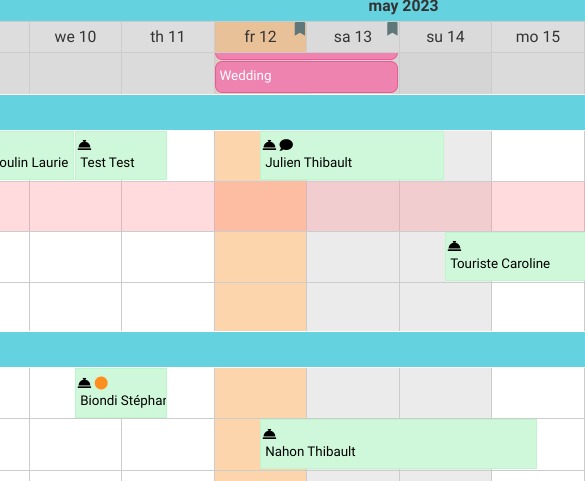
Tip: You can manage your events directly from your planning.