Article Summary: Learn how to properly set up communicating units and connecting rooms within your Reservit PMS to optimize your inventory management. This step-by-step tutorial guides you through creating parent-child room dependencies to ensure seamless availability updates across all booking channels. By mastering this inventory configuration, you can increase your property's booking flexibility for families while preventing accidental overbookings.
The 5 Key Steps to Configure Communicating Units:
-
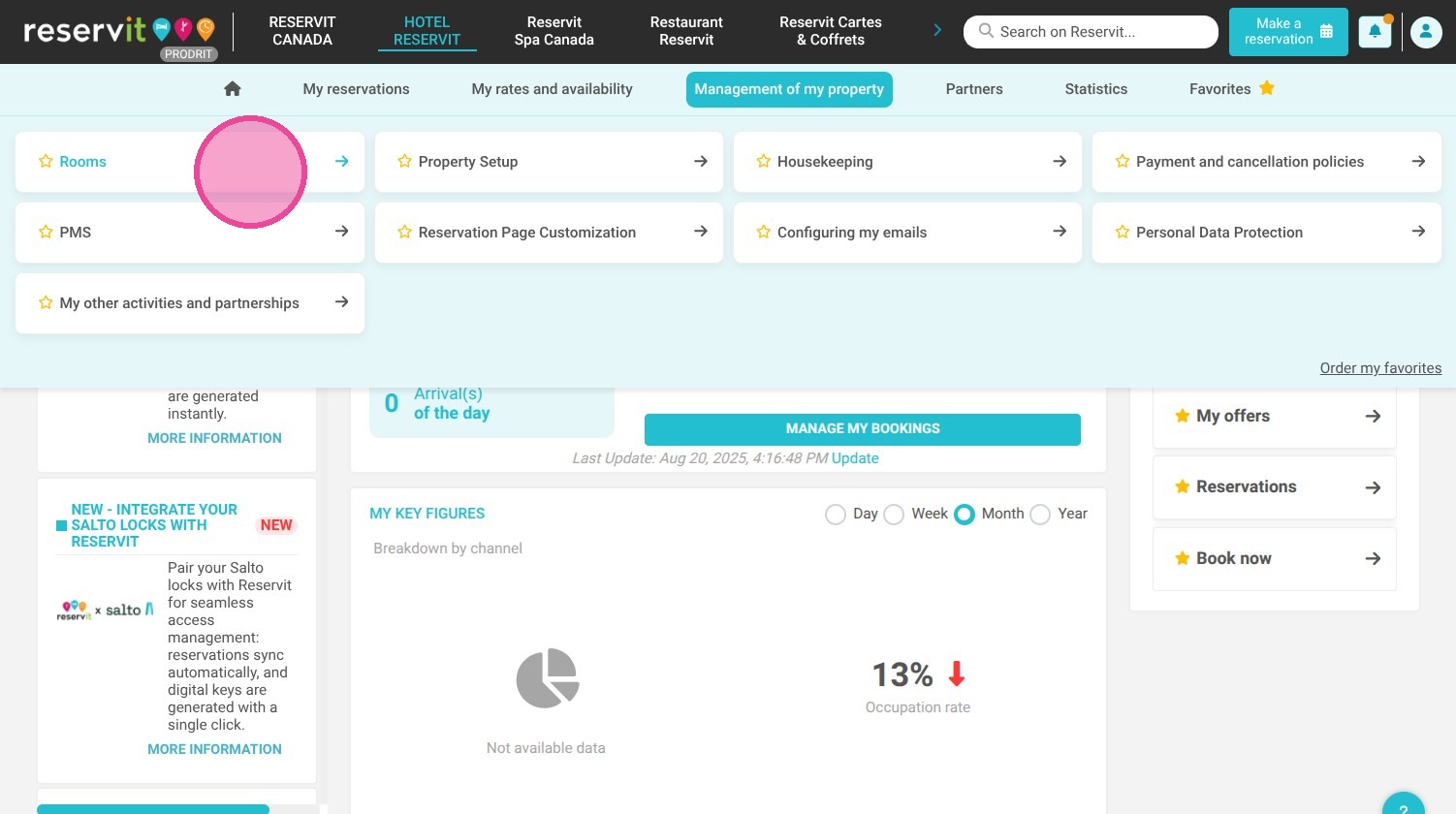
Navigate to the rooms menu: Go to "Management of my property" and select "Rooms."
-
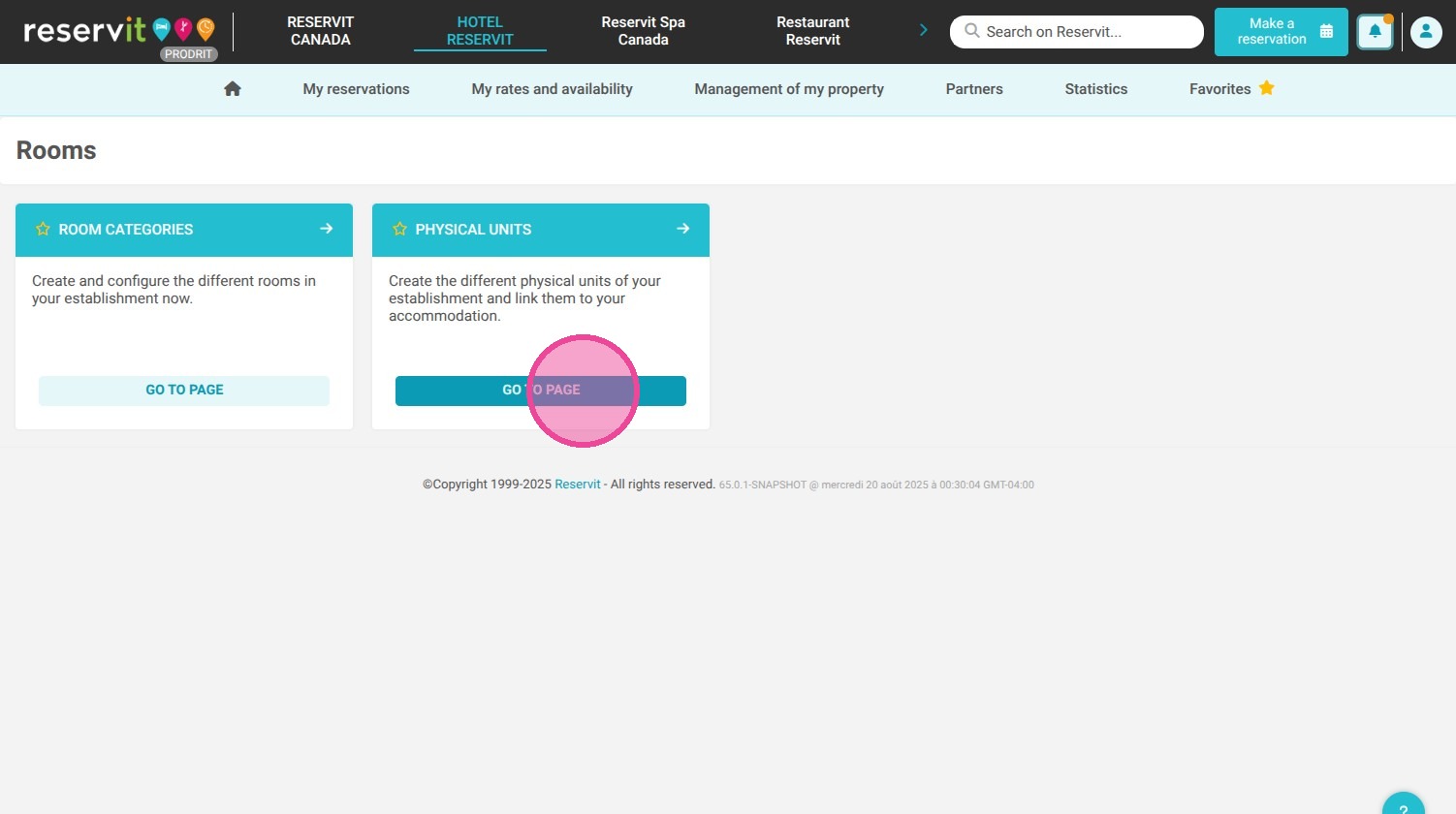
Open physical units: Click on "Physical Units" to view your property's room inventory list.
-
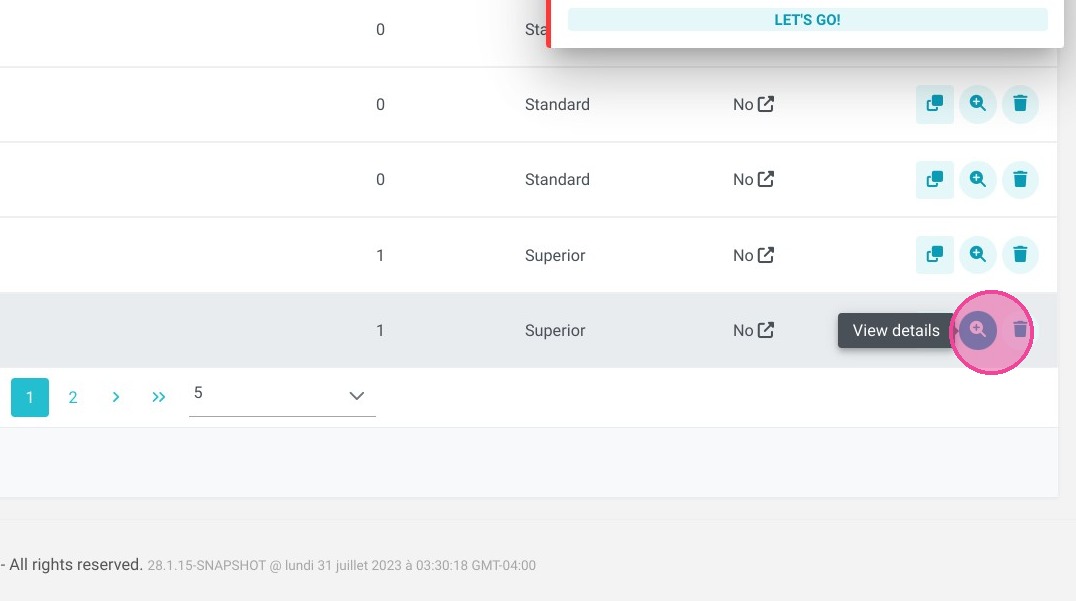
Access the primary room details: Click into the details of the specific physical unit you want to modify.
-
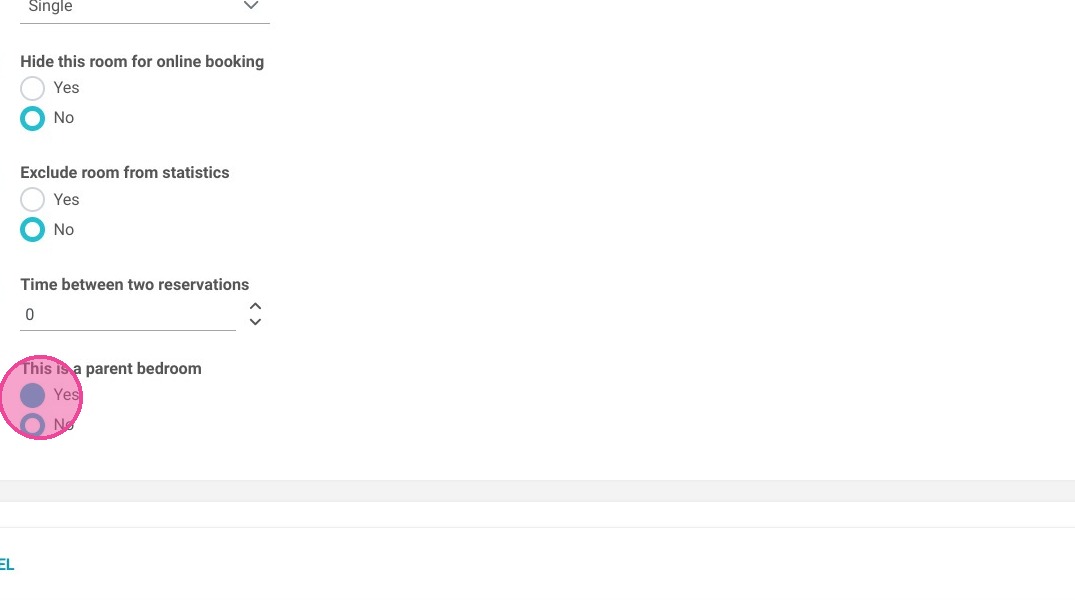
Establish parent-child dependencies: Select "Yes" on the option "This is a parent room" and check the boxes for the specific dependent rooms linked to it.
-
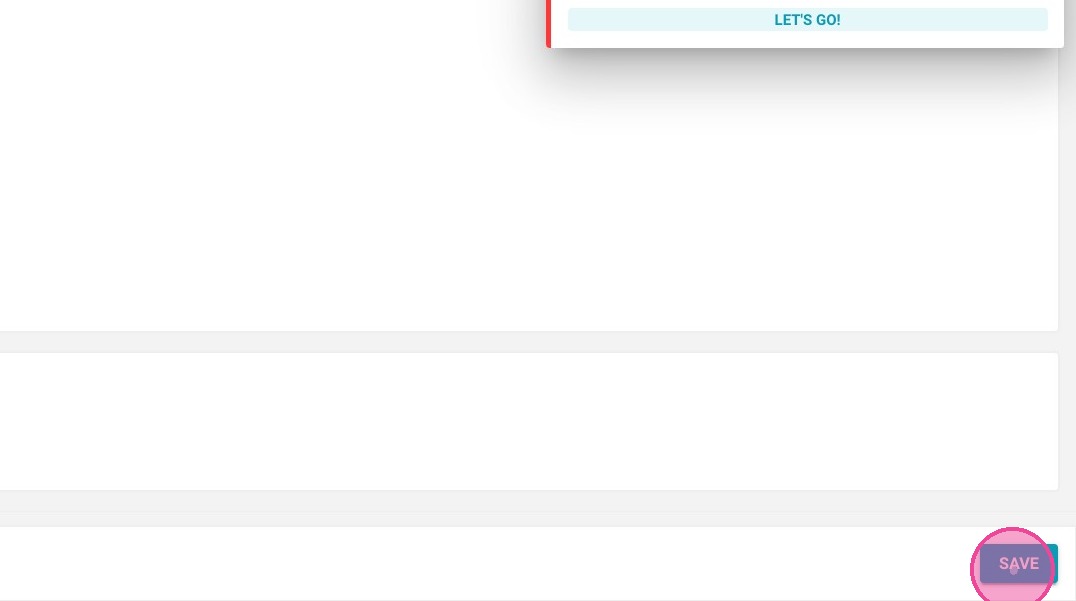
Save your inventory configuration: Click "SAVE" to finalize the settings and activate the room linking rules.
Why Follow This Guide? Properly linking connecting rooms automates your inventory controls, ensuring that component rooms are instantly blocked from online channels the moment a parent suite is booked. This guide helps you protect your operations from double-booking errors while allowing you to effortlessly cater to larger groups and family travelers.
1. Go to Management of my property > Rooms.
2. Go to Physical Units.
3. Access the detail of a physical unit.
4. Select Yes on "This is a parent room".
5. Choose the rooms that depend on it.
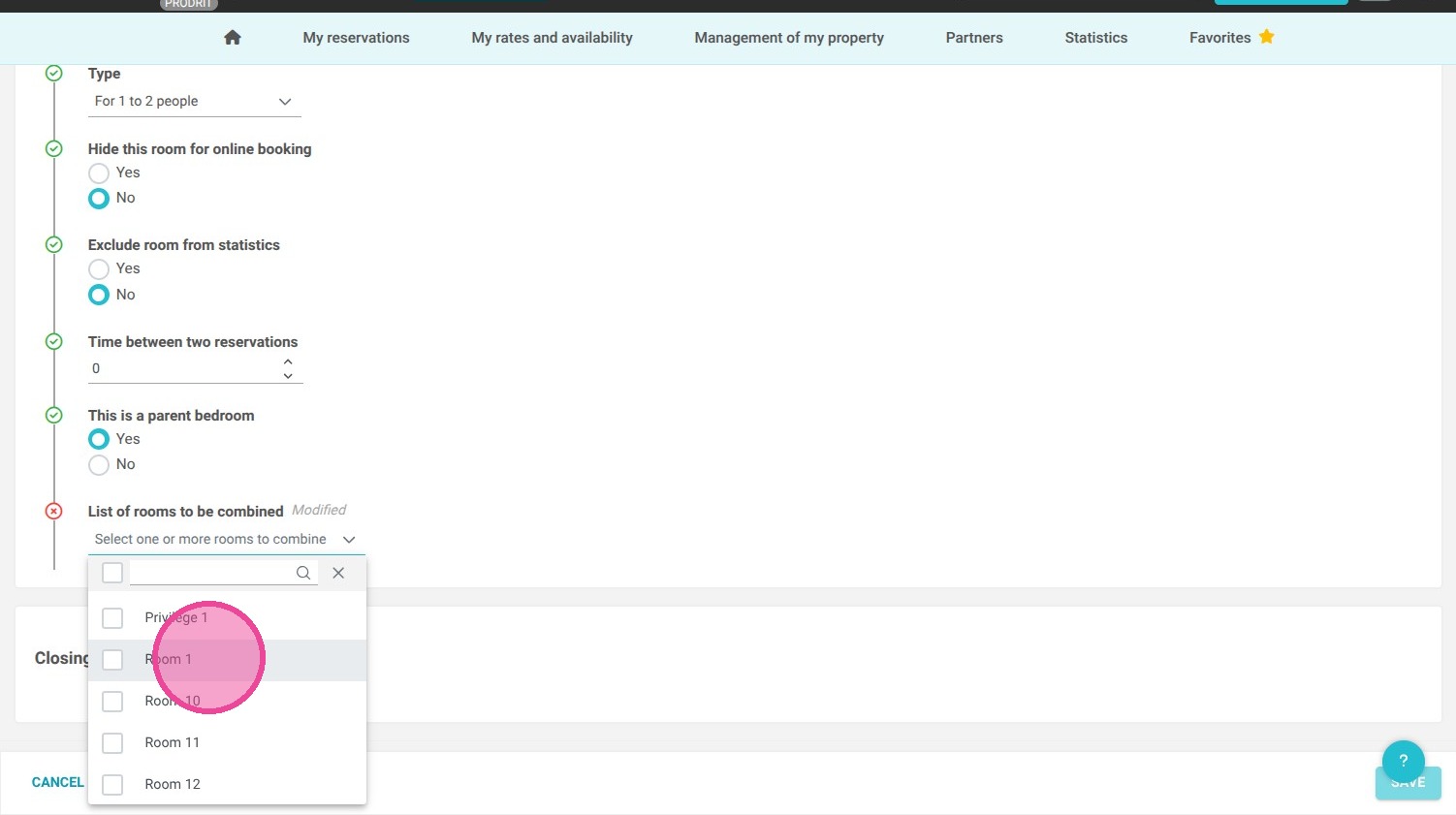
6. Then "SAVE"