Article Summary: Learn how to efficiently configure and select extra categories within your Reservit PMS to optimize your ancillary service management. This step-by-step tutorial will guide you through activating option categories and assigning them to your specific extra fees for streamlined tracking. By organizing your add-ons properly, you will ensure precise accounting data and generate highly accurate sales reports.
The 5 Key Steps to Select and Assign Extra Categories:
-
Access the category setup: Go to "Management of my property," click on "Property Setup," choose "Reservit PMS Setup," and select "Selection of option categories."
-
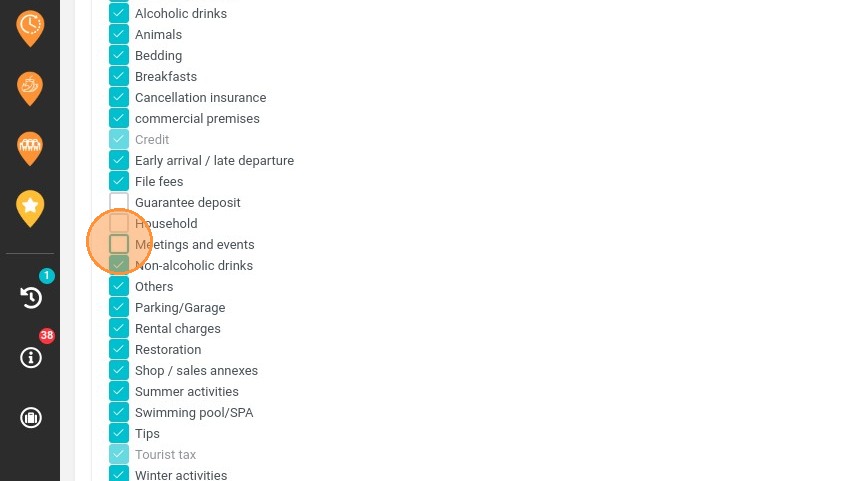
Configure active categories: Check or uncheck the specific options you want to utilize for your establishment (or select them all) and save your choices.
-
Navigate to extras management: Head over to the main menu, select "My rates and availability," and click on "Manage extras."
-
Assign categories to your extra fees: Select the specific extra fee you wish to update (or create a new one) and choose its corresponding option category from the dropdown.
-
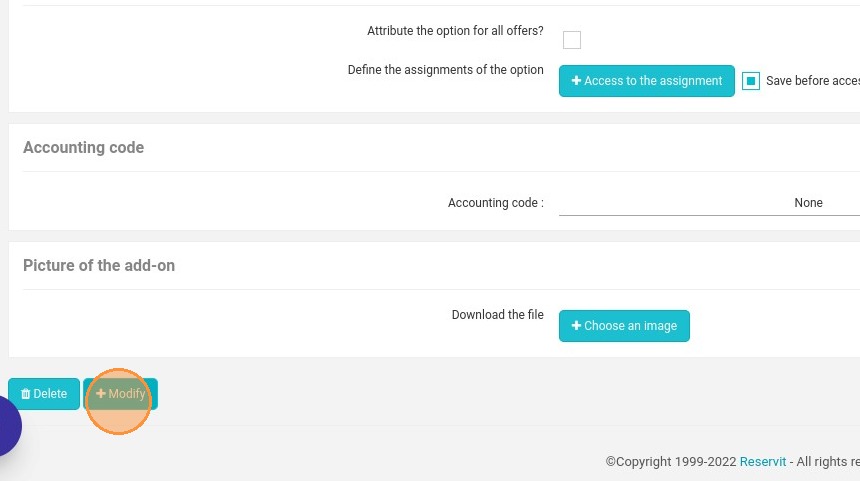
Apply and repeat updates: Click "Modify" to save the changes for that item, and repeat this process for all other remaining extra fees.
Why Follow This Guide? Following this guide ensures that your ancillary revenue is perfectly classified, eliminating data discrepancies in your financial reporting and end-of-month audits. It streamlines your bookkeeping workflow and provides clear business insights into which additional services are driving the most profit for your property.
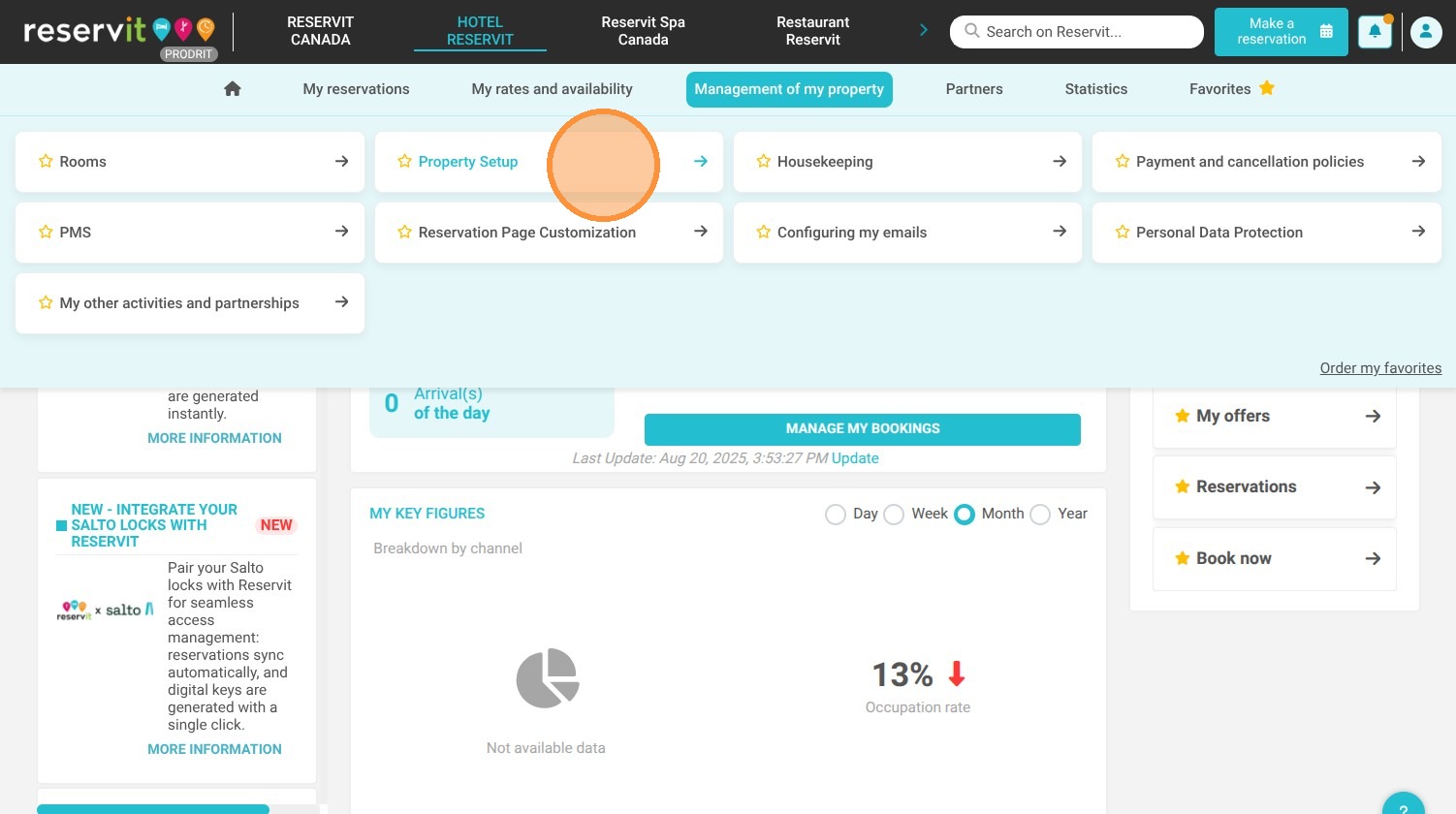
1. Go to Management of my property > Property Setup.
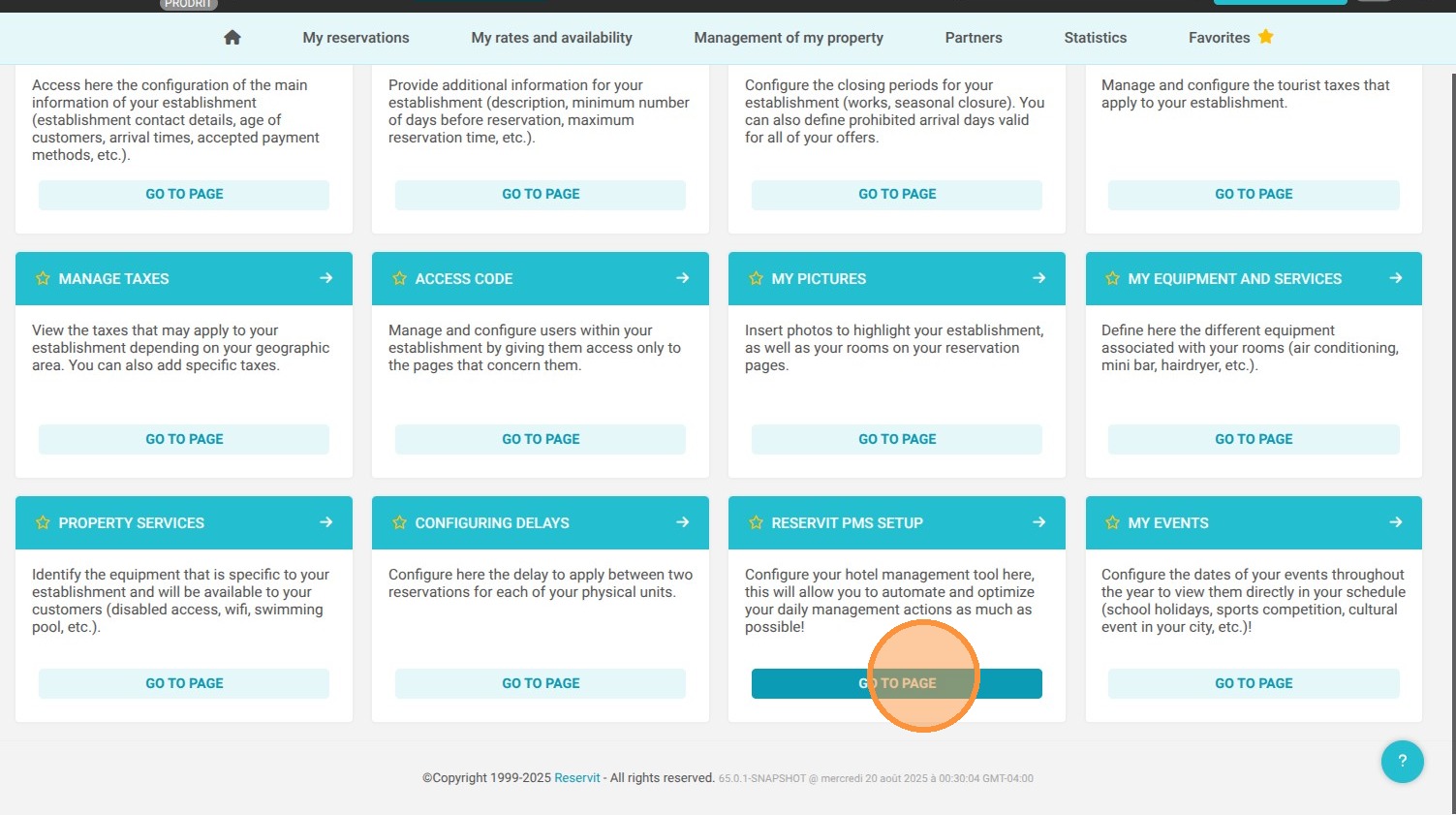
2. Access "Reservit PMS Setup".
3. Here, click on "Selection of option categories"
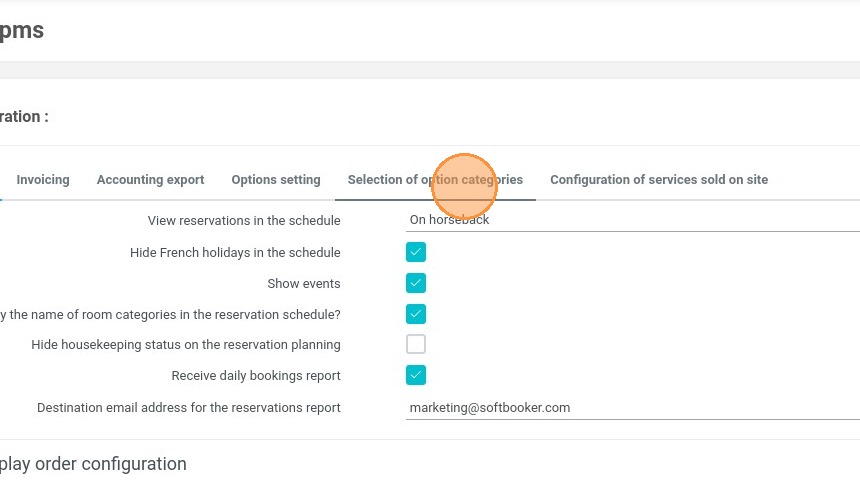
4. Check or uncheck the option categories you will use
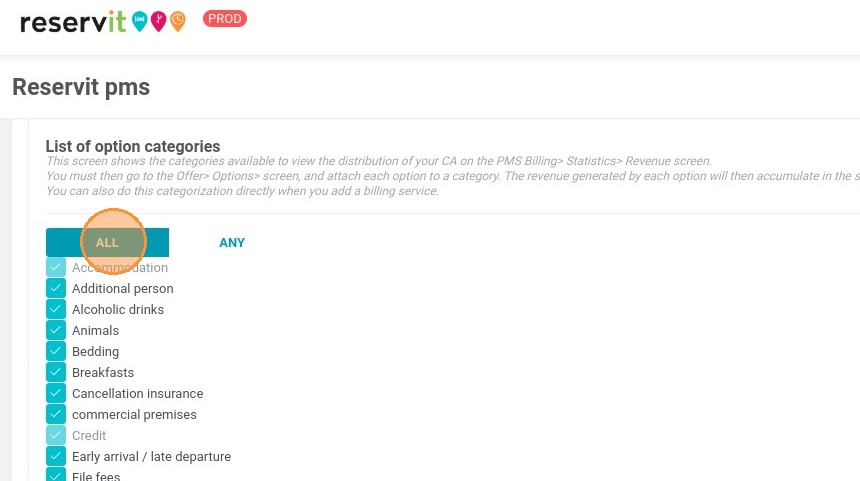
5. You can also select all of them
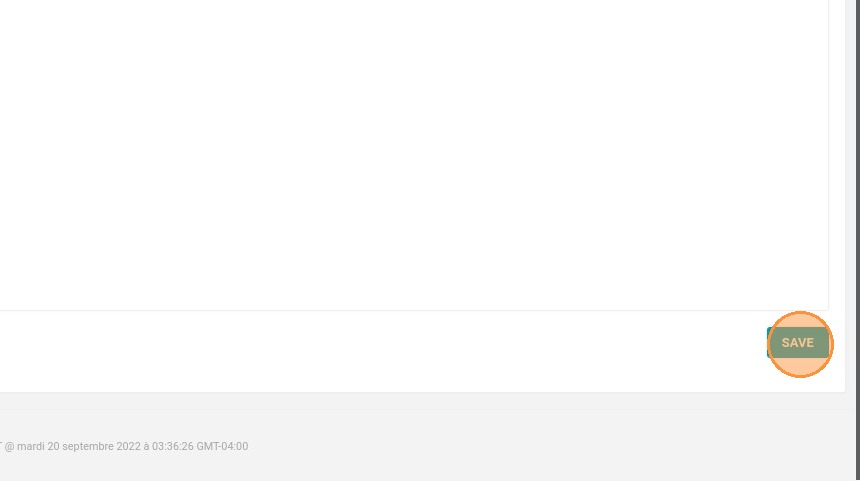
6. Do not forget to save.
7. To assign the categories to each extra fee, go to My rates and availability > Manage extras.
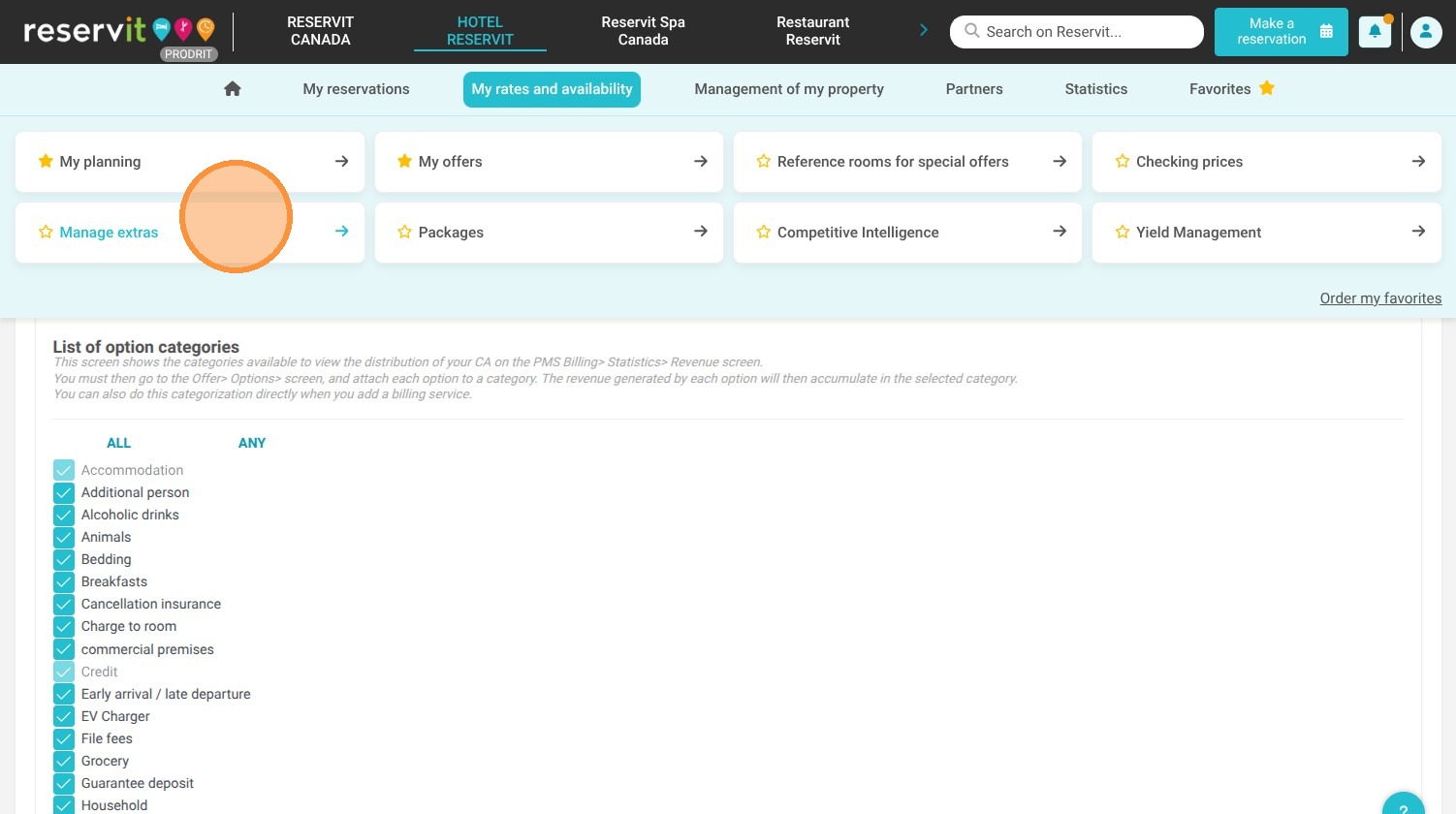
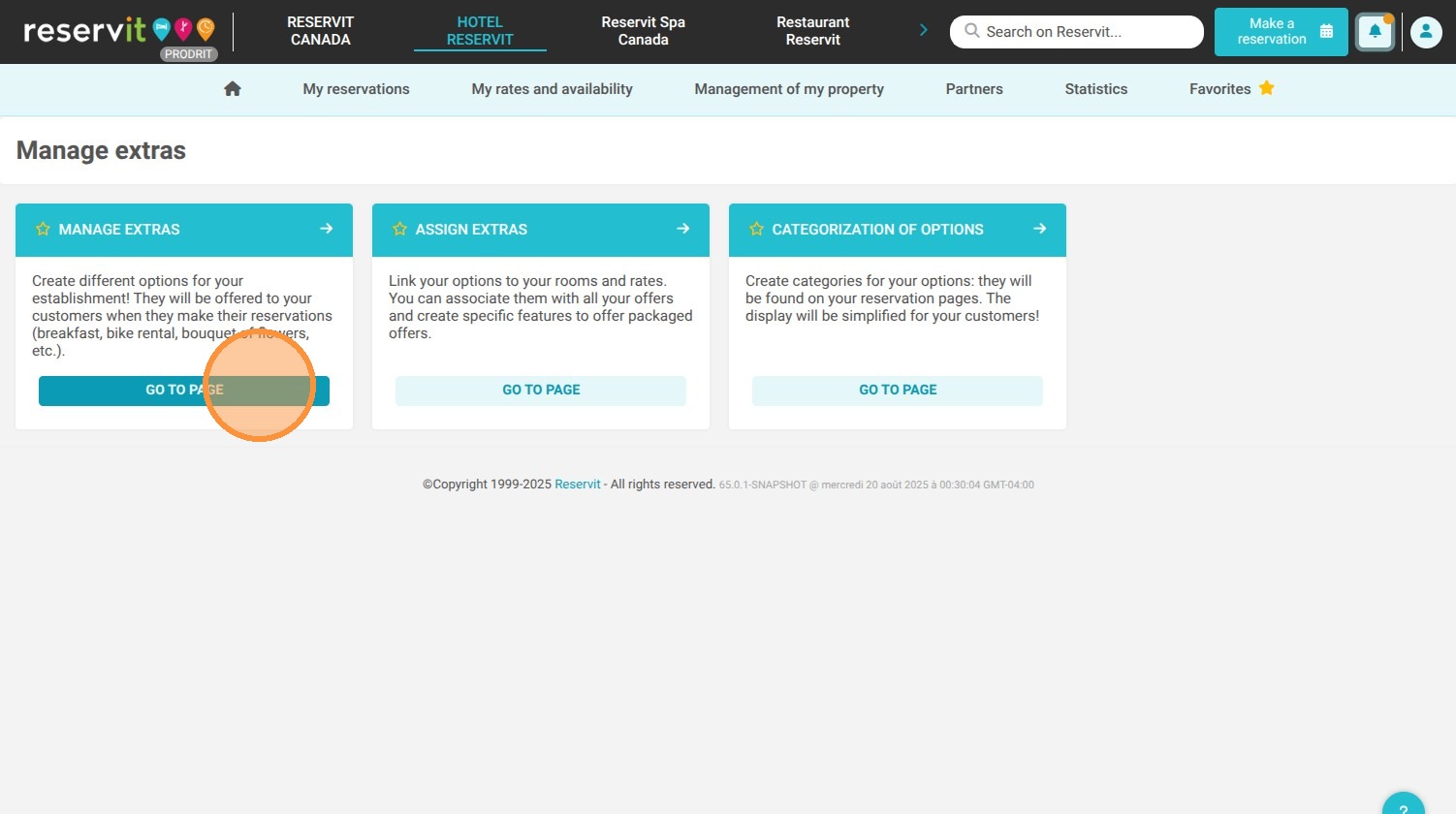
8. Click "Manage extras".
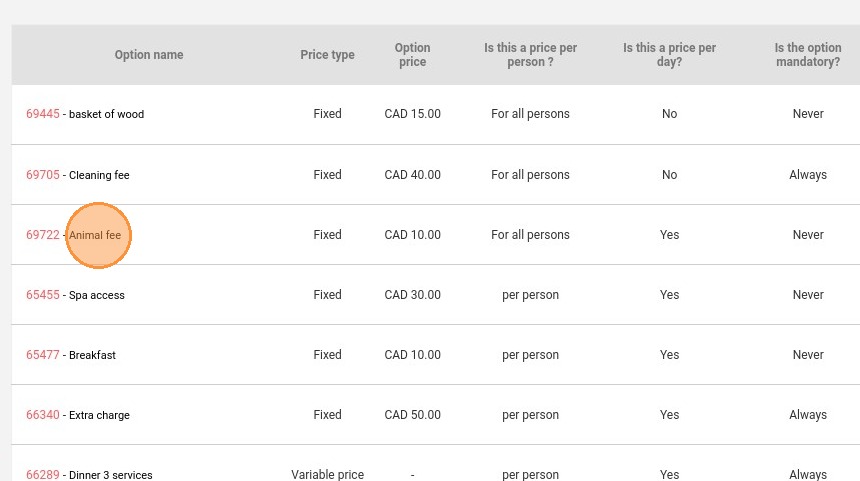
9. Select the extra fee you want to change or create a new one
10. Indicate the category of the option that will later appear in the sales report.
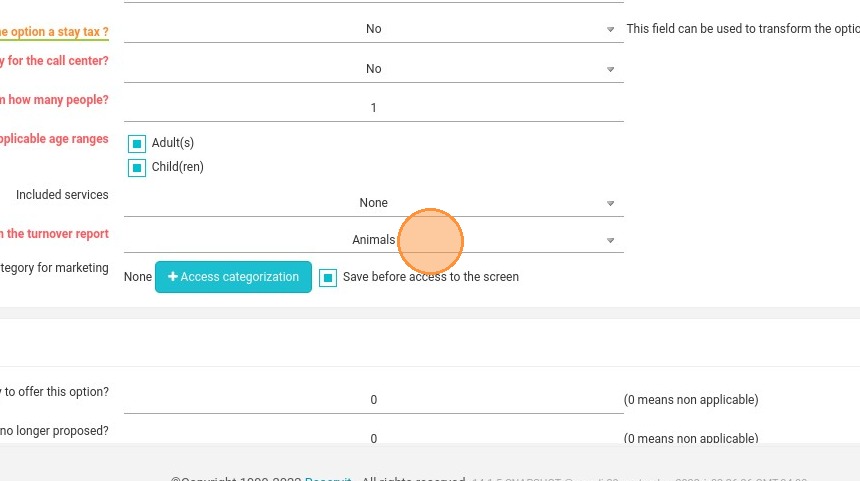
11. Don't forget to click on "Modify". This must be done for all your extra fees.