Article Summary: Learn how to customize and update the additional services sold directly on-site at your property using Reservit PMS. This step-by-step tutorial covers how to add new on-site services, set unit pricing, map accounting codes, and apply the correct tax categories for your financial records. By managing these point-of-sale items accurately, you can maximize ancillary revenue and simplify front-desk billing operations.
The 5 Key Steps to Edit Services Sold on Site:
-
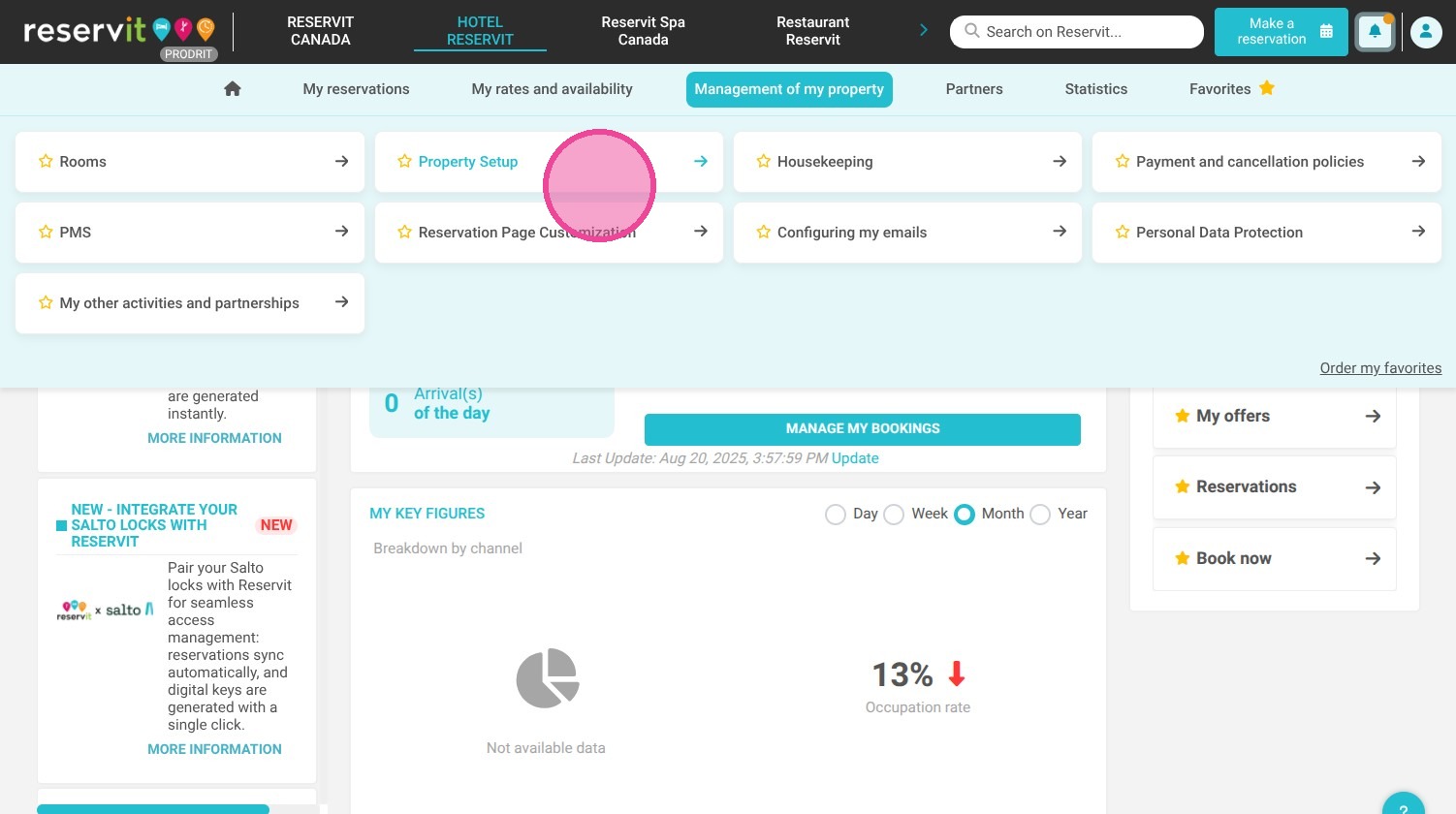
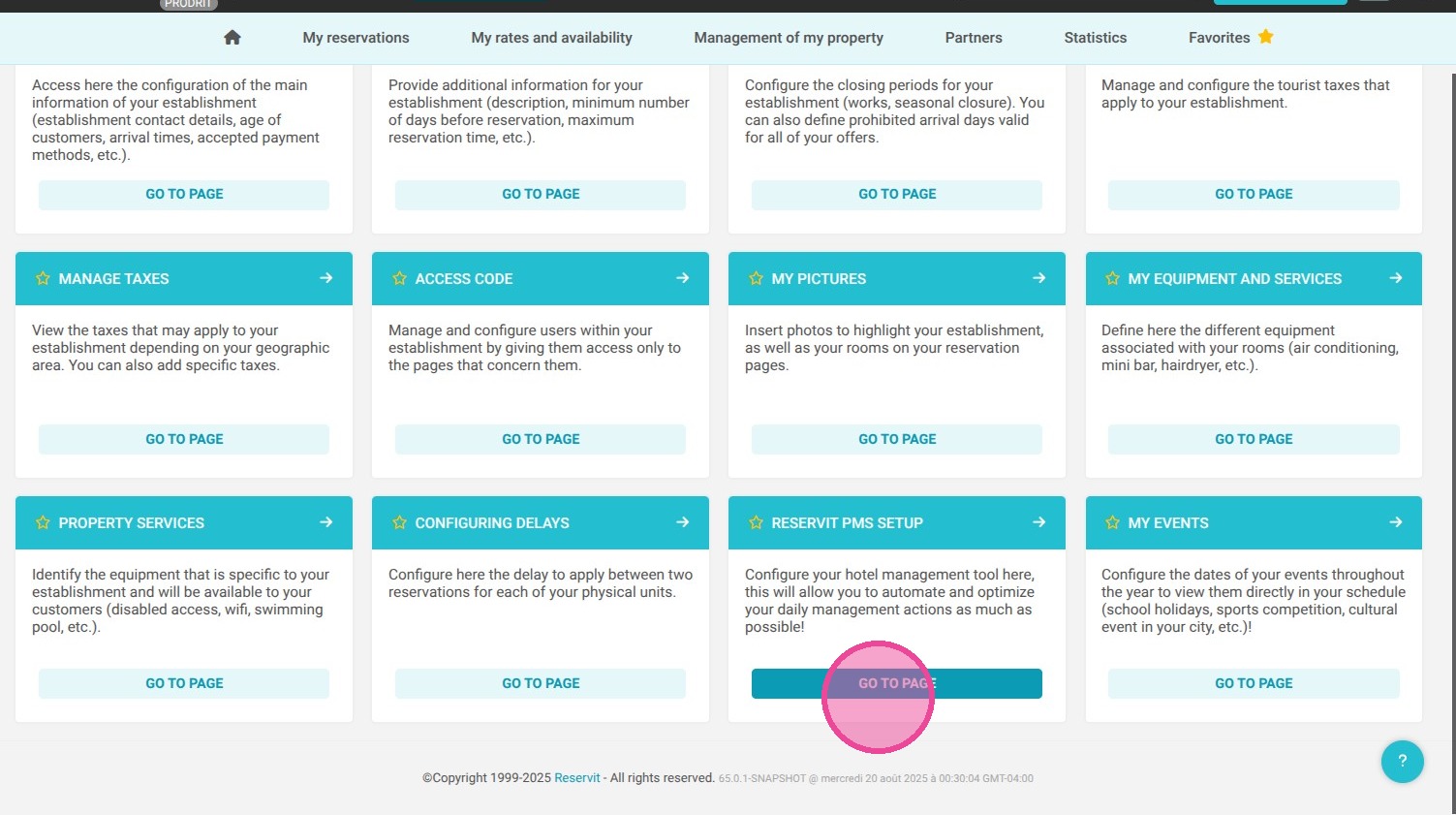
Access the services configuration: Go to "Management of my property," select "Property Setup," and access the "Reservit PMS Setup" menu.
-
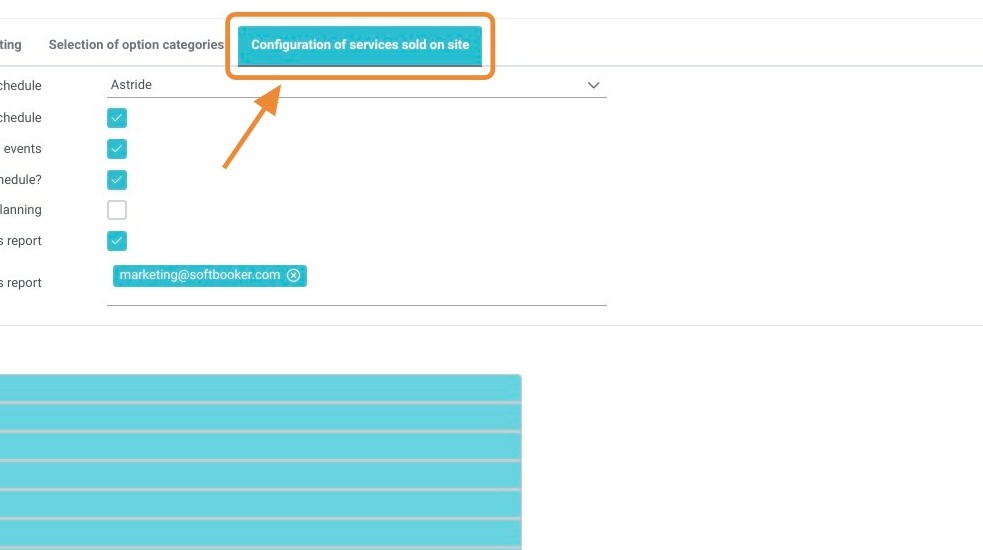
Open the on-site services tab: Click on the "Configuration of services sold on site" tab to display your property's catalog.
-
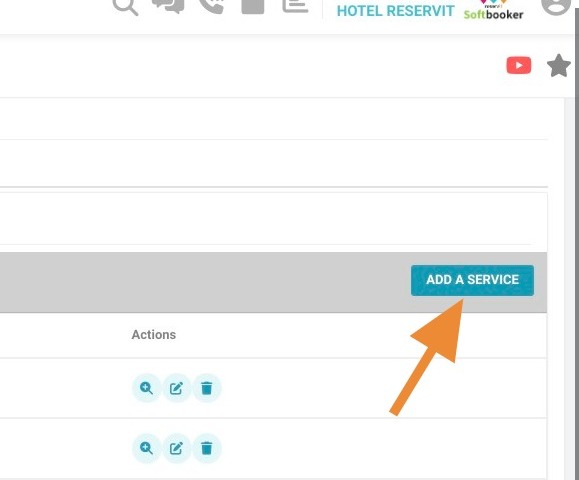
Add a new service: Click on the button to add a service to introduce a new on-premise offering to your system.
-
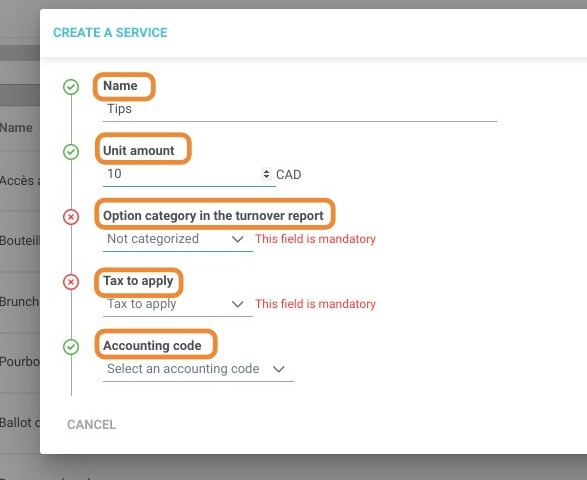
Configure financial and tracking details: Input the unit amount, then use the dropdown menus to assign the correct category for turnover reports, the applicable tax rate, and your internal accounting code.
-
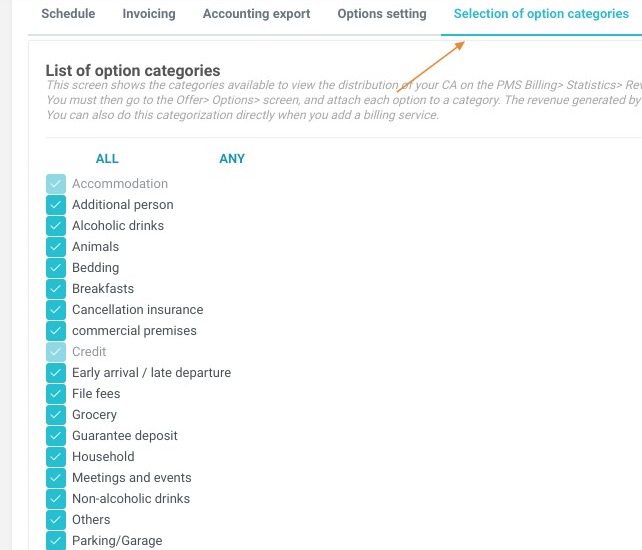
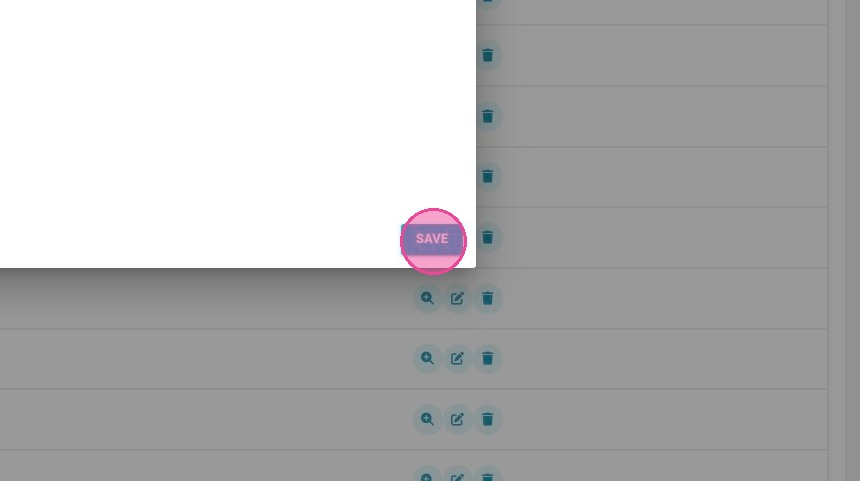
Save your changes: Click "Save" to finalize the configuration (if you find your current categories insufficient, you can easily customize them via the "Selection of option categories" tab on the left).
Why Follow This Guide? Following this guide ensures that your on-site sales are seamlessly mapped to the correct ledger codes and tax brackets, eliminating manual reporting errors during guest checkouts. It streamlines your staff's administrative workflow and provides clear business insights into the performance of your auxiliary revenue streams.
1. Go to Management of my property > Property Setup.
2. Open "Reservit PMS Setup".
3. Click the "Configuration of services sold on site" tab.
4. Click "Add a service".
5. Configure the unit amount, and select from the drop-down lists the category in the turnover report, the tax to apply, and the accounting code.
6. Save.
Tip: If the categories are insufficient or inadequate, click on the "Selection of option categories" tab to the left.