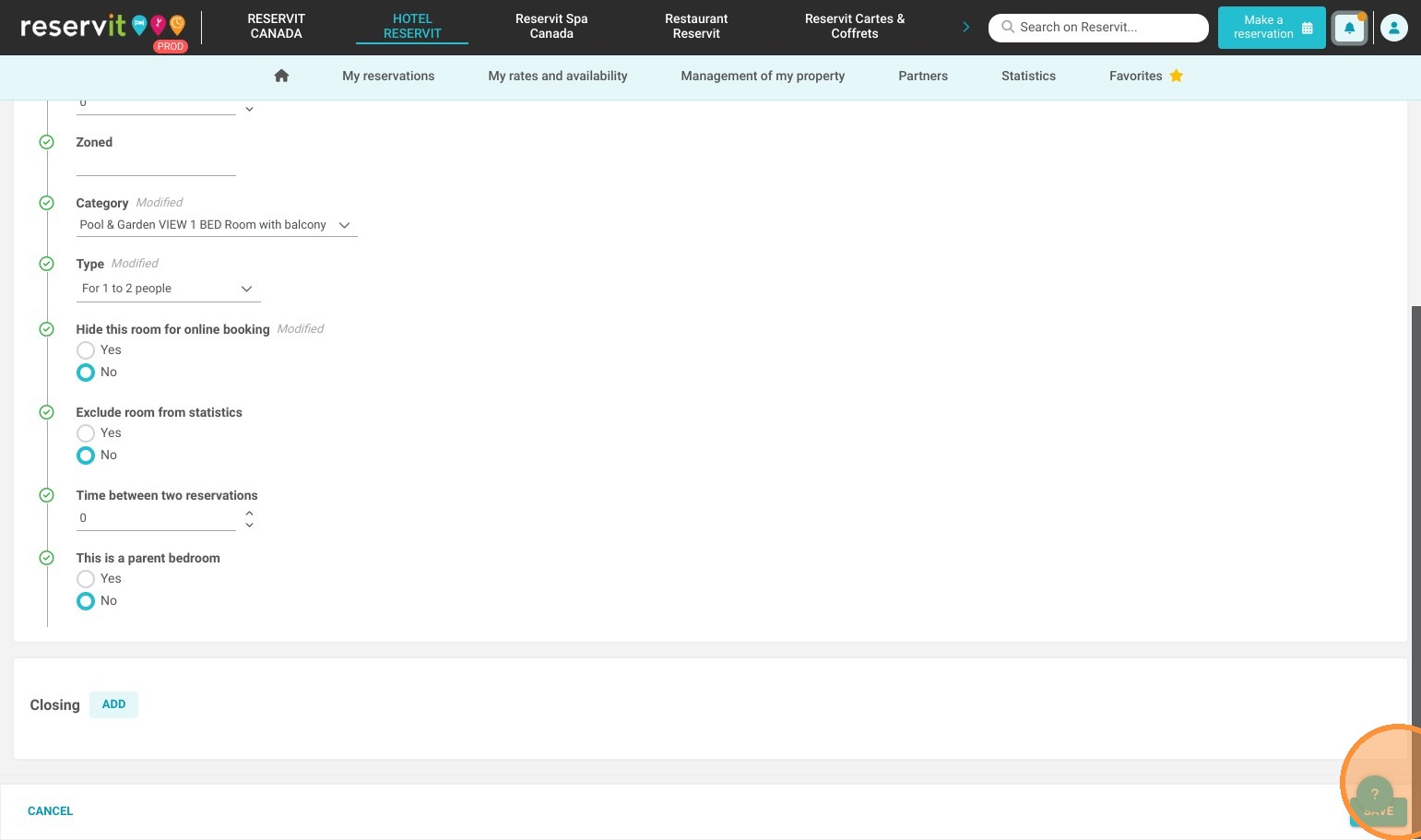
Article Summary: Learn how to quickly set up and configure a new physical unit, such as a hotel room or lodging option, within your Reservit PMS. This step-by-step guide explains how to enter room details, use automatic translation features, categorize your inventory, and manage online visibility rules. By accurately adding your physical units, you ensure a properly structured property calendar ready for direct and channel-distributed bookings.
The 5 Key Steps to Create a Physical Unit:
-
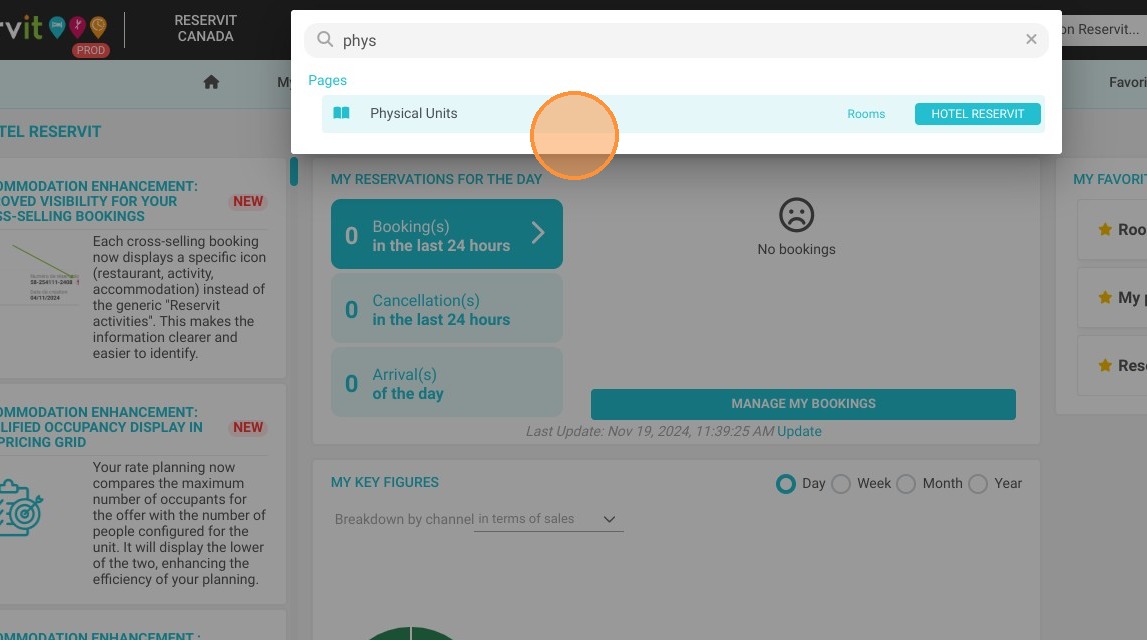
Locate the inventory section: Click the global search bar in Reservit, type "Physical Units," and select the matching option.
-
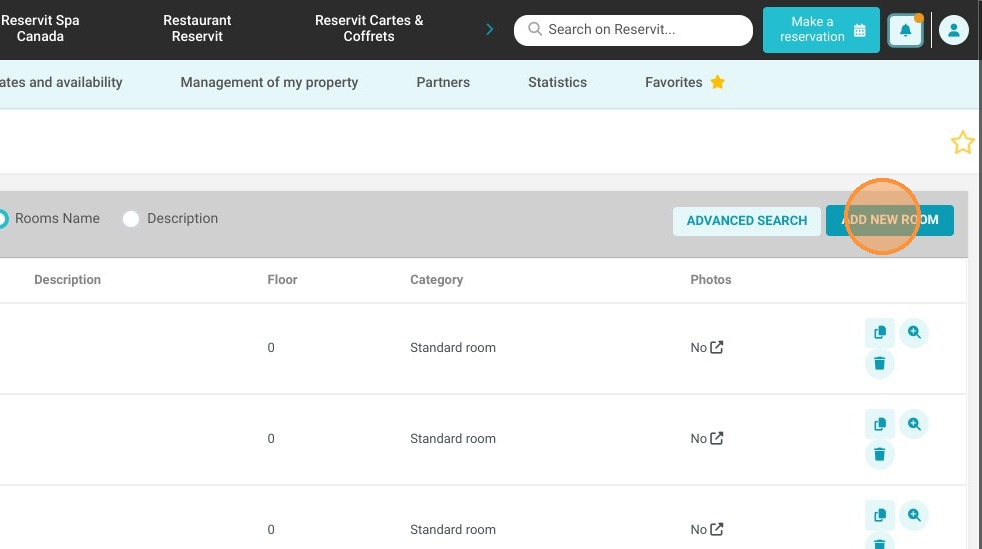
Initiate room creation: Click on the "ADD NEW ROOM" button to open the setup form.
-
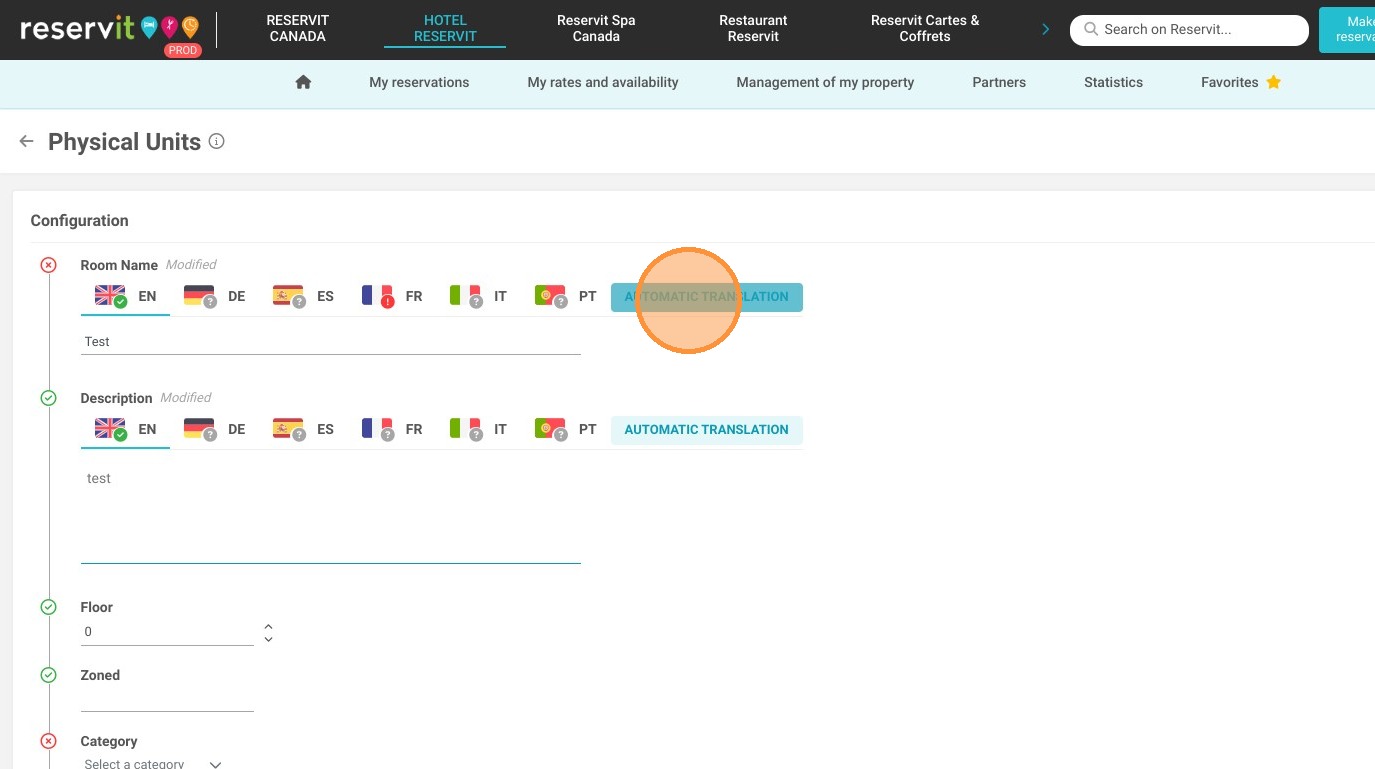
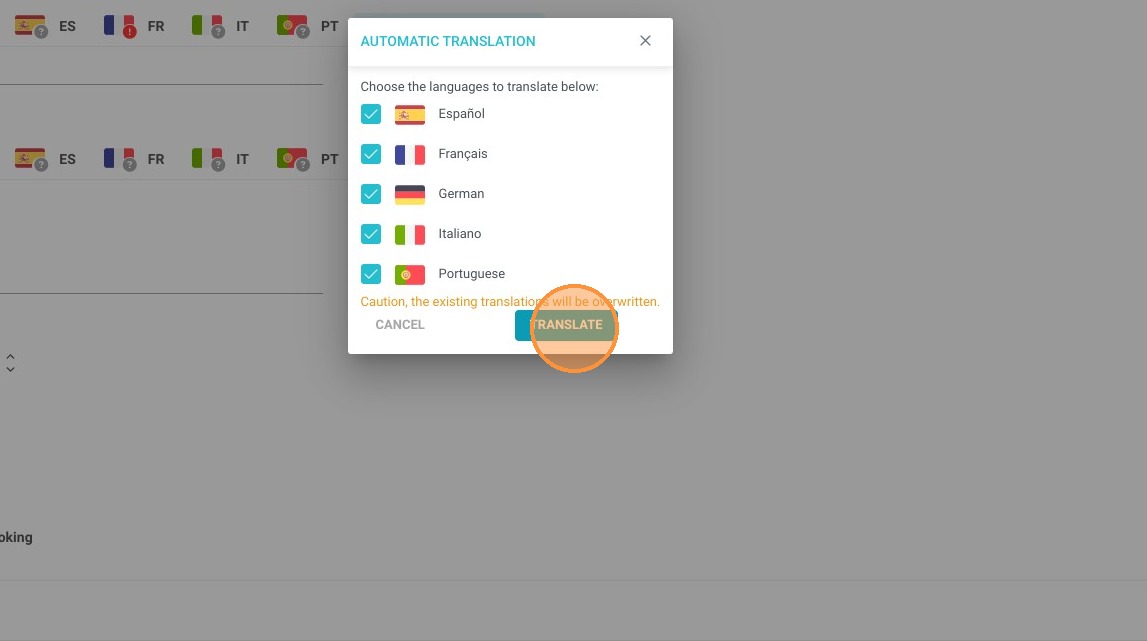
Enter and translate details: Type in your room name, then click on "AUTOMATIC TRANSLATION" and "TRANSLATE" to automatically localize the text.
-
Assign categories and types: Click "select a category" and then choose the exact room type from the dropdown menus to organize your inventory.
-
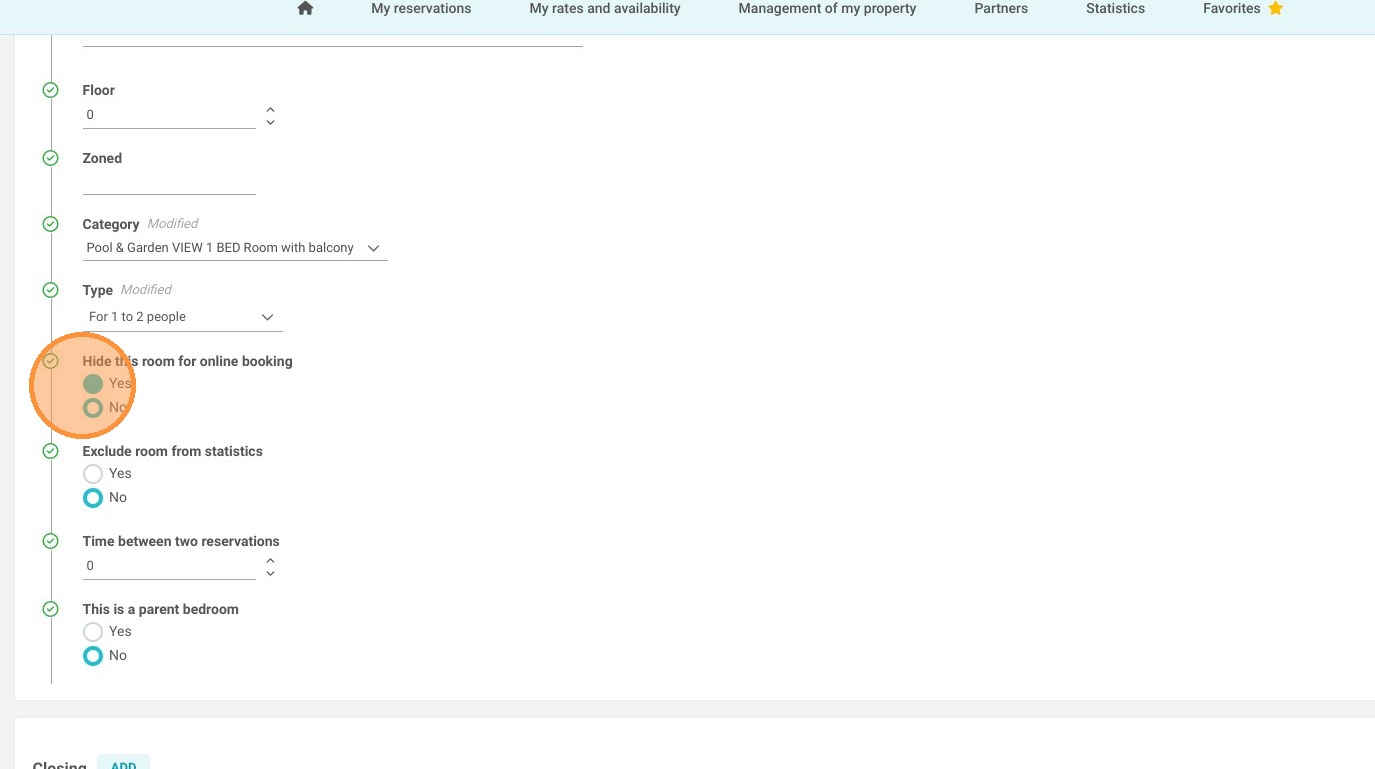
Set visibility and save: Toggle "yes" on the ghost room option if you wish to hide the room from online bookings, then click save to complete the process.
Why Follow This Guide? Properly adding new rooms to your inventory ensures your PMS calendar perfectly reflects your property's exact capacity, preventing channel synchronization errors or distribution gaps. This guide streamlines your setup process, helping you quickly monetize new accommodations without technical delays.
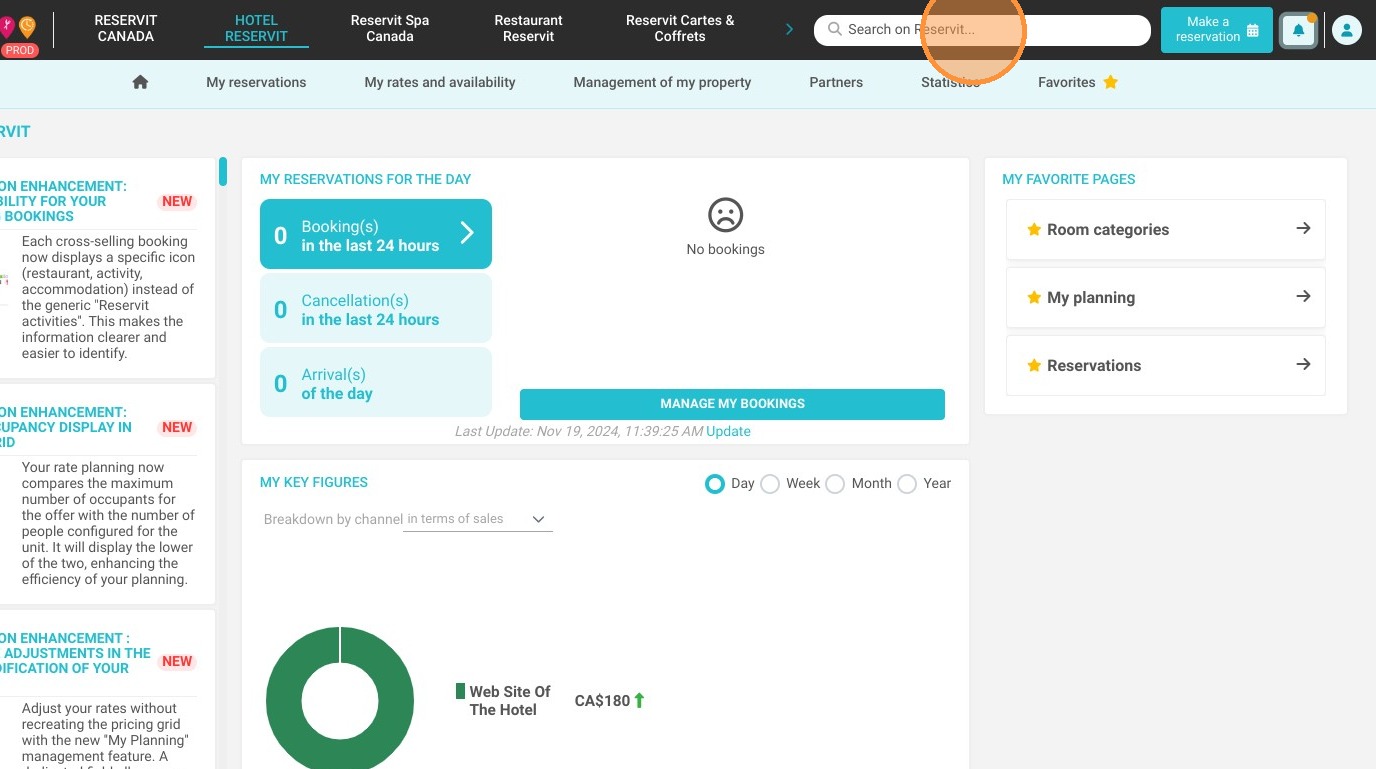
1. Click "Search on Reservit..."
2. Type ''Physical Units''
3. In this section, click on "ADD NEW ROOM"
4. Here, you can fill in your room name
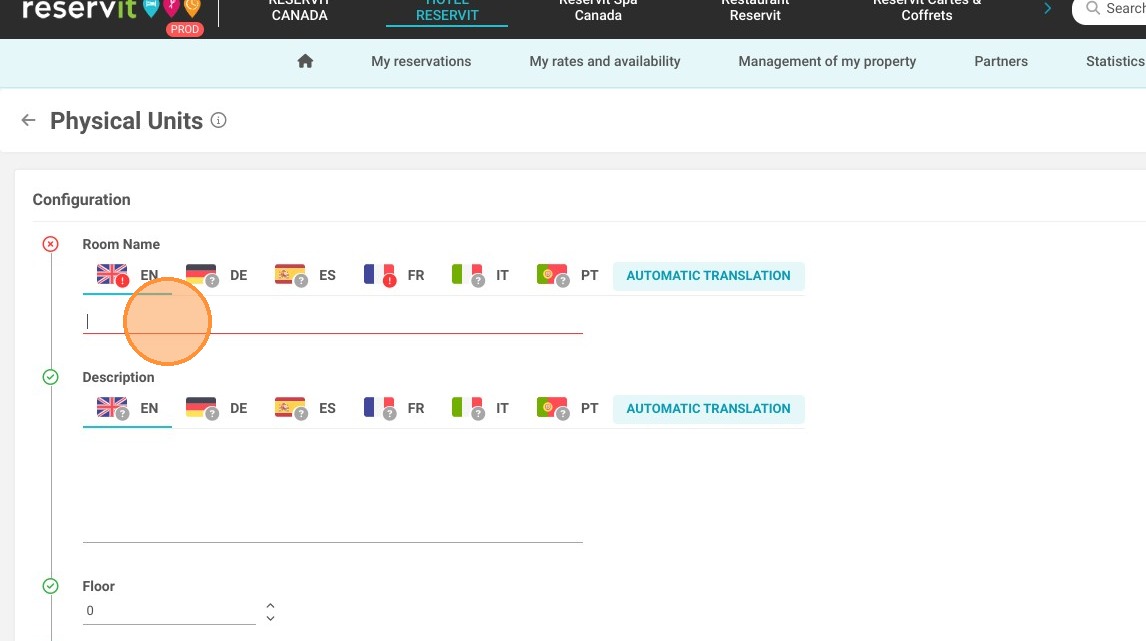
5. Don't forget to translate; for this, you can click on "AUTOMATIC TRANSLATION"
6. Then, click on "TRANSLATE"
7. Click on "select a category"
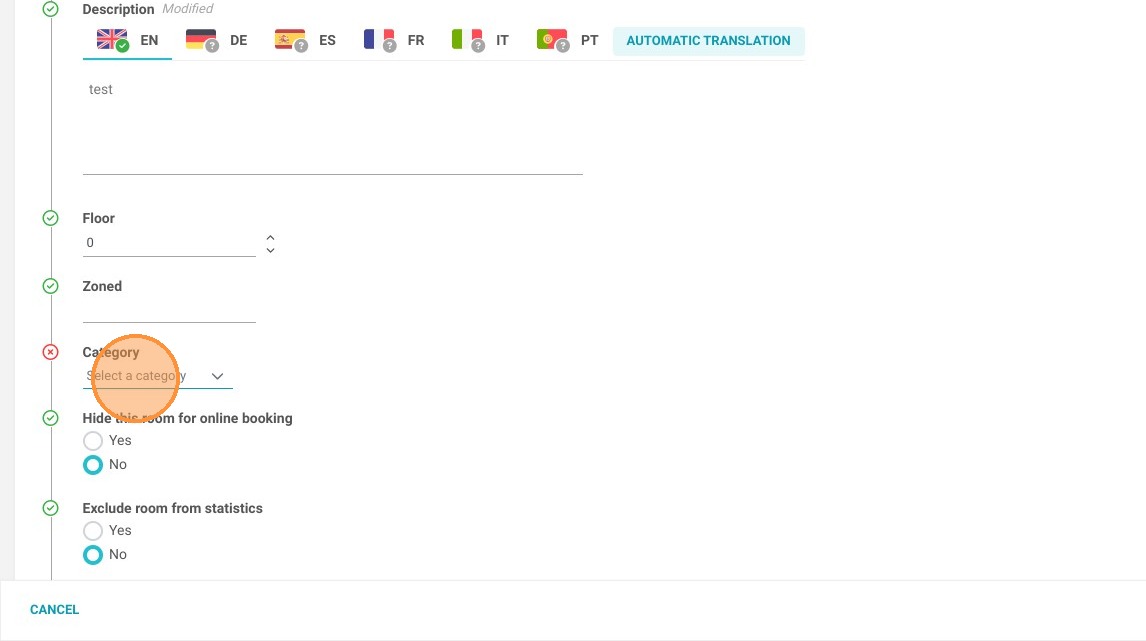
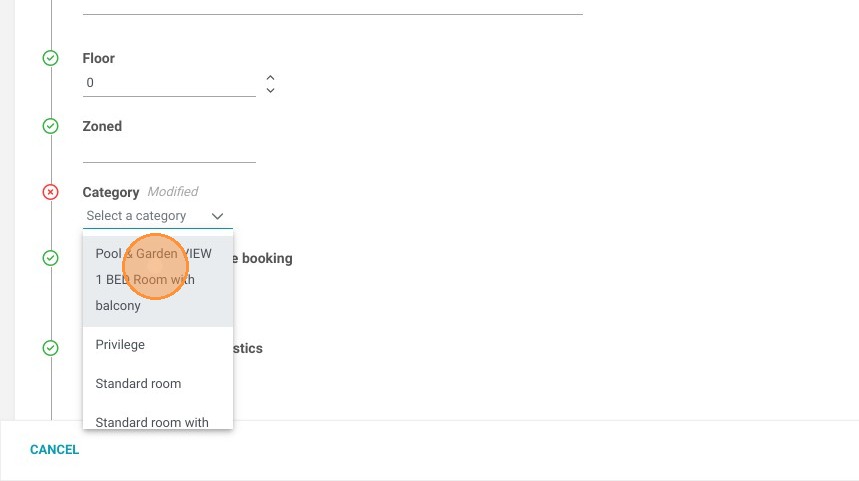
8. Then, select the room type
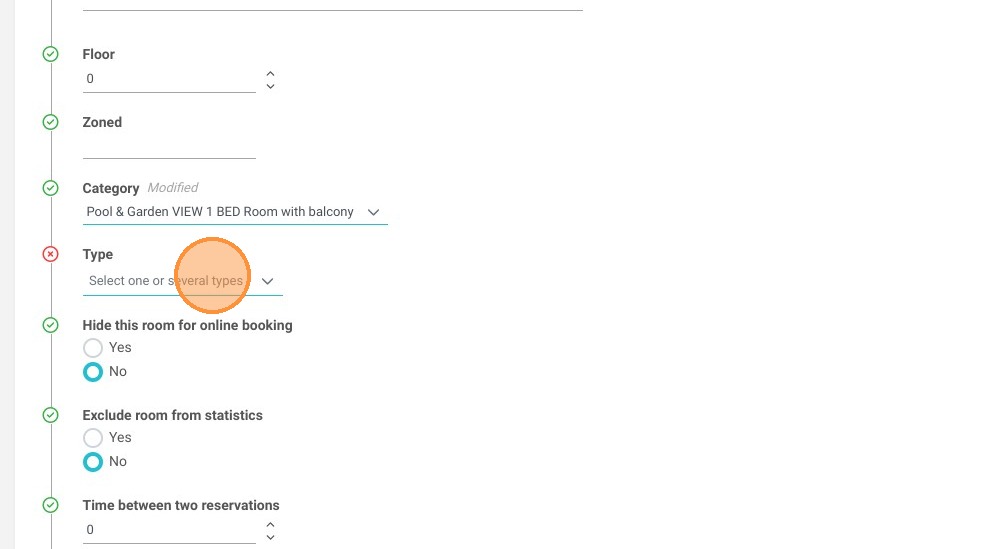
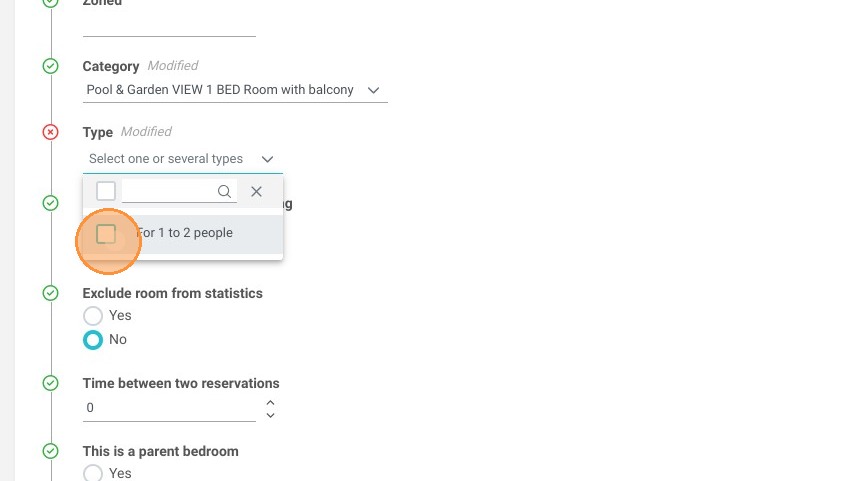
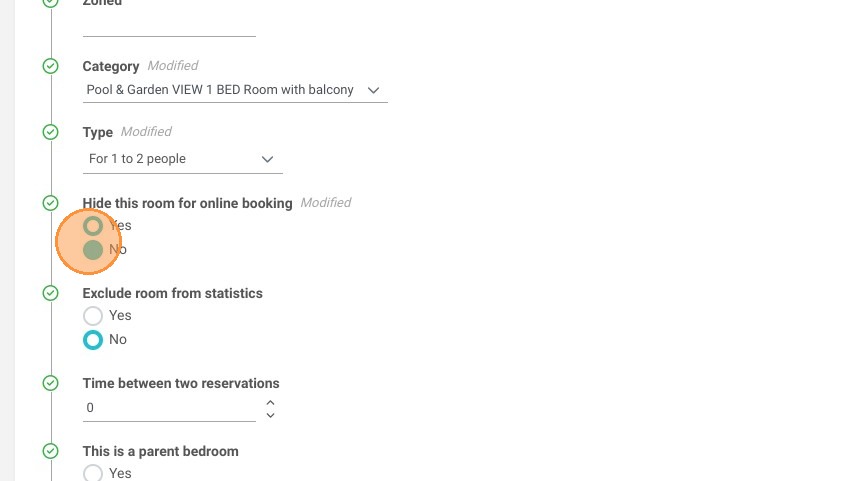
9. If you want to add a ghost room, you can select "yes" to hide this room from online booking
10. Do not forget to save