

Article summary: This guide explains how to properly configure your North American tax numbers (such as GST, HST, PST, or state taxes) within your Reservit PMS interface. You will learn how to navigate to your property's invoicing settings and insert this crucial legal information directly into your billing documents. Setting this up ensures your invoices are fully compliant with local tax authorities and provides a transparent, professional checkout experience for your guests.
The 4 key steps to enter your tax numbers:
-
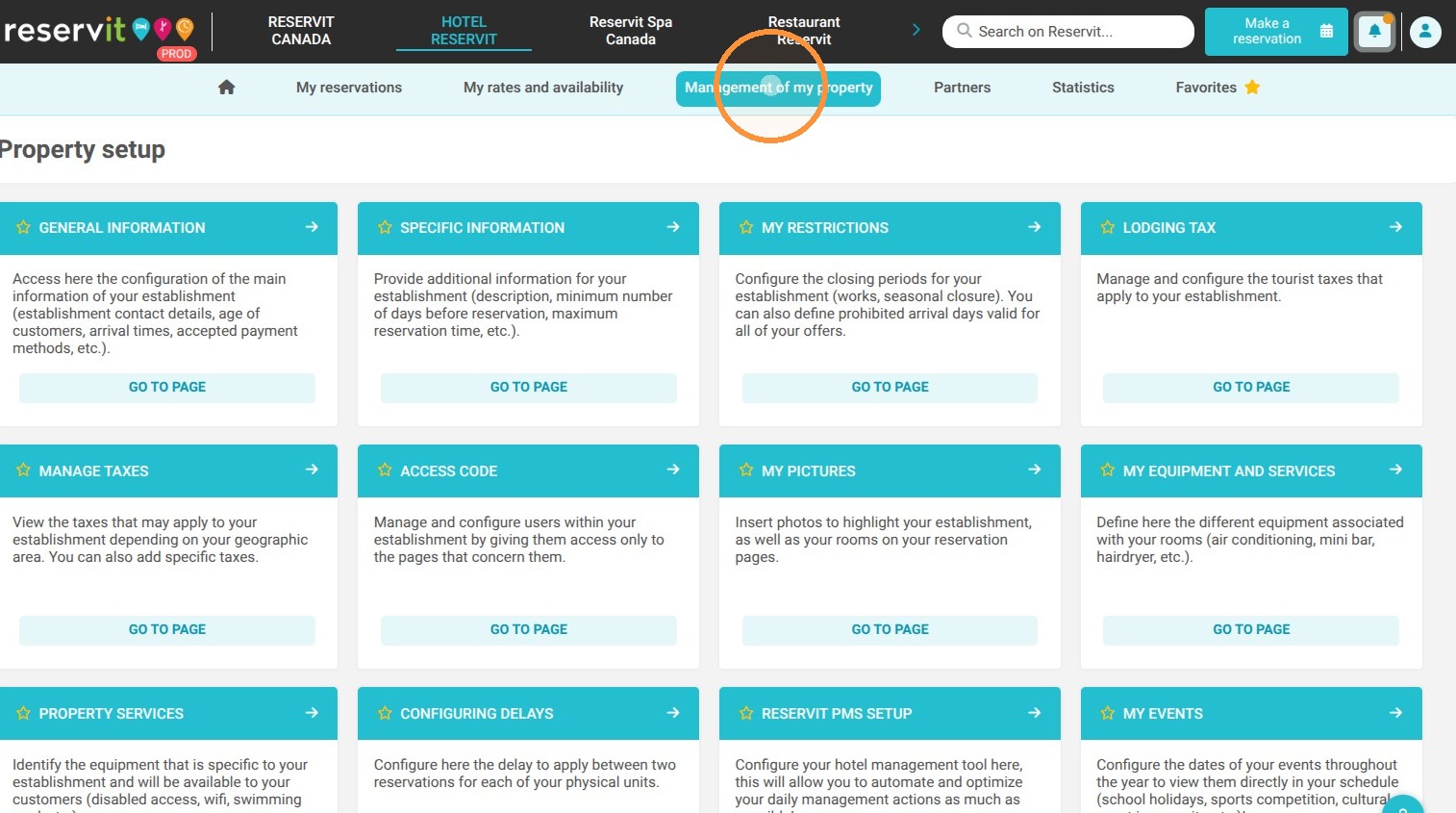
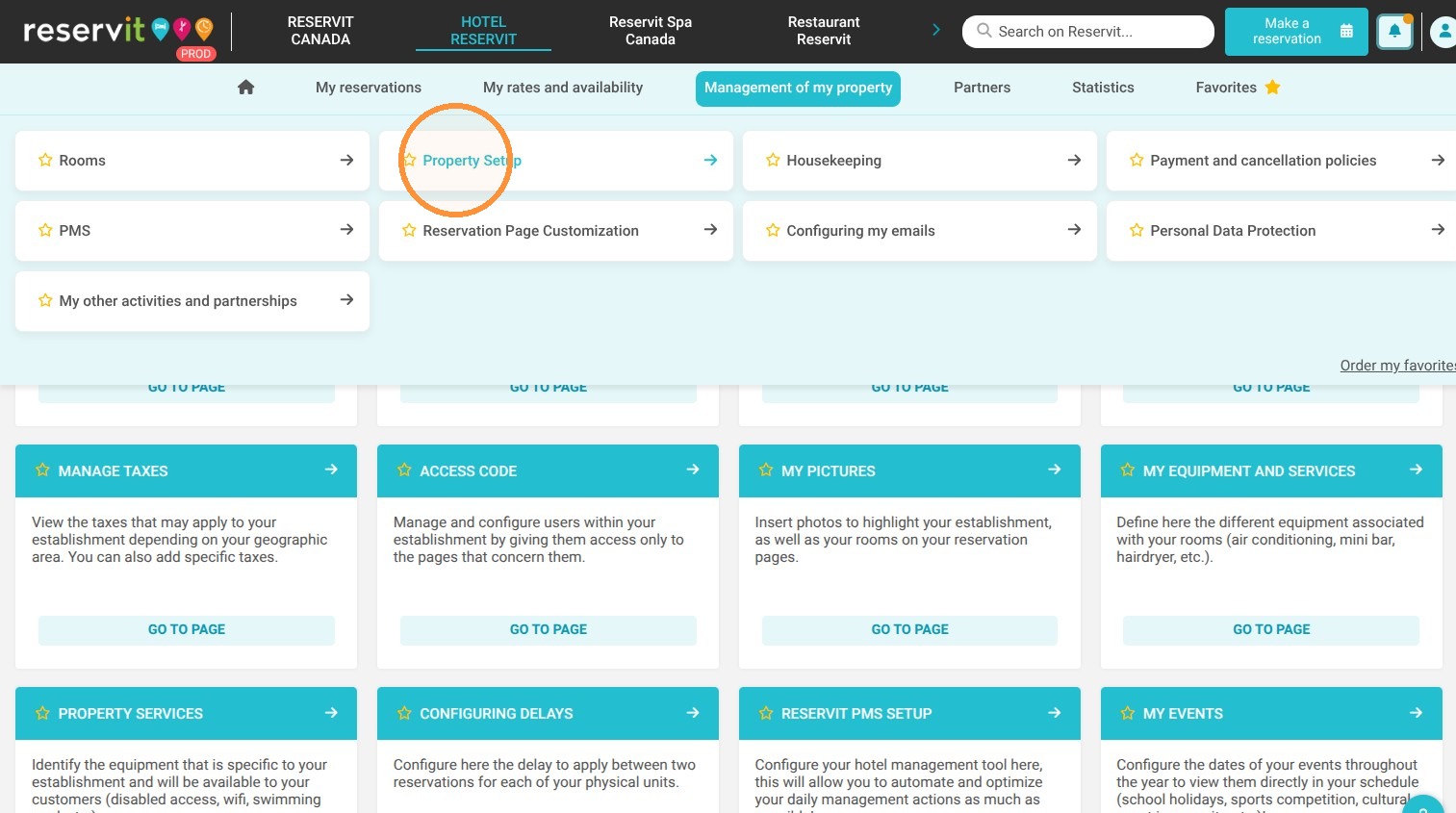
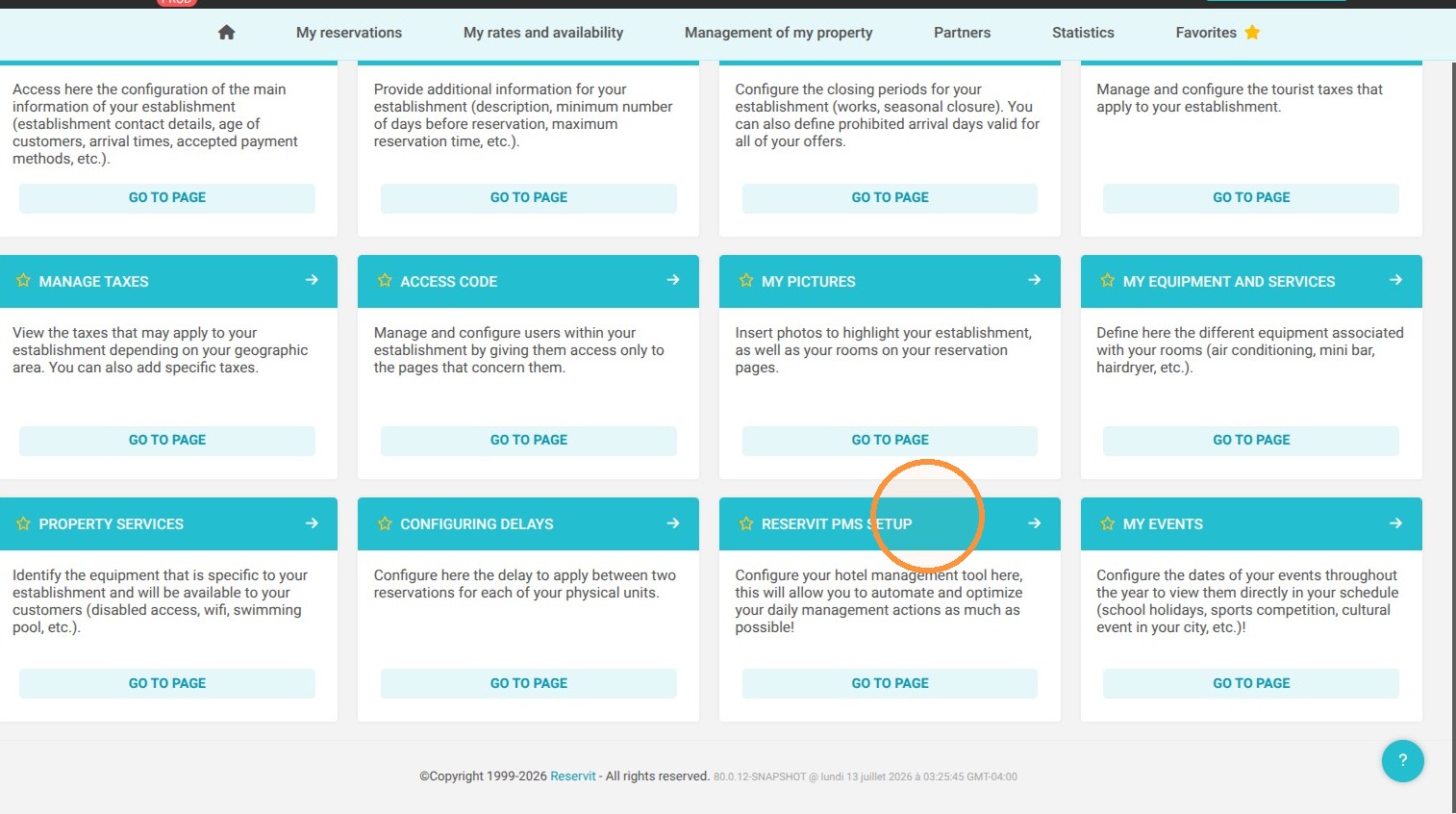
Access the PMS Setup: Navigate through "Management of my property", click on "Property Setup", and select "Reservit PMS Setup" to open your core configurations.
-
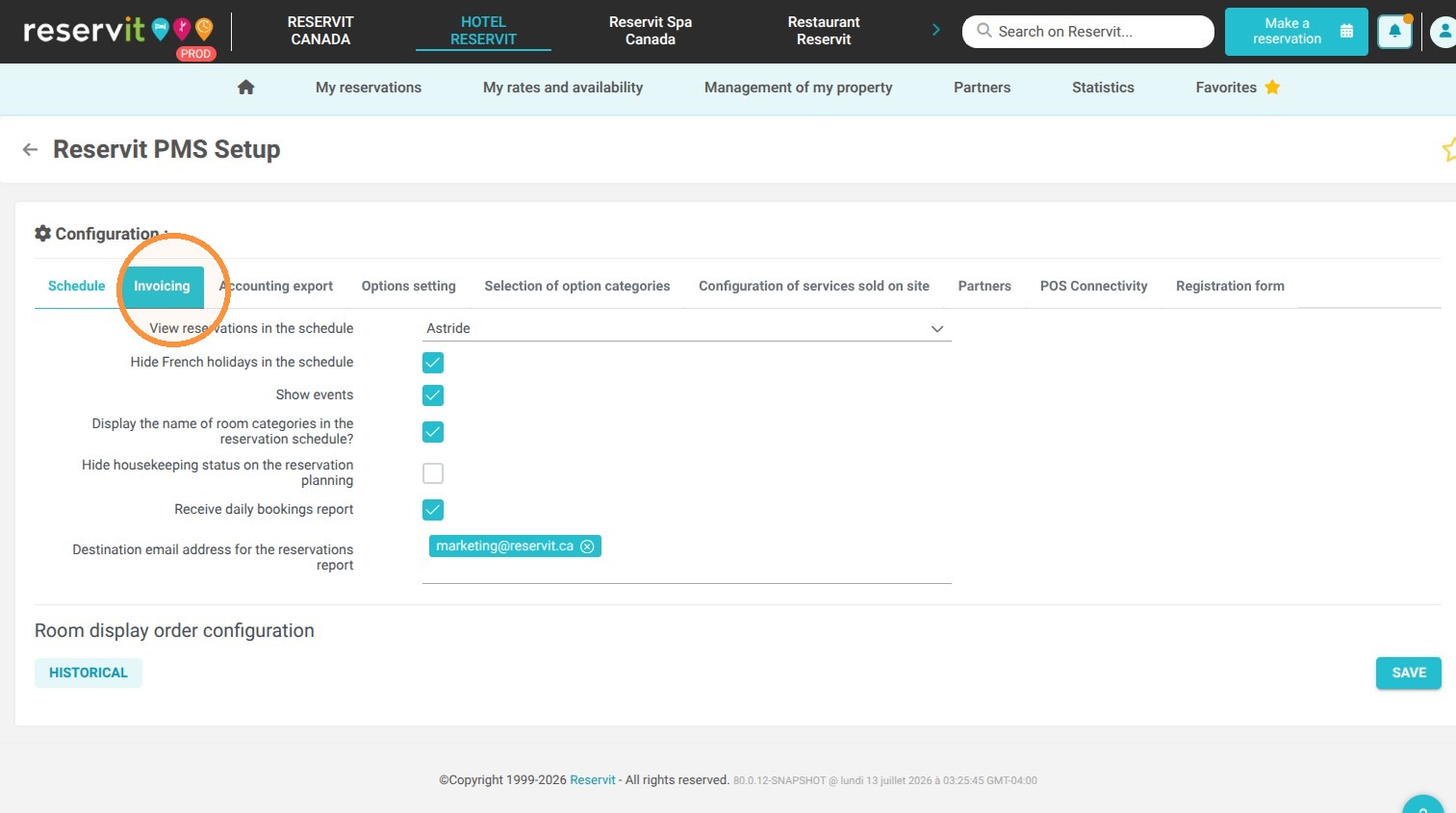
Open Invoicing Settings: Click on the "Invoicing" tab to view your property's financial and billing parameters.
-
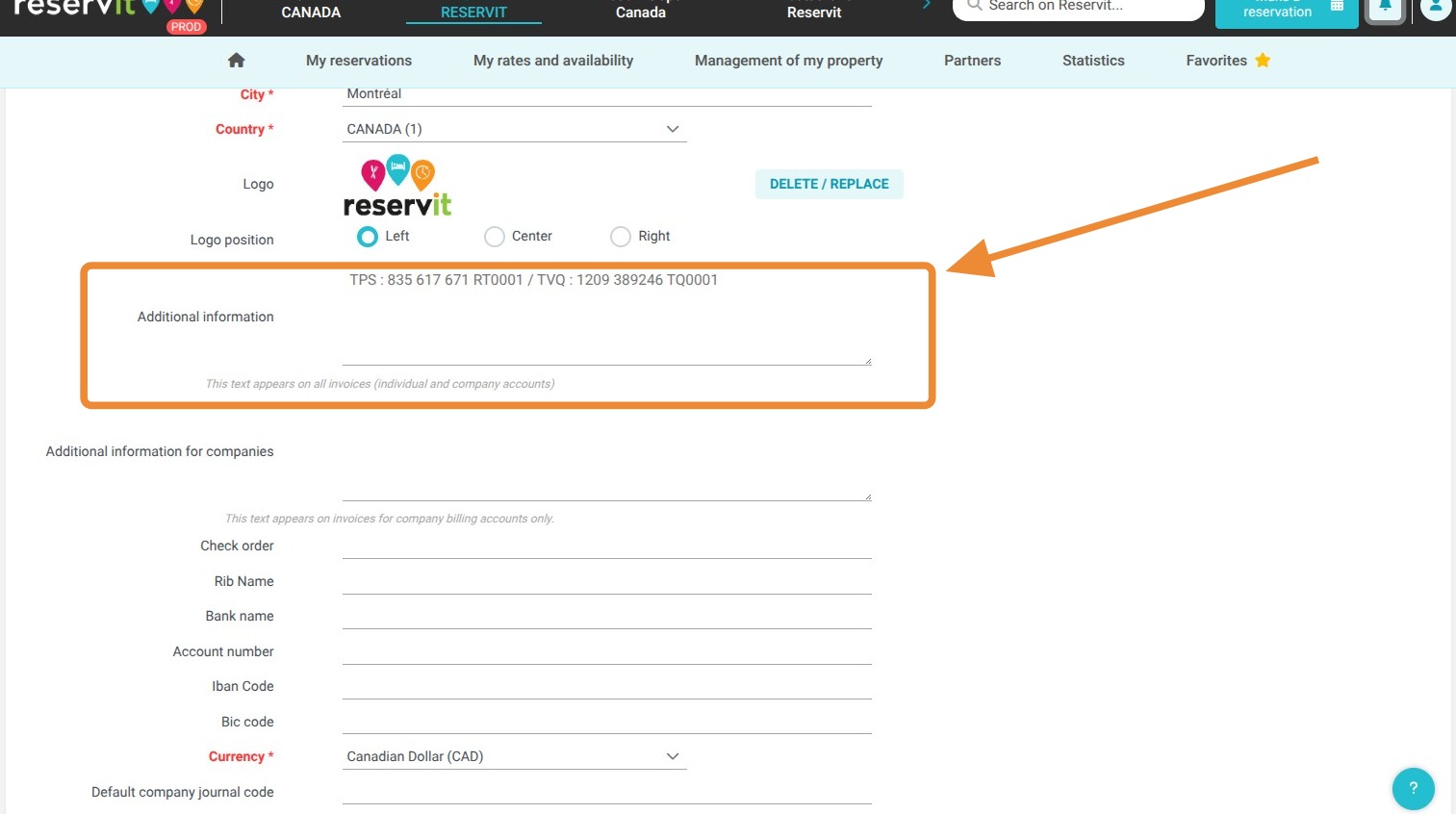
Input Tax Details: Locate the "Additional Information" text box and type in your official North American tax identification numbers.
-
Save Your Configuration: Click on "Save" to immediately apply these details to all future guest invoices and receipts.
Why follow this guide? Accurately displaying your tax ID numbers prevents costly billing disputes and ensures strict compliance with regional tax regulations. Following this quick setup guarantees that your property management system automatically generates legally valid receipts, saving your front desk staff valuable time and avoiding manual invoicing errors.
1. To enter your tax numbers in North America, go to "Management of my property", then "Property Setup", and finally "Reservit PMS Setup".
2. Click "Invoicing"
3. Use the "Additional Information" section to enter your tax numbers.
4. Click on "Save"