Article Summary: Master your invoicing setup in Reservit PMS to streamline your property's billing processes and financial operations. This step-by-step guide explains how to customize your invoices with your company details, official logo, tax registration numbers (GST/QST), and accepted payment methods. By configuring these essential settings, you ensure legally compliant financial reporting and a seamless checkout experience for your guests.
The 5 Key Steps to Set Up Invoicing in Reservit PMS:
-
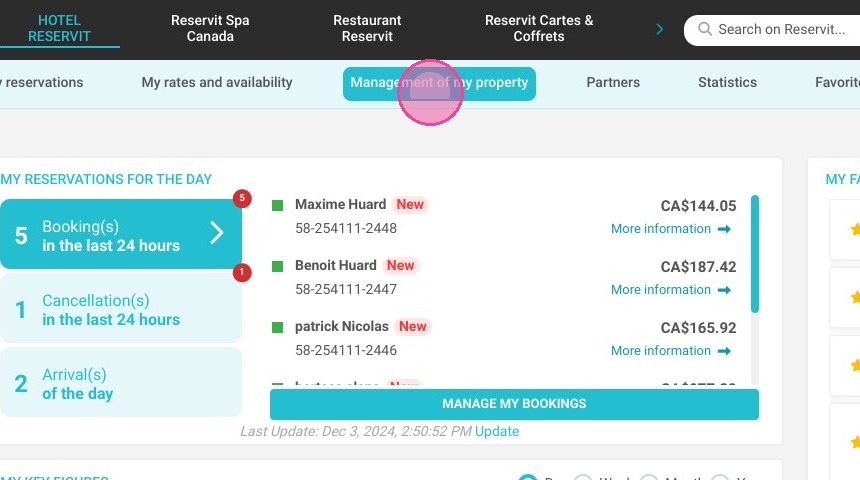
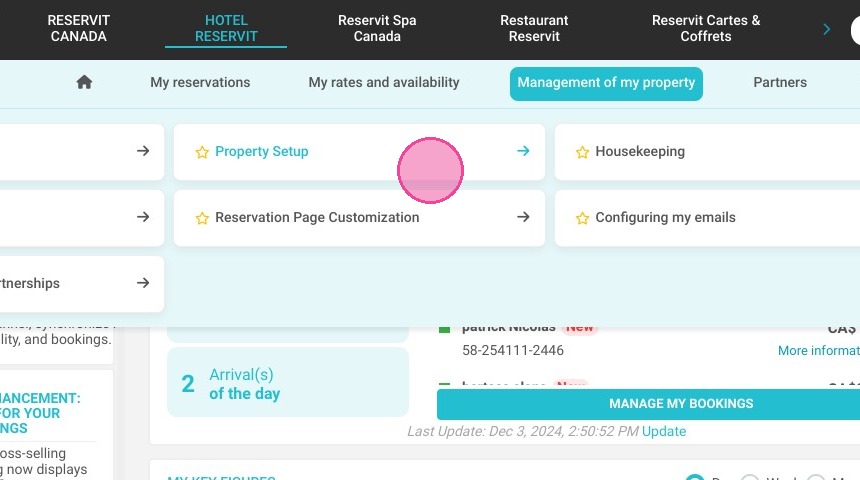
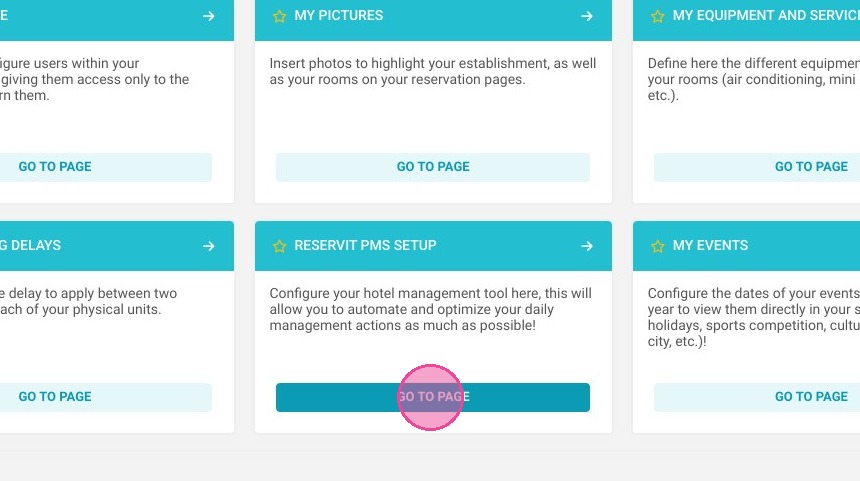
Access the invoicing menu: Navigate to "Management of my property," click on "Property setup," select "Reservit PMS setup," and then click "Invoicing."
-
Fill in company profile and logo: Enter your property's primary contact details and upload your official corporate logo to generate branded invoices.
-
Input tax and banking details: Add your additional corporate information, specify your local tax identifiers (such as GST and QST numbers), and enter your banking details for direct transactions.
-
Set accounting and numbering preferences: Select your operating currency, specify your fiscal year-end date, and input the sequential starting number for your next invoice.
-
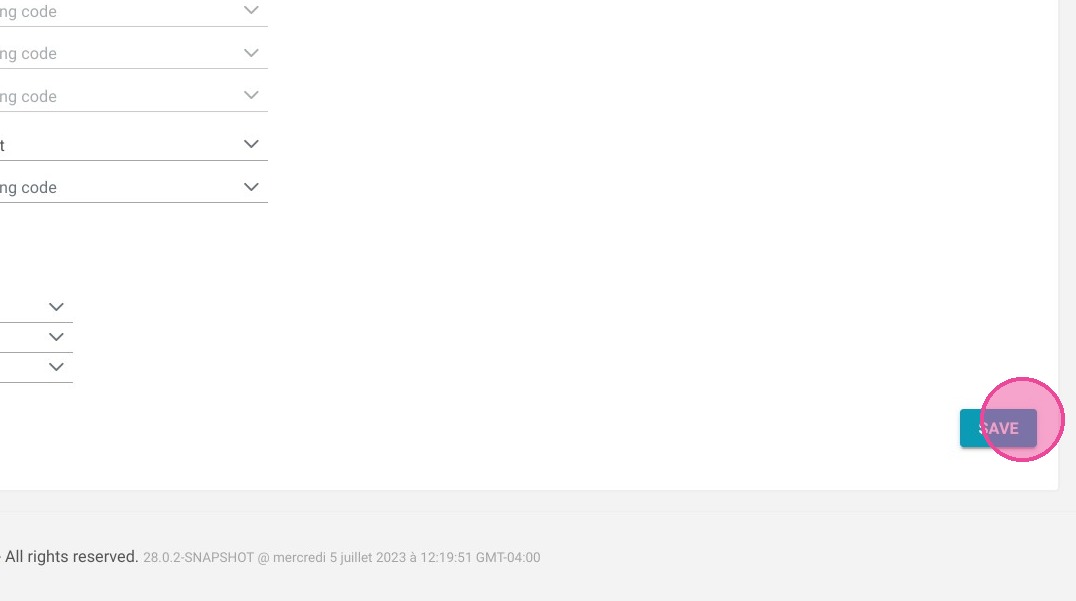
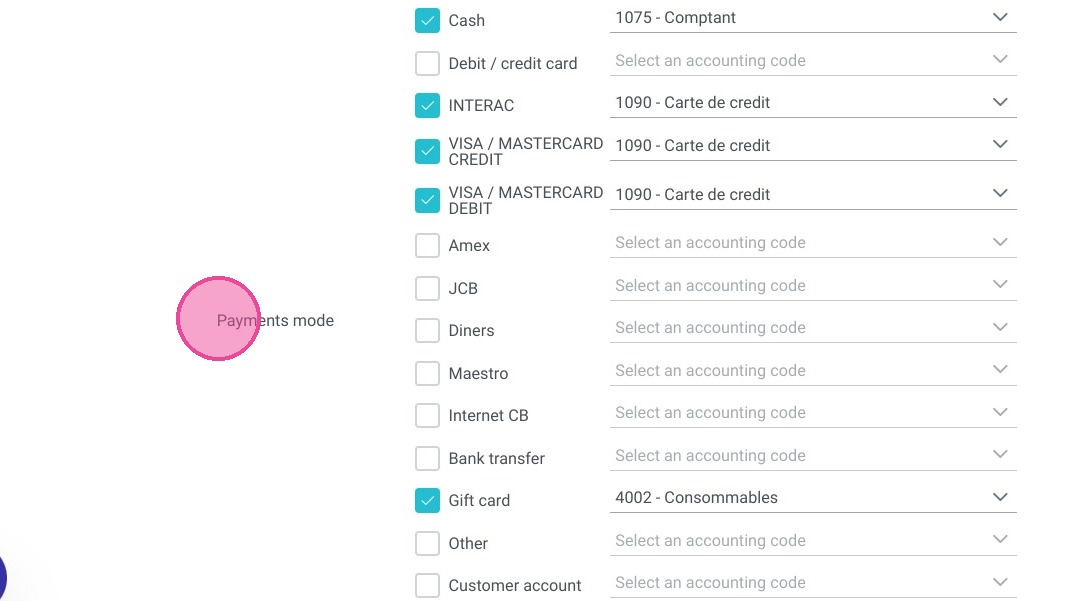
Select payment methods and save: Toggle the specific payment methods your establishment accepts from guests, then click "SAVE" to finalize your configuration.
Why Follow This Guide? Properly configuring your property management system's billing parameters prevents accounting errors and ensures absolute compliance with local tax regulations. This guide saves you administrative time by establishing a professional, automated invoicing workflow that simplifies financial tracking and accelerates guest checkouts.
1. Click "Management of my property"
2. Then ''Property setup''
3. And ''Reservit PMS setup''
4. Click "Invoicing"
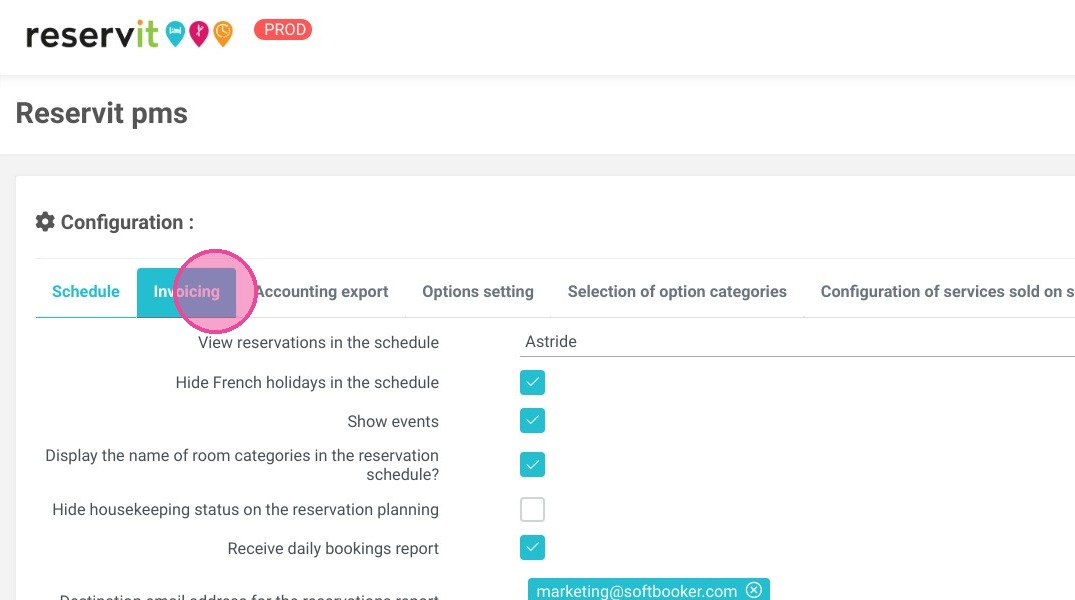
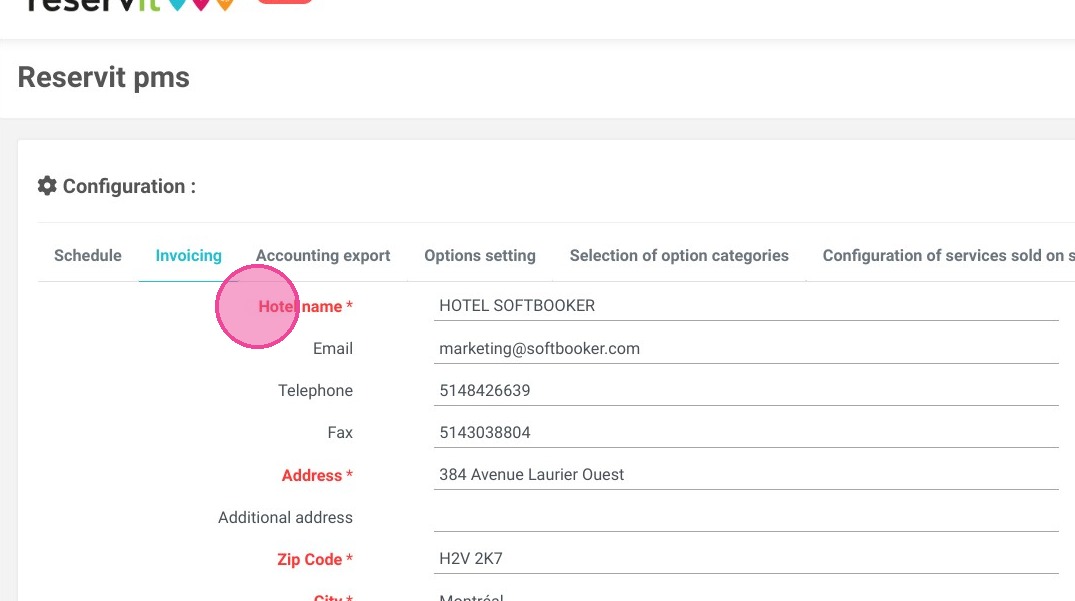
5. Enter your contact details and information.
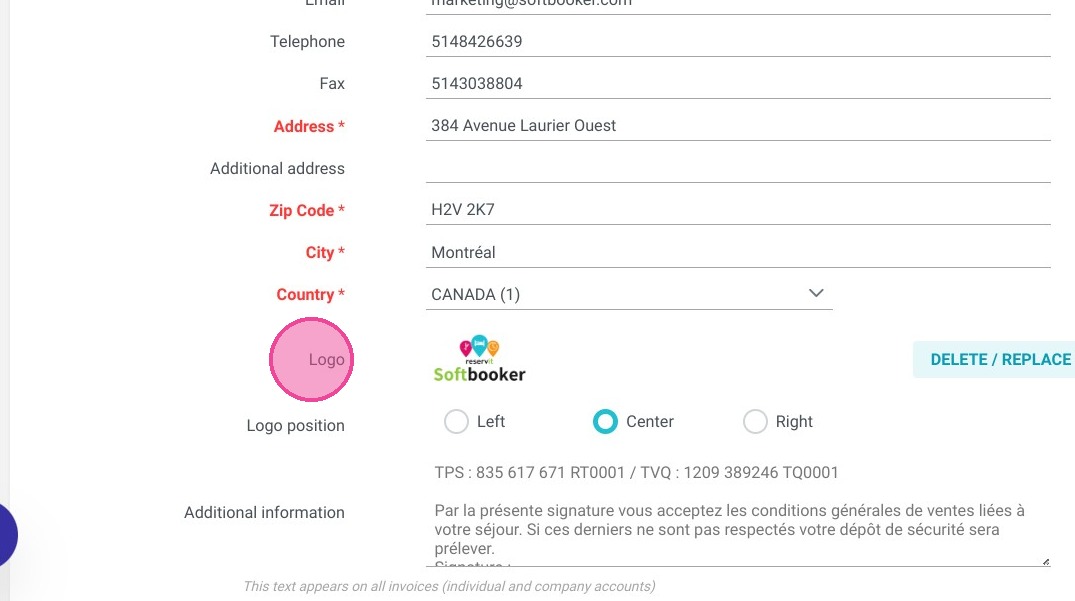
6. Enter your Logo.
7. Here you can enter your additional information and enter your GST and QST numbers.
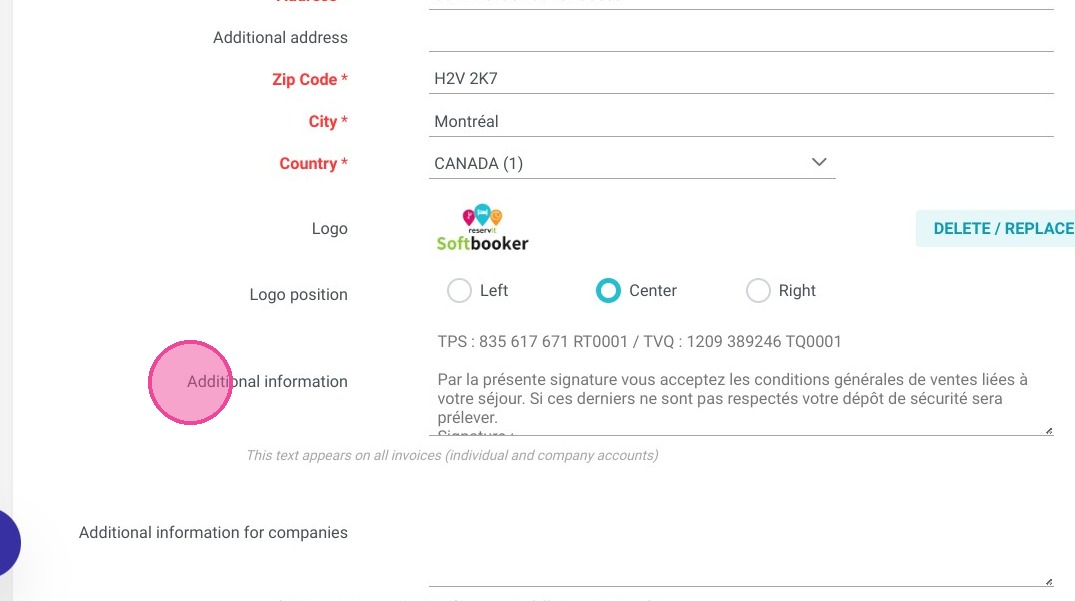
8. Enter your banking information.
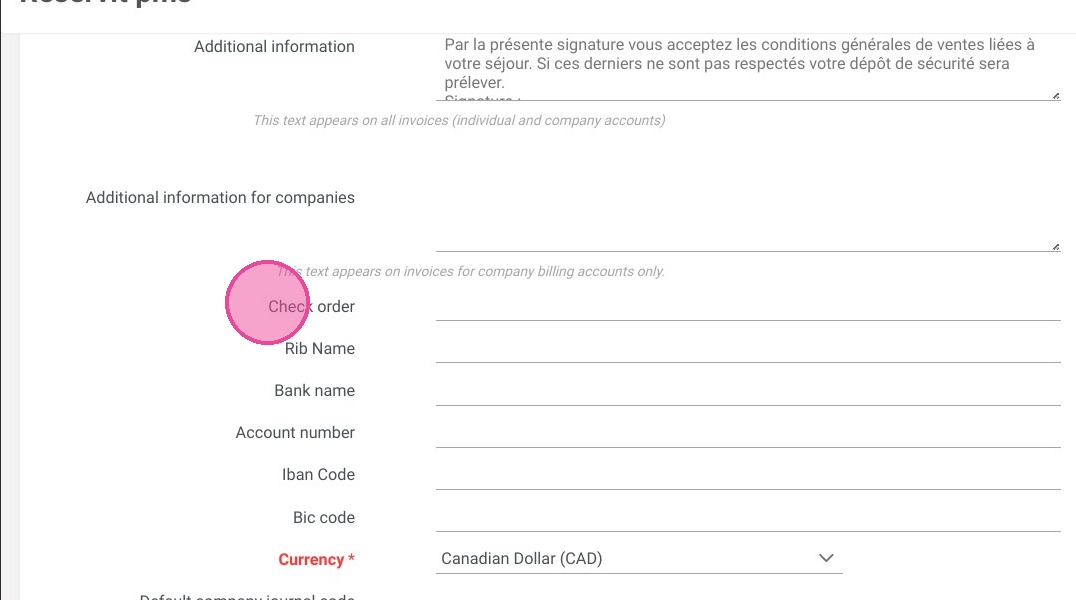
9. Select the currency used.
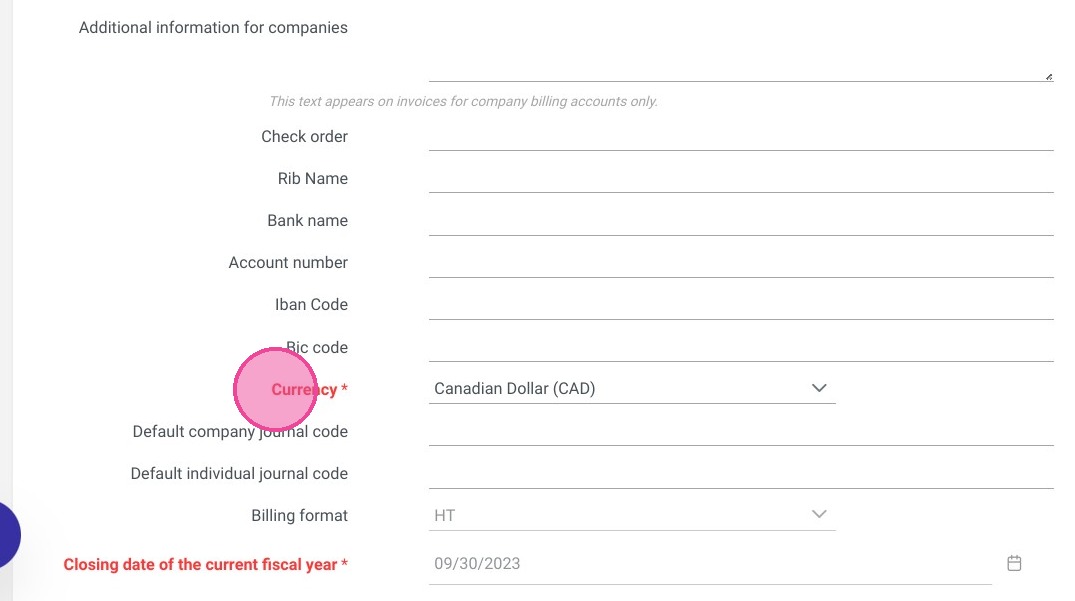
10. Put your fiscal year end date.
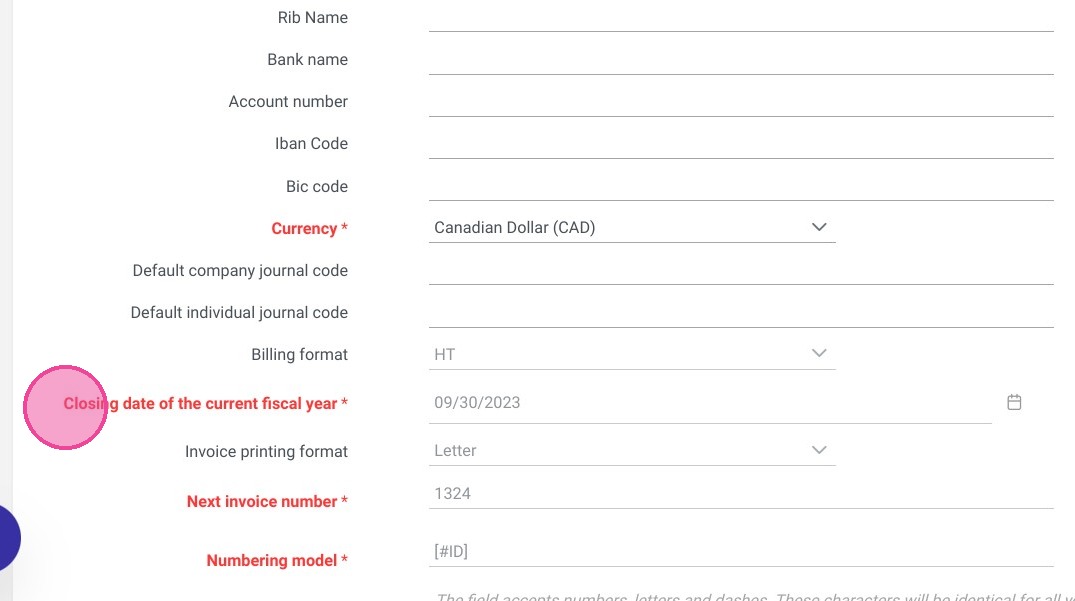
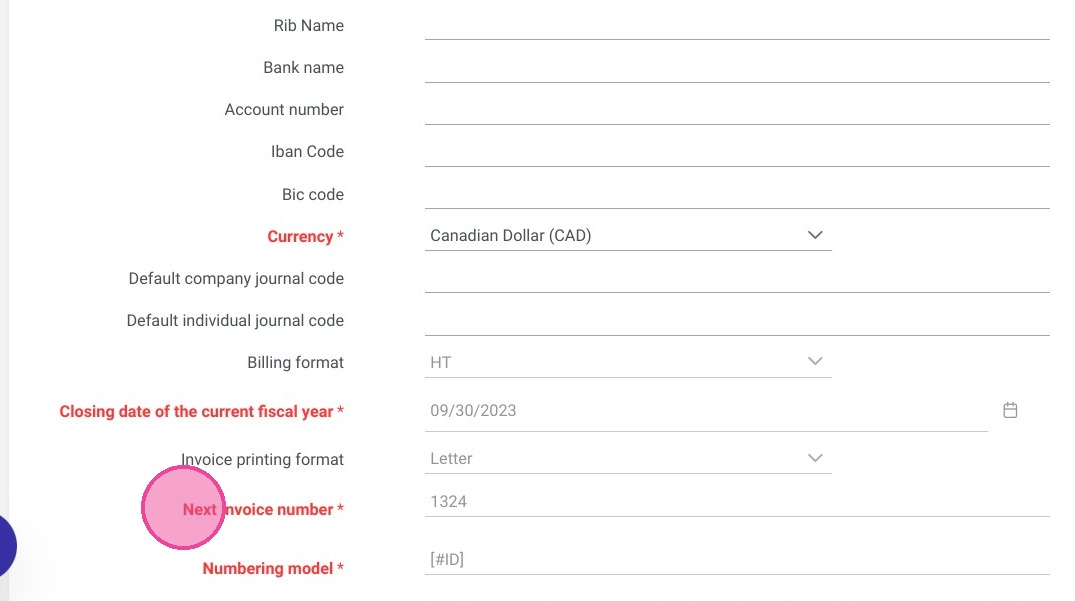
11. Enter your next invoice number
12. Methods of payment accepted.
13. Click "SAVE"