Article Summary: This tutorial explains how to get the amount of each tax collected over a period (GST, provincial sales tax such as PST or QST, accommodation tax) to prepare your sales tax return. You will use the Revenue report in Reservit PMS, filtered by invoice date, and download the detailed report as a supporting document. You will also learn how credit notes are taken into account and which pitfalls to avoid.
The 5 Key Steps to Calculate Your Tax Amounts:
-
Open the Revenue report: Click "Statistics" > "Billing", then "GO TO PAGE" on the "REVENUE REPORT" tile.
-
Choose the invoice date: Select "Invoice date" so that only invoiced amounts are counted, on the date the invoice or credit note was issued.
-
Set the exact period: In "Or select specific dates", click the first and the last day of the period you need to declare.
-
Read the tax totals: On the "Total" line, read the amount of each tax column: the GST ("TPS"), your provincial sales tax (PST, or "TVQ" for the QST in Quebec) and the accommodation tax ("Stay tax"). Credit notes are already deducted.
-
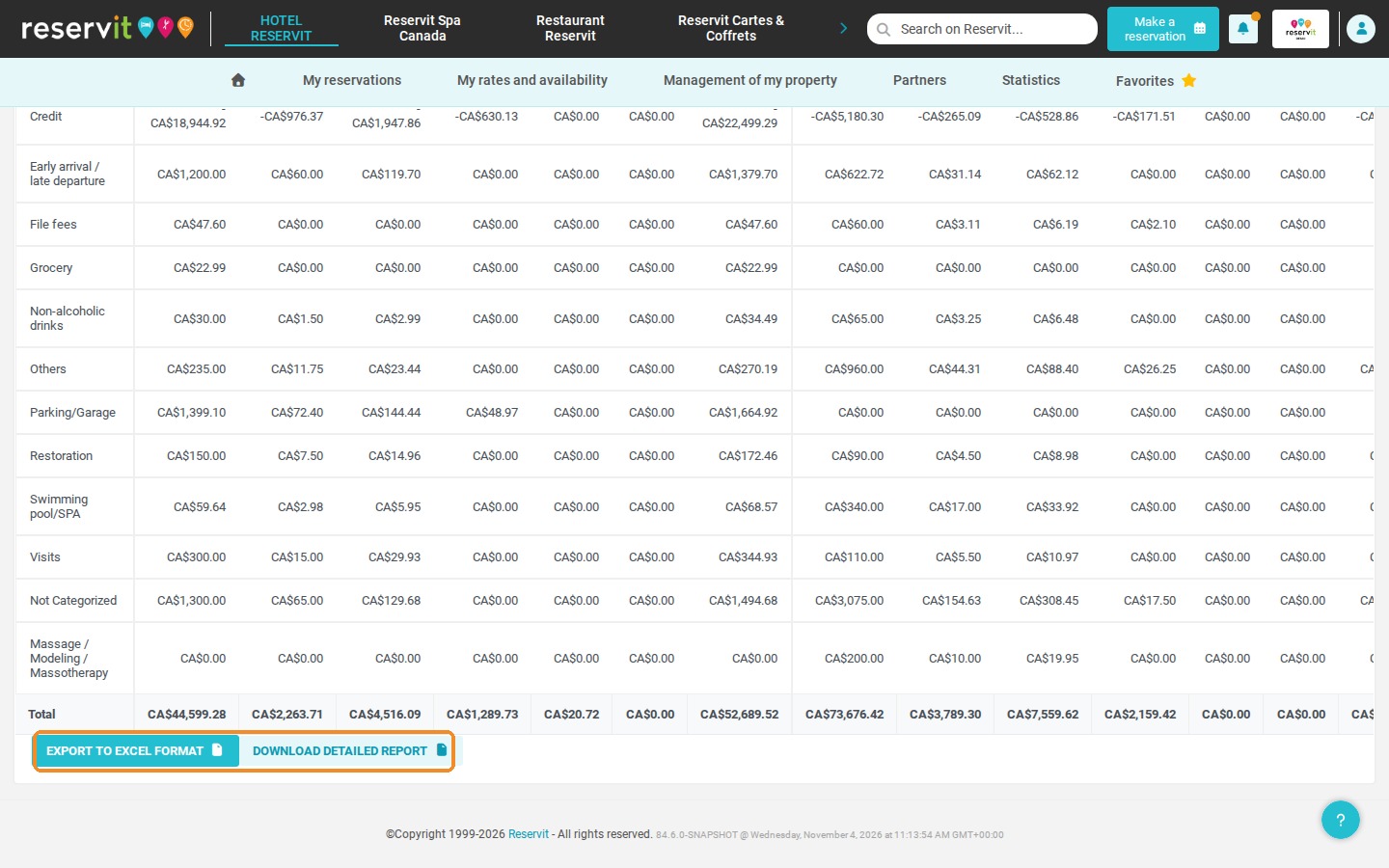
Keep the supporting document: Click "DOWNLOAD DETAILED REPORT" to get the invoice-by-invoice detail of the period.
Why Follow This Guide? Your tax return must match the invoices you actually issued. By using the invoice date and the exact dates of the period, you get tax amounts that match your billing documents, with credit notes already deducted, and a detailed file you can give to your accountant.
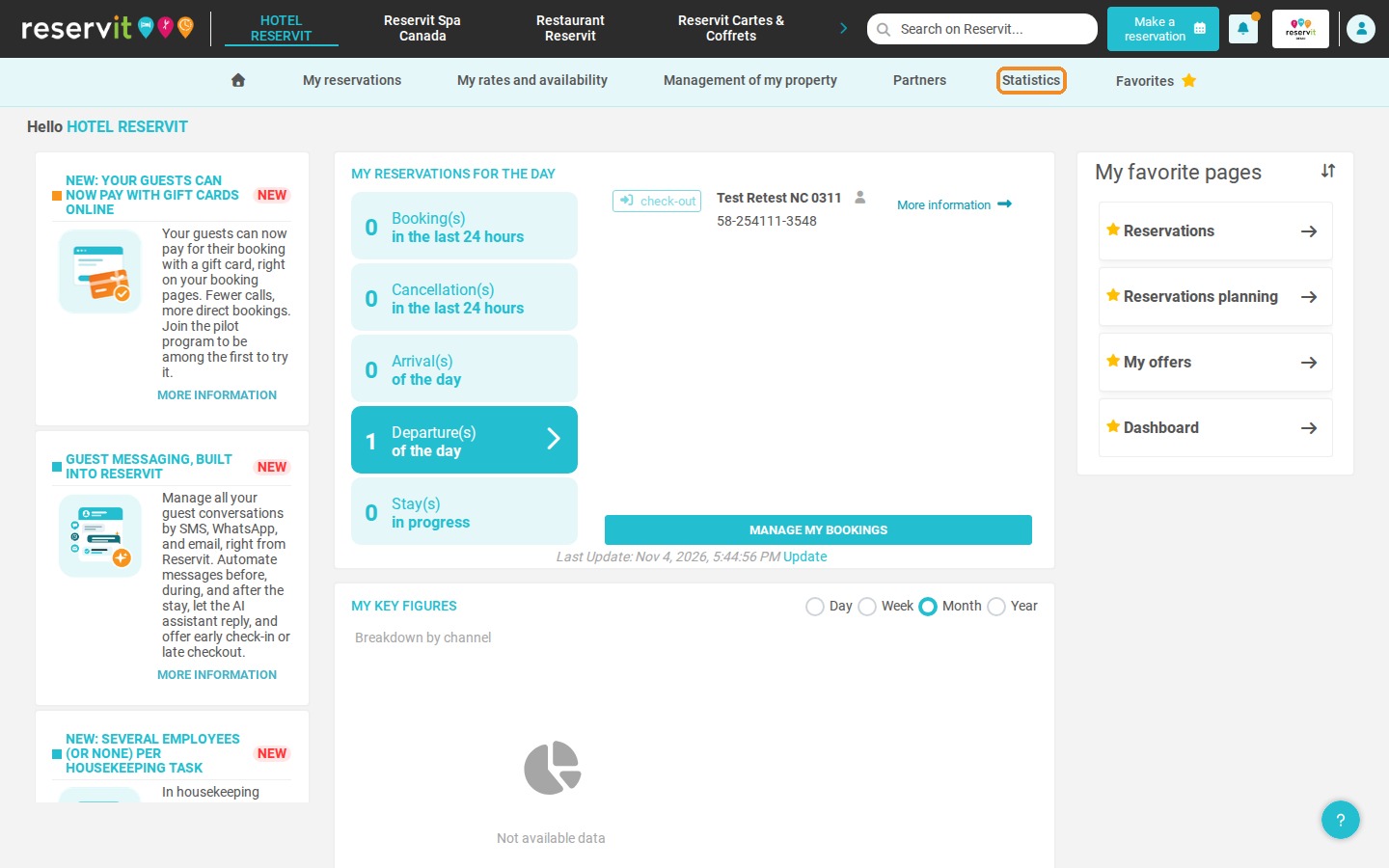
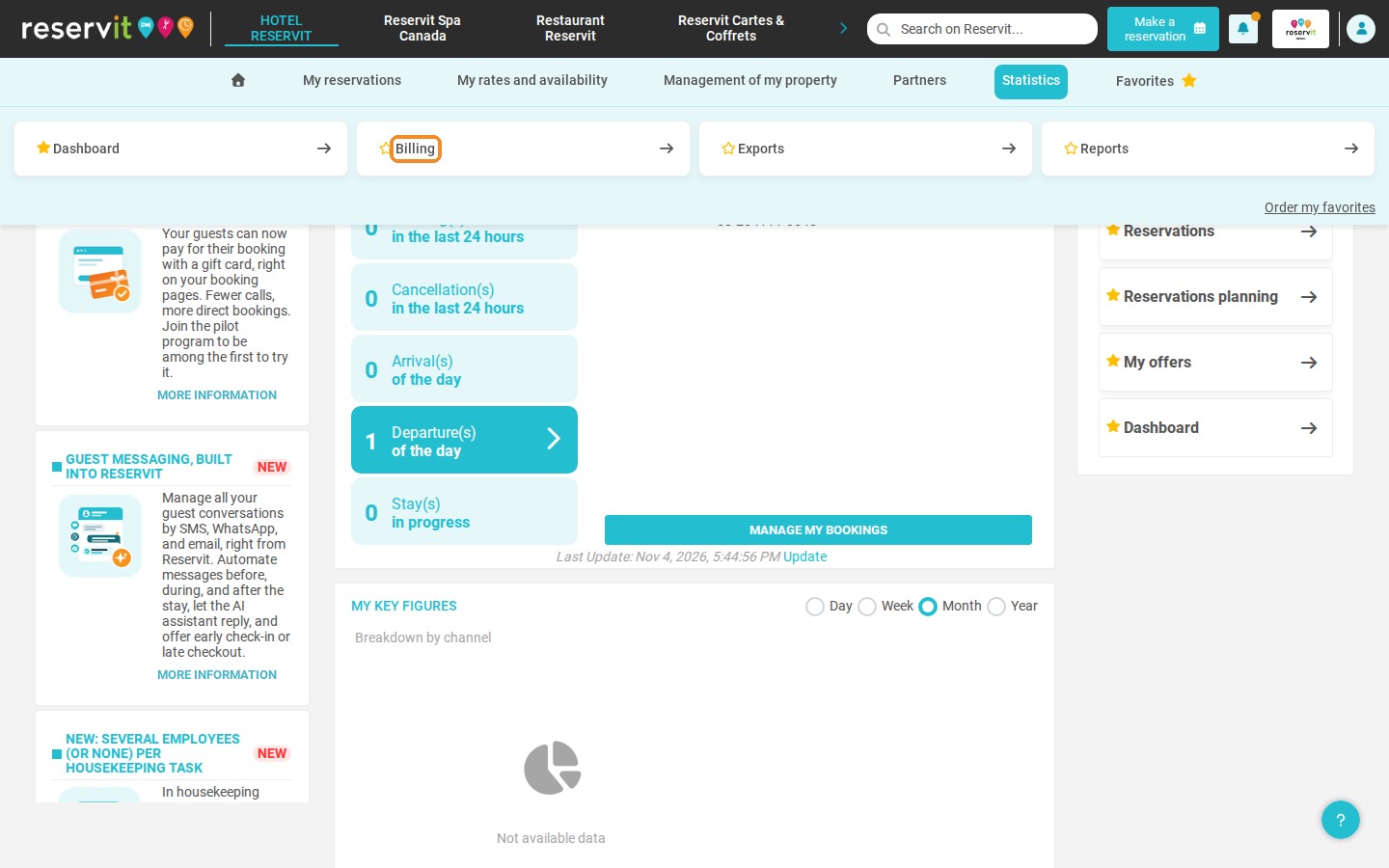
1. Click "Statistics", then "Billing".
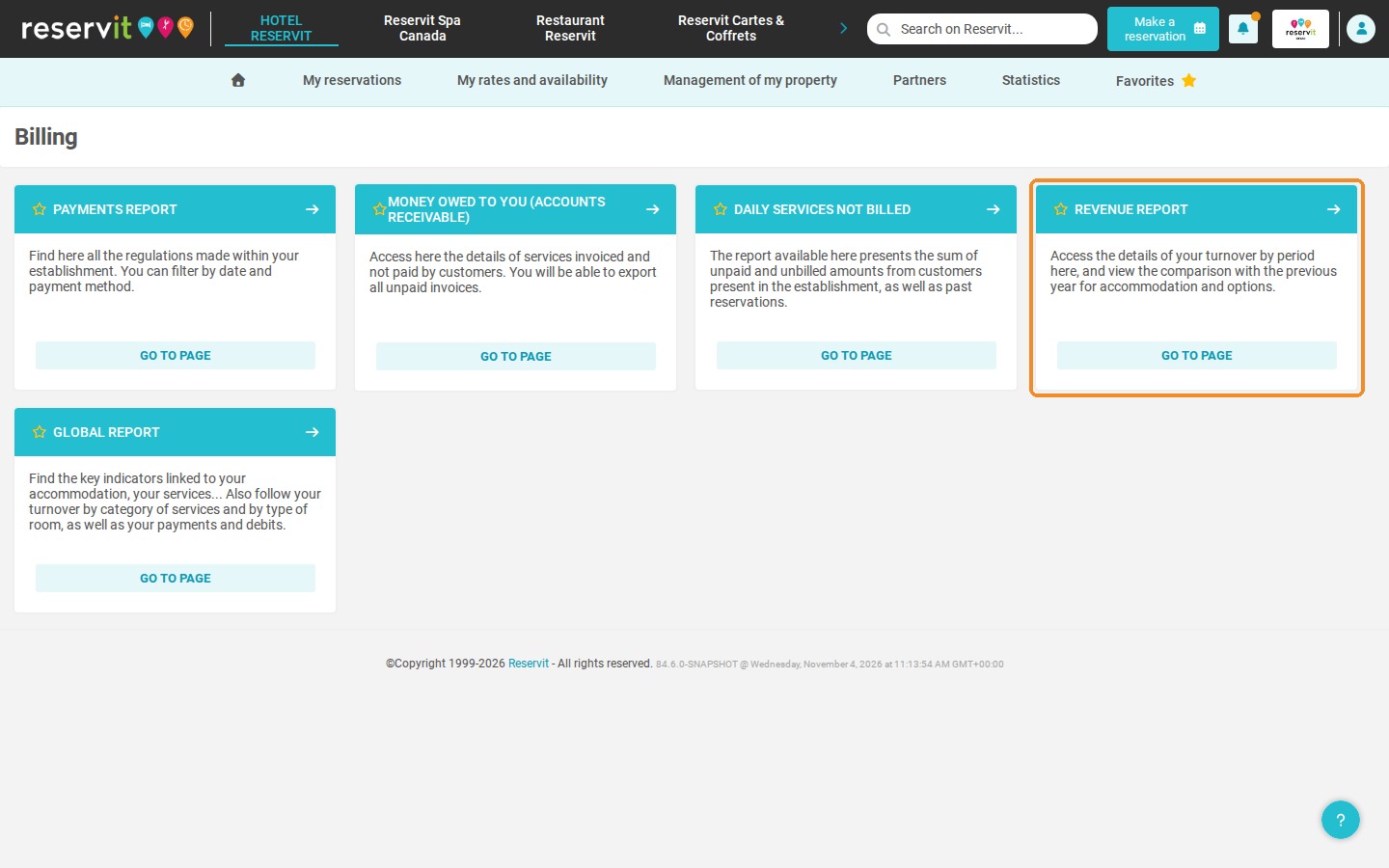
2. Click "GO TO PAGE" on the "REVENUE REPORT" tile.
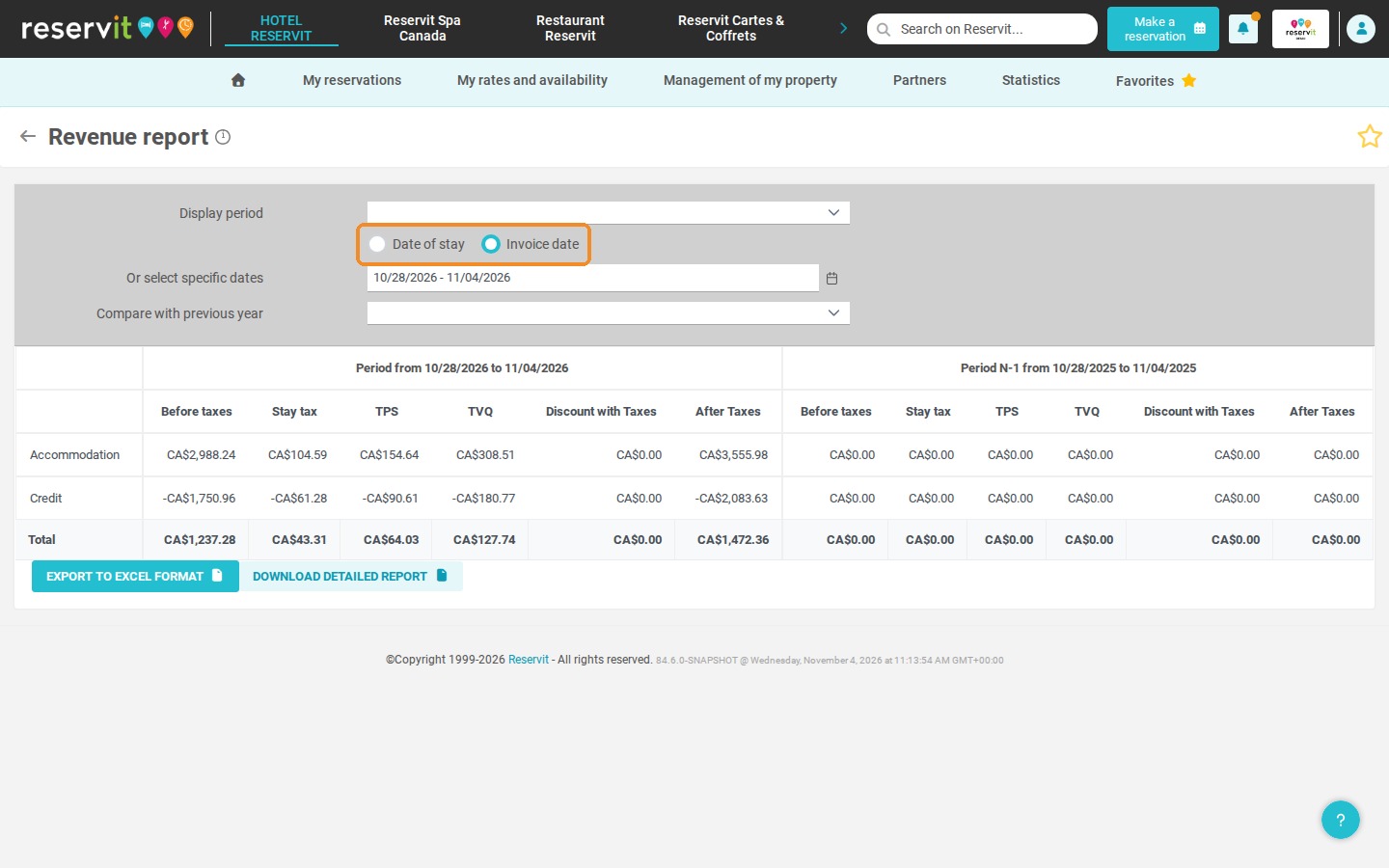
3. Select "Invoice date". The report then only counts what has been invoiced, on the date the invoice or credit note was issued. This is the basis to use for a tax return.
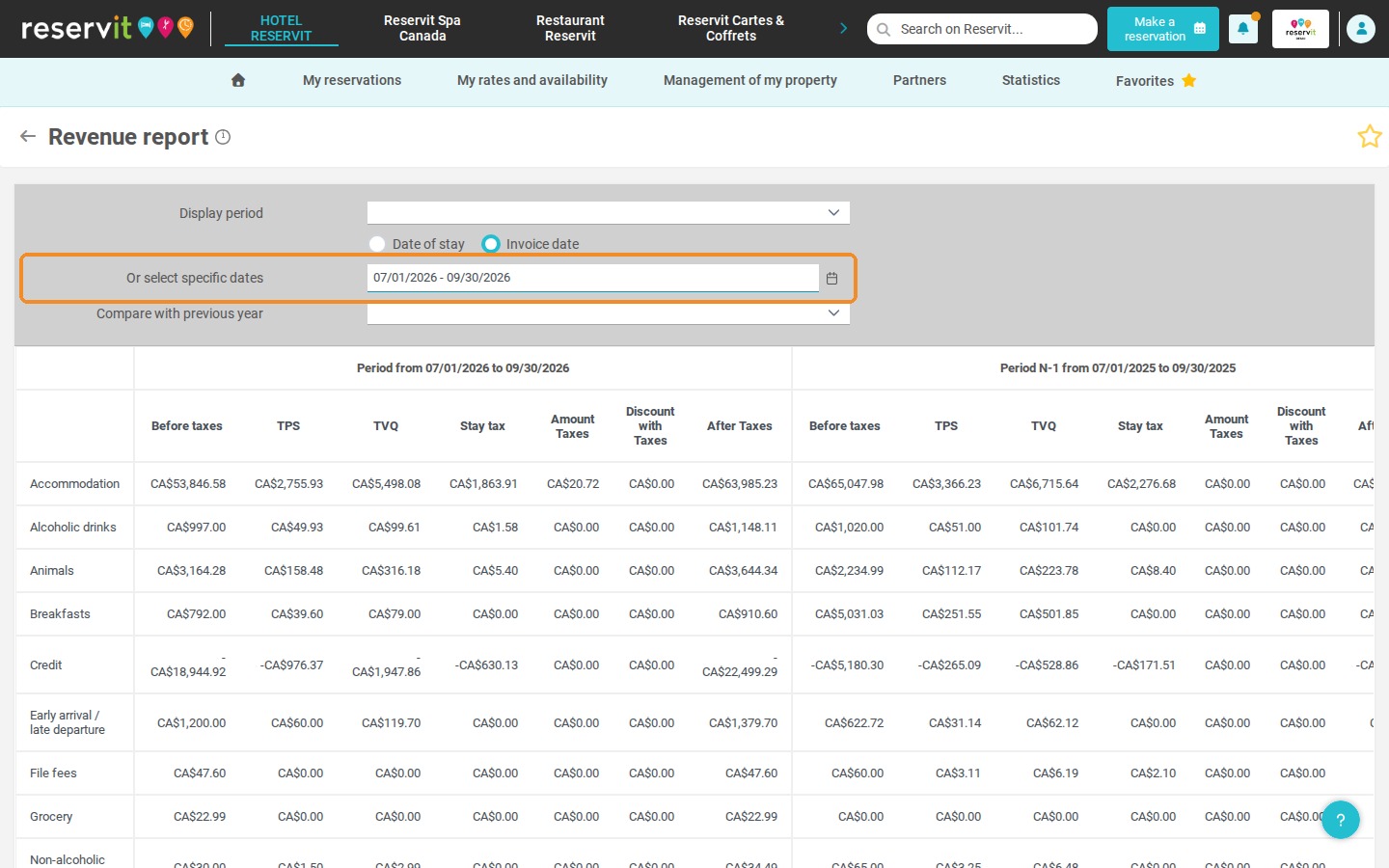
4. Click the "Or select specific dates" field and, in the calendar, click the first day then the last day of the period to declare (for example a month or a quarter). The "Display period" list only offers "Last week", "The last 30 days" and "This month".
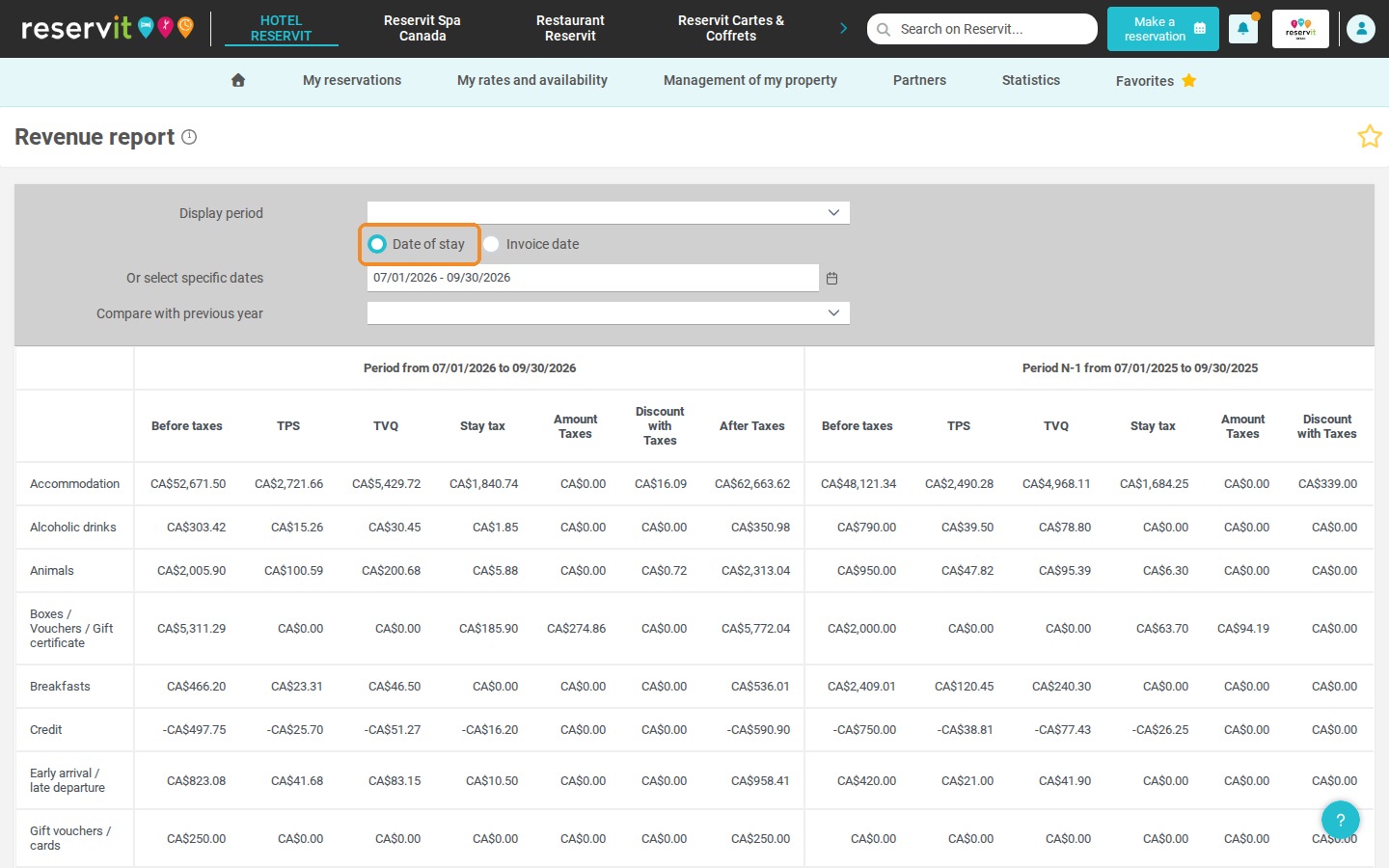
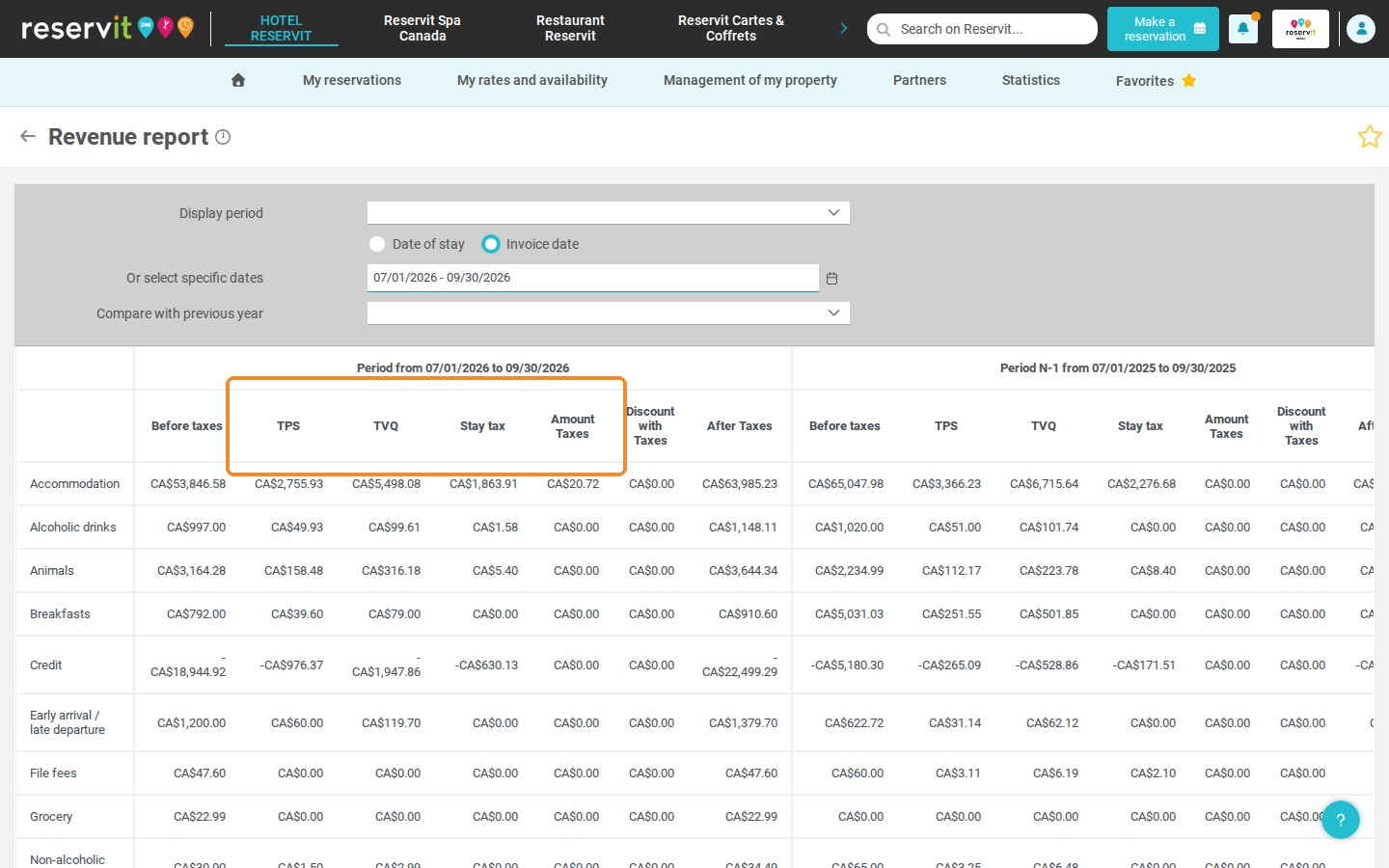
5. The table shows one line per service category, with one column per tax applied by your property: the GST ("TPS"), your provincial sales tax (for example "TVQ" for the QST in Quebec, as on the screenshot), the accommodation tax ("Stay tax") and, if applicable, "Amount Taxes" (other tax). The tax columns depend on the taxes applied over the period, so the provincial tax columns depend on your province. The interface shows the French acronyms "TPS" and "TVQ", even in English.
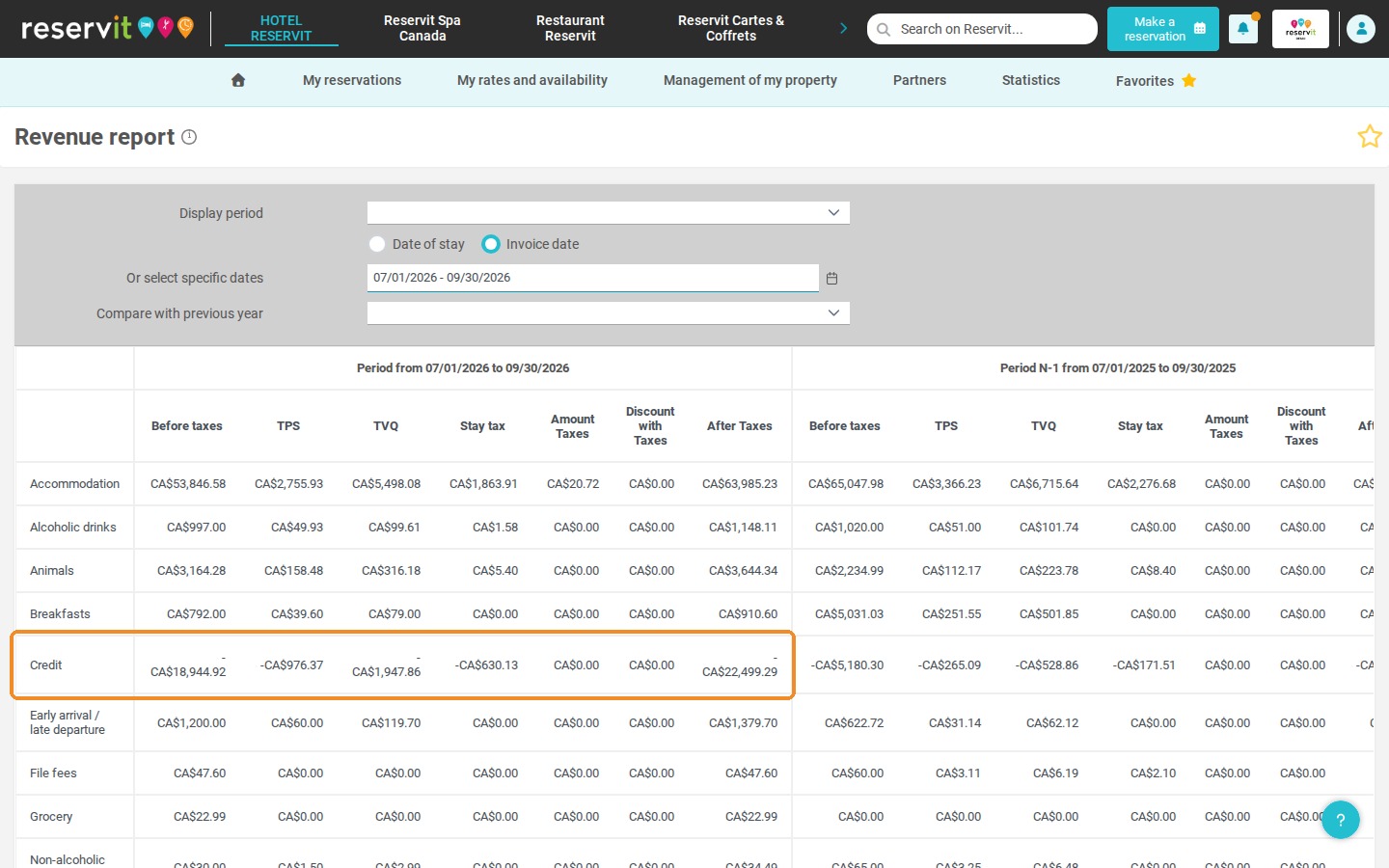
6. Credit notes issued during the period are grouped on the "Credit" line, with negative amounts. They are already deducted from the total: you do not need to subtract them yourself.
7. On the "Total" line, read the amount of each tax column: this is the tax collected over the period, to report on your return. "Before taxes" is the amount excluding taxes and "After Taxes" the amount including taxes.
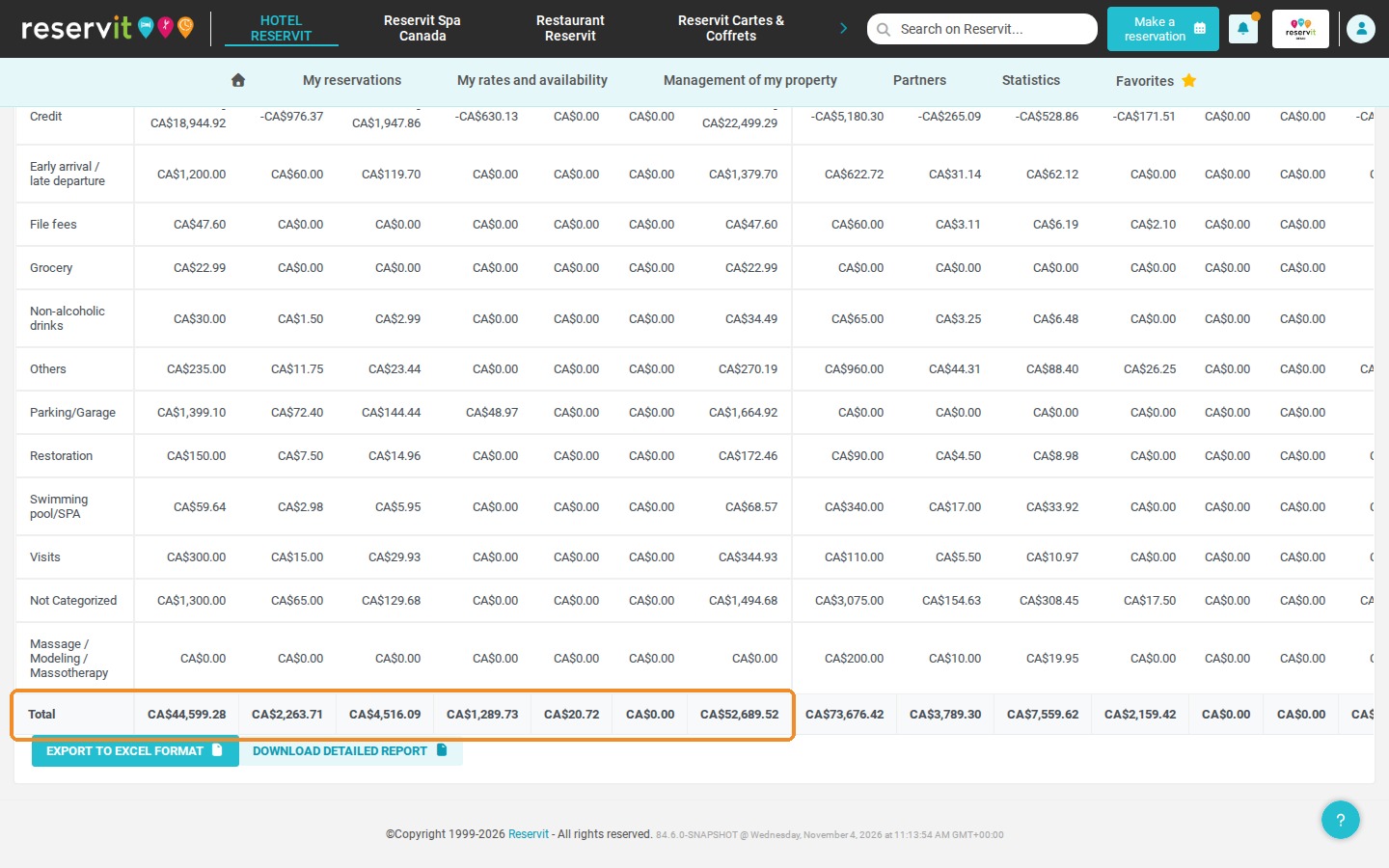
8. Under the table, click "DOWNLOAD DETAILED REPORT" to get the invoice-by-invoice detail (invoice number, billing date, amount excluding taxes and each tax). Keep this file as a supporting document for your return. "EXPORT TO EXCEL FORMAT" downloads the summary table as it appears on the screen.
Pitfalls to avoid:
-
Do not use "Date of stay" for a tax return: it spreads amounts night by night and includes services that have not been invoiced yet, so the totals are higher.
-
"Amount Taxes" is not the total of all taxes: it is a separate, generic tax. The table has no "total taxes" column: add up the tax columns, or subtract "Before taxes" from "After Taxes".
-
In the detailed report, the accommodation tax column is called "TH", and "Tax amount for the displayed period" only contains the generic tax, not the total of all taxes.
9. For comparison, the same period displayed by "Date of stay" gives different amounts: this view is useful to follow your activity, not to declare your taxes.