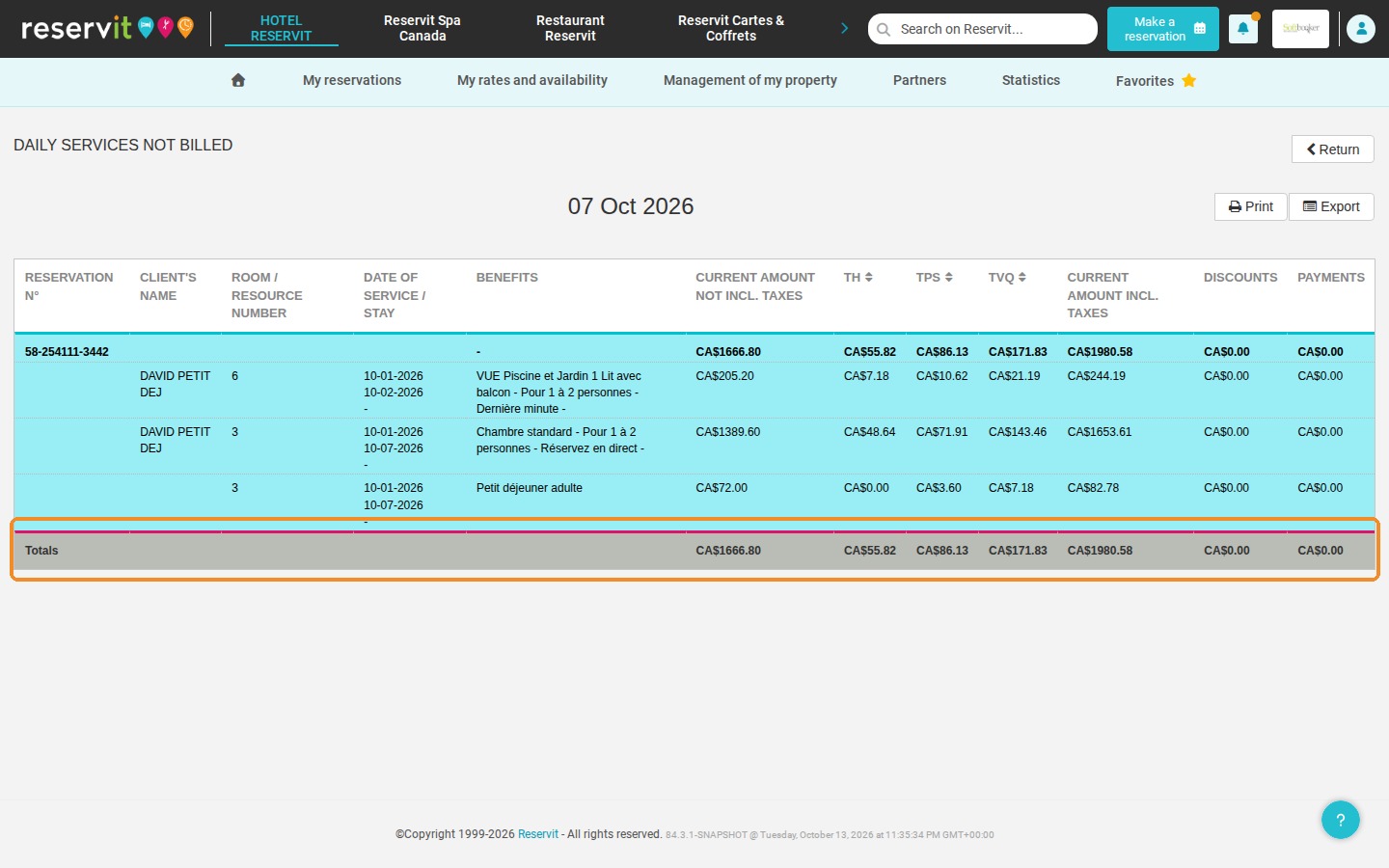
Article Summary: This tutorial explains how to open the report of daily services not billed directly from Reservit PMS. You will learn how to quickly identify the services that are not yet linked to an invoice, choose the day to review and spot the reservations that still need to be invoiced. Use this control report to protect your revenue and simplify your daily accounting routine.
The 4 Key Steps to Track Your Unbilled Services:
-
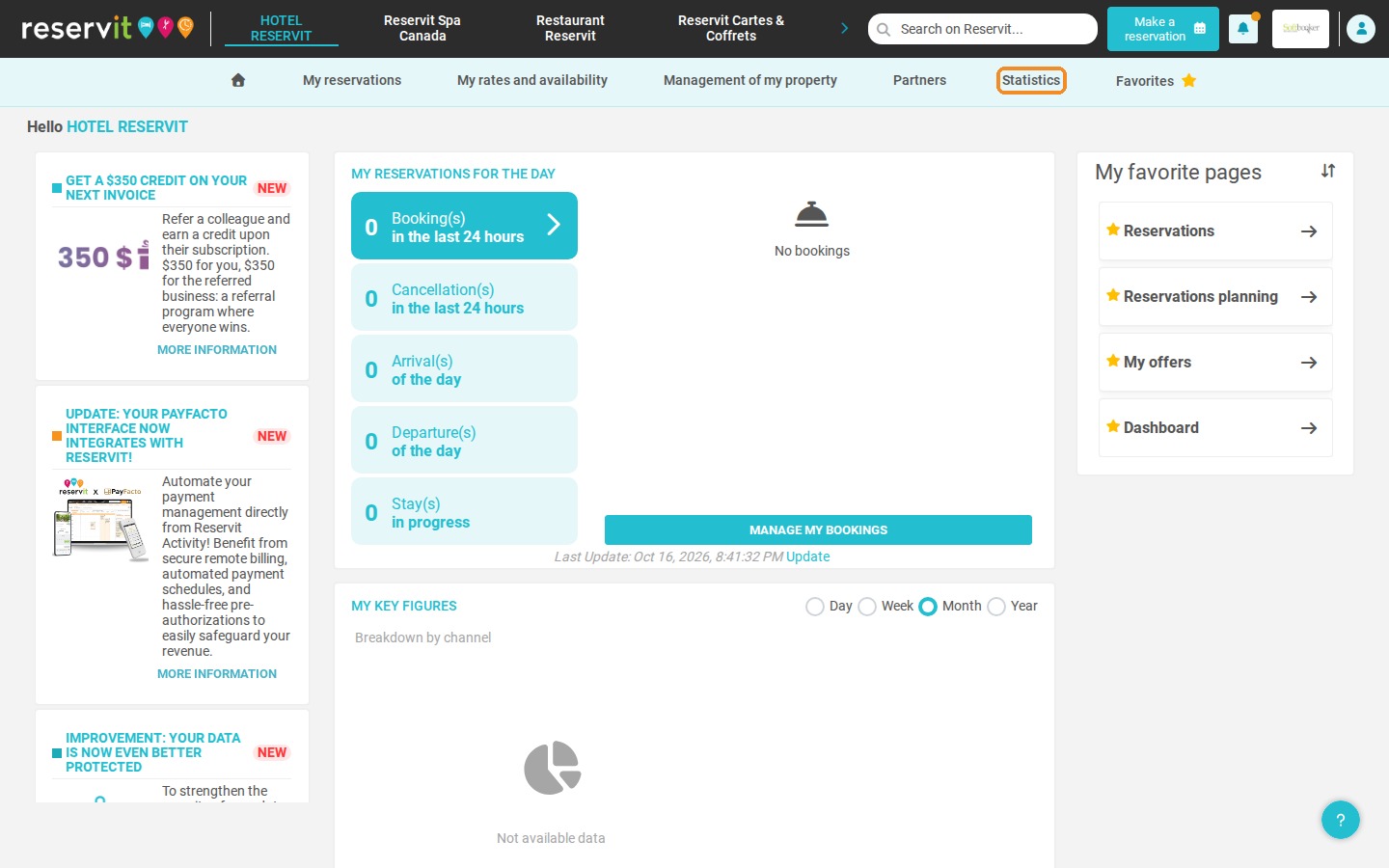
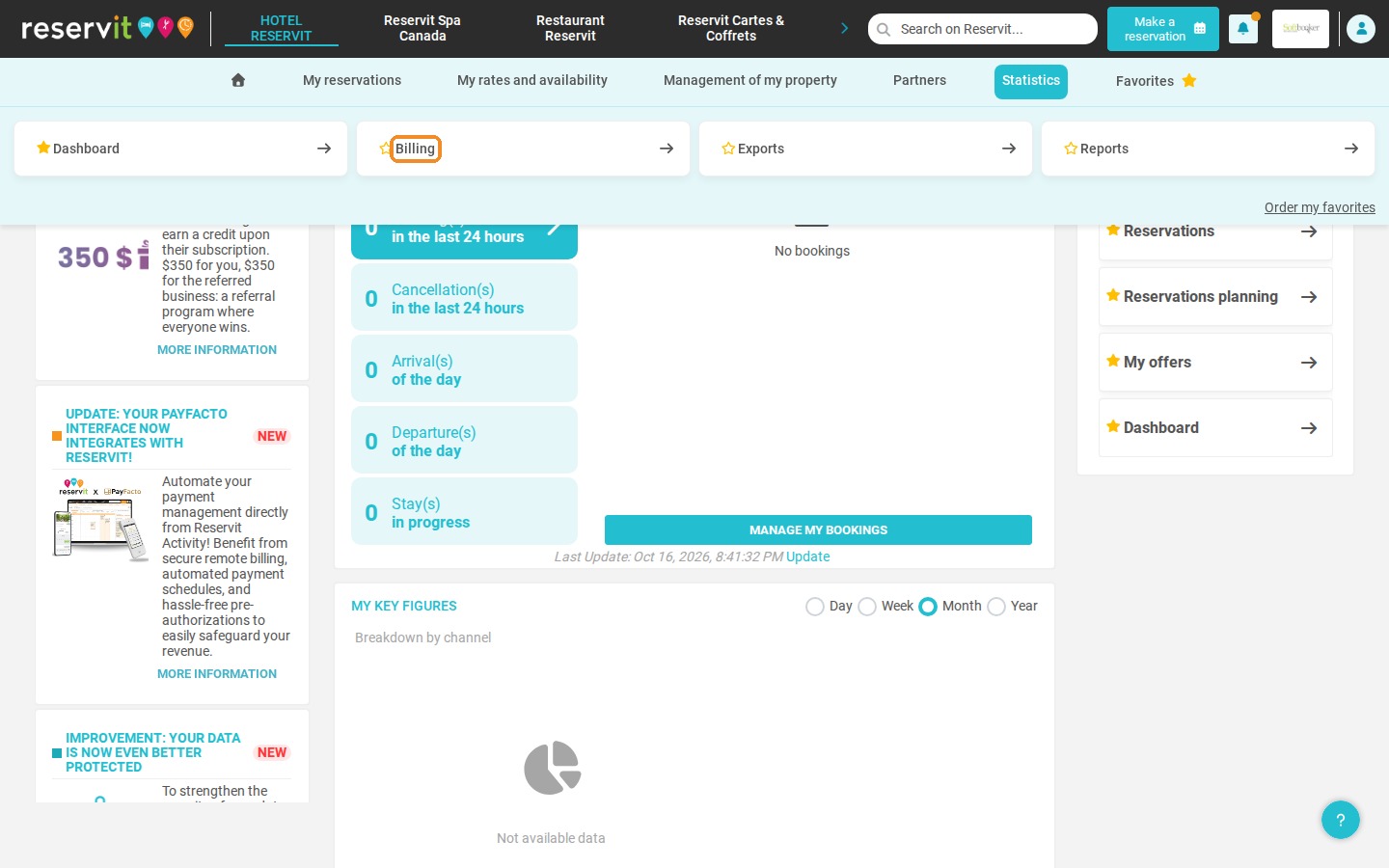
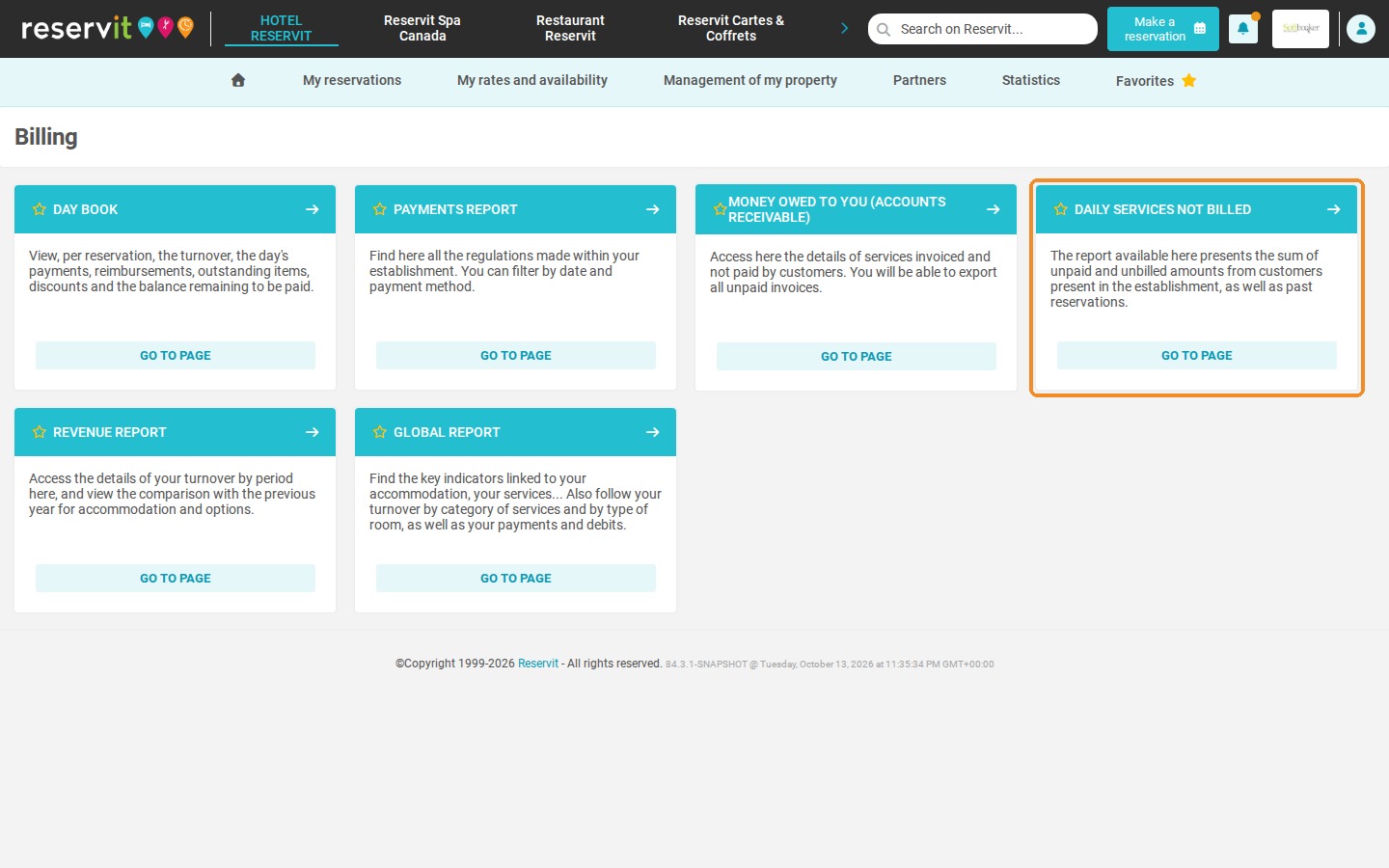
Open the report: Click "Statistics" > "Billing", then "Go to page" on the "Daily services not billed" tile.
-
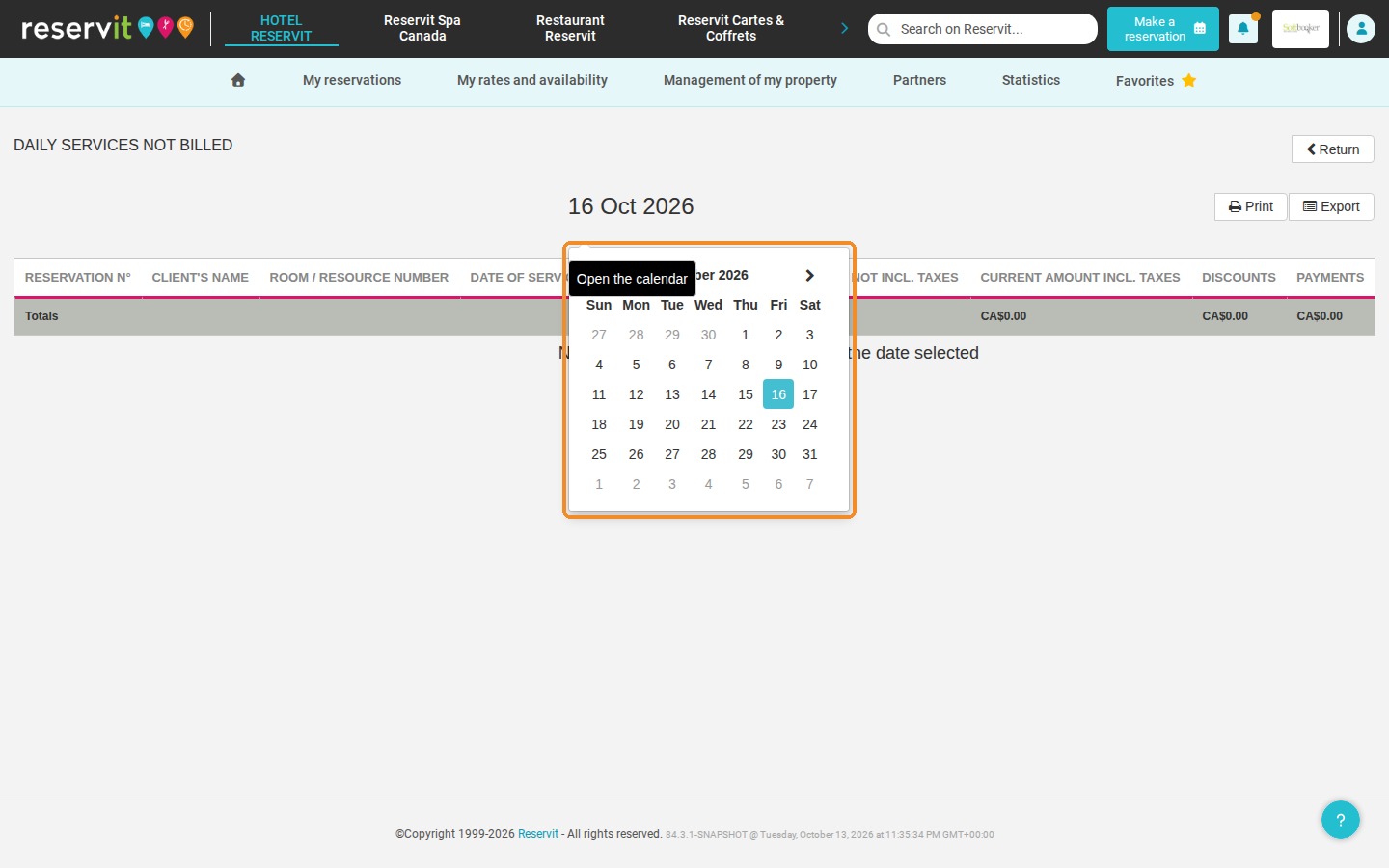
Choose the day: Click the date at the top of the report and select the day you want to review in the calendar.
-
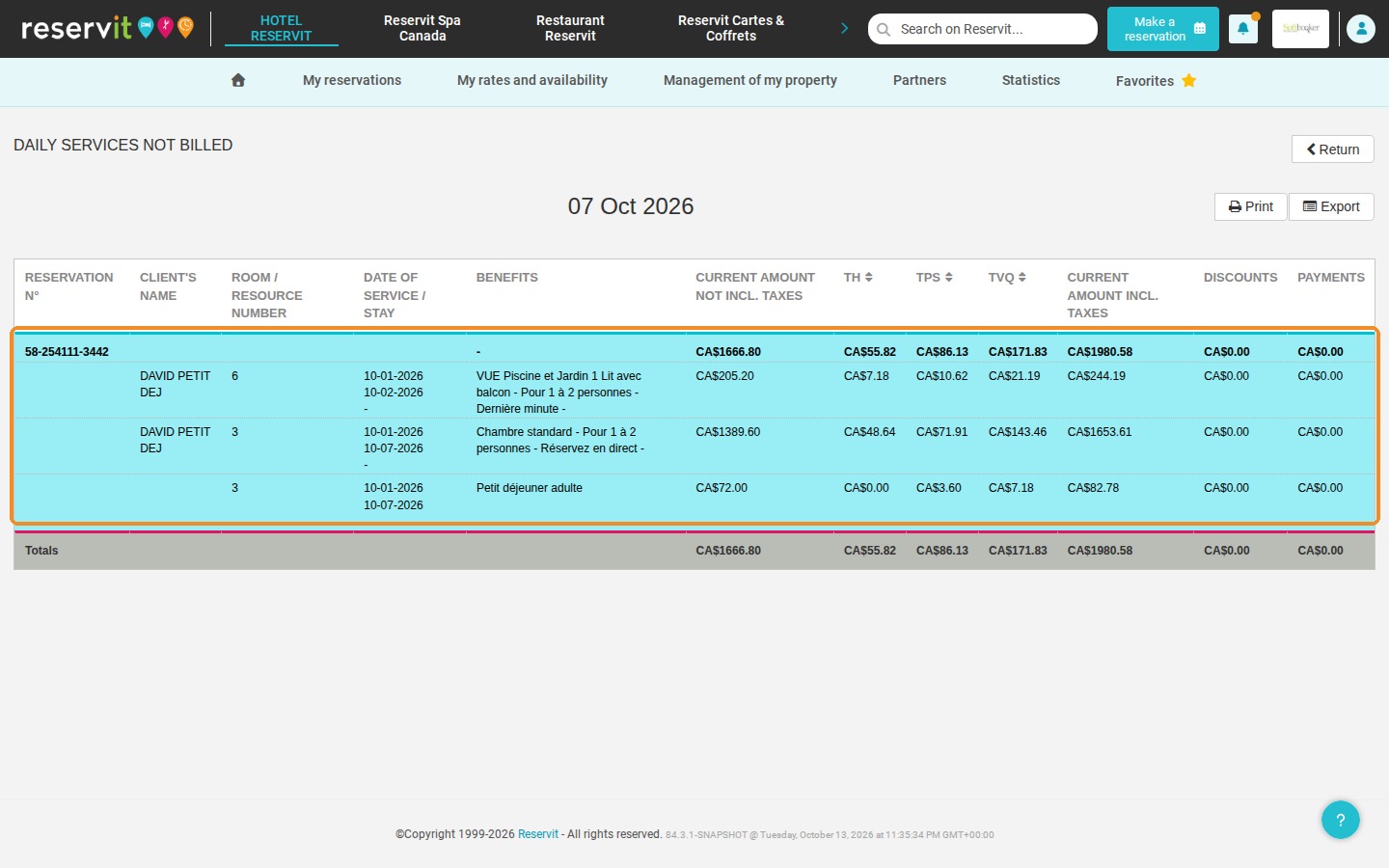
Review the reservations: Each reservation shows its services, amounts before and after taxes, discounts and payments; open the reservation concerned to create its invoice.
-
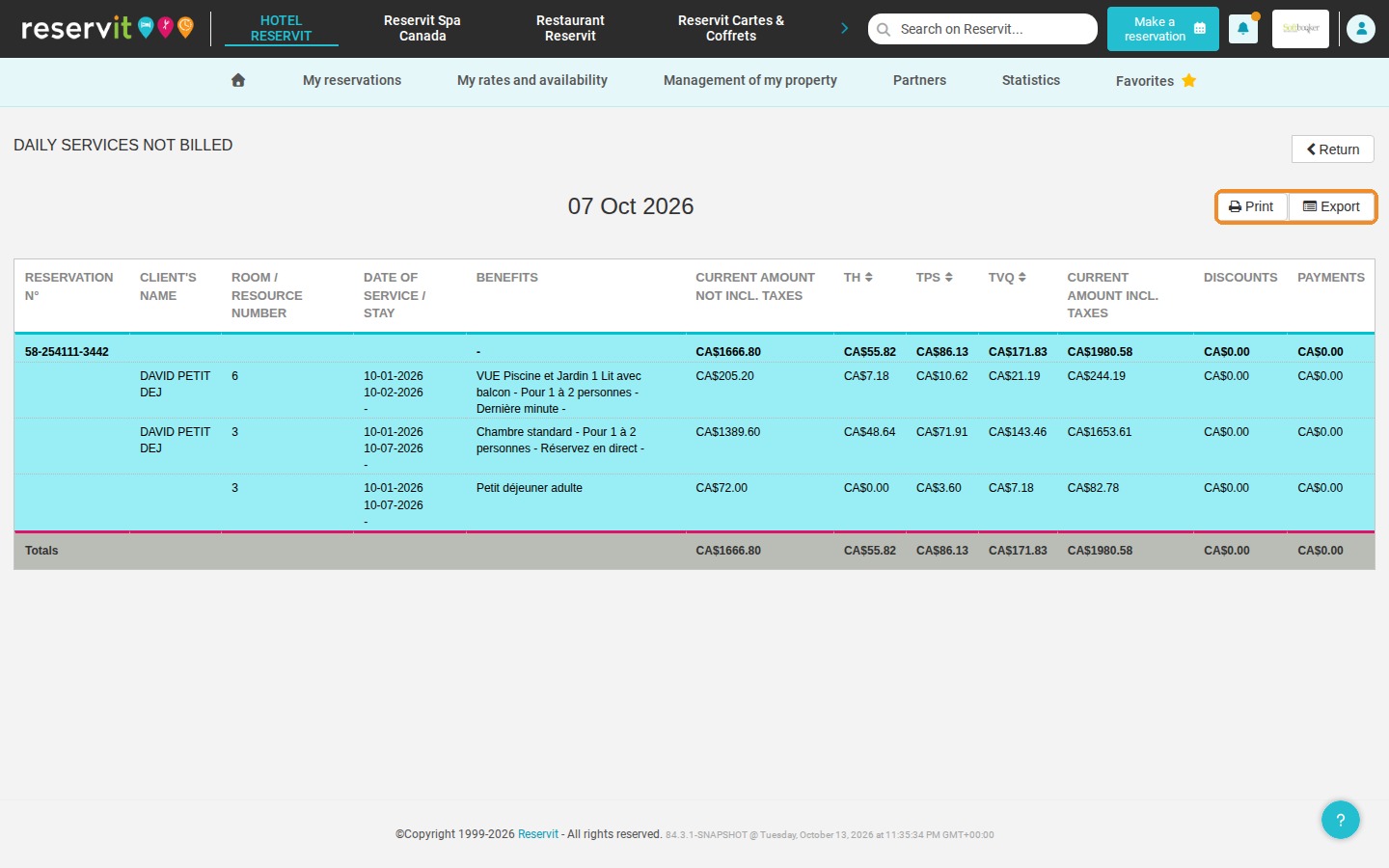
Check the totals and export: Read the outstanding total at the bottom of the table and use "Print" or "Export" at the top right to keep a copy of the report.
Why Follow This Guide? Checking this report regularly makes sure no guest leaves without being invoiced, so you do not lose any revenue. It is a quick routine check that saves time during your daily closing and keeps your property's finances healthy.
1. Click "Statistics", then "Billing". On the "Billing" page, click "Go to page" on the "Daily services not billed" tile.
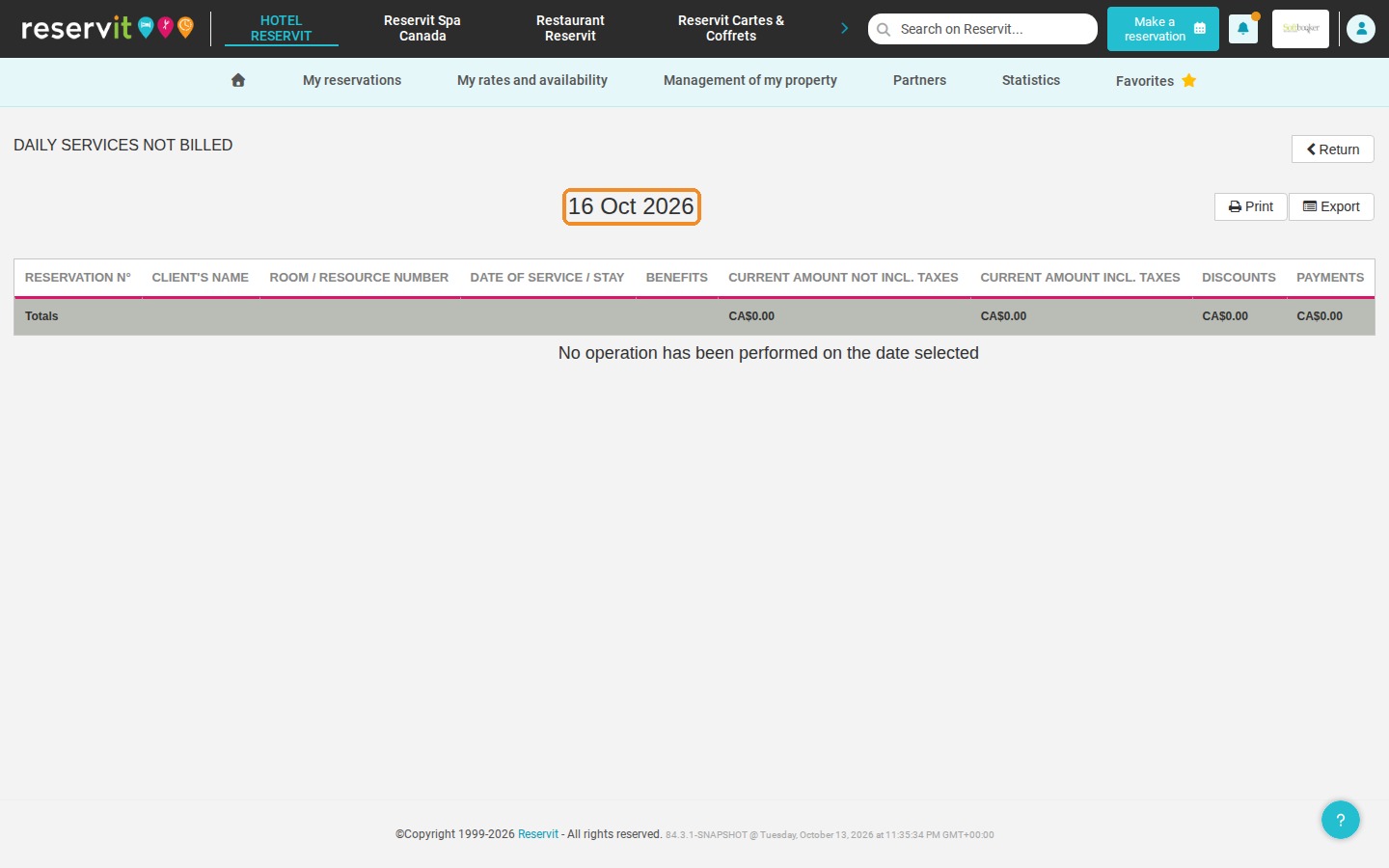
2. The report lists all the services recorded in Reservit that are not linked to an invoice yet. By default it shows today's date. To review another day, click the date at the top of the report and select the day in the calendar.
3. Each reservation is shown with its number, the guest's name, the unit number, the dates of stay and the services not billed (amounts before taxes, taxes, amounts including taxes, discounts and payments). Open the reservation concerned to quickly create its invoice.
4. At the top right, click "Print" to print the report or "Export" to export it in Excel format.
5. The "Totals" line at the bottom of the table shows the total amount of the services not billed for the selected day.