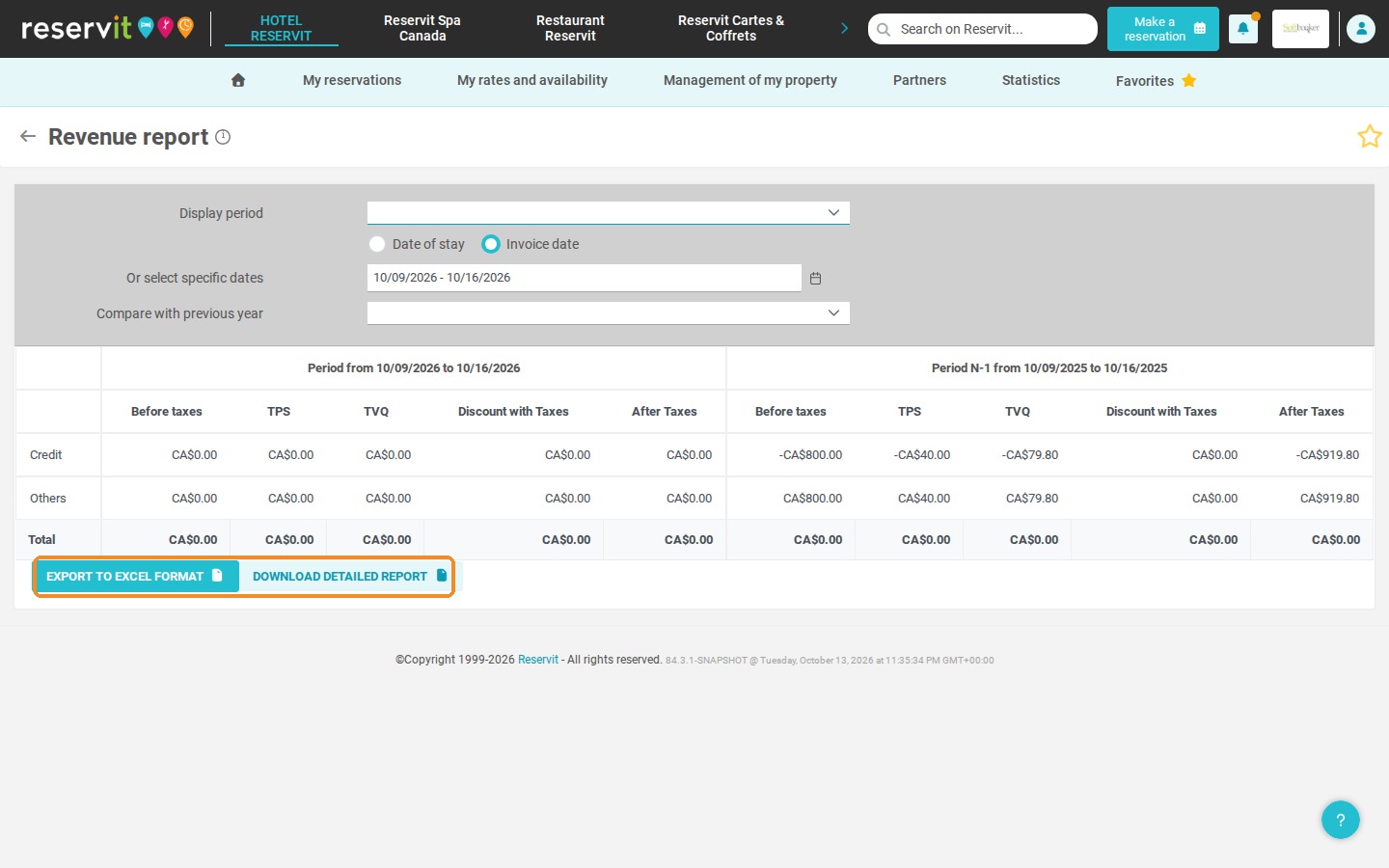
Article Summary: This tutorial explains how to open and export your Revenue report in Reservit PMS. You will learn how to choose the analysis period, display your revenue by date of stay or by invoice date, and read the breakdown by service category. You will also see how to export the summary to Excel or download a detailed report that lists the amounts for each reservation.
The 6 Key Steps to Generate and Export Your Revenue Report:
-
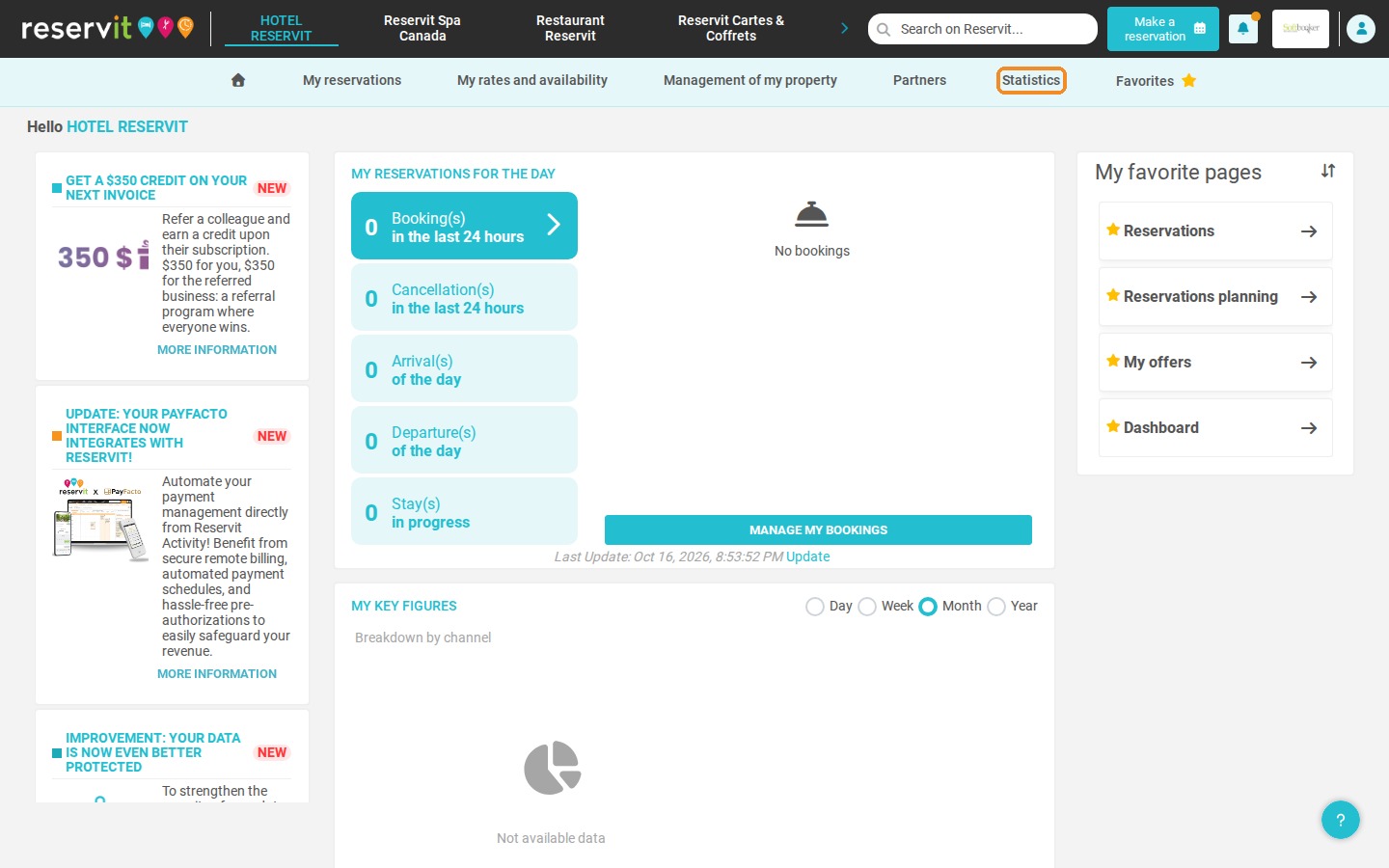
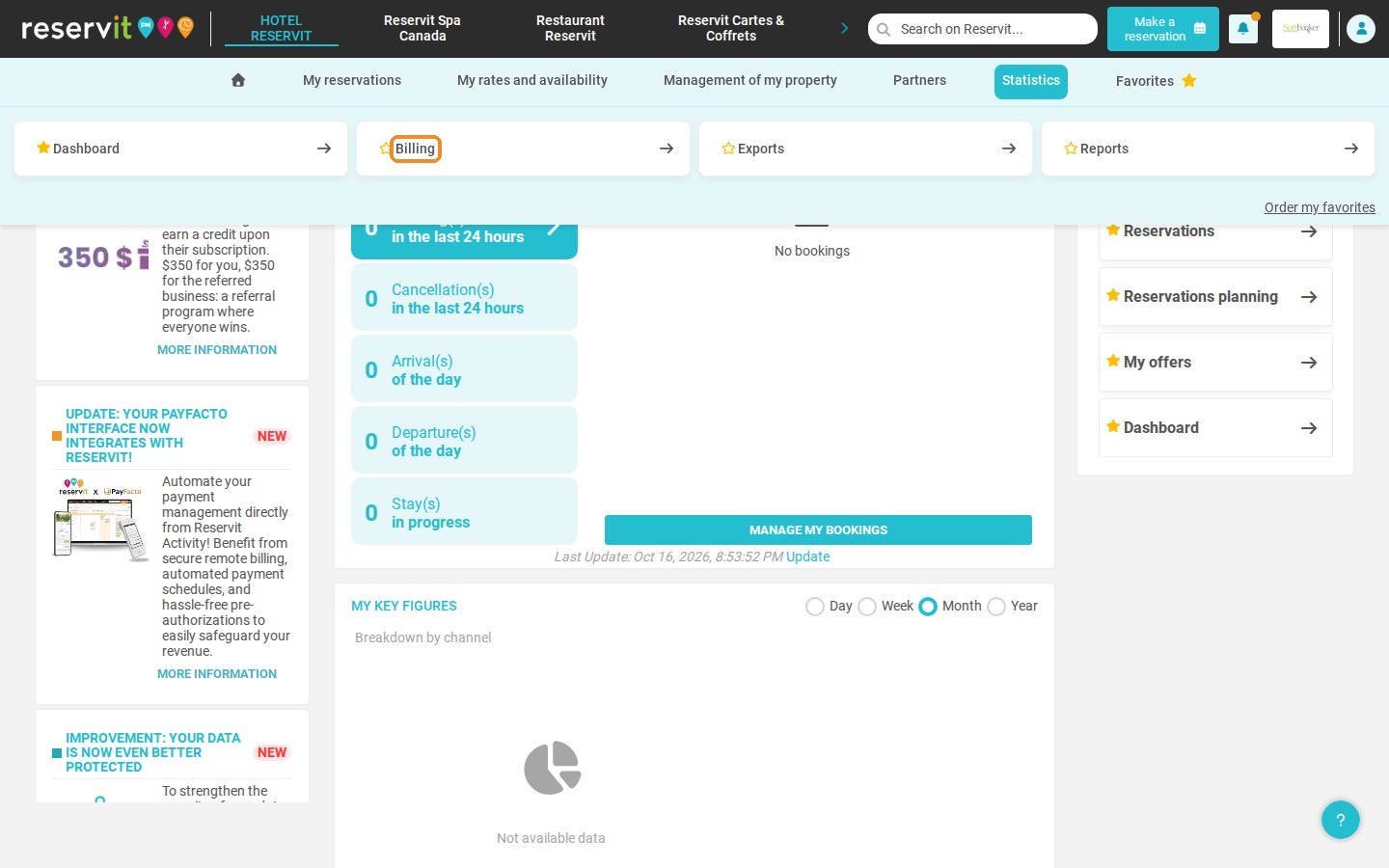
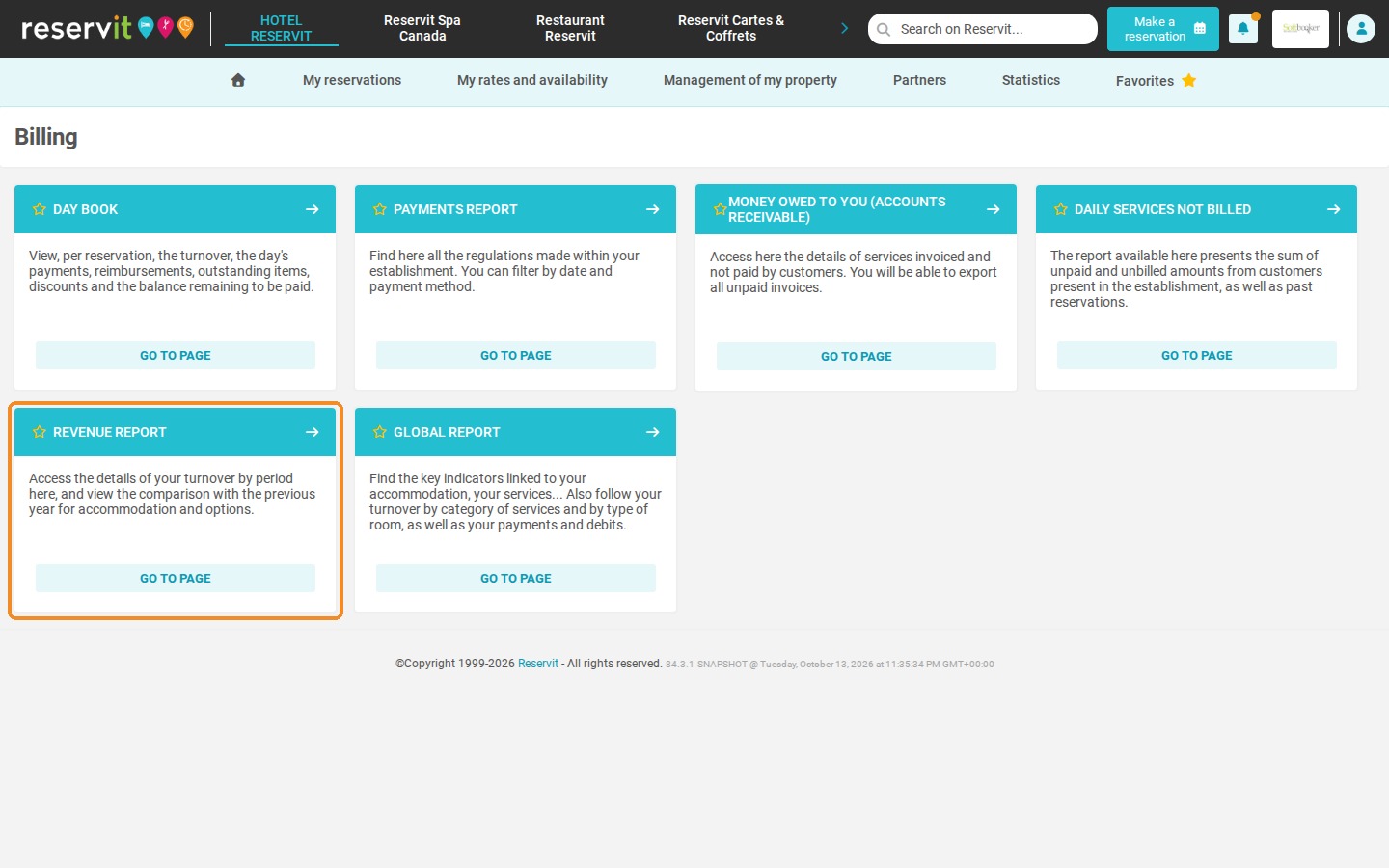
Open the Revenue report: Click "Statistics" > "Billing", then "Go to page" on the "Revenue report" tile.
-
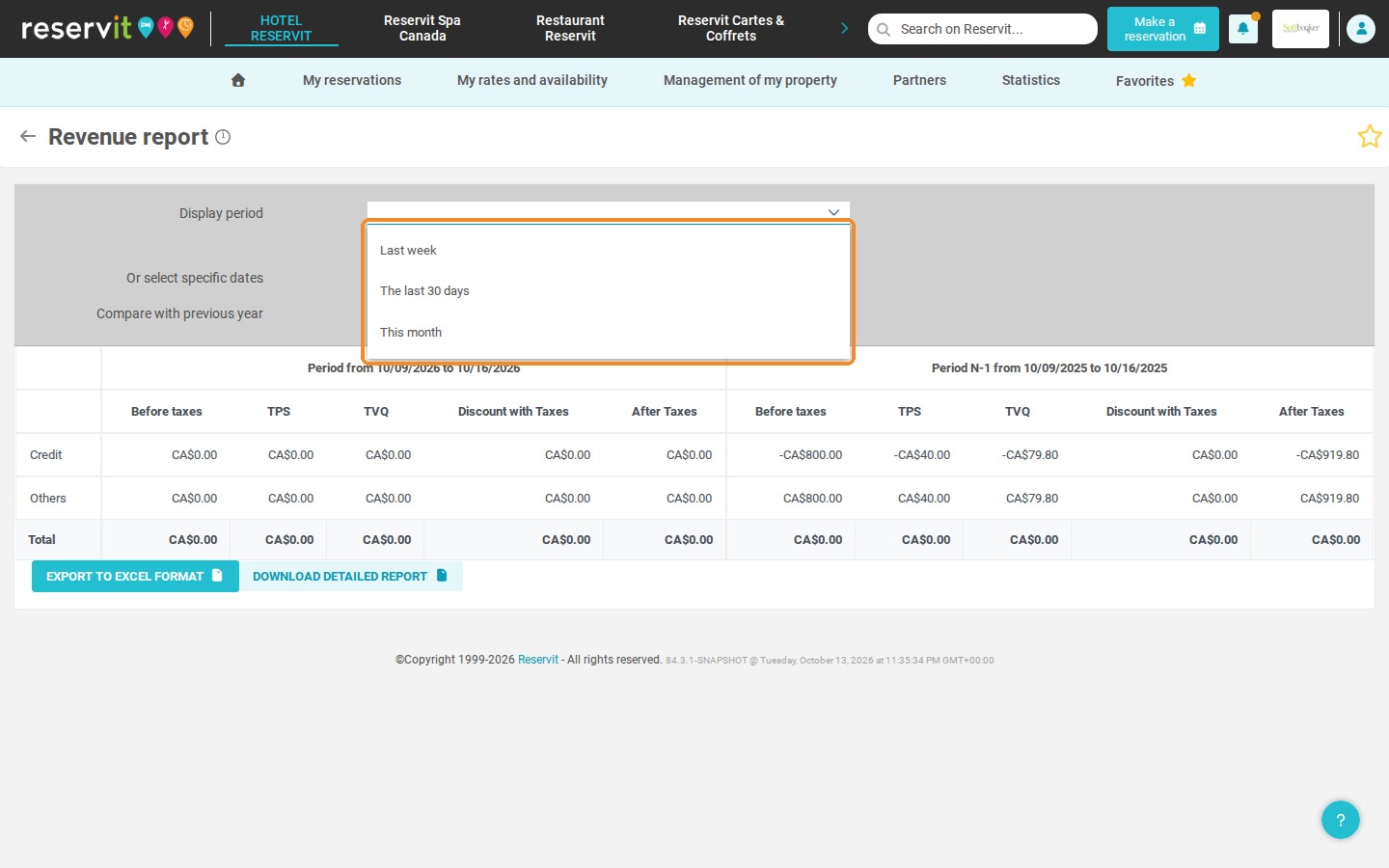
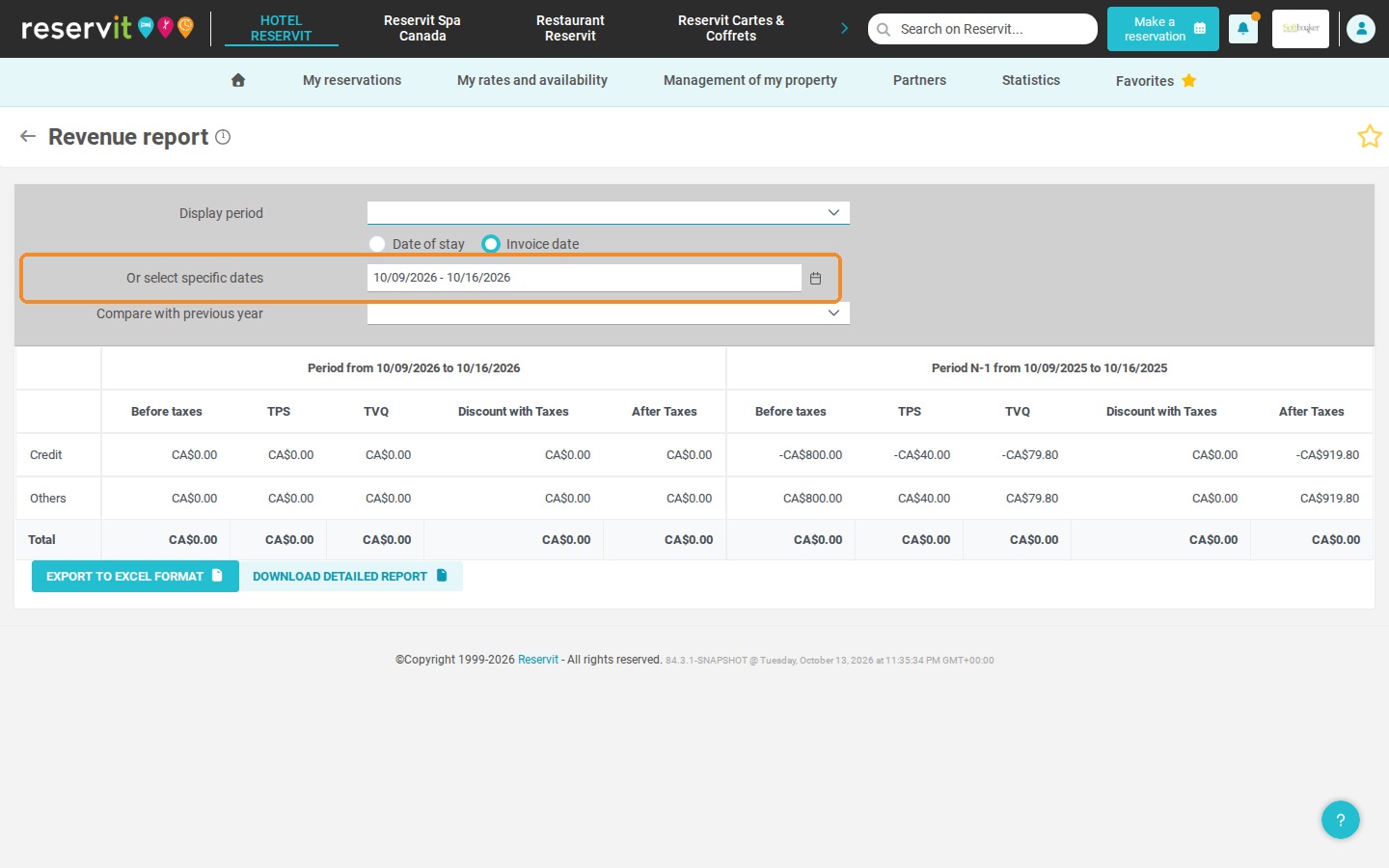
Choose the period: Select a period in the "Display period" list or enter your own dates in "Or select specific dates".
-
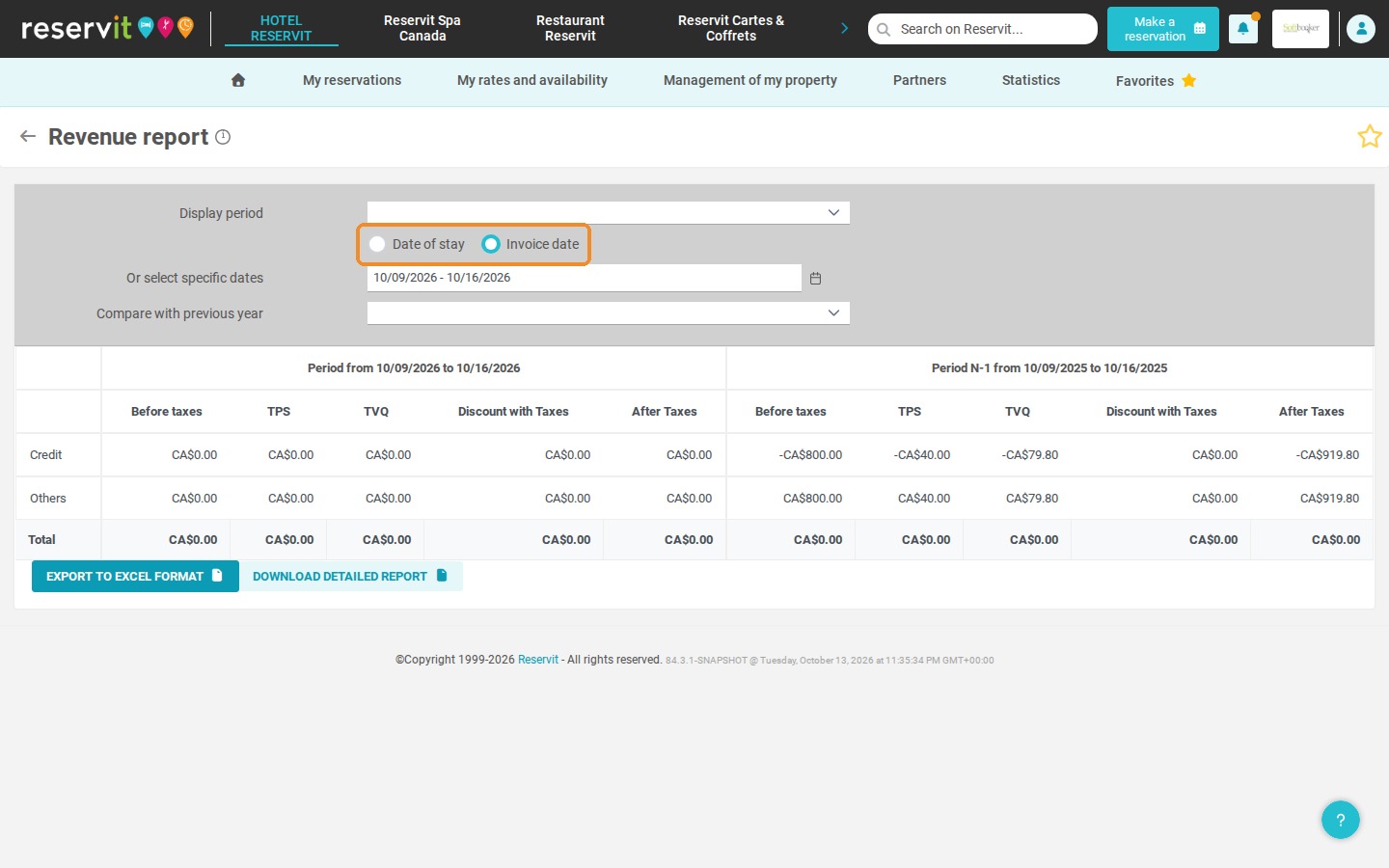
Choose the reference date: Select "Date of stay" (when the guest is on site) or "Invoice date" (when the invoice was issued).
-
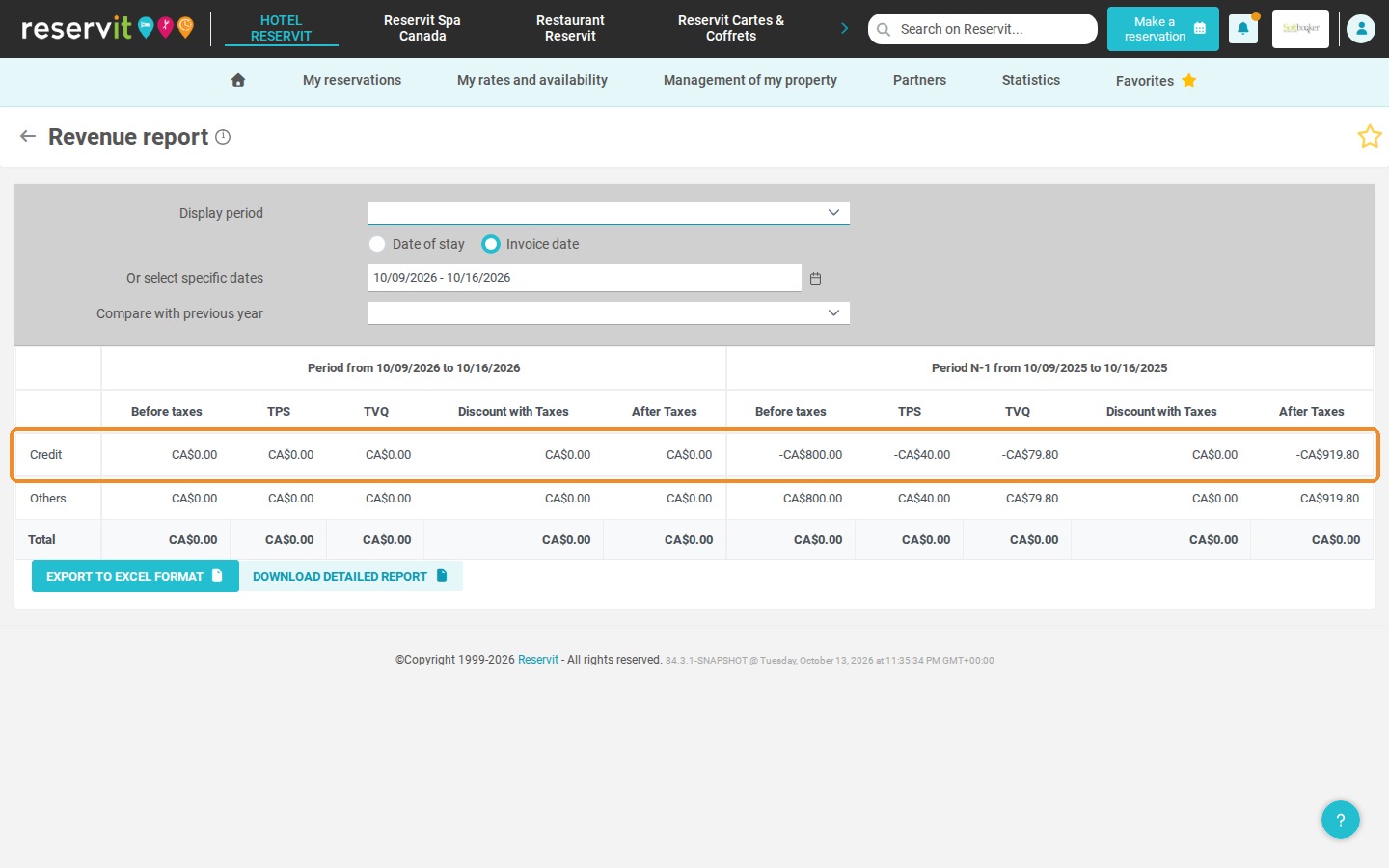
Read the breakdown by service: The report shows your amounts before and after taxes for each service category (accommodation, food and beverage, extras, etc.).
-
Export the summary to Excel: Click "EXPORT TO EXCEL FORMAT" to download the totals of the period as a spreadsheet.
-
Download the detailed report: Click "DOWNLOAD DETAILED REPORT" to get the amounts line by line for each reservation of the period.
Why Follow This Guide? Following this procedure saves you time at month-end by gathering your key revenue figures in a few clicks. The detailed Excel export makes your financial analyses more reliable and gives your accountant clear, ready-to-use data.
1. Click "Statistics", then "Billing".
2. Click "Go to page" on the "Revenue report" tile.
3. Choose the period you want to display in the "Display period" list.
4. Display the report by "Date of stay" (when the guest is present) or by "Invoice date" (when the invoice was generated).
5. Instead of one of the proposed periods, you can enter a date range in "Or select specific dates". The "Compare with previous year" list adds the same period of the previous year next to your figures.
6. The report shows the amounts for each service category, before taxes, by tax and after taxes.
7. To export this summary, click "EXPORT TO EXCEL FORMAT". For the amounts of each reservation of the period, click "DOWNLOAD DETAILED REPORT": the export is then generated as an Excel file.