

Article Summary: This tutorial explains how to add or change the logo shown on your Reservit Accommodation booking engine, and how to choose where it appears: in the top bar, to the left of your property name, or above the basket. The logo is managed in the customisation of your reservation pages, not in your photos.
The 4 Key Steps to Change Your Logo:
-
Open the customisation: "Management of my property" > "Reservation Page Customization", then "GO TO PAGE" in the "CUSTOMISATION OF THE RESERVIT BOOKING ENGINE" tile.
-
Choose the new logo: in "Banner and photos", click "CHOOSE" and select your image file.
-
Choose its position: "In the top bar" or "Above the basket".
-
Save: click "SAVE" at the bottom right. The new logo appears straight away on your booking engine.
Why follow this guide? Your logo reassures guests: they recognise your property at every step of their booking. An up-to-date logo gives a professional image, consistent with your website.
Open the customisation of your booking engine
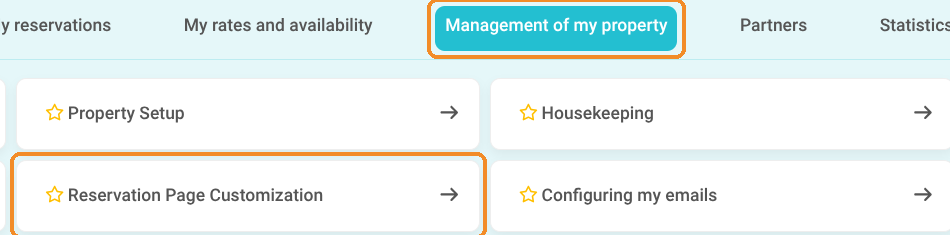
1. Click "Management of my property", then "Reservation Page Customization".
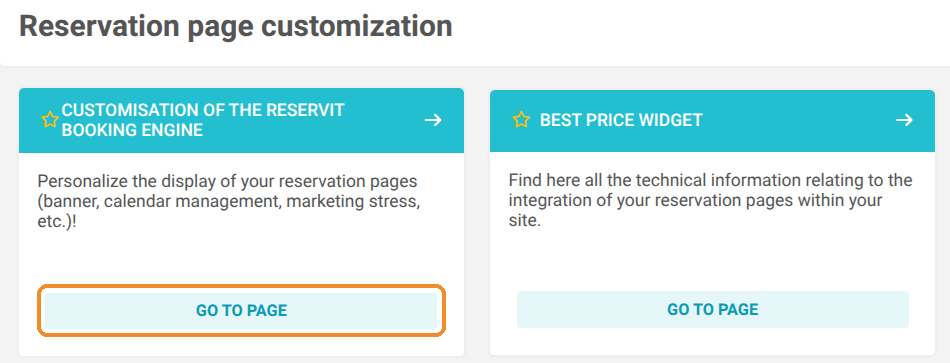
2. In the "CUSTOMISATION OF THE RESERVIT BOOKING ENGINE" tile, click "GO TO PAGE".
3. Check that the "Apply the design here below on your front office" box is ticked. Otherwise, your logo and design are not shown on the booking engine.

Change the logo
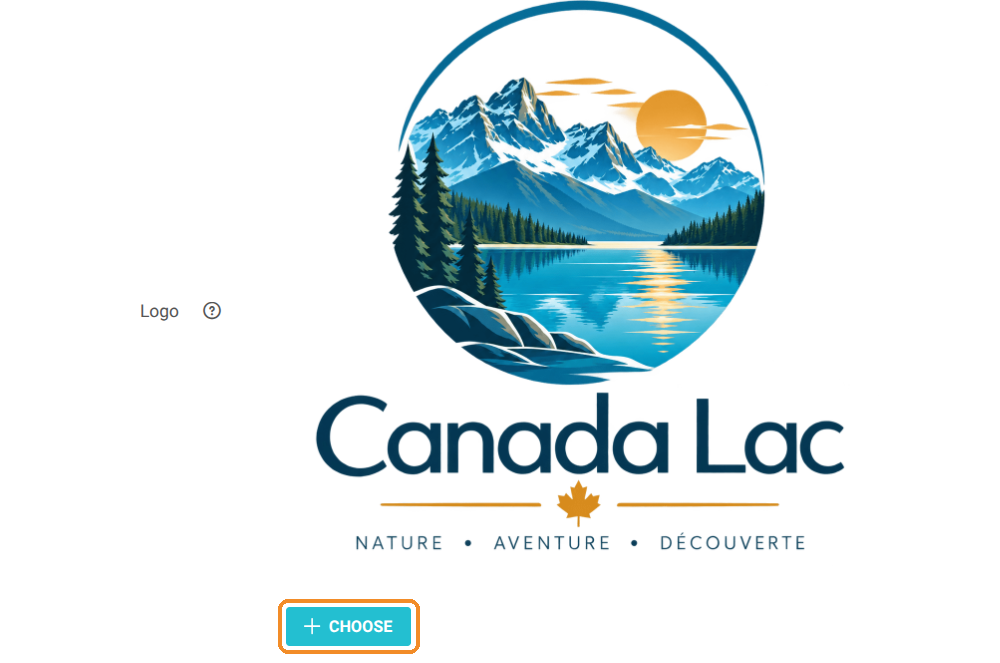
4. In the "Banner and photos" section, your current logo is shown next to "Logo". Click "CHOOSE" and select the image file of your new logo on your computer.
5. The chosen file appears under the button, with its name and size. The old logo stays displayed until you save. To cancel your choice, click the cross.
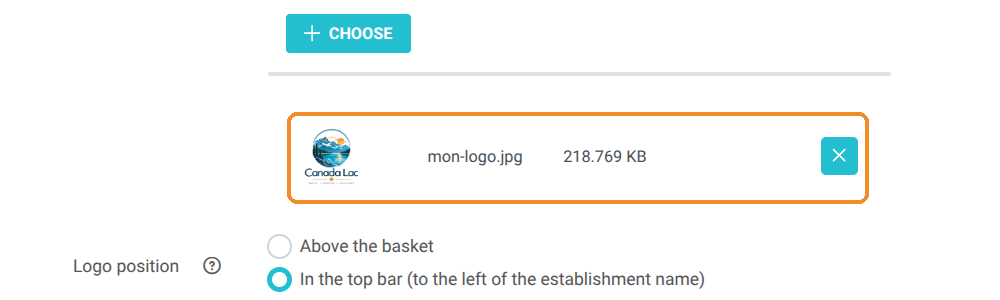
6. In "Logo position", choose where it appears:
-
In the top bar (to the left of the establishment name): small, at the top of every reservation page;
-
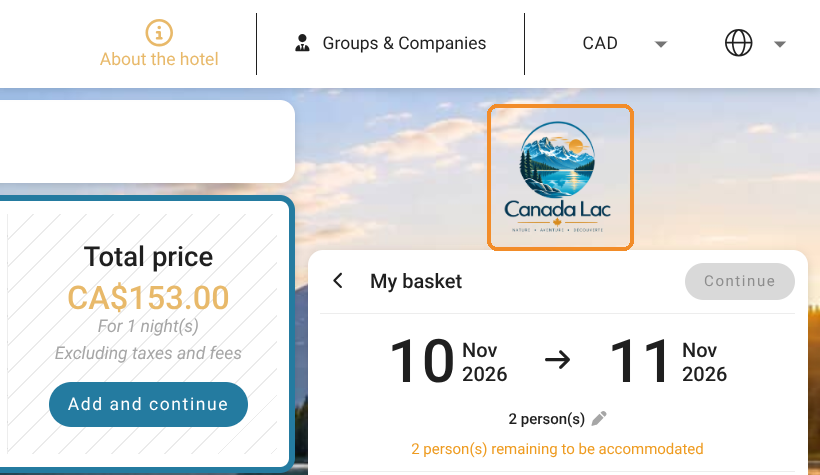
Above the basket: larger, above "My basket", on the right-hand side of the steps where the basket is shown (it then no longer appears in the top bar).
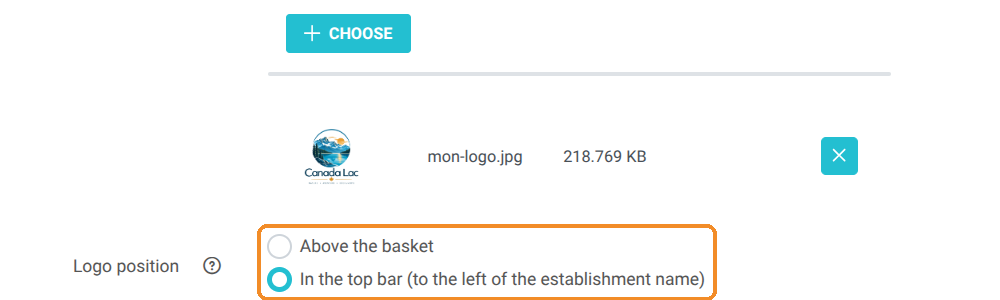
7. Click "SAVE" at the bottom right of the page. The message "Personalization saved successfully" confirms the change, and the new logo replaces the old one.

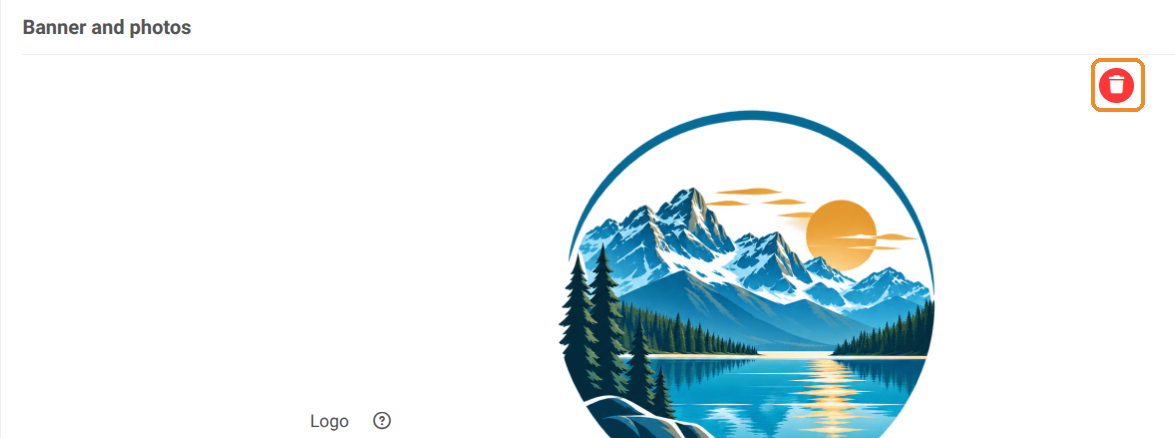
Tip: to remove your logo, click the red trash icon at the top right of the preview, then "SAVE".
The result on your booking engine
8. With the "In the top bar" position, your logo appears to the left of your property name:

9. With the "Above the basket" position, it appears above "My basket":
Good to know: the logo is displayed in a reduced size. Choose a sharp image that is easy to read when small, ideally square or round, on a white or transparent background.