Article Summary: This tutorial explains how to automatically send booking confirmation emails for the reservations you enter in your Reservit Activities Back Office. You will learn where to find this setting and how to enable it in a few clicks. With these notifications, your customers instantly receive the summary of the reservations you create manually, which improves their experience and your professional image.
The 4 Key Steps to Enable Back Office Booking Confirmations:
-
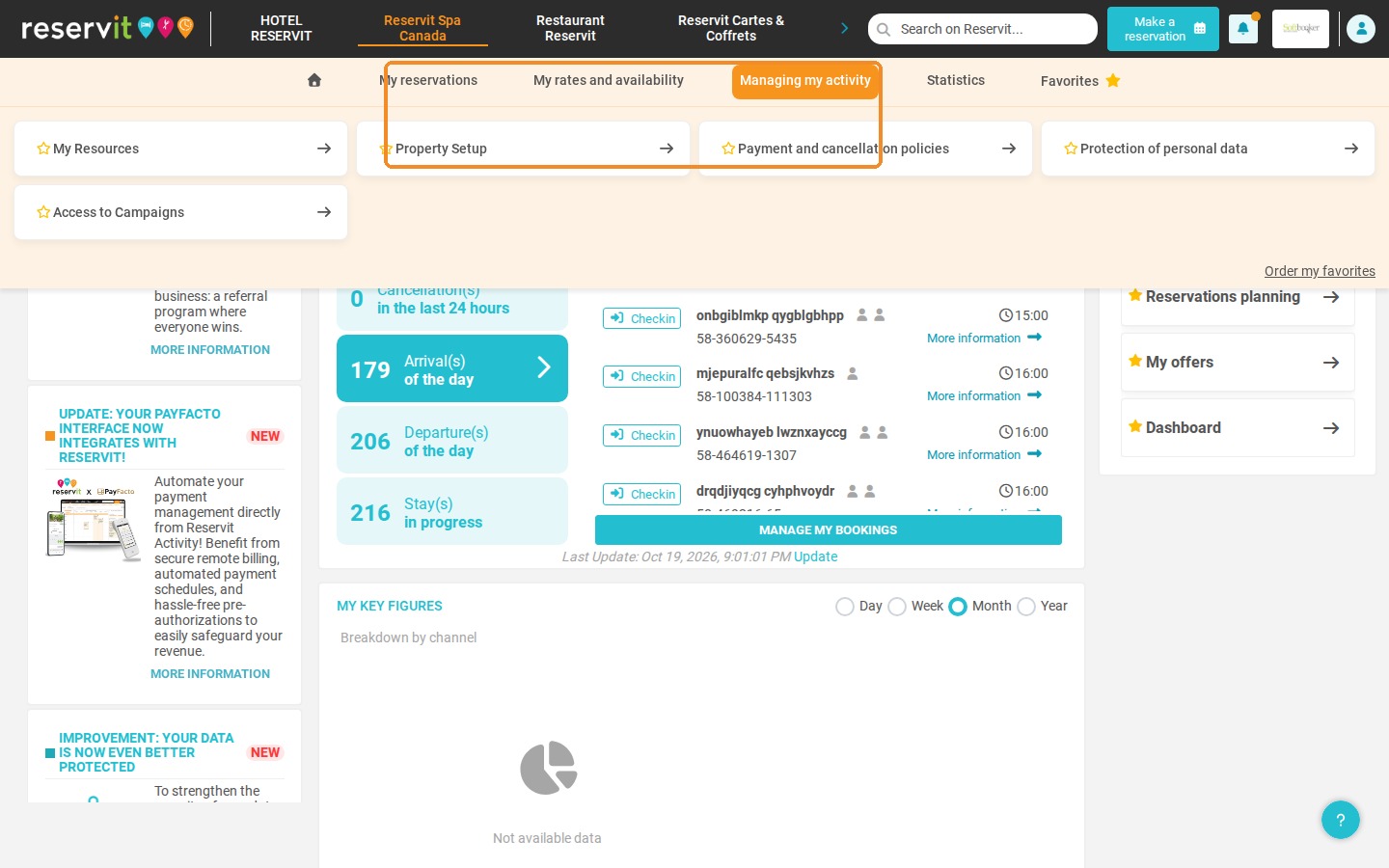
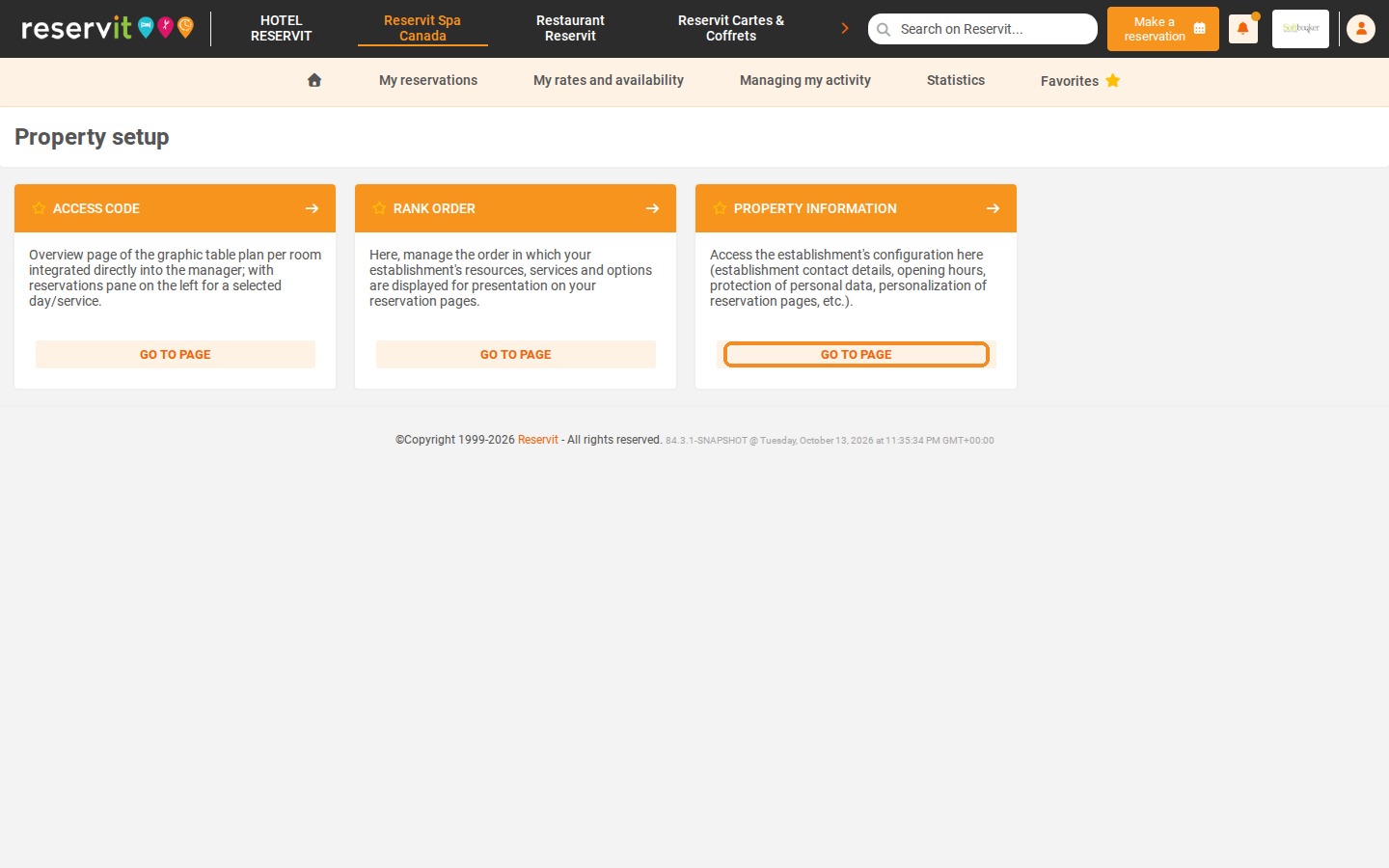
Open the property information: Click "Managing my activity" > "Property Setup", then "GO TO PAGE" on the "PROPERTY INFORMATION" tile.
-
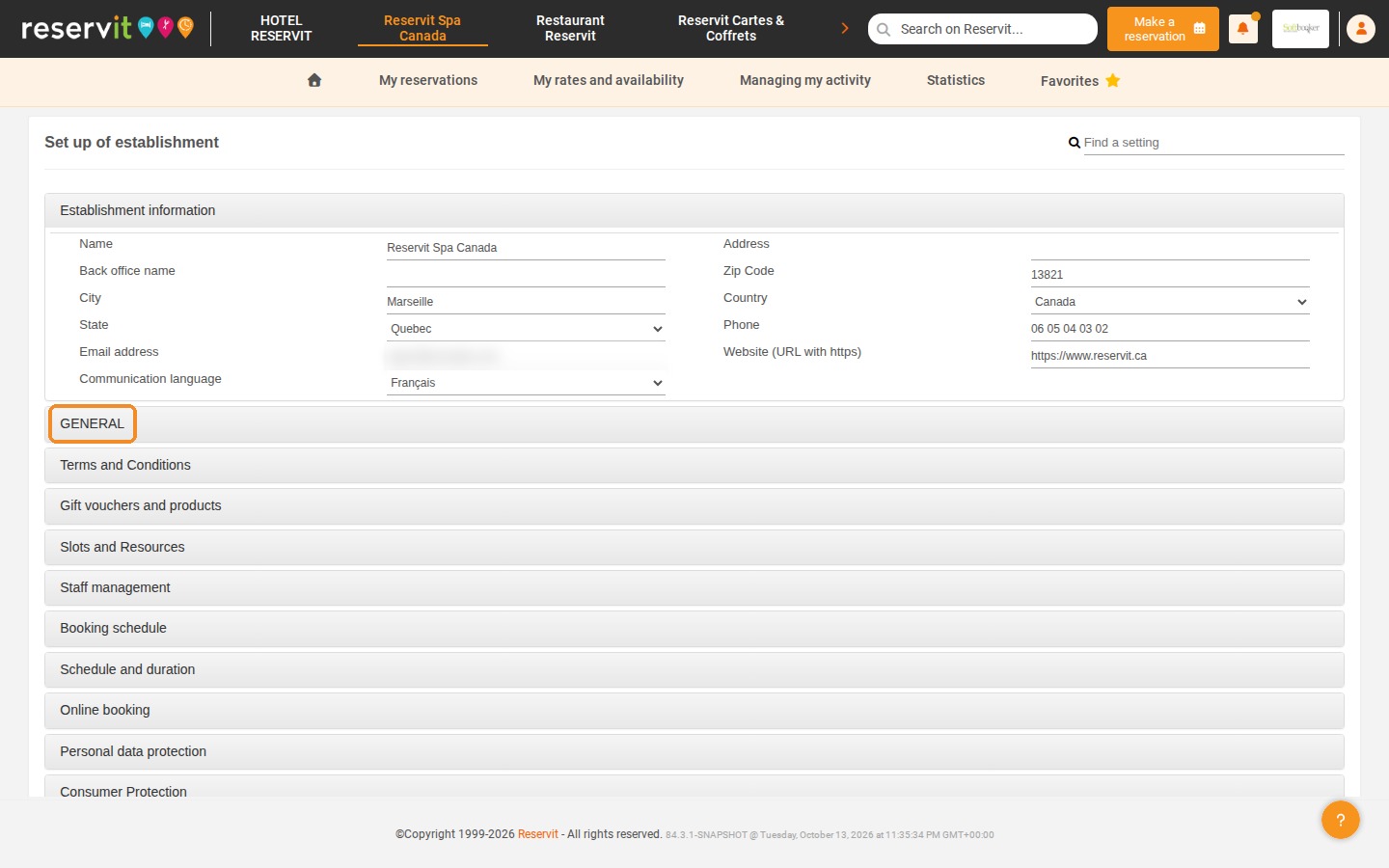
Open the general settings: On the "Set up of establishment" page, click the "GENERAL" section.
-
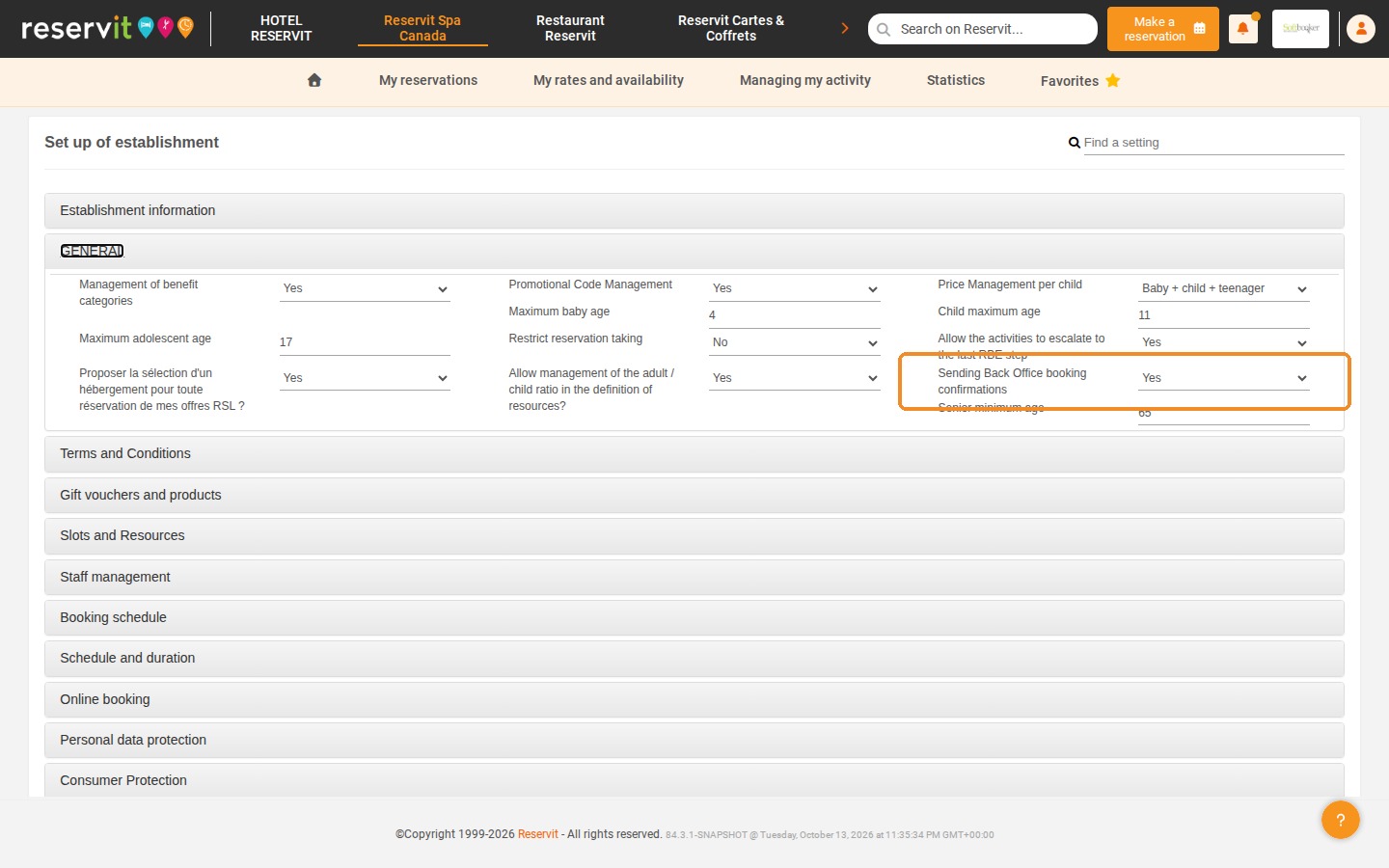
Enable the emails: Set "Sending Back Office booking confirmations" to "Yes".
-
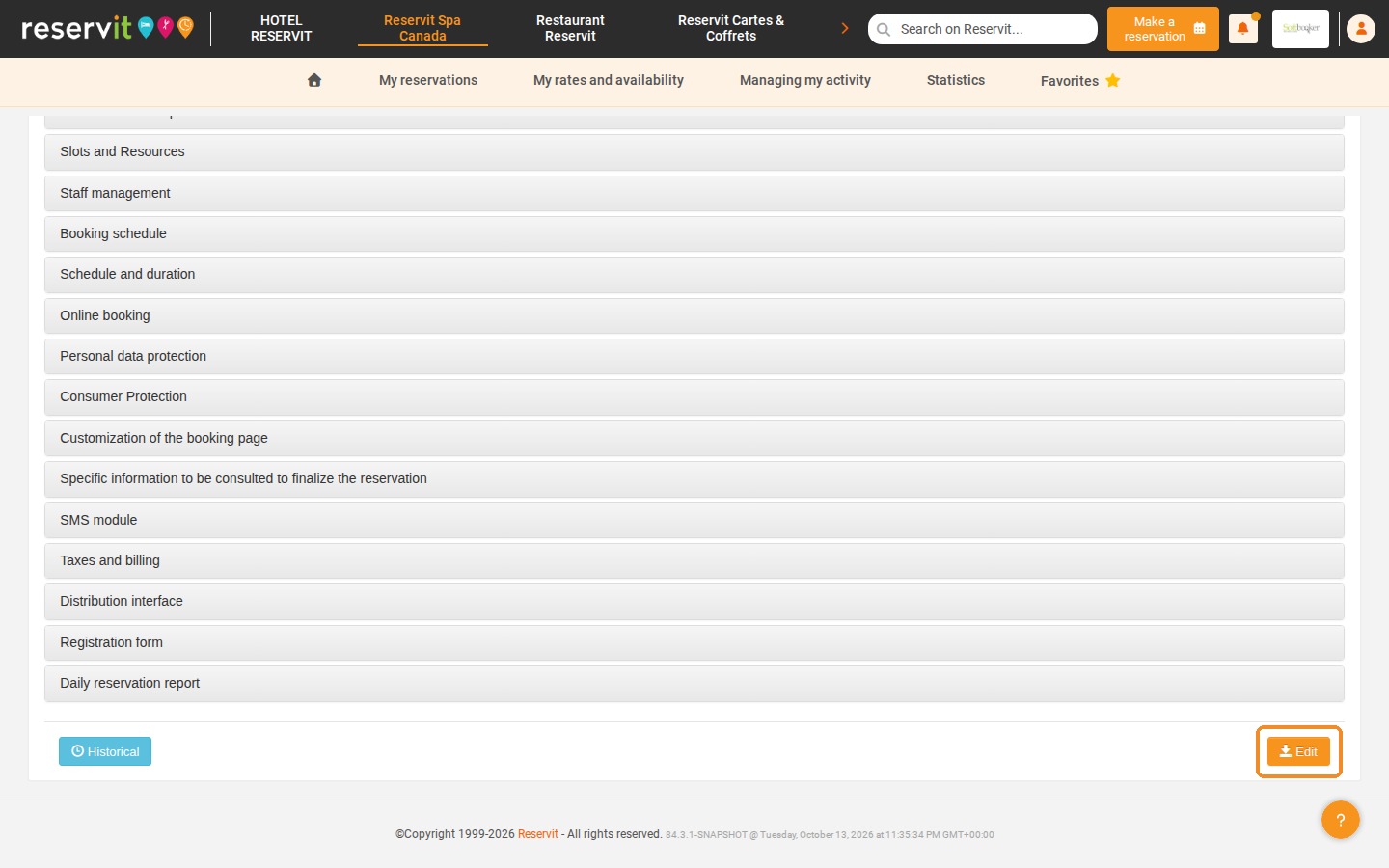
Save: Click "Edit" at the bottom of the page to save your changes.
Why Follow This Guide? This setting ensures reliable and systematic communication with your customers, including for the reservations you take by phone or at the front desk. You save time every day and avoid forgetting to send a confirmation.
1. Click "Managing my activity" > "Property Setup".
2. Click "GO TO PAGE" on the "PROPERTY INFORMATION" tile.
3. On the "Set up of establishment" page, click the "GENERAL" section to open it.
4. Set "Sending Back Office booking confirmations" to "Yes".
5. Click "Edit" at the bottom of the page to save your changes.