Article Summary: Learn how to easily apply promotional deductions and special price reductions to a guest's invoice within Reservit PMS. This step-by-step tutorial walks you through navigating a reservation's billing account, adding fixed or percentage-based discounts, and verifying the updated remaining balance. Mastering this feature gives your front-desk team the operational flexibility needed to handle loyalty rewards, resolve guest disputes, and manage custom rate adjustments efficiently.
The 5 Key Steps to Add a Discount to an Invoice:
-
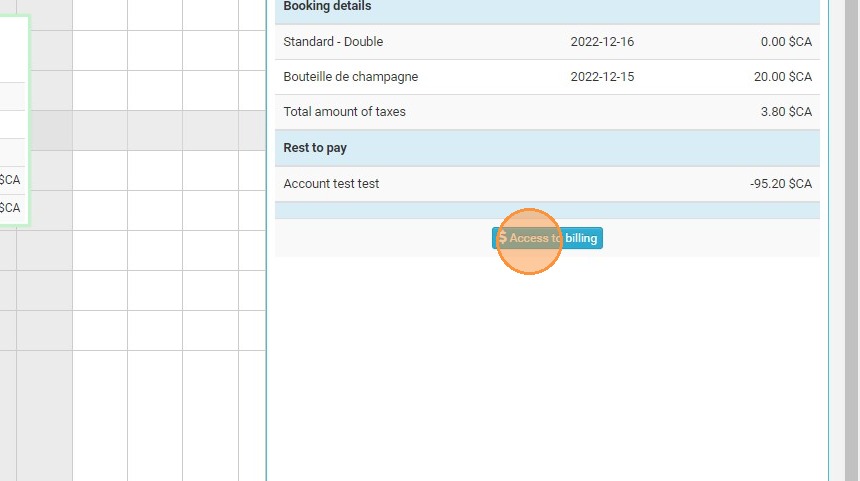
Access the billing account: From the reservation summary screen, click on the "Invoice(s)" tab and select "Access to billing."
-
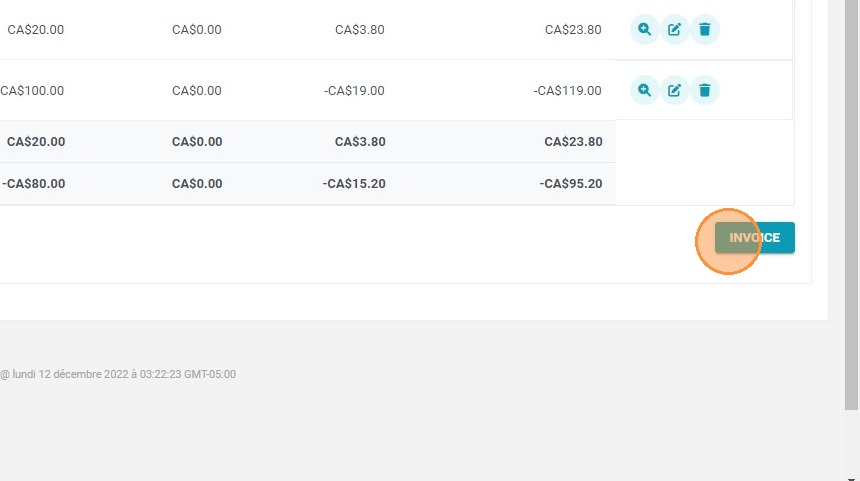
Select items and initiate invoicing: Choose the specific transactional account lines you wish to discount, then click on the "INVOICE" button to open the pro forma draft.
-
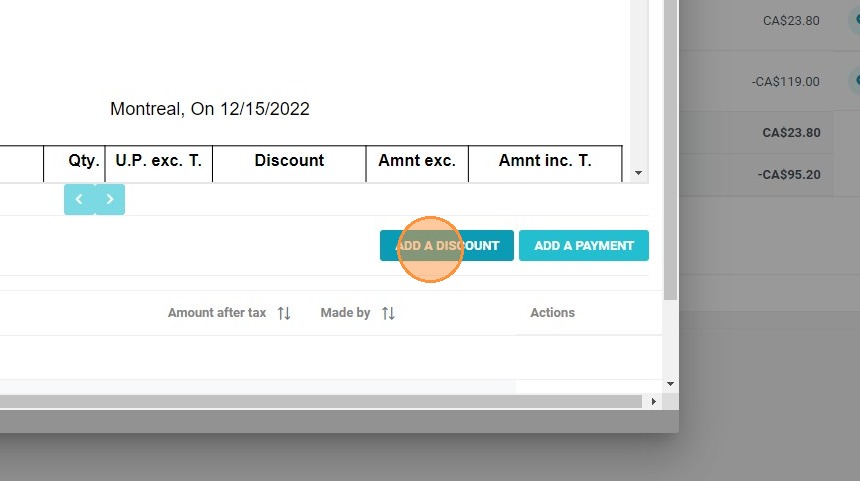
Trigger the discount option: Within the preliminary invoice view, locate and click on the "ADD A DISCOUNT" button.
-
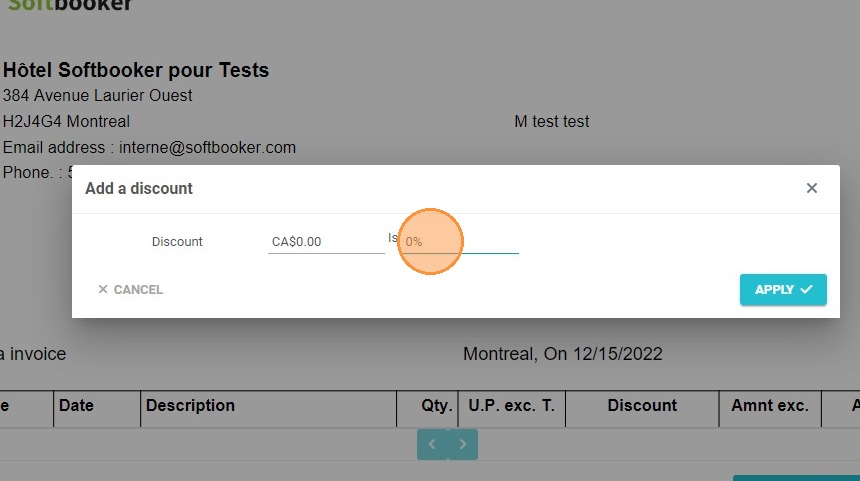
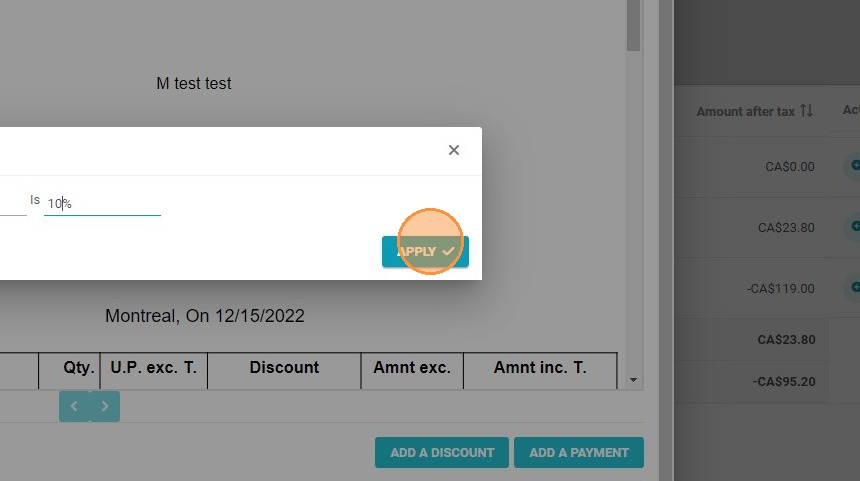
Define and apply the value: Select your preferred discount type—either a fixed dollar amount ($) or a percentage (%)—input the value, and click "APPLY."
-
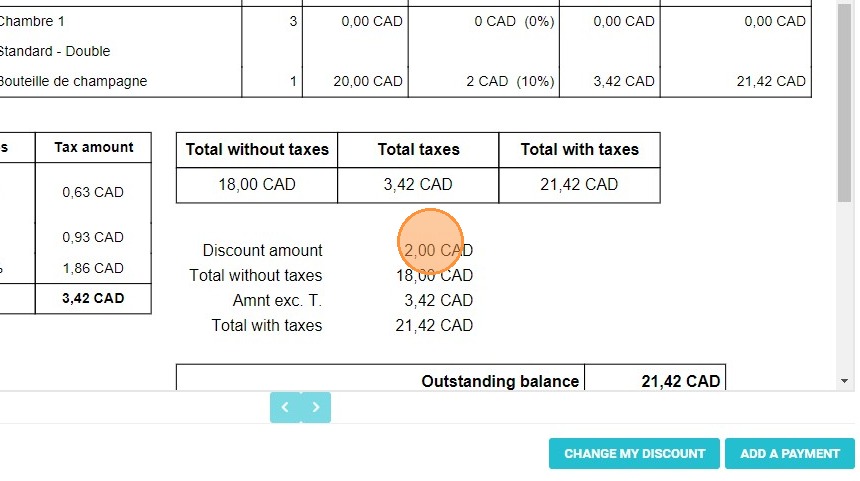
Verify the balance adjustment: Review the updated line items and the newly calculated remaining balance to ensure financial accuracy, with the option to modify the deduction if necessary.
Why Follow This Guide? Following this guide helps your reception team process customer discounts and commercial gestures flawlessly, avoiding manual math mistakes or discrepancies in your sales tracking. It provides a secure, streamlined invoicing workflow that maintains perfect ledger data integrity while speeding up the guest checkout experience.
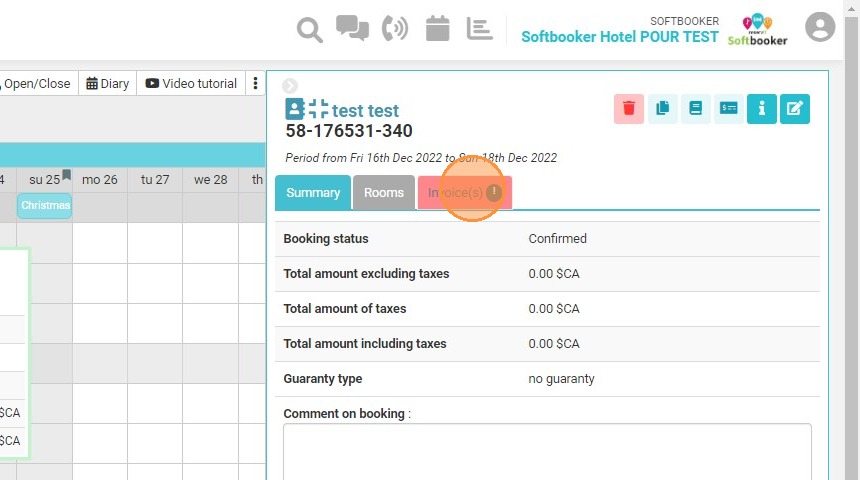
1. From the summary of your reservation, click on the "Invoice(s)" tab.
2. Click "Access to billing"
3. In the billing account, select the account lines of your choice and click on "INVOICE"
4. Then click "ADD A DISCOUNT"
5. Choose the discount amount in $ or %.
6. Click on "APPLY" to add the discount to your invoice.
7. Once added, the discount can be modified.
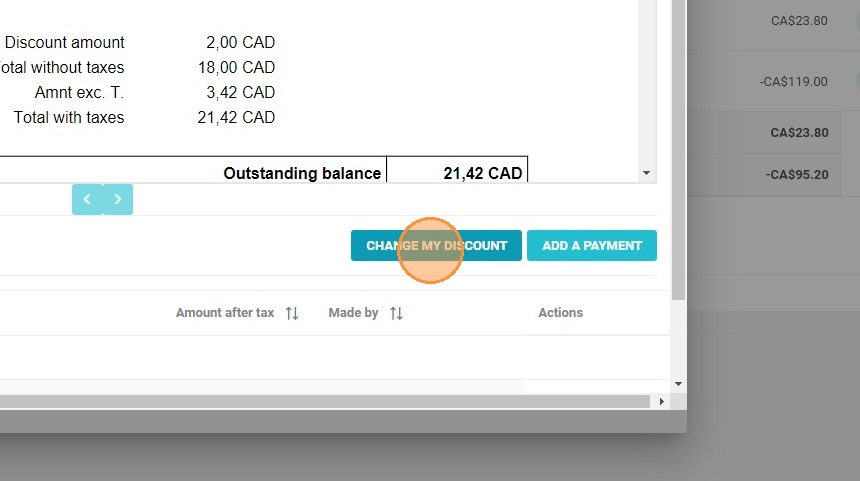
8. The discount is shown in the invoice details and the balance due is updated.